Can't access C:\Programdata

mimimi

New member
Local time
6:35 PM
Messages
7
Hi, I have absolutely no idea where my question belongs. So if this is the wrong category, sorry. Also I am a newbie when it comes to technical computerthings and I am not fluent in english, so if you know the answer please answer me in elementary english :D

I want to make a new folder in my Start Menu, but I can't access the folder on the C drive where the Start Menu is listed.
When I try this: created new folder on desktop, moving it to Start Menu, and then moving a program into that new folder, it says: Access denied on C:\Programdata\...
But if I search this folder Programdata on my C drive, I can't find this folder.

Also I am logged in with the only account on my PC, as administrator. But when I go to permissions, I see my accountname listed as administrator with all permissions checked. But I also see my accountname listed under Users, and the Useraccount doesn't have full modify permissions. Does this have to do with not seeing the folder Programdata in C?

I can't find an option to show hidden folders.

I have searched this forum, I found some topics about this but they used a lot of short words I didn't understand and no clear answers how to solve this.

I hope somebody can help me. Thanks.
 

My Computer

OS
Windows 7
Hi Mimimi
To see C:\programdata open C drive and in the top menu you will see first on the left "Organise" click on that and go to "folder and search" option then click on the "view" tab and check "show hidden files and folders" that should then show the folder you are looking for. Hope this helps.
 

My Computer

Computer Manufacturer/Model Number
Own Build
OS
Windows 7 7600 SP1 64 Bit dual boot Windows 8 CP
CPU
i7-2600k currently running @ 4.8 ghz
Motherboard
GA-Z68X-UD5-B3
Memory
8 gig Corsair Dominator 1600 DDR3
Graphics Card(s)
Gigabyte GTX 680
Sound Card
Onboard
Monitor(s) Displays
Dell Ultrasharp U3011
Screen Resolution
2560 x 1600
Hard Drives
1 x 256gb Crucial M4 SSD
2 x 1tb Western Digital Caviar Black
1 x 2tb Western Digital Caviar Green
1 x 2Tb Samsung Story USB 3
1 Ready NAS NV+ with 4x2Tb Drives
PSU
Enermax MAXREVO 1350 Watts
Case
Antec Lanboy Air Case with NZXT Sentry LXE Controller
Cooling
Antec Kuhler 920 with 120 mm Noctua NF-P12 PWM fans
Keyboard
Roccat Isku
Mouse
Roccat Kova Plus
Internet Speed
12000 kbs
Other Info
Brother 6490CW Multifunction Printer
Brother 2170W Laser Printer
Fritz Box 7390 Modem / Router
Logitech Webcam 500
Logitech G25 Racing Wheel
XBox 360 Controller
Logitech Z4 Speakers
WD TV Live
Hello Mimimi, welcome to the Seven Forums.

You can add shortcuts and folders to Start Menu very easily:

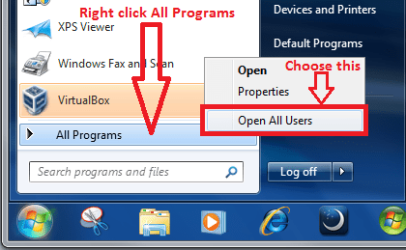
Click Start > right click All Programs (at the bottom of Start Menu) > choose Open All Users > open Programs folder and copy / paste there everything you want to add to your Start menu, or create a shortcut.

Kari

Open_All_Users.png
 

My Computer

Computer type
Laptop
Computer Manufacturer/Model Number
HP ENVY 17-1150eg
OS
Windows 10 Pro x64 EN-GB
CPU
1.6 GHz Intel Core i7-720QM Processor
Memory
6 GB
Graphics Card(s)
ATI Mobility Radeon HD 5850 Graphics
Sound Card
Beats sound system with integrated subwoofer
Monitor(s) Displays
17" laptop display, 22" LED and 32" Full HD TV through HDMI
Screen Resolution
1600*900 (1), 1920*1080 (2&3)
Hard Drives
Internal: 2 x 500 GB SATA Hard Disk Drive 7200 rpm
External: 2TB for backups, 3TB USB3 network drive for media
Cooling
As Envy runs a bit warm, I have it on a Cooler Master pad
Keyboard
Logitech diNovo Media Desktop Laser (bluetooth)
Mouse
Logitech Performance Mouse MX
Internet Speed
50/10 Mbps VDSL
Antivirus
Windows Defender 4.3.9431.0
Browser
Maxthon 3.5.2., IE11
You are trying to access "C:\ProgramData\Start Menu" correct? That is a junction to "C:\ProgramData\Microsoft\Windows\Start Menu" go there instead.
 

My Computer

Computer type
PC/Desktop
Computer Manufacturer/Model Number
Alienware Aurora ALX R4
OS
Windows 10 Pro (x64)
CPU
Intel Core i7-3930K (3.2GHz - 4.5GHz)
Motherboard
Alienware Aurora-R4 x79
Memory
4x Samsung 4GB PC3-12800 DDR3 (16GB 1600MHz)
Graphics Card(s)
Nvidia Geforce GTX 690
Sound Card
SteelSeries Siberia Elite
Monitor(s) Displays
Dell UltraSharp U3011
Screen Resolution
2560x1600
Hard Drives
Samsung 850 Pro 256 GB, Seagate 1TB Desktop Hybrid HDD, 2x Western Digital 4TB Green HDD
PSU
875W Some Dell PSU <.<
Case
Alienware Aurora ALX
Cooling
Custom Liquid Cooling (EK CPU & GPU blocks) dual EK 480RAD
Keyboard
Logitech G710+ Mechanical
Mouse
Logitech G700s
Internet Speed
Verizon Fios (50 mbps average)
Other Info
Server: Intel NUC D54250WYK: i5-4250U, 16GB, 256 GB mSATA, Windows Server 2012 R2
I want to make a new folder in my Start Menu

1. what is the nature of this folder. Is it a program or a data folder
2. where do you want to add it. To All Programs or to the left pane of the start menu
 

My Computer

Computer Manufacturer/Model Number
HP, Dell, Gateway, Toshiba - 4 laptops and 2 desktops
OS
Vista, Windows7, Mint Mate, Zorin, Windows 8
CPU
from 1.6GHz Duo to i7
Monitor(s) Displays
2x HP w2207
Hard Drives
5x HDD, 7x SSD, 12x Externals
Keyboard
with trackball - no mices
Mouse
Trackball mice
Internet Speed
DSL 6000
Here is plain english!

1. Press the Start Button :orb:
2. Enter "C:\Programdata" onto the startbar without quotes
3. Press the enter key (on your keyboard)

49952155.jpg
 

My Computer

Computer Manufacturer/Model Number
Dell Inspiron 1440, Apple macbook pro
OS
Windows 7 32bit, Snow leopard
CPU
Intel Core 2 Duo 2.2GHz
Motherboard
IDK LOL
Memory
2GB DDR2 RAM
Graphics Card(s)
Intel GMA X4500MHD
Sound Card
NONE
Monitor(s) Displays
14" WLED-backlit display :: resolution 1366x768
Hard Drives
320GB HDD
PSU
Stock
Case
Stock
Cooling
Stock
Hello Mimimi, welcome to the Seven Forums.

You can add shortcuts and folders to Start Menu very easily:

Click Start > right click All Programs (at the bottom of Start Menu) > choose Open All Users > open Programs folder and copy / paste there everything you want to add to your Start menu, or create a shortcut.

Kari

View attachment 74915


+1 This is the correct way to add programs to the Start Menu.
 

My Computer

OS
Windows 7
Hi Mimimi
To see C:\programdata open C drive and in the top menu you will see first on the left "Organise" click on that and go to "folder and search" option then click on the "view" tab and check "show hidden files and folders" that should then show the folder you are looking for. Hope this helps.

Thank you this worked!! Now I see the folder Programdata!

Hello Mimimi, welcome to the Seven Forums.

You can add shortcuts and folders to Start Menu very easily:

Click Start > right click All Programs (at the bottom of Start Menu) > choose Open All Users > open Programs folder and copy / paste there everything you want to add to your Start menu, or create a shortcut.

Kari

View attachment 74915

This worked perfect too! Thank you! I can finally access it! Yay!

Thank you everybody! :)
 
Last edited by a moderator:

My Computer

OS
Windows 7
In Windows Seven:

There are three or more Start Menu folders. Installing an application may put shortcuts into one or more of those folders. I like to move the entries around to make my Start Menu a little cleaner looking and to group applications in related folders like putting all text editor apps in an "Editors" folder in the Start Menu.

So I just keep three shortcuts to the relevant folders:

All Users:
"C:\ProgramData\Microsoft\Windows\Start Menu"

Default User:
"C:\Users\Default\AppData\Roaming\Microsoft\Windows\Start Menu"

User Account:
"C:\Users\<user>\AppData\Roaming\Microsoft\Windows\Start Menu"
 

My Computer

OS
XP SP3 32bit, Vista HP 64bit, Seven Pro 64bit
CPU
Q6600 G0 @ 3.2GHz
Motherboard
GA-P965-DS3
Memory
4Gb OCZ
Graphics Card(s)
nVidia GTX275 896Mb
Sound Card
X-Fi Fatal1ty Platinum
Monitor(s) Displays
Acer H243H
Screen Resolution
1920x1080
Hard Drives
Samsung 1Tb SATA2
MAXTOR 1Tb SATA2
MAXTOR 500Gb SATA2
MAXTOR 300Gb SATA2
PSU
Antec 650 Trio
Cooling
Zalman 9700
Keyboard
G15,G13
Mouse
MX518
Internet Speed
330Kbps down
Sorry if this tread is too old, but is it only me, or is this another stupid thing done by Microsoft?
I want to arrange the start folder in the programdata folder (which I can access) but is not displayed in the Explorer tree, which make reorganizing it a real nightmare...
(Workaround: Create the structure in an accessible folder, than copy the lot over into this folder)
One questions I also have:
Is this folder hidden from the user, or is it just another junction to another buried folder in the Windows or Users directory?
(For German readers: The German "Benutzer" folder is the English "Users" folder. Which seems to be established also as another junction! Try (in the German OS) creating a folder called "Users" and see what happens :-)
 

My Computer

Computer type
PC/Desktop
Computer Manufacturer/Model Number
Custom
OS
Windows 7 Ultimate x64 (Home)/ Win 7 Enterprise 32 Bit (Work)
CPU
Phenom Black II x4 3.2GHz
Motherboard
Gigabyte 880GA-UD3H
Memory
16GB
Graphics Card(s)
Onboard
Sound Card
Onboard
Monitor(s) Displays
2x 22" Asus
Screen Resolution
1680 x 1050 (16:10)
Hard Drives
1x 120GB Samsung SSD (for C Drive)
1x 55GB Adata SSD (for personal data and mail)
2x 2TB Seagate (after 2 1/2 years one is on the brink of dying!), (Backup, Pictures and Music)
1x 2TB Hitachi (External, 2nd Backup)
1x 2TB Samsung (TV recording)
PSU
Fanless 95+
Cooling
only CPU fan left :-)
Antivirus
Avira
Browser
Opera 12.54 (don't like the new one...but have it also)
Sorry if this tread is too old, but is it only me, or is this another stupid thing done by Microsoft?
I want to arrange the start folder in the programdata folder (which I can access) but is not displayed in the Explorer tree, which make reorganizing it a real nightmare...
(Workaround: Create the structure in an accessible folder, than copy the lot over into this folder)
One questions I also have:

1. Is this folder hidden from the user, or is it just another junction to another buried folder in the Windows or Users directory?

2. (For German readers: The German "Benutzer" folder is the English "Users" folder. Which seems to be established also as another junction! Try (in the German OS) creating a folder called "Users" and see what happens :-)
1. To avoid retyping, I'm just quoting myself. This from another thread:
Quick access to Programs > Startup folder:

- Start Menu > Right click All Programs > choose Open (current user's Start Menu Programs folder) or Open All Users (all users Start Menu Programs folder). Startup (individual or all users) is a subfolder of Programs.

2. The names of the system folders are hard coded to Windows. This has many practical reasons, one being for instance the ease of use of Windows environment variables.

In my multi language setup for instance I use language packs on Seven Ultimate to completely change OS language. I have user accounts in English, Finnish, Swedish and German. This would be if not impossible but at least quite complicated if my system had to have 4 different folders for Users (Users (ENG), Käyttäjät (FIN), Användare (SWE), Benutzer (GER)).

As it is now, the system has only one Users folder with is presented in respective language. Very practical.

Kari

Additional reading:
- Recognized Environment Variables
- http://www.sevenforums.com/performance-maintenance/136057-windows-7-environment-variables-list.html
 

My Computer

Computer type
Laptop
Computer Manufacturer/Model Number
HP ENVY 17-1150eg
OS
Windows 10 Pro x64 EN-GB
CPU
1.6 GHz Intel Core i7-720QM Processor
Memory
6 GB
Graphics Card(s)
ATI Mobility Radeon HD 5850 Graphics
Sound Card
Beats sound system with integrated subwoofer
Monitor(s) Displays
17" laptop display, 22" LED and 32" Full HD TV through HDMI
Screen Resolution
1600*900 (1), 1920*1080 (2&3)
Hard Drives
Internal: 2 x 500 GB SATA Hard Disk Drive 7200 rpm
External: 2TB for backups, 3TB USB3 network drive for media
Cooling
As Envy runs a bit warm, I have it on a Cooler Master pad
Keyboard
Logitech diNovo Media Desktop Laser (bluetooth)
Mouse
Logitech Performance Mouse MX
Internet Speed
50/10 Mbps VDSL
Antivirus
Windows Defender 4.3.9431.0
Browser
Maxthon 3.5.2., IE11
Hi Kari,
thanks for the reply on this old tread, but you misinterpreted my problem.
I can access the start items (per user or all users) without any problems, but the explorer TREE is missing! So you can't actually drag and drop items in the folders.(*)

I also basically like the idea of virtual folders for the exact same reason you are stating (I am running the German and the English version of Win 7), HOWEVER:
- the explorer tree should always be visible
- the "original" folders should be able to be found out easier and it should be made clear to the (advanced) users, which folders are "real" and which are "virtual" (maybe slightly different icons? Like the shortcut arrow overlay on any shortcut you create to any file or folder)


(*)
I just found out that this is a bug, that happens on hidden (system) folders.
If I unhide all system folders the explorer tree is displayed!
I am not 100% sure, but I think in Win XP once you were in a hidden folder the explorer tree would still be visible.
 

My Computer

Computer type
PC/Desktop
Computer Manufacturer/Model Number
Custom
OS
Windows 7 Ultimate x64 (Home)/ Win 7 Enterprise 32 Bit (Work)
CPU
Phenom Black II x4 3.2GHz
Motherboard
Gigabyte 880GA-UD3H
Memory
16GB
Graphics Card(s)
Onboard
Sound Card
Onboard
Monitor(s) Displays
2x 22" Asus
Screen Resolution
1680 x 1050 (16:10)
Hard Drives
1x 120GB Samsung SSD (for C Drive)
1x 55GB Adata SSD (for personal data and mail)
2x 2TB Seagate (after 2 1/2 years one is on the brink of dying!), (Backup, Pictures and Music)
1x 2TB Hitachi (External, 2nd Backup)
1x 2TB Samsung (TV recording)
PSU
Fanless 95+
Cooling
only CPU fan left :-)
Antivirus
Avira
Browser
Opera 12.54 (don't like the new one...but have it also)
Back
Top