
How to Reset Check Disk to Not Run at Startup
Information
This will show you how to reset Check Disk or chkdsk back to it's default state of not running at the next startup. This can be handy if you had scheduled disk check to run on the next startup and changed your mind, or Check Disk will not stop running at startup.
See also: The Chkdsk.exe program does not start correctly on a Windows 7-based computer
See also: The Chkdsk.exe program does not start correctly on a Windows 7-based computer
Warning
You must be logged in as an administrator to be able to do the steps in this tutorial.
OPTION ONE
Reset chkdsk using an Elevated Command Prompt
1. Open an elevated command prompt.
2. To Check to See if a Disk Check is Scheduled for a Drive
A) In the elevated command prompt, type the command below and press Enter. (see screenshots below)
NOTE: Substitute C: in the command below with the drive letter of the drive you wanted to check instead.
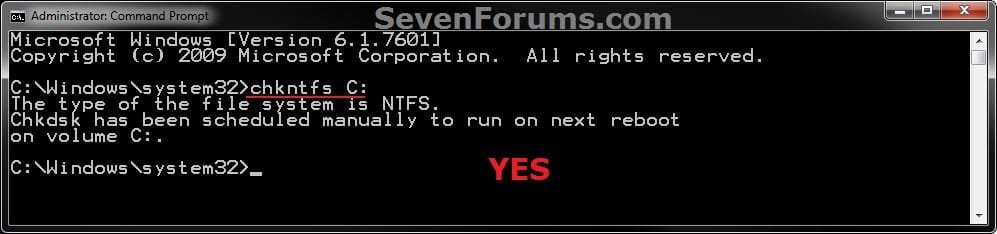
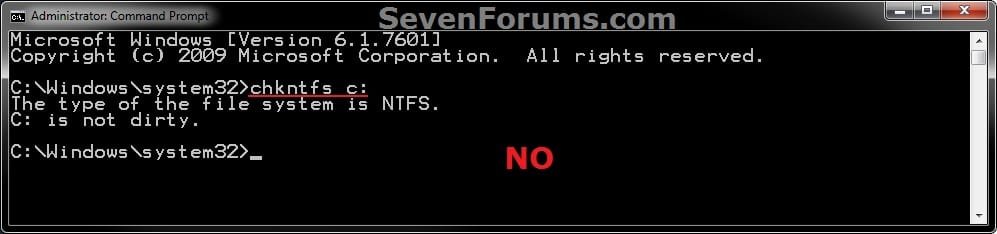
chkntfs c:
If scheduled to run chkdsk at next startup, you will see this:
If not scheduled, you will see this:
3. To Cancel a Scheduled Disk Check for a Drive
A) In the elevated command prompt, type the command below and press Enter. (see screenshot below)
NOTE: Substitute C: in the command below with the drive letter of the drive you wanted to cancel the scheduled disk check to run at the next startup for instead.
chkntfs /x c:

4. When finished, close the elevated command prompt.
OPTION TWO
Reset chkdsk using a REG File Download
1. Click on the download button below to download the file below.
Reset_Chkdsk.reg
Download
2. Save the REG file to your desktop.
3. Right click on the downloaded REG file and click on Merge.
4. When prompted, click on Run, Yes, Yes, and OK to approve the merge.
5. You can now delete the downloaded REG file if you would like to.
OPTION THREE
Reset chkdsk using Registry Editor
1. Open the Start Menu, then type regedit in the search box and press enter.
2. If prompted by UAC, then click on Yes or enter the administrator's password.
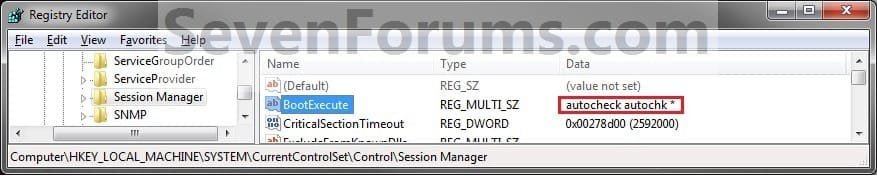
3. In regedit, navigate to the location below. (see screenshots below)
HKEY_LOCAL_MACHINE\SYSTEM\CurrentControlSet\Control\Session Manager

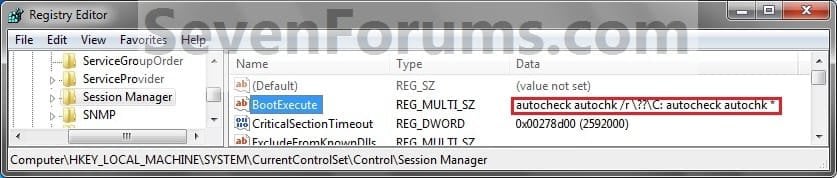
4. In the right pane, right click on BootExecute and click on Modify. (see screenshots above)
5. Copy and paste either command below, and click on OK. (See screenshot below)
(Default do not run)
autocheck autochk *
OR
(Disable chkdsk for C: drive)
autocheck autochk /k:C *
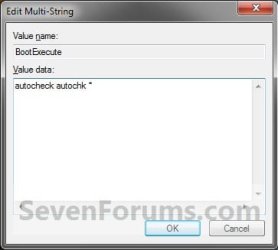
6. The registry will now look like this. (see screenshot below)
7. Close regedit.
That's it,
Shawn
Attachments
Last edited:


