Closed Captions

Aqualung

New member
Local time
12:20 PM
Messages
18
How do you display closed captions in Windows Media Center? Got a DVD that doesn't have any subtitles, but it has closed captions, and I just can't see how I can display them...

(Running Win7 x64 Ultimate)
 

My Computer

OS
Windows 7 x64 Ultimate
Motherboard
Tyan S2696
Memory
8G
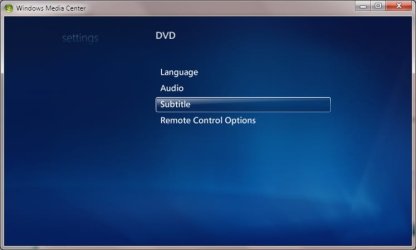
Thanks, but that doesn't help much. They say that under the DVD menu I should look for the "Closed Captioning" option. I don't have a "Closed Captioning" option under the DVD menu. And turning "Subtitles" on doesn't help.

Any other suggestions? (Curiously enough, WMP has no problems displaying Closed Captions on that very same DVD!)
 

My Computer

OS
Windows 7 x64 Ultimate
Motherboard
Tyan S2696
Memory
8G
As I was saying in my first post (see above), I am "Running Win7 x64 Ultimate."
 

My Computer

OS
Windows 7 x64 Ultimate
Motherboard
Tyan S2696
Memory
8G
Your system specs says Vista, which is why i asked.

According to both MS and my own review of my installation, the option is there or should be...perhaps this issue is related to the region you are in and that is what MS is referring to in their help section (linked)
 
The option is there for TV, but it ain't there for DVD. Apparently deaf people aren't allowed to watch DVDs :(
 

My Computer

OS
Windows 7 x64 Ultimate
Motherboard
Tyan S2696
Memory
8G
That's precisely what my screen looks like: no "Closed Captions" option. And yes, I have "Subtitles" set to "On," but no Closed Captions are displayed. Again, the DVD I have (and I have quite a few of those) has no subtitles, but only closed captions.

(Lemme guess, I stumbled upon a bug, right? :mad:)
 

My Computer

OS
Windows 7 x64 Ultimate
Motherboard
Tyan S2696
Memory
8G
There are three parts in the link I posted:


To turn closed captioning on or off
  1. On the start screen, scroll to Tasks, click settings, click TV or DVD, and then click Closed Captioning. In some regions, you may need to select Subtitles instead of Closed Captioning.
  2. Under Caption Display, click either On, Off, or On when muted.
  3. After you have completed your changes, click Save to return to the settings screen.
http://www.sevenforums.com/#
To select a different captioning channel for analog TV channels

If you have an analog TV signal and you want to turn on closed captioning, you need to specify closed captioning for analog channels for closed captioning to work correctly.

  1. On the start screen, scroll to Tasks, click settings, click TV, and then click Closed Captioning.
  2. Under Basic Captioning, click CC1.
  3. When you have completed your changes, click Save to return to the settings screen.
http://www.sevenforums.com/#
To select a different captioning channel for digital TV channels

Digital TV channels provide further closed captions options in addition to Basic Captioning. Windows Media Center will attempt to select closed captions in the language specified in the Preferred Language setting. Note that certain broadcasts may not specify the language that is associated with each captioning service.

  1. On the start screen, scroll to Tasks, click settings, click TV, and then click Closed Captioning.
  2. Under Preferred Language, select a language.
  3. When you have completed your changes, click Save to return to the settings screen.
 
To turn closed captioning on or off
  1. On the start screen, scroll to Tasks, click settings, click TV or DVD, and then click Closed Captioning. In some regions, you may need to select Subtitles instead of Closed Captioning.
Like I said, I have no "Closed Captioning" option under the DVD menu. I do have "Subtitles," and it's "On." I do have a "Closed Captioning" option under the TV menu, though I guess that's irrelevant--is it not? At any rate, should it make any difference, the "Closed Captioning" is "On" as well.
If you have an analog TV signal and you want to turn on closed captioning,
I have no TV signal, I have no TV tuner.
Under Basic Captioning, click CC1.
I have no "Basic Captioning" option there or anywhere else. And it shouldn't make a difference anyway, as my issue is with DVD, not TV.

Thank you for your input though.
 

My Computer

OS
Windows 7 x64 Ultimate
Motherboard
Tyan S2696
Memory
8G
Please provide your hardware specs and list any other (DVD) software in use as this can be helpful in troubleshoting your issue.
 
I don't think that would help much, but here goes: dual socket Woodcrest Xeon (4 cores) @ 2.33, 8Gs of RAM on a Tyan S2696 mobo, nVidia 7900GT videocard, Raptor RAID, dual monitor. No other DVD software (is AnyDVD considered DVD software?).
 

My Computer

OS
Windows 7 x64 Ultimate
Motherboard
Tyan S2696
Memory
8G
What are you using to play those DVD's? In your profile could you please find and fill out the hardware information section as accurately as possible? This data appears in each post at the system information link in the lower left and is very helpful.

Have you checked for a firmware update for your DVD drive?
 
Hardware's got nothing to do with it. I tried that DVD on several other Win7 computers with the same result. As a matter of fact, as far as I recall, I have never been able to display CCs in WMC, be it Win7, Vista or whatnot, regardless of the computer I used. Up until now I thought that there's some setting that I just couldn't find, but now I am starting to think that it's just WMC: I think Microsoft has just neglected the possibility that one might want to display CCs for DVDs, given that most DVDs out there have subtitles. Well, there are many DVDs out there (esp TV shows) that don't have subtitles, but only CCs.

Can't believe that I'm the first one that noticed this! Have you ever managed to display CCs in WMC? (And by CC I mean Closed Captions, not subtitles!)
 

My Computer

OS
Windows 7 x64 Ultimate
Motherboard
Tyan S2696
Memory
8G
I have created a detailed post on my blog on how I am currently viewing the text of what the actors say while watching a DVD in Windows 7 Media Center:

I am currently watching Lord of the Rings - The Return of the King with English Subtitles on:
Here is what I did to be able to see what the actors are saying while watching this DVD movie in W7 Media Center:
First, and as I thought, Microsoft in fact supports those with disabilities:
http://www.microsoft.com/enable/
There is a section in the CP below that turns on text captions.
Control Panel>All Control Panel Items>Ease of Access Center>Get recommendations to make your computer easier to use
Run this routine and select ‘deaf’ and any others that apply:

I then went to Windows Media Center and navigated to the the DVD Subtitles Section:
Tasks>Settings>DVD> and set Language to ‘English’ and set Subtitles to ‘On When Muted’
Make sure to save.

Then, I popped in the DVD and began playing it.
For this movie I had to enter the DVD Menu by right clicking on the movie playing:

and switch the Audio to English Subtitles:

Then, all I had to do was mute the sound and I began to see the text of the actors dialogue:

A right click over the movie while playing shows a ‘ribbon’:

That should be it!

 
Last edited:
Thank you, but it doesn't help. It may work when the DVD has subtitles, but not when it only has closed captions and no subtitles. As a matter of fact, the whole move with the ""Ease of access Center" looks to me to be superfluous, as long as you enable subtitles to be "On when muted" (not to mention that I don't really want to watch the DVD muted). Tell you what, try to set your hand on one of these DVDs with closed captions and no subtitles (look for TV shows, like, say, "Taxi"), see if you can replicate my issue.

At any rate, I very much appreciate your effort!
 
Last edited by a moderator:

My Computer

OS
Windows 7 x64 Ultimate
Motherboard
Tyan S2696
Memory
8G
Thanks. In closing, I am fairly confident that even while Microsoft is huge and powerful, they do not create nor control how or what is on every DVD: It's really not a MS nor Windows 7 issue that any DVD does or does not have captions, subtitles, etc....they have enabled it...

BTW, there is also the option for subtitles to always be on and as you stated you can watch an old DVD with Closed Captions such as Taxi in WMP and see the captions?

You seem to be much more informed on this matter than I, and probably most. There is a Wiki on this:

http://en.wikipedia.org/wiki/Closed_captioning#DVDs

Perhaps you could update it and link back here?
 
Last edited:
Given that closed captions display just fine in WMP, it is clearly an oversight on MS's part that they have simply forgot to provide a CC option for DVDs in WMC. Just in case you happen to be able to bring this to their attention, I'd appreciate if you did. I shouldn't take a huge coding effort to fix this.

Many thanks.
 

My Computer

OS
Windows 7 x64 Ultimate
Motherboard
Tyan S2696
Memory
8G
Windows 7 MCE DVD Closed Captions

I can confirm that this was an awesome feature that Microsoft decided to remove, Not sure if it was in error or not but many other forums state this and microsoft never said anything about it.

Windows XP Media center version 2005 had closed captions for DVDs.
Windows Vista Media center had closed caption for DVDs.
MCE TV pack 2008 and later if installed on Windows XP MCE 2005, removes the options for closed captions on DVDs.
Same with vista.
Windows 7 MCE has the TV pack integrated. So under windows 7 MCE there is no option for closed captions for DVDs.

Shame on microsoft for removing this feature. Nice of them to show that they support the deaf and hearing inpaired, NOT.
 

My Computer

Computer Manufacturer/Model Number
DELL Studio XPS 1640
OS
Windows 7 Ultimate x64
CPU
Core 2 Duo 2.66 GHz
Motherboard
DELL Studio XPS 1640
Memory
4GB DDRIII
Graphics Card(s)
ATI HD4670 1GB Dedicated
Sound Card
Soundmax
Monitor(s) Displays
1920x1080 laptop LCD
Hard Drives
500GB Seagate 7200 RPM 2.5" SATAII
PSU
Laptop PSU
Case
Laptop Case
Cooling
Laptop Cooling
Back
Top