Solved Color profiles calibration?

badspell68

New member
Member
VIP
Local time
3:56 PM
Messages
231
Location
PA
I'm setting up a new install of Win 7 Professional, the screen was a little pink, so I color calibrated. But when I re-boot it jumps back to the pink profile just after re-booting. How do I save the calibration after adjusting and how do I get it to stick? I've never used color calibration before and can't really make any sense of it...
 

My Computer

OS
Windows 7

My Computer

Computer type
PC/Desktop
Computer Manufacturer/Model Number
Self built custom
OS
64-bit Windows 11 Pro for Workstations
CPU
Intel i7-8700K OC'd to 5 GHz
Motherboard
ASUS ROG Maximus XI Formula Z390
Memory
64 GB (4x16GB) G.SKILL TridentZ RGB DDR4 3600 MHz
Graphics Card(s)
ASUS ROG-STRIX-GTX1080TI-O11G-GAMING
Sound Card
Integrated
Monitor(s) Displays
2 x Samsung Odyssey G7 27"
Screen Resolution
2560x1440
Hard Drives
1TB Samsung 990 PRO M.2,
4TB Samsung 990 PRO PRO M.2,
TerraMaster F8 SSD Plus NAS
PSU
Seasonic Prime Titanium 850W
Case
Thermaltake Core P3
Cooling
Corsair Hydro H115i
Keyboard
Logitech wireless K800
Mouse
Logitech MX Master 4
Internet Speed
2 Gb/s Download and 100 Mb/s Upload
Antivirus
Malwarebyte Anti-Malware Premium
Browser
Google Chrome
Other Info
Logitech Z625 speaker system,
Logitech BRIO 4K Pro webcam,
HP Color LaserJet Pro MFP M477fdn,
APC SMART-UPS RT 1000 XL - SURT1000XLI,
Galaxy S23 Plus phone
WOW...I'm going a bit NUTS! It will calibrate, but whenever I log out or restart it re-sets to the pink looking calibration?
 

My Computer

OS
Windows 7

My Computer

Computer type
PC/Desktop
Computer Manufacturer/Model Number
Self built custom
OS
64-bit Windows 11 Pro for Workstations
CPU
Intel i7-8700K OC'd to 5 GHz
Motherboard
ASUS ROG Maximus XI Formula Z390
Memory
64 GB (4x16GB) G.SKILL TridentZ RGB DDR4 3600 MHz
Graphics Card(s)
ASUS ROG-STRIX-GTX1080TI-O11G-GAMING
Sound Card
Integrated
Monitor(s) Displays
2 x Samsung Odyssey G7 27"
Screen Resolution
2560x1440
Hard Drives
1TB Samsung 990 PRO M.2,
4TB Samsung 990 PRO PRO M.2,
TerraMaster F8 SSD Plus NAS
PSU
Seasonic Prime Titanium 850W
Case
Thermaltake Core P3
Cooling
Corsair Hydro H115i
Keyboard
Logitech wireless K800
Mouse
Logitech MX Master 4
Internet Speed
2 Gb/s Download and 100 Mb/s Upload
Antivirus
Malwarebyte Anti-Malware Premium
Browser
Google Chrome
Other Info
Logitech Z625 speaker system,
Logitech BRIO 4K Pro webcam,
HP Color LaserJet Pro MFP M477fdn,
APC SMART-UPS RT 1000 XL - SURT1000XLI,
Galaxy S23 Plus phone
For what it is worth, you cannot accurrately color calibrate a color display without the use of an external device which measures the LAB values emitting from the display and calibrates them with a known value. These include devices such as the Color Munki. As well, in order to properly see color, you must not have interference from other color temperatures, such as the lighting or color of paint on the walls around you. A solution to this is to paint your work area with spectrically neutral grey paint, and/or using the appropriate color temperature of lighting.
 
Last edited:

My Computer

Computer Manufacturer/Model Number
HP Pavilion Media Center PC m7350n
OS
Microsoft Windows 7 Home Premium 32-bit 7601 Multiprocessor Free Service Pack 1
CPU
Intel(R) Pentium(R) D CPU 2.80GHz
Motherboard
ASUSTek Computer INC. EMERY
Memory
2.00 GB
Graphics Card(s)
NVIDIA GeForce 6200SE TurboCache(TM)
Sound Card
Realtek High Definition Audio
Monitor(s) Displays
HP L1710 LCD Display
Screen Resolution
1280 x 1024 x 32 bits (4294967296 colors) @ 60 Hz
Hard Drives
(1) SAMSUNG SP2504C (2) EPSON Stylus Storage USB Device (3) Generic USB CF Reader USB Device (4) Generic USB MS Reader USB Device (5) Generic USB SD Reader USB Device (6) Generic USB SM Reader USB Device (7) Seagate FA GoFlex Desk USB Dev
Internet Speed
20+mbps
It seems to be a bug on "SOME" Win 7 machines...here is the info, but it does not seem to fix the problem on my Vaio. Anyone have input?

--------
Steve Glossop , Oct 02, 2010; 04:12 a.m. I had exactly the same problem with my Win 7 64 bit system - There's actually two places that you need to set the default icc profile - if you don't set it as system default as well it keeps losing your profile setting - I eventually found this on the web that fixed it for me:
1. ASSOCIATE YOUR PROFILES WITH A DISPLAY AND SET AS DEFAULT
To apply an existing ICC profile (an ICM file created by some calibration process), do the following -

Control Panel / Display / Change Display Settings / Advanced Settings / Color Management / Color Management (again!) / Devices / select one of your displays*1 / click "use my settings for this device"*2/ if necessary add the applicable profile to the "Profiles associated with this device" box using the "Add" button (if your profile is not already listed but is available somewhere on the network or computer) / click on the correct profile in that box and click "Set as Default Profile".

*1 the CM dialog boxes don't label your displays the same way as other dialog boxes, they seem to lose the manufacturer and model number info that is available elsewhere, so your ABC model nn display comes up as Display: 1. Generic PnP monitor . Also note that at least on my system, display '1' was in fact display '2' in other display settings dialog boxes, and vice versa.

*2 You would think that selecting "Use my settings for this device" would mean the Windows would use your settings for that device (display), but apparently it doesn't. It means ... well, I don't know what it means. Perhaps it means if you don't select it, even the next step (below) won't help you.

Good work so far - tortuous and unnecessarily complex - but has a certain logic. Unfortunately it doesn't achieve anything at all, until you work out the secret key. Although it seems the above should do what you want, you have to do something which is entirely unobvious, and not mentioned at all in any of the help general discussion, and apparently not known by any of the 67 people who read my question. It is actually listed in the MS help section... at the very bottom of "Understanding color management settings" and after a mass of largely incomprehensible stuff which doesn't appear to be relevant, there is a link which is not listed in the contents at the top and almost impossible to notice... To enable or disable calibration loading by Windows

2. ENABLE CALIBRATION LOADING BY WINDOWS

Here's the hidden bit of help file...
To enable or disable calibration loading by Windows , you must be logged on with a user account that has administrative privileges.

  1. Click to open Color Management.
  2. Click the Advanced tab, and click Change system defaults .
  3. Click the Advanced tab in the Color Management - System Defaults dialog box, and do one of the following:
    • To enable Windows to load display calibrations, select the Use Windows display calibration check box.
    • To prevent Windows from loading display calibrations, clear the Use Windows display calibration check box.
  4. Click Close in the Color Management - System Defaults dialog box.
  5. Click Close in the Color Management dialog box.
Hope this helps.

 

My Computer

OS
Windows 7
Badspell,

Did you ever get your administrator rights issue in your thread below sorted? It may be related. From my experience with this color management issue resetting, you have to set them while elevated for them to stick. Are you getting a UAC prompt while doing the calibration?

http://www.sevenforums.com/general-discussion/162446-admin-rights.html
 

My Computer

Computer type
PC/Desktop
Computer Manufacturer/Model Number
Self built custom
OS
64-bit Windows 11 Pro for Workstations
CPU
Intel i7-8700K OC'd to 5 GHz
Motherboard
ASUS ROG Maximus XI Formula Z390
Memory
64 GB (4x16GB) G.SKILL TridentZ RGB DDR4 3600 MHz
Graphics Card(s)
ASUS ROG-STRIX-GTX1080TI-O11G-GAMING
Sound Card
Integrated
Monitor(s) Displays
2 x Samsung Odyssey G7 27"
Screen Resolution
2560x1440
Hard Drives
1TB Samsung 990 PRO M.2,
4TB Samsung 990 PRO PRO M.2,
TerraMaster F8 SSD Plus NAS
PSU
Seasonic Prime Titanium 850W
Case
Thermaltake Core P3
Cooling
Corsair Hydro H115i
Keyboard
Logitech wireless K800
Mouse
Logitech MX Master 4
Internet Speed
2 Gb/s Download and 100 Mb/s Upload
Antivirus
Malwarebyte Anti-Malware Premium
Browser
Google Chrome
Other Info
Logitech Z625 speaker system,
Logitech BRIO 4K Pro webcam,
HP Color LaserJet Pro MFP M477fdn,
APC SMART-UPS RT 1000 XL - SURT1000XLI,
Galaxy S23 Plus phone
NO UAC prompt and my user rights are administrator. I had a brief issue when installing VLC, it was asking for an actual user named Administrator and the associated password.

Still can't seem to work through the color problem...Ugh!
 

My Computer

OS
Windows 7
- Are you using some type of color calibrating program?
- Which one?
- Have you created a color profile?
 

My Computer

Computer type
PC/Desktop
Computer Manufacturer/Model Number
Custom built by me.
OS
Windows 10 Pro
CPU
Intel Core i7-4770K (3.5Ghz)
Motherboard
Gigabyte G1 Sniper 5 (F10 Bios)
Memory
32 gig Corsair Dominator Platinum (4x8Gig)
Graphics Card(s)
Sapphire Tri-X R9 Fury
Sound Card
Soundblaster ZXR
Monitor(s) Displays
NEC PA242W 24" LCD Monitor
Screen Resolution
1920 x 1200
Hard Drives
Primary - Samsung 850 Pro (512gig), Samsung 840 Pro (256gig), 2TB WD Caviar Black.
PSU
EVGA Supernova 1000 G2
Case
Cooler Master HAF X
Cooling
Corsair H100i with Corsair Air Series SP120 Quiet Fans
Keyboard
Logitech Wireless Wave
Mouse
Logitech Performance MX
Internet Speed
High Speed Cable
Antivirus
Norton Security
Browser
IE11
Other Info
Memory Timings - 1866MHz @ 9-9-9-27-1T @ 1.5 volts
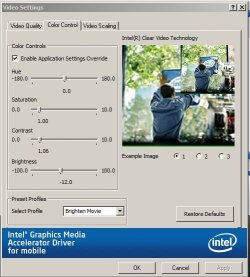
I suspect this is the problem: Whenever I un-check "Enable Application settings Overide" it re-check itself after a re-boot or log-off???
 

Attachments

  • Capture.JPG
    Capture.JPG
    47.2 KB · Views: 86

My Computer

OS
Windows 7
No calibration software other then the Win 7 one and I think I am saving the profile, but have to admit that I am not at all familiar with the color calibration included in Win 7.
 

My Computer

OS
Windows 7
Badspell,

If this is with a desktop monitor, you might see if you may be able to adjust the monitor's color settings directly on the monitor itself instead.
 

My Computer

Computer type
PC/Desktop
Computer Manufacturer/Model Number
Self built custom
OS
64-bit Windows 11 Pro for Workstations
CPU
Intel i7-8700K OC'd to 5 GHz
Motherboard
ASUS ROG Maximus XI Formula Z390
Memory
64 GB (4x16GB) G.SKILL TridentZ RGB DDR4 3600 MHz
Graphics Card(s)
ASUS ROG-STRIX-GTX1080TI-O11G-GAMING
Sound Card
Integrated
Monitor(s) Displays
2 x Samsung Odyssey G7 27"
Screen Resolution
2560x1440
Hard Drives
1TB Samsung 990 PRO M.2,
4TB Samsung 990 PRO PRO M.2,
TerraMaster F8 SSD Plus NAS
PSU
Seasonic Prime Titanium 850W
Case
Thermaltake Core P3
Cooling
Corsair Hydro H115i
Keyboard
Logitech wireless K800
Mouse
Logitech MX Master 4
Internet Speed
2 Gb/s Download and 100 Mb/s Upload
Antivirus
Malwarebyte Anti-Malware Premium
Browser
Google Chrome
Other Info
Logitech Z625 speaker system,
Logitech BRIO 4K Pro webcam,
HP Color LaserJet Pro MFP M477fdn,
APC SMART-UPS RT 1000 XL - SURT1000XLI,
Galaxy S23 Plus phone
I suspect this is the problem: Whenever I un-check "Enable Application settings Overide" it re-check itself after a re-boot or log-off???

Yeah it seems it is overriding Windows.

No calibration software other then the Win 7 one and I think I am saving the profile, but have to admit that I am not at all familiar with the color calibration included in Win 7.

Yeah it is a bit wonky but you need to either choose or create a profile if you want Windows to use it. The tutorial Brink listed should work - provided you can get Intel to stop overriding the system. Have you checked the help files associated with the program?
 

My Computer

Computer type
PC/Desktop
Computer Manufacturer/Model Number
Custom built by me.
OS
Windows 10 Pro
CPU
Intel Core i7-4770K (3.5Ghz)
Motherboard
Gigabyte G1 Sniper 5 (F10 Bios)
Memory
32 gig Corsair Dominator Platinum (4x8Gig)
Graphics Card(s)
Sapphire Tri-X R9 Fury
Sound Card
Soundblaster ZXR
Monitor(s) Displays
NEC PA242W 24" LCD Monitor
Screen Resolution
1920 x 1200
Hard Drives
Primary - Samsung 850 Pro (512gig), Samsung 840 Pro (256gig), 2TB WD Caviar Black.
PSU
EVGA Supernova 1000 G2
Case
Cooler Master HAF X
Cooling
Corsair H100i with Corsair Air Series SP120 Quiet Fans
Keyboard
Logitech Wireless Wave
Mouse
Logitech Performance MX
Internet Speed
High Speed Cable
Antivirus
Norton Security
Browser
IE11
Other Info
Memory Timings - 1866MHz @ 9-9-9-27-1T @ 1.5 volts
FYI
Found the solution to the problem...for anyone struggling with the same problem on a Sony Vaio.
My Vaio"VGN-NW240F" Has a proprietary Sony service that conflicts with the display driver and does not allow the display driver to save settings permanently...they will reset on log-off or re-boot producing a very pink looking hue. Disable "Vaio Event Service" and then the problem will be resolved. The side affect is you loose function keys that dim and brighten the display, but a simple desktop gadget can then be used to replace the keys.

The service is = "Vaio Event Service"
 
Last edited:

My Computer

OS
Windows 7
Thank you Badspell for posting back with your results and solution. I have added this as a note in the tutorial so that it may help others with the same issue.
 

My Computer

Computer type
PC/Desktop
Computer Manufacturer/Model Number
Self built custom
OS
64-bit Windows 11 Pro for Workstations
CPU
Intel i7-8700K OC'd to 5 GHz
Motherboard
ASUS ROG Maximus XI Formula Z390
Memory
64 GB (4x16GB) G.SKILL TridentZ RGB DDR4 3600 MHz
Graphics Card(s)
ASUS ROG-STRIX-GTX1080TI-O11G-GAMING
Sound Card
Integrated
Monitor(s) Displays
2 x Samsung Odyssey G7 27"
Screen Resolution
2560x1440
Hard Drives
1TB Samsung 990 PRO M.2,
4TB Samsung 990 PRO PRO M.2,
TerraMaster F8 SSD Plus NAS
PSU
Seasonic Prime Titanium 850W
Case
Thermaltake Core P3
Cooling
Corsair Hydro H115i
Keyboard
Logitech wireless K800
Mouse
Logitech MX Master 4
Internet Speed
2 Gb/s Download and 100 Mb/s Upload
Antivirus
Malwarebyte Anti-Malware Premium
Browser
Google Chrome
Other Info
Logitech Z625 speaker system,
Logitech BRIO 4K Pro webcam,
HP Color LaserJet Pro MFP M477fdn,
APC SMART-UPS RT 1000 XL - SURT1000XLI,
Galaxy S23 Plus phone
Yeah thanks for the update.

Happy to hear you got it sorted.

Peace :cool:
 

My Computer

Computer type
PC/Desktop
Computer Manufacturer/Model Number
Custom built by me.
OS
Windows 10 Pro
CPU
Intel Core i7-4770K (3.5Ghz)
Motherboard
Gigabyte G1 Sniper 5 (F10 Bios)
Memory
32 gig Corsair Dominator Platinum (4x8Gig)
Graphics Card(s)
Sapphire Tri-X R9 Fury
Sound Card
Soundblaster ZXR
Monitor(s) Displays
NEC PA242W 24" LCD Monitor
Screen Resolution
1920 x 1200
Hard Drives
Primary - Samsung 850 Pro (512gig), Samsung 840 Pro (256gig), 2TB WD Caviar Black.
PSU
EVGA Supernova 1000 G2
Case
Cooler Master HAF X
Cooling
Corsair H100i with Corsair Air Series SP120 Quiet Fans
Keyboard
Logitech Wireless Wave
Mouse
Logitech Performance MX
Internet Speed
High Speed Cable
Antivirus
Norton Security
Browser
IE11
Other Info
Memory Timings - 1866MHz @ 9-9-9-27-1T @ 1.5 volts
Back
Top