I downloaded Audiograbber but it told me something like, not a valid wav file. Is this because the tracks are .cda format (or something like that?) and they have to be converted to wav before they can become mp3?
Very interested in how you do it, if not too much trouble.
I'm not sure I follow.
Assuming you set up Audiograbber correctly (see my screenshots that follow), you just insert the CD and let the rest happen automatically.
It will go up to FreeDb to try and find the CD there. If it finds a unique hit it will retrieve the information and populate the screen. Single-artist or multi-arts (compilation) will be detected automatically, and the interface of artist name and track name will be populated accordingly.
If there are multiple hits (because multiple people have submitted their own personal CD data for the same physical CD to FreeDB) then you'll get a popup box allowing you to choose one of the multiples. It's not really important which one you choose, because you can always overtype and edit whatever information gets populated on the screen. So the FreeDB info is really just a starting point, which saves lots of time usually. But again, you can make any changes you want before you do the rip/encode/tag. And even then, you can also make further changes with MP3Tag. So it really doesn't matter which album you pick when multiple hits exist.
Also, I very often make changes to either artist or title after the data from FreeDB has been retrieved, because my music collection has artist as "lastname, firstname". And I also move leading "The" to the end or artist or title, as "..., The". Inevitably this is not how the FreeDB data submitted by others looks so I have to make those changes myself.
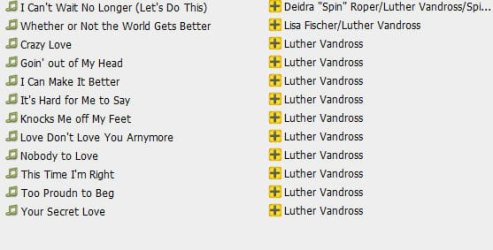
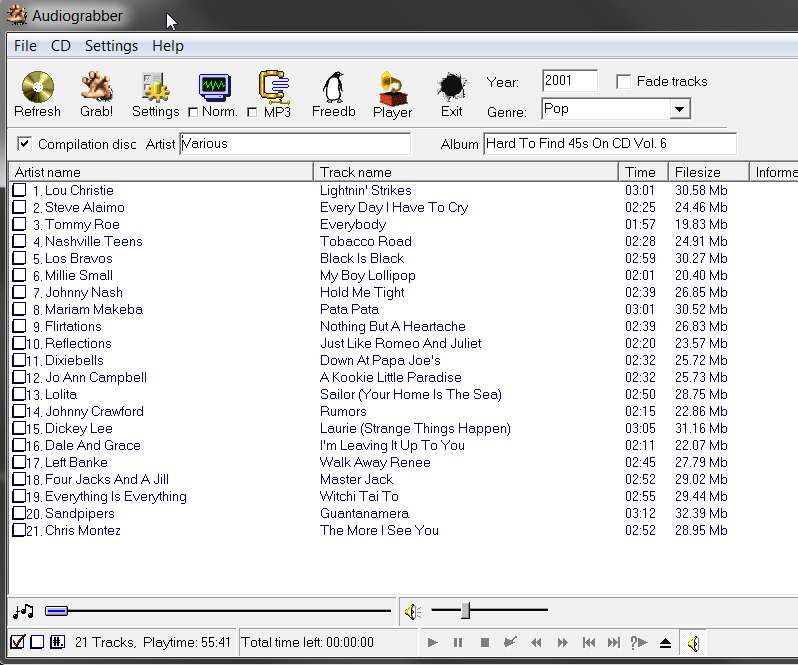
For example, I just inserted one of my "oldies compilations". FreeDB was queried, there were two hits, I picked the first one in the list, and the following results were produced by Audiograbber:
After possibly editing the artist name and track name data, along with the master artist/album and year/genre information at the top, you check the box next to the one or more tracks you'd like to extract from the CD. When you push the GRAB button icon, the process will begin.
The two buttons at the lower-left corner allow you to automatically (a) check for all tracks, or (b) un-check for all tracks. And then you could always manually check or un-check individual tracks as you want.
You can force a re-query of FreeDB by pushing the FreeDB button.
You can preview tracks directly from the CD using the player controls at the bottom. Just select a track's artist or title value to light it up, and then push the PLAY button, etc. In order to preview another track you must first push STOP for the current track and then the select that other track and then push PLAY again. Only one track at a time can be played, so you can't select multiple tracks and than use the "skip-forward/backward" buttons (I don't know why he even invented those buttons).
Here are my settings (pay careful attention to radio buttons and checkboxes):
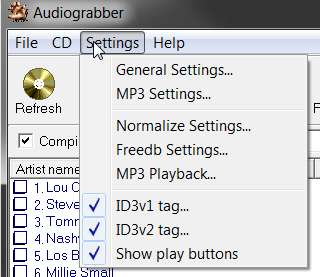
(1) Settings dropdown from Menu (note the three checked items):
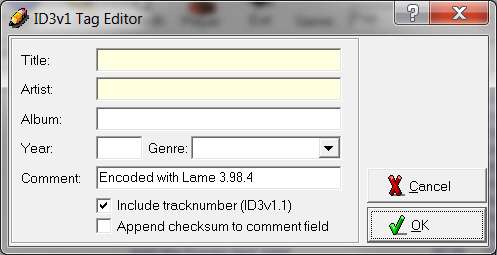
(2) ID3V1 tag... (note the comment I've inserted, indicating the encoder used, just because I wanted that information present in tags):
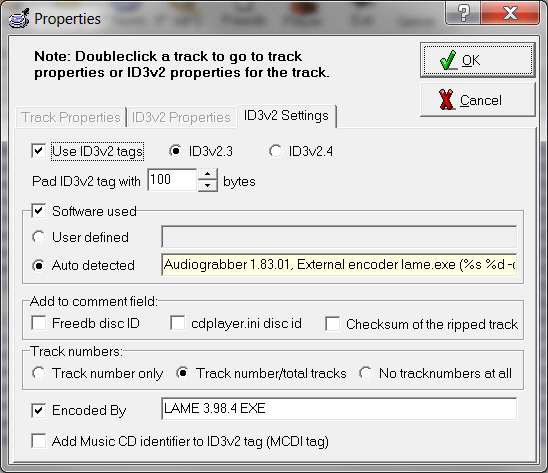
(3) ID3V2 tag... (again, my own comments are inserted just so I would know what was used to do the encoding):
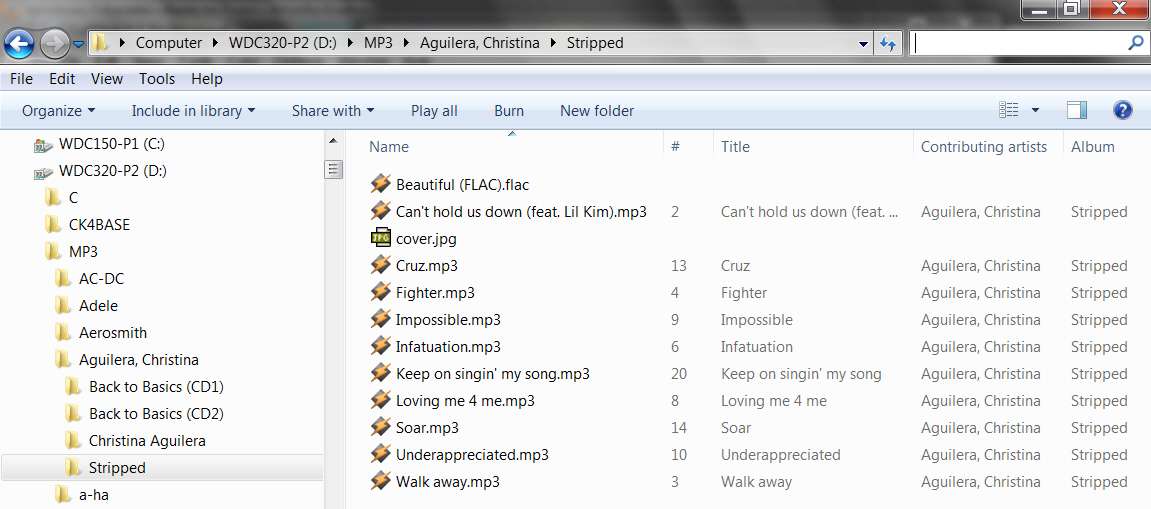
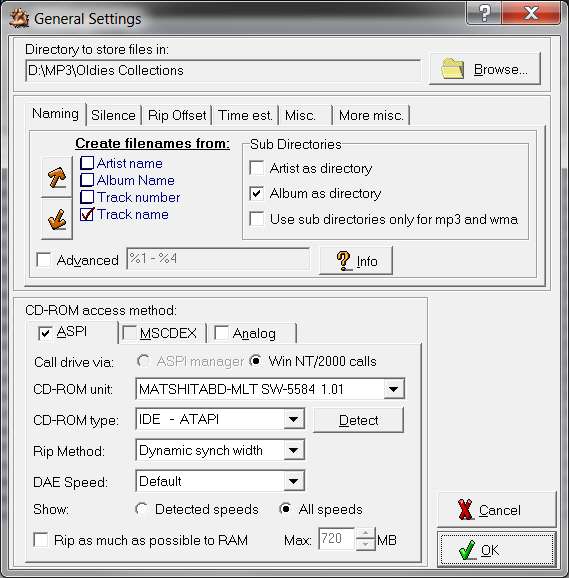
(4) General Settings, "Naming" tab. This is where the target parent folder is specified. Underneath this parent folder, sub-directories will be created according to the boxes checked. My collection organization is essentially (a) D:\MP3\Artist\Album for single-artist CDs, and (b) D:\MP3\Oldies Collections\Album for multi-artist compilations (kind of like "Oldies Collections" is the conceptual "artist" for all these albums.
So I have two approaches in Audiograbber, depending on whether I'm working on a single-artist CD or a multi-artist compilation. The example in the screenshot is shown for a compilation but either of these two setups is used depending on which type of CD I'm working on:
(a) single-artist CD: parent directory for me is D:\MP3
Sub-directories - "artist as directory" checked, "album as directory" checked.
(b) multi-artist compilation CD: parent directory is D:\MP3\Oldies Collections
Sub-directories - "artist as directory" UN-checked, "album as directory" checked.
(5) General settings, "Silence" tab. I don't have anything checked here, but Audiograbber can be requested to automatically detect leading or trailing silence on a track and to delete all but a specified amount of that silence.
I don't use this feature. If I want to make an abbreviated partial rip (e.g. the long 12" version of a song is on a CD, but I don't want the whole thing) I will use the "Rip offset" tab to specify the start/end time manually. I would use the same manual approach if I needed to eliminate silence at start or end of the track, rather than this "delete silence automatically" tab.
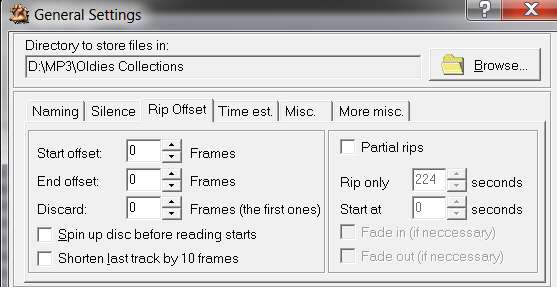
(6) General settings, "rip offset" tab. As I stated above, the "partial rips" checkbox is normally UN-checked. Only for special situations would I check it, and then specify the (a) rip only value length of the rip as n seconds, and (b) starting at m seconds into the track. Alternatively you could specify it more precisely in frames rather than seconds.
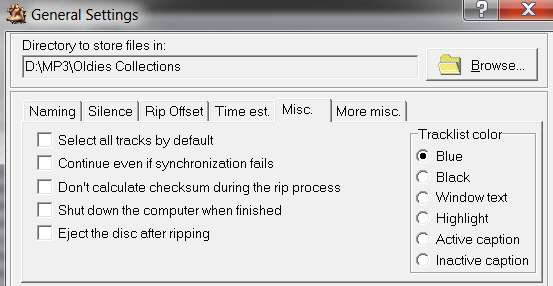
(7) General settings, "time est" tab (no changes from default), and "misc" tab:
Note that with "dynamic sync width" specified for the rip method, this is a very reliable technique. But if there is a read-error I do NOT want the rip to continue, instead I want it to fail and abort the process. So I've UN-checked the "continue even if syncronization fails" box.
Also, you can "select all tracks by default" if you want every track to automatically get checked for ripping when you insert it. I don't like that, and prefer NO tracks to be automatically checked. Instead I preview each track (if I'm not familiar with the CD) right there using the player controls, and then check that track if I decide I want to grab it.
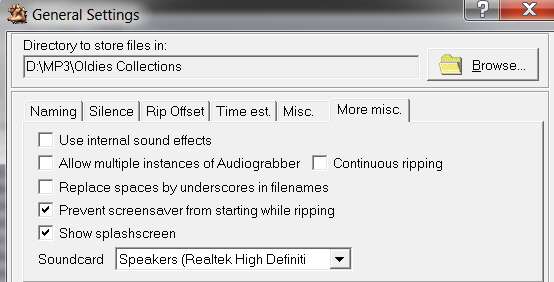
(8) General settings - "more misc" tab.
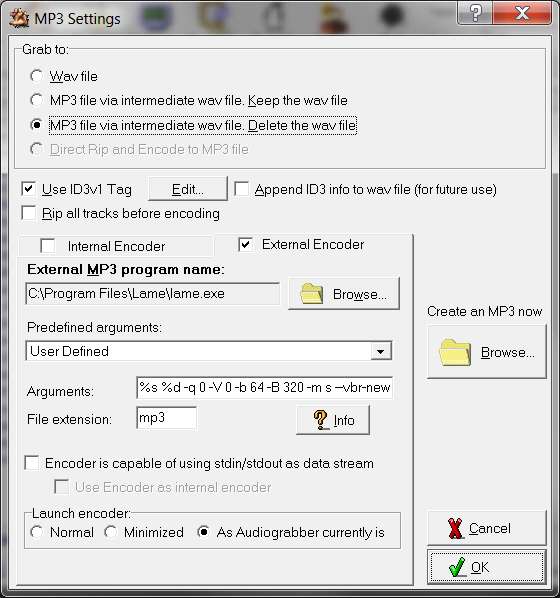
(9) MP3 Settings. This is changed either for (a) FLAC -> grab to WAV file, or (b) MP3 -> grab to MP3 file via intermediate WAV file and delete the WAV file.
Note that my command-line parameters for external encoder LAME (when encoding to MP3) is fully shown in that box. You need to
download LAME from its web site and place LAME.EXE in the folder pointed to in this MP3 Settings panel.
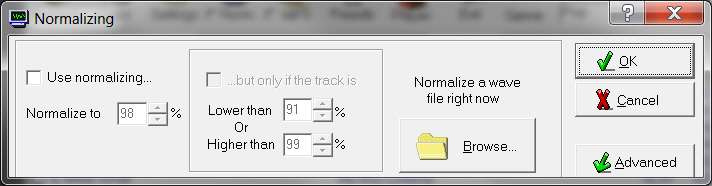
(10) Normalize settings. I normally don't use this (because I don't trust it), but theoretically "normalization" can be applied if the track is lower than or higher than a specified percentage value compared to 100% treated as fully modulated. I don't fully understand this criteria, and I don't trust it.
Besides, if a track is "quiet" I want my MP3/FLAC version to also be quiet. I only use normalizing for overloading tracks that are too loud (i.e. 100% or louder). Then I'll normalize down to 98%.
I myself only DO or DO NOT use "normalization" in this criteria-driven way as facilitated by this dialog. When I do use it I simply say "use normalizing, and normalize to 98%" (which I've pre-entered on this screen, so that this value either is or is not used for normalization, depending on the simple "normalize" checkbox on the main interface next to the normalize button icon). Alternatively, if you push the normalize button icon on the main interface you'll get this "normalize settings" window and you can fool with more details (but I don't).
So I watch the level indicator on the rip screen while the ripping is proceeding, and if it ever shoots up to 100% I know it must be "overloading". I will then push the ABORT button to stop the current overloading track's rip, uncheck earlier non-overloading tracks I may have already ripped happily without "normalizing" checked, check the "normalize" box on the main interface (which essentially checks the "use normalizing box on this screen) and then push the "grab" button again to re-initiate the rip starting at this track.
And when this track completes (with "normalize" still checked), I keep my eye on the level meter for the next track, in order to decide again whether to leave "normalize" checked for this next track or whether to abort it, uncheck the prior track, uncheck the "normalize" box, and then push the grab button to re-initiate the rip on the current track but this time with "normalize" set back to OFF.
This is just my own approach, as I don't like making MP3/FLAC versions of tracks which are too loud and hit the 100% modulation level. If they reach 98% or 99% I'll let them go. But if they hit 100% I'll "normalize" them to 98%. That's just me.
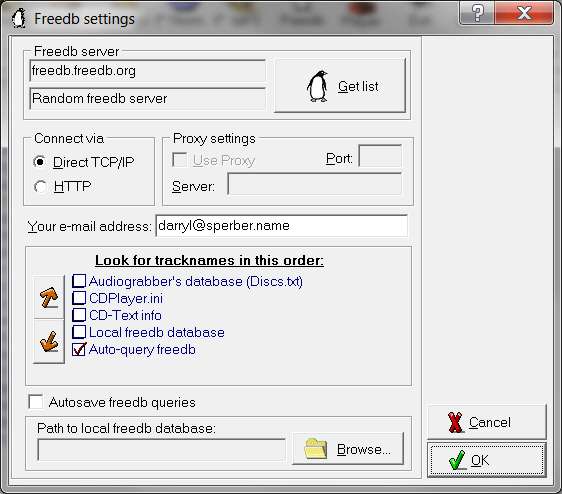
(11) FreeDB settings. Enter your own email address, which is needed for the access to complete.
Note that you can specify here that you'd like the FreeDB response data to be stored locally. This used to be in an INI file under Win98, as a locally available database. Then, if you ever reinserted the same CD again the local database INI file could be examined first and the duplicate query to FreeDB avoided. Also, this INI file used to be read by the Win98 CD player program to provide track information, before the days of WMP and its access to FreeDB.
However there used to be a limit in size for this INI file in Win98, which I think was 64K. So if you had lots of CDs then this 64K limit was eaten up very very quickly.
I've turned off that checkbox, so I have no idea how it would work today in Win7 if I turned it back on. But I don't want to retain the information anyway. I'm never going to put the CD back in for Audiograbber after right now, or if I do then I don't mind if it queries FreeDB again.
Good luck. Let me know if you have more questions (e.g. if you want to create FLAC, and not just MP3).