Device Manager - Access During Windows 7 Installation

How to Access Device Manager During Installation of Windows 7


   Information
This tutorial can be used to disable problem devices during install of Windows 7. This can solve some problems including hanging and crashing during installation.

For this tutorial I have selected to do a 'Custom (Advanced)' install on a newly created un-active partition.


Here's How:

1, Boot normally with the Windows 7 DVD in your CD/DVD drive. When prompted to 'Press any key to boot from CD DVD....' just press any key.


NOTE: You only have 8 seconds to take action


2, Select your regional settings & click 'Next' to continue
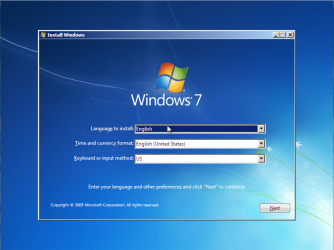
Install 7 Step 1 (Main Menu).PNG
3, Click 'Install Now'
Install 7 Step 2 (Install).PNG
4, Click to accept the terms of the licence agreement then click 'Next'
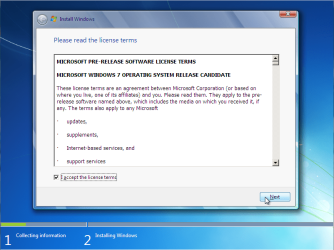
Install 7 Step 3 (Licence Agreement).PNG
5, Select the type of install and click 'Next'
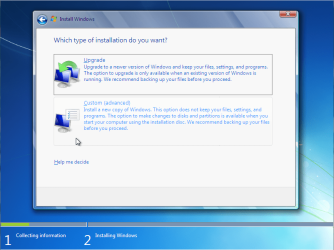
Install 7 Step 4 (Custom Install).PNG
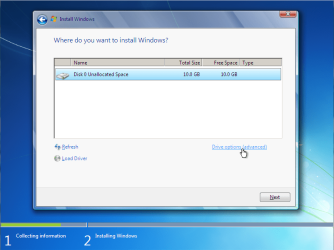
6, Click 'Drive options'
Install 7 Step 5 (Drive Options).PNG
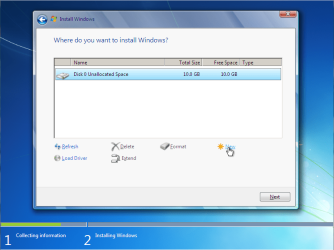
7, Click 'New'
Install 7 Step 6 (New Partition).PNG
and enter partition size then click 'Apply'



Install 7 Step 6.1 (New Partition - Size).PNG


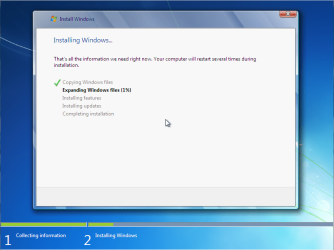
8, Click 'Next' to start the copying process of the installation
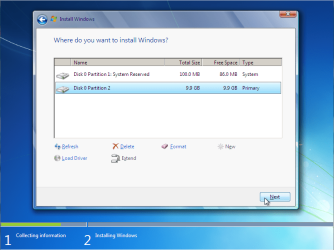
Install 7 Step 7 (Next).PNG

Install 7 Step 8 (Install).PNG

9, Install will restart after the copying process has finished.


Now for Safe Mode:
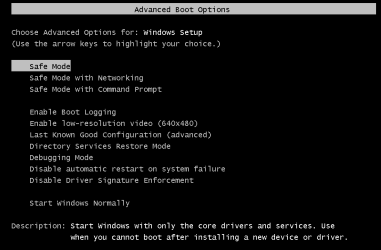
1, Before bootup, press F8 to enter the boot menu
Install 7 Step 1a (Safe Mode).PNG
2, Select 'Safe Mode' and the boot process will begin
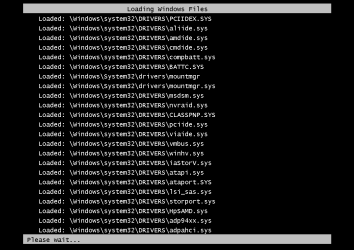
Install 7 Step 2a (Safe Mode Booting).PNG
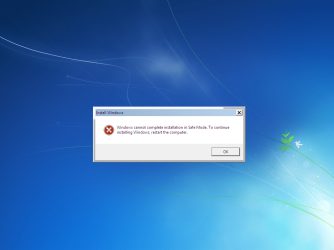
3, Once booted you will be presented with the following warning
NOTE: Do not click 'OK' or press Space/Enter
Install 7 Step 3a (Safe Mode Warning).PNG
4, Press SHIFT+F10 to open the Command Prompt
Install 7 Step 4a (Safe Mode Command Prompt).PNG
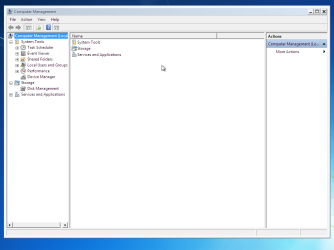
5, Type compmgmtlauncher into Command Prompt and press 'Enter'
NOTE: It can take a few seconds to display Computer Management
Install 7 Step 5a (Safe Mode Computer Management).PNG


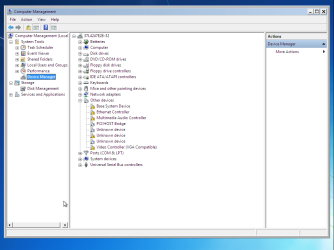
6, Click on 'Device Manager'

Install 7 Step 6a (Safe Mode Device Manager).PNG


You can now disable (not uninstall) any device that you believe is causing the failure to boot
   Information
E.G. If your GFX card is whats causing the issue then you can disable it, causing Windows to use the default 'Standard VGA Adapter'. Once you have booted to your desktop you can download & install the latest drivers

 
Last edited by a moderator:
thanks man
 

My Computer

Computer Manufacturer/Model Number
Dell Inspiron 545
OS
Windows 7 Ultimate 32-Bit (x86)
CPU
Intel Quad Core Q8200 2.33 GHZ
Memory
4GB
Monitor(s) Displays
LG Flatron W1943SB
Internet Speed
8MB
:D I have been struggeling with this for days. Endless loop without finishing the install. I disabled the video controller and it completed the install. Thanks
 

My Computer

Computer Manufacturer/Model Number
custom
OS
Windows 7 Home Premium 32bit
CPU
Intel Pentium D 925 3Ghz DT 800FSB Socket 775
Motherboard
XFX nforce 680I LT Socket 775 Motherboard
Memory
OCZ 2084MB PC6400 DDR 800MHz (2x1024MB)
Graphics Card(s)
XFX Gfource 8500 GT 256MB PCI
Sound Card
on MB
Monitor(s) Displays
Dell 20"
Hard Drives
Seagate 400Gb Serial ATA HD
:D I have been struggeling with this for days. Endless loop without finishing the install. I disabled the video controller and it completed the install. Thanks

Glad it worked for you and welcome to the forums :)
 

My Computer

Computer Manufacturer/Model Number
Compaq Desktop
OS
Windows 7 Ultimate x64
CPU
AMD Sempron Dual Core
Memory
3GB
Graphics Card(s)
NVIDIA GeForce 6150SE nForce 430
Screen Resolution
1024x768
Hard Drives
150GB Sata
After W7 updates and restart - apparently there is some problem with loading the settings for my video card. I went back in and disabled it again and every thing seems to work fine except the default windows display setting. I suspect the problem may be with the video card.
 

My Computer

Computer Manufacturer/Model Number
custom
OS
Windows 7 Home Premium 32bit
CPU
Intel Pentium D 925 3Ghz DT 800FSB Socket 775
Motherboard
XFX nforce 680I LT Socket 775 Motherboard
Memory
OCZ 2084MB PC6400 DDR 800MHz (2x1024MB)
Graphics Card(s)
XFX Gfource 8500 GT 256MB PCI
Sound Card
on MB
Monitor(s) Displays
Dell 20"
Hard Drives
Seagate 400Gb Serial ATA HD
Once you disable the video card, Windows will default to the Standard VGA Adapter, you then need to do 1 of the following...

1, Delete the VGA Adapter in Device Manager and reboot, allowing for Windows to configure drivers for the card properly.

2, Download the latest drivers from the manufacturer site then install them


OS
 

My Computer

Computer Manufacturer/Model Number
Compaq Desktop
OS
Windows 7 Ultimate x64
CPU
AMD Sempron Dual Core
Memory
3GB
Graphics Card(s)
NVIDIA GeForce 6150SE nForce 430
Screen Resolution
1024x768
Hard Drives
150GB Sata
I took no2 and installed the new driver. When it rebooted with the new driver it went to a black screen. Went into safe mode and disabled the driver, rebooted and it works fine - other than the poor graphics. Do you think the video card might be bad?
 

My Computer

Computer Manufacturer/Model Number
custom
OS
Windows 7 Home Premium 32bit
CPU
Intel Pentium D 925 3Ghz DT 800FSB Socket 775
Motherboard
XFX nforce 680I LT Socket 775 Motherboard
Memory
OCZ 2084MB PC6400 DDR 800MHz (2x1024MB)
Graphics Card(s)
XFX Gfource 8500 GT 256MB PCI
Sound Card
on MB
Monitor(s) Displays
Dell 20"
Hard Drives
Seagate 400Gb Serial ATA HD
This solved my install. Tried for two days to install seven and it kept hanging. Vista installed but seven wouldn't. Used this and disabled the video card and like magic it finished installing. Thank you!!
 

My Computer

Computer type
PC/Desktop
Computer Manufacturer/Model Number
Dude Build
OS
Windows 10 Pro X64
CPU
Intel(R) Core(TM) i5-3570K CPU OC@ 4.5GHZ Turbo
Motherboard
MSI Z77A-G45 Gaming
Memory
8.00 GB DDR3 1600Mhz
Graphics Card(s)
MSI Gaming X GTX 1070
Sound Card
Realtek High Definition
Monitor(s) Displays
Dell S23O9W, HP L1710
Screen Resolution
DELL-1920 x 1080 HP-1280 x1024
Hard Drives
Crucial m4 256 SSD, WD 7200RPM 500GB WD 1TB
PSU
Seasonic X650 GOLD
Case
Zalman Z12
Cooling
Antec Kuhler 920
Keyboard
Logitech
Mouse
MSI DS100 Interceptor
Internet Speed
50 down and 5 up
Antivirus
MSE
Browser
Chrome, IE 11
Other Info
Logitech X-620 Speakers
Still nothing worked for me. I did same as according to device manager installation still after completing installation, and after checking video performance and all, still not showing any desktop. The whole installation goes right but still no desktop of window 7. Window xp works fine on the same machine.
 

My Computer

OS
Window XP 32 bit
No need to go into Safe Mode

Great tutorial Orbital Shark, I wanted to update you on one thing, you don't need to enter safe mode to do this in between reboots.

Let the computer reboot, once it says "completing installation..." with the infinite loop going on, then Press SHIFT+F10 and type in "compmgmtlauncher" as orbital shark has explained. You can start disabling items on the fly until you see progress with the install. Just go down the list, anything with a yellow ? just disable, my issue was a co-processor driver, about the 10th thing. Once that was gone it finished the install a minute.

Hope that helps some of you.
 

My Computer

OS
x64 pro
Hi Orbital Shark,

Thank you very much. I registered in sevenforums just to be able to thank you.

My restart loop problem (30 to 35 restarts), changing different BIOS settings, choosing an unsupported display setting that caused me to open the cabinet to reset BIOS config all came to a good end.

After reaching your post, it took me just 2 minutes to get the Windows 7 installation completed. Thank you for sharing your learning with all of us.

Warm Regards,
K Saravana Muthusamy
 

My Computer

OS
Windows 7 Professional 64 bit
thank you for the great post... I have one small issue here. Like everyone else I'm trying to install windows 7 on clean partition on acer emachine e725. I think that the problem is in the video card 'cause the installation wont go on after first reboot (just white cursor on the black screen). I've tried compmgmtlauncher command but it wont open window of device manager... is it any other possible way to manually disable video driver? or if you have any other suggestion i would appreciate it...
 

My Computer

OS
WIndows 7 Proffesional x64
Thank you, thank you so much! I didn't know about this possibility! But I wonder, is possible to install a driver in this mode? I'll try in my first Windows fresh installation, and I'll post here. Thank you again!
 

My Computer

Computer Manufacturer/Model Number
Acer
OS
Windows 7 Ultimate x64
my question may seem somewhat elementary but after you get in device manager and disable the suspected items do you reboot by hitting "OK" on the initial error message that appears when booting to safe mode? Or do you just wait to see if it completes the install ?


Thanks
 

My Computer

Computer Manufacturer/Model Number
HP Pavilion G4
OS
windows 7 home premium 64bit
CPU
AMD Turion II P560
Memory
4.00 GB
Graphics Card(s)
ATI mobility Radeon HD 4250
@bubdrum, I tried to install my wireless driver in this way, and it works! After driver installation, you can continue the OS installation, as well. So, you can install any other driver (I think so, but I'm not sure with the display driver). You don't need to boot in Safe Mode.
;)
 

My Computer

Computer Manufacturer/Model Number
Acer
OS
Windows 7 Ultimate x64
I'm still a little fuzzy. I've already booted into safemode before initial startup after OS install and am in the Device manager right now and have disable everything I believe to be causing the install to not work. After I've disabled what I wanted do I need to reboot and let the install complete or will it auto continue once I exit out of device manager?
 

My Computer

Computer Manufacturer/Model Number
HP Pavilion G4
OS
windows 7 home premium 64bit
CPU
AMD Turion II P560
Memory
4.00 GB
Graphics Card(s)
ATI mobility Radeon HD 4250
@bubdrum, Reboot in normal mode, of course.
 

My Computer

Computer Manufacturer/Model Number
Acer
OS
Windows 7 Ultimate x64
Thats what I thought, but just wanted to be sure. Thanks for the clarity!!
 

My Computer

Computer Manufacturer/Model Number
HP Pavilion G4
OS
windows 7 home premium 64bit
CPU
AMD Turion II P560
Memory
4.00 GB
Graphics Card(s)
ATI mobility Radeon HD 4250
I think my problem is in the VGA (or something) interrupting the installation. My problem right now is that I can't enter safe mode using F8 to enter the devicemanager. For some reason it always goes staight to completinh the installation (where i always get blue screen). Even if I can enter safe mode after the blue screen i still need to reinstall windows due to it being interrupted the first time. An evil circle really. Aby way to enter safe mode other than F8 when windows is installed but I can't access it normally?

Edit: sorry for typos, typing on my phone.
 
Last edited:

My Computer

Computer type
PC/Desktop
OS
Windows 7

My Computer

Computer type
PC/Desktop
Computer Manufacturer/Model Number
Self built custom
OS
64-bit Windows 11 Pro for Workstations
CPU
Intel i7-8700K OC'd to 5 GHz
Motherboard
ASUS ROG Maximus XI Formula Z390
Memory
64 GB (4x16GB) G.SKILL TridentZ RGB DDR4 3600 MHz
Graphics Card(s)
ASUS ROG-STRIX-GTX1080TI-O11G-GAMING
Sound Card
Integrated
Monitor(s) Displays
2 x Samsung Odyssey G7 27"
Screen Resolution
2560x1440
Hard Drives
1TB Samsung 990 PRO M.2,
4TB Samsung 990 PRO PRO M.2,
TerraMaster F8 SSD Plus NAS
PSU
Seasonic Prime Titanium 850W
Case
Thermaltake Core P3
Cooling
Corsair Hydro H115i
Keyboard
Logitech wireless K800
Mouse
Logitech MX Master 4
Internet Speed
2 Gb/s Download and 100 Mb/s Upload
Antivirus
Malwarebyte Anti-Malware Premium
Browser
Google Chrome
Other Info
Logitech Z625 speaker system,
Logitech BRIO 4K Pro webcam,
HP Color LaserJet Pro MFP M477fdn,
APC SMART-UPS RT 1000 XL - SURT1000XLI,
Galaxy S23 Plus phone
Is there a Windows 8 equivalent for this?
 

My Computer

Computer type
PC/Desktop
Computer Manufacturer/Model Number
Lenovo IdeaCenter 450
OS
Windows 10 Pro X64
CPU
Intel Quad Core i7-4770 @ 3.4Ghz
Memory
16.0GB PC3-12800 DDR3 SDRAM 1600 MHz
Graphics Card(s)
Intel Integrated HD Graphics
Sound Card
Realtek HD Audio
Monitor(s) Displays
HP 22" LCD
Screen Resolution
1680 x 1050
Hard Drives
250GB Samsung EVO SATA-3 SSD
2TB Seagate ST2000DM001 SATA-2
1.5TB Seagate ST3150041AS SATA
Keyboard
Dell USB
Mouse
Lenovo USB
Internet Speed
Cable via Road Runner 3MB Upload, 30MB Download
Antivirus
Windows Defender, MBAM Pro, MBAE
Browser
Seamonkey
Other Info
UEFI/GPT
PLDS DVD-RW DH16AERSH
Back
Top