
Disk - Clean and Clean All with Diskpart Command

How to "Clean" or "Clean All" a Disk with the Diskpart Command


   Information
This will show you how to use the clean or clean all command on a selected disk to delete all of it's MBR or GPT partitions, volumes, and any hidden sector information on MBR disks is overwritten.

The data on the HDD is not written over using the clean command like it does with the clean all command below. With the clean command, the data on the HDD is only marked as being deleted instead and is only written over when new data is written/saved to the same location on the HDD next.

OR

You could use the clean all command (secure erase) to do the above and also have each and every disk sector on the HDD written over and zeroed out completely to securely delete all data on the disk to help prevent the data from being able to be recovered. "Clean All" takes about an hour per 320 GB to finish running.

   Note

  • You cannot use the clean or clean all diskpart commands on a boot disk (ex: disk Windows is installed on) unless you do it from a command prompt at boot.
  • Be sure to backup anything that you do not want to lose on the disk that you use clean or clean all on first. It will be to late afterwards. All data will be permanently lost on the disk.
   Warning
You do not want to use clean all on a SSD disk often. Having every sector written over to 0 on a SSD can reduce it's life span faster.


Here's How:

1. In Windows 7, open an elevated command prompt, or a command prompt at boot.

OR

2. In Windows 8 and 8.1, open an elevated command prompt, or a command prompt at boot.

   Note
Be sure that you have the correct Disk #. You would not want to wipe clean the wrong disk.

A) Press the Windows + R keys to open the Run dialog, type compmgmt.msc, and press Enter.

B) If prompted by UAC, click/tap on Yes.

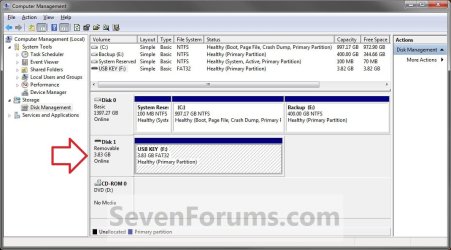
C) Click/tap on Disk Management in the left pane, and make note of the disk # in the middle pane of the disk that you want to clean or clean all. (see screenshot below)
NOTE: For example, I would use Disk 1 if I wanted to use clean or clean all on my USB key drive.
Computer_Management-1.jpg


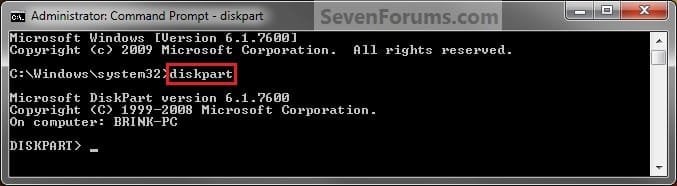
3. In the elevated command prompt, type diskpart and press Enter. (see screenshot below)
Step1.jpg
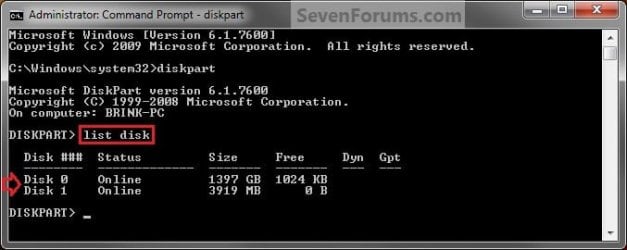
4. In the elevated command prompt, type list disk and press Enter. (see screenshot below)
NOTE: This will give you a list of disk numbers to select from.
Step2.jpg
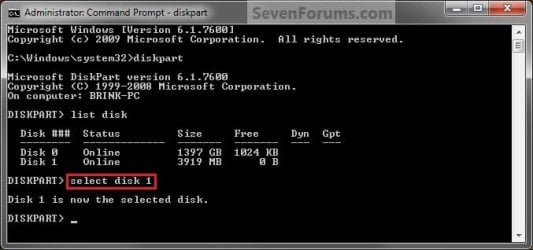
5. In the elevated command prompt, type select disk # and press Enter. (see screenshot below)
NOTE: You would substitute # for the disk number listed that you want to use clean or clean all on. For example, I want to use one of them on Disk 1 (from step 1) for my USB key drive, so I would type select disk 1 and press Enter.
Step3.jpg
6. If the status of the selected disk # (ex: Disk 3) shows as Offline, type online disk, and press Enter to make it online. (see screenshot below)
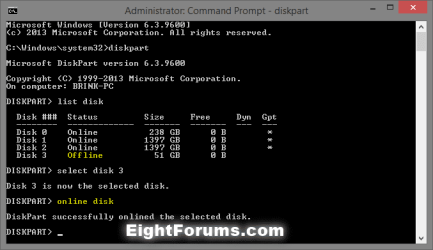
diskpart_online_disk.png
7. Do either step 8 or 9 below for which command you would like to use.


8. To Use the Clean Diskpart Command
NOTE: (Recommended) See the green INFO box at the top of the tutorial for more information about this command. This command will wipe the HDD quickly.
A) In the elevated command prompt, type clean, press Enter, and go to step 10 below. (see screenshot below)
NOTE: This will not take long to finish. Think of it as being like a quick format.
Step4_Clean.jpg
9. To Use the Clean All Diskpart Command
NOTE: See the green INFO box at the top of the tutorial for more information about this command. This command will wipe the HDD, and perform a secure erase. "Clean All" takes about an hour per 320 GB to finish running. It's best to only use this command if you wanted to help make sure that the data on the HDD cannot be recovered say when giving or selling the HDD to another person.
A) In the elevated command prompt, type clean all, and press Enter, and go to step 10 below. You will see the command prompt below as is until the "clean all" command is finished. (see screenshot below)

NOTE: This will take quite some time (several hours or more) to finish depending on how large the disk is since it is writing over each and every sector on it to zero. Think of it as being like a full or low level format.
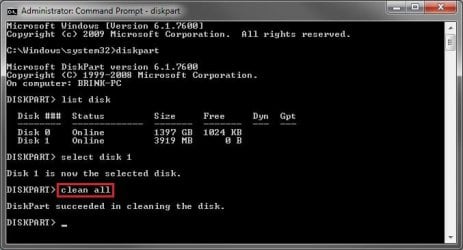
Step4_Clean_All.jpg
10. When finished, in the elevated command prompt, type exit and press Enter. Close the elevated command prompt.

11. The disk will be left as unallocated space. (see screenshot below)
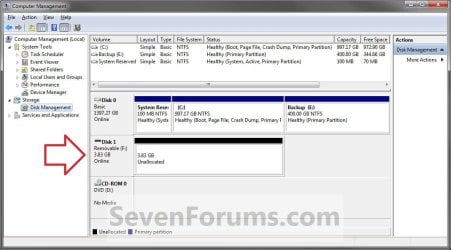
Computer_Management-2.jpg
12. You will now need to create a new partition or volume on the disk to be able to use it again.


That's it,
Shawn


Last edited:
You're welcome Koala. That's great news. :)
 

My Computer

Computer type
PC/Desktop
Computer Manufacturer/Model Number
Self built custom
OS
64-bit Windows 11 Pro for Workstations
CPU
Intel i7-8700K OC'd to 5 GHz
Motherboard
ASUS ROG Maximus XI Formula Z390
Memory
64 GB (4x16GB) G.SKILL TridentZ RGB DDR4 3600 MHz
Graphics Card(s)
ASUS ROG-STRIX-GTX1080TI-O11G-GAMING
Sound Card
Integrated
Monitor(s) Displays
2 x Samsung Odyssey G7 27"
Screen Resolution
2560x1440
Hard Drives
1TB Samsung 990 PRO M.2,
4TB Samsung 990 PRO PRO M.2,
TerraMaster F8 SSD Plus NAS
PSU
Seasonic Prime Titanium 850W
Case
Thermaltake Core P3
Cooling
Corsair Hydro H115i
Keyboard
Logitech wireless K800
Mouse
Logitech MX Master 4
Internet Speed
2 Gb/s Download and 100 Mb/s Upload
Antivirus
Malwarebyte Anti-Malware Premium
Browser
Google Chrome
Other Info
Logitech Z625 speaker system,
Logitech BRIO 4K Pro webcam,
HP Color LaserJet Pro MFP M477fdn,
APC SMART-UPS RT 1000 XL - SURT1000XLI,
Galaxy S23 Plus phone
Hi Brink,

I read through the steps and am about to try. I also read through the other questions but didn't see my question anywhere - I read that low-level format could possibly damage your hard drive these days that's why people to 'zero-fill' which I believe is what you are describing. So in short - will this process work on any type of computer (HD)? I have HP with SATA hard drive.

Thank you for your time!
 

My Computer

OS
Windows Vista 32bit - updating to Windows 7 32bit
Hello Stefsj,

Yes, you could use either the "clean" or "clean all" command safely on any SATA HDD without any damage except for the data and partitions on them. :)
 

My Computer

Computer type
PC/Desktop
Computer Manufacturer/Model Number
Self built custom
OS
64-bit Windows 11 Pro for Workstations
CPU
Intel i7-8700K OC'd to 5 GHz
Motherboard
ASUS ROG Maximus XI Formula Z390
Memory
64 GB (4x16GB) G.SKILL TridentZ RGB DDR4 3600 MHz
Graphics Card(s)
ASUS ROG-STRIX-GTX1080TI-O11G-GAMING
Sound Card
Integrated
Monitor(s) Displays
2 x Samsung Odyssey G7 27"
Screen Resolution
2560x1440
Hard Drives
1TB Samsung 990 PRO M.2,
4TB Samsung 990 PRO PRO M.2,
TerraMaster F8 SSD Plus NAS
PSU
Seasonic Prime Titanium 850W
Case
Thermaltake Core P3
Cooling
Corsair Hydro H115i
Keyboard
Logitech wireless K800
Mouse
Logitech MX Master 4
Internet Speed
2 Gb/s Download and 100 Mb/s Upload
Antivirus
Malwarebyte Anti-Malware Premium
Browser
Google Chrome
Other Info
Logitech Z625 speaker system,
Logitech BRIO 4K Pro webcam,
HP Color LaserJet Pro MFP M477fdn,
APC SMART-UPS RT 1000 XL - SURT1000XLI,
Galaxy S23 Plus phone
Thank you for the quick response! I am also trying to flash my BIOS because I am afraid the rootkit might have gone there (or came from there). Do you recommend flashing the BIOS before I do this clean all procedure?

And one more question - is this clean all command that comes from Windows the same as 'wiping' the disk using one of the softwares like DBAN or KillDisk?

I opened a topic but haven't got particular responses on that and that's why I wanted to ask you. If you think this might get off topic here you can respond to my other post:
http://www.sevenforums.com/installa...us-custom-format-windows-7-a.html#post1646099
 

My Computer

OS
Windows Vista 32bit - updating to Windows 7 32bit
Stefsj,

I'm not sure about your BIOS issue. I wouldn't recommend flashing it if youe decide to until you are sure that your system is clean, so it would probably be a good idea to wipe the HDD clean first to take care of that part.

The KillDisk program says it does a 1 pass secure erase. That would be the same as the "clean all" command.

The DBAN program didn't say how many passes it does, so it may or may not do a more thorough secure erase of the HDD.

However, the "clean all" command should be more than sufficient to delete your HDD and any malware that may be on it. Secure erasing and the number of passes (more the better to a point) a HDD really is only important if you wanted to make sure that the data on the HDD could not be recovered. Especially say if you were selling ot giving it to someone else.
 

My Computer

Computer type
PC/Desktop
Computer Manufacturer/Model Number
Self built custom
OS
64-bit Windows 11 Pro for Workstations
CPU
Intel i7-8700K OC'd to 5 GHz
Motherboard
ASUS ROG Maximus XI Formula Z390
Memory
64 GB (4x16GB) G.SKILL TridentZ RGB DDR4 3600 MHz
Graphics Card(s)
ASUS ROG-STRIX-GTX1080TI-O11G-GAMING
Sound Card
Integrated
Monitor(s) Displays
2 x Samsung Odyssey G7 27"
Screen Resolution
2560x1440
Hard Drives
1TB Samsung 990 PRO M.2,
4TB Samsung 990 PRO PRO M.2,
TerraMaster F8 SSD Plus NAS
PSU
Seasonic Prime Titanium 850W
Case
Thermaltake Core P3
Cooling
Corsair Hydro H115i
Keyboard
Logitech wireless K800
Mouse
Logitech MX Master 4
Internet Speed
2 Gb/s Download and 100 Mb/s Upload
Antivirus
Malwarebyte Anti-Malware Premium
Browser
Google Chrome
Other Info
Logitech Z625 speaker system,
Logitech BRIO 4K Pro webcam,
HP Color LaserJet Pro MFP M477fdn,
APC SMART-UPS RT 1000 XL - SURT1000XLI,
Galaxy S23 Plus phone
Shawn

Your tutorial is so easy to clear. Brilliant.

I intended to increase my system memory from 80GB to 160GB. There are both IDE hard disk.

At first I created a backup image and system repair disc. Before I restore it to the bigger hard disk, I am thinking to do wipe off any remaing data on it. So I performed CLEAN ALL. What I encountered is it took longer than expected. It has been running for more than 10 hours yet it still running with a blinking cursor after the CLEAN ALL

Is there something wrong? Can I interrupt the process?

Do restore the system recovery, is it advisable to do partioning to System Reserve and specif partioning?

Thank you for your advice.
 

My Computer

OS
Windows 7 Professional 32bit
Hello cmlow, and welcome to Seven Forums.

It can indeed take a long time for the "clean all" command to run. Yes, you can interupt if you like. However, if you do, you'll need to run the "clean" command, but it will finish quickly though. Afterwards, you'll be ready to format the HDD and do a system image recovery to it. :)
 

My Computer

Computer type
PC/Desktop
Computer Manufacturer/Model Number
Self built custom
OS
64-bit Windows 11 Pro for Workstations
CPU
Intel i7-8700K OC'd to 5 GHz
Motherboard
ASUS ROG Maximus XI Formula Z390
Memory
64 GB (4x16GB) G.SKILL TridentZ RGB DDR4 3600 MHz
Graphics Card(s)
ASUS ROG-STRIX-GTX1080TI-O11G-GAMING
Sound Card
Integrated
Monitor(s) Displays
2 x Samsung Odyssey G7 27"
Screen Resolution
2560x1440
Hard Drives
1TB Samsung 990 PRO M.2,
4TB Samsung 990 PRO PRO M.2,
TerraMaster F8 SSD Plus NAS
PSU
Seasonic Prime Titanium 850W
Case
Thermaltake Core P3
Cooling
Corsair Hydro H115i
Keyboard
Logitech wireless K800
Mouse
Logitech MX Master 4
Internet Speed
2 Gb/s Download and 100 Mb/s Upload
Antivirus
Malwarebyte Anti-Malware Premium
Browser
Google Chrome
Other Info
Logitech Z625 speaker system,
Logitech BRIO 4K Pro webcam,
HP Color LaserJet Pro MFP M477fdn,
APC SMART-UPS RT 1000 XL - SURT1000XLI,
Galaxy S23 Plus phone
Shawn

Thanks for your swift reply.

Just to make my understanding correct. When I do System Image Recovery, it will perform reformatting again? Is it correct?

If that is the case, there is no point to do Clean all. Is it worth to continue or just interrupt the clean up?

If I were to cancel the clean all, what steps shall I perform?

Once thank you very for your help.
 

My Computer

OS
Windows 7 Professional 32bit
That's correct, when you do a system image recovery, it will format the HDD first.

"Clean All" is mostly for when you want to secure erase the HDD to help make sure that the data cannot be recovered say when you sell or give away the HDD to another person.

"Clean" is good for when you just want to quickly wipe the HDD to do say what you wanted to do.

You could close the command prompt, or restart the computer to stop it. However, you will need to run the "clean" command on it since it was interrupted.
 

My Computer

Computer type
PC/Desktop
Computer Manufacturer/Model Number
Self built custom
OS
64-bit Windows 11 Pro for Workstations
CPU
Intel i7-8700K OC'd to 5 GHz
Motherboard
ASUS ROG Maximus XI Formula Z390
Memory
64 GB (4x16GB) G.SKILL TridentZ RGB DDR4 3600 MHz
Graphics Card(s)
ASUS ROG-STRIX-GTX1080TI-O11G-GAMING
Sound Card
Integrated
Monitor(s) Displays
2 x Samsung Odyssey G7 27"
Screen Resolution
2560x1440
Hard Drives
1TB Samsung 990 PRO M.2,
4TB Samsung 990 PRO PRO M.2,
TerraMaster F8 SSD Plus NAS
PSU
Seasonic Prime Titanium 850W
Case
Thermaltake Core P3
Cooling
Corsair Hydro H115i
Keyboard
Logitech wireless K800
Mouse
Logitech MX Master 4
Internet Speed
2 Gb/s Download and 100 Mb/s Upload
Antivirus
Malwarebyte Anti-Malware Premium
Browser
Google Chrome
Other Info
Logitech Z625 speaker system,
Logitech BRIO 4K Pro webcam,
HP Color LaserJet Pro MFP M477fdn,
APC SMART-UPS RT 1000 XL - SURT1000XLI,
Galaxy S23 Plus phone
You're most welcome. :)
 

My Computer

Computer type
PC/Desktop
Computer Manufacturer/Model Number
Self built custom
OS
64-bit Windows 11 Pro for Workstations
CPU
Intel i7-8700K OC'd to 5 GHz
Motherboard
ASUS ROG Maximus XI Formula Z390
Memory
64 GB (4x16GB) G.SKILL TridentZ RGB DDR4 3600 MHz
Graphics Card(s)
ASUS ROG-STRIX-GTX1080TI-O11G-GAMING
Sound Card
Integrated
Monitor(s) Displays
2 x Samsung Odyssey G7 27"
Screen Resolution
2560x1440
Hard Drives
1TB Samsung 990 PRO M.2,
4TB Samsung 990 PRO PRO M.2,
TerraMaster F8 SSD Plus NAS
PSU
Seasonic Prime Titanium 850W
Case
Thermaltake Core P3
Cooling
Corsair Hydro H115i
Keyboard
Logitech wireless K800
Mouse
Logitech MX Master 4
Internet Speed
2 Gb/s Download and 100 Mb/s Upload
Antivirus
Malwarebyte Anti-Malware Premium
Browser
Google Chrome
Other Info
Logitech Z625 speaker system,
Logitech BRIO 4K Pro webcam,
HP Color LaserJet Pro MFP M477fdn,
APC SMART-UPS RT 1000 XL - SURT1000XLI,
Galaxy S23 Plus phone
Sorry Brink :cry:
I cancel the Clean All process. When I List Volume under Diskpart, apparently the only Volume appeared is DVD-ROM.

Then I performed the following step:
1. Select Disk 0
2. Create partition primary size=152369
(At this stage the Fs = RAW)
3. Active
4. Exit and Exit

Then I performed the System Image Recovery and following all the steps requested until last step Re-Image your Computer. Oop..

Error: No disk that can be used for recovering the system disk can be found


Why?? What did I missed out in the setting? Do I need to format it to NTFS before I restore System Image Recovery?
 

My Computer

OS
Windows 7 Professional 32bit
Did you run the "Clean" command on it after interrupting the "Clean All" command? Yes you would need to format the HDD afterwards as NTFS.
 

My Computer

Computer type
PC/Desktop
Computer Manufacturer/Model Number
Self built custom
OS
64-bit Windows 11 Pro for Workstations
CPU
Intel i7-8700K OC'd to 5 GHz
Motherboard
ASUS ROG Maximus XI Formula Z390
Memory
64 GB (4x16GB) G.SKILL TridentZ RGB DDR4 3600 MHz
Graphics Card(s)
ASUS ROG-STRIX-GTX1080TI-O11G-GAMING
Sound Card
Integrated
Monitor(s) Displays
2 x Samsung Odyssey G7 27"
Screen Resolution
2560x1440
Hard Drives
1TB Samsung 990 PRO M.2,
4TB Samsung 990 PRO PRO M.2,
TerraMaster F8 SSD Plus NAS
PSU
Seasonic Prime Titanium 850W
Case
Thermaltake Core P3
Cooling
Corsair Hydro H115i
Keyboard
Logitech wireless K800
Mouse
Logitech MX Master 4
Internet Speed
2 Gb/s Download and 100 Mb/s Upload
Antivirus
Malwarebyte Anti-Malware Premium
Browser
Google Chrome
Other Info
Logitech Z625 speaker system,
Logitech BRIO 4K Pro webcam,
HP Color LaserJet Pro MFP M477fdn,
APC SMART-UPS RT 1000 XL - SURT1000XLI,
Galaxy S23 Plus phone
Yes. After I interrupted the Clean All process. I did do the Clean according to your advice.

As a result of above action:
What appears after I List Volume is - DVD-ROM

Then I performed the following step:
1. Select Disk 0
2. Create partition primary size=152369
(Now I could see a new Volume 1 Fs= RAW, Allocated size=149G, Free size=0)
3. Active

Finally, while waiting for your feedback, I performed the following step.

4. Format fs=NTFS label="Local Disk"

I wish I did it correctly and it is progressing very very slow. The speed of formatting is like 2% per every hour. After I let it running for 8 hours, it just progress up to 18%. I reckoned it requires another 36 hours to complete.

I hope it would not pop up error again when come to final stage of "Re-Image Your Computer". One question at this stage, will the formatting at this stage will take the same amount of time or quicker?

This is really a dreadful exercise.
 

My Computer

OS
Windows 7 Professional 32bit
Will this remove viruses, I think I might be crawling with them on both PCs. I can easily reinstall Windows.
 

My Computer

Computer Manufacturer/Model Number
iRush Pro
OS
Windows 7 Ultimate x64
CPU
Intel Core i5 2500K Processor
Motherboard
Intel H67 Chipset Motherboard (Micro ATX)
Memory
2x4GB DDR3 1333Mhz Memory
Graphics Card(s)
Novatech Radeon 6770 1GB Graphics Card
Hard Drives
1TB
PSU
Novatech 500W
Case
Novatech ATX Gaming Case
Cooling
-
Keyboard
Novatech Wired Keyboard
Mouse
Novatech Wired Mouse
Internet Speed
VirginMedia 10MB/s
Hello Joe,

It will remove everything including a virus from the HDD that the commmand is ran on. :)
 

My Computer

Computer type
PC/Desktop
Computer Manufacturer/Model Number
Self built custom
OS
64-bit Windows 11 Pro for Workstations
CPU
Intel i7-8700K OC'd to 5 GHz
Motherboard
ASUS ROG Maximus XI Formula Z390
Memory
64 GB (4x16GB) G.SKILL TridentZ RGB DDR4 3600 MHz
Graphics Card(s)
ASUS ROG-STRIX-GTX1080TI-O11G-GAMING
Sound Card
Integrated
Monitor(s) Displays
2 x Samsung Odyssey G7 27"
Screen Resolution
2560x1440
Hard Drives
1TB Samsung 990 PRO M.2,
4TB Samsung 990 PRO PRO M.2,
TerraMaster F8 SSD Plus NAS
PSU
Seasonic Prime Titanium 850W
Case
Thermaltake Core P3
Cooling
Corsair Hydro H115i
Keyboard
Logitech wireless K800
Mouse
Logitech MX Master 4
Internet Speed
2 Gb/s Download and 100 Mb/s Upload
Antivirus
Malwarebyte Anti-Malware Premium
Browser
Google Chrome
Other Info
Logitech Z625 speaker system,
Logitech BRIO 4K Pro webcam,
HP Color LaserJet Pro MFP M477fdn,
APC SMART-UPS RT 1000 XL - SURT1000XLI,
Galaxy S23 Plus phone
Can I do this right now without using the disk, then 2 days later, ask my Brother for Windows 7?
 

My Computer

Computer Manufacturer/Model Number
iRush Pro
OS
Windows 7 Ultimate x64
CPU
Intel Core i5 2500K Processor
Motherboard
Intel H67 Chipset Motherboard (Micro ATX)
Memory
2x4GB DDR3 1333Mhz Memory
Graphics Card(s)
Novatech Radeon 6770 1GB Graphics Card
Hard Drives
1TB
PSU
Novatech 500W
Case
Novatech ATX Gaming Case
Cooling
-
Keyboard
Novatech Wired Keyboard
Mouse
Novatech Wired Mouse
Internet Speed
VirginMedia 10MB/s
Yes. After I interrupted the Clean All process. I did do the Clean according to your advice.

As a result of above action:
What appears after I List Volume is - DVD-ROM

Then I performed the following step:
1. Select Disk 0
2. Create partition primary size=152369
(Now I could see a new Volume 1 Fs= RAW, Allocated size=149G, Free size=0)
3. Active

Finally, while waiting for your feedback, I performed the following step.

4. Format fs=NTFS label="Local Disk"

I wish I did it correctly and it is progressing very very slow. The speed of formatting is like 2% per every hour. After I let it running for 8 hours, it just progress up to 18%. I reckoned it requires another 36 hours to complete.

I hope it would not pop up error again when come to final stage of "Re-Image Your Computer". One question at this stage, will the formatting at this stage will take the same amount of time or quicker?

This is really a dreadful exercise.

The Format fs=NTFS label="Local Disk" you did was for a "full format". It will take a bit to finish.

Next time, you could use the command below instead to perform a "quick format" that will finish fast.

Format fs=NTFS label="Local Disk" Quick
 

My Computer

Computer type
PC/Desktop
Computer Manufacturer/Model Number
Self built custom
OS
64-bit Windows 11 Pro for Workstations
CPU
Intel i7-8700K OC'd to 5 GHz
Motherboard
ASUS ROG Maximus XI Formula Z390
Memory
64 GB (4x16GB) G.SKILL TridentZ RGB DDR4 3600 MHz
Graphics Card(s)
ASUS ROG-STRIX-GTX1080TI-O11G-GAMING
Sound Card
Integrated
Monitor(s) Displays
2 x Samsung Odyssey G7 27"
Screen Resolution
2560x1440
Hard Drives
1TB Samsung 990 PRO M.2,
4TB Samsung 990 PRO PRO M.2,
TerraMaster F8 SSD Plus NAS
PSU
Seasonic Prime Titanium 850W
Case
Thermaltake Core P3
Cooling
Corsair Hydro H115i
Keyboard
Logitech wireless K800
Mouse
Logitech MX Master 4
Internet Speed
2 Gb/s Download and 100 Mb/s Upload
Antivirus
Malwarebyte Anti-Malware Premium
Browser
Google Chrome
Other Info
Logitech Z625 speaker system,
Logitech BRIO 4K Pro webcam,
HP Color LaserJet Pro MFP M477fdn,
APC SMART-UPS RT 1000 XL - SURT1000XLI,
Galaxy S23 Plus phone
Yes. After I interrupted the Clean All process. I did do the Clean according to your advice.

As a result of above action:
What appears after I List Volume is - DVD-ROM

Then I performed the following step:
1. Select Disk 0
2. Create partition primary size=152369
(Now I could see a new Volume 1 Fs= RAW, Allocated size=149G, Free size=0)
3. Active

Finally, while waiting for your feedback, I performed the following step.

4. Format fs=NTFS label="Local Disk"

I wish I did it correctly and it is progressing very very slow. The speed of formatting is like 2% per every hour. After I let it running for 8 hours, it just progress up to 18%. I reckoned it requires another 36 hours to complete.

I hope it would not pop up error again when come to final stage of "Re-Image Your Computer". One question at this stage, will the formatting at this stage will take the same amount of time or quicker?

This is really a dreadful exercise.

The Format fs=NTFS label="Local Disk" you did was for a "full format". It will take a bit to finish.

Next time, you could use the command below instead to perform a "quick format" that will finish fast.

Format fs=NTFS label="Local Disk" Quick

I skim-read the Guide, how do you open Cmd prompt, you said it wouldn't work when it's turned on, how do I access from boot?

The Format fs=NTFS label="Local Disk"you did was for a "full format". It will take a bit to finish.

Mine is Local Disk C, so what would I do?
 

My Computer

Computer Manufacturer/Model Number
iRush Pro
OS
Windows 7 Ultimate x64
CPU
Intel Core i5 2500K Processor
Motherboard
Intel H67 Chipset Motherboard (Micro ATX)
Memory
2x4GB DDR3 1333Mhz Memory
Graphics Card(s)
Novatech Radeon 6770 1GB Graphics Card
Hard Drives
1TB
PSU
Novatech 500W
Case
Novatech ATX Gaming Case
Cooling
-
Keyboard
Novatech Wired Keyboard
Mouse
Novatech Wired Mouse
Internet Speed
VirginMedia 10MB/s

My Computer

Computer type
PC/Desktop
Computer Manufacturer/Model Number
Self built custom
OS
64-bit Windows 11 Pro for Workstations
CPU
Intel i7-8700K OC'd to 5 GHz
Motherboard
ASUS ROG Maximus XI Formula Z390
Memory
64 GB (4x16GB) G.SKILL TridentZ RGB DDR4 3600 MHz
Graphics Card(s)
ASUS ROG-STRIX-GTX1080TI-O11G-GAMING
Sound Card
Integrated
Monitor(s) Displays
2 x Samsung Odyssey G7 27"
Screen Resolution
2560x1440
Hard Drives
1TB Samsung 990 PRO M.2,
4TB Samsung 990 PRO PRO M.2,
TerraMaster F8 SSD Plus NAS
PSU
Seasonic Prime Titanium 850W
Case
Thermaltake Core P3
Cooling
Corsair Hydro H115i
Keyboard
Logitech wireless K800
Mouse
Logitech MX Master 4
Internet Speed
2 Gb/s Download and 100 Mb/s Upload
Antivirus
Malwarebyte Anti-Malware Premium
Browser
Google Chrome
Other Info
Logitech Z625 speaker system,
Logitech BRIO 4K Pro webcam,
HP Color LaserJet Pro MFP M477fdn,
APC SMART-UPS RT 1000 XL - SURT1000XLI,
Galaxy S23 Plus phone
Back
Top