
Disk - Clean and Clean All with Diskpart Command

How to "Clean" or "Clean All" a Disk with the Diskpart Command


   Information
This will show you how to use the clean or clean all command on a selected disk to delete all of it's MBR or GPT partitions, volumes, and any hidden sector information on MBR disks is overwritten.

The data on the HDD is not written over using the clean command like it does with the clean all command below. With the clean command, the data on the HDD is only marked as being deleted instead and is only written over when new data is written/saved to the same location on the HDD next.

OR

You could use the clean all command (secure erase) to do the above and also have each and every disk sector on the HDD written over and zeroed out completely to securely delete all data on the disk to help prevent the data from being able to be recovered. "Clean All" takes about an hour per 320 GB to finish running.

   Note

  • You cannot use the clean or clean all diskpart commands on a boot disk (ex: disk Windows is installed on) unless you do it from a command prompt at boot.
  • Be sure to backup anything that you do not want to lose on the disk that you use clean or clean all on first. It will be to late afterwards. All data will be permanently lost on the disk.
   Warning
You do not want to use clean all on a SSD disk often. Having every sector written over to 0 on a SSD can reduce it's life span faster.


Here's How:

1. In Windows 7, open an elevated command prompt, or a command prompt at boot.

OR

2. In Windows 8 and 8.1, open an elevated command prompt, or a command prompt at boot.

   Note
Be sure that you have the correct Disk #. You would not want to wipe clean the wrong disk.

A) Press the Windows + R keys to open the Run dialog, type compmgmt.msc, and press Enter.

B) If prompted by UAC, click/tap on Yes.

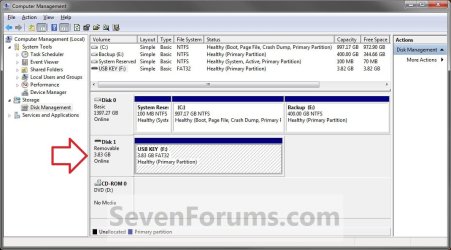
C) Click/tap on Disk Management in the left pane, and make note of the disk # in the middle pane of the disk that you want to clean or clean all. (see screenshot below)
NOTE: For example, I would use Disk 1 if I wanted to use clean or clean all on my USB key drive.
Computer_Management-1.jpg


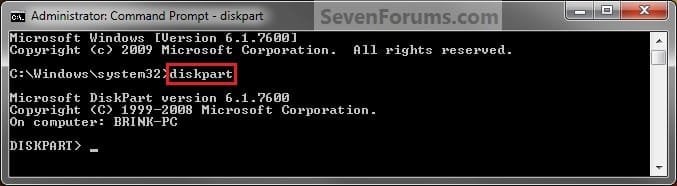
3. In the elevated command prompt, type diskpart and press Enter. (see screenshot below)
Step1.jpg
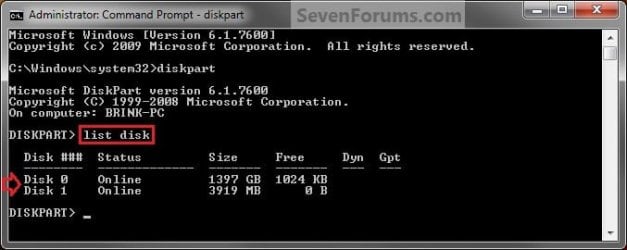
4. In the elevated command prompt, type list disk and press Enter. (see screenshot below)
NOTE: This will give you a list of disk numbers to select from.
Step2.jpg
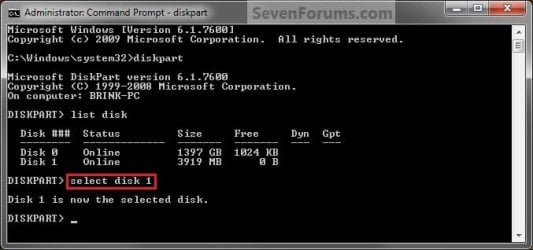
5. In the elevated command prompt, type select disk # and press Enter. (see screenshot below)
NOTE: You would substitute # for the disk number listed that you want to use clean or clean all on. For example, I want to use one of them on Disk 1 (from step 1) for my USB key drive, so I would type select disk 1 and press Enter.
Step3.jpg
6. If the status of the selected disk # (ex: Disk 3) shows as Offline, type online disk, and press Enter to make it online. (see screenshot below)
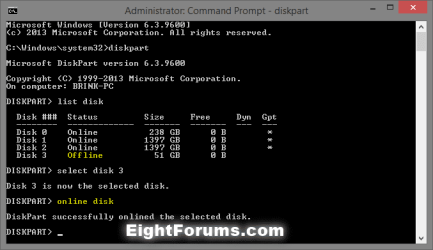
diskpart_online_disk.png
7. Do either step 8 or 9 below for which command you would like to use.


8. To Use the Clean Diskpart Command
NOTE: (Recommended) See the green INFO box at the top of the tutorial for more information about this command. This command will wipe the HDD quickly.
A) In the elevated command prompt, type clean, press Enter, and go to step 10 below. (see screenshot below)
NOTE: This will not take long to finish. Think of it as being like a quick format.
Step4_Clean.jpg
9. To Use the Clean All Diskpart Command
NOTE: See the green INFO box at the top of the tutorial for more information about this command. This command will wipe the HDD, and perform a secure erase. "Clean All" takes about an hour per 320 GB to finish running. It's best to only use this command if you wanted to help make sure that the data on the HDD cannot be recovered say when giving or selling the HDD to another person.
A) In the elevated command prompt, type clean all, and press Enter, and go to step 10 below. You will see the command prompt below as is until the "clean all" command is finished. (see screenshot below)

NOTE: This will take quite some time (several hours or more) to finish depending on how large the disk is since it is writing over each and every sector on it to zero. Think of it as being like a full or low level format.
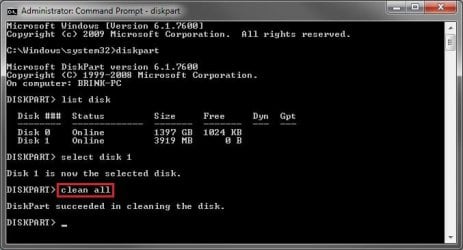
Step4_Clean_All.jpg
10. When finished, in the elevated command prompt, type exit and press Enter. Close the elevated command prompt.

11. The disk will be left as unallocated space. (see screenshot below)
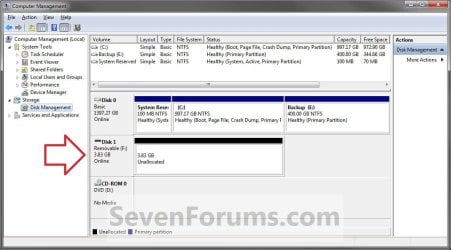
Computer_Management-2.jpg
12. You will now need to create a new partition or volume on the disk to be able to use it again.


That's it,
Shawn


Last edited:
You're most welcome. :)
 

My Computer

Computer type
PC/Desktop
Computer Manufacturer/Model Number
Self built custom
OS
64-bit Windows 11 Pro for Workstations
CPU
Intel i7-8700K OC'd to 5 GHz
Motherboard
ASUS ROG Maximus XI Formula Z390
Memory
64 GB (4x16GB) G.SKILL TridentZ RGB DDR4 3600 MHz
Graphics Card(s)
ASUS ROG-STRIX-GTX1080TI-O11G-GAMING
Sound Card
Integrated
Monitor(s) Displays
2 x Samsung Odyssey G7 27"
Screen Resolution
2560x1440
Hard Drives
1TB Samsung 990 PRO M.2,
4TB Samsung 990 PRO PRO M.2,
TerraMaster F8 SSD Plus NAS
PSU
Seasonic Prime Titanium 850W
Case
Thermaltake Core P3
Cooling
Corsair Hydro H115i
Keyboard
Logitech wireless K800
Mouse
Logitech MX Master 4
Internet Speed
2 Gb/s Download and 100 Mb/s Upload
Antivirus
Malwarebyte Anti-Malware Premium
Browser
Google Chrome
Other Info
Logitech Z625 speaker system,
Logitech BRIO 4K Pro webcam,
HP Color LaserJet Pro MFP M477fdn,
APC SMART-UPS RT 1000 XL - SURT1000XLI,
Galaxy S23 Plus phone
will both my drives be cleaned

hello on my pc I created two partitions one for my windows 8.1 C drive 150 gb and another to store all my data D drive 350 gb,I accidentally shut down the pc directly from power supply now my pc is not booting and when i try to reinstall windows no drives are detected, after searching a lot I believe my MBR has become corrupted, I want to follow these steps you have written to delete my corrupted mbr and reinstall Windows 8.1 or windows 7 fresh into my 150 gb c drive while not losing my D drive data, so if I use the clean command can I individually clean only my c drive or will both drives be cleaned.
 

My Computer

Computer type
PC/Desktop
Computer Manufacturer/Model Number
acer
OS
windows 8.1 64 bit
CPU
intel E5400 wolfdale
Motherboard
gigabyte ga g41-mt s2pt rev 2.1
Memory
4gb dynet rm
Graphics Card(s)
no external graphic card
Hard Drives
500 gb seagate barracuda
Antivirus
windows defender
Browser
firefox and internet explorer
Hello ghos3t, and welcome to Seven Forums.

I'm afraid that if you run the "clean" or "clean all" command on the disk, it will wipe both partitions and leave the disk as unallocated. It affects everything on the hard drive.

If you don't have another computer to connect the drive to and back it up on it, then you can use either tutorial below to back up with to a separate hard drive.

http://www.sevenforums.com/tutorials/93347-copy-paste-windows-recovery-console.html

http://www.sevenforums.com/tutorials/256518-peppermint-live-cd-dvd-usb-create-emergency-backup.html

Hope this helps, :)
Shawn
 

My Computer

Computer type
PC/Desktop
Computer Manufacturer/Model Number
Self built custom
OS
64-bit Windows 11 Pro for Workstations
CPU
Intel i7-8700K OC'd to 5 GHz
Motherboard
ASUS ROG Maximus XI Formula Z390
Memory
64 GB (4x16GB) G.SKILL TridentZ RGB DDR4 3600 MHz
Graphics Card(s)
ASUS ROG-STRIX-GTX1080TI-O11G-GAMING
Sound Card
Integrated
Monitor(s) Displays
2 x Samsung Odyssey G7 27"
Screen Resolution
2560x1440
Hard Drives
1TB Samsung 990 PRO M.2,
4TB Samsung 990 PRO PRO M.2,
TerraMaster F8 SSD Plus NAS
PSU
Seasonic Prime Titanium 850W
Case
Thermaltake Core P3
Cooling
Corsair Hydro H115i
Keyboard
Logitech wireless K800
Mouse
Logitech MX Master 4
Internet Speed
2 Gb/s Download and 100 Mb/s Upload
Antivirus
Malwarebyte Anti-Malware Premium
Browser
Google Chrome
Other Info
Logitech Z625 speaker system,
Logitech BRIO 4K Pro webcam,
HP Color LaserJet Pro MFP M477fdn,
APC SMART-UPS RT 1000 XL - SURT1000XLI,
Galaxy S23 Plus phone
Hi and thanks for the tutorial. I just did a 'clean all' on a 1TB internal HDD. And then when I went to device manager/disk management in order to assign the hdd's unallocated 1tb space I was given this option:

Use the following partition style:
MBR
GPT

Note GTP is recommended for disks larger than 2TB [mine is 1TB as I said], disks used on Itanuim-based PCs and wont be recognized by prev. versions of Win


I think before I did the CLEAN ALL it was MBR, not GPT, but I am not sure. As I said, it is an internal SATA2 3gb/s HDD, which used to be my main HDD partitioned with OS partitions and storage partitions. Now an SSD is my OS drive and the 1tb HDD in question is inserted in the 2nd slot in my notebook to be used only as storage. That's pretty much the full story. So which one of the 2 options to choose? It makes sense to be the MBR option but it never hurts to ask.

PS
Sorry if I am repeating a question already asked, but I could not find the answer so far.
 

My Computer

Computer type
Laptop
Computer Manufacturer/Model Number
HP
OS
Win 7 x64
Hello soewhaty,

For Windows 7, it's best to use MBR for the installation disk. :)
 

My Computer

Computer type
PC/Desktop
Computer Manufacturer/Model Number
Self built custom
OS
64-bit Windows 11 Pro for Workstations
CPU
Intel i7-8700K OC'd to 5 GHz
Motherboard
ASUS ROG Maximus XI Formula Z390
Memory
64 GB (4x16GB) G.SKILL TridentZ RGB DDR4 3600 MHz
Graphics Card(s)
ASUS ROG-STRIX-GTX1080TI-O11G-GAMING
Sound Card
Integrated
Monitor(s) Displays
2 x Samsung Odyssey G7 27"
Screen Resolution
2560x1440
Hard Drives
1TB Samsung 990 PRO M.2,
4TB Samsung 990 PRO PRO M.2,
TerraMaster F8 SSD Plus NAS
PSU
Seasonic Prime Titanium 850W
Case
Thermaltake Core P3
Cooling
Corsair Hydro H115i
Keyboard
Logitech wireless K800
Mouse
Logitech MX Master 4
Internet Speed
2 Gb/s Download and 100 Mb/s Upload
Antivirus
Malwarebyte Anti-Malware Premium
Browser
Google Chrome
Other Info
Logitech Z625 speaker system,
Logitech BRIO 4K Pro webcam,
HP Color LaserJet Pro MFP M477fdn,
APC SMART-UPS RT 1000 XL - SURT1000XLI,
Galaxy S23 Plus phone
Thanks for your reply! I am not sure what you mean in this context when u say 'installation disk'. As I said my configuration is the following - Win7 Pro x64 on a notebook PC with 2 hdd/ssd slots. In one slot I have an SSD where my OS is and in the 2nd slot I have the internal HDD on which I just performed a 'clean all'. The HDD is only going to be used for storage. There is not going to be any operating systems installed on it. I hope that makes it clearer now. Sorry if there was any confusion.

1. That said, what is the answer now? MBR or GPT for the HDD when 'device manager/disk management' asks me the following

Use the following partition style:
MBR
GPT

Note GTP is recommended for disks larger than 2TB [mine is 1TB as I said], disks used on Itanuim-based PCs and wont be recognized by prev. versions of Win


2. Does it matter which OS we are talking about in this context? In other words, is the answer to question #1 the same for Win7, Win8, Win8.1 and say Win10?

Thanks in advance! :)
 

My Computer

Computer type
Laptop
Computer Manufacturer/Model Number
HP
OS
Win 7 x64
"Installation disk" is the disk that Windows 7 is installed on.

If you were using Windows 8, then you could use GPT with UEFI if you like.

Since this is only a 1TB drive, I would still say use MBR. :)
 

My Computer

Computer type
PC/Desktop
Computer Manufacturer/Model Number
Self built custom
OS
64-bit Windows 11 Pro for Workstations
CPU
Intel i7-8700K OC'd to 5 GHz
Motherboard
ASUS ROG Maximus XI Formula Z390
Memory
64 GB (4x16GB) G.SKILL TridentZ RGB DDR4 3600 MHz
Graphics Card(s)
ASUS ROG-STRIX-GTX1080TI-O11G-GAMING
Sound Card
Integrated
Monitor(s) Displays
2 x Samsung Odyssey G7 27"
Screen Resolution
2560x1440
Hard Drives
1TB Samsung 990 PRO M.2,
4TB Samsung 990 PRO PRO M.2,
TerraMaster F8 SSD Plus NAS
PSU
Seasonic Prime Titanium 850W
Case
Thermaltake Core P3
Cooling
Corsair Hydro H115i
Keyboard
Logitech wireless K800
Mouse
Logitech MX Master 4
Internet Speed
2 Gb/s Download and 100 Mb/s Upload
Antivirus
Malwarebyte Anti-Malware Premium
Browser
Google Chrome
Other Info
Logitech Z625 speaker system,
Logitech BRIO 4K Pro webcam,
HP Color LaserJet Pro MFP M477fdn,
APC SMART-UPS RT 1000 XL - SURT1000XLI,
Galaxy S23 Plus phone
OK, the internal HDD in question is, as I already said in my initial post, not the one where any OS is going to be installed ever. And it is 1TB in size. It is only an internal hdd for storage. Those are all the prerequisites.

For all versions of Windows that I ever use [Win7, Win8 and Win10, etc] I am only going to use that internal HDD for storage and not for installing OS onto. I repeat, it is an internal HDD, cos my notebook has 2 slots. So with that in mind, I thought it should be the same choice in all Windows editions, but it surprises me now to see you're saying that in Win7 I should have the hdd as MBR and in Win8 in GPT. I mean, after all... it's the same internal hdd we are talking about here, same size and same use it will have. Why would I have it MBR in Win7 and GPT in Win8. That is what you are saying as far as I understand.

Thanks again :)
 

My Computer

Computer type
Laptop
Computer Manufacturer/Model Number
HP
OS
Win 7 x64
Yep, use MBR.
 

My Computer

Computer type
PC/Desktop
Computer Manufacturer/Model Number
Self built custom
OS
64-bit Windows 11 Pro for Workstations
CPU
Intel i7-8700K OC'd to 5 GHz
Motherboard
ASUS ROG Maximus XI Formula Z390
Memory
64 GB (4x16GB) G.SKILL TridentZ RGB DDR4 3600 MHz
Graphics Card(s)
ASUS ROG-STRIX-GTX1080TI-O11G-GAMING
Sound Card
Integrated
Monitor(s) Displays
2 x Samsung Odyssey G7 27"
Screen Resolution
2560x1440
Hard Drives
1TB Samsung 990 PRO M.2,
4TB Samsung 990 PRO PRO M.2,
TerraMaster F8 SSD Plus NAS
PSU
Seasonic Prime Titanium 850W
Case
Thermaltake Core P3
Cooling
Corsair Hydro H115i
Keyboard
Logitech wireless K800
Mouse
Logitech MX Master 4
Internet Speed
2 Gb/s Download and 100 Mb/s Upload
Antivirus
Malwarebyte Anti-Malware Premium
Browser
Google Chrome
Other Info
Logitech Z625 speaker system,
Logitech BRIO 4K Pro webcam,
HP Color LaserJet Pro MFP M477fdn,
APC SMART-UPS RT 1000 XL - SURT1000XLI,
Galaxy S23 Plus phone
Thank you for the reply but from all I wrote [and asked] one would expect a deeper explanation from you as to why you recommend MBR in Win7 and GPT in Win 8. After my little research I figured that there is a different way at looking at things. GPT is newer than MBR, and if GPT should ever be used on a partition meant for an OS, then Windows can only boot from GPT on UEFI-based computers running 64-bit versions of Windows 8.1, 8, 7, Vista, and corresponding server versions. All versions of Windows 8.1, 8, 7, and Vista can read GPT drives and use them for data, but, as mentioned above only the 64-bit versions on uefi based pcs can boot from gpt drives.

Bottom line for me [correct me if I am wrong] is that if the hdd/sdd in question is not going to be one to boot from, but just used for storage, then only the size would determine if one should use MBR or GPT. MBR is for drives up to 2 or 2.2TB, for larger one would use GPT. Which then makes one ask the question why not use GPT anyway, since it supports bigger and smaller than 2/2.2TB. Shouldn't matter too much I guess. What matters though is whether or not to use GPT or MBR on an OS drive. Obviously GPT has advantages, but there's also some requirements from the PC/system to be met if GPT is to be used.
 

My Computer

Computer type
Laptop
Computer Manufacturer/Model Number
HP
OS
Win 7 x64

My Computer

Computer type
PC/Desktop
Computer Manufacturer/Model Number
Self built custom
OS
64-bit Windows 11 Pro for Workstations
CPU
Intel i7-8700K OC'd to 5 GHz
Motherboard
ASUS ROG Maximus XI Formula Z390
Memory
64 GB (4x16GB) G.SKILL TridentZ RGB DDR4 3600 MHz
Graphics Card(s)
ASUS ROG-STRIX-GTX1080TI-O11G-GAMING
Sound Card
Integrated
Monitor(s) Displays
2 x Samsung Odyssey G7 27"
Screen Resolution
2560x1440
Hard Drives
1TB Samsung 990 PRO M.2,
4TB Samsung 990 PRO PRO M.2,
TerraMaster F8 SSD Plus NAS
PSU
Seasonic Prime Titanium 850W
Case
Thermaltake Core P3
Cooling
Corsair Hydro H115i
Keyboard
Logitech wireless K800
Mouse
Logitech MX Master 4
Internet Speed
2 Gb/s Download and 100 Mb/s Upload
Antivirus
Malwarebyte Anti-Malware Premium
Browser
Google Chrome
Other Info
Logitech Z625 speaker system,
Logitech BRIO 4K Pro webcam,
HP Color LaserJet Pro MFP M477fdn,
APC SMART-UPS RT 1000 XL - SURT1000XLI,
Galaxy S23 Plus phone
Thanks! And there is no difference which one of the 2 we use speed-wise, right?
 

My Computer

Computer type
Laptop
Computer Manufacturer/Model Number
HP
OS
Win 7 x64
Correct. No difference for performance.
 

My Computer

Computer type
PC/Desktop
Computer Manufacturer/Model Number
Self built custom
OS
64-bit Windows 11 Pro for Workstations
CPU
Intel i7-8700K OC'd to 5 GHz
Motherboard
ASUS ROG Maximus XI Formula Z390
Memory
64 GB (4x16GB) G.SKILL TridentZ RGB DDR4 3600 MHz
Graphics Card(s)
ASUS ROG-STRIX-GTX1080TI-O11G-GAMING
Sound Card
Integrated
Monitor(s) Displays
2 x Samsung Odyssey G7 27"
Screen Resolution
2560x1440
Hard Drives
1TB Samsung 990 PRO M.2,
4TB Samsung 990 PRO PRO M.2,
TerraMaster F8 SSD Plus NAS
PSU
Seasonic Prime Titanium 850W
Case
Thermaltake Core P3
Cooling
Corsair Hydro H115i
Keyboard
Logitech wireless K800
Mouse
Logitech MX Master 4
Internet Speed
2 Gb/s Download and 100 Mb/s Upload
Antivirus
Malwarebyte Anti-Malware Premium
Browser
Google Chrome
Other Info
Logitech Z625 speaker system,
Logitech BRIO 4K Pro webcam,
HP Color LaserJet Pro MFP M477fdn,
APC SMART-UPS RT 1000 XL - SURT1000XLI,
Galaxy S23 Plus phone
More advice required re Portable Hard Drives

Hi Brink, a very useful tutorial. However, I believe that it could do with just a little more advice on the end for what to do with a portable hard drive in order to make it usable again after doing a 'clean all'.

I followed your instructions in order to wipe a portable hard drive prior to possible sale. It worked fine although it did take a while. However, I struggled to get it to be recognised again in a computer afterwards. That may be down to my lack of knowledge of partitions and volumes but I'm sure that other readers may be in the same boat. As it was a portable hard drive, I suspected that I did not want a new partition as I thought that they were only used to separate areas on a single device. The "How to Create a New Partition or Volume in Windows 7" tutorial seemed, on glimpsing through, to concentrate on creating partitions. Perhaps a few wise words on having to create a new volume (or, at least, that is what I assume has to be done) may be in order?
 

My Computer

Computer Manufacturer/Model Number
Dell XPS 7100
OS
Windows 7 Home Premium 64 bit
CPU
AMD
Motherboard
unknown
Memory
4GB
Graphics Card(s)
unknown
Sound Card
unknown
Monitor(s) Displays
BenQ
Hard Drives
500GB
PSU
unknown
Case
unknown
Cooling
unknown
As it was a portable hard drive, I suspected that I did not want a new partition as I thought that they were only used to separate areas on a single device.

A hard drive, portable or not, has to have at least one partition to be usable.

If you purchase a new hard drive, it typically will not have ANY partitions. You'd need to create at least one. It would then have to be formatted in order to accept files.
 

My Computer

Computer type
PC/Desktop
Computer Manufacturer/Model Number
Ignatz Special; 4 speed manual gearbox; factory air conditioning; one of one
OS
Windows 7 Home Premium SP1, 64-bit
CPU
Intel Skylake i5-6600K, not overclocked
Motherboard
AsRock Z170M Extreme 4, micro ATX
Memory
8 GB HyperX DDR4-2666 (2 x 4 GB)
Graphics Card(s)
none; graphics are integrated on CPU
Sound Card
onboard: Realtek ALC1150; external: USB Behringer UF0-202
Monitor(s) Displays
Dell S2340M 23 inch IPS
Screen Resolution
1600 x 900
Hard Drives
System: Crucial MX100 series SSD, 128 GB;
Data: Samsung Spinpoint 103SJ, 1 TB;
Backup: WD Caviar Green WD30EZRX-00D8PB0, 3 TB
PSU
Rosewill SilentNight 500 watt fanless, semi-modular
Case
Antec Solo II
Cooling
Noctua NH-U12S; Noctua F12 intake, Noctua S12A exhaust
Keyboard
Microsoft 200 6JH-00001 USB
Mouse
Dell or Microsoft optical wired; USB
Antivirus
Microsoft Security Essentials and Malwarebytes Premium
Browser
Pale Moon
Other Info
All fans PWM; speeds at idle: CPU circa 500 rpm; intake circa 600 rpm; exhaust circa 600 rpm; CPU temps 27 idle and 47 C load in a warm room (27 C/81 F) when running Intel Extreme Tuning Utility stress test.
Does both Clean and Clean All rewrite the MBR section? Or just the Clean All?

I've done DOD 3 pass wipe on external HDD, and thought it would overwrite the ENTIRE disc. But looks like it doesn't touch the MBR as it doesn't ask you to set the MBR afterwards.

Whereas using the Clean or Clean will cause it to ask you to setup the MBR.

I have some spare hard drives that I put a cloned copy of the OS on. Use them to download questionable things in case they contain viruses or malware. So every so often I do a DOD 3 pass wipe to clean the drive. So I would also need to clean the MBR section as well in case a virus got in there.

Looking around I read of it being suggested to do something like a Clean or Clean All first, then do your wipe, then reformat it, then install the OS to do a clean wipe of any viruses that may be on there.
 

My Computer

Computer type
PC/Desktop
OS
.
Hello Jason,

Yes, both the "Clean" and "Clean All" commands will completely wipe the drive along with how it's formatted until it's just unallocated.

I would recommend to use the "Clean" command since it's faster. The only difference is that "Clean All" does a secure erase that takes much longer to finish. :)
 

My Computer

Computer type
PC/Desktop
Computer Manufacturer/Model Number
Self built custom
OS
64-bit Windows 11 Pro for Workstations
CPU
Intel i7-8700K OC'd to 5 GHz
Motherboard
ASUS ROG Maximus XI Formula Z390
Memory
64 GB (4x16GB) G.SKILL TridentZ RGB DDR4 3600 MHz
Graphics Card(s)
ASUS ROG-STRIX-GTX1080TI-O11G-GAMING
Sound Card
Integrated
Monitor(s) Displays
2 x Samsung Odyssey G7 27"
Screen Resolution
2560x1440
Hard Drives
1TB Samsung 990 PRO M.2,
4TB Samsung 990 PRO PRO M.2,
TerraMaster F8 SSD Plus NAS
PSU
Seasonic Prime Titanium 850W
Case
Thermaltake Core P3
Cooling
Corsair Hydro H115i
Keyboard
Logitech wireless K800
Mouse
Logitech MX Master 4
Internet Speed
2 Gb/s Download and 100 Mb/s Upload
Antivirus
Malwarebyte Anti-Malware Premium
Browser
Google Chrome
Other Info
Logitech Z625 speaker system,
Logitech BRIO 4K Pro webcam,
HP Color LaserJet Pro MFP M477fdn,
APC SMART-UPS RT 1000 XL - SURT1000XLI,
Galaxy S23 Plus phone
Does "Clean" write over the boot sector then rewrite the boot sector when you select "MBR"?

I'm guessing the software that lets you clean a drive, i.e. DOD 3 pass wipe don't touch the boot sector. As after doing that, it doesn't ask you to select MBR or GPT. I only got it to ask that after doing the Clean or Clean All.

So I guess what I'll do if I need to clean a drive for any viruses. Is first do a Clean and reset it to MBR. Which I guess rewrites the boot sector. Then do my DOD 3 pass wipe or single pass wipe. Then do the LONG format, then load the cloned image.
 

My Computer

Computer type
PC/Desktop
OS
.
Clean will only mark the entire drive as deleted to make it unallocated. This will wipe everything on the drive.

If this drive is for Windows, then you could just select the unallocated disk to install Windows on, and allow the installation to format and setup the disk with MBR.
 

My Computer

Computer type
PC/Desktop
Computer Manufacturer/Model Number
Self built custom
OS
64-bit Windows 11 Pro for Workstations
CPU
Intel i7-8700K OC'd to 5 GHz
Motherboard
ASUS ROG Maximus XI Formula Z390
Memory
64 GB (4x16GB) G.SKILL TridentZ RGB DDR4 3600 MHz
Graphics Card(s)
ASUS ROG-STRIX-GTX1080TI-O11G-GAMING
Sound Card
Integrated
Monitor(s) Displays
2 x Samsung Odyssey G7 27"
Screen Resolution
2560x1440
Hard Drives
1TB Samsung 990 PRO M.2,
4TB Samsung 990 PRO PRO M.2,
TerraMaster F8 SSD Plus NAS
PSU
Seasonic Prime Titanium 850W
Case
Thermaltake Core P3
Cooling
Corsair Hydro H115i
Keyboard
Logitech wireless K800
Mouse
Logitech MX Master 4
Internet Speed
2 Gb/s Download and 100 Mb/s Upload
Antivirus
Malwarebyte Anti-Malware Premium
Browser
Google Chrome
Other Info
Logitech Z625 speaker system,
Logitech BRIO 4K Pro webcam,
HP Color LaserJet Pro MFP M477fdn,
APC SMART-UPS RT 1000 XL - SURT1000XLI,
Galaxy S23 Plus phone
How would you recommend removing any traces of viruses from an external hard drive? Clean, then set to MBR. Then do say a full pass erase. Then install the cloned image or install from the factory disc.
 

My Computer

Computer type
PC/Desktop
OS
.
Back
Top