
Disk - Clean and Clean All with Diskpart Command

How to "Clean" or "Clean All" a Disk with the Diskpart Command


   Information
This will show you how to use the clean or clean all command on a selected disk to delete all of it's MBR or GPT partitions, volumes, and any hidden sector information on MBR disks is overwritten.

The data on the HDD is not written over using the clean command like it does with the clean all command below. With the clean command, the data on the HDD is only marked as being deleted instead and is only written over when new data is written/saved to the same location on the HDD next.

OR

You could use the clean all command (secure erase) to do the above and also have each and every disk sector on the HDD written over and zeroed out completely to securely delete all data on the disk to help prevent the data from being able to be recovered. "Clean All" takes about an hour per 320 GB to finish running.

   Note

  • You cannot use the clean or clean all diskpart commands on a boot disk (ex: disk Windows is installed on) unless you do it from a command prompt at boot.
  • Be sure to backup anything that you do not want to lose on the disk that you use clean or clean all on first. It will be to late afterwards. All data will be permanently lost on the disk.
   Warning
You do not want to use clean all on a SSD disk often. Having every sector written over to 0 on a SSD can reduce it's life span faster.


Here's How:

1. In Windows 7, open an elevated command prompt, or a command prompt at boot.

OR

2. In Windows 8 and 8.1, open an elevated command prompt, or a command prompt at boot.

   Note
Be sure that you have the correct Disk #. You would not want to wipe clean the wrong disk.

A) Press the Windows + R keys to open the Run dialog, type compmgmt.msc, and press Enter.

B) If prompted by UAC, click/tap on Yes.

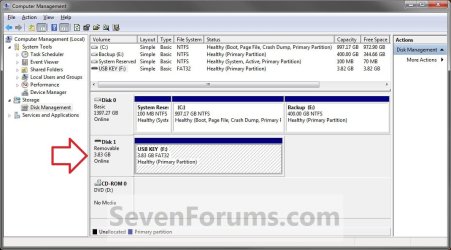
C) Click/tap on Disk Management in the left pane, and make note of the disk # in the middle pane of the disk that you want to clean or clean all. (see screenshot below)
NOTE: For example, I would use Disk 1 if I wanted to use clean or clean all on my USB key drive.
Computer_Management-1.jpg


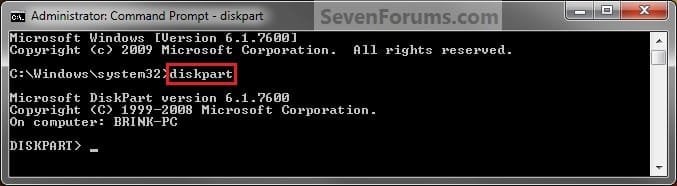
3. In the elevated command prompt, type diskpart and press Enter. (see screenshot below)
Step1.jpg
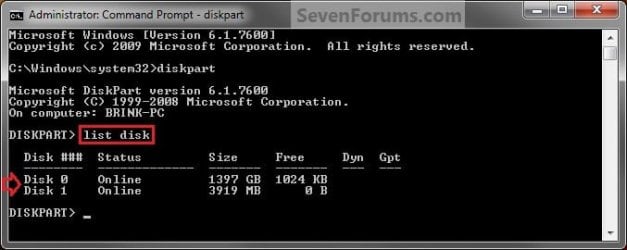
4. In the elevated command prompt, type list disk and press Enter. (see screenshot below)
NOTE: This will give you a list of disk numbers to select from.
Step2.jpg
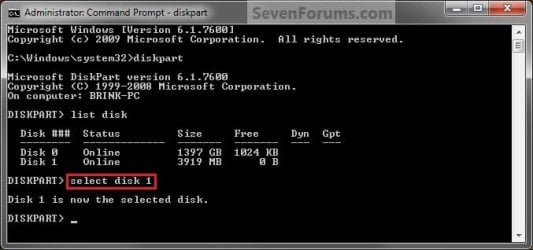
5. In the elevated command prompt, type select disk # and press Enter. (see screenshot below)
NOTE: You would substitute # for the disk number listed that you want to use clean or clean all on. For example, I want to use one of them on Disk 1 (from step 1) for my USB key drive, so I would type select disk 1 and press Enter.
Step3.jpg
6. If the status of the selected disk # (ex: Disk 3) shows as Offline, type online disk, and press Enter to make it online. (see screenshot below)
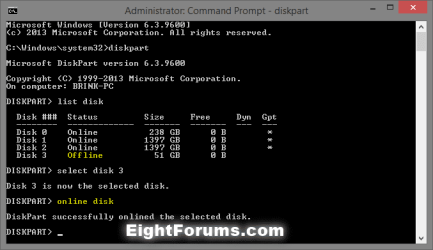
diskpart_online_disk.png
7. Do either step 8 or 9 below for which command you would like to use.


8. To Use the Clean Diskpart Command
NOTE: (Recommended) See the green INFO box at the top of the tutorial for more information about this command. This command will wipe the HDD quickly.
A) In the elevated command prompt, type clean, press Enter, and go to step 10 below. (see screenshot below)
NOTE: This will not take long to finish. Think of it as being like a quick format.
Step4_Clean.jpg
9. To Use the Clean All Diskpart Command
NOTE: See the green INFO box at the top of the tutorial for more information about this command. This command will wipe the HDD, and perform a secure erase. "Clean All" takes about an hour per 320 GB to finish running. It's best to only use this command if you wanted to help make sure that the data on the HDD cannot be recovered say when giving or selling the HDD to another person.
A) In the elevated command prompt, type clean all, and press Enter, and go to step 10 below. You will see the command prompt below as is until the "clean all" command is finished. (see screenshot below)

NOTE: This will take quite some time (several hours or more) to finish depending on how large the disk is since it is writing over each and every sector on it to zero. Think of it as being like a full or low level format.
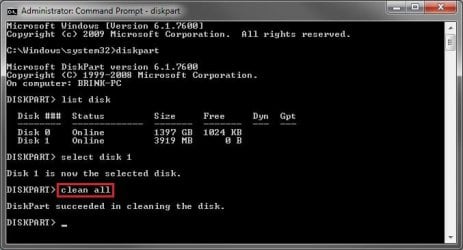
Step4_Clean_All.jpg
10. When finished, in the elevated command prompt, type exit and press Enter. Close the elevated command prompt.

11. The disk will be left as unallocated space. (see screenshot below)
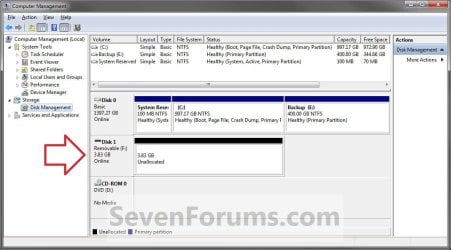
Computer_Management-2.jpg
12. You will now need to create a new partition or volume on the disk to be able to use it again.


That's it,
Shawn


Last edited:
Hello Benteke, :)

Yep, you could boot to a command prompt at boot, then run the "clean" command to wipe the system disk. :)

Yeah, thanks Brink.... That's the part I was a little unsure about. I appreciate the confirmation :)
 

My Computer

Computer type
Laptop
Computer Manufacturer/Model Number
Fujitsu LifeBook AH550
OS
Windows 7 Home Premium x64 SP1
You're most welcome. :)
 

My Computer

Computer type
PC/Desktop
Computer Manufacturer/Model Number
Self built custom
OS
64-bit Windows 11 Pro for Workstations
CPU
Intel i7-8700K OC'd to 5 GHz
Motherboard
ASUS ROG Maximus XI Formula Z390
Memory
64 GB (4x16GB) G.SKILL TridentZ RGB DDR4 3600 MHz
Graphics Card(s)
ASUS ROG-STRIX-GTX1080TI-O11G-GAMING
Sound Card
Integrated
Monitor(s) Displays
2 x Samsung Odyssey G7 27"
Screen Resolution
2560x1440
Hard Drives
1TB Samsung 990 PRO M.2,
4TB Samsung 990 PRO PRO M.2,
TerraMaster F8 SSD Plus NAS
PSU
Seasonic Prime Titanium 850W
Case
Thermaltake Core P3
Cooling
Corsair Hydro H115i
Keyboard
Logitech wireless K800
Mouse
Logitech MX Master 4
Internet Speed
2 Gb/s Download and 100 Mb/s Upload
Antivirus
Malwarebyte Anti-Malware Premium
Browser
Google Chrome
Other Info
Logitech Z625 speaker system,
Logitech BRIO 4K Pro webcam,
HP Color LaserJet Pro MFP M477fdn,
APC SMART-UPS RT 1000 XL - SURT1000XLI,
Galaxy S23 Plus phone
Ruined hard drive?

I was getting increasingly frustrated with problems of crashing following a fresh install of Windows 7.

Subsequently I've done a lot of reading and used DISKPART to perform format of a hard drive.

When I did a clean all. It was taking so long I hit Ctrl C but nothing seemed to happen. In the end I forced a shutdown and the hard drive no longer appears.

Is there a way to recover it?
 

My Computer

Computer type
PC/Desktop
Computer Manufacturer/Model Number
HP xw4600 Workstation
OS
Windows 7 Ultimate x64 SP1
CPU
Intel Q9550 from memory
Motherboard
HP
Memory
8192Mb
Graphics Card(s)
Matrox Millenium
Hard Drives
Western Digital WD5000-AAKS (Blue Caviar?)
Antivirus
None
Browser
Firefox 48
Hello Rhothgar, :)

Yeah, it's not a good idea to interrupt a clean all command like that.

Do you see the drive listed in Disk Management (diskmgmt.msc)?
 

My Computer

Computer type
PC/Desktop
Computer Manufacturer/Model Number
Self built custom
OS
64-bit Windows 11 Pro for Workstations
CPU
Intel i7-8700K OC'd to 5 GHz
Motherboard
ASUS ROG Maximus XI Formula Z390
Memory
64 GB (4x16GB) G.SKILL TridentZ RGB DDR4 3600 MHz
Graphics Card(s)
ASUS ROG-STRIX-GTX1080TI-O11G-GAMING
Sound Card
Integrated
Monitor(s) Displays
2 x Samsung Odyssey G7 27"
Screen Resolution
2560x1440
Hard Drives
1TB Samsung 990 PRO M.2,
4TB Samsung 990 PRO PRO M.2,
TerraMaster F8 SSD Plus NAS
PSU
Seasonic Prime Titanium 850W
Case
Thermaltake Core P3
Cooling
Corsair Hydro H115i
Keyboard
Logitech wireless K800
Mouse
Logitech MX Master 4
Internet Speed
2 Gb/s Download and 100 Mb/s Upload
Antivirus
Malwarebyte Anti-Malware Premium
Browser
Google Chrome
Other Info
Logitech Z625 speaker system,
Logitech BRIO 4K Pro webcam,
HP Color LaserJet Pro MFP M477fdn,
APC SMART-UPS RT 1000 XL - SURT1000XLI,
Galaxy S23 Plus phone
Hello Rhothgar, :)

Yeah, it's not a good idea to interrupt a clean all command like that.

Do you see the drive listed in Disk Management (diskmgmt.msc)?

Resolved thankfully by using another drive as master and accessing disk management. It must have reset it somewhere.
 

My Computer

Computer type
PC/Desktop
Computer Manufacturer/Model Number
HP xw4600 Workstation
OS
Windows 7 Ultimate x64 SP1
CPU
Intel Q9550 from memory
Motherboard
HP
Memory
8192Mb
Graphics Card(s)
Matrox Millenium
Hard Drives
Western Digital WD5000-AAKS (Blue Caviar?)
Antivirus
None
Browser
Firefox 48
Great news. :party:
 

My Computer

Computer type
PC/Desktop
Computer Manufacturer/Model Number
Self built custom
OS
64-bit Windows 11 Pro for Workstations
CPU
Intel i7-8700K OC'd to 5 GHz
Motherboard
ASUS ROG Maximus XI Formula Z390
Memory
64 GB (4x16GB) G.SKILL TridentZ RGB DDR4 3600 MHz
Graphics Card(s)
ASUS ROG-STRIX-GTX1080TI-O11G-GAMING
Sound Card
Integrated
Monitor(s) Displays
2 x Samsung Odyssey G7 27"
Screen Resolution
2560x1440
Hard Drives
1TB Samsung 990 PRO M.2,
4TB Samsung 990 PRO PRO M.2,
TerraMaster F8 SSD Plus NAS
PSU
Seasonic Prime Titanium 850W
Case
Thermaltake Core P3
Cooling
Corsair Hydro H115i
Keyboard
Logitech wireless K800
Mouse
Logitech MX Master 4
Internet Speed
2 Gb/s Download and 100 Mb/s Upload
Antivirus
Malwarebyte Anti-Malware Premium
Browser
Google Chrome
Other Info
Logitech Z625 speaker system,
Logitech BRIO 4K Pro webcam,
HP Color LaserJet Pro MFP M477fdn,
APC SMART-UPS RT 1000 XL - SURT1000XLI,
Galaxy S23 Plus phone
i had windows 10 64 bit build i dont know. suddenly it didnt work so i installed linux mint. great software. now i wanted to use windows 10 and linux mint as dualboot. i thought about new install starting with windows 10 but grub 2 analraped my mbr. i had to low level format somehow my ssd. this solution rescued me:

starting windows 10 on pendrive, repair, command prompt interface, diskpart, list disk, select disc, clean.

clean all is not neccessary. damn nice tool is this diskpart.
 

My Computer

Computer type
PC/Desktop
OS
Windows 10 64bit
Hello kelod467, and welcome to Seven Forums. :)

Yes, it sure is.
 

My Computer

Computer type
PC/Desktop
Computer Manufacturer/Model Number
Self built custom
OS
64-bit Windows 11 Pro for Workstations
CPU
Intel i7-8700K OC'd to 5 GHz
Motherboard
ASUS ROG Maximus XI Formula Z390
Memory
64 GB (4x16GB) G.SKILL TridentZ RGB DDR4 3600 MHz
Graphics Card(s)
ASUS ROG-STRIX-GTX1080TI-O11G-GAMING
Sound Card
Integrated
Monitor(s) Displays
2 x Samsung Odyssey G7 27"
Screen Resolution
2560x1440
Hard Drives
1TB Samsung 990 PRO M.2,
4TB Samsung 990 PRO PRO M.2,
TerraMaster F8 SSD Plus NAS
PSU
Seasonic Prime Titanium 850W
Case
Thermaltake Core P3
Cooling
Corsair Hydro H115i
Keyboard
Logitech wireless K800
Mouse
Logitech MX Master 4
Internet Speed
2 Gb/s Download and 100 Mb/s Upload
Antivirus
Malwarebyte Anti-Malware Premium
Browser
Google Chrome
Other Info
Logitech Z625 speaker system,
Logitech BRIO 4K Pro webcam,
HP Color LaserJet Pro MFP M477fdn,
APC SMART-UPS RT 1000 XL - SURT1000XLI,
Galaxy S23 Plus phone
Thanks a lot, a video will be better because i am not skillful about computer:o
 

My Computer

Computer type
PC/Desktop
Computer Manufacturer/Model Number
Asus
OS
Windows 7 Home Premium 32bit
I am very lucky on my Laptop I have Disk Sanitizer, it does the job for me, I just press f10 and there it is under Security. Makes life a little easier :D
 

My Computer

Computer type
PC/Desktop
Computer Manufacturer/Model Number
Custom
OS
Windows 10 Pro 64bit
CPU
3.4
Motherboard
Asus
Memory
32gb
Graphics Card(s)
AMD
Hard Drives
20 TB total
Antivirus
Windows
Browser
Firefox
hello ,I cleaned 5oogb with diskpart hdd just for fun. is it means now what 500 gb hdd equals 0gb ?or is it still possible to reuse it ? is it possible to format it?thanks
 

My Computer

Computer type
Laptop
Computer Manufacturer/Model Number
Dell Inc.
OS
Microsoft Windows 10 Enterprise 2016 LTSB
CPU
Intel(R) Core(TM) i7-2640M CPU @ 2.80GHz, 2801 Mhz
Motherboard
0178M3
Memory
8.00 GB
Graphics Card(s)
NVIDIA GeForce GT 520M
Hard Drives
WD
Antivirus
None
Browser
Chrome
Hello zerodealt, and welcome to Seven Forums. :)

Yes, you will be able to use the space. After you clean a disk, it will be seen as "unallocated" until you do step 12 to create a new simple volume on it.
 

My Computer

Computer type
PC/Desktop
Computer Manufacturer/Model Number
Self built custom
OS
64-bit Windows 11 Pro for Workstations
CPU
Intel i7-8700K OC'd to 5 GHz
Motherboard
ASUS ROG Maximus XI Formula Z390
Memory
64 GB (4x16GB) G.SKILL TridentZ RGB DDR4 3600 MHz
Graphics Card(s)
ASUS ROG-STRIX-GTX1080TI-O11G-GAMING
Sound Card
Integrated
Monitor(s) Displays
2 x Samsung Odyssey G7 27"
Screen Resolution
2560x1440
Hard Drives
1TB Samsung 990 PRO M.2,
4TB Samsung 990 PRO PRO M.2,
TerraMaster F8 SSD Plus NAS
PSU
Seasonic Prime Titanium 850W
Case
Thermaltake Core P3
Cooling
Corsair Hydro H115i
Keyboard
Logitech wireless K800
Mouse
Logitech MX Master 4
Internet Speed
2 Gb/s Download and 100 Mb/s Upload
Antivirus
Malwarebyte Anti-Malware Premium
Browser
Google Chrome
Other Info
Logitech Z625 speaker system,
Logitech BRIO 4K Pro webcam,
HP Color LaserJet Pro MFP M477fdn,
APC SMART-UPS RT 1000 XL - SURT1000XLI,
Galaxy S23 Plus phone
First time I've done it this way, and I love "clean all." I made one partition on my exterior HD called ECopy. If I clone (not image) 2 partitions, C and D from my working HD onto that HD, will it make 2 partitions, or do I have to divide it into 2 partitions first?

I think previously I use Easeus Partition Master to wipe drives, then make partitions. What are the advantages of your method?
 

My Computer

Computer type
PC/Desktop
Computer Manufacturer/Model Number
HP p6-2020t
OS
Win 7 Ult 64-bit
CPU
G620 2.6GHZ Pentium R
Memory
6 GB
Monitor(s) Displays
25" HPLV2311
Screen Resolution
1920 x 1200
Hard Drives
1 SATA, 1 exterior SATA
Case
HP
Cooling
PSU
Antivirus
Glasswire
Browser
Waterfox; Firefox; Chrome for work
Other Info
Firewall--Glasswire
Similar specs in Gateway DX4200
Verizon FIOS Wired network

1 other Win7 computer-- has SSD
Yes mate cloning will do just that make an exact copy of what you have.

Now clean all is good for when you are disposing of a drive but the straight clean is just fine if you are only intending to reinstall it just takes a lot less time. Plus wipe is the same as the clean process and for example if you do that with say Partition Wizard you can choose the length of time it will take by choosing what you want to fill the drive with 0's and 1's ro all 0"s or 1"s etc and the more of a form you use say you choose a random 0 and 1 wipe the it will atke longer than a plain all 0's:)

But all the same a clean or wipe is better than just a format because it is ore thorough.

By he by you can clone to the unallocated drive after a clean I never format it unless there are specific instructions to because the clone - clones as is and it is already formatted on the drive you are cloning. You may find sometimes doing it that way may leaves some space unallocated but it is easily fixed suing again for example Partition Wizard.
 

My Computer

Computer type
PC/Desktop
Computer Manufacturer/Model Number
Own build (new) Desk1 / Asus ROG Win 7 / Desk2 1st build
OS
Desk1 7 Home Prem / Desk2 10 Pro / Main lap Asus ROG 10 Pro 2 laptop Toshiba 7 Pro Asus P2520 7 & 10
CPU
Desk1 i5 3750K / Laptop i7 GTX 860M / Desk2 i5 2500
Motherboard
Desk1 Asus P877-V / Desk2 Gigabyte H67 UD3H / Laptop ?
Memory
Desk1 8GB (1866) / Desk2 16GB (1333) / Laptop 8Gb DDR3
Graphics Card(s)
Desk 1& 2NVidia GTX 650 & Laptops on board Intel
Sound Card
Desk 1 & 2 -XONAR DG Realtek High Def audio Laptop
Monitor(s) Displays
Desk 1 Benq HD 2450 / Desk2 Philips 24" / Laptop 17.5"
Screen Resolution
1920x1080 D1 & D2 & Laptop 1
Hard Drives
Desk1 Samsung 120GB 830 SSD
Asus ROG 256GB 850 Pro SSD
Desk2 Samsung 840 256 SSD
Toshiba 120GB EVO
PSU
Desk 1 Corsair HX 1050/ Laptop ? / Desk 2 Corsair HX 650
Case
Desk 1 Cooler HAF XM ? Toshiba laptop / Desk2 Coolermaster
Cooling
Fans on all Desk1 -2 Desk2 - all Coolermasters 5 Laptop ?
Keyboard
Desk 1 MS Sidewinder X6 Desk 2 MS Sidewinder X 4
Mouse
Desk 1&2 - Gigabyte MS 900 gamer - laptop - Logitec wireless
Internet Speed
ADSL2+
Other Info
One other Desktop (tester) and spare Toshba laptop both with SSD's
Running Kaspersky 2016 ISS on all machines config'd identically
Logitec audio stereo systems on each machine (x3)
Canon MG5250MFC
Router/modem TP-Link running WPA2SK
I beg to differ! I simply don't get why Brink and quite a few of the admins around here constantly say that there's almost no difference btwn clean and clean all and it's a matter of a personal choice which one to go with. It is a lot more than that. It's a matter of whether or not you want old and possibly malicious data on your pc to be overwritten. If you don't overwrite it then it's still just there. Regardless of how it's marked - unallocated or not. Bare Food Kid explains that very, very, very clearly. So the way I see it there is an ENORMOUS difference btwn clean and clean all. Only clean all will get you rid of a potential infection that you had in a previously installed Windows.

I think I covered this whole point very clearly in my post here - SSD / HDD : Optimize for Windows Reinstallation - Page 39 - Windows 7 Help Forums - but it still seemed to me the admins insist that clean and clean all do the same. Well, if Bare Foot Kid is to be trusted, then those 2 commands are clearly rather different. I referred to his post where he explains this very clearly.

All due respect to all admins here. I'm very thankful for all your work. I just want to keep it straight. If I've misunderstood something then I apologize, but I did go through this matter over and over and over again and I don't see why we should overlook the advantage that clean all provides over just clean.
 

My Computer

Computer type
Laptop
Computer Manufacturer/Model Number
HP
OS
Win 7 x64
I beg to differ! I simply don't get why Brink and quite a few of the admins around here constantly say that there's almost no difference btwn clean and clean all and it's a matter of a personal choice which one to go with. It is a lot more than that. It's a matter of whether or not you want old and possibly malicious data on your pc to be overwritten. If you don't overwrite it then it's still just there. Regardless of how it's marked - unallocated or not. Bare Food Kid explains that very, very, very clearly. So the way I see it there is an ENORMOUS difference btwn clean and clean all. Only clean all will get you rid of a potential infection that you had in a previously installed Windows.

I think I covered this whole point very clearly in my post here - SSD / HDD : Optimize for Windows Reinstallation - Page 39 - Windows 7 Help Forums - but it still seemed to me the admins insist that clean and clean all do the same. Well, if Bare Foot Kid is to be trusted, then those 2 commands are clearly rather different. I referred to his post where he explains this very clearly.

All due respect to all admins here. I'm very thankful for all your work. I just want to keep it straight. If I've misunderstood something then I apologize, but I did go through this matter over and over and over again and I don't see why we should overlook the advantage that clean all provides over just clean.

Well for what it is worth my friend my interpretation is that a clean is better than a straight format because that is done on a drive even if it has been cleaned or is brand new and a plain clean unless I have it terribly wrong writes zeros to the drive and any zero that replaces a zero is simply just that whether it formed part of a file or not and is not going to interfere with the new installation simply because as I just stated a zero is a zero no matter what method is used or where it is on the drive.
Now doing a straight clean is good enough for me and in my mind for anyone else if you are going to sue that drive for yourself and if you are disposing of the drive then yes a clean all is the only thing to do.

I am not crticising you for what you believe in nor do I want to influence what you feel is correct you must do what you think best.
Maybe think of it as a chalk board that is just rubbed with a dry cloth (format drive) that leaves a slight film on the board and one that is wiped with a wet cloth (cleaned drive) - only very tiny traces of chalk remain on the board - now the board would be cleaner than the dry cloth clean and taken to the next level if the board was cleaned all traces of paint removed and then repainted (clean all drive) - the board is now resurfaced then it would be as new.
 

My Computer

Computer type
PC/Desktop
Computer Manufacturer/Model Number
Own build (new) Desk1 / Asus ROG Win 7 / Desk2 1st build
OS
Desk1 7 Home Prem / Desk2 10 Pro / Main lap Asus ROG 10 Pro 2 laptop Toshiba 7 Pro Asus P2520 7 & 10
CPU
Desk1 i5 3750K / Laptop i7 GTX 860M / Desk2 i5 2500
Motherboard
Desk1 Asus P877-V / Desk2 Gigabyte H67 UD3H / Laptop ?
Memory
Desk1 8GB (1866) / Desk2 16GB (1333) / Laptop 8Gb DDR3
Graphics Card(s)
Desk 1& 2NVidia GTX 650 & Laptops on board Intel
Sound Card
Desk 1 & 2 -XONAR DG Realtek High Def audio Laptop
Monitor(s) Displays
Desk 1 Benq HD 2450 / Desk2 Philips 24" / Laptop 17.5"
Screen Resolution
1920x1080 D1 & D2 & Laptop 1
Hard Drives
Desk1 Samsung 120GB 830 SSD
Asus ROG 256GB 850 Pro SSD
Desk2 Samsung 840 256 SSD
Toshiba 120GB EVO
PSU
Desk 1 Corsair HX 1050/ Laptop ? / Desk 2 Corsair HX 650
Case
Desk 1 Cooler HAF XM ? Toshiba laptop / Desk2 Coolermaster
Cooling
Fans on all Desk1 -2 Desk2 - all Coolermasters 5 Laptop ?
Keyboard
Desk 1 MS Sidewinder X6 Desk 2 MS Sidewinder X 4
Mouse
Desk 1&2 - Gigabyte MS 900 gamer - laptop - Logitec wireless
Internet Speed
ADSL2+
Other Info
One other Desktop (tester) and spare Toshba laptop both with SSD's
Running Kaspersky 2016 ISS on all machines config'd identically
Logitec audio stereo systems on each machine (x3)
Canon MG5250MFC
Router/modem TP-Link running WPA2SK
Hi again! Thanks for your reply! :) Good to have a discussion on this! Let's leave formatting out of the discussion. I didn't even mention it. So the idea is to compare the 'clean' and the 'clean all' commands. Now, I was, and still am, under the very strong impression that the 'clean' command does NOT write zeros (secure erase) to the whole drive. Only the 'clean all' command does that. Here - Disk - Clean and Clean All with Diskpart Command - Windows 7 Help Forums Brink explains that himself very clearly:

The data on the HDD is not written over using the clean command like it does with the clean all command below. With the clean command, the data on the HDD is only marked as being deleted instead and is only written over when new data is written/saved to the same location on the HDD next.

OR

You could use the clean all command (secure erase) to do the above and also have each and every disk sector on the HDD written over and zeroed out completely to securely delete all data on the disk to help prevent the data from being able to be recovered. "Clean All" takes about an hour per 320 GB to finish running.

I simply don't get it. Brink himself says it in this thread of his and then he himself told me several times that it is simply a matter of personal choice whether to go with clean or clean all. Well, as Brink explains in the quote above - it is simply NOT a matter of personal choice. The clean command will not do a secure erase. Only the clean all command will do that. Thus, even if you reinstall Windows, if you do not run a secure erase (clean all) then you have absolutely no guarantee that old malicious data isn't still sitting on your drive. At this point you only have to hope and rely that Windows writes over this data. Knowing modern malware I do consider it extremely easy to have an infection that simply tells Windows not to write over it, thus windows never writes 0's over the infected data.

Bottom line from Brinks words - 'clean all' is the only command that does secure erase. The clean command does not do that.
 

My Computer

Computer type
Laptop
Computer Manufacturer/Model Number
HP
OS
Win 7 x64
I beg to differ! I simply don't get why Brink and quite a few of the admins around here constantly say that there's almost no difference btwn clean and clean all and it's a matter of a personal choice which one to go with. It is a lot more than that. It's a matter of whether or not you want old and possibly malicious data on your pc to be overwritten. If you don't overwrite it then it's still just there. Regardless of how it's marked - unallocated or not. Bare Food Kid explains that very, very, very clearly. So the way I see it there is an ENORMOUS difference btwn clean and clean all. Only clean all will get you rid of a potential infection that you had in a previously installed Windows.

I think I covered this whole point very clearly in my post here - SSD / HDD : Optimize for Windows Reinstallation - Page 39 - Windows 7 Help Forums - but it still seemed to me the admins insist that clean and clean all do the same. Well, if Bare Foot Kid is to be trusted, then those 2 commands are clearly rather different. I referred to his post where he explains this very clearly.

All due respect to all admins here. I'm very thankful for all your work. I just want to keep it straight. If I've misunderstood something then I apologize, but I did go through this matter over and over and over again and I don't see why we should overlook the advantage that clean all provides over just clean.

Hi again! Thanks for your reply! :) Good to have a discussion on this! Let's leave formatting out of the discussion. I didn't even mention it. So the idea is to compare the 'clean' and the 'clean all' commands. Now, I was, and still am, under the very strong impression that the 'clean' command does NOT write zeros (secure erase) to the whole drive. Only the 'clean all' command does that. Here - Disk - Clean and Clean All with Diskpart Command - Windows 7 Help Forums Brink explains that himself very clearly:


I simply don't get it. Brink himself says it in this thread of his and then he himself told me several times that it is simply a matter of personal choice whether to go with clean or clean all. Well, as Brink explains in the quote above - it is simply NOT a matter of personal choice. The clean command will not do a secure erase. Only the clean all command will do that. Thus, even if you reinstall Windows, if you do not run a secure erase (clean all) then you have absolutely no guarantee that old malicious data isn't still sitting on your drive. At this point you only have to hope and rely that Windows writes over this data. Knowing modern malware I do consider it extremely easy to have an infection that simply tells Windows not to write over it, thus windows never writes 0's over the infected data.

Bottom line from Brinks words - 'clean all' is the only command that does secure erase. The clean command does not do that.

Hello, :)

First, it's always your own personal choice of what you want to do.

Second, of course there's a difference between formatting and "clean" and "clean all" that you have quoted from the tutorial. I never said there wasn't. It's just a matter of what you feel you need to use or required in your situation.
 

My Computer

Computer type
PC/Desktop
Computer Manufacturer/Model Number
Self built custom
OS
64-bit Windows 11 Pro for Workstations
CPU
Intel i7-8700K OC'd to 5 GHz
Motherboard
ASUS ROG Maximus XI Formula Z390
Memory
64 GB (4x16GB) G.SKILL TridentZ RGB DDR4 3600 MHz
Graphics Card(s)
ASUS ROG-STRIX-GTX1080TI-O11G-GAMING
Sound Card
Integrated
Monitor(s) Displays
2 x Samsung Odyssey G7 27"
Screen Resolution
2560x1440
Hard Drives
1TB Samsung 990 PRO M.2,
4TB Samsung 990 PRO PRO M.2,
TerraMaster F8 SSD Plus NAS
PSU
Seasonic Prime Titanium 850W
Case
Thermaltake Core P3
Cooling
Corsair Hydro H115i
Keyboard
Logitech wireless K800
Mouse
Logitech MX Master 4
Internet Speed
2 Gb/s Download and 100 Mb/s Upload
Antivirus
Malwarebyte Anti-Malware Premium
Browser
Google Chrome
Other Info
Logitech Z625 speaker system,
Logitech BRIO 4K Pro webcam,
HP Color LaserJet Pro MFP M477fdn,
APC SMART-UPS RT 1000 XL - SURT1000XLI,
Galaxy S23 Plus phone
Yes, you are right. I'm just discussing all this because several comments from admins/support staff have been circulating around here for a while, suggesting that there's either no difference btwn clean and clean all or even mistaking the commands one for another. Those 2 commands do 2 very different things. And if u want to rid yourself of traces of infected data (even leftovers from previous OS installs) then 'clean all' is the only way as you've explained it yourself. This is because 'clean all' is the command which does secure erase to the whole drive (both free space and written data), and not the 'clean' command.

I cannot agree with both your and Layback Bear's comment here SSD / HDD : Optimize for Windows Reinstallation - Page 39 - Windows 7 Help Forums. You said 'If you're keeping the computer, then there's really no need unless you just want to do a "clean" instead to wipe the drive to unallocated'. Yes, but not quite. The need for 'clean all' clearly arises in case u have any traces of infected data (even leftovers from previous OS installs), which u want overwritten. Nothing else will save you. If u rely on not doing a secure erase and simply hoping that Windows will write over this infected data, then there's no guarantee that malware won't be telling windows never to write over it, thus leaving it stay. Moreover, Layback Bear then goes on to say 'I always use Clean or a 3rd party program to Clean the drive if the old install had any kind of infection' - again that is simply not true according to your tutorial where you clearly explain that only Clean All does secure erase, and not Clean.

Several posts above (Disk - Clean and Clean All with Diskpart Command - Page 30 - Windows 7 Help Forums), ICIT2LOL says that 'a plain clean unless I have it terribly wrong writes zeros to the drive' - again not true because clean command does not do secure erase (writing 0s or 1s). Only clean all does that.

There is such a big difference btwn clean and clean all. It can't just be overlooked.
 

My Computer

Computer type
Laptop
Computer Manufacturer/Model Number
HP
OS
Win 7 x64
The statement I made in the thread you linked to is of course depending on one's situation or wants.

If there were no issues requiring otherwise and you were keeping the computer, then a simple "clean" command or clean install should usually be fine.

"Clean all" can take a long long time to run, so I don't like to recommend it as a first option unless the situation calls for it.
 

My Computer

Computer type
PC/Desktop
Computer Manufacturer/Model Number
Self built custom
OS
64-bit Windows 11 Pro for Workstations
CPU
Intel i7-8700K OC'd to 5 GHz
Motherboard
ASUS ROG Maximus XI Formula Z390
Memory
64 GB (4x16GB) G.SKILL TridentZ RGB DDR4 3600 MHz
Graphics Card(s)
ASUS ROG-STRIX-GTX1080TI-O11G-GAMING
Sound Card
Integrated
Monitor(s) Displays
2 x Samsung Odyssey G7 27"
Screen Resolution
2560x1440
Hard Drives
1TB Samsung 990 PRO M.2,
4TB Samsung 990 PRO PRO M.2,
TerraMaster F8 SSD Plus NAS
PSU
Seasonic Prime Titanium 850W
Case
Thermaltake Core P3
Cooling
Corsair Hydro H115i
Keyboard
Logitech wireless K800
Mouse
Logitech MX Master 4
Internet Speed
2 Gb/s Download and 100 Mb/s Upload
Antivirus
Malwarebyte Anti-Malware Premium
Browser
Google Chrome
Other Info
Logitech Z625 speaker system,
Logitech BRIO 4K Pro webcam,
HP Color LaserJet Pro MFP M477fdn,
APC SMART-UPS RT 1000 XL - SURT1000XLI,
Galaxy S23 Plus phone
Back
Top