Solved Drive G: intermittently disappears

Sxcd1

New member
Member
VIP
Local time
8:26 AM
Messages
141
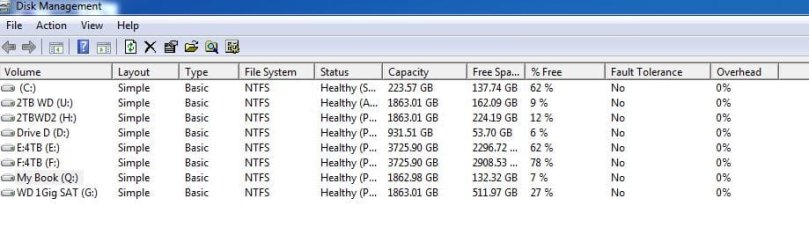
My Drive G: a 2 TB WDC Black 7200 RPM intermittently disappears from my Windows 7 Pro system. Is this a sign the drive is going bad?
 

Attachments

  • Drive G gone.JPG
    Drive G gone.JPG
    44.4 KB · Views: 1

My Computer My Computer

Computer type
PC/Desktop
Computer Manufacturer/Model Number
Custom Build
OS
Windows 7 Pro 64Bit
CPU
i7 5820K
Motherboard
MSI X99A SLI KRAIT EDITION LGA 2011-v3
Memory
CORSAIR Vengeance LPX 16GB 288-Pin DDR4 SDRAM
Graphics Card(s)
MSI GeForce GTX 970 100ME 4GB
PSU
Corsair RM850X 850W
Antivirus
Microsoft Security Essentials
Please post a full screenshot of Windows Disk Management including the disk map.

In the meanwhile, try with another cable, try all the USB ports. Also full details of your drive.
 

My Computer My Computer

OS
Windows 7 Home Premium 32 bit
Please post a full screenshot of Windows Disk Management including the disk map.

In the meanwhile, try with another cable, try all the USB ports. Also full details of your drive.

The drive is connected to a SATA port on my motherboard Gigabyte X58A-UD3R connected to a Corsair 850 power supply. I'll try tomorrow to swap out the SATA cable.
 

Attachments

  • Disk Management 1.JPG
    Disk Management 1.JPG
    177.3 KB · Views: 17
  • Disk Management 2.JPG
    Disk Management 2.JPG
    170.9 KB · Views: 11
  • Drive G.JPG
    Drive G.JPG
    23.5 KB · Views: 5

My Computer My Computer

Computer type
PC/Desktop
Computer Manufacturer/Model Number
Custom Build
OS
Windows 7 Pro 64Bit
CPU
i7 5820K
Motherboard
MSI X99A SLI KRAIT EDITION LGA 2011-v3
Memory
CORSAIR Vengeance LPX 16GB 288-Pin DDR4 SDRAM
Graphics Card(s)
MSI GeForce GTX 970 100ME 4GB
PSU
Corsair RM850X 850W
Antivirus
Microsoft Security Essentials
In addition to jumanji's recommendations, I would also suggest downloading Western Digital's Data lifeguard for DOS, Western Digital's diagnostic program. Run the short and long tests to check the drive. If it fails, I would copy everything onto another drive.
 

My Computers My Computers

System One System Two

  • Computer type
    PC/Desktop
    Computer Manufacturer/Model Number
    ALWAYS UNDER CONSTRUCTION
    OS
    Windows 11 Pro
    CPU
    Ryzen 9 5900X
    Motherboard
    Asus X570 Crosshair Viii Hero
    Memory
    32GB G Skill DDR4-3600
    Graphics Card(s)
    EVGA RTX 3080 FTW 3 Ultra
    Sound Card
    On Board/Sennheiser PC37X Headset
    Monitor(s) Displays
    3 X Asus 27"
    Screen Resolution
    2560x1440
    Hard Drives
    2 X 1 TB NVME drives
    PSU
    EVGA 850
    Case
    Phanteks Eclipse P400A
    Cooling
    EVGA 280 AIO
    Keyboard
    Logitech G510s/ Logitech G13
    Mouse
    Logitech G502
    Internet Speed
    24/1
    Antivirus
    ESET/MBAM Pro/SAS Pro
    Browser
    Chrome/ Firefox/ Edge
  • Computer type
    Laptop
    System Manufacturer/Model Number
    Dell 16 Plus
    OS
    Windows 11 Pro
    CPU
    Intel Ultra 9 288V
    Memory
    32 GB LPDDR5X 8533
    Monitor(s) Displays
    16" Mini-LED HDR600 Touch 90 Hz
    Screen Resolution
    2560X1600
    Hard Drives
    1 TB NVME
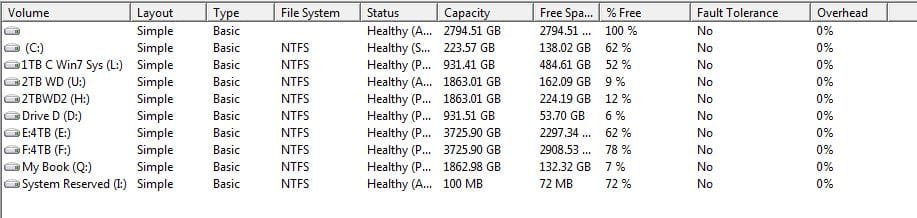
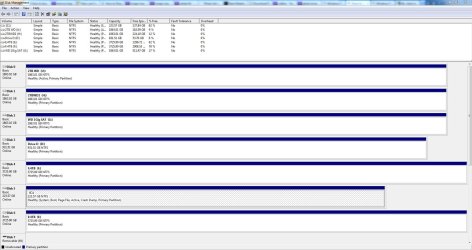
My observations:

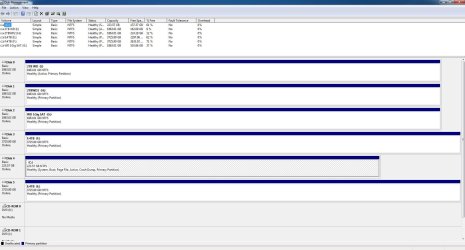
1. One too many drives.

2. Atleast one drive does not have a drive letter - for whatever reason. It is also flagged active.

3. That apart there are two more drives flagged active one 2TB drive included - not counting the System drive C which has to be active.

Now let me not pretend I can read your system well :D.

Please remove the active flag in all the drives that is not the system drive and check whether it resolves the problem.

Steps:
1. Open the Command Prompt by typing cmd in the Run box.
2. Now type diskpart which will open a new window.
3. Type list disk, this will lists all the disks connected
4. Now type select disk # (same as listed in the window), to select the disk where the partition is marked active.
5. Type list partition, this will display the entire partition list.
6. Now you need to type select partition # (same as listed) to select the partition to mark it as inactive.
7. Now just type inactive.

Do this to turn all disks/partitions which you want to make inactive.
After you have done all the steps, the disk partition will now be turned back as inactive, and you can exit the session.

if it does not help we will move on to the next action/s - essenbe's suggestion included but that may come later after excluding all other non-system drives, internal and external.
 
Last edited:

My Computer My Computer

OS
Windows 7 Home Premium 32 bit
I installed a SSD drive to replace my c drive. I don't have room on the SSD to store all the documents etc from the original HDD so I have the old HDD connected to the Computer thru a SATA dock on the top of my computer case that is connected to one of the SATA ports on my MB. This enables me access the my documents etc on the old drive. I'm planning on copy the my documents etc to a new drive and telling Windows 7 to use the alternate location.
1) do you think have 2 drive listed as active (ie. having the old boot HDD connected) is a problem?
2) What is the best way to copy the my documents etc to a new location?
3) Best method to change the location that Win 7 pro uses for the my documents. Can I include AppData\Roaming directory that certain programs use?
 

My Computer My Computer

Computer type
PC/Desktop
Computer Manufacturer/Model Number
Custom Build
OS
Windows 7 Pro 64Bit
CPU
i7 5820K
Motherboard
MSI X99A SLI KRAIT EDITION LGA 2011-v3
Memory
CORSAIR Vengeance LPX 16GB 288-Pin DDR4 SDRAM
Graphics Card(s)
MSI GeForce GTX 970 100ME 4GB
PSU
Corsair RM850X 850W
Antivirus
Microsoft Security Essentials
2. Atleast one drive does not have a drive letter - for whatever reason. It is also flagged active.
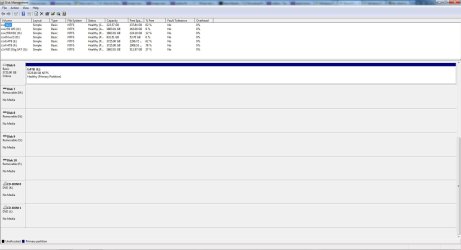
This appears to be my external Samsung drive that I use for backups connected to an ORICO PFU3-4P USB3.0 4 - Port PCI Express Host Controller. I disconnected it and the entry went away.

Here is the drive list without the Old System drive connected
 

Attachments

  • Disk Manager after drive removal.JPG
    Disk Manager after drive removal.JPG
    47.2 KB · Views: 2

My Computer My Computer

Computer type
PC/Desktop
Computer Manufacturer/Model Number
Custom Build
OS
Windows 7 Pro 64Bit
CPU
i7 5820K
Motherboard
MSI X99A SLI KRAIT EDITION LGA 2011-v3
Memory
CORSAIR Vengeance LPX 16GB 288-Pin DDR4 SDRAM
Graphics Card(s)
MSI GeForce GTX 970 100ME 4GB
PSU
Corsair RM850X 850W
Antivirus
Microsoft Security Essentials
Theoretically, if you have multiple hard disks installed on your computer, it's possible for each hard disk to have a partition set as active. However, the active partition on the first hard disk that your computer's BIOS detects is the one that will start the computer.

To avoid any confusion, it is advisable to have only the system drive as active.

Referring to questions 2 and 3 in your post #6, you may raise your query in the Installation and Setup subforum where you can get the expert advice.

In order to deal with the specific hardware problem of intermittently disappearing WD 2TB drive:

1. Please plug out all external drives/Card Readers/USB hubs connected to your computer ports and the add-on card ports.

2. I presume that the built-in SATA dock in your computer case is just an extension of the mother board SATA port deriving power with the conventional SATA power cable from the computer power supply and that it can accommodate only one HDD. I also presume that you have plugged in your problem drive into that. In such a case, please post a screen shot of how the drive appears in Windows Disk Management, excluding all other external drives. And yes, I would like you to remove the active flag in that drive.

After seeing the screenshot, I may ask you to do a drive cleanup.
 

My Computer My Computer

OS
Windows 7 Home Premium 32 bit
Did you do the steps in post#5? Your truncated snips don't provide much info.
 

My Computer My Computer

Computer type
PC/Desktop
Computer Manufacturer/Model Number
Home Built Desktop By DataTech
OS
Windows 7 Ultimate X64 SP1
CPU
Intel i5-2550K, Differing ~4.4-4.8GHz No built in GPU
Motherboard
ASUS P8Z68-V PRO/GEN3
Memory
16GB G.Skill Sniper 1866MHz @ 2133MHz 2x8GB
Graphics Card(s)
ASUS GTX650TIB-DC2OC-2GD5, (650TI Boost)
Sound Card
Onboard Realtek 5-1
Monitor(s) Displays
Samsung P2570HD
Screen Resolution
1920x1080
Hard Drives
Samsung 840 Pro 256GB SSD for OS, 500GB Seagate Constellation (Enterprise drive) for Data
PSU
Corsair HX650W
Case
Inwin Dragon Rider
Cooling
Hyper 212 EVO w/two Noctua fans, push-pull, @1300 RPM
Keyboard
E-Z Eyes, bright yellow keys with large characters
Mouse
steelseries SENSEI Laser Pro Gaming
Internet Speed
48-51Mbs Mbs down, 11 Mbs up Xfinity Cable
Antivirus
Norton Internet Security 2013
Browser
IE 10, Opera, Pale Moon if needed
Other Info
4 case fans, LG BluRay-RE, ASUS DVD-RW, Mr. Fusion power supply, 1.21 gigawatts.
The G: drive which had the disappearing problem is inside my computer case connected to the MB SATA port. The 2nd active drive L: was my old boot drive prior to installing the SSD to replacing it. It was connected to the SATA dock as described by Jumanji in his last post, so I just removed it completely. All external HDD are removed my card reader is built into the computer case and connected to a MB USB header so I'd rather not remove it unless absolutely necessary. FYI the G: drive passed the short and long WD Diagnostics.
 

Attachments

  • DM 2a.JPG
    DM 2a.JPG
    176.5 KB · Views: 6
  • DM 2b.JPG
    DM 2b.JPG
    107.5 KB · Views: 5

My Computer My Computer

Computer type
PC/Desktop
Computer Manufacturer/Model Number
Custom Build
OS
Windows 7 Pro 64Bit
CPU
i7 5820K
Motherboard
MSI X99A SLI KRAIT EDITION LGA 2011-v3
Memory
CORSAIR Vengeance LPX 16GB 288-Pin DDR4 SDRAM
Graphics Card(s)
MSI GeForce GTX 970 100ME 4GB
PSU
Corsair RM850X 850W
Antivirus
Microsoft Security Essentials
The ACTIVE flag identifies a partition as having an operating system on it that the system can boot at the BIOS level.

Now if you had multiple operating systems installed on different partitions/hard drives then when you started up your PC you would get the Boot Manager where you would be asked which operating system you would like to boot.

If you do not have multiple operating systems installed then the system does not know what to do with the ACTIVE partitions and in most cases these will be ignored by Windows when it starts up. This seems to be the case when there are 2 versions of Windows 7 installed. The system will pick one and ignore the other. The ignored partitions are usually the ones that do not get drive letters.

Now why drive G (with no Active Flag) is being ignored is a mystery to me. But it could very well be that the Active flag confusion is to blame.

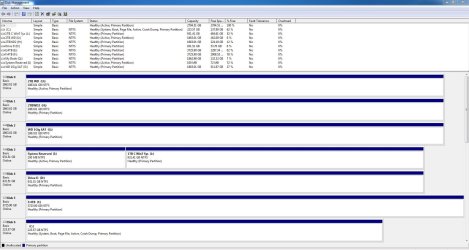
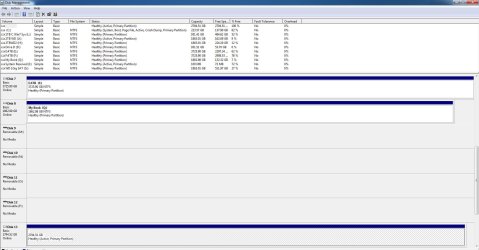
Your 250GB SSD is Disk 6 above and it looks like it contains your Windows 7 installation and is Active. So it looks safe to assume that you correctly installed Windows on this drive with all the other drives disconnected. You want to test this by disconnecting all other hard drives, so only the SSD is installed, and see if you can boot into Windows. Report back if you cant.

Disk 3 is a 1TB WD drive that used to contain Windows (7?). It has a System Reserved partition (100MB). It is possible, if you installed Windows on the SSD while this drive was still connected, that the needed boot files are on this drive. If you removed the Active flag from this partition in that case then the system would not boot. That is why you need to do the test above.

If the SSD boots fine alone, and you have not deliberately installed multiple operating systems, then you do want to remove all of the ACTIVE flags except for the one on the SSD as Jumanji instructed.

Here is a graphical SevenForums tutorial to help with that chore:
http://www.sevenforums.com/tutorials/197157-partition-mark-inactive.html

Also note that changing the Active flag will not affect the data on the drive(s).
 

My Computer My Computer

Computer type
PC/Desktop
Computer Manufacturer/Model Number
Home Built - Jan 2013
OS
Windows 7 64 Bit Home Premium SP1
CPU
i7-3820
Motherboard
Asus P9X79-PRO - Bios 4608
Memory
GSkill F3-14900CL9Q - 16GB
Graphics Card(s)
EVGA GeForce GTX660 - Driver 352.86
Sound Card
On board Realtek ALC898
Monitor(s) Displays
Acer S271HL
Screen Resolution
1920 x 1080
Hard Drives
#1- Samsung 840 Pro Series
#2- Western Digital WD1002FAEX Sata3 Black
#3- Western Digital WD1002FAEX Sata3 Black
PSU
Corsair CMPSU-850TX-V2 - 850 watt (by Seasonic)
Case
Corsair Obsidian 550D
Cooling
Standard 3 120mm case fans, Cooler Master Hyper 212 EVO
Keyboard
MS KC-0405
Mouse
Intellimouse 5-button
Internet Speed
56 Mbits/Sec (on a good day)
Antivirus
Avast & Malwarebytes
Browser
Firefox
Other Info
Asus DVD - DRW-24B1ST 24X

My Computer My Computer

Computer type
PC/Desktop
Computer Manufacturer/Model Number
Home Built Desktop By DataTech
OS
Windows 7 Ultimate X64 SP1
CPU
Intel i5-2550K, Differing ~4.4-4.8GHz No built in GPU
Motherboard
ASUS P8Z68-V PRO/GEN3
Memory
16GB G.Skill Sniper 1866MHz @ 2133MHz 2x8GB
Graphics Card(s)
ASUS GTX650TIB-DC2OC-2GD5, (650TI Boost)
Sound Card
Onboard Realtek 5-1
Monitor(s) Displays
Samsung P2570HD
Screen Resolution
1920x1080
Hard Drives
Samsung 840 Pro 256GB SSD for OS, 500GB Seagate Constellation (Enterprise drive) for Data
PSU
Corsair HX650W
Case
Inwin Dragon Rider
Cooling
Hyper 212 EVO w/two Noctua fans, push-pull, @1300 RPM
Keyboard
E-Z Eyes, bright yellow keys with large characters
Mouse
steelseries SENSEI Laser Pro Gaming
Internet Speed
48-51Mbs Mbs down, 11 Mbs up Xfinity Cable
Antivirus
Norton Internet Security 2013
Browser
IE 10, Opera, Pale Moon if needed
Other Info
4 case fans, LG BluRay-RE, ASUS DVD-RW, Mr. Fusion power supply, 1.21 gigawatts.
Taking the inputs from TVeblen and Britton30 above, I would think we need to check and restore some order in the way the internal drives get their drive letter and drive number.

1. As suggested by TVeblen, it should be ensured that his SSD and SSD alone is booting. To this end the OP should disconnect all other drives and confirm he is able to boot.

OK once this is established:

OP's internal drives ( He seems to have as many as seven internal HDDs -apart from the SSD. Am I right?) are getting drive letters haphazardly and I would think some order has to be restored. This can be set right only if he does a drive clean up removing all non-present devices and drive letters associated with them.

With all other drives - except the System drive SSD - disconnected, he should perform a drive clean up.

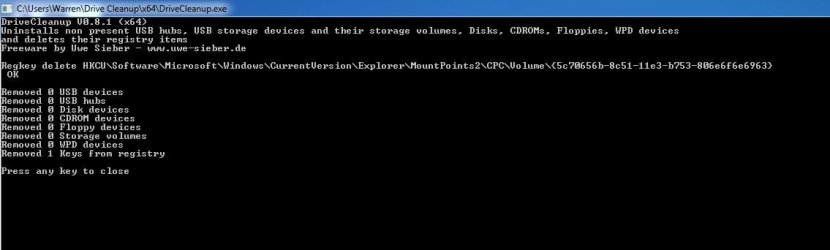
Download v 0.8.1 of the drivecleanup.zip from Drive Tools for Windows.

Unzip it to a folder, say drivecleanup.

You will have two folders Win32 and x64 each containing DriveCleanup.exe for 32 bit and 64 bit respectively.

Remove all USB storage devices from your system (except your Keyboard and mouse) and reboot.

Right click on the DriveCleanup.exe and run as administrator. (Use the *.exe file appropriate for your bit version of Windows.).

After the clean up act, reboot.

This will release all drive letters and make them available sequentially when he reconnects the internal drives like D, E, F, G, H etc., in that order and leave the higher alphabets to the numerous external drives which the Op seems to be connecting and disconnecting considering that he may have as many as eight USB ports on his comp.:)

As regards what Disk no. should disks , his SSD and the other internal drives, should get and how to organise it, I do remember that Britton30 brought out this problem how to get C drive to take on as Disk 0 in an old thread and so I would leave it to him. I forget in what way it was resolved. I read that thread just about 10 days back.

I know we are straying away from the main problem but would think we will be better equipped to deal with it when things get organised as above.

In particular I would like the OP to have only the system drive plus the problem drive only connected as an internal drive and tell us whether it still disappears on and off.

Perhaps this organisation itself may resolve the problem.

 
Last edited:

My Computer My Computer

OS
Windows 7 Home Premium 32 bit
Wow this is great information.
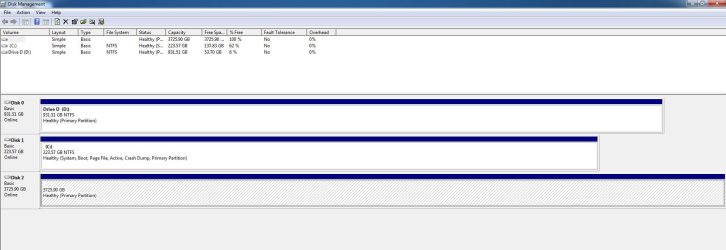
First off I disconnected all the drives other that the C: SSD drive including the card reader from the USB header. The system booted up fine so I ran drivecleanup. So far so good. After shutdown I installed drive D, shutdown and then drive E: and go this weird Disk Manager. I then swapped out the sata cables from drive d and c so c would again be drive 0. I'm not sure if that matters as when I repeated the process of drivecleanup and added a 2nd HDD, Drive C went back to Drive 1.
 

Attachments

  • DM C only.JPG
    DM C only.JPG
    79.9 KB · Views: 1
  • DM Error cde.JPG
    DM Error cde.JPG
    114.2 KB · Views: 5
  • Explorer error.JPG
    Explorer error.JPG
    49.7 KB · Views: 0

My Computer My Computer

Computer type
PC/Desktop
Computer Manufacturer/Model Number
Custom Build
OS
Windows 7 Pro 64Bit
CPU
i7 5820K
Motherboard
MSI X99A SLI KRAIT EDITION LGA 2011-v3
Memory
CORSAIR Vengeance LPX 16GB 288-Pin DDR4 SDRAM
Graphics Card(s)
MSI GeForce GTX 970 100ME 4GB
PSU
Corsair RM850X 850W
Antivirus
Microsoft Security Essentials
I decided to start over and removed all drives but C: the SSD. Ran Drivecleanup in admin mode. After a reboot I went into disk manager and change drive letter to see if all the letters were available. It turns out D is missing, so I ran diskcleanup again without success. Any ideas.
 

My Computer My Computer

Computer type
PC/Desktop
Computer Manufacturer/Model Number
Custom Build
OS
Windows 7 Pro 64Bit
CPU
i7 5820K
Motherboard
MSI X99A SLI KRAIT EDITION LGA 2011-v3
Memory
CORSAIR Vengeance LPX 16GB 288-Pin DDR4 SDRAM
Graphics Card(s)
MSI GeForce GTX 970 100ME 4GB
PSU
Corsair RM850X 850W
Antivirus
Microsoft Security Essentials
Cant seem to get rid of this entry in Drivecleanup. I'm running it as administrator.
 

Attachments

  • Drivecleanup persistant entry.JPG
    Drivecleanup persistant entry.JPG
    34.6 KB · Views: 3

My Computer My Computer

Computer type
PC/Desktop
Computer Manufacturer/Model Number
Custom Build
OS
Windows 7 Pro 64Bit
CPU
i7 5820K
Motherboard
MSI X99A SLI KRAIT EDITION LGA 2011-v3
Memory
CORSAIR Vengeance LPX 16GB 288-Pin DDR4 SDRAM
Graphics Card(s)
MSI GeForce GTX 970 100ME 4GB
PSU
Corsair RM850X 850W
Antivirus
Microsoft Security Essentials
By default Windows will make the optical drive Drive D. So if the optical drive is hooked up then change it's drive letter to something further up the alphabet. I always make mine X.
 

My Computer My Computer

Computer type
PC/Desktop
Computer Manufacturer/Model Number
Home Built - Jan 2013
OS
Windows 7 64 Bit Home Premium SP1
CPU
i7-3820
Motherboard
Asus P9X79-PRO - Bios 4608
Memory
GSkill F3-14900CL9Q - 16GB
Graphics Card(s)
EVGA GeForce GTX660 - Driver 352.86
Sound Card
On board Realtek ALC898
Monitor(s) Displays
Acer S271HL
Screen Resolution
1920 x 1080
Hard Drives
#1- Samsung 840 Pro Series
#2- Western Digital WD1002FAEX Sata3 Black
#3- Western Digital WD1002FAEX Sata3 Black
PSU
Corsair CMPSU-850TX-V2 - 850 watt (by Seasonic)
Case
Corsair Obsidian 550D
Cooling
Standard 3 120mm case fans, Cooler Master Hyper 212 EVO
Keyboard
MS KC-0405
Mouse
Intellimouse 5-button
Internet Speed
56 Mbits/Sec (on a good day)
Antivirus
Avast & Malwarebytes
Browser
Firefox
Other Info
Asus DVD - DRW-24B1ST 24X
Yep, optical drives will take drive letters after C.

The OP after doing the drive cleanup will see his optical drive as D.

He can get into Disk Management change the drive letter to Z. That will make D available for his internal HDDs. Then he can manually assign drive letters to the internal drives as he may wish them to appear. Once this is done these will always stick with drive cleanup removing only the locked up drive letters associated with the now not-present devices.

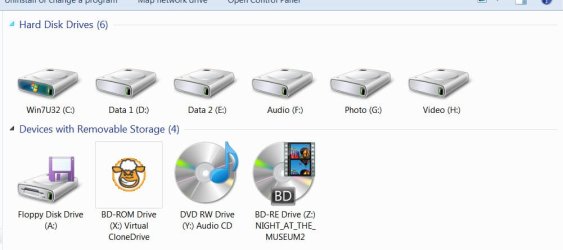
(My virtual CDROM drive and two optical drives are assigned X,Y, Z and those always remain as X,Y,Z leaving the lower alphabets to the Internal and external HDDs.( Drive cleanup will only remove drive letters,and registry entries associated with non-present devices left over by those devices and release them) Drive letters assigned to the internal drives will always stick leaving the other alphabets available to the external drives.

Just to show how neatly they appear ;) ( When I run drive cleanup under this condition drive letters I to W will be released if these are locked up in the registry and pointing to now not-present devices. )
06-04-2014 07-51-47.jpg
 
Last edited:

My Computer My Computer

OS
Windows 7 Home Premium 32 bit
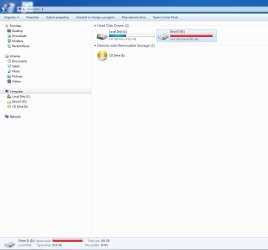
I had to plug my drives back in with the exception of D: because I can't get the drive letter D to be available. Drivecleanup says it removed an entry from the registry but when you reboot it's still there. There is no CDRom on drive D. I only have 2 optical drives in my system J and K. I also can't get the boot drive to be Disk 0
 

Attachments

  • DM no D.JPG
    DM no D.JPG
    167.8 KB · Views: 6
  • Explorer D error.JPG
    Explorer D error.JPG
    33.4 KB · Views: 3

My Computer My Computer

Computer type
PC/Desktop
Computer Manufacturer/Model Number
Custom Build
OS
Windows 7 Pro 64Bit
CPU
i7 5820K
Motherboard
MSI X99A SLI KRAIT EDITION LGA 2011-v3
Memory
CORSAIR Vengeance LPX 16GB 288-Pin DDR4 SDRAM
Graphics Card(s)
MSI GeForce GTX 970 100ME 4GB
PSU
Corsair RM850X 850W
Antivirus
Microsoft Security Essentials
OK, I have noted.

Do you have any programs like Daemon Tools, Alcohol and the like which create a virtual CD rom drive?

If so get into the settings and disable creation of virtual CDROM drives.
 

My Computer My Computer

OS
Windows 7 Home Premium 32 bit
Back
Top