Drive setup for best performance

jsettoon

New member
Local time
12:06 AM
Messages
16
Location
Louisiana
Hi all,

After reading on this forum about the performance of SSD's I have a 60Gb drive on order. What I would like to know now is the best way to set up the 3 drives that will now reside in my machine (60Gb SSD, 640Gb HDD, and 1Tb HDD). Currently everything (230Gb) is on the 1Tb drive, the largest and slowest drive, and my backup data (140Gb) is on the 640Gb drive. I obviously want to install my OS on the new SSD, and any other programs that will benefit from the speed of the drive, but i would like recomendations on how to partition the other drives for user data, backups, and other programs. Pls excuse my ignorance as this is my first build :confused: , and thanks for any help.
 

My Computer

Computer Manufacturer/Model Number
N/A
OS
Windows 7 Home Premium X64
CPU
Intel Q9550
Motherboard
Intel DP45SG
Memory
G Skill 4GB DDR3 SDRAM 1333
Graphics Card(s)
Sappire Radeon HD3870
Sound Card
N/A
Monitor(s) Displays
Samsung 26" LCD HDTV
Screen Resolution
1920x1200
Hard Drives
WD 1TB 7200 rpm
WD 640GB 7200 rpm
OCZ Vertex 2 60GB SSD
PSU
750w Cooler Master
Case
Cooler Master
Cooling
Cooler Master
Keyboard
Logitech Wireless Desktop
Mouse
Logitech Wireless Desktop
Before you start changing partitions, backup your data.

I do my HD over 200g in 2 partitions 50/50.
 

My Computer

OS
ME/XP/Vista/Win7
Hi all,

After reading on this forum about the performance of SSD's I have a 60Gb drive on order. What I would like to know now is the best way to set up the 3 drives that will now reside in my machine (60Gb SSD, 640Gb HDD, and 1Tb HDD). Currently everything (230Gb) is on the 1Tb drive, the largest and slowest drive, and my backup data (140Gb) is on the 640Gb drive. I obviously want to install my OS on the new SSD, and any other programs that will benefit from the speed of the drive, but i would like recomendations on how to partition the other drives for user data, backups, and other programs. Pls excuse my ignorance as this is my first build :confused: , and thanks for any help.

Here is what I would do:

SSD: I'd leave it as a single partition and install Windows and all apps here. Pretty good chance it will never be full.

640 GB. This would also be a single partition for nothing but original data. Use the folder structure of your choice to subdivide it. I would not make multiple partitions on this drive--you will guess wrong about how fast each partition will grow and run out of space sooner than you would with a single partition.

1 TB: I would leave this as a single partition and use it for data backup only. Again, use a folder structure. You might have a "text data" folder, an "images" folder, a "video" folder, a "e-mail backup" folder, etc. Whatever makes sense to you, with the understanding that the folder structure can evolve over time.

For what it is worth, I don't backup my data through images because I don't fully trust imaging and don't want to take a 1 in 100 chance of a failure. I do use images to backup my Windows partition because the absolute worst case is that the image restoration won't work and I have to reinstall Windows. So what--- I can live with that. I can't live with lost data.

Possible tweaks:

If your Windows installation is never going to get above say 40 gigs out of 60 available on the SSD, you might consider putting your text files (Word, Excel, etc) and any other data that you use a LOT on the SSD--just because that data would likely pop open more quickly if on the SSD. Not a big deal in the real world probably, but you may as well use all of the 60 GB on the SSD if possible. You could always change your mind.

The problem with that is that it might complicate your backup strategy---having data on 2 partitions rather than one.

There may be some special things to consider about SSDs. I don't own one and am not sure.

I am guessing all of your drives are internal and in one location (your house). If that is the case, I would develop some procedure to get data onto an external drive of some kind and ideally store that external drive at another location. Or mebbe you could do another backup of data only to the Internet through one of several outfits that do that. I don't use them.

Regarding the external drive. You could use a USB thumb drive of maybe 8 or 16 GB if your critical data will fit.

I recently bought a USB "hard drive dock" (25 bucks) and am sticking a spare 320 GB drive into it and making periodic backups of my 280 GB data. The 320 GB acts like a gigantic USB thumb drive. I went this route because thumb drives larger than 16 GB get expensive quickly, whereas you can buy a 500 GB hard drive for under $50. With this hard drive dock, I won't have to buy another thumb drive and may never buy another DVD blank.

FYI, it takes about 4.5 hours to copy 280 GB of data to the external 320 through the dock. An eSata connection would be a lot quicker, but my motherboard does not support eSata--although the dock does.
 
Last edited:

My Computer

Computer type
PC/Desktop
Computer Manufacturer/Model Number
Ignatz Special; 4 speed manual gearbox; factory air conditioning; one of one
OS
Windows 7 Home Premium SP1, 64-bit
CPU
Intel Skylake i5-6600K, not overclocked
Motherboard
AsRock Z170M Extreme 4, micro ATX
Memory
8 GB HyperX DDR4-2666 (2 x 4 GB)
Graphics Card(s)
none; graphics are integrated on CPU
Sound Card
onboard: Realtek ALC1150; external: USB Behringer UF0-202
Monitor(s) Displays
Dell S2340M 23 inch IPS
Screen Resolution
1600 x 900
Hard Drives
System: Crucial MX100 series SSD, 128 GB;
Data: Samsung Spinpoint 103SJ, 1 TB;
Backup: WD Caviar Green WD30EZRX-00D8PB0, 3 TB
PSU
Rosewill SilentNight 500 watt fanless, semi-modular
Case
Antec Solo II
Cooling
Noctua NH-U12S; Noctua F12 intake, Noctua S12A exhaust
Keyboard
Microsoft 200 6JH-00001 USB
Mouse
Dell or Microsoft optical wired; USB
Antivirus
Microsoft Security Essentials and Malwarebytes Premium
Browser
Pale Moon
Other Info
All fans PWM; speeds at idle: CPU circa 500 rpm; intake circa 600 rpm; exhaust circa 600 rpm; CPU temps 27 idle and 47 C load in a warm room (27 C/81 F) when running Intel Extreme Tuning Utility stress test.
Thanks for the advise ignatzatsonic, this is exactly the kind of detailed response i was looking for. In moving the data to the 640Gb drive, Im guessing the easiest thing to do is to relocate all of my users files to the drive. I've allways used computers with one hard drive until now, so I'm not sure how data is usually separated from prgram and OS files. Thanks again.
 

My Computer

Computer Manufacturer/Model Number
N/A
OS
Windows 7 Home Premium X64
CPU
Intel Q9550
Motherboard
Intel DP45SG
Memory
G Skill 4GB DDR3 SDRAM 1333
Graphics Card(s)
Sappire Radeon HD3870
Sound Card
N/A
Monitor(s) Displays
Samsung 26" LCD HDTV
Screen Resolution
1920x1200
Hard Drives
WD 1TB 7200 rpm
WD 640GB 7200 rpm
OCZ Vertex 2 60GB SSD
PSU
750w Cooler Master
Case
Cooler Master
Cooling
Cooler Master
Keyboard
Logitech Wireless Desktop
Mouse
Logitech Wireless Desktop
...Here is what I would do:

SSD: I'd leave it as a single partition and install Windows and all apps here. Pretty good chance it will never be full.

640 GB. This would also be a single partition for nothing but original data. Use the folder structure of your choice to subdivide it. I would not make multiple partitions on this drive--you will guess wrong about how fast each partition will grow and run out of space sooner than you would with a single partition.

1 TB: I would leave this as a single partition and use it for data backup only. Again, use a folder structure. You might have a "text data" folder, an "images" folder, a "video" folder, a "e-mail backup" folder, etc. Whatever makes sense to you, with the understanding that the folder structure can evolve over time...

For a guy who says "There may be some special things to consider about SSDs. I don't own one and am not sure" you have pretty much described my layout, which is working quite well for me. :)

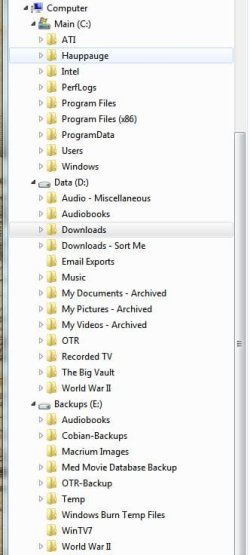
I've attached a picture of my drives and folders to give some idea.

A couple of notes:

I have an 80GB SSD (C: ) and two 1TB mechanical drives (D: and E: ). All my data gets stored on D: and is regularly backed up to E:.

I use Cobian Backup 10 to automatically copy data from D: to the "Cobian-Backups" folder on E:. It is fairly easy to setup once you get the hang of it and it makes sure that should either my D: or E: drives bite the dust all of my data will be safe on the other drive. I manually copy the "Cobian-Backups" folder to another computer on my home network about once a month. The only way I would lose everything is if all three hard drives croak simultaneously. (Knock wood.)

I also use Macrium Reflect to automatically image my entire C: drive to the "Macrium Images" folder on E: every Saturday night. If I were to encounter a non-hardware related catastrophe with my C: drive I could go back no more than a week earlier in time without having to reinstall Windows, and all my programs, etc.

Cobian is free and I use the free version of Macrium, so that is good.

I have "My Documents", "My Pictures", etc, all located on D: and have renamed them with the word "Archived" after them to prevent confusion. (Just so I don't accidentally save stuff to the original "My Documents", "My Pictures", etc, on the C: drive under "Users" and fill up my SSD.)

With what is probably an average amount of programs installed, my 80GB SSD is only about 25GB full, meaning I am not worried about running out of space. By contrast, the "Data" and "Backups" drives (D: and E: ) both contain about 500GB of crap data - way too much for even the priciest SSD available today. By the time I outgrow the 80GB drive I expect to be able to replace it with something significantly larger for probably less money than the $200 I paid for the current SSD.

As you can see, I also moved my Windows "Temp" folder to E:, since that is something which gets written to over and over again during normal computer use. This spares wear and tear on the SSD and takes a little pressure of the TRIM function. I did the same thing with the default save folder for "Recorded TV" and my "Downloads" folder, all with an eye toward having as little stuff as possible on C: other than Windows and Programs.
 

Attachments

  • Hard Drive Layout.JPG
    Hard Drive Layout.JPG
    39.8 KB · Views: 64

My Computer

Computer Manufacturer/Model Number
Self
OS
Main - Windows 7 Pro SP1 64-Bit; 2nd - Windows Server 2008 R2
CPU
Main - Core i7 2600K; 2nd - Core i7 920
Motherboard
Main - Asus P8Z68-V Pro/Gen3; 2nd - Gigabyte GA-EX58-UDR3
Memory
Main - 16GB Corsair Vengeance; 2nd - 12GB Corsair Vengeance
Graphics Card(s)
Main - XFX Radeon 6870 1GB; 2nd - XFX Radeon 4870 1GB
Sound Card
Both: Onboard Realtek Azalia
Monitor(s) Displays
Main - Hann 25" + I-INC 25" + Acer 23"; 2nd - Upgrading Soon
Screen Resolution
Main - 1920x1080 (All Three Monitors); 2nd - Upgrading Soon
Hard Drives
Main - (1) Crucial M4 128GB (Boot)
Main - (1) Seagate 2TB 64MB Cache (Data)
Main - (1) Seagate 2TB 64MB Cache (Data Backup)
2nd - (1) Intel X25-M SSD 80GB (Boot)
2nd - (3) Seagate 1TB 32MB Cache (Data Backup)
2nd - (1) Seagate 320GB (Because)
PSU
Main - OCZ 600W Modular; 2nd - OCZ 600W
Case
Main - Thermaltake Element G; 2nd - NZXT something or other
Cooling
Main - Corsair H80; 2nd - Prolimatech Megahalems
Keyboard
Main - Razer Reclusa; 2nd - Old MS Keyboard
Mouse
Main - Logitech MX Revolution; 2nd - Old MS Mouse
Internet Speed
20Mbps Time-Warner Cable
In moving the data to the 640Gb drive, Im guessing the easiest thing to do is to relocate all of my users files to the drive. I've allways used computers with one hard drive until now, so I'm not sure how data is usually separated from prgram and OS files.

I'm not sure what you are asking here.

Dating back 15 years, I have never used the Windows "users" directory and its subdirectories. I have always isolated Windows and installed applications to a C partition and personal data to a separate D. I save nothing to C deliberately.

My browser bookmarks and my email are saved on C by default. I live with that, but know exactly what folder that stuff is in and I back up those folders to my backup drive E.

I have 2 drives--a 640 GB and a 1.5 TB. C (60 GB) and D (580 GB) are on the 640. The 1.5 TB is all E, for backup only.

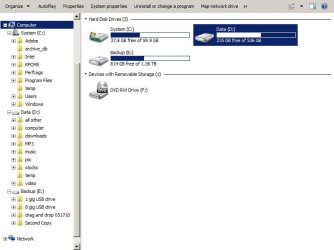
You can see the folder structure in this pic.

Regarding the E backup drive: you see 4 folders.

Drag and drop 051710 is just that--a manual copy by mouse of my entire D drive, done every 3 or 4 months. The 051710 is the date of the last drag and drop: May 17, 2010.

I use Second Copy, an automated backup program similar to Cobian to populate the other 3 folders and run them at will.

1 GB USB: this is my most critical text files. I run Second Copy to populate this folder every couple of months and then drag and drop its contents to an external 1 GB USB thumb drive.

8 GB USB: this is ALL of my personal data EXCLUDING mp3s and video. It contains all text files, email, bookmarks, and jpegs. I run Second Copy to populate this folder every couple of months and then drag its contents to an external 8 GB USB thumb drive.

Second Copy: This is absolutely all of my personal data, including mp3s, video, bookmarks, email, and text files. I run this every day.

Not shown is a backup I make to a 320 GB hard drive through my USB hard drive dock. It contains ALL of my personal data. This is run manually by drag and drop every few months.

I recommend you get Cobian, Second Copy, or a similar program to automate most backups to your largest drive E.

These programs are highly flexible and can backup certain files and exclude others as needed. You set up "profiles" for each backup and run each profile separately.

I have 7 completely independent profiles, but you could use just a single profile to back up EVERYTHING if desired. My profiles are named text files, mp3, pictures and video, 1 GB USB, 8 GB USB, Firefox with bookmarks, and Email.

I make images of C immediately after any new Windows installation and then every few months or so after that. The images are considered to be personal data, with the originals saved on D and backed up to E. I don't make images of D or E.
 

Attachments

  • drive layout.JPG
    drive layout.JPG
    40.8 KB · Views: 52

My Computer

Computer type
PC/Desktop
Computer Manufacturer/Model Number
Ignatz Special; 4 speed manual gearbox; factory air conditioning; one of one
OS
Windows 7 Home Premium SP1, 64-bit
CPU
Intel Skylake i5-6600K, not overclocked
Motherboard
AsRock Z170M Extreme 4, micro ATX
Memory
8 GB HyperX DDR4-2666 (2 x 4 GB)
Graphics Card(s)
none; graphics are integrated on CPU
Sound Card
onboard: Realtek ALC1150; external: USB Behringer UF0-202
Monitor(s) Displays
Dell S2340M 23 inch IPS
Screen Resolution
1600 x 900
Hard Drives
System: Crucial MX100 series SSD, 128 GB;
Data: Samsung Spinpoint 103SJ, 1 TB;
Backup: WD Caviar Green WD30EZRX-00D8PB0, 3 TB
PSU
Rosewill SilentNight 500 watt fanless, semi-modular
Case
Antec Solo II
Cooling
Noctua NH-U12S; Noctua F12 intake, Noctua S12A exhaust
Keyboard
Microsoft 200 6JH-00001 USB
Mouse
Dell or Microsoft optical wired; USB
Antivirus
Microsoft Security Essentials and Malwarebytes Premium
Browser
Pale Moon
Other Info
All fans PWM; speeds at idle: CPU circa 500 rpm; intake circa 600 rpm; exhaust circa 600 rpm; CPU temps 27 idle and 47 C load in a warm room (27 C/81 F) when running Intel Extreme Tuning Utility stress test.
Excellent advice by all.

One little change that I like doing is, instead of sending my Temp folder and Internet cache folders to my data drive, I send them to my RAMDrive.

The drive will never wear out, and the reads and writes are way faster than my SSD.

There are a few free RAMDrive programs that will save and restore your RAM image when you shut down. I also install a lot of my portable programs on the RAMDrive, they really fly!
 

My Computer

OS
Windows 7 Ultimate N x64
CPU
Intel Core i7-3770K Ivy Bridge 3.5GHz
Motherboard
ASUS P8Z77-V PREMIUM LGA 1155 Intel Z77
Memory
G.SKILL Trident X Series 32GB (4 x 8GB)
Monitor(s) Displays
42" Westinghouse LCD monitor
Hard Drives
(1) 240GB OCZ REVO3 X2

(1) 250GB OCZ Colossus
PSU
CORSAIR HX Series HX850 850W
Case
COOLER MASTER HAF X RC-942-KKN1
Internet Speed
100 Mbps
I am confused I have have 90 gigs of system and programs on my c: drive..


How is a 60Gb ssd going to be able to sustain a system..
 

My Computer

Computer Manufacturer/Model Number
Custome build
OS
Windows 7 ultimate 64bit
CPU
Intell e8400
Motherboard
Evga 780I 132-ck-nf78
Memory
Ocz DDR2-1066 mhz 6 gigs worth
Graphics Card(s)
Asus Engt240
Sound Card
On Board
Monitor(s) Displays
Hp w2007
Screen Resolution
1680X1050 native
Hard Drives
sata st312081
PSU
SP/L 550 watt Dual fan
Case
Cooler Master 690
Cooling
Processor has the Thermaltake V1
Keyboard
dell Keyboard
Mouse
Dell Mouse
... FYI, it takes about 4.5 hours to copy 280 GB of data to the external 320 through the dock. An eSata connection would be a lot quicker, but my motherboard does not support eSata--although the dock does.
If your motherboard has an available SATA port you can get an adapter to add eSATA to your desktop pretty cheaply like this, for example. (Just an example, I've never used that particular product or that vendor so can't vouch for them).
 

My Computer

Computer type
PC/Desktop
Computer Manufacturer/Model Number
Home Built desktop, Dell G15 5511 Gaming laptop,MS Surface Pro 7 tablet
OS
W10 Pro desktop, W11 laptop, W11 Pro tablet (all 64-bit)
CPU
3.7Ghz 8700K i7, i7-11800H, i7-1065G7
Motherboard
ASUS TUF Z370-Pro Gaming in desktop
Memory
16G desktop, 16G laptop, 4G tablet
Graphics Card(s)
AMD Radeon RX580, RTX 3060, Intel Iris Plus
Sound Card
High Definition Audio (Built-in to mobo)
Monitor(s) Displays
Samsung U32J59 32" (2x), 15.6", 12"
Screen Resolution
3840x2160, 3840x2160, 1920x1080, 2160x1440
Hard Drives
500G SSD for OS; 2T, 10T & 15T HDDs for Data on Desktop, 1TB SSD laptop, 128G SSD tablet.
PSU
Corsair CX 750M
Case
Antec 100
Cooling
CM 212+
Keyboard
IBM Model M - used continuously since 1986
Mouse
Microsoft Pro IntelliMouse
Internet Speed
400M down 8M up
Antivirus
Windows Defender
Browser
FireFox
Other Info
Built my first computer (8Mhz 8088cpu, 640K RAM, 20MB HDD, 2 360K floppy drives) in 1985 and have been building them for myself, relatives and friends ever since.
I am confused I have have 90 gigs of system and programs on my c: drive..


How is a 60Gb ssd going to be able to sustain a system..
Check just the following folders:

C:\Windows
C:\Program Files
C:\Program Files (x86)

Those are the ones you are going to want to have on your SSD.

I'm guessing you are including your "My Documents" folder in your 90GB tally. See posts #5 & #6 for ideas on how to stash your data on a secondary mechanical drive. :)
 

My Computer

Computer Manufacturer/Model Number
Self
OS
Main - Windows 7 Pro SP1 64-Bit; 2nd - Windows Server 2008 R2
CPU
Main - Core i7 2600K; 2nd - Core i7 920
Motherboard
Main - Asus P8Z68-V Pro/Gen3; 2nd - Gigabyte GA-EX58-UDR3
Memory
Main - 16GB Corsair Vengeance; 2nd - 12GB Corsair Vengeance
Graphics Card(s)
Main - XFX Radeon 6870 1GB; 2nd - XFX Radeon 4870 1GB
Sound Card
Both: Onboard Realtek Azalia
Monitor(s) Displays
Main - Hann 25" + I-INC 25" + Acer 23"; 2nd - Upgrading Soon
Screen Resolution
Main - 1920x1080 (All Three Monitors); 2nd - Upgrading Soon
Hard Drives
Main - (1) Crucial M4 128GB (Boot)
Main - (1) Seagate 2TB 64MB Cache (Data)
Main - (1) Seagate 2TB 64MB Cache (Data Backup)
2nd - (1) Intel X25-M SSD 80GB (Boot)
2nd - (3) Seagate 1TB 32MB Cache (Data Backup)
2nd - (1) Seagate 320GB (Because)
PSU
Main - OCZ 600W Modular; 2nd - OCZ 600W
Case
Main - Thermaltake Element G; 2nd - NZXT something or other
Cooling
Main - Corsair H80; 2nd - Prolimatech Megahalems
Keyboard
Main - Razer Reclusa; 2nd - Old MS Keyboard
Mouse
Main - Logitech MX Revolution; 2nd - Old MS Mouse
Internet Speed
20Mbps Time-Warner Cable
Back
Top