Dual Boot - Windows 7 and Linux

How to Correctly Setup a Dual Boot with Windows 7 and LinuxMint13

   Information
Historically, dual booting Windows and a Linux distribution was fraught with risks due to the propensity of the Linux GRUB loader to interfere with and corrupt the Windows bootloader. This often left the Windows installation unbootable, which then required several complex steps in order to rescue the Windows installation.

In recent distributions, the Linux GRUB loader has now been updated to GRUB2, which tends not to have an adverse effect on the Windows bootloader. This tutorial will show you the easiest method to successfully dual-boot Windows 7 and Linux, using the LinuxMint13 Cinnamon distribution as an example. This method has also been tested on, and works with, Ubuntu 12.04 and Fedora 17.

Please note the goal of this tutorial is to show you how to dual-boot correctly without compromising your Windows 7 installation. Whilst the fundamentals of installing a Linux distribution are briefly covered for the purposes of this tutorial, more detail on how to use Linux are outside its scope and will not be covered. For more information on using Linux distributions, you are welcome to visit the LinuxMint, Ubuntu or Fedora sites.

   Warning
Note that this technique will only work on a computer that uses Legacy BIOS - it will not work on a computer that uses UEFI.

Please take careful note : If you currently:

  • Use, or plan to use, Windows Bitlocker Drive Encryption, or

  • Require access to OEM installation recovery functionality,
then you cannot use the methods outlined in this tutorial, and should not proceed any further.

The reasons for this are that this dual-boot technique requires you to delete the 100MB System Reserved partition. Without this partition, both Bitlocker Drive Encryption, and the Recovery functions employed by OEM's accessed during Windows boot, will no longer work.


:note: Requirements:
In order to undertake this tutorial, you will need the following :

Hardware:-

  • 1Gb or larger USB thumb/flash drive (to hold your bootable Partition Wizard and LinuxMint13 installation)
Software:-


Knowledge or skills:-

  • Creating bootable versions of Partition Wizard and LinuxMint13 on either CD, DVD or USB

  • Booting a computer from either a CD/DVD or USB drive.

  • Manipulating (deleting, moving and re-sizing) Windows NTFS disk partitions


:note: Before you begin : Insurance against mistakes

Mistakes made during partition manipulation can render your system unbootable. In order to protect yourself against such inadvertent mistakes, I strongly recommend you create an image of your current system prior to commencing with this tutorial.

Please refer to either of this tutorial for help on imaging your system:http://www.sevenforums.com/tutorials/73828-imaging-free-macrium.html
In the event that you do make a mistake, the image you created will allow you to revert to your original installation with a minimum of fuss. This step is important, especially for novices - don't be tempted to skip it.


Part A - Create the bootable Partition Wizard and Linux USB

YUMI can support several bootable ISO's concurrently, so its advantageous to install both Partition Wizard and LinuxMint13 to the USB flash drive, one after the other.

Step 1
Download YUMI, Partition Wizard and LinuxMint13 from the links provided earlier.

Step 2
Insert your USB flash drive into the computer, and then run YUMI.

Step 3
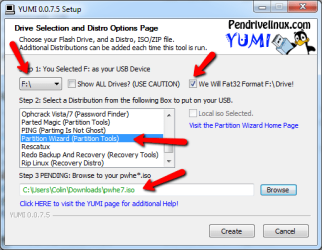
On the YUMI interface, do the following:

- select the drive letter corresponding to the USB flash drive
- place a tick in the Format Drive box (the USB flash will be formatted to FAT32)
- scroll down the distribution list and select Partition Wizard (Partition Tools)
- browse to locate and select the Partition Wizard ISO you downloaded earlier

The completed panel should look very similar to that shown below.m1.png
Step 4
Click the Create button to install Partition Wizard to the USB flash drive.

   Warning
Take note of the format warning message that is displayed - the entire USB flash drive will be formatted to the required FAT32 format, so double check to see that the correct USB device is selected.

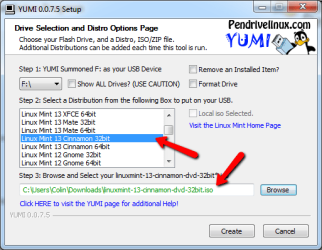
Once complete, you will be asked whether you wish to install another ISO/Distro. Click Yes, and then select the LinuxMint13 ISO as shown below. Clickm2.png
Click the Create button to write the install LinuxMint13 to the USB flash drive. Once complete, exit YUMI. For ease of reference, we will simply refer to this flash drive as the YUMI flash drive from here on in.

You have now completed Part A of the tutorial.


Part B - Manipulate the Windows 7 Partitions

Prior to installing LinuxMint13, you need to make changes to the existing Windows 7 partitions. Specifically, you need to perform these steps:

  1. Copy the Windows boot manager to the System C: partition
  2. Delete the 100MB System Reserved partition
  3. Resize the System partition (C: drive) into the unallocated space after deleting the System Reserved partition
  4. Create unallocated space for the LinuxMint13 installation by shrinking the Data partition (F: drive)
All this can be accomplished using EasyBCD, and the Partition Wizard installation on the USB flash drive.

If you are unfamiliar with Partition Wizard, then I recommend reading this tutorial before proceeding further:http://www.sevenforums.com/tutorials/93322-partition-wizard-use-bootable-cd.html
   Note
For the purposes of this tutorial, we will assume you have a reasonably common Windows 7 partition layout, as shown below, and comprising of:

  • Primary 100MB System Reserved partition, and

  • Primary System partition (C: drive), and

  • Logical Data partition (F: drive)
pw_start.png
   Tip
If your partition layout is different, and you aren't sure how to proceed, then reply to this tutorial seeking advice. Be sure to include a screen capture of your Windows 7 disk management screen that clearly shows your partition layout.


Step 1 - Copy boot manager to System C: partition
Install EasyBCD to your computer. Run EasyBCD and now follow the very simple steps explained in the short tutorial below, to copy the Windows 7 boot manager from the 100MB System Reserved partition to the System C: partition:http://www.sevenforums.com/tutorials/209885-bootmgr-move-c-easybcd.html
Once you have performed this step, close EasyBCD.

Check to ensure that the boot manager has been copied correctly by examining the partition layout in the Windows Disk Management screen. Your System C: partition status should now include the Boot option under the partition status, as shown in the example below.m3.png
Close the Disk Management screen when you have verified that the Boot status is correct.

Step 2 - Delete the 100MB System Reserved partition
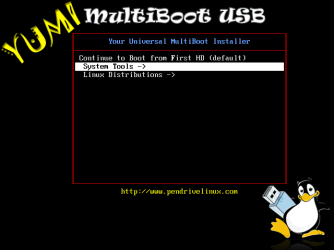
Insert the YUMI flash drive into your computer, and boot from it. Run Partition Wizard by selecting it from the System Tools menu, as shown below.yy1.png
yy2.png
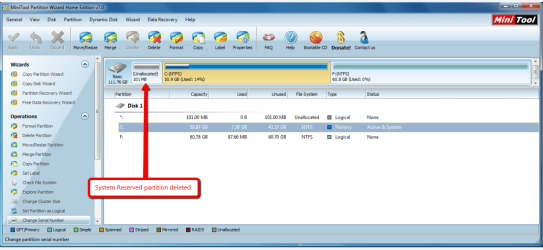
Once Partition Wizard has opened, delete the 100MB System Reserved Partition - you will now have 100MB unallocated space sitting to the left of your System partition, as shown below.pww2.png
Step 3 - Resize the System partition into the unallocated space
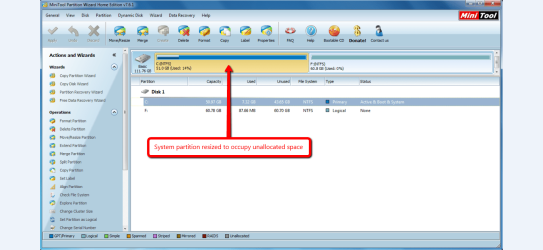
Stretch the System partition to the left, into the unallocated space created in step 2 above, so that you only have a System partition and Data partition as shown below.pww3.png
Step 4 - Create unallocated space for the LinuxMint13 installation
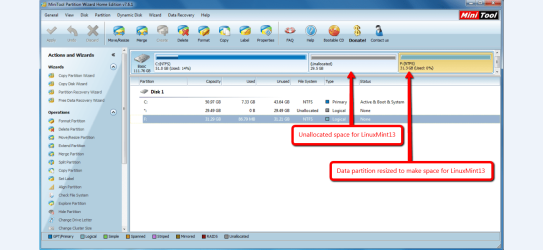
Shrink the Data partition to the right, thereby creating unallocated space between the System partition and Data partition, as shown below. This unallocated space is where LinuxMint13 will be installed too.pww4.png
   Tip
You can also shrink the System partition, or use combinations of resizing both the System partition and Data partition to create the unallocated space for the LinuxMint13 installation. LinuxMint13 requires a minimum of 8.6GB, but I usually assign more space for updates, data etc.

Reboot your system to complete the partition manipulation.

You have now completed Part B of the tutorial.


Part C - Install LinuxMint13

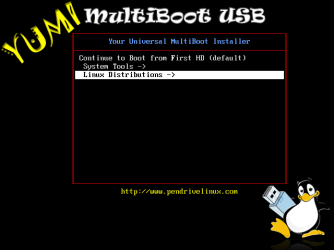
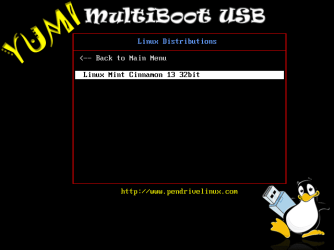
Insert the YUMI flash drive into your computer, and boot from it. Run the LinuxMint13 boot menu/installer by selecting it from from the Linux Distributions menu, as shown below.lx00.png
lx01.png
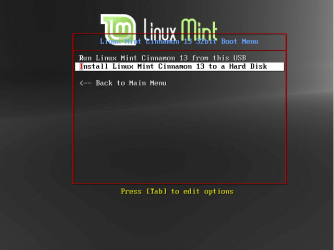
From the LinuxMint boot menu, choose to install to a hard disk, as shown below.lx02.png
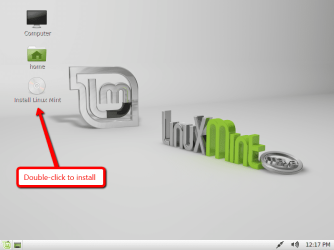
Once the LinuxMint13 desktop loads, select the Install Linux Mint option by double-clicking it, as shown below.lx03.png
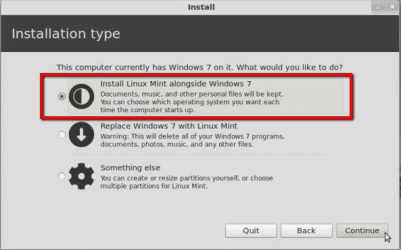
Follow the the prompts to select your language. When prompted to select your installation type, be sure to choose the option labelled Install Linux Mint alongside Windows 7, as shown below.lx1.png
LinuxMint13 will now be installed into the unallocated space created in PART B of the tutorial. Whilst installation is proceeding, follow the remainder of the prompt screens to specify your locality, keyboard layout and machine name and user account details.

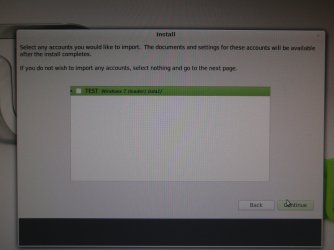
You will be prompted as to whether you wish to import any existing Windows 7 account details (contacts, favorites, bookmarks etc.) into the LinuxMint13 installation (as shown below) - highlight the listed Windows 7 option shown and and click Continue to do that, or simply click Continue to skip this step.PA280042.jpg
Once installation has been completed, you will be prompted to reboot your system as shown below.lx09.png
Once your system reboots, you will be presented with the Linux GRUB screen - don't panic, this is perfectly normal. PART D of this tutorial will show you how to easily customise your boot order.

You have now completed PART C of the tutorial.


Part D - Customise the Windows 7/LinuxMint13 boot order

   Note
The boot screen images in this part of the tutorial use Ubuntu as an example - this is simply for convenience for the tutorial. The boot screens for LinuxMint13 will look very similar, obviously with the word Ubuntu replaced by the word LinuxMint13.

EasyBCD allows you to easily customise the boot sequence so that the familiar Windows boot screen is the screen from which you select the operating system to boot.

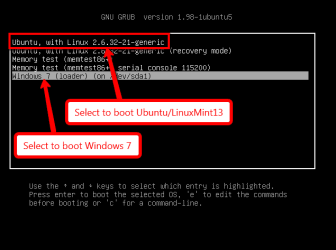
When you first boot your PC after installing LinuxMint13, you will be presented with the GRUB screen, as shown below.boot1.png
Select the Windows 7 option to boot in Windows as normal, and then run EasyBCD.

Now complete the following steps :

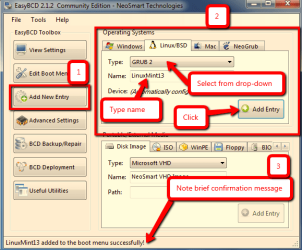
Step 1 - Add the LinuxMint13 boot entry
Replicate the steps shown in the image below to add the LinuxMint13 boot entry. Take note of the confirmation message that appears briefly at the bottom of the panel.ecb1.png
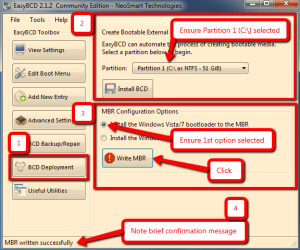
Step 2 - Add the Windows 7 boot entry
Replicate the steps shown in the image below to write the Windows 7 bootloader.Take note of the confirmation message that appears briefly at the bottom of the panel.ecb2.png
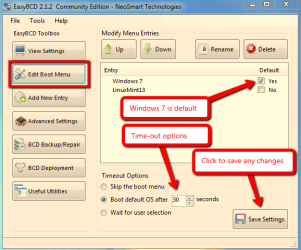
Step 3 - Review the Windows 7 / LinuxMint13 boot sequence
Review the default boot options, and make any changes if you wish.ecb3.png
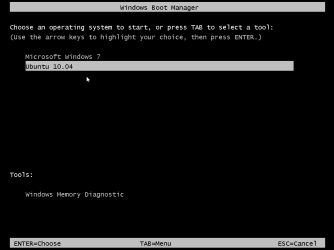
Close EasyBCD and reboot your computer. You will now see the Windows 7 boot screen with the Windows 7 and LinuxMint13 boot options (Ubuntu is shown in this example).boot2.png
If you select the Windows 7 option, your computer will boot into Windows 7 as normal. If you select the LinuxMint13 option, then the GRUB boot screen will appear, and from that you select the LinuxMint13 option to boot it, as shown below.boot1.png
You have now completed the entire tutorial.

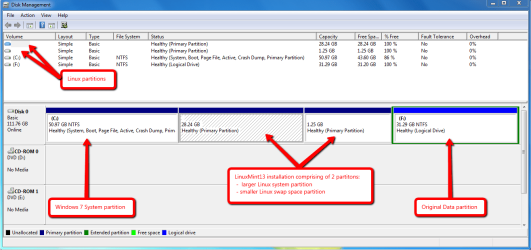
This is how the dual-boot installation look in Windows 7 Disk Manager - note the blank entries marked with arrows : Windows cannot read the format of Linux partitions.dm1.png
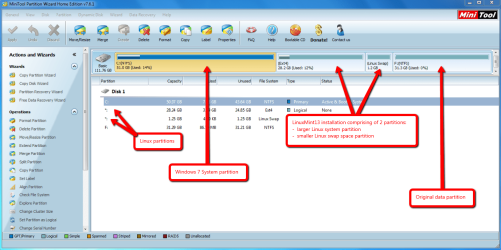
And this is how the dual-boot installation looks in Partition Wizard.pwx.png
   Tip
If you ever wish to remove the LinuxMint13 partitions, simple delete them using Partition Wizard - your Windows installation will be unaffected since the boot manager still resides on the first partition of the disk. Be sure to reset the boot entry using EasyBCD for aesthetics using Step 4 and Step 5 here.


Thats all there is to it : dual-booting Windows 7 and LinuxMint13 the easy way!

Regards,
Golden

 
Last edited:
Great tutorial Goldern. :)
 

My Computer

Computer type
PC/Desktop
Computer Manufacturer/Model Number
Self built custom
OS
64-bit Windows 11 Pro for Workstations
CPU
Intel i7-8700K OC'd to 5 GHz
Motherboard
ASUS ROG Maximus XI Formula Z390
Memory
64 GB (4x16GB) G.SKILL TridentZ RGB DDR4 3600 MHz
Graphics Card(s)
ASUS ROG-STRIX-GTX1080TI-O11G-GAMING
Sound Card
Integrated
Monitor(s) Displays
2 x Samsung Odyssey G7 27"
Screen Resolution
2560x1440
Hard Drives
1TB Samsung 990 PRO M.2,
4TB Samsung 990 PRO PRO M.2,
TerraMaster F8 SSD Plus NAS
PSU
Seasonic Prime Titanium 850W
Case
Thermaltake Core P3
Cooling
Corsair Hydro H115i
Keyboard
Logitech wireless K800
Mouse
Logitech MX Master 4
Internet Speed
2 Gb/s Download and 100 Mb/s Upload
Antivirus
Malwarebyte Anti-Malware Premium
Browser
Google Chrome
Other Info
Logitech Z625 speaker system,
Logitech BRIO 4K Pro webcam,
HP Color LaserJet Pro MFP M477fdn,
APC SMART-UPS RT 1000 XL - SURT1000XLI,
Galaxy S23 Plus phone
Thanks Brink!
 

My Computer

Computer type
PC/Desktop
Computer Manufacturer/Model Number
Golden Mk. I.4
OS
Windows 10 Pro x64 ; Xubuntu x64
CPU
Intel i7 860 @ 2.80 GHz O/C'ed to 4.0GHz
Motherboard
Gigabyte P55A-UD3R Rev.1. Award BIOS F13
Memory
16GB Corsair Vengance DDR3 @ 661 MHz Dual Channel (9-9-9-24)
Graphics Card(s)
EVGA NVidia GTX 560 1024MB
Sound Card
Realtek Integrated
Monitor(s) Displays
Dual Samsung SyncMaster 2494HS
Screen Resolution
1920*1080 and 1920*1080
Hard Drives
1*Samsung 840 EVO 120GB SSD;
1*OCZ Vertex 2 60GB SSD;
2*Samsung F3 SpinPoint 1TB in RAID0;
1*Samsung F1 SpinPoint 1TB;
2*Western Digital 1TB External USB 3.0
1*Western Digital 500GB External USB 3.0
1*Seagate 500GB External USB 2.0
PSU
Thermaltake ToughPower QFan 750W
Case
Thermaltake Element S VK60001W2Z
Cooling
Corsair H60 Water Cooling, 2*230mm and 2*80mm case fans
Keyboard
Logitech G110
Mouse
Logitech MX518
No worries Greg - thanks.
 

My Computer

Computer type
PC/Desktop
Computer Manufacturer/Model Number
Golden Mk. I.4
OS
Windows 10 Pro x64 ; Xubuntu x64
CPU
Intel i7 860 @ 2.80 GHz O/C'ed to 4.0GHz
Motherboard
Gigabyte P55A-UD3R Rev.1. Award BIOS F13
Memory
16GB Corsair Vengance DDR3 @ 661 MHz Dual Channel (9-9-9-24)
Graphics Card(s)
EVGA NVidia GTX 560 1024MB
Sound Card
Realtek Integrated
Monitor(s) Displays
Dual Samsung SyncMaster 2494HS
Screen Resolution
1920*1080 and 1920*1080
Hard Drives
1*Samsung 840 EVO 120GB SSD;
1*OCZ Vertex 2 60GB SSD;
2*Samsung F3 SpinPoint 1TB in RAID0;
1*Samsung F1 SpinPoint 1TB;
2*Western Digital 1TB External USB 3.0
1*Western Digital 500GB External USB 3.0
1*Seagate 500GB External USB 2.0
PSU
Thermaltake ToughPower QFan 750W
Case
Thermaltake Element S VK60001W2Z
Cooling
Corsair H60 Water Cooling, 2*230mm and 2*80mm case fans
Keyboard
Logitech G110
Mouse
Logitech MX518
Nice tutorial Golden! :thumbsup:
I haven't tried using EasyBCD to add a GRUB bootloader entry to the Windows 7 bootloader before and will definitely give it a try. Since I have the luxury of more than one HDD, I have Linux and Windows installed on two different HDDs and have GRUB set up an entry for the Windows 7 bootloader during installation. But this way I can add an entry for GRUB on the drive containing Windows 7 as well, since I much prefer the Windows 7 boot screen.
 

My Computer

Computer Manufacturer/Model Number
Customized build from CyberPower
OS
Windows 7 Home Premium 64bit SP 1
CPU
Intel i5 2500k
Motherboard
Asus P8P67 Deluxe
Memory
8 gigabytes Corsair PC3-12800 DDR3
Graphics Card(s)
EVGA GeForce GTX 460 superclocked
Sound Card
Integrated
Monitor(s) Displays
ViewSonic 23" LCD
Screen Resolution
1980 x 1080
Hard Drives
120 Gb Samsung 840 Pro SSD
120 Gb Kingston Hyper X SSD
1 Tb WD Caviar Black HDD
PSU
Coolermaster 1000 watt modular
Case
Coolermaster HAF X full tower
Cooling
Coolermaster Hyper 212 plus
Keyboard
Logitech USB
Mouse
Microsoft 3 button
Internet Speed
download 1.5 Mb/sec upload 300Kb/sec
Why wouldn't one boot the OS's via the BIOS if they're on separate HD"s? Seems a lot easier and less potential trouble?
 
Thanks Littlejay. I agree with Greg : if your OS are on different HDD's, then its easier just selecting the HDD using the one-time bootup key.
 

My Computer

Computer type
PC/Desktop
Computer Manufacturer/Model Number
Golden Mk. I.4
OS
Windows 10 Pro x64 ; Xubuntu x64
CPU
Intel i7 860 @ 2.80 GHz O/C'ed to 4.0GHz
Motherboard
Gigabyte P55A-UD3R Rev.1. Award BIOS F13
Memory
16GB Corsair Vengance DDR3 @ 661 MHz Dual Channel (9-9-9-24)
Graphics Card(s)
EVGA NVidia GTX 560 1024MB
Sound Card
Realtek Integrated
Monitor(s) Displays
Dual Samsung SyncMaster 2494HS
Screen Resolution
1920*1080 and 1920*1080
Hard Drives
1*Samsung 840 EVO 120GB SSD;
1*OCZ Vertex 2 60GB SSD;
2*Samsung F3 SpinPoint 1TB in RAID0;
1*Samsung F1 SpinPoint 1TB;
2*Western Digital 1TB External USB 3.0
1*Western Digital 500GB External USB 3.0
1*Seagate 500GB External USB 2.0
PSU
Thermaltake ToughPower QFan 750W
Case
Thermaltake Element S VK60001W2Z
Cooling
Corsair H60 Water Cooling, 2*230mm and 2*80mm case fans
Keyboard
Logitech G110
Mouse
Logitech MX518
Sure, I know how to do it that way as well, but the thing I like about EasyBCD is that I can set the boot screen to "Wait for user selection". When I start up my computer I don't always remember to hit the f8 key quick enough to choose which drive to boot, so this way seems to work the best for me.
 

My Computer

Computer Manufacturer/Model Number
Customized build from CyberPower
OS
Windows 7 Home Premium 64bit SP 1
CPU
Intel i5 2500k
Motherboard
Asus P8P67 Deluxe
Memory
8 gigabytes Corsair PC3-12800 DDR3
Graphics Card(s)
EVGA GeForce GTX 460 superclocked
Sound Card
Integrated
Monitor(s) Displays
ViewSonic 23" LCD
Screen Resolution
1980 x 1080
Hard Drives
120 Gb Samsung 840 Pro SSD
120 Gb Kingston Hyper X SSD
1 Tb WD Caviar Black HDD
PSU
Coolermaster 1000 watt modular
Case
Coolermaster HAF X full tower
Cooling
Coolermaster Hyper 212 plus
Keyboard
Logitech USB
Mouse
Microsoft 3 button
Internet Speed
download 1.5 Mb/sec upload 300Kb/sec
Truly a great job Golden! Very well written and formatted.
 

My Computer

OS
Windows 7 Ultimate x64
Thanks mate!
 

My Computer

Computer type
PC/Desktop
Computer Manufacturer/Model Number
Golden Mk. I.4
OS
Windows 10 Pro x64 ; Xubuntu x64
CPU
Intel i7 860 @ 2.80 GHz O/C'ed to 4.0GHz
Motherboard
Gigabyte P55A-UD3R Rev.1. Award BIOS F13
Memory
16GB Corsair Vengance DDR3 @ 661 MHz Dual Channel (9-9-9-24)
Graphics Card(s)
EVGA NVidia GTX 560 1024MB
Sound Card
Realtek Integrated
Monitor(s) Displays
Dual Samsung SyncMaster 2494HS
Screen Resolution
1920*1080 and 1920*1080
Hard Drives
1*Samsung 840 EVO 120GB SSD;
1*OCZ Vertex 2 60GB SSD;
2*Samsung F3 SpinPoint 1TB in RAID0;
1*Samsung F1 SpinPoint 1TB;
2*Western Digital 1TB External USB 3.0
1*Western Digital 500GB External USB 3.0
1*Seagate 500GB External USB 2.0
PSU
Thermaltake ToughPower QFan 750W
Case
Thermaltake Element S VK60001W2Z
Cooling
Corsair H60 Water Cooling, 2*230mm and 2*80mm case fans
Keyboard
Logitech G110
Mouse
Logitech MX518
Yet another wonderful tutorial!
 

My Computer

Computer type
PC/Desktop
Computer Manufacturer/Model Number
Self assembled
OS
Windows 10 Home 64Bit
CPU
Intel Core i5 10400 @ 2.90GHz
Motherboard
Intel Corporation DG41WV (PROCESSOR)
Memory
8.00GB Single-Channel Unknown @ 1329MHz (16-20-20-38)
Sound Card
Realtek High Definition Audio
Monitor(s) Displays
DELL E170S
Screen Resolution
1280x1024 pixels
Hard Drives
931GB TOSHIBA DT01ACA100 (SATA)
238GB TEAM TM8PS7256G (SATA SSD)
Case
Nothing Fancy
Cooling
Fans
Keyboard
A4 Tech Co LTD
Mouse
A4 Tech Co Ltd/Logitech
Internet Speed
25 Mbps
I seriously doubt it needs to be that complex. All I've ever had to do is:

1. Install Windows
2. Install Linux Mint / Ubuntu
3. If you want Windows to be the primary OS there are two simple commands to run in Terminal:

Code:
sudo mv /etc/grub.d/30_os-prober /etc/grub.d/06_os-prober
Code:
sudo update-grub
This worked fine for Grub 2 the last time I tried it.

If Windows is taking up the entire drive you can usually find GParted on the Linux Live CD / DVD. Just use GParted to shrink the drive and set up the Linux partition. If you can't find it just type:

Code:
sudo apt-get install gparted
 

My Computer

Computer type
PC/Desktop
Computer Manufacturer/Model Number
Acer AspireOne D255
OS
Windows 7 Starter
CPU
Intel
Memory
2 GB
Graphics Card(s)
Intel
This is excellent. Great tutorial Colin. :)
 

My Computer

Computer Manufacturer/Model Number
Samsung NP530U4B-S02IN
OS
Windows® 8 Pro (64-bit)
CPU
Intel® Core™ i5 Processor 2467M (1.60GHz, 3MB L3 Cache)
Motherboard
Samsung Electronics
Memory
6GB DDR3 System Memory at 1,333MHz (on BD 4GB + 2GB x 1)
Graphics Card(s)
AMD Radeon™ HD7550M 1GB DDR3 (Ext. Graphic)
Sound Card
Realtek High Definition Audio
Monitor(s) Displays
35.56cm (14.0) SuperBright 300nit HD LED Display
Screen Resolution
1366x768
Hard Drives
1TB S-ATA II Hard Drive (5400RPM) with ExpressCache 16GB SSD
Internet Speed
sucks
Antivirus
Microsoft Security Essentials
Browser
Google Chrome (Sync enabled)
Thanks Dinesh and kookat :cool:
 

My Computer

Computer type
PC/Desktop
Computer Manufacturer/Model Number
Golden Mk. I.4
OS
Windows 10 Pro x64 ; Xubuntu x64
CPU
Intel i7 860 @ 2.80 GHz O/C'ed to 4.0GHz
Motherboard
Gigabyte P55A-UD3R Rev.1. Award BIOS F13
Memory
16GB Corsair Vengance DDR3 @ 661 MHz Dual Channel (9-9-9-24)
Graphics Card(s)
EVGA NVidia GTX 560 1024MB
Sound Card
Realtek Integrated
Monitor(s) Displays
Dual Samsung SyncMaster 2494HS
Screen Resolution
1920*1080 and 1920*1080
Hard Drives
1*Samsung 840 EVO 120GB SSD;
1*OCZ Vertex 2 60GB SSD;
2*Samsung F3 SpinPoint 1TB in RAID0;
1*Samsung F1 SpinPoint 1TB;
2*Western Digital 1TB External USB 3.0
1*Western Digital 500GB External USB 3.0
1*Seagate 500GB External USB 2.0
PSU
Thermaltake ToughPower QFan 750W
Case
Thermaltake Element S VK60001W2Z
Cooling
Corsair H60 Water Cooling, 2*230mm and 2*80mm case fans
Keyboard
Logitech G110
Mouse
Logitech MX518
Hi.

Why you need to move bootmgr to C: ?
I made partition for it and installed my linux on one (without moving bootmgr) and it works perfect.
It will add GRUB2 (for Ubuntu distro) and GRUB (for Debian or other type of distro) and your system will work normal (only grub will start before WindowsBootMgr).

Just resize one partition and install LinuxMint on it. Its recommend to have 10GB space on /, some space on /home and 2xMemorySize for Swap.

And you don't need to use EasyBCD. Only open GRUB config file with nano, gedit or pluma and edit default OS.

Trinty.
 

My Computer

Computer Manufacturer/Model Number
Trinty Self Build 2011
OS
Windows 7 Ultimate x64 - Service Pack 1
CPU
Intel(R) Pentium(R) CPU G620 @ 2.60GHz
Motherboard
ASUSTeK Computer INC. P8H61-M LX2
Memory
Transcend Informations - 2*2048GB DDR3 @ 1066MHz
Graphics Card(s)
ATI Radeon HD 5670 - 1024MB DDR5 - Driver : 19.04.2011
Sound Card
AMD High Definition Audio Device
Monitor(s) Displays
SAMSUNG SyncMaster 2220LM 22"
Screen Resolution
1680x1050
Hard Drives
SAMSUNG HD503HI ATA Device - 500GB
PSU
Don't know for now !
Case
Case MSI
Cooling
Stock
Keyboard
MS Industrial 2.4GHz Wirelees Keyboard
Mouse
MS Industrial 2.4GHz Wirelees Optical Mouse
Internet Speed
Download speed : 6,5Mbps / Upload speed : 1Mpbs
Other Info
BIOS version : BIOS Date: 02/05/10 19:13:52 Ver: 08.00.10
Prime95 (4h) : max. 65°C
DirectX 11 version.
Logitech G13 Advanced Gaming Keyboard.
(only grub will start before WindowsBootMgr).

To have the Windows bootmanager as default, it must be copied to C:
 

My Computer

Computer type
PC/Desktop
Computer Manufacturer/Model Number
Golden Mk. I.4
OS
Windows 10 Pro x64 ; Xubuntu x64
CPU
Intel i7 860 @ 2.80 GHz O/C'ed to 4.0GHz
Motherboard
Gigabyte P55A-UD3R Rev.1. Award BIOS F13
Memory
16GB Corsair Vengance DDR3 @ 661 MHz Dual Channel (9-9-9-24)
Graphics Card(s)
EVGA NVidia GTX 560 1024MB
Sound Card
Realtek Integrated
Monitor(s) Displays
Dual Samsung SyncMaster 2494HS
Screen Resolution
1920*1080 and 1920*1080
Hard Drives
1*Samsung 840 EVO 120GB SSD;
1*OCZ Vertex 2 60GB SSD;
2*Samsung F3 SpinPoint 1TB in RAID0;
1*Samsung F1 SpinPoint 1TB;
2*Western Digital 1TB External USB 3.0
1*Western Digital 500GB External USB 3.0
1*Seagate 500GB External USB 2.0
PSU
Thermaltake ToughPower QFan 750W
Case
Thermaltake Element S VK60001W2Z
Cooling
Corsair H60 Water Cooling, 2*230mm and 2*80mm case fans
Keyboard
Logitech G110
Mouse
Logitech MX518
(only grub will start before WindowsBootMgr).

To have the Windows bootmanager as default, it must be copied to C:

Ok. :)
Tnx for answer.

(And if you want to use your OEM functions on SysRecovery partition, just install linux on one ext4 partition without deleting SysRecovery. After selecting Win7 in GRUB, you can do all normaly like beofre ;) )

Trinty. :)
 

My Computer

Computer Manufacturer/Model Number
Trinty Self Build 2011
OS
Windows 7 Ultimate x64 - Service Pack 1
CPU
Intel(R) Pentium(R) CPU G620 @ 2.60GHz
Motherboard
ASUSTeK Computer INC. P8H61-M LX2
Memory
Transcend Informations - 2*2048GB DDR3 @ 1066MHz
Graphics Card(s)
ATI Radeon HD 5670 - 1024MB DDR5 - Driver : 19.04.2011
Sound Card
AMD High Definition Audio Device
Monitor(s) Displays
SAMSUNG SyncMaster 2220LM 22"
Screen Resolution
1680x1050
Hard Drives
SAMSUNG HD503HI ATA Device - 500GB
PSU
Don't know for now !
Case
Case MSI
Cooling
Stock
Keyboard
MS Industrial 2.4GHz Wirelees Keyboard
Mouse
MS Industrial 2.4GHz Wirelees Optical Mouse
Internet Speed
Download speed : 6,5Mbps / Upload speed : 1Mpbs
Other Info
BIOS version : BIOS Date: 02/05/10 19:13:52 Ver: 08.00.10
Prime95 (4h) : max. 65°C
DirectX 11 version.
Logitech G13 Advanced Gaming Keyboard.
Hi Golden, thanks for the great tutorial, but I'm still unsure what to do in my particular situation.
Previously I had W7 on one drive and Linux Mint 14 on another. I would get a choice at boot as to which OS I wanted to boot into.
Just recently I upgraded my chip, mobo and RAM, and installed a 128GB SSD. I installed W7 on the SSD, and it booted up no problem.
I also have a 2TB drive and a 1TB drive. The 1TB drive used to be my boot drive, but both HDDs are now storage drives. When I connected them to the system, they were recognised by W7 and no problem.
I had Linux Mint 14 on a 500GB hard drive all by itself.
However, when I connected the Linux drive (stuck the SATA cable and power cable in) the system wouldn't boot at all. Obviously, I have now disconnected it and am booting W7 no problem.
My new mobo is a Gigabyte Z77-D3H, and has an EFI boot. I suspect that this is the problem.
So. I have a perfectly good 500GB HDD with Linux Mint set up on it. Is there any straightforward way I can reconnect it and boot it, whilst still being able to boot Windows through the EFI?

Thanks, John:)
 

My Computer

Computer Manufacturer/Model Number
The Monolith. 3.1
OS
Windows 7 Home Premium 64 bit
CPU
i7 [email protected]
Motherboard
Gigabyte Z77-D3H
Memory
2x4GB Corsair Vegeance DDR3
Graphics Card(s)
XFX GTX 260 Black Edition
Sound Card
none-through large stereo hi fi
Monitor(s) Displays
Croosover 27MDP LED IPS Dell 2408 WFP
Screen Resolution
2560x1440 1920x1200
Hard Drives
1x Samsung 840Pro 128GB SSD
1x Samsung Spinpoint F1 1TB
PSU
Corsair AX 850 Watt
Case
Cooler Master ACTS 840
Cooling
Be Quiet! Dark Rock Pro
Keyboard
Enermax Aurora
Mouse
Logitech Ballmouse
Internet Speed
20MBPS
Hi John,

Thats a really interesting question. As you know, there is a bit of an issue with UEFI Secure Boot and Linux. Do you have the option to turn OFF the secure boot part of the UEFI?

Regards,
Golden
 

My Computer

Computer type
PC/Desktop
Computer Manufacturer/Model Number
Golden Mk. I.4
OS
Windows 10 Pro x64 ; Xubuntu x64
CPU
Intel i7 860 @ 2.80 GHz O/C'ed to 4.0GHz
Motherboard
Gigabyte P55A-UD3R Rev.1. Award BIOS F13
Memory
16GB Corsair Vengance DDR3 @ 661 MHz Dual Channel (9-9-9-24)
Graphics Card(s)
EVGA NVidia GTX 560 1024MB
Sound Card
Realtek Integrated
Monitor(s) Displays
Dual Samsung SyncMaster 2494HS
Screen Resolution
1920*1080 and 1920*1080
Hard Drives
1*Samsung 840 EVO 120GB SSD;
1*OCZ Vertex 2 60GB SSD;
2*Samsung F3 SpinPoint 1TB in RAID0;
1*Samsung F1 SpinPoint 1TB;
2*Western Digital 1TB External USB 3.0
1*Western Digital 500GB External USB 3.0
1*Seagate 500GB External USB 2.0
PSU
Thermaltake ToughPower QFan 750W
Case
Thermaltake Element S VK60001W2Z
Cooling
Corsair H60 Water Cooling, 2*230mm and 2*80mm case fans
Keyboard
Logitech G110
Mouse
Logitech MX518
Back
Top