Folder Icon - Change Windows 7 Default Folder Icon

How to Change the Windows 7 Default Folder Icon

   Information
This will show you how to change all of the default yellow folder icons in Windows Explorer to any custom icon that you want instead in Windows 7.

User Folder icons will not be affected by this.
   Note
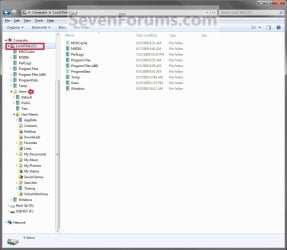
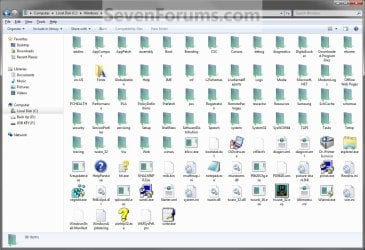
If you have thumbnails turned on, then only empty folders will have the new icon displayed in Windows Explorer when the folder view is set to anything other than Small icons, Details, or List. Otherwise the folders will have a thumbnail preview icon when the folder is not empty instead. When the folder view is set to Small icons, Details, or List, then all folders will display the new icon since they are small icons.
Thumbnails_On.jpg
If you have thumbnails turned off, then all folders will have the new icon display no matter what the folder view is set to in Windows Explorer.
Thumbnails_Off.jpg

   Warning

  • You can only do this while logged in to a administrator account.
  • This will affect all user account's folder icons on the computer.
EXAMPLE: Folder Icon
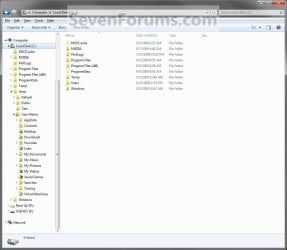
NOTE: This is Windows Explorer with the default folder icon (left screenshot) and a custom folder icon (right screenshot). This is with the folder view is set to Details.
Default.jpg

After.jpg


OPTION ONE

Change the Default Folder Icon


1. Open the Start Menu, then type regedit in the search line and press Enter.

2. If prompted by UAC, then click on Yes.

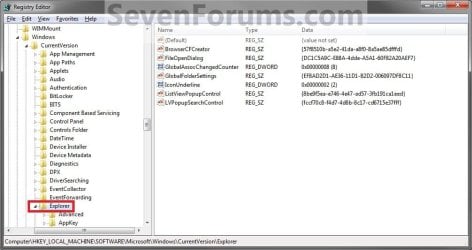
3. In regedit, navigate to: (See screenshot below)
HKEY_LOCAL_MACHINE\SOFTWARE\Microsoft\Windows\CurrentVersion\Explorer
Reg1.jpg
4. In the left pane, right click on the Explorer key, and click on New and Key in the context menu. (See screenshot above)

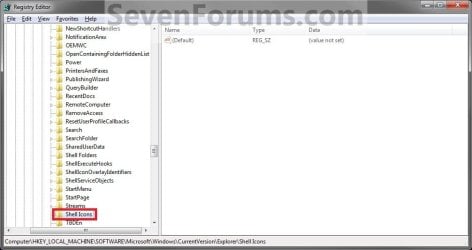
5. Type Shell Icons and press Enter. (See screenshot below)
NOTE: If Shell Icons is already here, then you can skip steps 4 and 5.
Reg2.jpg
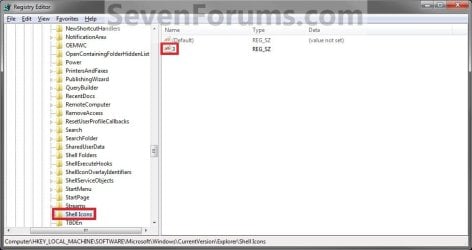
6. In the right pane of Shell Icons, right click on a empty space, and click on New and String Value. Type 3 and press enter. (See screenshot below)
Reg3B.jpg
7. Right click on the number for the folder type, and click on Modify. (See screenshot above)

8. To Use a Custom Icon of Your Own


   Note

  • Be sure to unblock the icon file.
  • Be sure save the icon file in a location that all user account's can access (ex: c:\Users\Public\My Pictures) so the icon will be able to be viewed in their account as well.
  • You must use a 256x256 pixel icon .ico file for it to display properly in all icon sizes in Windows Explorer.
A) In the Modify window, type in the full path of the icon that you want to use within quotes and click on OK. (see screenshot below step 9E)
NOTE: If you change the icon's location (path), then you must also change the location here in step 8 as well for the folder to still display that icon in Windows Explorer.
"full path of the icon file with file extension"
FOR EXAMPLE:
"G:\Windows 7 PNG Files\My_Folder.ico"
B) Go to step 10.
9. To Use another Icon Included in Windows 7
A) Download and install the free program IconViewer for your 32-bit or 64-bit Windows 7.
NOTE: This program will add a Icons tab to files (ex: imageres.dll) that contain a icon library in them so you can see the icons available in it.

B) In Windows Explorer, navigate to C:\Windows\System32\imageres.dll and right click on imageres.dll, click on Properties, and click on the Icons tab.
NOTE: You can use any of the Windows 7 files that include icons in them that you want though. This is just the most common one.

C) Scroll through the icons and make note of the icon number of the one you want to use to replace the default folder icon with, then close the properties window. (see screenshot below)
NOTE: For example, icon number 190 for the green folder icon.
Icon_Viewer.jpg
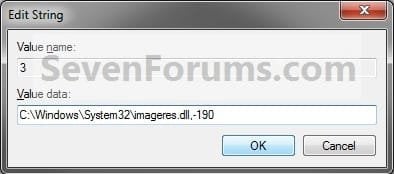
D) In the Modify window, type in the location below, and click on OK. (see screenshot below)
(full path of the Windows 7 file with file extension),-####
FOR EXAMPLE:
C:\Windows\System32\imageres.dll,-190
Modify.jpg
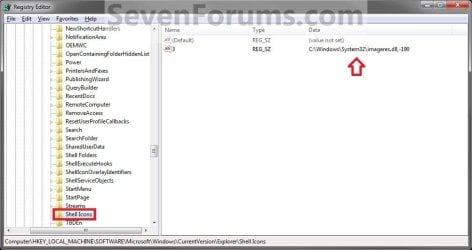
10. The registry will now look similar to this with your icon path under the Data column in the right pane instead. (See screenshot below)
Reg4.jpg
11. If you have 64-bit Windows 7 Installed
   Note
To also change the default folder icon in the "Open" and "Save as" type dialog windows as well in 64-bit Windows 7, you will also need to do this step.

If you have a 32-bit Windows 7 installed, then skip this step and continue on to step 12 instead.

A) In Regedit, go to the location below:
HKEY_LOCAL_MACHINE\SOFTWARE\Wow6432Node\Microsoft\Windows\CurrentVersion\explorer
B) Repeat steps 4 to 10 above using the same settings you used with the location from step 3.
12. Close Regedit.

13. Log off and Log on, or restart the computer to apply the new folder icon.
NOTE: Since you changed the default Folder icon, you might would like to change the Open Folder icon as well in the navigation pane to have them all changed.


OPTION TWO

To Restore the Default Folder Icon


NOTE: This option assumes that you did OPTION ONE above to change the default folder icon.
1. Open the Start Menu, then type regedit in the search line and press Enter.

2. If prompted by UAC, then click on Yes.

3. In regedit, navigate to: (see screenshot below)
HKEY_LOCAL_MACHINE\SOFTWARE\Microsoft\Windows\CurrentVersion\Explorer\Shell Icons
4. In the right pane of Shell Icons, right click on 3 and click on Delete. (see screenshot below)
Reg4.jpg
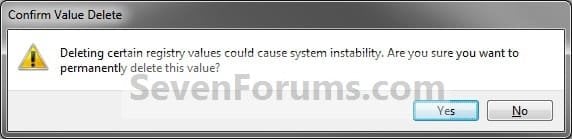
5. Click on Yes. (see screenshot below)
Confirm.jpg
6. If you have 64-bit Windows 7 Installed
   Note
To also restore the default folder icon in the "Open" and "Save as" type dialog windows as well in 64-bit Windows 7, you will also need to do this step.

If you have a 32-bit Windows 7 installed, then skip this step and continue on to step 7 instead.

A) In Regedit, go to the location below:
HKEY_LOCAL_MACHINE\SOFTWARE\Wow6432Node\Microsoft\Windows\CurrentVersion\explorer\Shell Icons
B) Repeat steps 4 and 5 above.
7. Close Regedit.

8. Log off and Log on, or restart the computer to restore the default yellow folder icon.
That's it,
Shawn


Last edited:
Since I did this and then undid the changes (I followed the steps exactly), I now have to restart my computer every time I change my folders in order to view them.

Any idea on how to fix this? :(
 

My Computer

OS
Windows 7
Hello Corielle, and welcome to Seven Forums.

Did it work properly when you changed the default folder icon?

Could you give more details on what you had changed it to, and post back screenshots of the registry locations showing all of the right pane?

When you say "every time I change my folders" and "in order to view them", what exactly do you mean? Could you post a screenshot of this as well?
 

My Computer

Computer type
PC/Desktop
Computer Manufacturer/Model Number
Self built custom
OS
64-bit Windows 11 Pro for Workstations
CPU
Intel i7-8700K OC'd to 5 GHz
Motherboard
ASUS ROG Maximus XI Formula Z390
Memory
64 GB (4x16GB) G.SKILL TridentZ RGB DDR4 3600 MHz
Graphics Card(s)
ASUS ROG-STRIX-GTX1080TI-O11G-GAMING
Sound Card
Integrated
Monitor(s) Displays
2 x Samsung Odyssey G7 27"
Screen Resolution
2560x1440
Hard Drives
1TB Samsung 990 PRO M.2,
4TB Samsung 990 PRO PRO M.2,
TerraMaster F8 SSD Plus NAS
PSU
Seasonic Prime Titanium 850W
Case
Thermaltake Core P3
Cooling
Corsair Hydro H115i
Keyboard
Logitech wireless K800
Mouse
Logitech MX Master 4
Internet Speed
2 Gb/s Download and 100 Mb/s Upload
Antivirus
Malwarebyte Anti-Malware Premium
Browser
Google Chrome
Other Info
Logitech Z625 speaker system,
Logitech BRIO 4K Pro webcam,
HP Color LaserJet Pro MFP M477fdn,
APC SMART-UPS RT 1000 XL - SURT1000XLI,
Galaxy S23 Plus phone
Thanks for the tutorial, works great!
I think if you have 64 bit you also need to do all the steps for
"HKEY_LOCAL_MACHINE\SOFTWARE\Wow6432Node\Microsoft\Windows\CurrentVersion\explorer\Shell Icons"
as well. Like in most of the other tutorials, so that you can see the custom icons in "Save As" boxes.
 

My Computer

OS
Windows 7 Home Premium 64bit
default full folder icon

i read for a few hours, and did not find on how to change this..
does anyone know, how to change the full folder icon, to a custom icon ?
i wana change the default folder icon that has files showing, to a custom full folder icon?
i dont understand how to change it..
i tried many ways, ie edit the imageres.dll 3,4,5,6, or whatever did not work...it only changed a few folder icons and none of those icons had files showing on the icon..

so how do i change it ? thanks

also how do i change the folder icon that appers in the active window on the taskbar?

thanks
 

My Computer

OS
win 7
Hello Ekko,

Double check to see if it may be what is in the NOTE box at the top of the tutorial with still having thumbnail previews turned on.

Hope this helps,
Shawn
 

My Computer

Computer type
PC/Desktop
Computer Manufacturer/Model Number
Self built custom
OS
64-bit Windows 11 Pro for Workstations
CPU
Intel i7-8700K OC'd to 5 GHz
Motherboard
ASUS ROG Maximus XI Formula Z390
Memory
64 GB (4x16GB) G.SKILL TridentZ RGB DDR4 3600 MHz
Graphics Card(s)
ASUS ROG-STRIX-GTX1080TI-O11G-GAMING
Sound Card
Integrated
Monitor(s) Displays
2 x Samsung Odyssey G7 27"
Screen Resolution
2560x1440
Hard Drives
1TB Samsung 990 PRO M.2,
4TB Samsung 990 PRO PRO M.2,
TerraMaster F8 SSD Plus NAS
PSU
Seasonic Prime Titanium 850W
Case
Thermaltake Core P3
Cooling
Corsair Hydro H115i
Keyboard
Logitech wireless K800
Mouse
Logitech MX Master 4
Internet Speed
2 Gb/s Download and 100 Mb/s Upload
Antivirus
Malwarebyte Anti-Malware Premium
Browser
Google Chrome
Other Info
Logitech Z625 speaker system,
Logitech BRIO 4K Pro webcam,
HP Color LaserJet Pro MFP M477fdn,
APC SMART-UPS RT 1000 XL - SURT1000XLI,
Galaxy S23 Plus phone
yes im check this does not help me..
i want to change all my default fodler icons rather there full or have pictures in them or if they have movies folders in side of folders it dosent matter i want one view of them
like this
26809d1252274482-folder-icon-change-windows-7-default-folder-icon-thumbnails_off.jpg
http://www.sevenforums.com/attachme...dows-7-default-folder-icon-thumbnails_off.jpg
also i want to be able to use thumbnails..they in deed needed on my computer thanks..
idont see how to do this..this does not change the rigt icons for me ..
ive even installed icon packager..
it does not do what i want as well
...
 

My Computer

OS
win 7
Sorry, but this tutorial cannot do what you are wanting.

You should go ahead and create a new thread in the Customization forum area to see if someone may know a way for you.
 

My Computer

Computer type
PC/Desktop
Computer Manufacturer/Model Number
Self built custom
OS
64-bit Windows 11 Pro for Workstations
CPU
Intel i7-8700K OC'd to 5 GHz
Motherboard
ASUS ROG Maximus XI Formula Z390
Memory
64 GB (4x16GB) G.SKILL TridentZ RGB DDR4 3600 MHz
Graphics Card(s)
ASUS ROG-STRIX-GTX1080TI-O11G-GAMING
Sound Card
Integrated
Monitor(s) Displays
2 x Samsung Odyssey G7 27"
Screen Resolution
2560x1440
Hard Drives
1TB Samsung 990 PRO M.2,
4TB Samsung 990 PRO PRO M.2,
TerraMaster F8 SSD Plus NAS
PSU
Seasonic Prime Titanium 850W
Case
Thermaltake Core P3
Cooling
Corsair Hydro H115i
Keyboard
Logitech wireless K800
Mouse
Logitech MX Master 4
Internet Speed
2 Gb/s Download and 100 Mb/s Upload
Antivirus
Malwarebyte Anti-Malware Premium
Browser
Google Chrome
Other Info
Logitech Z625 speaker system,
Logitech BRIO 4K Pro webcam,
HP Color LaserJet Pro MFP M477fdn,
APC SMART-UPS RT 1000 XL - SURT1000XLI,
Galaxy S23 Plus phone
Thanks for the great tutorial.

However, I did have to do what forte suggested to get my folder icons to change in the "Save As" dialogs.

They changed everywhere else with Shawn's instructions, but not in the "Save As" until I did what forte suggested.
 

My Computer

OS
Windows 7 Ultime 64-bit
Thank you both Forte and Quoderat for this suggestion and confirming it. I have updated the tutorial to include this as well now. :)
 

My Computer

Computer type
PC/Desktop
Computer Manufacturer/Model Number
Self built custom
OS
64-bit Windows 11 Pro for Workstations
CPU
Intel i7-8700K OC'd to 5 GHz
Motherboard
ASUS ROG Maximus XI Formula Z390
Memory
64 GB (4x16GB) G.SKILL TridentZ RGB DDR4 3600 MHz
Graphics Card(s)
ASUS ROG-STRIX-GTX1080TI-O11G-GAMING
Sound Card
Integrated
Monitor(s) Displays
2 x Samsung Odyssey G7 27"
Screen Resolution
2560x1440
Hard Drives
1TB Samsung 990 PRO M.2,
4TB Samsung 990 PRO PRO M.2,
TerraMaster F8 SSD Plus NAS
PSU
Seasonic Prime Titanium 850W
Case
Thermaltake Core P3
Cooling
Corsair Hydro H115i
Keyboard
Logitech wireless K800
Mouse
Logitech MX Master 4
Internet Speed
2 Gb/s Download and 100 Mb/s Upload
Antivirus
Malwarebyte Anti-Malware Premium
Browser
Google Chrome
Other Info
Logitech Z625 speaker system,
Logitech BRIO 4K Pro webcam,
HP Color LaserJet Pro MFP M477fdn,
APC SMART-UPS RT 1000 XL - SURT1000XLI,
Galaxy S23 Plus phone
Thank you for the tutorial, which I found really really easy. You deserve some rep, sir ;)

But I have a little question for you: I'm stuck in a situation in which I have all the folders with the new icon, but the "Fonts" folder stayed with the old, default "yellow-with-the-A" icon that feels a little annoying (you'd be right saying that I wouldn't need to open the C:\Windows folder anyway but, well..)

Is there a chance to have also the "Fonts" folder with the icon changed?
Should I maybe specify a different string value in regedit when it's used? And if so, could you tell me which is the value I should modify?

Thank you in advance! :)
 

My Computer

Computer type
PC/Desktop
Computer Manufacturer/Model Number
I've made it myself :)
OS
Windows 10 1703
CPU
intel Core i7 920
Motherboard
ASUS P6T
Memory
12GB DDR3 Corsair XMS3
Graphics Card(s)
Sapphire AMD R9 270X
Sound Card
onboard
Monitor(s) Displays
My living room TV
Screen Resolution
Too high for that card
Hard Drives
If they're that hard, why do they break so often?
PSU
LC Power GP3 650W
Case
CoolerMaster Centurion
Cooling
Still lots of fans :(
Keyboard
Logitech K400r
Mouse
Mice are overrated
Internet Speed
I'd rather use travelling pigeons
You're most welcome Julio, and thank you.

I'm afraid that I do not know how to change the Fonts folder icon yet. You might post this in the "Customization" forum area to see if someone may already know a way though.
 

My Computer

Computer type
PC/Desktop
Computer Manufacturer/Model Number
Self built custom
OS
64-bit Windows 11 Pro for Workstations
CPU
Intel i7-8700K OC'd to 5 GHz
Motherboard
ASUS ROG Maximus XI Formula Z390
Memory
64 GB (4x16GB) G.SKILL TridentZ RGB DDR4 3600 MHz
Graphics Card(s)
ASUS ROG-STRIX-GTX1080TI-O11G-GAMING
Sound Card
Integrated
Monitor(s) Displays
2 x Samsung Odyssey G7 27"
Screen Resolution
2560x1440
Hard Drives
1TB Samsung 990 PRO M.2,
4TB Samsung 990 PRO PRO M.2,
TerraMaster F8 SSD Plus NAS
PSU
Seasonic Prime Titanium 850W
Case
Thermaltake Core P3
Cooling
Corsair Hydro H115i
Keyboard
Logitech wireless K800
Mouse
Logitech MX Master 4
Internet Speed
2 Gb/s Download and 100 Mb/s Upload
Antivirus
Malwarebyte Anti-Malware Premium
Browser
Google Chrome
Other Info
Logitech Z625 speaker system,
Logitech BRIO 4K Pro webcam,
HP Color LaserJet Pro MFP M477fdn,
APC SMART-UPS RT 1000 XL - SURT1000XLI,
Galaxy S23 Plus phone
Here is how my Shell Icons look like.

80727484.png


There is a 29 there.

It might have been that I changed the Thumbnails on Folder Icons by using this tutorial from sevenforums.
Or maybe it is some other thing that I have changed.
Since I have this "29", do I need to change the "thumbnails off" default folder icon?
If I change the icon, will it overwrite my "thumbnails on" folder icons (they are not default windows 7)?
 

My Computer

Computer Manufacturer/Model Number
ASUS G72 Notebook
OS
Windows 7 Ultimate 64-bit
CPU
Intel® Core™2 Duo mobile processor P8700 2.53 GHz
Memory
6GB DDRII
Graphics Card(s)
NVIDIA GeForce GTX 260M
Sound Card
EAX Advanced HD 4.0 + Logitech Wireless Headset G930
Monitor(s) Displays
17.3" LED-backlit LCD high-definition plus widescreen
Screen Resolution
1600 x 900
Hard Drives
2 x Seagate Momentus 500 GB 5400.6 SATA 3Gb/s
Cooling
Targus
Mouse
Logitech Wireless Trackball M570
Internet Speed
3 to 6 Mbps Download / .5 to 1 Mbps Upload
Other Info
Clear Modem with Wi-fi*
Comodo Internet Security Premium
Hello Andre,

Number 29 is for the shortcut arrow overlay icon, and will only affect folder shortcuts. It will not have any affect on the folder icon used in this tutorial, or on thumbnail views. :)

Here's some more on this if you wanted to read more on it.

[VP} - Icons/Registry settings
 

My Computer

Computer type
PC/Desktop
Computer Manufacturer/Model Number
Self built custom
OS
64-bit Windows 11 Pro for Workstations
CPU
Intel i7-8700K OC'd to 5 GHz
Motherboard
ASUS ROG Maximus XI Formula Z390
Memory
64 GB (4x16GB) G.SKILL TridentZ RGB DDR4 3600 MHz
Graphics Card(s)
ASUS ROG-STRIX-GTX1080TI-O11G-GAMING
Sound Card
Integrated
Monitor(s) Displays
2 x Samsung Odyssey G7 27"
Screen Resolution
2560x1440
Hard Drives
1TB Samsung 990 PRO M.2,
4TB Samsung 990 PRO PRO M.2,
TerraMaster F8 SSD Plus NAS
PSU
Seasonic Prime Titanium 850W
Case
Thermaltake Core P3
Cooling
Corsair Hydro H115i
Keyboard
Logitech wireless K800
Mouse
Logitech MX Master 4
Internet Speed
2 Gb/s Download and 100 Mb/s Upload
Antivirus
Malwarebyte Anti-Malware Premium
Browser
Google Chrome
Other Info
Logitech Z625 speaker system,
Logitech BRIO 4K Pro webcam,
HP Color LaserJet Pro MFP M477fdn,
APC SMART-UPS RT 1000 XL - SURT1000XLI,
Galaxy S23 Plus phone
Oh yes, I changed the shortcut icon.
Ok, thanks, and thanks for the link also.
 

My Computer

Computer Manufacturer/Model Number
ASUS G72 Notebook
OS
Windows 7 Ultimate 64-bit
CPU
Intel® Core™2 Duo mobile processor P8700 2.53 GHz
Memory
6GB DDRII
Graphics Card(s)
NVIDIA GeForce GTX 260M
Sound Card
EAX Advanced HD 4.0 + Logitech Wireless Headset G930
Monitor(s) Displays
17.3" LED-backlit LCD high-definition plus widescreen
Screen Resolution
1600 x 900
Hard Drives
2 x Seagate Momentus 500 GB 5400.6 SATA 3Gb/s
Cooling
Targus
Mouse
Logitech Wireless Trackball M570
Internet Speed
3 to 6 Mbps Download / .5 to 1 Mbps Upload
Other Info
Clear Modem with Wi-fi*
Comodo Internet Security Premium
You're most welcome Andre. :)
 

My Computer

Computer type
PC/Desktop
Computer Manufacturer/Model Number
Self built custom
OS
64-bit Windows 11 Pro for Workstations
CPU
Intel i7-8700K OC'd to 5 GHz
Motherboard
ASUS ROG Maximus XI Formula Z390
Memory
64 GB (4x16GB) G.SKILL TridentZ RGB DDR4 3600 MHz
Graphics Card(s)
ASUS ROG-STRIX-GTX1080TI-O11G-GAMING
Sound Card
Integrated
Monitor(s) Displays
2 x Samsung Odyssey G7 27"
Screen Resolution
2560x1440
Hard Drives
1TB Samsung 990 PRO M.2,
4TB Samsung 990 PRO PRO M.2,
TerraMaster F8 SSD Plus NAS
PSU
Seasonic Prime Titanium 850W
Case
Thermaltake Core P3
Cooling
Corsair Hydro H115i
Keyboard
Logitech wireless K800
Mouse
Logitech MX Master 4
Internet Speed
2 Gb/s Download and 100 Mb/s Upload
Antivirus
Malwarebyte Anti-Malware Premium
Browser
Google Chrome
Other Info
Logitech Z625 speaker system,
Logitech BRIO 4K Pro webcam,
HP Color LaserJet Pro MFP M477fdn,
APC SMART-UPS RT 1000 XL - SURT1000XLI,
Galaxy S23 Plus phone
Unable to see the changed folder in Save as windows

Hi,

I changed my file icons as described. works perfectly
How can I see them in the Save as window.

regards,
Avin
 

My Computer

OS
64 windows 7 enterprise
Hello Avin, and welcome to Seven Forums.

If you did OPTION ONE, then you will need to also do step 11 to have them also display in the Save as type dialog windows.
 
Last edited:

My Computer

Computer type
PC/Desktop
Computer Manufacturer/Model Number
Self built custom
OS
64-bit Windows 11 Pro for Workstations
CPU
Intel i7-8700K OC'd to 5 GHz
Motherboard
ASUS ROG Maximus XI Formula Z390
Memory
64 GB (4x16GB) G.SKILL TridentZ RGB DDR4 3600 MHz
Graphics Card(s)
ASUS ROG-STRIX-GTX1080TI-O11G-GAMING
Sound Card
Integrated
Monitor(s) Displays
2 x Samsung Odyssey G7 27"
Screen Resolution
2560x1440
Hard Drives
1TB Samsung 990 PRO M.2,
4TB Samsung 990 PRO PRO M.2,
TerraMaster F8 SSD Plus NAS
PSU
Seasonic Prime Titanium 850W
Case
Thermaltake Core P3
Cooling
Corsair Hydro H115i
Keyboard
Logitech wireless K800
Mouse
Logitech MX Master 4
Internet Speed
2 Gb/s Download and 100 Mb/s Upload
Antivirus
Malwarebyte Anti-Malware Premium
Browser
Google Chrome
Other Info
Logitech Z625 speaker system,
Logitech BRIO 4K Pro webcam,
HP Color LaserJet Pro MFP M477fdn,
APC SMART-UPS RT 1000 XL - SURT1000XLI,
Galaxy S23 Plus phone
Thanks for the reply - But did not work:(

Tanks for the quick reply
Did it double checked, still does not work

regards
 

My Computer

OS
64 windows 7 enterprise
Avin,

Could you post a screenshot of the registry location at step 6 showing the everything entered at that location? I'll be happy to take a look to see if a mistake may have been made.

If you used a icon of your own, did you unblock it and have it saved in a location that all user account's can access (ex: c:\Users\Public\My Pictures)?
 

My Computer

Computer type
PC/Desktop
Computer Manufacturer/Model Number
Self built custom
OS
64-bit Windows 11 Pro for Workstations
CPU
Intel i7-8700K OC'd to 5 GHz
Motherboard
ASUS ROG Maximus XI Formula Z390
Memory
64 GB (4x16GB) G.SKILL TridentZ RGB DDR4 3600 MHz
Graphics Card(s)
ASUS ROG-STRIX-GTX1080TI-O11G-GAMING
Sound Card
Integrated
Monitor(s) Displays
2 x Samsung Odyssey G7 27"
Screen Resolution
2560x1440
Hard Drives
1TB Samsung 990 PRO M.2,
4TB Samsung 990 PRO PRO M.2,
TerraMaster F8 SSD Plus NAS
PSU
Seasonic Prime Titanium 850W
Case
Thermaltake Core P3
Cooling
Corsair Hydro H115i
Keyboard
Logitech wireless K800
Mouse
Logitech MX Master 4
Internet Speed
2 Gb/s Download and 100 Mb/s Upload
Antivirus
Malwarebyte Anti-Malware Premium
Browser
Google Chrome
Other Info
Logitech Z625 speaker system,
Logitech BRIO 4K Pro webcam,
HP Color LaserJet Pro MFP M477fdn,
APC SMART-UPS RT 1000 XL - SURT1000XLI,
Galaxy S23 Plus phone

My Computer

Computer Manufacturer/Model Number
HP, Dell, Gateway, Toshiba - 4 laptops and 2 desktops
OS
Vista, Windows7, Mint Mate, Zorin, Windows 8
CPU
from 1.6GHz Duo to i7
Monitor(s) Displays
2x HP w2207
Hard Drives
5x HDD, 7x SSD, 12x Externals
Keyboard
with trackball - no mices
Mouse
Trackball mice
Internet Speed
DSL 6000
Back
Top