
How to Change the Windows 7 Default Folder Icon
Information
This will show you how to change all of the default yellow folder icons in Windows Explorer to any custom icon that you want instead in Windows 7.
User Folder icons will not be affected by this.
User Folder icons will not be affected by this.
Note
If you have thumbnails turned on, then only empty folders will have the new icon displayed in Windows Explorer when the folder view is set to anything other than Small icons, Details, or List. Otherwise the folders will have a thumbnail preview icon when the folder is not empty instead. When the folder view is set to Small icons, Details, or List, then all folders will display the new icon since they are small icons.

If you have thumbnails turned off, then all folders will have the new icon display no matter what the folder view is set to in Windows Explorer.
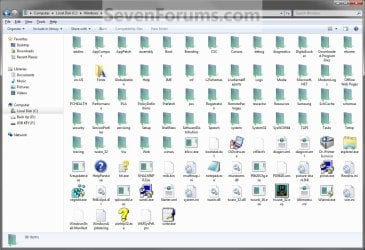
If you have thumbnails turned off, then all folders will have the new icon display no matter what the folder view is set to in Windows Explorer.
Warning
- You can only do this while logged in to a administrator account.
- This will affect all user account's folder icons on the computer.
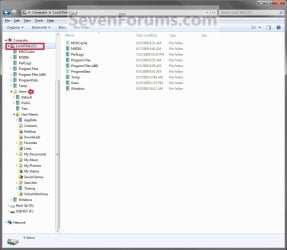
NOTE: This is Windows Explorer with the default folder icon (left screenshot) and a custom folder icon (right screenshot). This is with the folder view is set to Details.

OPTION ONE
Change the Default Folder Icon
1. Open the Start Menu, then type regedit in the search line and press Enter.
2. If prompted by UAC, then click on Yes.
3. In regedit, navigate to: (See screenshot below)
HKEY_LOCAL_MACHINE\SOFTWARE\Microsoft\Windows\CurrentVersion\Explorer
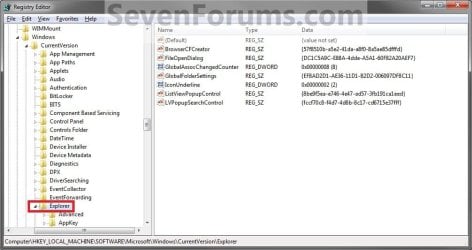
4. In the left pane, right click on the Explorer key, and click on New and Key in the context menu. (See screenshot above)
5. Type Shell Icons and press Enter. (See screenshot below)
NOTE: If Shell Icons is already here, then you can skip steps 4 and 5.
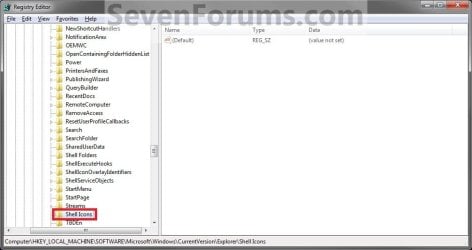
6. In the right pane of Shell Icons, right click on a empty space, and click on New and String Value. Type 3 and press enter. (See screenshot below)
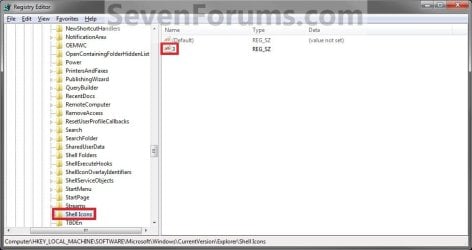
7. Right click on the number for the folder type, and click on Modify. (See screenshot above)
8. To Use a Custom Icon of Your Own
Note
- Be sure to unblock the icon file.
- Be sure save the icon file in a location that all user account's can access (ex: c:\Users\Public\My Pictures) so the icon will be able to be viewed in their account as well.
- You must use a 256x256 pixel icon .ico file for it to display properly in all icon sizes in Windows Explorer.
NOTE: If you change the icon's location (path), then you must also change the location here in step 8 as well for the folder to still display that icon in Windows Explorer.
"full path of the icon file with file extension"
FOR EXAMPLE:
"G:\Windows 7 PNG Files\My_Folder.ico"
B) Go to step 10.
9. To Use another Icon Included in Windows 7
A) Download and install the free program IconViewer for your 32-bit or 64-bit Windows 7.
NOTE: This program will add a Icons tab to files (ex: imageres.dll) that contain a icon library in them so you can see the icons available in it.
B) In Windows Explorer, navigate to C:\Windows\System32\imageres.dll and right click on imageres.dll, click on Properties, and click on the Icons tab.
NOTE: You can use any of the Windows 7 files that include icons in them that you want though. This is just the most common one.
C) Scroll through the icons and make note of the icon number of the one you want to use to replace the default folder icon with, then close the properties window. (see screenshot below)
NOTE: For example, icon number 190 for the green folder icon.

D) In the Modify window, type in the location below, and click on OK. (see screenshot below)
(full path of the Windows 7 file with file extension),-####
FOR EXAMPLE:
C:\Windows\System32\imageres.dll,-190
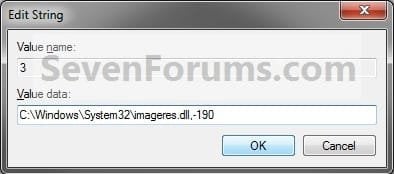
10. The registry will now look similar to this with your icon path under the Data column in the right pane instead. (See screenshot below)
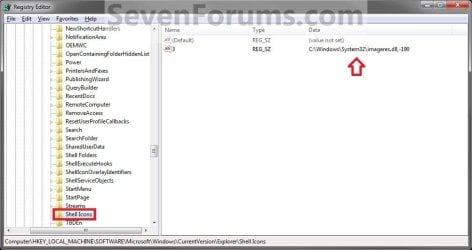
11. If you have 64-bit Windows 7 Installed
Note
To also change the default folder icon in the "Open" and "Save as" type dialog windows as well in 64-bit Windows 7, you will also need to do this step.
If you have a 32-bit Windows 7 installed, then skip this step and continue on to step 12 instead.
If you have a 32-bit Windows 7 installed, then skip this step and continue on to step 12 instead.
A) In Regedit, go to the location below:
HKEY_LOCAL_MACHINE\SOFTWARE\Wow6432Node\Microsoft\Windows\CurrentVersion\explorer
B) Repeat steps 4 to 10 above using the same settings you used with the location from step 3.
12. Close Regedit.
13. Log off and Log on, or restart the computer to apply the new folder icon.
NOTE: Since you changed the default Folder icon, you might would like to change the Open Folder icon as well in the navigation pane to have them all changed.
OPTION TWO
To Restore the Default Folder Icon
NOTE: This option assumes that you did OPTION ONE above to change the default folder icon.
1. Open the Start Menu, then type regedit in the search line and press Enter.
2. If prompted by UAC, then click on Yes.
3. In regedit, navigate to: (see screenshot below)
HKEY_LOCAL_MACHINE\SOFTWARE\Microsoft\Windows\CurrentVersion\Explorer\Shell Icons
4. In the right pane of Shell Icons, right click on 3 and click on Delete. (see screenshot below)
5. Click on Yes. (see screenshot below)

6. If you have 64-bit Windows 7 Installed
Note
To also restore the default folder icon in the "Open" and "Save as" type dialog windows as well in 64-bit Windows 7, you will also need to do this step.
If you have a 32-bit Windows 7 installed, then skip this step and continue on to step 7 instead.
If you have a 32-bit Windows 7 installed, then skip this step and continue on to step 7 instead.
A) In Regedit, go to the location below:
HKEY_LOCAL_MACHINE\SOFTWARE\Wow6432Node\Microsoft\Windows\CurrentVersion\explorer\Shell Icons
B) Repeat steps 4 and 5 above.
7. Close Regedit.
8. Log off and Log on, or restart the computer to restore the default yellow folder icon.
That's it,
Shawn
Related Tutorials
- How to Change the Windows 7 Default User Folder Icons
- How to Change Windows 7 Default Control Panel Icons
- How to Change a Library Icon in Windows 7
- How to Change the Open Folder Icon in Windows 7
- How to Change the Default Libraries Icon in Windows 7
- How to Add or Remove Control Panel from the Windows 7 Navigation Pane
- How to Change the Default Icon of a File Extension in Windows 7
- How to Change a Drive Icon in Vista, Windows 7, and Windows 8
- How to Change Windows 7 System Icons Using Resource Hacker
- How to Change a Folder Icon in Vista and Windows 7
- How to Change Windows 7 Default Folder Icons using Resource Hacker
- How to Enable or Disable Explorer Thumbnail Previews in Windows 7 and Windows 8
Last edited:


