Fonts - Change

How to Change the Default Fonts in Windows 7

   Information
This will show you how to change most or all of the default fonts in Windows 7 for Active Title Bar, Icon, Inactive Title Bar, Menu, Message Box, Palette Title, Selected Items, ToolTip, and various Dialog Box text and buttons.

:warn:Changing a Windows 7 font doesn't change your program fonts.

For a list of all default fonts that come supplied with Windows 7, see: Fonts supplied with Windows 7


OPTION ONE

Through Advanced Appearance Settings


   Note
This will let you change the default font, font size, and font color for the Active Title Bar, Icon, Inactive Title Bar, Menu, Message Box, Palette Title, Selected Items, and ToolTip text. See this link under step 8 there for the default Advanced Appearance settings: http://www.sevenforums.com/tutorials/282-window-color-appearance-change.html
   Tip
All Advanced Appearance settings for a single user are stored in the three registry keys below.


  • HKEY_CURRENT_USER\Control Panel\Colors
  • HKEY_CURRENT_USER\Control Panel\Desktop\Colors
  • HKEY_CURRENT_USER\Control Panel\Desktop\WindowMetrics
1. If you have Windows 7 Starter or Home Basic
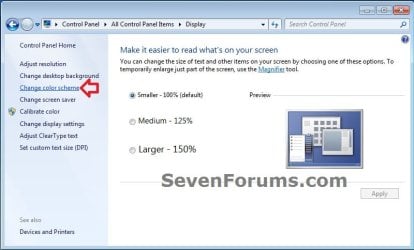
A) Open the Control Panel (icons view), and click on the Display icon.

B) In the left blue pane, click on the Change color scheme link. (see screenshot below)
Starter_Basic-1.jpg
C) Click on the Advanced button. (see screenshot below)
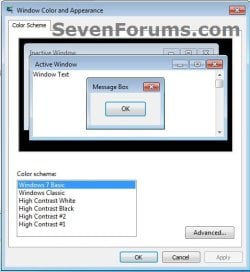
Starter_Basic-2.jpg
D) Go to step 3.
2. If you have Windows 7 Home Premium, Professional, Ultimate, or Enterprise
A) Right click on a empty space on the desktop and click on Personalize. (see screenshot below)
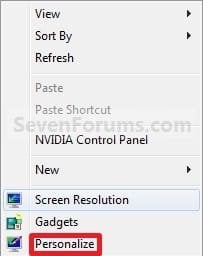
Right_Click.jpg
B) Click on the Window Color link at the bottom of the window. (See screenshot below)
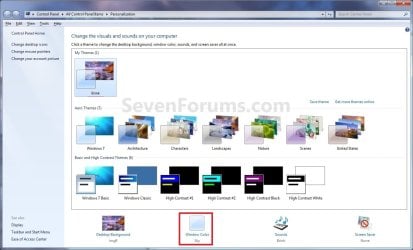
Personalize.jpg
C) Click on the Advanced appearance settings link. (See screenshot below)


   Warning

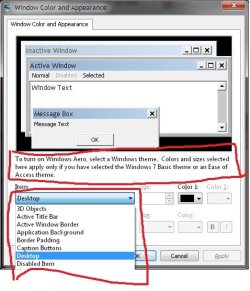
  • If you have selected a Basic and High Contrast Themes, then you will not see the screenshot. Instead, you will see the screenshot below step 4.
  • If you have selected a Aero Themes, then you will see the screenshot. Continue to step 4.
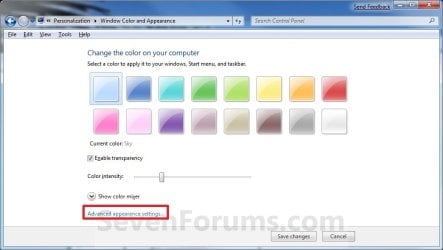
Color_and_Appearance-1.jpg
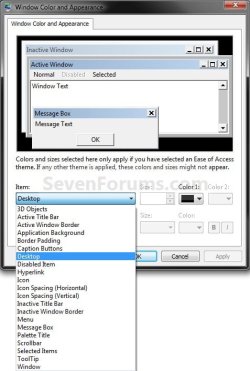
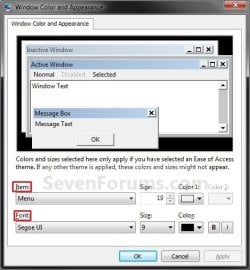
3. Select a Item that you want to change the font for. (see screenshots below)
NOTE: Not all of these items will have a font for them.
Classic_Color_and_Appearance-2.jpg

Classic_Color_and_Appearance-1.jpg

4. To Change the Item Font
A) Click on the Font drop down menu and select a font. (see screenshot below)
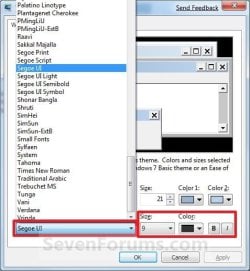
Select_Font.jpg
5. To Change the Item Font Size
A) Click on the Size drop down menu and select a number for the size. The higher the number, the larger the size. (see screenshot above)
6. To Change the Item Font Color
A) Click on the Color drop down menu and select a color. (see screenshot below step 4)
7. To Have the Item Font in Bold
A) Click the B button to highlight it. If it is not highlighted, then the font will not be in bold. (see screenshot below step 4)
8. To Have the Item Font in Italic
A) Click on the I button to highlight it. If it is not highlighted, then the font will not be in italic. (see screenshot below step 4)
9. Repeat steps 3 to 8 until you have changed all of the fonts for the select items that you wanted.

10. When done, click on OK. (see screenshots below step 3)

11. Close the Window Color and Appearance window. (see screenshot below step 2B)
NOTE: You will not have this to do if you have a Basic and High Contrast Themes selected.


OPTION TWO

To Change or Restore Default Dialog Box Text and Buttons Fonts


NOTE: This will let you change the default fonts for most of the Windows 7 dialog box text and button text through the registry.
1. To Change the Dialog Box Text and Buttons Fonts
A) Open the Start Menu, type regedit in the search box, and press Enter.

B) If prompted by UAC, then click on Yes.

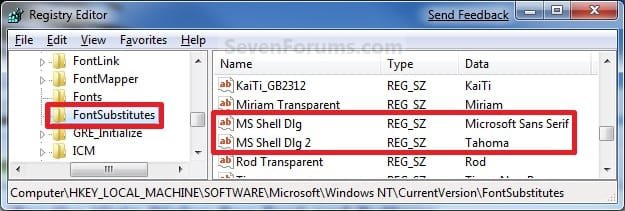
C) In regedit, navigate to the location below (See screenshots below)
NOTE: The default fonts are the ones displayed below.

Code:
HKEY_LOCAL_MACHINE\SOFTWARE\Microsoft\Windows NT\CurrentVersion\FontSubstitutes
Reg.jpg
D) In the right pane, right click on MS Shell Dlg and click on Modify. (See screenshot above)

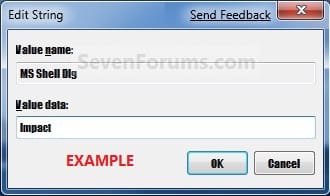
E) Type in the name of the font you want to use and click on OK. (See left screenshot below)
NOTE: You can get the name of the font from the Font Folder Location C:\Windows\Fonts. Right click on the single font and click on Properties to see the file name. For a font group, you will need to open it first to see the single fonts in it. Be sure that you use the exact same font name that is listed. Do not include the Regular part or file extension in the font name. For example, I would type Impact instead of Impact Regular or Impact.ttf.
Modify1.jpg

Modify1B.jpg

F) In the right pane, right click on MS Shell Dlg 2 and click on Modify. (See screenshot below step 1C)

G) Type in the name of the font you want to use and click on OK. (See left screenshot below)
NOTE: You can get the name of the font from the Font Folder Location C:\Windows\Fonts. Be sure that you use the exact same font name that is listed. Do not include the Regular part in the font name. For example, I would type Impact instead of Impact Regular.
Modify2.jpg

Modify2B.jpg

H) Close regedit.

I) Go to step 3.
2. To Restore Default Dialog Box Text and Buttons Fonts
A) Click on the Download button below, and download the file below.
Restore_Default_Dialog_Box_Fonts.reg


Download


B) Save the .reg file to the desktop.

C) Right click the downloaded .reg file, and click on Merge.

D) Click on Run, Yes (UAC), Yes, and OK when prompted.

E) Continue on to step 3.
3. Log off and log on, or restart the computer to apply the font changes.


OPTION THREE

To Change All Default Fonts


NOTE: This will let you change the default fonts used by Windows 7 using the registry.
1. To Change Default Fonts Using a REG File Download
NOTE: This changes the default fonts in Windows 7 to the Tahoma font. You could use this REG file download to make doing step 2 below easier by editing the REG file for the font you want to use instead of Tahoma.
A) Click on the Download button below, and download the file below.
Set_Tahoma_Default_Font.reg


Download


B) Save the .reg file to your desktop.

C) Double click on the downloaded .reg file to merge it.

D) Click on Run, Yes (UAC), Yes, and OK when prompted to approve the merge.

E) Log off and log on, or restart the computer to apply changes.

F) When done, you can delete the downloaded .reg file if you like.
2. To Manually Change Default Fonts by Creating a REG File
NOTE: The REG file in step 1 is the same as in step 2B below. You can use it and just edit the font that you would like to use instead of Tahoma in step below.
A) Open Notepad.

B) Copy and Paste the code below into Notepad.

Code:
Windows Registry Editor Version 5.00
 
[HKEY_LOCAL_MACHINE\SOFTWARE\Microsoft\Windows NT\CurrentVersion\Fonts]
"Segoe UI (TrueType)"=""
"Segoe UI Bold (TrueType)"=""
"Segoe UI Italic (TrueType)"=""
"Segoe UI Bold Italic (TrueType)"=""
"Segoe UI Semibold (TrueType)"=""
"Segoe UI Light (TrueType)"=""
 
[HKEY_LOCAL_MACHINE\SOFTWARE\Microsoft\Windows NT\CurrentVersion\FontSubstitutes]
"Segoe UI"="[B][COLOR=red]Tahoma[/COLOR][/B]"
All-1.jpg
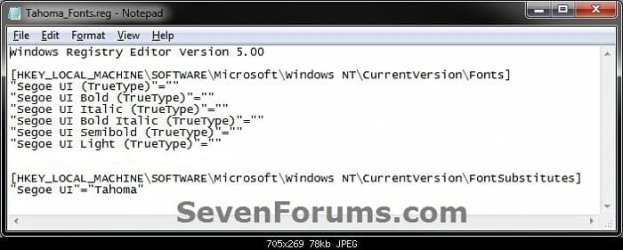
C) In Notepad, edit Tahoma in quotes with the name of the font that you would like to use in instead with it still in quotes. (see screenshot below)
NOTE: You can get the name of the font from the Font Folder Location C:\Windows\Fonts. Be sure that you use the exact same font name that is listed. Do not include the Regular part in the font name. For example, I would type Impact instead of Impact Regular.
All-2.jpg

All-3.jpg

D) In Notepad, click on File (Menu bar) and Save As. (see screenshot below)
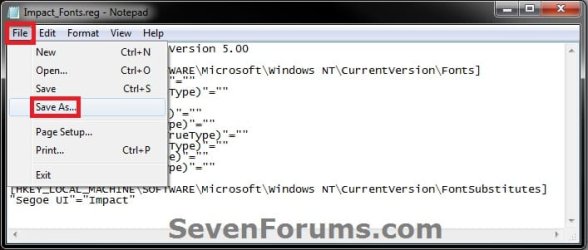
All-4.jpg
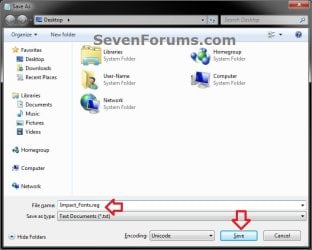
E) Type in a name you would like with a .reg file extension (ex: Impact-Fonts.reg), then click on the Save button. (see screenshot below)
All-5.jpg
D) Double click on the downloaded .reg file to merge it.

E) Click on Run, Yes (UAC), Yes, and OK when prompted to approve the merge.

F) Log off and log on, or restart the computer to apply changes.
3. To Restore the Default Fonts
NOTE: This will ONLY undo all changes that you made using either step 1 or step 2 in OPTION THREE above, and restore the original default fonts used by Windows 7.
A) Click on the Download button below, and download the file below.
Default_Fonts.reg


Download


B) Save the .reg file to your desktop.

C) Double click on the downloaded .reg file to merge it.

D) Click on Run, Yes (UAC), Yes, and OK when prompted to approve the merge.

E) Log off and log on, or restart the computer to apply changes.

F) When done, you can delete the downloaded .reg file if you like.
That's it,
Shawn


Attachments

Last edited:
Hi, I have adjusted some fonts in the Adavanced Apperance settings, and also the Registry for Gabriola font. But still I have some text on teh Desktop that is the default text. I would like to change it all to the same Gabriola text if possible. Any other places I need to adjust to make it so?

Thanks!
Also would just like to say, this site is great. SO much info.
 

My Computer

Computer Manufacturer/Model Number
mypc4me
OS
Windows 7
CPU
i5 750
Motherboard
Asus p7p55D Evo
Memory
4TB GSkill
Graphics Card(s)
Ati 5850
Sound Card
Audigy SE
Monitor(s) Displays
24" Acer
Screen Resolution
1900x1200
Hard Drives
SSD & Hybrid SSD
PSU
Corsair 750
Case
CM
Cooling
fans
Keyboard
keys
Mouse
tailess
Internet Speed
MB
Other Info
Sausages
Hello Coldout,

What text location on the desktop has not changed?

Shawn
 

My Computer

Computer type
PC/Desktop
Computer Manufacturer/Model Number
Self built custom
OS
64-bit Windows 11 Pro for Workstations
CPU
Intel i7-8700K OC'd to 5 GHz
Motherboard
ASUS ROG Maximus XI Formula Z390
Memory
64 GB (4x16GB) G.SKILL TridentZ RGB DDR4 3600 MHz
Graphics Card(s)
ASUS ROG-STRIX-GTX1080TI-O11G-GAMING
Sound Card
Integrated
Monitor(s) Displays
2 x Samsung Odyssey G7 27"
Screen Resolution
2560x1440
Hard Drives
1TB Samsung 990 PRO M.2,
4TB Samsung 990 PRO PRO M.2,
TerraMaster F8 SSD Plus NAS
PSU
Seasonic Prime Titanium 850W
Case
Thermaltake Core P3
Cooling
Corsair Hydro H115i
Keyboard
Logitech wireless K800
Mouse
Logitech MX Master 4
Internet Speed
2 Gb/s Download and 100 Mb/s Upload
Antivirus
Malwarebyte Anti-Malware Premium
Browser
Google Chrome
Other Info
Logitech Z625 speaker system,
Logitech BRIO 4K Pro webcam,
HP Color LaserJet Pro MFP M477fdn,
APC SMART-UPS RT 1000 XL - SURT1000XLI,
Galaxy S23 Plus phone
I've taken a screenshot of my desktop, which shows the fonts that still seem to be default.
Example is, holding mouse over taksbar shows default text. But when I right click on Windows explorer, I have the Gabriola text.
Also Computer, Network and Recycle Bin are default fonts.

Edit: I just got the Computer, Network and Recycle Bin to Gabriola. I went through the list in Advanced Apprerance settings, (these were under Icon) which I hadn't noticed before :) Thanks.


Edit 2: I have all but one changed to Gabriola font, mouse over taskbar 'tooltip' still shows default text.


I can live with it, if it is a pain to find.

Once again, thanks. Very much appreciate the info, and the help.
 
Last edited by a moderator:

My Computer

Computer Manufacturer/Model Number
mypc4me
OS
Windows 7
CPU
i5 750
Motherboard
Asus p7p55D Evo
Memory
4TB GSkill
Graphics Card(s)
Ati 5850
Sound Card
Audigy SE
Monitor(s) Displays
24" Acer
Screen Resolution
1900x1200
Hard Drives
SSD & Hybrid SSD
PSU
Corsair 750
Case
CM
Cooling
fans
Keyboard
keys
Mouse
tailess
Internet Speed
MB
Other Info
Sausages
No problem Cold Out.

I'm not sure where that one may be at. :(
 

My Computer

Computer type
PC/Desktop
Computer Manufacturer/Model Number
Self built custom
OS
64-bit Windows 11 Pro for Workstations
CPU
Intel i7-8700K OC'd to 5 GHz
Motherboard
ASUS ROG Maximus XI Formula Z390
Memory
64 GB (4x16GB) G.SKILL TridentZ RGB DDR4 3600 MHz
Graphics Card(s)
ASUS ROG-STRIX-GTX1080TI-O11G-GAMING
Sound Card
Integrated
Monitor(s) Displays
2 x Samsung Odyssey G7 27"
Screen Resolution
2560x1440
Hard Drives
1TB Samsung 990 PRO M.2,
4TB Samsung 990 PRO PRO M.2,
TerraMaster F8 SSD Plus NAS
PSU
Seasonic Prime Titanium 850W
Case
Thermaltake Core P3
Cooling
Corsair Hydro H115i
Keyboard
Logitech wireless K800
Mouse
Logitech MX Master 4
Internet Speed
2 Gb/s Download and 100 Mb/s Upload
Antivirus
Malwarebyte Anti-Malware Premium
Browser
Google Chrome
Other Info
Logitech Z625 speaker system,
Logitech BRIO 4K Pro webcam,
HP Color LaserJet Pro MFP M477fdn,
APC SMART-UPS RT 1000 XL - SURT1000XLI,
Galaxy S23 Plus phone
might have been asked....... but........

how do you make the desktop icons smaller?
 

My Computer

Computer Manufacturer/Model Number
Custom
OS
Windows 7 Professional x64
CPU
AMD Phenom™ II X4
Motherboard
Biostar TA790GXE 128M
Memory
4GB Corsair Dominator Series DDR2 1066 (8500)
Graphics Card(s)
2GB MSi Radeon HD 6950 PE/OC
Monitor(s) Displays
24" Samsung T240 Monitor 1920x1600
Screen Resolution
1920x1200
Hard Drives
250GB Western Digital SATA
PSU
OCZ 700W Modular
Case
Antec Nine Hundred
Keyboard
Basic Dell
Mouse
Logitech MX518
Internet Speed
Cable
Hello 96accord,

You can do so by right clicking on a unused area of the desktop and click on View and Small Icons.

Hope this helps,
Shawn
 
Last edited:

My Computer

Computer type
PC/Desktop
Computer Manufacturer/Model Number
Self built custom
OS
64-bit Windows 11 Pro for Workstations
CPU
Intel i7-8700K OC'd to 5 GHz
Motherboard
ASUS ROG Maximus XI Formula Z390
Memory
64 GB (4x16GB) G.SKILL TridentZ RGB DDR4 3600 MHz
Graphics Card(s)
ASUS ROG-STRIX-GTX1080TI-O11G-GAMING
Sound Card
Integrated
Monitor(s) Displays
2 x Samsung Odyssey G7 27"
Screen Resolution
2560x1440
Hard Drives
1TB Samsung 990 PRO M.2,
4TB Samsung 990 PRO PRO M.2,
TerraMaster F8 SSD Plus NAS
PSU
Seasonic Prime Titanium 850W
Case
Thermaltake Core P3
Cooling
Corsair Hydro H115i
Keyboard
Logitech wireless K800
Mouse
Logitech MX Master 4
Internet Speed
2 Gb/s Download and 100 Mb/s Upload
Antivirus
Malwarebyte Anti-Malware Premium
Browser
Google Chrome
Other Info
Logitech Z625 speaker system,
Logitech BRIO 4K Pro webcam,
HP Color LaserJet Pro MFP M477fdn,
APC SMART-UPS RT 1000 XL - SURT1000XLI,
Galaxy S23 Plus phone
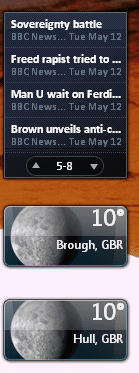
I too am struggling with this, option 1 works but as with Vista some fonts seem uneditable, some dialogue boxes refuse to change (delete for example), the advanced font selection list itself! (which has to be some sick joke), gadgets, RSS sidebar feeds, fonts in Outlook, insisting on the ugly Segeo / Calibri which looks dreadful with ClearType disabled.

Option 2 above, I just don't have the registry keys here on my Windows 7 RC install. At the moment Windows 7 seems worse than Vista in not allowing you to change all the fonts, so I have the clean lines to Tahoma and Trebuchet MS but with sprinklings of the ugly Segoe. :(

A pain.

Some examples attached.

Any ideas?
 

Attachments

  • Untitled3.png
    Untitled3.png
    11.7 KB · Views: 197,976
  • Untitled2.jpg
    Untitled2.jpg
    14.2 KB · Views: 198,544
  • Untitled1.jpg
    Untitled1.jpg
    47.3 KB · Views: 2,851
  • Untitled.jpg
    Untitled.jpg
    45.4 KB · Views: 199,926

My Computer

OS
Windows 7 Retail
Hello Stormy, and welcome to Seven Forums.

I'm not sure which registry entries you are missing, but here are the default entries inside the FontSubstitutes key. You can download the ZIP file, extract the .reg file, then double click on the .reg file to merge it to add them.

Hope this helps,
Shawn
 

Attachments

My Computer

Computer type
PC/Desktop
Computer Manufacturer/Model Number
Self built custom
OS
64-bit Windows 11 Pro for Workstations
CPU
Intel i7-8700K OC'd to 5 GHz
Motherboard
ASUS ROG Maximus XI Formula Z390
Memory
64 GB (4x16GB) G.SKILL TridentZ RGB DDR4 3600 MHz
Graphics Card(s)
ASUS ROG-STRIX-GTX1080TI-O11G-GAMING
Sound Card
Integrated
Monitor(s) Displays
2 x Samsung Odyssey G7 27"
Screen Resolution
2560x1440
Hard Drives
1TB Samsung 990 PRO M.2,
4TB Samsung 990 PRO PRO M.2,
TerraMaster F8 SSD Plus NAS
PSU
Seasonic Prime Titanium 850W
Case
Thermaltake Core P3
Cooling
Corsair Hydro H115i
Keyboard
Logitech wireless K800
Mouse
Logitech MX Master 4
Internet Speed
2 Gb/s Download and 100 Mb/s Upload
Antivirus
Malwarebyte Anti-Malware Premium
Browser
Google Chrome
Other Info
Logitech Z625 speaker system,
Logitech BRIO 4K Pro webcam,
HP Color LaserJet Pro MFP M477fdn,
APC SMART-UPS RT 1000 XL - SURT1000XLI,
Galaxy S23 Plus phone
As with Vista it seems Microsoft have deemed it that you can only edit certain fonts, it doesn't give enough user control by half.

I tried a Vista hack to remove Segoe UI completely and while it is better it creates its own problems, I really wish Windows 7 would have more customisation over the fonts, but I doubt we will see it so I will be stuck with a mish-mash of clean non-cleartype fonts and some awful looking fonts which require cleartype, like Segoe and Calibri. :(

I have always hated cleartype, and will always do so, why do Microsoft insist on force feeding us cleartype only fonts like Segoe and Calibri. :(
 

My Computer

OS
Windows 7 Retail
I found simply changing the "Icon" font will change everything from Windows explorer fonts to desktop icon fonts. I think it's beautiful! Thanks! I am surprised it changed so many fonts I didn't think had anything to do with "Icons" This looks great!!!!!!!!!!!!!!!

View attachment 10793
 
Last edited:

My Computer

Computer Manufacturer/Model Number
Keeps changing - (Custom)
OS
Windows 7 Professional x64
CPU
Intel Core i7 860
Motherboard
Gigabyte GA-P55-UD4P
Memory
4GB DDR3 Mushkin 1600Mhz @ 7-8-7-20
Graphics Card(s)
MSI GTS250 1GB DDR3 Twin Frozr
Sound Card
Onboard realtek
Monitor(s) Displays
Samsung SyncMaster 24" P2450 + Samsung 20" 2033
Screen Resolution
1920 X 1080 and 1600 X 900 (#2 system 1440 X 900)
Hard Drives
Patriot Inferno 120GB SSD + 3 WD Blue 640GB drives
PSU
Corsair 750 HX Modular
Case
Lancool PC-K62
Cooling
Cooler Master TX3 CPU cooler and 4-140mm and 1-120mm case
Keyboard
Gigabyte USB keyboard
Mouse
Microsoft wireless laser mouse 5000
Internet Speed
7 Mb down 1.5 up
Other Info
System #2: AMD Phenom II X6 1055T (Freezer 7 Pro cooler) - Gigabyte 880GMA-UD2H - WD 500GB Black - 9500GT (1GB) 500W OCZ modular PSU - Antec 200 case. System #3 (LapTop) Core 2 Duo T6670 - 320GB 7200RPM HD - 4GB DDR3 RAM.
You're welcome Nate. I'm happy to hear that you're making them the way you like them. :)
 

My Computer

Computer type
PC/Desktop
Computer Manufacturer/Model Number
Self built custom
OS
64-bit Windows 11 Pro for Workstations
CPU
Intel i7-8700K OC'd to 5 GHz
Motherboard
ASUS ROG Maximus XI Formula Z390
Memory
64 GB (4x16GB) G.SKILL TridentZ RGB DDR4 3600 MHz
Graphics Card(s)
ASUS ROG-STRIX-GTX1080TI-O11G-GAMING
Sound Card
Integrated
Monitor(s) Displays
2 x Samsung Odyssey G7 27"
Screen Resolution
2560x1440
Hard Drives
1TB Samsung 990 PRO M.2,
4TB Samsung 990 PRO PRO M.2,
TerraMaster F8 SSD Plus NAS
PSU
Seasonic Prime Titanium 850W
Case
Thermaltake Core P3
Cooling
Corsair Hydro H115i
Keyboard
Logitech wireless K800
Mouse
Logitech MX Master 4
Internet Speed
2 Gb/s Download and 100 Mb/s Upload
Antivirus
Malwarebyte Anti-Malware Premium
Browser
Google Chrome
Other Info
Logitech Z625 speaker system,
Logitech BRIO 4K Pro webcam,
HP Color LaserJet Pro MFP M477fdn,
APC SMART-UPS RT 1000 XL - SURT1000XLI,
Galaxy S23 Plus phone
Good day Shawn,

I've followed through this tutorial as I wanted to change my font colour,
but at this point I have NO colour option to click as mine is greyed out !!
Any thoughts or ideas on why, as to be honest the default icon text looks pretty dreadful on a lot of my wallpapers.


All the best,
Mick C.
 

My Computer

Computer type
PC/Desktop
Computer Manufacturer/Model Number
Arbico i7 PC
OS
Windows 7 Home Premium 64 bit - SP1
CPU
Intel Core i7 920 (2.66GHz 8MB L2 Cache)
Motherboard
Asus P6X58D-E
Memory
6Gb (3 x Kingston 2Gb PC12800 DDR3 1600MHZ)
Graphics Card(s)
ATI Radeon HD 5850 1Gb
Sound Card
AMD HIgh Def HDMI
Monitor(s) Displays
LG 24EB23 Digital
Screen Resolution
1920x1080 (32bit) (60Hz)
Hard Drives
Samsung HD103SJ
Samsung HD5021J
Samsung HD204UI
Samsung M3 External USB 3
PSU
Nexus RX-8500 850w
Case
NZXT Hush Black ATA
Cooling
3 x Xilence Red Wing 120mm Case Fans
Keyboard
Microsoft Wireless Keyboard 6000 v3.0
Mouse
Microsoft Wireless Laser Mouse 6000 v 2.0
Internet Speed
60.0 Mbps Average
Antivirus
Spybot Search & Destroy
Browser
Avant Browser
Hello Mick,

Changing the colors from there will only work if you are using a Windows Classic theme instead of a Windows Aero theme. :(

Not sure if it's worth it to lose Aero, but it's your call.

Hope this helps,
Shawn
 

My Computer

Computer type
PC/Desktop
Computer Manufacturer/Model Number
Self built custom
OS
64-bit Windows 11 Pro for Workstations
CPU
Intel i7-8700K OC'd to 5 GHz
Motherboard
ASUS ROG Maximus XI Formula Z390
Memory
64 GB (4x16GB) G.SKILL TridentZ RGB DDR4 3600 MHz
Graphics Card(s)
ASUS ROG-STRIX-GTX1080TI-O11G-GAMING
Sound Card
Integrated
Monitor(s) Displays
2 x Samsung Odyssey G7 27"
Screen Resolution
2560x1440
Hard Drives
1TB Samsung 990 PRO M.2,
4TB Samsung 990 PRO PRO M.2,
TerraMaster F8 SSD Plus NAS
PSU
Seasonic Prime Titanium 850W
Case
Thermaltake Core P3
Cooling
Corsair Hydro H115i
Keyboard
Logitech wireless K800
Mouse
Logitech MX Master 4
Internet Speed
2 Gb/s Download and 100 Mb/s Upload
Antivirus
Malwarebyte Anti-Malware Premium
Browser
Google Chrome
Other Info
Logitech Z625 speaker system,
Logitech BRIO 4K Pro webcam,
HP Color LaserJet Pro MFP M477fdn,
APC SMART-UPS RT 1000 XL - SURT1000XLI,
Galaxy S23 Plus phone
Hello Mick,

Changing the colors from there will only work if you are using a Windows Classic theme instead of a Windows Aero theme. :(

Not sure if it's worth it to lose Aero, but it's your call.

Hope this helps,
Shawn

Ahhhh I see what you mean Shawn, thanks for pointing that out, Aero is too much fun to loose, will have to hunt down another way to play with the icon colour.
Appreciate the input,
Mick C.
 

My Computer

Computer type
PC/Desktop
Computer Manufacturer/Model Number
Arbico i7 PC
OS
Windows 7 Home Premium 64 bit - SP1
CPU
Intel Core i7 920 (2.66GHz 8MB L2 Cache)
Motherboard
Asus P6X58D-E
Memory
6Gb (3 x Kingston 2Gb PC12800 DDR3 1600MHZ)
Graphics Card(s)
ATI Radeon HD 5850 1Gb
Sound Card
AMD HIgh Def HDMI
Monitor(s) Displays
LG 24EB23 Digital
Screen Resolution
1920x1080 (32bit) (60Hz)
Hard Drives
Samsung HD103SJ
Samsung HD5021J
Samsung HD204UI
Samsung M3 External USB 3
PSU
Nexus RX-8500 850w
Case
NZXT Hush Black ATA
Cooling
3 x Xilence Red Wing 120mm Case Fans
Keyboard
Microsoft Wireless Keyboard 6000 v3.0
Mouse
Microsoft Wireless Laser Mouse 6000 v 2.0
Internet Speed
60.0 Mbps Average
Antivirus
Spybot Search & Destroy
Browser
Avant Browser
You're welcome Mick.

The only other option is using a 3rd party program like Stardock WindowBlinds. Not sure if it works in Windows 7 yet though.
 

My Computer

Computer type
PC/Desktop
Computer Manufacturer/Model Number
Self built custom
OS
64-bit Windows 11 Pro for Workstations
CPU
Intel i7-8700K OC'd to 5 GHz
Motherboard
ASUS ROG Maximus XI Formula Z390
Memory
64 GB (4x16GB) G.SKILL TridentZ RGB DDR4 3600 MHz
Graphics Card(s)
ASUS ROG-STRIX-GTX1080TI-O11G-GAMING
Sound Card
Integrated
Monitor(s) Displays
2 x Samsung Odyssey G7 27"
Screen Resolution
2560x1440
Hard Drives
1TB Samsung 990 PRO M.2,
4TB Samsung 990 PRO PRO M.2,
TerraMaster F8 SSD Plus NAS
PSU
Seasonic Prime Titanium 850W
Case
Thermaltake Core P3
Cooling
Corsair Hydro H115i
Keyboard
Logitech wireless K800
Mouse
Logitech MX Master 4
Internet Speed
2 Gb/s Download and 100 Mb/s Upload
Antivirus
Malwarebyte Anti-Malware Premium
Browser
Google Chrome
Other Info
Logitech Z625 speaker system,
Logitech BRIO 4K Pro webcam,
HP Color LaserJet Pro MFP M477fdn,
APC SMART-UPS RT 1000 XL - SURT1000XLI,
Galaxy S23 Plus phone
A way to change icon font from white to black

There was a posting about trying to get the font to change color on the desktop icons from white to black. While enabling drop shadows on icon fonts will make them readable even against a white background, I found this method to change them from white to black:

*Make sure you de-select "use drop shadows for icon labels on the desktop".

*Now, right click, go to personalize, then go to desktop background, then go to solid colors. Click white background, apply. The text will change to black.

*Now go back to select the picture that you want to be your background.

Note that this works until you select drop shadows again - at that point you're back to white. No drop shadows, but at least you can have black text.
 

My Computer

Computer Manufacturer/Model Number
Gateway, Toshiba Laptop, and Home Brew
OS
Windows 7 x64 HP, Windows 7 HP, Windows 7 Ult
CPU
Intel I3, Cerelon, Pentium 4 @ 3Ghz
Motherboard
Intel, Intel, Asus
Memory
8G, 3G, 3G
Graphics Card(s)
On-board Intel, On-board nVidia, nVIDIA card
Sound Card
on-board, on-board, SoundBlaster
Monitor(s) Displays
Hannspree HF237, Toshiba, SyncMaster 931B
Screen Resolution
default (all)
Hard Drives
1T internal, 320G internal, 160G internal, 1T networked
PSU
300w, unk, 650w
Case
black, black, grey
Cooling
air (all)
Keyboard
standard wired (all)
Mouse
standard wired (all)
Internet Speed
6M down, 768K up
Other Info
Home LAN through Linksys hub to 4 port and wireless switch/router. Networked HP 2600n. Wife's computer running Windows 7, and spare laptop running Ubuntu "Karmic Kola" (9.10).
can't install font

I've read how to install a new font, but when I right click on the font to install it, "install" isn't listed. I'd try to drag and drop, but I can't figure out how to keep the control panel/font open on the right while the font is in the list at the left. Please help.
 

My Computer

OS
?>?>??????????
Hello Barbara, and welcome to Seven Forums.

This tutorial may help instead. You can open two windows to drag from one to drop in the other. Is the font Windows compatible? Some are not. You might double check at the site you got it at to make sure.

http://www.sevenforums.com/tutorials/1155-fonts-install.html

Hope this helps,
Shawn
 

My Computer

Computer type
PC/Desktop
Computer Manufacturer/Model Number
Self built custom
OS
64-bit Windows 11 Pro for Workstations
CPU
Intel i7-8700K OC'd to 5 GHz
Motherboard
ASUS ROG Maximus XI Formula Z390
Memory
64 GB (4x16GB) G.SKILL TridentZ RGB DDR4 3600 MHz
Graphics Card(s)
ASUS ROG-STRIX-GTX1080TI-O11G-GAMING
Sound Card
Integrated
Monitor(s) Displays
2 x Samsung Odyssey G7 27"
Screen Resolution
2560x1440
Hard Drives
1TB Samsung 990 PRO M.2,
4TB Samsung 990 PRO PRO M.2,
TerraMaster F8 SSD Plus NAS
PSU
Seasonic Prime Titanium 850W
Case
Thermaltake Core P3
Cooling
Corsair Hydro H115i
Keyboard
Logitech wireless K800
Mouse
Logitech MX Master 4
Internet Speed
2 Gb/s Download and 100 Mb/s Upload
Antivirus
Malwarebyte Anti-Malware Premium
Browser
Google Chrome
Other Info
Logitech Z625 speaker system,
Logitech BRIO 4K Pro webcam,
HP Color LaserJet Pro MFP M477fdn,
APC SMART-UPS RT 1000 XL - SURT1000XLI,
Galaxy S23 Plus phone
Back
Top