Solved Formatting old OS drive?

tracingspirals

New member
Local time
2:32 PM
Messages
20
Hey, I recently installed a new OS on a SSD and after decided there is nothing useful left on my HDD which contained the old/original OS, I want to remove the old OS from that disk and format it so I can have a new clean disk to use with my new OS.

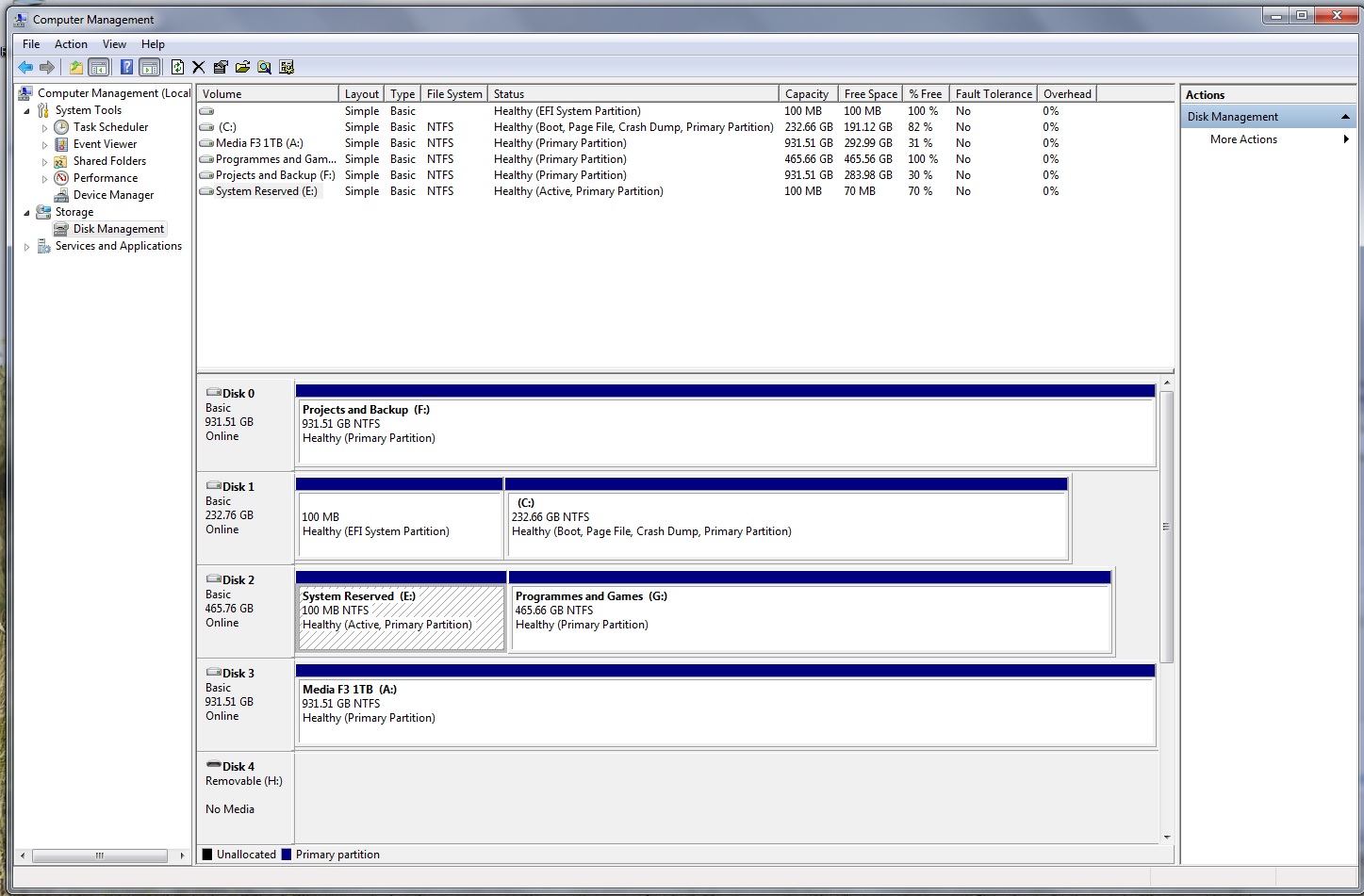
I tried formatting the disk from the "disk management" utility and it formatted the bit where the windows was installed. But when I try to delete the "System Reseved" partition of my old OS, it gives me this warning:
"The volume System Reserved (E:) is currently in use. To force the formatting of this volume click yes. WARNING: Forcing a format may cause unexpected errors in the application that is using this volume. Do you with to continue?"

I hit "No" because I was unsure if I should go ahead with this. When I was installing the OS on the SSD I made sure only the SSD was connected to the computer so that it wouldn't copy the system reserved files onto another disk and my computer works fine without the old HDD connected. I just wanna know what is the right way to go about formatting my old HDD to make it like a new HDD that I can use to store things on...

Here is a screenshot of my disk setup:
j1rfoEK.jpg


The Disk 2 is the HDD I want to erase... Thanks!
 

My Computer

OS
Windows 7 Home Premium 64bit
CPU
Intel i7 2600k
Motherboard
Asus Maximus IV Gene-Z
Memory
G-Skill DDR3 2x4GB 1600Mhz
Graphics Card(s)
Asus Nvidia 570GTX Direct CUii
Monitor(s) Displays
LG W2361v
Screen Resolution
1080p
Hard Drives
1 x Samsung F3 500GB - Boot + Programs
1 x Samsung F3 1TB - Media
PSU
Corsair HX750 - 750W
Case
NZXT Vulcan
Cooling
Antec Kuhler 920
Keyboard
Logitech
Mouse
Roccat
Looking at the image Disk 2 has your System Reserved partition which is an Active partition . Unplug all of your Hard Drives except for Disk 1 ( if that's the SSD drive ) and run the Startup repair at least 3 times restart in between the system repair to have Disk 2 be the Active drive .

Then you could use Diskpart to wipe Disk 2 or you could use DBAN .
 

My Computer

Computer Manufacturer/Model Number
Custom Built
OS
Windows 7 Ultimate 32-Bit & Windows 7 Ultimate 64-Bit
CPU
Intel Core i7 CPU 950 @ 3.07GHz
Motherboard
ASUS P6T DELUXE V2
Memory
OCZ 6GB (3 x 2GB) 240-Pin DDR3 SDRAM DDR3 1600 OCZ3X1600R2
Graphics Card(s)
ATI Radeon HD 5700 Series
Sound Card
OnBoard
Hard Drives
WD6400AACS-00M3B0 (640GB SATA )
PSU
CORSAIR 850w
Case
NZXT LEXA
Cooling
Intel Stock Heatsink Fan
Keyboard
Microsoft Wireless Laser Keyboard 7000
Mouse
Microsoft Wireless Laser Mouse 7000

My Computer

Computer type
Laptop
Computer Manufacturer/Model Number
Sager NP9170
OS
Win 7 Pro x64 / Win 10 Pro
CPU
Intel(R) Core(TM) i7-3630QM CPU @ 2.40GHz
Motherboard
CLEVO P170EM
Memory
12 GB
Graphics Card(s)
(1) Intel(R) HD Graphics 4000 (2) NVIDIA GeForce GTX 675M
Sound Card
(1) Realtek High Definition Audio (2) Intel(R) Display Aud
Monitor(s) Displays
17.3
Screen Resolution
1920x1080
Hard Drives
(1) Samsung 860 EVO 500GB(OS) (1) Samsung 860 EVO 500GB(Data)
Keyboard
Backlite
Antivirus
MSE, Malwarebytes Pro
Browser
Firefox
Other Info
DESKTOP: Custom-built.
OS: Win 10 Pro x64.
CASE: Rosewill R5.
CPU: Intel I5 4670K CPU @ 3.40GHz.
CPU COOLER: Cool Master Hyper 212 EVO.
MOTHERBOARD: Asus Z87-A.
MEMORY: Kingston HyperX 2x4 GB.
GPU: Nvidia Geforce 650 TI.
PSU: Corsair TX750.
DRIVES: (1) Samsung 840 120 GB SSD (2) Western Digital blue 500 GB 7200 RPM.
Looking at the image Disk 2 has your System Reserved partition which is an Active partition . Unplug all of your Hard Drives except for Disk 1 ( if that's the SSD drive ) and run the Startup repair at least 3 times restart in between the system repair to have Disk 2 be the Active drive .

Then you could use Diskpart to wipe Disk 2 or you could use DBAN .

I unplugged the Disk 2 and the system seems to be running fine although I don't see any "System Reserved" folder.

I don't understand how the system reserved folder went onto the Disk 2 when I had it unplugged all the time I was installing the new OS onto the SSD and updating windows and everything on it...
 

My Computer

OS
Windows 7 Home Premium 64bit
CPU
Intel i7 2600k
Motherboard
Asus Maximus IV Gene-Z
Memory
G-Skill DDR3 2x4GB 1600Mhz
Graphics Card(s)
Asus Nvidia 570GTX Direct CUii
Monitor(s) Displays
LG W2361v
Screen Resolution
1080p
Hard Drives
1 x Samsung F3 500GB - Boot + Programs
1 x Samsung F3 1TB - Media
PSU
Corsair HX750 - 750W
Case
NZXT Vulcan
Cooling
Antec Kuhler 920
Keyboard
Logitech
Mouse
Roccat

My Computer

Computer Manufacturer/Model Number
Custom Built
OS
Windows 7 Ultimate 32-Bit & Windows 7 Ultimate 64-Bit
CPU
Intel Core i7 CPU 950 @ 3.07GHz
Motherboard
ASUS P6T DELUXE V2
Memory
OCZ 6GB (3 x 2GB) 240-Pin DDR3 SDRAM DDR3 1600 OCZ3X1600R2
Graphics Card(s)
ATI Radeon HD 5700 Series
Sound Card
OnBoard
Hard Drives
WD6400AACS-00M3B0 (640GB SATA )
PSU
CORSAIR 850w
Case
NZXT LEXA
Cooling
Intel Stock Heatsink Fan
Keyboard
Microsoft Wireless Laser Keyboard 7000
Mouse
Microsoft Wireless Laser Mouse 7000
OK I ran the startup repair 3 times and it showed no errors. I think my system is recognising the old "system reserved" disk partition as the current one maybe?

Should I just use diskpart to wipe Disk 2??

Here is what diskmanagement looks like when i unplug the Drive 2 (HDD I want to erase)
ZSqqTKg.jpg


I cannot make the Disk 1 Partition 1 inactive. The option is not active...
 

My Computer

OS
Windows 7 Home Premium 64bit
CPU
Intel i7 2600k
Motherboard
Asus Maximus IV Gene-Z
Memory
G-Skill DDR3 2x4GB 1600Mhz
Graphics Card(s)
Asus Nvidia 570GTX Direct CUii
Monitor(s) Displays
LG W2361v
Screen Resolution
1080p
Hard Drives
1 x Samsung F3 500GB - Boot + Programs
1 x Samsung F3 1TB - Media
PSU
Corsair HX750 - 750W
Case
NZXT Vulcan
Cooling
Antec Kuhler 920
Keyboard
Logitech
Mouse
Roccat

It would be nice if I could do it through windows and without downloading any extra software though... I just want to erase an HDD I had my old OS on to make it like new...
 

My Computer

OS
Windows 7 Home Premium 64bit
CPU
Intel i7 2600k
Motherboard
Asus Maximus IV Gene-Z
Memory
G-Skill DDR3 2x4GB 1600Mhz
Graphics Card(s)
Asus Nvidia 570GTX Direct CUii
Monitor(s) Displays
LG W2361v
Screen Resolution
1080p
Hard Drives
1 x Samsung F3 500GB - Boot + Programs
1 x Samsung F3 1TB - Media
PSU
Corsair HX750 - 750W
Case
NZXT Vulcan
Cooling
Antec Kuhler 920
Keyboard
Logitech
Mouse
Roccat
Open up an Elevated Command Prompt. Click on :orb: in
2nqbqes.png
type CMD . Right click on CMD under Programs (1) choose
mawket.jpg
. On the User Access Control window click on the Yes button . Command Prompt opens up to C:\Windows\System32>_

Inside the Command Prompt type the following items and press [ENTER] after each commands

Diskpart

List Disk

Select Disk 0

Select Partition 1

Detail Partition

Prnt screen the results and upload the image with your reply
 

My Computer

Computer Manufacturer/Model Number
Custom Built
OS
Windows 7 Ultimate 32-Bit & Windows 7 Ultimate 64-Bit
CPU
Intel Core i7 CPU 950 @ 3.07GHz
Motherboard
ASUS P6T DELUXE V2
Memory
OCZ 6GB (3 x 2GB) 240-Pin DDR3 SDRAM DDR3 1600 OCZ3X1600R2
Graphics Card(s)
ATI Radeon HD 5700 Series
Sound Card
OnBoard
Hard Drives
WD6400AACS-00M3B0 (640GB SATA )
PSU
CORSAIR 850w
Case
NZXT LEXA
Cooling
Intel Stock Heatsink Fan
Keyboard
Microsoft Wireless Laser Keyboard 7000
Mouse
Microsoft Wireless Laser Mouse 7000
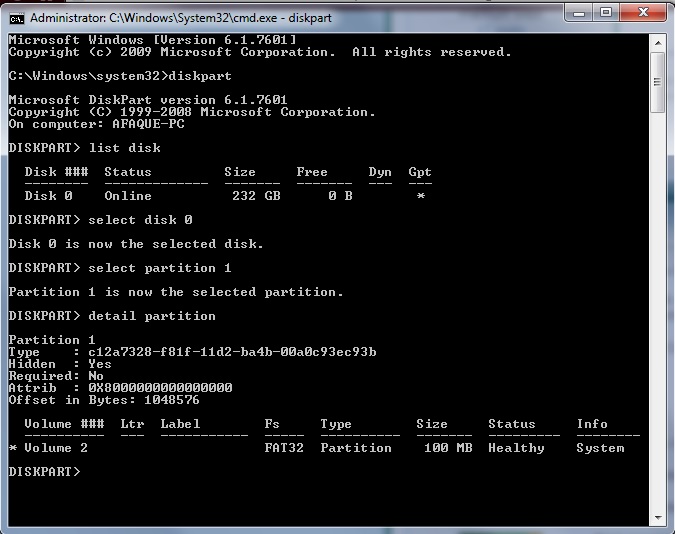
I did that and here's the screen shot:
dcZqpFU.jpg


To note disk 1 is the 500GB HDD on which I had my old OS. Also I seem to have noticed when I disconnect the old HDD, the pc runs fine but the "system reserved (E:)" drive is missing from my computer. Now I can't remember if there was one before when I first installed the OS on the SSD with no other HDDs connected. Although when installing windows 7 onto the SSD (which I did as a GPT drive), I did create a new system reserve partition. So my SSD had 3 paritions. Partition 1: System, Partition 2: MBR and Parition 3: Primary. I don't get it how the "System" partition disappeared from my SSD!!
 

My Computer

OS
Windows 7 Home Premium 64bit
CPU
Intel i7 2600k
Motherboard
Asus Maximus IV Gene-Z
Memory
G-Skill DDR3 2x4GB 1600Mhz
Graphics Card(s)
Asus Nvidia 570GTX Direct CUii
Monitor(s) Displays
LG W2361v
Screen Resolution
1080p
Hard Drives
1 x Samsung F3 500GB - Boot + Programs
1 x Samsung F3 1TB - Media
PSU
Corsair HX750 - 750W
Case
NZXT Vulcan
Cooling
Antec Kuhler 920
Keyboard
Logitech
Mouse
Roccat
Can you do the same commands when the SSD is only plugged in . If I'm not mistaken the SSD should have an Active mark on the System Reserved partition .
 

My Computer

Computer Manufacturer/Model Number
Custom Built
OS
Windows 7 Ultimate 32-Bit & Windows 7 Ultimate 64-Bit
CPU
Intel Core i7 CPU 950 @ 3.07GHz
Motherboard
ASUS P6T DELUXE V2
Memory
OCZ 6GB (3 x 2GB) 240-Pin DDR3 SDRAM DDR3 1600 OCZ3X1600R2
Graphics Card(s)
ATI Radeon HD 5700 Series
Sound Card
OnBoard
Hard Drives
WD6400AACS-00M3B0 (640GB SATA )
PSU
CORSAIR 850w
Case
NZXT LEXA
Cooling
Intel Stock Heatsink Fan
Keyboard
Microsoft Wireless Laser Keyboard 7000
Mouse
Microsoft Wireless Laser Mouse 7000
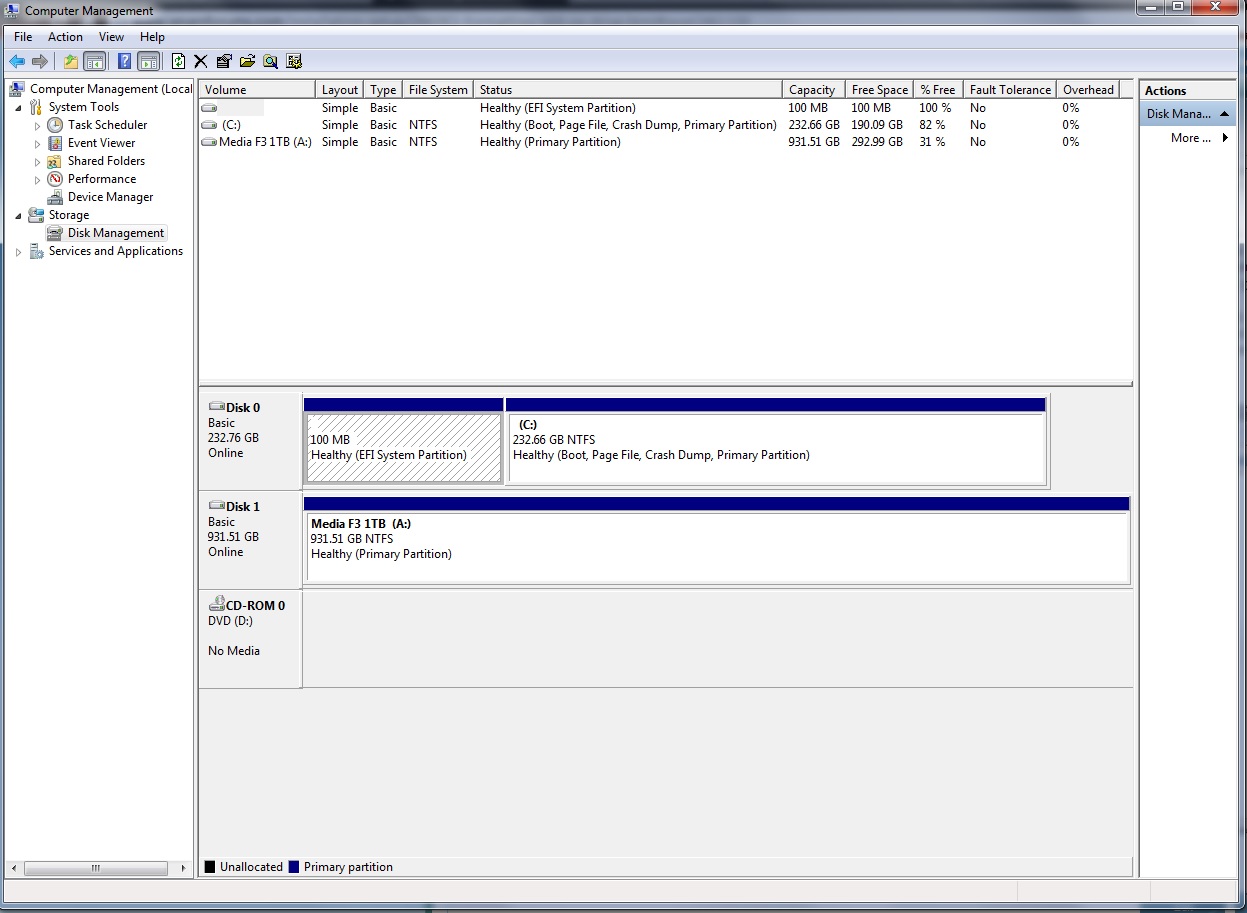
wjEbqgm.jpg


Here's diskmanager with just the SSD, no system reserve partition to be seen...
SKvUN3i.jpg


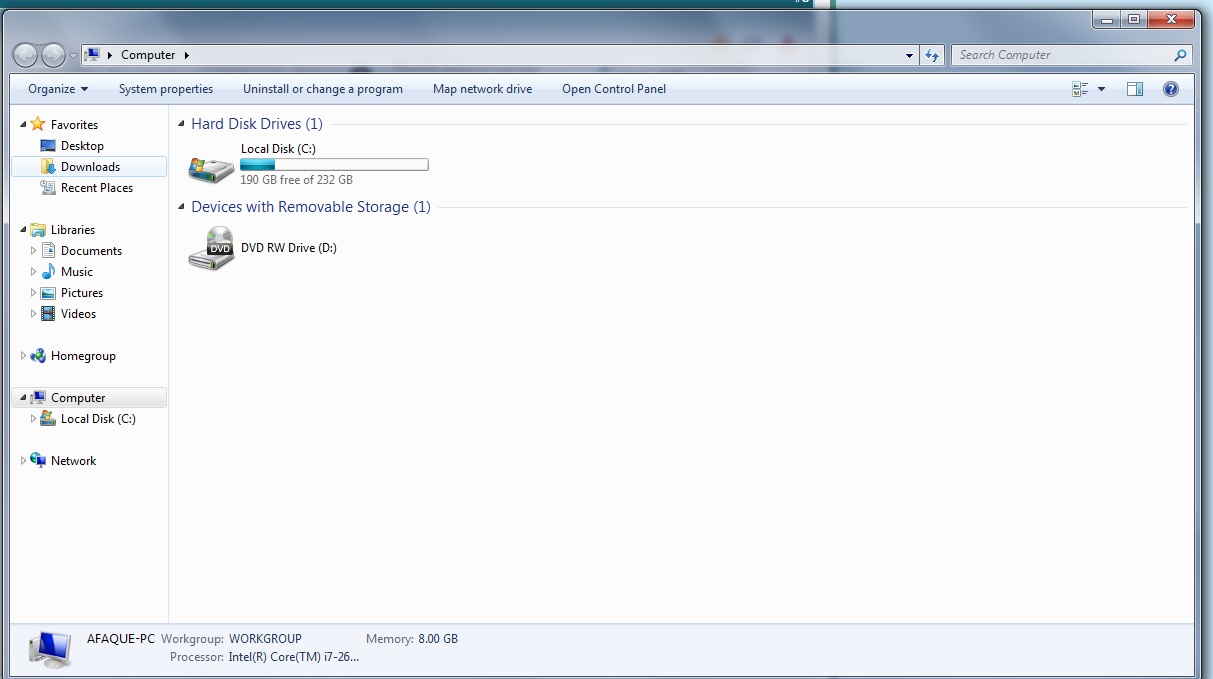
And here's a screenshot of my computer, again no system reserved partition...
zO9QAQM.jpg


System's running fine though. No problems at startup or anything...
 

My Computer

OS
Windows 7 Home Premium 64bit
CPU
Intel i7 2600k
Motherboard
Asus Maximus IV Gene-Z
Memory
G-Skill DDR3 2x4GB 1600Mhz
Graphics Card(s)
Asus Nvidia 570GTX Direct CUii
Monitor(s) Displays
LG W2361v
Screen Resolution
1080p
Hard Drives
1 x Samsung F3 500GB - Boot + Programs
1 x Samsung F3 1TB - Media
PSU
Corsair HX750 - 750W
Case
NZXT Vulcan
Cooling
Antec Kuhler 920
Keyboard
Logitech
Mouse
Roccat
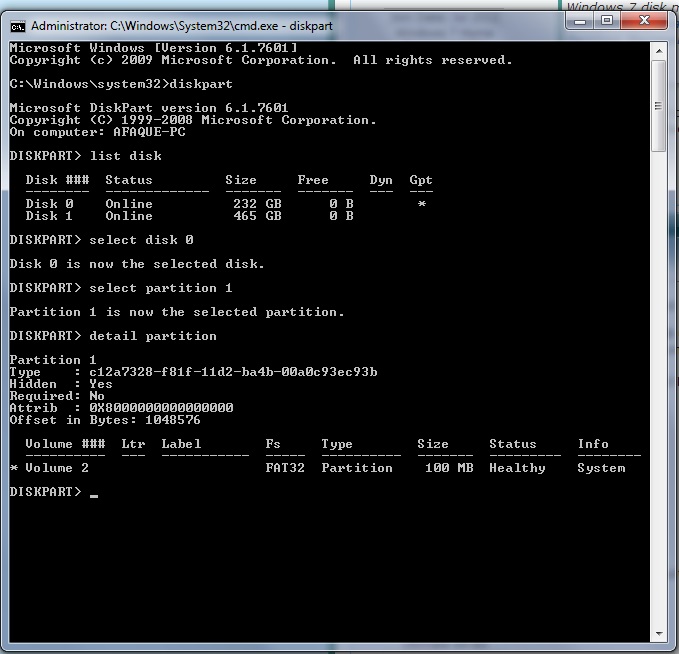
On running diskpart again you can see 3 partitions to the SSD:
xu489OS.jpg


And when I try to do anything with the partition in disk manager, it shows this:
iplU1i0.jpg


So it appears that my SSD has 2 hidden partitions for the OS. Is this normal for a GPT format OS install??
 

My Computer

OS
Windows 7 Home Premium 64bit
CPU
Intel i7 2600k
Motherboard
Asus Maximus IV Gene-Z
Memory
G-Skill DDR3 2x4GB 1600Mhz
Graphics Card(s)
Asus Nvidia 570GTX Direct CUii
Monitor(s) Displays
LG W2361v
Screen Resolution
1080p
Hard Drives
1 x Samsung F3 500GB - Boot + Programs
1 x Samsung F3 1TB - Media
PSU
Corsair HX750 - 750W
Case
NZXT Vulcan
Cooling
Antec Kuhler 920
Keyboard
Logitech
Mouse
Roccat
You appear to have installed Win7 to the SSD using UEFI (Unified Extensible Firmware Interface) - Install Windows 7 with since there would be no EFI System partition otherwise.

Can you confirm this is how it was installed?

I'd just plug back in and wipe the old OS HD including SysReserved partition with Diskpart Clean Command to clear the boot code which is all that could interfere going forward. Then repartition it in Disk Mgmt. It's because it holds the Active flag that Disk mgmt doesn't want to delete it. It is not booting anything or it would be marked System. Your only System partition is the EFI one signifying you installed to UEFI BIOS.

More about UEFI BIOS vs. Legacy BIOS - YouTube
 
Where is your active partition ?
 

My Computer

Computer type
PC/Desktop
Computer Manufacturer/Model Number
Skylake Special #666
OS
Windows 10 Pro x64
CPU
Intel Core i7 6700K
Motherboard
Asus Sabertooth Z170 Mark 1
Memory
GSkill TridentZ RGB 16GB 3600 16-16-16-36
Graphics Card(s)
EVGA GTX 980 Ti SC x2
Sound Card
Realtek High Definition
Monitor(s) Displays
AOC G2460PG
Screen Resolution
1920 x 1080 144Hz
Hard Drives
Samsung 860 Pro 256GB, Seagate Barracuda 4TB x2
PSU
EVGA 1000 P2, EVGA White Custom Braided Cables
Case
Corsair Vengeance C70 Gunmetal Black
Cooling
Corsair H100i v2, Corsair ML120 x2, Thermal Grizzly Kryonaut
Keyboard
Logitech G910 Orion Spectrum
Mouse
Logitech G700s
Internet Speed
Verizon Fios Quantum Gateway 75/75
Antivirus
Windows Defender, Malwarebytes Free 3.8.3
Browser
Chrome
Other Info
Corsair SP120 x4, LG Blu-ray Drive, Durabrand HT-395 100 Watt Dolby Digital Amp, Corsair H2100 Wireless 7.1 Headset
There is no Active partition or MBR on an EFI install, only one or more EFI System partitions which he has on his new SSD install, signifying it's installed in UEFI (Unified Extensible Firmware Interface) - Install Windows 7 with - Windows 7 Forums .

He wanted to delete an old MBR partition on another HD that was balking because it was still marked Active. He may have the UEFI BIOS Compatibility Support Module (CSM) set to Dual mode which recognizes and can boot both UEFI/GPT and MBR HD OS installs on the same system. He needed to remove the Active flag for Disk Mgmt to delete the old Sys Reserved, or better yet wipe the HD to get rid of the old boot code.
 
Hey, thanks for the replies. I did install windows using UEFI. I ended up deleting the old HDD anyway and using the diskpart clean command to make it like new. Everything seems to have turned out fine...

Thanks for the help!
 

My Computer

OS
Windows 7 Home Premium 64bit
CPU
Intel i7 2600k
Motherboard
Asus Maximus IV Gene-Z
Memory
G-Skill DDR3 2x4GB 1600Mhz
Graphics Card(s)
Asus Nvidia 570GTX Direct CUii
Monitor(s) Displays
LG W2361v
Screen Resolution
1080p
Hard Drives
1 x Samsung F3 500GB - Boot + Programs
1 x Samsung F3 1TB - Media
PSU
Corsair HX750 - 750W
Case
NZXT Vulcan
Cooling
Antec Kuhler 920
Keyboard
Logitech
Mouse
Roccat
Back
Top