Solved Help Restoring Windows 7 or Recovering Data from Failing HDD?

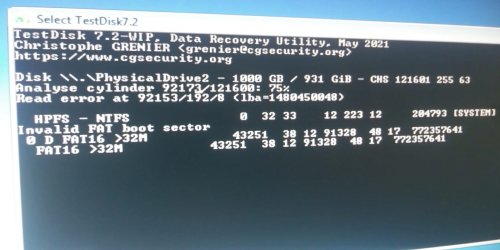
Yeah, I wouldn't be able to get an enclosure or access to another working computer so that wouldn't be an option anyway lol It's still at 75% on 92154/121600 but it's been sitting on 92154 for a little less than 2 hours. Should I assume it's still running?

I'll be around to update you on each screen if and when it finishes since I'll be in the whole day tomorrow and will be up late but I may need to sleep through this last part and hope it progresses overnight.
 

My Computers My Computers

  • At a glance

    Win 7 64 Bit
    OS
    Win 7 64 Bit
  • Computer type
    PC/Desktop
OK, keep it running and you may go to sleep. I shall login after another eight hours at your time 06:00 hrs to catch you.
 

My Computer My Computer

At a glance

Windows 7 Home Premium 32 bit
OS
Windows 7 Home Premium 32 bit
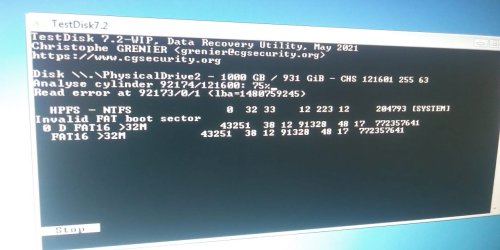
Just checked and it's still on 92154. I don't think it's running anymore. ETA: I rapidly clicked around in testdisk's window to see if it had just frozen up and as I clicked, it increased to 92173. I don't know if that should have made a difference, maybe it somehow went idle and clicking in it "woke it up"?
 
Last edited:

My Computers My Computers

  • At a glance

    Win 7 64 Bit
    OS
    Win 7 64 Bit
  • Computer type
    PC/Desktop
@randorandorando

Is the cursor flashing at the end of Analyse Cylinder line?
 

My Computer My Computer

At a glance

Windows 7 Home Premium 32 bit
OS
Windows 7 Home Premium 32 bit
Yes. It was flashing, not at the end of the line but under the number. I didn't remember seeing it do that yesterday. That's why I started clicking on the window to see if it would respond. The flashing stopped and the numbers went up to 92173. It's now back to flashing again.

- - - Updated - - -

I've been looking at the testdisk options trying to understand what we're using while I wait for analyze to complete. The info says analyze shows partitions, which you can then manipulate. It also says you can list the files on the partition, but only says you can copy them if it's NTFS.

Does that mean they can't be copied if it's FAT? I ask because my only goal is to find certain files and copy them elsewhere so they're safe. Getting the drive itself working again is secondary. So if we can confirm my files are there in the next steps, will the analyze options let me copy them off to another drive?

Also, if the main problem ends up being trouble booting into the drive because the files/partition needed to do it are damaged, would the boot repair options under advanced FAT repair be suitable for that kind of situation?

Thanks!
 

My Computers My Computers

  • At a glance

    Win 7 64 Bit
    OS
    Win 7 64 Bit
  • Computer type
    PC/Desktop
Press enter key to stop and post the resulting Window.

- - - Updated - - -

Unless the partition is found you cannot list the files. Your 1TB hdd cannot be a FAT32 drive.
 

My Computer My Computer

At a glance

Windows 7 Home Premium 32 bit
OS
Windows 7 Home Premium 32 bit
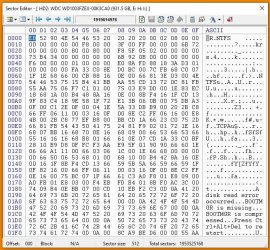
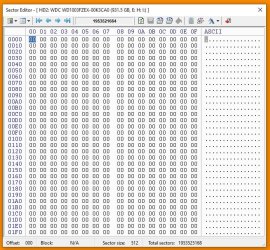
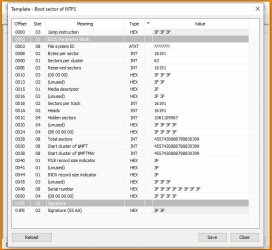
First sector in the HDD - Sector 0 - is the boot sector. It appears to be corrupt.

Now you can close TestDisk. You will install MiniTool Partition Wizard v9.1 on Windows 10. Once installed, run it . You will be told a new version is available for install . Say NO and then it will display all your disks. Post that screenshot.. Download from Download MiniTool Partition Wizard Free Edition 9.1 for windows - Filepuma.com

Screenshots: How to Upload and Post Screenshots and Files at Ten Forums | Tutorials You can post it Seven Forums

Take your time. I will be here for another four to five hours
 

My Computer My Computer

At a glance

Windows 7 Home Premium 32 bit
OS
Windows 7 Home Premium 32 bit
Ok, will report back in a bit! Btw, confirming that SIW2's screen capture on the usb worked. I just didn't use it because I had no internet access to upload the shots while in there, only while in Win 10, and didn't want to go back and forth. I post here from my phone while booted into the usb so I took pics of the monitor instead.
 

My Computers My Computers

  • At a glance

    Win 7 64 Bit
    OS
    Win 7 64 Bit
  • Computer type
    PC/Desktop
Thats Ok. I knew those were camera snapshots. But you were able to run TestDisk and post the screenshots. Now I am going my own way within the constraints imposed :-).

Data recovery is a tedious job. Sometimes it can go on for weeks more so because of the time difference but we had done that. The first thing I always ask the OPs is to post screenshots of Windows Disk Management, and Partition Wizard screenshots. You have said you are unable to get the Windows Disk Management either from Windows 10 or from SIW's utility. Let us see whether Partition Wizard is able to show your disks.
 

My Computer My Computer

At a glance

Windows 7 Home Premium 32 bit
OS
Windows 7 Home Premium 32 bit
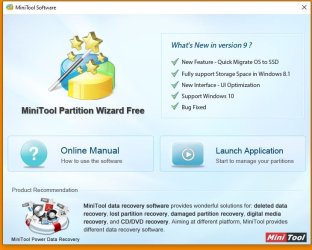
When I launch minitools, it opens to this splash window. If I click "launch application" or on the minitools free picture, nothing happens. The window just closes. I checked task manager to see if it was still running. I don't see it listed under apps but do see it listed under background processes. Will give it time.

tools.jpg
task.jpg

- - - Updated - - -

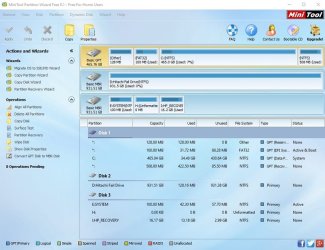
Okay jumanji, it finally came up. I chose no to the new version. Here's what I see.

mini1.jpg
 
Last edited:

My Computers My Computers

  • At a glance

    Win 7 64 Bit
    OS
    Win 7 64 Bit
  • Computer type
    PC/Desktop
@Ronaldiandorando

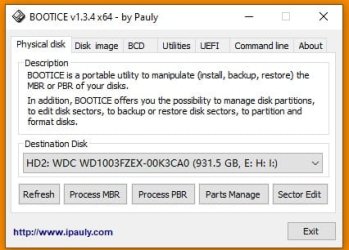
That isn't good news. Now another exercise for you. Download bootice from here Download Bootice 1.3.4.0

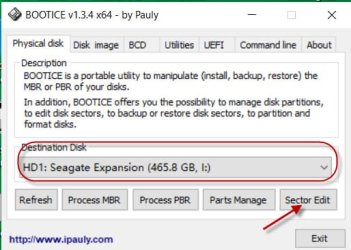
Extract the zip file into your Windows 10 root directory. You will have a BOOTICE_2016.06.17_v1.3.4.0 directory in the root directory inside which you will find BOOTICEx64_2016.06.17_v1.3.4.0.exe - for 64bit version of windows 10 and BOOTICEx86_2016.06.17_v1.3.4.0.exe - for 32 bit vrsion of Windows. You will run the *.exe file appropriate for your bit version of Windows 10. If Bootice shows your WD Windows 7 drive ( I keep my fingers crossed as always :-)), we can examine the sectors of that HDD and try to find out what has gone wrong.

To know how to use bootice

https://www.sevenforums.com/hardware-devices/310295-lost-partitions.html#post2584426

Run the appropriate *exe file. Make sure you select the correct Windows 7 faulty drive and not your Windows 10 System drive. You can play around and get to know how it works. At the moment do not try to edit any sectors or save any sector or write to any sector with bootice unless I see it and tell you to save.

Just view the partition details, Sector 0 and other sectors shown in the partition details. Take screenshots and save it.

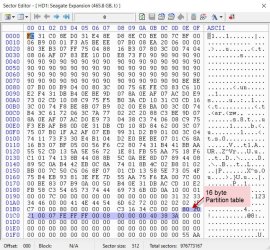
For example screenshots of my 500GB Seagate Expansion external drive:

a28-08-2021 21-47-22.jpg

b28-08-2021 21-50-09.jpg

With that I retire for the day. I shall return after 10 hours.

- - - Updated - - -

I just saw your update.

I shall return after 10 hours . Till then relax.
 

My Computer My Computer

At a glance

Windows 7 Home Premium 32 bit
OS
Windows 7 Home Premium 32 bit
Ok @jumanji I forgot to mention that I disabled the Win 7 drive in the bios. Should I re-enable it first before using bootice? Note: This is a lot of software I don't know about that I'm blindly installing on my system from websites I don't use. I wouldn't be doing it if I had no choice. I'm fine with however long this takes because I can't do anything without my files anyway, but I hope one of these will help. Enjoy your rest!
 

My Computers My Computers

  • At a glance

    Win 7 64 Bit
    OS
    Win 7 64 Bit
  • Computer type
    PC/Desktop
You had it enabled before and choosing between Windows 7 and Windows 10. So enable it. Then reboot, choose Windows 10. Try taking Windows Disk Management screenshot and also the Partition Wizard screenshot.If you succeed post the screenshots.If you don't succeed report.

As for the software you installed on Windows 10, Partition Wizard is a proven one. Once we finish you can always uninstall it. Bootice, I have been using for ages, It is only a *. exe file, requires no installation. You can simply delete the bootice folder and it will be gone. Filepuma and softpedia are reputed websites. I have downloaded both PW and Bootice from these websites on my Windows 10 - current PC. No problems. So why worry?

- - - Updated - - -

And for the screenshots always post the full screenshots.

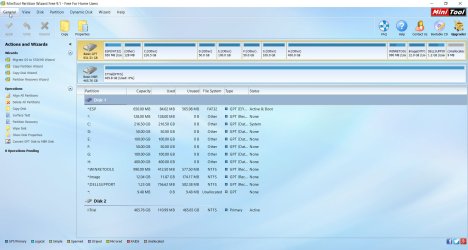
For example PW:

a28-08-2021 22-55-38.jpg

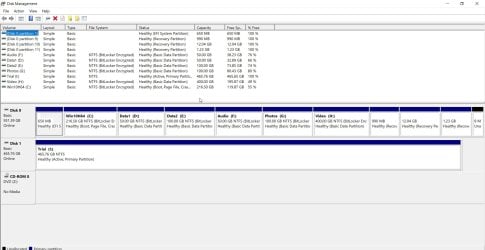
WDM:

b28-08-2021 22-58-41.jpg
 

My Computer My Computer

At a glance

Windows 7 Home Premium 32 bit
OS
Windows 7 Home Premium 32 bit
Ok. I disabled it back when I started booting into the usb in case that would stop it from spinning up or something else that might put more strain on it.

- - - Updated - - -
jumanji Re-enabling didn't change anything.
tools1.jpg

Bootice.
boot1.jpg
list.jpg
boot2.jpg
b3.jpg
b4.jpg
b5.jpg

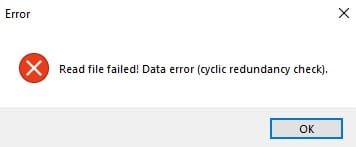
Problem partition and error that popped up before it displayed

b6.jpg
error.jpg

Extras in case you ask.

b9.jpg
b8.jpg
b7.jpg
 
Last edited:

My Computers My Computers

  • At a glance

    Win 7 64 Bit
    OS
    Win 7 64 Bit
  • Computer type
    PC/Desktop
Hi @randorandorando,
Thanks for all the screenshots.
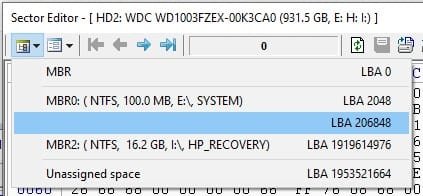
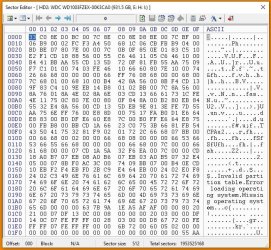
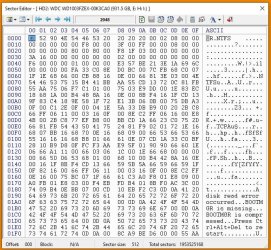
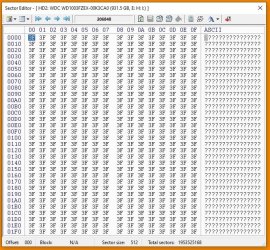
A quick analysis. The volume bootsector at sector 206848 is corrupted. Is it because that sector has become bad or it just happened we do not know. All fields show 3F. The backup of that volume bootsector resides in the last sector of that partition. TestDisk can find that and write it to the start sector provided that sector is not bad. So we shall run TestDisk from Windows 10.

Download and install TestDisk 7.1 from TestDisk Download - CGSecurity ( Roll down in that page to see v7.1. (V7.2 is still in beta. So 7.1 preferred). As with bootice you will extract the zip file to the root directory and run testdisk_win.exe in it ( create a short cut of it in the desktop)

I shall take some more time to dish out the process we had followed in another thread for you to follow and update this post.Also I have to take my shower and breakfast to freshen myself.:-)

- - - Updated - - -

Follow the steps provided here https://www.sevenforums.com/hardwar...ontents-readable-through-app.html#post3301749

In the second screen you will select your WD 1TB disk which has Windows7.

In the fourth screen, instead of [Analyse] you will select/highlight [Advanced] - Filesystem Utils and press Enter

I shall update this post further soon.

You may go to sleep and do all this your tomorrow at your leisure.

- - - Updated - - -

"Copy-Paste" from
Restore last data on external HDD - Windows 10 Forums

1. Boot sector - Bad
Backup boot sector - OK
Execute the [Backup BS] command ( writes the backup to the start sector of the partitïon when you confirm "y" in the next screen)

2. Boot sector - Bad
Backup boot sector - Bad
Execute [Rebuild BS] command ( Rebuilds the Volume Boot Record and writes it into the Partition start sector and partition end sector)

3. Boot sector - OK
Backup boot sector - Bad
Execute [ORG. BS] command. ( this will copy the original boot record in the partition start sector to the partition end sector and make it OK.)

The above three operations should repair the boot sectors and make your drive accessible. A reboot is required.

Please remember whenever you see a


  • command in the page, give that command and if the files are listed copy to destination. if the files are not listed you can go back to the previous page by [Quit] Command or pressing Q .


  • The fourth possibility and an important one:
    Boot Sector - OK
    Backup Boot sector - OK
    Hmmm... both are good. Then what is the problem? MFT???
    You will execute [Repair MFT] command.

    If TestDisk says 'Both MFT and MFT mirror are OK" close TestDisk. You will run check disk on that volume to correct the file system corruption. Caution: You will run checkDisk only and if only TestDisk confirms that your MFT is OK and you will not interrupt Check Disk for any reason)

    "Run check disk from command prompt.

    Open Command prompt. Start > All programs > Accessories > Command Prompt

    Type
    CHKDSK K: /f /v /r /x Press Enter. Note: Replace K: with the actual drive letter of the external drive

    Allow check disk to complete.

    "
    If TestDisk says it is unable to repair MFT, you will have to use a commercial software to recover the files - GetDataBack or active @ File recovery. These are "try before you buy" software. If these show your files, you may be able to preview/open the files and check the file integrity. You can buy a license only when you are satisfied.

    If at any point you have a doubt in running TestDisk and require clarification post the screenshot and quit TestDisk.
 
Last edited:

My Computer My Computer

At a glance

Windows 7 Home Premium 32 bit
OS
Windows 7 Home Premium 32 bit
Okay thanks @jumanji, I'll go through it in the morning. Enjoy some fancy soap!

I honestly have no idea what happened. The power outage I mentioned was a day or two after my pc stopped booting into Win 7, so that wasn't it. And it was working fine up until it froze and I had to manually shut it down with the power button.

If it had been acting weirdly before that, I would have backed up everything that wasn't already just in case. I just had no warning signs.

- - - Updated - - -

I'm not sure if I'm following this time @jumanji. What am I doing?
  1. run testdisk from root
  2. no log
  3. win 7 hard drive
  4. intel
  5. advanced
  6. highlight the partition
Then what? Do I select "list" to see if it lists files or do I select "boot"? I want to start now so if it's something that has to run a long time, I'm not wasting a night.
 

My Computers My Computers

  • At a glance

    Win 7 64 Bit
    OS
    Win 7 64 Bit
  • Computer type
    PC/Desktop
( I had an evening nap and got up just now.)

Yes, when you select [Advanced} Enter , the next screen would normally and almost immediately show the found partition highlighted and [Boot] highlighted. Press Enter and the next screen will show the Status of Boot Sector and Backup Boot Sector. (you can move the highlight to
  • also to check whether it lists the files. This is Optional.)

    Whether it lists the files or not, you will go back to highlight [Boot] and press enter to view the boot sector status and continue as mandated by the boot sector status. ( either [Backup BS] or [Rebuild BS} or [ORG BS]. We very well know the Boot Sector is Bad and needs to be repaired.

    Note: If [Boot] Enter command leads you to a screen different from the one showing the boot sector status, then and only then follow the steps given in this post #12 here
    Restore last data on external HDD - Page 2 - Windows 10 Forums
 
Last edited:

My Computer My Computer

At a glance

Windows 7 Home Premium 32 bit
OS
Windows 7 Home Premium 32 bit
@randorandorando

An update:
In your case the screen will show three partitions. . You will select the second partition which requires boot repair and give the [Boot] Enter command.
 

My Computer My Computer

At a glance

Windows 7 Home Premium 32 bit
OS
Windows 7 Home Premium 32 bit
Back
Top