
You are using an out of date browser. It may not display this or other websites correctly.
You should upgrade or use an alternative browser.
You should upgrade or use an alternative browser.
HP Laptop upgrade from Vista - 4 frustrating failures!!
- Thread starter jecook
- Start date
According to repair screen I have two copies both on C! i only had a C drive available after running the windows repair it changed the drive letter to C
My Computer
At a glance
Windows 7
- Computer Manufacturer/Model Number
- HP DV6-1063TX Entertainment PC
- OS
- Windows 7
Ok am now back at where I started before doing repairs with the NTLDR message if I don't boot from installation disk
Am now rebooting from the dvd to make repairs again
Am now rebooting from the dvd to make repairs again
My Computer
At a glance
Windows 7
- Computer Manufacturer/Model Number
- HP DV6-1063TX Entertainment PC
- OS
- Windows 7

- Local time
- 11:26 AM
- Messages
- 50,634
You did not run a repair install. A repair install is run from the desktop and keeps all of your programs, files and settings in place but reinstalls the OS and refreshes the activation. I worked hard getting the commands so you could run this from your blue screen lockout.
You booted so it is a clean install. Now it won't start and I do not know why. Boot into the Win7 DVD repair console and run Startup repair repeatedly until it starts up. Tell me what it says if it finds an installation to repair.
You could have the activation blue screen (normally caused by reimaging) repair installed by now.
You may need to look at it with Partition Wizard CD to see where it put the intall and how its labeled, how other partitions are labeled.
You booted so it is a clean install. Now it won't start and I do not know why. Boot into the Win7 DVD repair console and run Startup repair repeatedly until it starts up. Tell me what it says if it finds an installation to repair.
You could have the activation blue screen (normally caused by reimaging) repair installed by now.
You may need to look at it with Partition Wizard CD to see where it put the intall and how its labeled, how other partitions are labeled.
Hooray!!!!

am booted into win 7 after reloading the backed up installation, will now look at the partitioning and see what we have and then try another reboot just to make sure I am not dreaming!
am booted into win 7 after reloading the backed up installation, will now look at the partitioning and see what we have and then try another reboot just to make sure I am not dreaming!
My Computer
At a glance
Windows 7
- Computer Manufacturer/Model Number
- HP DV6-1063TX Entertainment PC
- OS
- Windows 7
- Local time
- 11:26 AM
- Messages
- 50,634
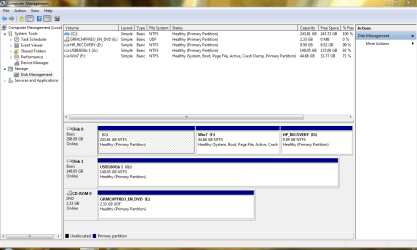
Can you post a screenshot of full Disk Management map?
A sound install will let me sleep soundly.
A sound install will let me sleep soundly.
Hi Greg I am sorry about that the Upgrade install option would not run unless it was run from windows which would not go past blue screen. so I thought it would not work. anyway I am now back with 3 partitions C which is empty, D the old HP recovery drive (also empty) and F the win 7 drive. so I guess I am back with having to remove these two partitions to get just win7
My Computer
At a glance
Windows 7
- Computer Manufacturer/Model Number
- HP DV6-1063TX Entertainment PC
- OS
- Windows 7
- Local time
- 11:26 AM
- Messages
- 50,634
You must have missed that I found a workaround to run CMD as Admininstrator from the Task Manager run box.
You deleted C Vista and recovery earlier in Partition Wizard, right?
Did you overwrite the Win7 in F: with your new install? When it showed you the drives where you could Custom install Win7, did you choose F? Did you Format the drive before install?
You deleted C Vista and recovery earlier in Partition Wizard, right?
Did you overwrite the Win7 in F: with your new install? When it showed you the drives where you could Custom install Win7, did you choose F? Did you Format the drive before install?
Latest Disk Map
Before I installed dual boot I reduced C drive to give me space to create F drive where I installed Windows 7. Then after backing up a few essentials. I booted into partition wizard from the DVD and removed the C drive and the D drive partitions as instructed and resized the F partition(Win7). Then I booted from the W7 Install DVD and when it said it had found aa problem with the startup I let it make repairs i went into the install DVD 3 times as instructed and ran startup repair a further 3 times but no erroros were found. I rebooted to windows and got the blue screen.
Now I have used the backup made with Win7 to restore the F partition. I again booted the Win7DVD but this time when it found the first startup error I elected not to correct it but to proceed to the menu and let manually select start up repair. I ran this once and on the restart it went staright to win 7. Giving the situation as you see on the attached map. I now need to get rid of the unnecessary partitions and expaand Win7 partition.
Many thanks for all your patience (& SIW2) I am really greatful for your assistance.
Before I installed dual boot I reduced C drive to give me space to create F drive where I installed Windows 7. Then after backing up a few essentials. I booted into partition wizard from the DVD and removed the C drive and the D drive partitions as instructed and resized the F partition(Win7). Then I booted from the W7 Install DVD and when it said it had found aa problem with the startup I let it make repairs i went into the install DVD 3 times as instructed and ran startup repair a further 3 times but no erroros were found. I rebooted to windows and got the blue screen.
Now I have used the backup made with Win7 to restore the F partition. I again booted the Win7DVD but this time when it found the first startup error I elected not to correct it but to proceed to the menu and let manually select start up repair. I ran this once and on the restart it went staright to win 7. Giving the situation as you see on the attached map. I now need to get rid of the unnecessary partitions and expaand Win7 partition.
Many thanks for all your patience (& SIW2) I am really greatful for your assistance.
Attachments
My Computer
At a glance
Windows 7
- Computer Manufacturer/Model Number
- HP DV6-1063TX Entertainment PC
- OS
- Windows 7
Sorry forgot to say that dual boot disappeared after restoring the Win7 partition and running 'Startup Repair' from install DVD.
My Computer
At a glance
Windows 7
- Computer Manufacturer/Model Number
- HP DV6-1063TX Entertainment PC
- OS
- Windows 7
- Local time
- 11:26 AM
- Messages
- 50,634
So you now have Win7 reimaged from your Win7 backup image, and not the clean install you did earlier tonight?
Why is Win7 only 11 gigs then?
I am studying it
Why is Win7 only 11 gigs then?
I am studying it
- Local time
- 11:26 AM
- Messages
- 50,634
also C drive is currently active partition not F
I do not see this on screenshot.
I see F: Wndows 7 has Active System boot.
C and D are ready to be deleted, Win7 Resized into the space, or repartitioned as you desire using PW.
Then boot into Win7 DVD and run Startup Repair 3 times.
Suggest you enable Adminstrative account before you do these operations so you can run the CMD as Administrator to run E:setup.exe to do a repair install to reset activation: http://www.howtogeek.com/howto/wind...idden-administrator-account-on-windows-vista/
Last resort would be to boot DVD but this time, use Custom>Drive options to delete all, create New Partition(s), and Format before installing to first partition.
I have just checked with Paragon B & R and that reports C drive as inactive and F drive as active but both disk management show the drives as containing data when explorer shows them as empty so I guess the drive volume data needs to be fixed am slightly worried as to what might happen if I delete C and D as this was the precursor to all the other issues.
My Computer
At a glance
Windows 7
- Computer Manufacturer/Model Number
- HP DV6-1063TX Entertainment PC
- OS
- Windows 7
- Local time
- 11:26 AM
- Messages
- 50,634
What is Paragon B&R? Look at the Disk Management map. It doesn't make mistakes. C: and D: are EMPTY. All that's left are some shells.
F:Win7 drive is clearly marked System Active Boot so there is no worry about deleting the others and resizing into their space.
Then boot into Windows 7 DVD and run Startup Repair 3 times.
Suggest you enable Adminstrative account before you do these operations so if it bluescreens again you can run as Administrator E:setup.exe to do a repair install to reset activation: http://www.howtogeek.com/howto/windo...windows-vista/
Last resort would be to clean install from DVD but this time use Custom>Drive Options to delete all, create New Partition(s), and Format before installing to first partition.
F:Win7 drive is clearly marked System Active Boot so there is no worry about deleting the others and resizing into their space.
Then boot into Windows 7 DVD and run Startup Repair 3 times.
Suggest you enable Adminstrative account before you do these operations so if it bluescreens again you can run as Administrator E:setup.exe to do a repair install to reset activation: http://www.howtogeek.com/howto/windo...windows-vista/
Last resort would be to clean install from DVD but this time use Custom>Drive Options to delete all, create New Partition(s), and Format before installing to first partition.
Sorry have just checked, right clicking on C has option to make Active (so must be inactive) on F Mark as Active is greyed out so presumably is active and D has option to make active so clearly F is the only active partition. Only the Disk Usage info is incorrect.
No idea why windows 7 is small although I have not installed Media player or much additional software
No idea why windows 7 is small although I have not installed Media player or much additional software
My Computer
At a glance
Windows 7
- Computer Manufacturer/Model Number
- HP DV6-1063TX Entertainment PC
- OS
- Windows 7
Similar threads
- Replies
- 4
- Views
- 2K

- Replies
- 8
- Views
- 2K
- Replies
- 12
- Views
- 12K

- Replies
- 2
- Views
- 1K
