- Local time
- 5:41 AM
- Messages
- 115
yes I did and it improved my systems reboot time a bit .. but its much slower, but to answer your question yes it works, total clean removed about 2.5gb contents, so I guess thats good.
but now i'm confused about the random "no boot stats" along with super slow reboot
Ok well lets dig into that.
Let me acknowledge first that you may very well have malware. (Or RAM issues but let's do simple first). There's nothing wrong with following the malware related suggestions of the other posters in this forum (who likely know more than me) but I don't think you have a malware related issue.
Microsoft made some changes to .net and programs that haven't been updated are giving all sorts of problems.
I had a program the other day that ran on .net and when it started it would pause boot for about 4 mins. It simplified my life, but I didn't need it so I uninstalled it. We'll see what the culprit is.
Just one more thing before we proceed. Did you uninstall Chrome, or did you settle for just losing all your saved logins etc?
Here's what you do now:
Code:
Install Startup Delayer.  Once it's installed, allow it to take control of your startup processes.

 I want you to close Startup Delayer, click the Win Start button and run [Configure Startup Delayer].


 Click [Tools].  It's in the middle of the menu bar and a bit hard to see.
 Click [Restart Startup Delayer as Administrator] and grant it Admin privileges.


 Click [Options] in the upper right hand corner (not the same as Tools)
 Ensure [Auto Refresh Tasks and Services] is checked.


 Click the [Startup Applications] tab.
 Ensure [Enable at Startup] and [Prefix Delayed Application Name with Delayed Order] are checked.
 Set both Default Idle Values to 50%
 Check [Display a Message when all Applications have finished launching]


 Click the [Launch Process] tab
 Check every single box in this tab.


 Under [Show Notifier] I want you to select the [Show always during Startup] radio button.
 Click [Save]
 If Startup Delayer prompts you to restart Startup Delayer in Administrator mode allow it to restart in Administrator mode.
 Double check to ensure all the tabs are formatted as I outlined.
 I want you to restart your computer twice.


 Now we get to the fun part.
 Startup Delayer will
[listen] to your startup process.  It will tell you how much time your startup process takes.
 You can view a log displaying your startup process and how long each item takes.


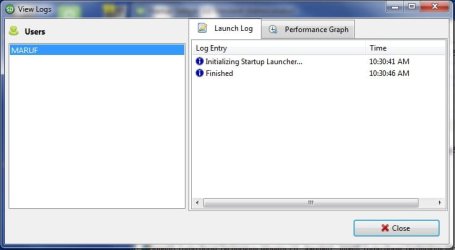
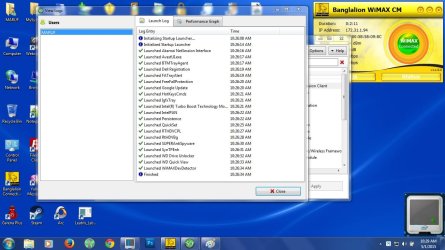
 The second time you restart your system I want you to run [Configure Startup Delayer], click [Tools], then [View last launch log]


 Screenshot that and post.


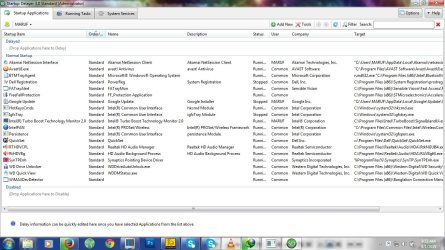
Also screenshot and post the [Configure Startup Delayer] window that lists all of your startup processes.


Also open CCleaner, Click [Tools] and then [Startup].
Please screenshot the Windows and Scheduled Tasks tabs.
Last edited:
My Computer
- Computer type
- Laptop
- Computer Manufacturer/Model Number
- HP
- OS
- Dual Boot Win 8.1 x64; Win 7 SP1 x64
- CPU
- i7-3610QM @ 2.3 GHz
- Motherboard
- Hewlett-Packard 181C (U3E1)
- Memory
- 8 GB Dual-Channel DDR3 @ 798MHz
- Graphics Card(s)
- Intel HD Graphics 4000
- Hard Drives
- Hitachi HTS547575A9E384 SCSI Disk Device;
WD Elements 1042 USB Device
- Antivirus
- Microsoft Security Essentials; Comodo Firewall w/ Defense +