How to Add or Change Home Page in Internet Explorer
Information
Your home page is displayed when you first start Internet Explorer, or when you click the Home button  in Internet Explorer.
This will show you how to add or change the home page to be one or more webpages of your choice in Internet Explorer.
in Internet Explorer.This will show you how to add or change the home page to be one or more webpages of your choice in Internet Explorer.
Note
The home page(s) for Internet Explorer are store in these registry locations below.
(Main Home Page)
HKEY_CURRENT_USER\Software\Microsoft\Internet Explorer\Main
Start Page string value (right pane)
(Secondary Home Pages)
HKEY_CURRENT_USER\Software\Microsoft\Internet Explorer\Main
Secondary Start Pages string value (right pane)
(Main Home Page)
HKEY_CURRENT_USER\Software\Microsoft\Internet Explorer\Main
Start Page string value (right pane)
(Secondary Home Pages)
HKEY_CURRENT_USER\Software\Microsoft\Internet Explorer\Main
Secondary Start Pages string value (right pane)
OPTION ONE
Home Page(s) for Pinned Sites in IE9 and IE10
NOTE: This will show you how to have multiple home pages for any pinned site in IE9 and IE10.
1. For how, see: How to Have Multiple Home Pages for Pinned Sites in IE9 and IE10
OPTION TWO
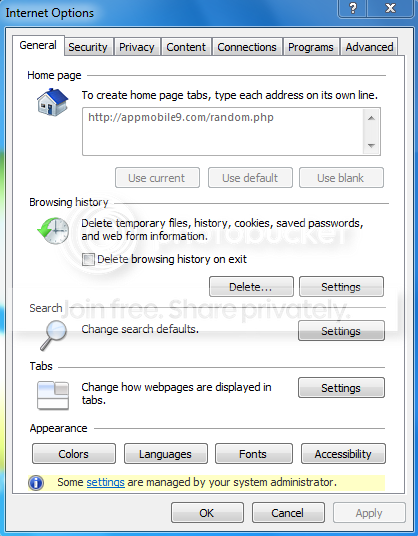
Add or Change Home Page(s) for Internet Explorer Using Internet Options
1. In Internet Explorer, click on Tools (gear icon or Menu bar) and Internet Options.
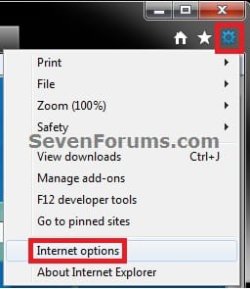
2. Do either step 3, 4, 5, or 6 below for how you would like to add or change your home page(s) in Internet Explorer.
3. To Use the Webpage(s) in your Currently Opened Tab(s) as Home Page(s)
NOTE: This will replace your current home page(s) with the webpage address of each tab that you currently have opened in Internet Explorer.
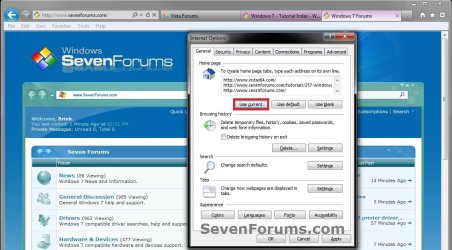
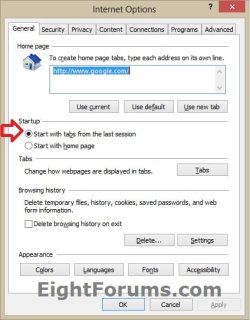
A) Under Home page in the General tab, and click on the Use current button. (see screenshot below)
B) Go to step 7.
4. To Restore and Use the Default Internet Explorer Webpage as the Home Page
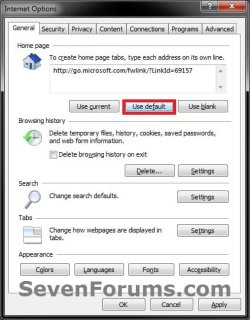
A) Under Home page in the General tab, and click on the Use default button. (see screenshots below)
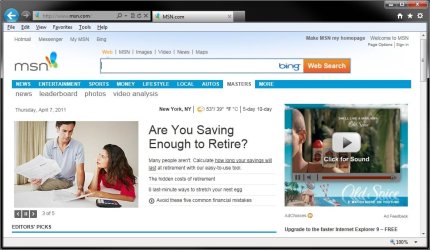
B) Go to step 7.
5. To Use a Blank Page as the Home Page
A) Under Home page in the General tab, and click on the Use blank or Use new tab (IE10) button. (see screenshots below)
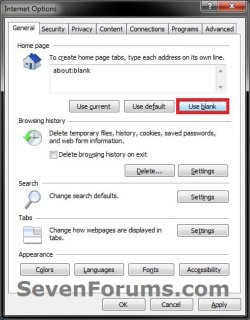
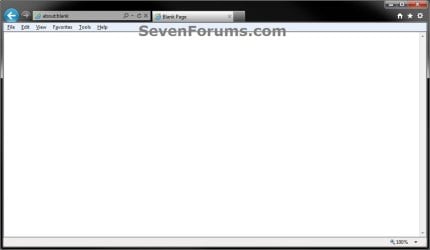
B) Go to step 7.
6. To Manually Enter the Webpage(s) as the Home Page(s)
A) In the white box under Home page in the General tab, type in the URL address of each webpage that you want as your home page(s) one at a time with each address on a separate line by pressing enter after each entered address. (see screenshots below)
NOTE: Each webpage address must be on it's own separate line.
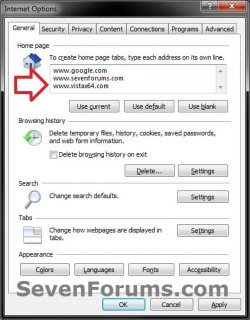
B) Continue on to step 7.
7. If in IE10 or IE11, then in the General tab under Startup, select (dot) Start with home page. (see screenshot below)
NOTE: In Windows 8 and 8.1, this would be in the desktop version.
8. If you added more than one home page and would like to have all of your home pages open when you open Internet Explorer, or when you click the Home button in Internet Explorer, then you will need to be sure to allow it to do so here: How to Open Only the First or All Home Pages when Internet Explorer Starts
9. Click on OK in Internet Options.
OPTION THREE
Add or Change Home Page(s) for IE9, IE10, and IE11 using Home Button
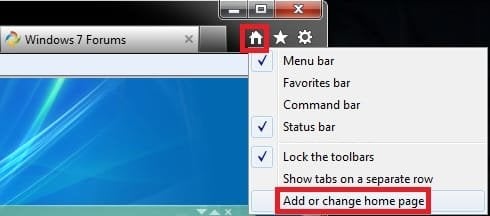
1. In Internet Explorer, right click on the Home button on command bar, and click on Add or change home page. (see screenshot below)
NOTE: To make adding your home page(s) easier, open the webpage or webpages in separate tabs before doing step 1. In Windows 8 and 8.1, this would be in the desktop version.
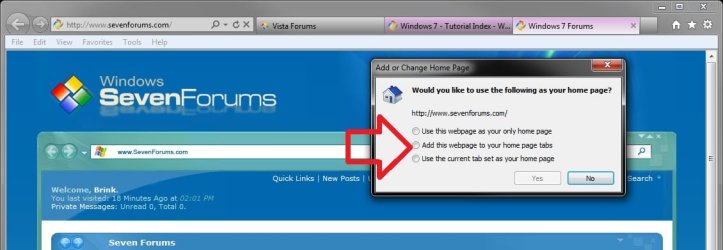
2. Select (dot) the option you want to use as your home page, and click on Yes. (see screenshot below)
- Use this webpage as your only home page - This will remove all current home pages, and add the address of the webpage in only the currently opened tab in IE9 as your home page.
- Add this webpage to your home page tabs - This will add the address of the webpage in only the currently opened tab in IE9 or IE10 to the list as your home page(s).
- Use the current tab set as your home page - If you have more than on tab open in IE9 or IE10, then this will remove all current home pages, and add the webpage address of each tab that you currently have opened in IE9 or IE10 as your home page(s).
3. If you select to ahve more than one home page and would like to have all of your home pages open when you open Internet Explorer, or when you click the Home button in Internet Explorer, then you will need to be sure to allow it to do so here: How to Open Only the First or All Home Pages when Internet Explorer Starts
That's it,
Shawn
Related Tutorials
- How to Open Only the First or All Home Pages when Internet Explorer Starts
- How to Have Multiple Home Pages for Pinned Sites in IE9 and IE10
- How to Enable or Disable Internet Explorer Tabbed Browsing
- How to Change What Page a "New Tab" Opens to in IE9 and IE10
- How to Change the Default Start Page for Internet Explorer No Add-ons
- How to Prevent Changing and Specify a Default Home Page in Internet Explorer
- How to Set Internet Explorer 10 (IE10) to Start with Last Browsing Session or Home Page
Attachments
Last edited: