
How to Reset and Clear All Items in Windows 7 Jump Lists
Information
This will show you how to completely reset and clear specific or all items in the Start Menu and Taskbar jump lists in Windows 7 to start fresh again.
This will only affect your currently logged in user account and no other users on the computer.
This will only affect your currently logged in user account and no other users on the computer.
Note
On a computer that is running Windows 7 or Windows Server 2008 R2, the Jump List of an application may disappear permanently when you use the application to open or save a new item. This issue occurs when there are 999 items in the Jump List already.
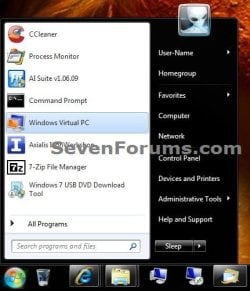
EXAMPLE: Start Menu Jump Lists Before and Reset
NOTE: You will need to click or hover on the arrow (if available) to the far right to see the Start Menu Recent or Pinned program's jump list.

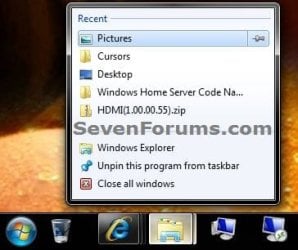
EXAMPLE: Taskbar Jump Lists Before and Reset
NOTE: You will need to right click on the taskbar icons to see their jump list.

OPTION ONE
To Only Remove a Specific Item in a Jump List
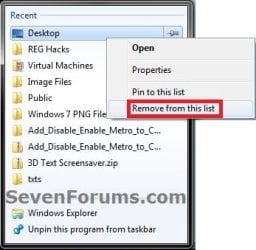
1. Open the program's jump list, right click on a unpinned item that you want to remove, and click on Remove from this list. (see screenshot below)
2. Repeat step 1 for any other item you wish to remove from this or any other program's jump list.
OPTION TWO
To Reset and Clear All Jump Lists Automatically with a BAT File
1. Click on the Download button below to download the file below, and save it to your desktop.
Reset_Recent_Jump_List_Items.bat
Download
2. Click or double click on the downloaded BAT file to open and run it.
3. If prompted, click on Run.
NOTE: If you like, you can stop getting the Run prompt by unblocking the downloaded .bat file.
4. You will now see a quick flash as the BAT file runs and restarts explorer.
5. Your jump lists have been reset and cleared to be empty now. It may take a day or two afterwards before the jump lists repopulate.
OPTION THREE
To Reset and Clear All Jump Lists in a Command Prompt
1. Open a command prompt.
2. In the command prompt, "Copy and Paste" (or type) the command below and press enter. (see screenshot below)
Code:
del /F /Q %APPDATA%\Microsoft\Windows\Recent\AutomaticDestinations\*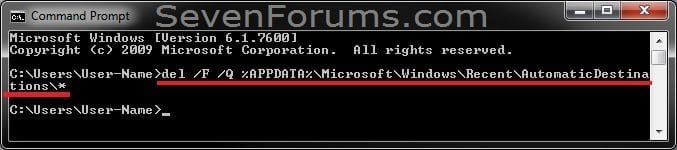
3. In the command prompt, "Copy and Paste" (or type) the command below and press enter. (see screenshot below)
Code:
del /F /Q %APPDATA%\Microsoft\Windows\Recent\CustomDestinations\*
4. Close the command prompt.
5. Log off and on, or restart the computer to fully apply.
6. Your jump lists have been reset and cleared to be empty now. It may take a day or two afterwards before the jump lists repopulate.
That's it,
Shawn
Related Tutorials
- How to Backup and Restore Jump Lists in Windows 7
- How to Reset and Clear All Pinned Items on the Taskbar in Windows 7
- How to Reset and Clear All Taskbar Toolbars in Vista and Windows 7
- How to Pin or Unpin Items in Windows 7 Jump Lists
- How to Enable or Disable Pinning and Unpinning of Items in Windows 7 Jump Lists
- How to Open and Use Windows 7 Start Menu and Taskbar Jump Lists
- How to Turn Recent Items On or Off in Windows 7
- How to Turn Recent Programs On or Off in Windows 7
- How to Enable or Disable Recent Programs in Windows 7
- How to Enable or Disable Recent Items in Windows 7 and Vista
- How to Change the Number of Recent Items to Display in Windows 7 Jump Lists
- How to Create Custom Jump Lists in Windows 7
- How to Clear Recent Items and Documents on Exit of Windows 7
- How to Clear Recent Items List in Windows 7
Attachments
Last edited:
 It turned out it's not a problem with my system because I did a clean reinstalled of Win7x64 Ultimate. Setup everything as I am used to and after a while, the jump list pinned items are all cleared again. So it's either a bug in the OS or some of my tweaks. I'd assume it is the latter but I can't quite put my finger on it. A wild guess would be - can it be something with the System properties - Advanced (tab) - Performance settings - Visual effects? From the visual effects all I use is the 'Show thumbnails instead of icons' and 'Smooth edges on screen fonts'. All else is off cos there's no need for it. But still ... could it be any of those settings that I've turned off there? Difficult to do the trial and error in this case since the error occurs only like once in ... whenever it feels like, no pattern at all.

