
How to Add or Remove "Libraries" Folder from the Navigation Pane in Windows 7
Information
Libraries let you access and arrange items from one or more folders quickly without moving them from their original location. Libraries themselves don't store your files or folders. Instead, they point to different locations on a hard disk or external drive attached to your computer. This gives you easy access to a category of files no matter where they are stored. For instance, if you have music files on your hard disk and on an external drive, you can access all of your music files from within the "Music" library.
For more information about Windows 7 Libraries see:
For more information about Windows 7 Libraries see:
- Windows 7 Libraries: Frequently Asked Questions
- Understanding Windows 7 Libraries - Windows 7 for Developers - The Windows Blog
- Inside Windows 7:Introducing Libraries
Note
When Libraries is removed from the Navigation Pane, the pinned Windows Explorer icon on the taskbar will still open to the Libaries location by default unless you change the default open to target location for the pinned Windows Explorer taskbar icon.
Tip
The default Libaries folders are located at the hidden locations below.
For all users
C:\Users\Public\Libraries
For current user only
C:\Users\(user-name)\AppData\Roaming\Microsoft\Windows\Libraries
For all users
C:\Users\Public\Libraries
For current user only
C:\Users\(user-name)\AppData\Roaming\Microsoft\Windows\Libraries
Warning
- You can only do this while logged into an administrator account.
- This will affect all user account's on the computer.
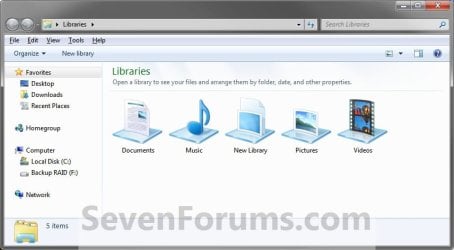
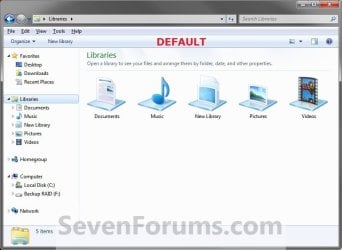
EXAMPLE: Libraries in Navigation Pane
NOTE: This is the Libraries group added (default) (left screenshot below) and removed (right screenshot below) from the Navigation Pane.

Here's How: 1. Open the Start Menu and type regedit.exe in the search line, then press enter.
2. If prompted by UAC, then click on Yes.
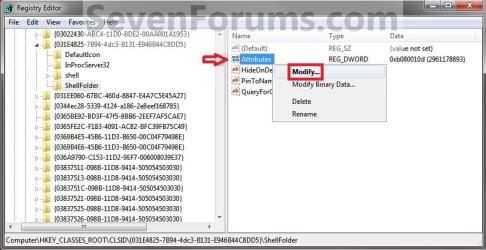
3. In Regedit, go to the location below: (See screenshot below step 4)
Code:
HKEY_CLASSES_ROOT\CLSID\{031E4825-7B94-4dc3-B131-E946B44C8DD5}\ShellFolder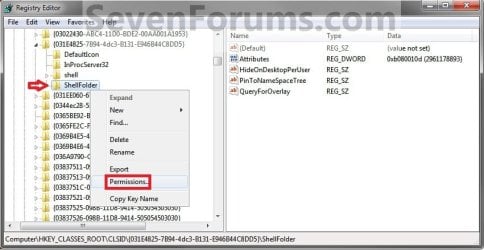
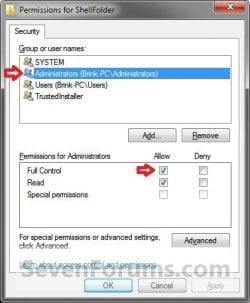
5. At the top, select the Administrators group. At the bottom, check the Allow box to the right of Full Control and click on OK. (See screenshot below)
6. In the right pane of regedit, right click on Attributes and click on Modify. (See screenshot below)
7. To Add All Libraries Back to the Navigation Pane
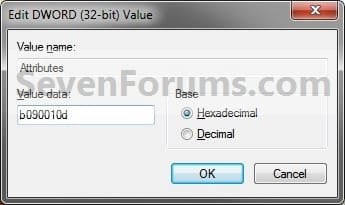
NOTE: This is the default setting. A) Type in b080010d and click on OK. (see screenshot below)

B) Go to step 9.
8. To Remove All Libraries from the Navigation Pane A) Type in b090010d and click on OK. (see screenshot below)
9. If you have 64-bit Windows 7 Installed
Note
To also add or remove Libraries from the "Open" and "Save as" type windows as well in 64-bit Windows 7, you will also need to do this step.
If you have a 32-bit Windows 7 installed, then skip this step since doing steps 1 to 7/8 will add or remove Libraries from the "Open" and "Save as" type windows as well.
Code:
HKEY_LOCAL_MACHINE\SOFTWARE\Wow6432Node\Classes\CLSID\{031E4825-7B94-4dc3-B131-E946B44C8DD5}\ShellFolder10. Close regedit.
11. Log off and log on, or restart the computer to apply.
Tip
If you removed Libraries, then you may also would like to use the tutorial below to have the user folders in the Start Menu to open to your C:\Users\(user-name) location instead of it's library folder location.
How to Make Windows 7 Start Menu User Folder Buttons Open to Users Instead of Libraries Location
How to Make Windows 7 Start Menu User Folder Buttons Open to Users Instead of Libraries Location
That's it,
Shawn
Related Tutorials
- How to Hide or Show a Library in the Navigation Pane in Windows 7 and Windows 8
- How to Show or Not Show All Folders in the Windows 7 Navigation Pane
- How to Turn On or Off Expand to Current Folder in Windows 7 Navigation Pane
- How to Change the Default Libraries Icon in Windows 7
- How to Change a Library Icon in Windows 7
- How to Add or Remove the Libraries Desktop Icon in Windows 7
- How to Change the Default New Library Icon in Windows 7
- How to Restore the Default Libraries in Windows 7 and Windows 8
- How to Fix Libraries when Hidden and Empty in Windows 7 and Windows 8
- How to Add or Remove "Favorites" from the Windows 7 Navigation Pane
- How to Add or Remove "Homegroup" from the Windows 7 Navigation Pane
- How to Add or Remove "Computer" from the Windows 7 Navigation Pane
- How to Add or Remove "Network" from the Windows 7 Navigation Pane
- How to Add or Remove "Control Panel" from the Windows 7 Navigation Pane
- How to Add or Remove your "User Folder" from the Windows 7 Navigation Pane
- How to Add or Remove the "Recycle Bin" from the Windows 7 Navigation Pane
- How to Turn the Navigation Pane On or Off in Windows 7
- How to Turn the Library Pane On or Off in Windows 7
- How to Rename "Libraries" in the Windows 7 Explorer Navigation Pane
- How to Make Windows 7 Start Menu User Folder Buttons Open to Users Instead of Libraries Location
- How to Add or Remove "Include in library" in Windows 7 Context Menu
- How to Arrange Folders Included in a Library in Any Order in Windows 7 and Windows 8
Last edited:


