Linking computer to TV

jackdash

New member
Local time
4:23 AM
Messages
168
I do not think this is the forum for the question but here goes.

I am looking for advice on the following:
I am an old pensioner in poor health and spend a lot of time in my bedroom on the internet.
I have a satellite connection coming in to my bedroom and I am going to purchase a flat screen TV and an HD box to receive Freesat.
I would like to be able to link my computer to the TV so that I could use the TV as another monitor, also watch films on the TV which are stored on my external hard drive.
Would this be possible say using WiFi?
Before I buy the TV I would like to know what to look for.
Any suggestions on this would be greatly appreciated.
Or a link to another forum that deals with this type of stuff.

Thanks very much
jack
 

My Computer

Computer Manufacturer/Model Number
Packard Bell
OS
Windows 7 Home Premium
CPU
Intel(R) Core(TM2) Quad CPU Q8300 @ 2.50Mhz 4 Core(s)
Motherboard
Packard Bell EG43M
Memory
6.00 GB
Graphics Card(s)
Geforce GT220
Hard Drives
1.5 TB
Keyboard
Logitech Wireless
Mouse
Logitech Wireless
hi jack ,i currently use my flatscreen as a monitor, you dont say but do you intend to have the flat screen in your bedroom or the lounge.
p.s some new flatscreens have freesat built in.
it is possible to hook up your tv using a DVI cable ,some tv's have a dvi connection in built some you will need dvi to hdmi ,but its definately doable, if your tv is hardwired to the pc then it is another monitor and you can watch your movies as you would normally, do you use a laptop or desktop?.
 
Last edited:

My Computer

Computer Manufacturer/Model Number
Hewlett packard/p6512uk
OS
Microsoft Windows 7 Home Premium 64-bit 7600
CPU
IIx4 amd athelon 635 processor
Motherboard
FOXCONN 2AA9
Memory
2x2gb
Graphics Card(s)
ati radeon HD 5450
Sound Card
(1) Realtek High Definition Audio (2) AMD High Definition
Monitor(s) Displays
samsung lcd tv 32"
Screen Resolution
1360x 768
Hard Drives
(1) WDC WD10 01FAES-60Z2A0 SATA Disk Device (2) Maxtor OneTouch USB Device (3) ST310003 33AS USB Device (4) WD My Book 1111 USB Device
PSU
?
Cooling
air!
Keyboard
wireless hp
Mouse
wireless Hp,optical
Internet Speed
1.10mb/s
Antivirus
MSE
Browser
Firefox
To simply use the TV as another monitor is not possible via WiFi, you would actually need a video card that has more than one output and a TV that can accept either VGA and DVI or HDMI connections, which in modern LCD TVs is rather common. As far as the external hard drive, there are some LCD TVs such as the ones from Samsung that provide this functionality built-in and you can plug your external hard drive to the TV then simply browse its contents and watch whatever formats the specific TV you pick supports.

Picking a common size of 32 inches for a TV, this would be an example of a TV that has the connectivity you need and also supports that feature with the external hard drive directly on the TV: 32" 1080p LCD TV Series 5 | Samsung LN32C550 - LCD TVs. If you want to go cheaper, you can forgo the support for the hard drive directly and just plug it into your computer and get a TV more like this 32" 720p LCD TV Series 3 | Samsung LN32C350 - LCD TVs. And depending on the size of the TV, they can get cheaper or more expensive.

As far as if you're not sure about the video card, if you can provide the model and brand of your PC, we may be able to tell. If you don't have one with more than one output, even the cheapest modern video cards can provide output to a bigger TV for movie viewing so you can use it as a second screen. This one is an example: http://www.newegg.com/Product/Product.aspx?Item=N82E16814134089. Here's another one: http://www.newegg.com/Product/Product.aspx?Item=N82E16814102877.
 

My Computer

OS
Windows 7 Ultimate x64 SP1
CPU
Intel Core i3 530 2.93 Ghz Clarkdale
Motherboard
ASRock P55 PRO/USB3 LGA 1156
Memory
4 GB OCZ DDR3 1600 (PC12800) Low Voltage Desktop Memory
Graphics Card(s)
Nvidia GeForce GTX 550 Ti with 1 GB of RAM
Sound Card
Realtek HD ALC892
Monitor(s) Displays
20'' eMachines E202HDbmd Glare Panel Widescreen
Screen Resolution
1600 x 900
Hard Drives
Western Digital 1 TB Caviar Black Edition (7200 RPM) SATA
Hitachi Deskstar 500 GB (7200 RPM) SATA
Samsung SpinPoint 400 GB (7200 RPM) SATA
PSU
Rosewill Xtreme Series RX750-D-B ATX12V v2.2 & EPS12V (750W)
Case
Cooler Master Centurion 534 RC-534-KKN2-GP Mid-Tower
Cooling
Standard Case Fans and Stock CPU Heatsink
Keyboard
Microsoft Wireless Optical Desktop Elite
Mouse
Microsoft Wireless Optical Desktop Elite
Internet Speed
7.1 Mbps Verizon DSL
Thanks for the replies
The Tv I am looking for is a 32inch HD model for the upstairs bedroom.
I have Freesat in my living room downstairs via a Humax HDR box, when the guy installed the dish he also ran an LNB lead into my bedroom.
I am in the UK and was unable to find UK dealers listing the Samsung models recommened by Darician maybe there are UK equivalents.
If anyone knows of UK equivalents please let me know.
I was looking at a Samsung UE32C5800 yesterday and it had provision for a WiFi dongle, I do not know about linking a hard drive to it.
My computer is a Packard Bell iExtreme X6620UK desktop.
As a bottom line I am looking for a 32inch HD TV preferably Freesat where I can watch movies from my hard drive and the likes of Youtube, BBc iPlayer etc.
The monitor part is not essential.,
Many thanks
jack
 

My Computer

Computer Manufacturer/Model Number
Packard Bell
OS
Windows 7 Home Premium
CPU
Intel(R) Core(TM2) Quad CPU Q8300 @ 2.50Mhz 4 Core(s)
Motherboard
Packard Bell EG43M
Memory
6.00 GB
Graphics Card(s)
Geforce GT220
Hard Drives
1.5 TB
Keyboard
Logitech Wireless
Mouse
Logitech Wireless
Jack, it seems your PC has a Geforce GT220 graphics card. That card has three outputs: VGA, DVI and HDMI. Two of them, VGA and either DVI or HDMI can be used at the same time for a dual display system.

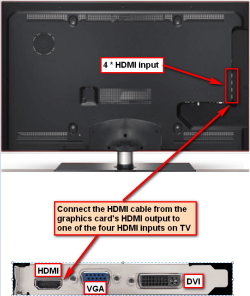
I'll bet you monitor at the moment is connected with VGA. That leaves both DVI and HDMI free. My recommendation would be to measure the distance from your PC to where the new TV comes, and buy a long enough HDMI cable together with the TV. Then it's simply to connect the HDMI cable's other end to your GT 220 card in your PC, and the other end to one of four available HDMI inputs on that Samsung TV your mentioned.

When you are so far, just come back here and we'll be happy to help you to set it up.

Kari
 

My Computer

Computer type
Laptop
Computer Manufacturer/Model Number
HP ENVY 17-1150eg
OS
Windows 10 Pro x64 EN-GB
CPU
1.6 GHz Intel Core i7-720QM Processor
Memory
6 GB
Graphics Card(s)
ATI Mobility Radeon HD 5850 Graphics
Sound Card
Beats sound system with integrated subwoofer
Monitor(s) Displays
17" laptop display, 22" LED and 32" Full HD TV through HDMI
Screen Resolution
1600*900 (1), 1920*1080 (2&3)
Hard Drives
Internal: 2 x 500 GB SATA Hard Disk Drive 7200 rpm
External: 2TB for backups, 3TB USB3 network drive for media
Cooling
As Envy runs a bit warm, I have it on a Cooler Master pad
Keyboard
Logitech diNovo Media Desktop Laser (bluetooth)
Mouse
Logitech Performance Mouse MX
Internet Speed
50/10 Mbps VDSL
Antivirus
Windows Defender 4.3.9431.0
Browser
Maxthon 3.5.2., IE11
from what you say jack in your first post ,your pc is in your bedroom , the new tv you wish to purchase will be in the bedroom alongside your pc also. all that you need then is a lead to connect the pc to the tv and bobs your uncle , no need for wifi or dongles you just select source on the tv and choose pc. ,im guessing you would need an adaptor that would allow two leads out of the pc to each screen ,monitor and tv.
Edit ; kari 's got it nailed!
 

My Computer

Computer Manufacturer/Model Number
Hewlett packard/p6512uk
OS
Microsoft Windows 7 Home Premium 64-bit 7600
CPU
IIx4 amd athelon 635 processor
Motherboard
FOXCONN 2AA9
Memory
2x2gb
Graphics Card(s)
ati radeon HD 5450
Sound Card
(1) Realtek High Definition Audio (2) AMD High Definition
Monitor(s) Displays
samsung lcd tv 32"
Screen Resolution
1360x 768
Hard Drives
(1) WDC WD10 01FAES-60Z2A0 SATA Disk Device (2) Maxtor OneTouch USB Device (3) ST310003 33AS USB Device (4) WD My Book 1111 USB Device
PSU
?
Cooling
air!
Keyboard
wireless hp
Mouse
wireless Hp,optical
Internet Speed
1.10mb/s
Antivirus
MSE
Browser
Firefox
Jack, here's maybe a bit more clear what I meant in my last post. In this image you can see the backside of both the TV you mentioned you are interested in, and the Geforce GT 220 card you have in your Packard Bell PC:

Jacks_new_dual_display_system.png

(Click the image to enlarge)

Kari
 

My Computer

Computer type
Laptop
Computer Manufacturer/Model Number
HP ENVY 17-1150eg
OS
Windows 10 Pro x64 EN-GB
CPU
1.6 GHz Intel Core i7-720QM Processor
Memory
6 GB
Graphics Card(s)
ATI Mobility Radeon HD 5850 Graphics
Sound Card
Beats sound system with integrated subwoofer
Monitor(s) Displays
17" laptop display, 22" LED and 32" Full HD TV through HDMI
Screen Resolution
1600*900 (1), 1920*1080 (2&3)
Hard Drives
Internal: 2 x 500 GB SATA Hard Disk Drive 7200 rpm
External: 2TB for backups, 3TB USB3 network drive for media
Cooling
As Envy runs a bit warm, I have it on a Cooler Master pad
Keyboard
Logitech diNovo Media Desktop Laser (bluetooth)
Mouse
Logitech Performance Mouse MX
Internet Speed
50/10 Mbps VDSL
Antivirus
Windows Defender 4.3.9431.0
Browser
Maxthon 3.5.2., IE11
Once again thanks for the prompt replies.
Kari, I just looked at the back of my pc the socket marked HDMI has a sort of black cover over it. I am wondering if it is just a cover or there is nothing there.
Assuming it is there will it just be a matter of connecting the two with an HDMI cable and plugging an aerial into the TV.
So I would not need an ethernet cable?
Will I be able to watch movies from my external hard drive and things like Youtube, BBC iPlayer etc.?
I also looked at the Samsung LE32C654 which is a bit more expensive and has provision to plug a hard drive in.

Thanks
jack
 

My Computer

Computer Manufacturer/Model Number
Packard Bell
OS
Windows 7 Home Premium
CPU
Intel(R) Core(TM2) Quad CPU Q8300 @ 2.50Mhz 4 Core(s)
Motherboard
Packard Bell EG43M
Memory
6.00 GB
Graphics Card(s)
Geforce GT220
Hard Drives
1.5 TB
Keyboard
Logitech Wireless
Mouse
Logitech Wireless
No need for ethernet cable. In that setup, you just need an HDMI cable, from graphics card to TV.

Yes, that black thing is just a dust cover. Yes, you can then select how to use your displays. Use monitor only, use TV only, duplicate displays (= show the same desktop on both displays) or extend the desktop. When TV is used as a monitor, you use your computer normally while TV shows your desktop. Double click a movie file on your hard disk and it plays on TV.

To visualize what extended desktop means, here's my current extended dual display desktop. Main display (external monitor), in my case the right one, showing this thread on a browser and my taskbar, while watching Singing in the Rain ;) on the secondary (laptop's display) screen on the left:

Dual_Display_extended.png

Extended desktop allows you to open and place different windows and elements as you wish. In this setup of mine moving mouse over the left edge of the right display, or right edge of left display, moves pointer to next display.

Kari
 

My Computer

Computer type
Laptop
Computer Manufacturer/Model Number
HP ENVY 17-1150eg
OS
Windows 10 Pro x64 EN-GB
CPU
1.6 GHz Intel Core i7-720QM Processor
Memory
6 GB
Graphics Card(s)
ATI Mobility Radeon HD 5850 Graphics
Sound Card
Beats sound system with integrated subwoofer
Monitor(s) Displays
17" laptop display, 22" LED and 32" Full HD TV through HDMI
Screen Resolution
1600*900 (1), 1920*1080 (2&3)
Hard Drives
Internal: 2 x 500 GB SATA Hard Disk Drive 7200 rpm
External: 2TB for backups, 3TB USB3 network drive for media
Cooling
As Envy runs a bit warm, I have it on a Cooler Master pad
Keyboard
Logitech diNovo Media Desktop Laser (bluetooth)
Mouse
Logitech Performance Mouse MX
Internet Speed
50/10 Mbps VDSL
Antivirus
Windows Defender 4.3.9431.0
Browser
Maxthon 3.5.2., IE11
Thanks very Kari
I will post when I get the gear.
jack
 

My Computer

Computer Manufacturer/Model Number
Packard Bell
OS
Windows 7 Home Premium
CPU
Intel(R) Core(TM2) Quad CPU Q8300 @ 2.50Mhz 4 Core(s)
Motherboard
Packard Bell EG43M
Memory
6.00 GB
Graphics Card(s)
Geforce GT220
Hard Drives
1.5 TB
Keyboard
Logitech Wireless
Mouse
Logitech Wireless
Jack, please notice this: my recommendations are based on the facts that you A) get the exact TV model you mentioned, and B) Your PC make and model are as you mentioned and it has the default Geforce GT 220 graphics card that is included on that model according to the Packard Bell's website.

Come back if you need something when you have the gear. :)

Kari
 

My Computer

Computer type
Laptop
Computer Manufacturer/Model Number
HP ENVY 17-1150eg
OS
Windows 10 Pro x64 EN-GB
CPU
1.6 GHz Intel Core i7-720QM Processor
Memory
6 GB
Graphics Card(s)
ATI Mobility Radeon HD 5850 Graphics
Sound Card
Beats sound system with integrated subwoofer
Monitor(s) Displays
17" laptop display, 22" LED and 32" Full HD TV through HDMI
Screen Resolution
1600*900 (1), 1920*1080 (2&3)
Hard Drives
Internal: 2 x 500 GB SATA Hard Disk Drive 7200 rpm
External: 2TB for backups, 3TB USB3 network drive for media
Cooling
As Envy runs a bit warm, I have it on a Cooler Master pad
Keyboard
Logitech diNovo Media Desktop Laser (bluetooth)
Mouse
Logitech Performance Mouse MX
Internet Speed
50/10 Mbps VDSL
Antivirus
Windows Defender 4.3.9431.0
Browser
Maxthon 3.5.2., IE11
One last thing Kari before I go shopping tomorrow will any flat screen that has HDMI sockets work with the HD lead to the computer, also will any with USB input play a the contents of a hard drive?

Thanks
jack
 

My Computer

Computer Manufacturer/Model Number
Packard Bell
OS
Windows 7 Home Premium
CPU
Intel(R) Core(TM2) Quad CPU Q8300 @ 2.50Mhz 4 Core(s)
Motherboard
Packard Bell EG43M
Memory
6.00 GB
Graphics Card(s)
Geforce GT220
Hard Drives
1.5 TB
Keyboard
Logitech Wireless
Mouse
Logitech Wireless
Any TV with HDMI input is OK. USB is then another question, for instance we have an older LCD-TV where is a USB input but that is only for service purposes, we can not connect anything to it. Just to be sure, ask about hard disk connectivity when in store.

Kari
 

My Computer

Computer type
Laptop
Computer Manufacturer/Model Number
HP ENVY 17-1150eg
OS
Windows 10 Pro x64 EN-GB
CPU
1.6 GHz Intel Core i7-720QM Processor
Memory
6 GB
Graphics Card(s)
ATI Mobility Radeon HD 5850 Graphics
Sound Card
Beats sound system with integrated subwoofer
Monitor(s) Displays
17" laptop display, 22" LED and 32" Full HD TV through HDMI
Screen Resolution
1600*900 (1), 1920*1080 (2&3)
Hard Drives
Internal: 2 x 500 GB SATA Hard Disk Drive 7200 rpm
External: 2TB for backups, 3TB USB3 network drive for media
Cooling
As Envy runs a bit warm, I have it on a Cooler Master pad
Keyboard
Logitech diNovo Media Desktop Laser (bluetooth)
Mouse
Logitech Performance Mouse MX
Internet Speed
50/10 Mbps VDSL
Antivirus
Windows Defender 4.3.9431.0
Browser
Maxthon 3.5.2., IE11
Hi Guys back again.
After extensive research I have finally decided on the following TV to link up with my computer, provided the answer to my following question is Yes.
I fancy the Panasonic TX-L32D28BS its specs include both Freesat and Freeview HD tuners, does this mean I will be able to watch Freesat HD channels without needing a seperate HD box?

Thanks
jack
 

My Computer

Computer Manufacturer/Model Number
Packard Bell
OS
Windows 7 Home Premium
CPU
Intel(R) Core(TM2) Quad CPU Q8300 @ 2.50Mhz 4 Core(s)
Motherboard
Packard Bell EG43M
Memory
6.00 GB
Graphics Card(s)
Geforce GT220
Hard Drives
1.5 TB
Keyboard
Logitech Wireless
Mouse
Logitech Wireless
According to system specifications, that TV has built-in Freeview HD and Freesat HD tuners, so the answer is yes.

Kari
 

My Computer

Computer type
Laptop
Computer Manufacturer/Model Number
HP ENVY 17-1150eg
OS
Windows 10 Pro x64 EN-GB
CPU
1.6 GHz Intel Core i7-720QM Processor
Memory
6 GB
Graphics Card(s)
ATI Mobility Radeon HD 5850 Graphics
Sound Card
Beats sound system with integrated subwoofer
Monitor(s) Displays
17" laptop display, 22" LED and 32" Full HD TV through HDMI
Screen Resolution
1600*900 (1), 1920*1080 (2&3)
Hard Drives
Internal: 2 x 500 GB SATA Hard Disk Drive 7200 rpm
External: 2TB for backups, 3TB USB3 network drive for media
Cooling
As Envy runs a bit warm, I have it on a Cooler Master pad
Keyboard
Logitech diNovo Media Desktop Laser (bluetooth)
Mouse
Logitech Performance Mouse MX
Internet Speed
50/10 Mbps VDSL
Antivirus
Windows Defender 4.3.9431.0
Browser
Maxthon 3.5.2., IE11
Thanks

jack
 

My Computer

Computer Manufacturer/Model Number
Packard Bell
OS
Windows 7 Home Premium
CPU
Intel(R) Core(TM2) Quad CPU Q8300 @ 2.50Mhz 4 Core(s)
Motherboard
Packard Bell EG43M
Memory
6.00 GB
Graphics Card(s)
Geforce GT220
Hard Drives
1.5 TB
Keyboard
Logitech Wireless
Mouse
Logitech Wireless
I ended up buying a Panasonic TX-L32D28BSA TV, it is located about 2 metres from the computer so I connected an HDMI lead from my Packard Bell to the HDMI 1 port on the TV.
Switched on the TV and from the AV menu selected the HKMI 1 port.
Switched on the computer but nothing showed on the tv only the word HDMI 1.
I tried the hd lead with my Acer laptop and the computer desktop appeared no bother.
I would like any suggestions on where to go from here.

Thanks
jack
 

My Computer

Computer Manufacturer/Model Number
Packard Bell
OS
Windows 7 Home Premium
CPU
Intel(R) Core(TM2) Quad CPU Q8300 @ 2.50Mhz 4 Core(s)
Motherboard
Packard Bell EG43M
Memory
6.00 GB
Graphics Card(s)
Geforce GT220
Hard Drives
1.5 TB
Keyboard
Logitech Wireless
Mouse
Logitech Wireless
Hi Jackdash. I think you also may be able to connect that TV via WiFi. So, cables are not necessary. You will need to connect the TV to the router and the same with your PC laptop or just anything. It will also give you access to the internet etc. You will be ablle to use Youtube and if you live in the UK you can get the iPlayer as well...
Havefun seting it all up though. Take your time and do it via the book...

BTW you need to set the TV to accept HDMI transmission from a HDMI connected device...Look in the manual or the manual on the TV...


Sorry to set it up via WIFI you have to purchase a dongle which should come with the TV but, you will have to buy the seperate...(Bathplugs!) Nice TV though...

Yep in settings for HDMI set the incoming connection for HDMI 1.
 

My Computer

OS
Stools
OK, Jack, let's try this:
  • Connect the HDMI cable to the graphics card on PC and one of the TV's HDMI inputs
  • Select the correct input in TV
  • Start Windows 7
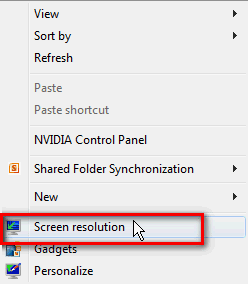
  • Right click an empty spot on Windows desktop, select Screen Resolution
    .
    Dual_Display_00.png
    .
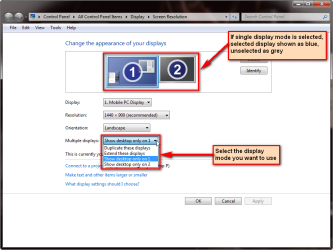
  • Screen resolution tool should now show both your displays, one colored blue indicating it's connected an in use, the other (TV) gray indicating it's connected but not in use
    .
    Dual_Display_01.png
    .
  • Select your preferred display mode from the drop down menu in Multiple Displays. In dual display system you can choose:
    • Duplicate these displays
    • Extend these displays
    • Show desktop only on 1
    • Show desktop only on 2
  • Show desktop on 1 or 2 are quite self explanatory. The other two alternatives might need some explaining.
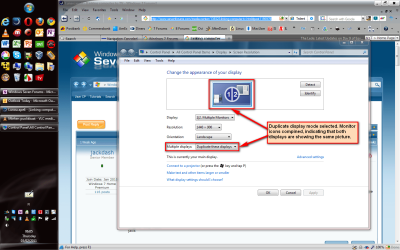
    • A duplicated display mode means the displays are cloned, showing exactly the same. Maximum resolution you can choose is the maximum resolution of the smaller of your displays, for instance if your display 1 (monitor) have a maximum resolution of 1440 * 900, and display 2 (TV) has a maximum resolution of 1920 * 1080, you can only choose 1440 * 900 or less, reason being that because the monitor can not show more than 1440 * 900 it would be impossible to duplicate the desktop if the chosen resolution were more
    • In screen resolution tool you can see that instead of two monitor icons, only one is shown, labeled both 1 and 2:
      .
      Dual_Display_03.png
      .
    • An extended display mode means that both displays are showing different part of your desktop. You can drag a window from display 1 and drop it on display 2, to have different applications open on different displays. You can for instance watch a movie on display 2 (TV) while surfing the net on display 1 (monitor). Resolution can now be individually set on both, in this example of mine for instance I have display 2 on the right as my main display with resolution 1680 * 1050, and display 1 at left is the secondary display with resolution 1440 * 900:
      .
      Dual_Display_02.png

If this the first time you are using dual display system, moving the mouse in extended mode can be a bit confusing. It really is extremely simple: you can drag those monitor icons as you wish in Screen Resolution tool to tell Windows where you want the mouse to move to other display.

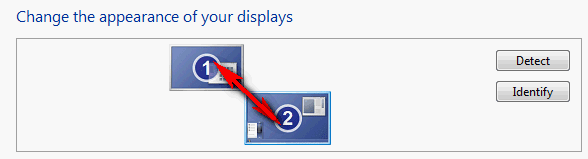
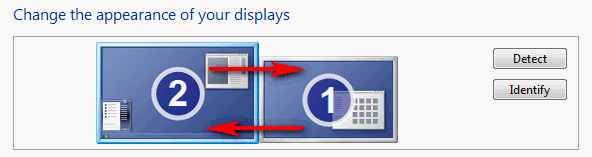
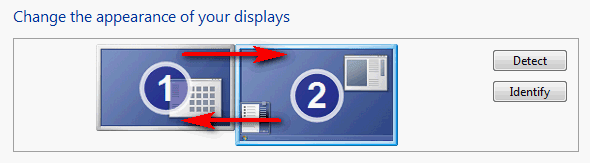
Some examples, first the image showing monitor icons and then explanation:

Dual_Display_04.png
Here you move the pointer between displays by moving it over the bottom right corner of display 1 or top left corner of display 2.

Dual_Display_05.png
Move the pointer over the top edge of display 1 or the bottom of display 2.

Dual_Display_06.png
Move the pointer over the left edge of display 1 or the right edge of display 2.

Dual_Display_07.png
Move the pointer over the right edge of display 1 or the left edge of display 2.

Kari
 
Last edited:

My Computer

Computer type
Laptop
Computer Manufacturer/Model Number
HP ENVY 17-1150eg
OS
Windows 10 Pro x64 EN-GB
CPU
1.6 GHz Intel Core i7-720QM Processor
Memory
6 GB
Graphics Card(s)
ATI Mobility Radeon HD 5850 Graphics
Sound Card
Beats sound system with integrated subwoofer
Monitor(s) Displays
17" laptop display, 22" LED and 32" Full HD TV through HDMI
Screen Resolution
1600*900 (1), 1920*1080 (2&3)
Hard Drives
Internal: 2 x 500 GB SATA Hard Disk Drive 7200 rpm
External: 2TB for backups, 3TB USB3 network drive for media
Cooling
As Envy runs a bit warm, I have it on a Cooler Master pad
Keyboard
Logitech diNovo Media Desktop Laser (bluetooth)
Mouse
Logitech Performance Mouse MX
Internet Speed
50/10 Mbps VDSL
Antivirus
Windows Defender 4.3.9431.0
Browser
Maxthon 3.5.2., IE11
Jack, it seems your PC has a Geforce GT220 graphics card. That card has three outputs: VGA, DVI and HDMI. Two of them, VGA and either DVI or HDMI can be used at the same time for a dual display system.

I'll bet you monitor at the moment is connected with VGA. That leaves both DVI and HDMI free. My recommendation would be to measure the distance from your PC to where the new TV comes, and buy a long enough HDMI cable together with the TV. Then it's simply to connect the HDMI cable's other end to your GT 220 card in your PC, and the other end to one of four available HDMI inputs on that Samsung TV your mentioned.

When you are so far, just come back here and we'll be happy to help you to set it up.

Kari
I changed my mind on the Samsung and bought a Panasonic TX-L32D28BSA
Plugged my HDMI lead into the GT 220 HD socket the other end into the Panasonic HDMI1 port.
Shut down the computer, switched on the TV used the AV button to select the HDMI1 port then booted up the computer but nothing happened on the TV screen also nothing new on the computer monitor, no new hardware detected etc.
Any suggestions on where to go from here would be welcome.
Sorry I forgot to mention I already use 2 monitors on my desktop computer, one in the VGA slot and the other in the DVI.
Maybe I should disconnect one of these.
Thanks
jack
 
Last edited:

My Computer

Computer Manufacturer/Model Number
Packard Bell
OS
Windows 7 Home Premium
CPU
Intel(R) Core(TM2) Quad CPU Q8300 @ 2.50Mhz 4 Core(s)
Motherboard
Packard Bell EG43M
Memory
6.00 GB
Graphics Card(s)
Geforce GT220
Hard Drives
1.5 TB
Keyboard
Logitech Wireless
Mouse
Logitech Wireless
Back
Top