Linking computer to TV

Did you try the Screen Resolution tool as I told in my previous post?

Kari
 

My Computer

Computer type
Laptop
Computer Manufacturer/Model Number
HP ENVY 17-1150eg
OS
Windows 10 Pro x64 EN-GB
CPU
1.6 GHz Intel Core i7-720QM Processor
Memory
6 GB
Graphics Card(s)
ATI Mobility Radeon HD 5850 Graphics
Sound Card
Beats sound system with integrated subwoofer
Monitor(s) Displays
17" laptop display, 22" LED and 32" Full HD TV through HDMI
Screen Resolution
1600*900 (1), 1920*1080 (2&3)
Hard Drives
Internal: 2 x 500 GB SATA Hard Disk Drive 7200 rpm
External: 2TB for backups, 3TB USB3 network drive for media
Cooling
As Envy runs a bit warm, I have it on a Cooler Master pad
Keyboard
Logitech diNovo Media Desktop Laser (bluetooth)
Mouse
Logitech Performance Mouse MX
Internet Speed
50/10 Mbps VDSL
Antivirus
Windows Defender 4.3.9431.0
Browser
Maxthon 3.5.2., IE11
Did you try the Screen Resolution tool as I told in my previous post?

Kari

Kari
Yes, with only the DVI desktop monitor and the TV HDMI leads plugged into the computer I switch on the TV and selected HDMI1 as the source.
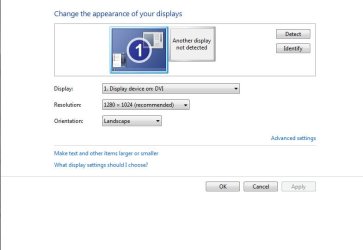
Then I booted up the computer when Windows 7 was running I right clicked the computer screen and selected Screen Resolution the jpeg image below on the left appeared, with only the DVI monitor showing.
So I tried pressing the Detect button and the image on the right appeared.
So the TV display is not showing.
This morning I took the packard bell computer back to where I purchased it and they tested it for me with just an HDMI lead between it and the large screen monitor they use for testing and my desktop appeared on the large monitor straight away.
I came back home and tried it again with only the HDMI lead between it and the TV no DVI and still nothing appeared on TV

I have the option of changing the TV or getting a refund but I would really like to get it setup everything else on the TV is brilliant.

Thanks very much for your help and I would be very much appreciate any further help on this.
Thanks
jack
 

Attachments

  • ScreenResolution.jpg
    ScreenResolution.jpg
    23.8 KB · Views: 6
  • NotDetected.jpg
    NotDetected.jpg
    25.4 KB · Views: 10

My Computer

Computer Manufacturer/Model Number
Packard Bell
OS
Windows 7 Home Premium
CPU
Intel(R) Core(TM2) Quad CPU Q8300 @ 2.50Mhz 4 Core(s)
Motherboard
Packard Bell EG43M
Memory
6.00 GB
Graphics Card(s)
Geforce GT220
Hard Drives
1.5 TB
Keyboard
Logitech Wireless
Mouse
Logitech Wireless
Jack, did you miss this in my first post in this thread:
Jack, it seems your PC has a Geforce GT220 graphics card. That card has three outputs: VGA, DVI and HDMI. Two of them, VGA and either DVI or HDMI can be used at the same time for a dual display system.
As far as I know, you can not use DVI and HDMI outputs at the same time on that card. To achieve what you want to, you need to connect one of the displays with VGA and the other with either DVI or HDMI.

Kari
 

My Computer

Computer type
Laptop
Computer Manufacturer/Model Number
HP ENVY 17-1150eg
OS
Windows 10 Pro x64 EN-GB
CPU
1.6 GHz Intel Core i7-720QM Processor
Memory
6 GB
Graphics Card(s)
ATI Mobility Radeon HD 5850 Graphics
Sound Card
Beats sound system with integrated subwoofer
Monitor(s) Displays
17" laptop display, 22" LED and 32" Full HD TV through HDMI
Screen Resolution
1600*900 (1), 1920*1080 (2&3)
Hard Drives
Internal: 2 x 500 GB SATA Hard Disk Drive 7200 rpm
External: 2TB for backups, 3TB USB3 network drive for media
Cooling
As Envy runs a bit warm, I have it on a Cooler Master pad
Keyboard
Logitech diNovo Media Desktop Laser (bluetooth)
Mouse
Logitech Performance Mouse MX
Internet Speed
50/10 Mbps VDSL
Antivirus
Windows Defender 4.3.9431.0
Browser
Maxthon 3.5.2., IE11
Hi Kari
The continuing saga!
I disconneted the DVI monitor and just used my VGA monitor, so now I have only 1 monitor on the desktop connected to my VGA socket on the computer.
I went through the same proceedure connected the HDMI lead from computer to TV, selected HDMI1 as the source.
Booted up the computer then in Windows right clicked the screen, selected Screen Resolution and the same results appeared as before only this time it listed 1 display as a Generic NpN Monitor. With the message: No other display detected.
I tried the Detect button but no joy.
I have a feeling that I will be swapping this TV but saying that if I use my laptop with the HDMI connection the desktop appears straight away on the TV.
Thanks
jack
 

My Computer

Computer Manufacturer/Model Number
Packard Bell
OS
Windows 7 Home Premium
CPU
Intel(R) Core(TM2) Quad CPU Q8300 @ 2.50Mhz 4 Core(s)
Motherboard
Packard Bell EG43M
Memory
6.00 GB
Graphics Card(s)
Geforce GT220
Hard Drives
1.5 TB
Keyboard
Logitech Wireless
Mouse
Logitech Wireless
I asked some other geeks to take a look at this thread. Let's hope someone has an idea.

Kari
 

My Computer

Computer type
Laptop
Computer Manufacturer/Model Number
HP ENVY 17-1150eg
OS
Windows 10 Pro x64 EN-GB
CPU
1.6 GHz Intel Core i7-720QM Processor
Memory
6 GB
Graphics Card(s)
ATI Mobility Radeon HD 5850 Graphics
Sound Card
Beats sound system with integrated subwoofer
Monitor(s) Displays
17" laptop display, 22" LED and 32" Full HD TV through HDMI
Screen Resolution
1600*900 (1), 1920*1080 (2&3)
Hard Drives
Internal: 2 x 500 GB SATA Hard Disk Drive 7200 rpm
External: 2TB for backups, 3TB USB3 network drive for media
Cooling
As Envy runs a bit warm, I have it on a Cooler Master pad
Keyboard
Logitech diNovo Media Desktop Laser (bluetooth)
Mouse
Logitech Performance Mouse MX
Internet Speed
50/10 Mbps VDSL
Antivirus
Windows Defender 4.3.9431.0
Browser
Maxthon 3.5.2., IE11
In the meantime I would like to ask if anyone on the forums is using the same computer as me the Packard Bell iExtreme X6620UK and has the HDMI output linked to an HD TV, what TV they are using?
Also the Panasonic manual states that to use an external HDD it has to be registered, during this process it will be formatted and all data removed.
This seems crazy, suppose like me you have a HDD full of movies and TV series you want to watch does that mean you have to format and erase them all.

jack
 

My Computer

Computer Manufacturer/Model Number
Packard Bell
OS
Windows 7 Home Premium
CPU
Intel(R) Core(TM2) Quad CPU Q8300 @ 2.50Mhz 4 Core(s)
Motherboard
Packard Bell EG43M
Memory
6.00 GB
Graphics Card(s)
Geforce GT220
Hard Drives
1.5 TB
Keyboard
Logitech Wireless
Mouse
Logitech Wireless
Hi Kari
The continuing saga!
I disconneted the DVI monitor and just used my VGA monitor, so now I have only 1 monitor on the desktop connected to my VGA socket on the computer.
I went through the same proceedure connected the HDMI lead from computer to TV, selected HDMI1 as the source.
Booted up the computer then in Windows right clicked the screen, selected Screen Resolution and the same results appeared as before only this time it listed 1 display as a Generic NpN Monitor. With the message: No other display detected.
I tried the Detect button but no joy.
I have a feeling that I will be swapping this TV but saying that if I use my laptop with the HDMI connection the desktop appears straight away on the TV.
Thanks
jack

Jack
Have you ''on your TV'' not just selected HDMI 1 but also in the settings of the TV set the TV to allow connection for HDMI. This is very important as HDMI on large TV's is not set as a default...
 

My Computer

OS
Stools
Hi Jack,

Have you considered using a different HDMI lead, or trying a different HDMI socket on your TV?
 

My Computer

Computer type
PC/Desktop
Computer Manufacturer/Model Number
Dwarf Dwf/11/2012 r09/2013
OS
Windows 8.1 Pro RTM x64
CPU
Intel Core-i5-3570K 4-core @ 3.4GHz (Ivy Bridge) (OC 4.4GHz)
Motherboard
ASRock Z77 Extreme4-M
Memory
4 x 4GB DDR3-1600 Corsair Vengeance CMZ8GX3M2A1600C9B (16GB)
Graphics Card(s)
MSI GeForce GTX770 Gaming OC 2GB
Sound Card
Realtek High Definition on board solution (ALC 898)
Monitor(s) Displays
ViewSonic VA1912w Widescreen (VGA)
Screen Resolution
1440x900
Hard Drives
OCZ Agility 3 SSD 120GB SATA III x2 (RAID 0)
Samsung HD501LJ 500GB SATA II x2
Hitachi HDS721010CLA332 1TB SATA II
Iomega 1.5TB Ext USB 2.0
WD 2.0TB Ext USB 3.0
PSU
XFX Pro Series 850W Semi-Modular
Case
Gigabyte IF233
Cooling
1 x 120mm Front Inlet 1 x 120mm Rear Exhaust
Keyboard
Microsoft Comfort Curve Keyboard 3000 (USB)
Mouse
Microsoft Comfort Mouse 3000 for Business (USB)
Internet Speed
NetGear DG834Gv3 ADSL Modem/Router (Ethernet) ~4.0 Mb/s (O2)
Antivirus
Avast! 8.0.1497
Browser
IE 11
Other Info
Optical Drive: HL-DT-ST BD-RE BH10LS30 SATA Bluray
Lexmark S305 Printer/Scanner/Copier (USB)
WEI Score: 8.1/8.1/8.5/8.5/8.25
Asus Eee PC 1011PX Netbook (Windows 7 x86 Starter)
Have you ''on your TV'' not just selected HDMI 1 but also in the settings of the TV set the TV to allow connection for HDMI. This is very important as HDMI on large TV's is not set as a default...
When I switched the TV on I used the AV button to show available ports then selected HDMI1 and pressed o/k
On the screen appeared HDMI1
With Auto underneath.
Then while I booted up the pc the Auto part dissapeared leaving just HDMI1 on the TV screen.
I would not know any other settings to use.
I tried every one of the 4 HDMI sockets on the TV.
jack
 

My Computer

Computer Manufacturer/Model Number
Packard Bell
OS
Windows 7 Home Premium
CPU
Intel(R) Core(TM2) Quad CPU Q8300 @ 2.50Mhz 4 Core(s)
Motherboard
Packard Bell EG43M
Memory
6.00 GB
Graphics Card(s)
Geforce GT220
Hard Drives
1.5 TB
Keyboard
Logitech Wireless
Mouse
Logitech Wireless
Do you have a laptop. Connect the laptop to the HDMI and try again. If you get a picture then the PC is at fault. If no picture then the TV is at fault.

If PC at fault the Video card may have not been seated properly reseat and try again

If TV at fault then the pitcure has not been selected in settings...

BTW how old is your PC...
 

My Computer

OS
Stools
@JackDash

I have had some weird issues with Computers and HDMI TVs. It turns out most of the time it is the TV. I don't really understand it but when you connect the computer to the TV on HMDI you get no video, however if you connect a DVD, BluRay or DVR you get a perfect picture. It took me a while to figure out that deep in the TV settings there is an option that says something like. PC Input: YES or NO, or PC Connection, or Workstation, or Computer, or or or or they all state it differently. If this is OFF or NO or DISABLED you will never get a picture on HDMI even thought it works with other devices.

Next, Make sure you are connected to the correct HDMI port. Many TVs will only allow the Computer connected to HMDI on HDMI 1 or 2 but some are strange an only work on HDMI 4. I cannot tell you why but this is what has happened to me.

Let us know. -WS
 

My Computer

Computer type
PC/Desktop
Computer Manufacturer/Model Number
Dell OP7010
OS
Windows 7 Enterprise (x64); Windows Server 2008 R2 (x64)
Memory
16GB
Monitor(s) Displays
4 Dell 24" LCD
Screen Resolution
1280x1024
Keyboard
Dell
Mouse
Dell Optical
Internet Speed
40meg
Do you have a laptop. Connect the laptop to the HDMI and try again. If you get a picture then the PC is at fault. If no picture then the TV is at fault.

If PC at fault the Video card may have not been seated properly reseat and try again

If TV at fault then the pitcure has not been selected in settings...

BTW how old is your PC...

My laptop works great on HDMI, connect it to the TV and the laptop desktop appears on the TV straight away no setting up or nothing.
The strange thing is I took my PC into the dealer I bought it from and they tested it by connecting it with an HDMI lead to the 40inch monitor they use in there testing bay and it worked no bother.
My PC is 18 month old.

jack
 

My Computer

Computer Manufacturer/Model Number
Packard Bell
OS
Windows 7 Home Premium
CPU
Intel(R) Core(TM2) Quad CPU Q8300 @ 2.50Mhz 4 Core(s)
Motherboard
Packard Bell EG43M
Memory
6.00 GB
Graphics Card(s)
Geforce GT220
Hard Drives
1.5 TB
Keyboard
Logitech Wireless
Mouse
Logitech Wireless
@JackDash

Are you using the same resolution on the laptop and the desktop? The TV will not take a super high resolution. Try dropping the resolution on the desktop and then connect to the TV and see if that works. -WS
 

My Computer

Computer type
PC/Desktop
Computer Manufacturer/Model Number
Dell OP7010
OS
Windows 7 Enterprise (x64); Windows Server 2008 R2 (x64)
Memory
16GB
Monitor(s) Displays
4 Dell 24" LCD
Screen Resolution
1280x1024
Keyboard
Dell
Mouse
Dell Optical
Internet Speed
40meg
I have also tried dropping the resolution down to 1024 * 768 no different.

jack
 

My Computer

Computer Manufacturer/Model Number
Packard Bell
OS
Windows 7 Home Premium
CPU
Intel(R) Core(TM2) Quad CPU Q8300 @ 2.50Mhz 4 Core(s)
Motherboard
Packard Bell EG43M
Memory
6.00 GB
Graphics Card(s)
Geforce GT220
Hard Drives
1.5 TB
Keyboard
Logitech Wireless
Mouse
Logitech Wireless
Incompatability

Ok Jack.
I read in the manual for your TV some PC's are not supported. I am certain the problem lies with the TV or settings... Please make absolutely sure that your TV is plugged into HDMI 1 socket. Then select HDMI 1 on your TV. Then go in to your HDMI settings on the TV submenu's and select PC access...
If all the above is done then you should have a picture. If no picture then your PC does not support the PC you currently have. Which has to a 10,000 to 1 shot...
I hate to say it you might have to send your TV back, or purchase a new PC. Neither case is acceptable I know but, there seems to be a compatability problem somewhere...:cry:
 

My Computer

OS
Stools
Many thanks to all you guys on the forum.
I have had enough, I have contacted the TV dealer and they are making arrangements to pick it up and do a refund.
Apart from the HDMI problem I do not like the part about registering the external HDD and it being reformatted in the process.
My next shot at a TV is going to be the Samsung LE32C650 (I am open to suggestions) I will see if that goes without headaches!
Once again I very much appreciate all the help I have had on the forum.

jack
 

My Computer

Computer Manufacturer/Model Number
Packard Bell
OS
Windows 7 Home Premium
CPU
Intel(R) Core(TM2) Quad CPU Q8300 @ 2.50Mhz 4 Core(s)
Motherboard
Packard Bell EG43M
Memory
6.00 GB
Graphics Card(s)
Geforce GT220
Hard Drives
1.5 TB
Keyboard
Logitech Wireless
Mouse
Logitech Wireless
Many thanks to all you guys on the forum.
I have had enough, I have contacted the TV dealer and they are making arrangements to pick it up and do a refund.
Apart from the HDMI problem I do not like the part about registering the external HDD and it being reformatted in the process.
My next shot at a TV is going to be the Samsung LE32C650 (I am open to suggestions) I will see if that goes without headaches!
Once again I very much appreciate all the help I have had on the forum.

jack


What do you mean. There is no need to reformat any HDD. This has nothing to do with Hard drives.

What PC Video card did you purchase...
What computer is it?
Let me just check the details for it...
 

My Computer

OS
Stools
What do you mean. There is no need to reformat any HDD. This has nothing to do with Hard drives.

The Panasonic manual states:
Register the USB HDD with the TV in order to use it for recording. Please note the USB HDD will be formatted and all the data (including the data from your PC etc,)
Will be erased.

What PC Video card did you purchase...
What computer is it?
Let me just check the details for it...
I have not purchased a Video card, if I go ahead and purchase the Samsung LE32C650 I will be using whatever card there is in there.
The computer I am using is the Packard Bell iExtreme X6620UK

Thanks
jack
 

My Computer

Computer Manufacturer/Model Number
Packard Bell
OS
Windows 7 Home Premium
CPU
Intel(R) Core(TM2) Quad CPU Q8300 @ 2.50Mhz 4 Core(s)
Motherboard
Packard Bell EG43M
Memory
6.00 GB
Graphics Card(s)
Geforce GT220
Hard Drives
1.5 TB
Keyboard
Logitech Wireless
Mouse
Logitech Wireless
What do you mean. There is no need to reformat any HDD. This has nothing to do with Hard drives.
The Panasonic manual states:
Register the USB HDD with the TV in order to use it for recording. Please note the USB HDD will be formatted and all the data (including the data from your PC etc,)
Will be erased.

That's not funny. I suggest you purchase another HDD with either 500gb or 1tb memory specifically for that purpose. You will not be able to use the drive with the OS (Operating System) on it as the recordings will use all the surface of the HDD.
Don't forget to select the new Hard drive when installing...

Just a moment. USB. You cannot connect the PC to TV via USB as it will not function! What this means is that you can connect a seperate HDD via USB not the PC.


What PC Video card did you purchase...
What computer is it?
Let me just check the details for it...
I have not purchased a Video card, if I go ahead and purchase the Samsung LE32C650 I will be using whatever card there is in there.
The computer I am using is the Packard Bell iExtreme X6620UK

Thanks
jack


Jack.
After all this I think I know what the problem is. I just remembered that VGA and HDMI will not work in tandem. Please disconnect everything connected to your computer including Printers and Webcam. Then just connect the HDMI cable and have a look at the screen. I think it might connect now.;)
 

My Computer

OS
Stools
Back
Top