Newbie with HDD/SSD setup and slow computer

weezl

New member
Local time
7:14 PM
Messages
6
Hi,

I have a new Lenovo x230 with W7 Pro initially installed to the 300 GB HDD, then shortly afterwards I bought an SSD (120 GB mSATA) and installed W7 to the SSD. I did not disconnect the HDD when I installed W7 on the SSD (so effectively have 2 copies of W7). The SSD is now the C: drive and the HDD is the D: drive. The laptop clearly boots from the C: drive (SSD) so I am ok there.

Nothing seems to run quickly. Wake-up from hibernation is very slow and even browsing the web is much slower than the previous Vaio Z series I had that died a while ago. I am trying to get my system optimized so that it runs as efficiently and quickly as possible.

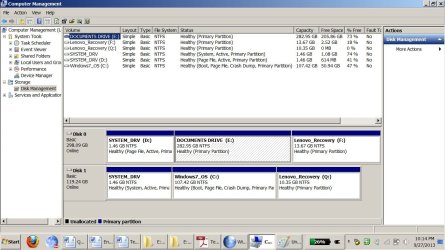
I am good at following computer directions (I can customize things, install drives, jailbreak phones and things) but the research I have done on on things like moving the system reserve partition (which is what I suspect is wrong) is too advanced for poor ol' me. Here is a pic attached showing my systems drives, does this help? Glad to post more info, just tell me what you want to see.

Thanks!
 

Attachments
  • HDD SDD.jpg
    HDD SDD.jpg
    135.1 KB · Views: 7

My Computer My Computer

Computer type
Laptop
Computer Manufacturer/Model Number
Lenovo
OS
64 bit W7 Pro
CPU
i5
Hard Drives
300GB HDD; 120 GB SSD
If it were my rig, I would open the case,

Swap the SATA leads of the SSD and the HDD - so the SSD is drive 0

Set the Computer to boot from DVD

Insert the Windows Install Disk and Start the Computer

After setting Country - DO NOT SELECT Install instead...

Click on Repair your computer

Let it do a Start up Repair then Re-Boot...

Should have a far speedier computer
 

My Computer My Computer

Computer type
PC/Desktop
Computer Manufacturer/Model Number
custom build
OS
Windows 7 Home Premium 64 bit
CPU
intel e7500
Motherboard
gigabyte g61
Memory
8 gb mushkin ddr3
Graphics Card(s)
asus hd6670
Hard Drives
wd caviar 250 gb
Antivirus
Panda Cloud
Browser
chromium 26
Thank you, this makes sense but I have an mSATA drive that my friend plugged into the mSATA "port" inside the laptop. Can I switch the leads on this computer?
 

My Computer My Computer

Computer type
Laptop
Computer Manufacturer/Model Number
Lenovo
OS
64 bit W7 Pro
CPU
i5
Hard Drives
300GB HDD; 120 GB SSD
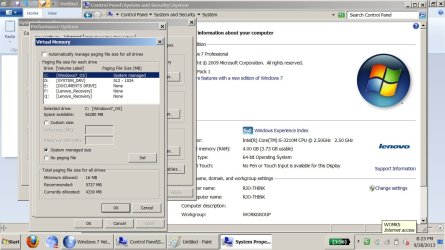
FYI here is how the VM is set up. Note that "D" is the system drive even though C is the Win7 drive (and I believe D is a partition on the mSATA SSD anyway, as I only have 2 drives: C (mSATA) and E (HDD). Does this help?
 

Attachments

  • system drive.jpg
    system drive.jpg
    127.2 KB · Views: 5

My Computer My Computer

Computer type
Laptop
Computer Manufacturer/Model Number
Lenovo
OS
64 bit W7 Pro
CPU
i5
Hard Drives
300GB HDD; 120 GB SSD
My Mistake - after NOW researching the Lenovo x230 I find that this is a LAPTOP and you seem to be running a Virtual Machine... VM

with ?two? drives - I had assumed a desktop unit where the SATA sockets 0,1,2,3 also denote basic boot order for the drives.

Sorry - My advise is NOT useful...
 

My Computer My Computer

Computer type
PC/Desktop
Computer Manufacturer/Model Number
custom build
OS
Windows 7 Home Premium 64 bit
CPU
intel e7500
Motherboard
gigabyte g61
Memory
8 gb mushkin ddr3
Graphics Card(s)
asus hd6670
Hard Drives
wd caviar 250 gb
Antivirus
Panda Cloud
Browser
chromium 26
My Mistake - after NOW researching the Lenovo x230 I find that this is a LAPTOP and you seem to be running a Virtual Machine... VM

with ?two? drives - I had assumed a desktop unit where the SATA sockets 0,1,2,3 also denote basic boot order for the drives.

Sorry - My advise is NOT useful...
No, the picture shows Virtual Memory allocation not virtual machine.
In any case, the SSD as stated in the original post is mSATA.

Based on the pics and info, can anyone help?

Thank you!
 

My Computer My Computer

Computer type
Laptop
Computer Manufacturer/Model Number
Lenovo
OS
64 bit W7 Pro
CPU
i5
Hard Drives
300GB HDD; 120 GB SSD
Remove the built-in HDD and boot up the machine. See if it changes anything. Do you need to have 2 Win7-Installations running?

Otherwise wipe your HDD and check your bootloader to have only the one entry for the SSD-OS.
 

My Computer My Computer

Computer type
PC/Desktop
Computer Manufacturer/Model Number
Custom Build
OS
Windows 7/8 Pro 64bit
CPU
i5-4670
Motherboard
Asus Gryphon
Memory
Corsair 16GB
Graphics Card(s)
Gigabyte GeForce 760
Hard Drives
Intel SSD - 180Gb
Remove the built-in HDD and boot up the machine. See if it changes anything. Do you need to have 2 Win7-Installations running?

Otherwise wipe your HDD and check your bootloader to have only the one entry for the SSD-OS.

I bought the laptop so that I could avoid total inoperability if one drive crashed. If the HDD crashed, I could probably recover the documents that I store in it. If the mSATA SSD crashed I could simply boot from the HDD and take my time replacing the SSD. If I remove the HDD and it does speed things up, do I just reinsert it and the problem will be fixed?
 
Last edited:

My Computer My Computer

Computer type
Laptop
Computer Manufacturer/Model Number
Lenovo
OS
64 bit W7 Pro
CPU
i5
Hard Drives
300GB HDD; 120 GB SSD
well that sounds interesting...

Can't tell if removing the HDD and putting it back will have the problem solved but I guess it's not a big deal to try if removing the HDD helps so just try that and report back how it went.

Also maybe do a benchmark for SSDs like "ATTO" and report results. That could also give us a idea of what makes your system slow.
 

My Computer My Computer

Computer type
PC/Desktop
Computer Manufacturer/Model Number
Custom Build
OS
Windows 7/8 Pro 64bit
CPU
i5-4670
Motherboard
Asus Gryphon
Memory
Corsair 16GB
Graphics Card(s)
Gigabyte GeForce 760
Hard Drives
Intel SSD - 180Gb
well that sounds interesting...

Can't tell if removing the HDD and putting it back will have the problem solved but I guess it's not a big deal to try if removing the HDD helps so just try that and report back how it went.

Also maybe do a benchmark for SSDs like "ATTO" and report results. That could also give us a idea of what makes your system slow.

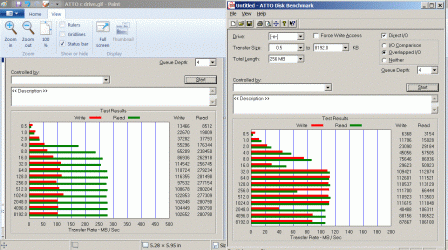
Here is the ATTO:

Thanks so much for your help! EDIT: I removed the HDD and had a much better experience. Except one of the taskbar icons was lost (pointing to my browser) and also the explorer browser that I rarely use spends about 40 seconds thinking when doing anything, even visiting google.com. After replacing the HDD, everything is the same but the Office programs seem a bit faster. I believe they were looking to the HDD for some file while opening and when they did not find this file when the HDD was remove, probably the default folder changed to the SSD. In any case, something is seriously wrong with the system in that I do need to keep the HDD installed but I hate the "conflicts" I am having with it in (and have no idea why I cant visit google when the HDD is out).
 

Attachments

  • ATTO c drive.gif
    ATTO c drive.gif
    192.7 KB · Views: 1
Last edited:

My Computer My Computer

Computer type
Laptop
Computer Manufacturer/Model Number
Lenovo
OS
64 bit W7 Pro
CPU
i5
Hard Drives
300GB HDD; 120 GB SSD
I guess to find the source of what you describe as a missing shortcut could be challenging.

What I would suggest now is that you wipe the HDD after proper backup of all needed data and see how your SSD works then. If it gives you back your fast results, go ahead and set up a new Copy of Windows 7 on the HDD.

If you then have two working operating systems and good speed on SSD you are fine. If your SSD Windows still feels
not just all fine but speed is good in ATTO, also reinstall the OS on your SSD. Then you have two clean systems.

In case things dont work out fine with two parallel operating sytems, keep the OS on your SSD and do regular backups on the HDD or even better on an external storage. If your SSD breaks you can recover your OS to your HDD while waiting for your new SSD.

In case an external harddrive does not work for you create two partitions on your HDD. One to store your backup and one to serve as System partition if the SSD breakes. That system partition should have the size of your SSD.

In any case... have some trust in your SSD ;) it usually doesnt break down half as fast as an HDD. But that can depend on many factors. HTH
 

My Computer My Computer

Computer type
PC/Desktop
Computer Manufacturer/Model Number
Custom Build
OS
Windows 7/8 Pro 64bit
CPU
i5-4670
Motherboard
Asus Gryphon
Memory
Corsair 16GB
Graphics Card(s)
Gigabyte GeForce 760
Hard Drives
Intel SSD - 180Gb
Back
Top