
How to Clean Up and Remove Programs from the "Open with" Context Menu
Information
This will show you how to enable and disable programs that are listed in the Open with right click context menu in Windows 7 and Vista.
If you disable a program, it will be removed from the Open with context menu.
If you enable or re-enable a program, it will be added back to the Open with context menu.
If you disable a program, it will be removed from the Open with context menu.
If you enable or re-enable a program, it will be added back to the Open with context menu.
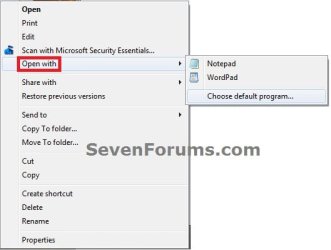
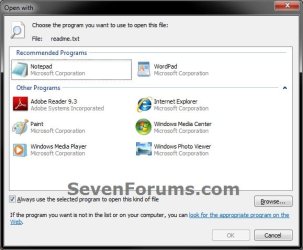
EXAMPLE: Open with
NOTE: This is when you right click on a file and select Open with (left screenshot), or select Open with and click on Choose default program (right screenshot).
Here's How: 1. If you have not already, you will need to download, extract all files, and run the free OpenWithView program.
NOTE: OpenWithView is a standalone exe program, so it does not install on your computer. You would just run it instead.

2. To Disable and Remove a Program from "Open with" Context Menu A) In OpenWithView, select and right click on one or more listed Application Name (program) that you want to remove from "Open with".
NOTE: You can select more than one Application Name by pressing and holding the CTRL key while selecting the programs, then release the CTRL key when ready to right click on one of the highlighted (selected) programs.
B) Click on Disable Selected Items.
NOTE: You will notice that under the Disabled column, it will now change to Yes to confirm that it has been disabled.
3. To Enable and Add Back a Disabled Program to "Open with" Context Menu A) In OpenWithView, select and right click on one or more listed Application Name (program) that you want to re-enable and add back to "Open with".
NOTE: You can select more than one Application Name by pressing and holding the CTRL key while selecting the programs, then release the CTRL key when ready to right click on one of the highlighted (selected) programs.
B) Click on Enable Selected Items.
NOTE: You will notice that under the Disabled column, it will now change to No to confirm that it has been enabled again.
4. When finished, you can close OpenWithView.
That's it,
Shawn
Related Tutorials
- How to Change the Default Program a File Type Opens with in Windows 7
- How to Add or Remove "Always use selected program" in Open with
- How to Have "Always use selected program" Always Checked or Unchecked in "Open with"
- How to Add or Remove "Open with Notepad" from the Context Menu of Files
- How to Remove or Restore the "Open With" Context Menu Item in Windows
- How to Add a Program to "Open with" in Windows 7
- How to Fix "Open with" Opening with Notepad or Error Message
- How to Remove a Listed Program in Default Programs for Windows 7 and Vista
- How to Add "Open with" to Context Menu of URL Files in Windows 7 and Vista
- How to Add "Open with" to Context Menu of BAT Files in Windows 7 and Vista
Last edited:


