Overclock problem?

Devilz

New member
Power User
Local time
1:55 PM
Messages
324
Location
England
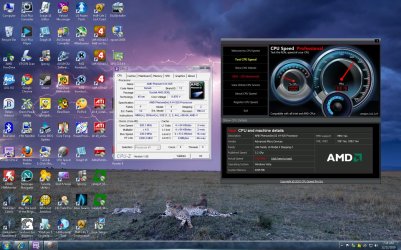
I've overclocked my Q6600 from stock speed to 3.2GHz. Everything seems fine, voltages are alright as well. It shows at POST that its running at 3.2 but in windows it shows its still at 2.4 and in cpuz it core clock speed keeps changing from 2GHz to 3.2GHz. Here are the screenshots

overclock-cpu.png


cpuz.png


In the second screenshot, you can see core speed is 2GHz :confused:

what can be the problem?
 

My Computer

Computer type
PC/Desktop
Computer Manufacturer/Model Number
Self Built
OS
Windows 8.1 - 64 Bit
CPU
Intel Core i5-4670K (Haswell)
Motherboard
Gigabyte GA-Z87X-D3H
Memory
8GB DDR3-RAM PC1600 CL9 ADATA XPG V1.0 black
Graphics Card(s)
Gigabyte NVIDIA GTX 770 Graphics Card (2GB, DDR5, PCI-E)
Sound Card
ASUS Xonar DX 7.1 | Turtle Beach HPA 2
Monitor(s) Displays
Samsung SyncMaster P2270HD
Screen Resolution
1080p
Hard Drives
Samsung 840 Evo 250 GB (OS only)
Seagate Barracuda 1TB S-ATA
Seagate Barracuda 250GB S-ATA
Maxtor 250GB S-ATA (Backup only)
WD Elements 500Gb/Go
PSU
750 watts
Case
Zalman GS-1000 Special Edition
Cooling
Zalman CNPS10X Performa
Keyboard
Logitech K350
Mouse
Logitech M705 | Razer Vespula Mouse Pad
Internet Speed
Virgin Media - 60Mbps
Antivirus
Microsoft Security Essentials
Other Info
120mm fans x 4
(2 on top, 1 at rear, 1 at bottom)
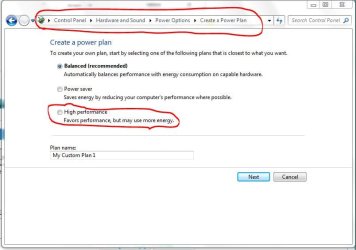
For the numbers showing in CPU-Z : just go in your power options and set it to
High Performance.
I stumbled over that when I got my last (this) computer and saw those numbers fluctuating :D
Capture.JPG

Only Difference I have an Athlon and there it would rather fluctuate the multiplier than the core speed
-DG
 

My Computer

Computer Manufacturer/Model Number
HP m8000n
OS
Windows 7 Ultimate x86
CPU
DualCore AMD Athlon 64 X2, 2600 MHz 5200+
Motherboard
Asus M2N68-LA (Narra)
Memory
Samsung 2GB DDR2
Graphics Card(s)
Onboard NVIDIA GeForce 6150SE nForce 430
Sound Card
Onboard nVIDIA nForce 6100-430 (MCP61P)
Monitor(s) Displays
Westinghouse 19" LED
Screen Resolution
1280x1024
Hard Drives
SATA II Seagate Barracuda 500GB
USB II WD Elements 500GB
USB II WD My Book 1TB
USB II WD My Book 2TB
PSU
Stock (HP)
Case
Stock (HP)
Cooling
Stock
Keyboard
Logitech Classic KB 200
Mouse
Standard HP opticle USB mouse
If you have C1E stepping enabled in the BIOS, make sure you disable this. This is highly recommended when overclocking for stability reasons.


J
 

My Computer

Computer Manufacturer/Model Number
MicroATX Monster
OS
Windows 7 64bit
CPU
i7 920 @ 4312MHz
Motherboard
Rampage II GENE
Memory
6GB Corsair Dominator (9,9,9,24) @ 1643MHz
Graphics Card(s)
Gainward NVIDIA GTX 295
Sound Card
Onboard
Monitor(s) Displays
24" IIyama & 23" Samsung
Screen Resolution
1920x1200 & 1920x1080
Hard Drives
Intel Rev II 80GB SSD
Western Digital Scorpio Black (250GB) 2.5"
PSU
Corsair HX1000
Case
Silverstone SG01
Cooling
Custom WC & fans
Keyboard
Logitech G15
Mouse
Logitech G9x
Internet Speed
1 up 4 down
Apart from C1E option, this can also happen when there's no need for such core speed i.e. it's also depends on the work load.
For eg. download RealTemp, open it and run the XS Bench (clickable button), you'll notice that core speed would have reached to highest i.e. 3.2 (which you've set) and after the benchmarking, it'll come down.
 

My Computer

Computer Manufacturer/Model Number
HCL
OS
Winbdows 7 ultimate x64 | Ubuntu 12.04 x64 LTS
CPU
Core 2 Duo e7400 @ 2.90GHz
Motherboard
Gigabyte G31M-ES2L
Memory
3GB DDR2
Graphics Card(s)
Asus Nvidia GTX 560Ti 1GB
Sound Card
On-board
Monitor(s) Displays
HCL eZeeBee 18.5" LCD
Screen Resolution
1366x768 @ 60Hz
Hard Drives
Western Digital 320GB
PSU
Corsair CX500 V2 500W
Cooling
Stock
Keyboard
Stock
Mouse
Stock
Internet Speed
15-25kBps D/L | 10kBps U/L | Hey Don't laugh
Apart from C1E option, this can also happen when there's no need for such core speed i.e. it's also depends on the work load.
For eg. download RealTemp, open it and run the XS Bench (clickable button), you'll notice that core speed would have reached to highest i.e. 3.2 (which you've set) and after the benchmarking, it'll come down.

Good point, should have also mentioned this, i.e. Speedstep. This is more what the OP is talking about rather than C1E. Speedstep reduces your clockspeed dependant on load like you describe.

Personally when overclocking I disable both C1E and Speedstep, but this isn't necessarily a requirement, it just helps with stability at higher OC's. It does of course mean a slightly higher power consumption continuously, i.e. even when the CPU is not in use.


J
 

My Computer

Computer Manufacturer/Model Number
MicroATX Monster
OS
Windows 7 64bit
CPU
i7 920 @ 4312MHz
Motherboard
Rampage II GENE
Memory
6GB Corsair Dominator (9,9,9,24) @ 1643MHz
Graphics Card(s)
Gainward NVIDIA GTX 295
Sound Card
Onboard
Monitor(s) Displays
24" IIyama & 23" Samsung
Screen Resolution
1920x1200 & 1920x1080
Hard Drives
Intel Rev II 80GB SSD
Western Digital Scorpio Black (250GB) 2.5"
PSU
Corsair HX1000
Case
Silverstone SG01
Cooling
Custom WC & fans
Keyboard
Logitech G15
Mouse
Logitech G9x
Internet Speed
1 up 4 down
@ Devilz

The answer is simple math.

The default FSB for a Q6600 is 267 Front Side Bus and the default multiplier is 9 which is 9 x 267 = 2403 or 2.4Ghz Default.

You have overclocked the FSB to 400 and the lowed the multiplier to 8 which is 8 x 400 = 3200 or 3.2Ghz.

Correct?

Now, Windows will always use the default FSB for your CPU (no matter what the overclock is) but use the modified multiplier value (weird but true) so Windows sees your CPU as 267 (default FSB) x 8 (modified multiplier) = 2136 or 2.13Ghz as shown in your Windows system information Q6600 @ 2.4Ghz 2.13Ghz.

Just to see if my answer is true, try going back into your BIOS and change the multiplier to 7 while keeping FSB at 400, boot into Windows and your system information should be shown as Q6600 @ 2.4Ghz 1.87Ghz.

End phrase, not to worry as long as CPU-Z shows your CPU is running at 3.2Ghz your overclock is successful. And the fluctuation in your CPU just means is going into low power mode (C1E in BIOS and Power Options in Control Panel > Minimum Processor State), it has nothing to do with the overclock as long as your system is stable.

:p
 

My Computer

OS
Windows 7 Professional
CPU
Intel Core i7-2670QM
Memory
Samsung 8GB
Graphics Card(s)
NVIDIA GT 555M
Hard Drives
Intel 525 120GB | HGST Travelstar 1TB
Mouse
CM Storm Xornet | Microsoft Sculpt Comfort
Internet Speed
25 Mbps | 600 Kbps
Other Info
Centrino 6205 | Seagate Backup Plus 1TB
@ Devilz

The answer is simple math.

The default FSB for a Q6600 is 267 Front Side Bus and the default multiplier is 9 which is 9 x 267 = 2403 or 2.4Ghz Default.

You have overclocked the FSB to 400 and the lowed the multiplier to 8 which is 8 x 400 = 3200 or 3.2Ghz.

Correct?

Now, Windows will always use the default FSB for your CPU (no matter what the overclock is) but use the modified multiplier value (weird but true) so Windows sees your CPU as 267 (default FSB) x 8 (modified multiplier) = 2136 or 2.13Ghz as shown in your Windows system information Q6600 @ 2.4Ghz 2.13Ghz.

Just to see if my answer is true, try going back into your BIOS and change the multiplier to 7 while keeping FSB at 400, boot into Windows and your system information should be shown as Q6600 @ 2.4Ghz 1.87Ghz.

End phrase, not to worry as long as CPU-Z shows your CPU is running at 3.2Ghz your overclock is successful. And the fluctuation in your CPU just means is going into low power mode (C1E in BIOS and Power Options in Control Panel > Minimum Processor State), it has nothing to do with the overclock as long as your system is stable.

:p

Whilst I would tend to agree with you that what Windows shows can be different from CPU-Z, if you see the screenshots in the OP, this is also showing the lower clocks in CPU-Z therefore we are definitely talking power saving or CPU stepping in this case.


J
 

My Computer

Computer Manufacturer/Model Number
MicroATX Monster
OS
Windows 7 64bit
CPU
i7 920 @ 4312MHz
Motherboard
Rampage II GENE
Memory
6GB Corsair Dominator (9,9,9,24) @ 1643MHz
Graphics Card(s)
Gainward NVIDIA GTX 295
Sound Card
Onboard
Monitor(s) Displays
24" IIyama & 23" Samsung
Screen Resolution
1920x1200 & 1920x1080
Hard Drives
Intel Rev II 80GB SSD
Western Digital Scorpio Black (250GB) 2.5"
PSU
Corsair HX1000
Case
Silverstone SG01
Cooling
Custom WC & fans
Keyboard
Logitech G15
Mouse
Logitech G9x
Internet Speed
1 up 4 down
Apart from C1E option, this can also happen when there's no need for such core speed i.e. it's also depends on the work load.
For eg. download RealTemp, open it and run the XS Bench (clickable button), you'll notice that core speed would have reached to highest i.e. 3.2 (which you've set) and after the benchmarking, it'll come down.


I can agree with this statement because the core speed buckles down if there is no need for it im running 3.22 ghz but if i look in my cpuz i am running much lower

this does makes sense because my pc doesnt have any lag or performance issues just as fast as the day i put it together

but like i show here it shows how fast i am really running vs the other readings and rated speed im actually running a little faster then the rated 3.22 shows im doing 3.3 3315 ghz
 

Attachments

  • speed 2.jpg
    speed 2.jpg
    268.7 KB · Views: 46

My Computer

Computer type
PC/Desktop
Computer Manufacturer/Model Number
CoreI7-6700K MrFingerIII Special Builds
OS
Windows 10 Home Premium 64bit sp1
CPU
Intel I7-6700K @ 4.6 Ghz 1.344 volts everyday OC
Motherboard
Asrock Fatality K6 Z170 Socket 1151
Memory
32GB G-Skill TridentZ 3200mhz 16-18-18-38 DDR4
Graphics Card(s)
Sli Gigabyte Windforce GTX 980 G1
Sound Card
AC97 Creative Rage Tactic 3D Headphones Bluetooth
Monitor(s) Displays
27" Asus ROG Swift PG278Q G-Sync 48" Vizio Smart HD TV
Screen Resolution
2560x1440p 27"- 48" Currently Gaming at 2560x1440p Res 2K
Hard Drives
250GB Samsung Evo840SSD Seagate baracuda 500 GB WD Mybook 500Gb 1TB Seagate Barracuda
PSU
HX1050w Corsair Silver 80plus certified crosfire/sli
Case
Enthod Pro Full Tower
Cooling
Corsair H110i GT 280 mm High Performance WaterBlock
Keyboard
Logitech wireless keyboard
Mouse
Logitech wireless mouse
Internet Speed
Cox Cable 100+ mb
Antivirus
WebRoot Spysweeper with Antivirus
Browser
IE-10, Chrome, Opera
Other Info
My Other Rig is a AMD FX8320E @4.6Ghz 16GB Ballistic Sport Ram
Mobo Asrock Fatality 990FX 120GB OCZ SSD 1TB Seagate Barracuda Corsair H75 Cooling PSU Corsair CX750
GPU GTX Gigabyte 970G1
It's simple, when the computer is doing nothing it'll try to save power.

Unless your disable C1E in BIOS or change Minimum Processor State to 100% in Power Options.

It has nothing to do with the overclock, as stated above. Generally it's better to keep C1E and Minimum Processor State at 5% as this helps reduce power when computer is doing nothing and also keeps your CPU cool and quiet thus prolonging the life of your CPU. But if you run into stability problems with your overclock then usually disabling C1E helps and if you just want to show your CPU at the highest overclock value at all times in CPU-Z then changing Minimum Processor State to 100% takes care of that.

:p
 

My Computer

OS
Windows 7 Professional
CPU
Intel Core i7-2670QM
Memory
Samsung 8GB
Graphics Card(s)
NVIDIA GT 555M
Hard Drives
Intel 525 120GB | HGST Travelstar 1TB
Mouse
CM Storm Xornet | Microsoft Sculpt Comfort
Internet Speed
25 Mbps | 600 Kbps
Other Info
Centrino 6205 | Seagate Backup Plus 1TB
I would try getting things stable with C1E and SpeedStep enabled. 99% of the time you can. (Unless your really doing some heavy OCing)

Windows may also refer to the stock Multi for whatever reason.

So if you have a default Multi of x9 and set the OC at a 400FSB x8, Windows will show 3.6Ghz. (400x9) even though your actually at 3.2 400x8.

I've never really figure out why it does this sometimes.
Mines actually showing as it should.

Just go by what CPUZ shows at load. This is your true clocks.
Will at idle, Speed Steep and C1E will reduce Voltage and Multipliers to save power and lower Temps.
Its a good thing. :) No point the CPU running full bore 24/7 when it isn't needed.
 

Attachments

  • Capture.JPG
    Capture.JPG
    14.5 KB · Views: 15

My Computer

Computer Manufacturer/Model Number
Custom (Self Build)
OS
Windows 7 Home Premium 64bit
CPU
Intel Core i7 2700k
Motherboard
eVGA P67 SLI
Memory
8GB Mushkin Redline Ridgebacks @1866
Graphics Card(s)
EVGA GTX570 SC
Sound Card
XiFi Titanium HD
Monitor(s) Displays
LG W2453V
Screen Resolution
1920x1080
Hard Drives
Intel 320 80GB -- Intel X25-V 40GB --WD Black 1TB x2 -- WD Blue 640GB
PSU
Seasonic x750
Case
Corsair 600T SE White
Cooling
eVGA Superclocked CPU Cooler
Keyboard
Saitek Cyborg
Antivirus
Kaspersky
Browser
IE
Other Info
LG BD/DVD
@ Devilz

The answer is simple math.

The default FSB for a Q6600 is 267 Front Side Bus and the default multiplier is 9 which is 9 x 267 = 2403 or 2.4Ghz Default.

You have overclocked the FSB to 400 and the lowed the multiplier to 8 which is 8 x 400 = 3200 or 3.2Ghz.

Correct?

Now, Windows will always use the default FSB for your CPU (no matter what the overclock is) but use the modified multiplier value (weird but true) so Windows sees your CPU as 267 (default FSB) x 8 (modified multiplier) = 2136 or 2.13Ghz as shown in your Windows system information Q6600 @ 2.4Ghz 2.13Ghz.

Just to see if my answer is true, try going back into your BIOS and change the multiplier to 7 while keeping FSB at 400, boot into Windows and your system information should be shown as Q6600 @ 2.4Ghz 1.87Ghz.

End phrase, not to worry as long as CPU-Z shows your CPU is running at 3.2Ghz your overclock is successful. And the fluctuation in your CPU just means is going into low power mode (C1E in BIOS and Power Options in Control Panel > Minimum Processor State), it has nothing to do with the overclock as long as your system is stable.

:p

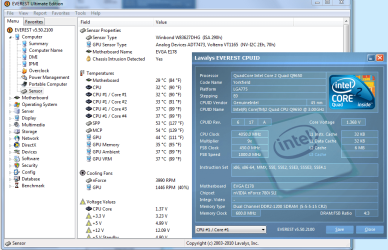
The part in bold red is'nt exactly correct. Windows will use what ever you have set in bios for the FSB. Your math is correct but your analogy is not. Windows WEI also shows me at 4050Mhz or 4.05Ghz.

For instance right now I'm using a 9x multi,450 FSB clock or 1800QDR speed, for my FSB yet the default for my Q9650 is 333 or QDR of 1333/4= 333.25.

With C1E and speed step disabled you get the true CPU frequency in CPUz.

I might also point out that with this overclock which is rather stout, there was no chance of getting it stable without disabling those power saving features. This is a 12 hour Prime Blend stable overclock.

Although as Wishmaster pointed out it is possible to get a decent overclock without disabling those power saving features, there are limits to how far you can get with them enabled though.
 

Attachments

  • Everest temps and CPUID.PNG
    Everest temps and CPUID.PNG
    116 KB · Views: 26

My Computer

Computer type
PC/Desktop
Computer Manufacturer/Model Number
Home built
OS
Windows 7 Ult, Windows 8.1 Pro,
CPU
Q9650-4.275GHz, E8600 4.5GHz, E6750-3.8GHz
Motherboard
Evga 780i FTW
Memory
G.Skill PC2 9600 1200Mhz 5 5 5 15 2T
Graphics Card(s)
GTX480
Sound Card
Asus Xonar D2
Monitor(s) Displays
HannsG
Screen Resolution
1680X1050
Hard Drives
GSkill Phoenix Pro 120GB SSD
PSU
ThermalTake Toughpower 1000Watt modular
Case
ThermalTake XaserV
Cooling
Xigmatek S1283
Keyboard
Logitech G15
Mouse
Logitech G9
Internet Speed
T1
That's not a Windows system picture you have there. I know that on my system does not matter the FSB Windows will always use 200 as my FSB times the CPU multiplier. I know I could be wrong but I'm sorry you have not corrected me in any way.

:p
 

My Computer

OS
Windows 7 Professional
CPU
Intel Core i7-2670QM
Memory
Samsung 8GB
Graphics Card(s)
NVIDIA GT 555M
Hard Drives
Intel 525 120GB | HGST Travelstar 1TB
Mouse
CM Storm Xornet | Microsoft Sculpt Comfort
Internet Speed
25 Mbps | 600 Kbps
Other Info
Centrino 6205 | Seagate Backup Plus 1TB
Back
Top