Recover data from a diskpart > clean command

My Computer

Computer type
Laptop
Computer Manufacturer/Model Number
ACER ASPIRE 5742G
OS
Microsoft Windows 7 Home Premium 64-bits 7601 Multiprocessor Free Service Pack 1
CPU
Intel(R) Core(TM) i3 CPU M 370 @ 2.40GHz
Motherboard
Acer Aspire 5742G
Memory
4,00 GB
Graphics Card(s)
ATI Mobility Radeon HD 5400 Series
Sound Card
(1) AMD High Definition Audio Device (2) Realtek High Defi
Screen Resolution
1366 x 768 x 32 bits (4294967296 colors) @ 60 Hz
Hard Drives
WDC WD5000BEVT-22ZAT0
On master boot record (MBR) disks, only the MBR partitioning information and hidden sector information are overwritten. On GUID partition table (GPT) disks, the GPT partitioning information, including the Protective MBR, is overwritten. If the ALL parameter is not used, the first 1MB and the last 1MB of the disk are zeroed. This erases any disk formatting that had been previously applied to the disk. The disk's state after cleaning the disk is 'UNINITIALIZED'.

=>English is not my native language, so maybe I read it wrong(?)
On master boot record (MBR) disks, only the MBR partitioning information......
So only MBR (sector 0) will be overwritten. Though I see.... first 1MB has no data at all .... all hex0 bytes
 

My Computer

Computer type
Laptop
Computer Manufacturer/Model Number
ACER ASPIRE 5742G
OS
Microsoft Windows 7 Home Premium 64-bits 7601 Multiprocessor Free Service Pack 1
CPU
Intel(R) Core(TM) i3 CPU M 370 @ 2.40GHz
Motherboard
Acer Aspire 5742G
Memory
4,00 GB
Graphics Card(s)
ATI Mobility Radeon HD 5400 Series
Sound Card
(1) AMD High Definition Audio Device (2) Realtek High Defi
Screen Resolution
1366 x 768 x 32 bits (4294967296 colors) @ 60 Hz
Hard Drives
WDC WD5000BEVT-22ZAT0
Maybe Greg has any idea what happened.
 

My Computer

Computer type
Laptop
Computer Manufacturer/Model Number
ACER ASPIRE 5742G
OS
Microsoft Windows 7 Home Premium 64-bits 7601 Multiprocessor Free Service Pack 1
CPU
Intel(R) Core(TM) i3 CPU M 370 @ 2.40GHz
Motherboard
Acer Aspire 5742G
Memory
4,00 GB
Graphics Card(s)
ATI Mobility Radeon HD 5400 Series
Sound Card
(1) AMD High Definition Audio Device (2) Realtek High Defi
Screen Resolution
1366 x 768 x 32 bits (4294967296 colors) @ 60 Hz
Hard Drives
WDC WD5000BEVT-22ZAT0
My understanding is the Clean command is supposed to zero the boot sector and partition table. That's why it works to resolve installation problems.


PW when run correctly can undelete these.

Please confirm if you ran PW Partition REcovery Wizard Quick Scan and allowed it to complete? This should normally be enough.

If not please run the Long scan.
 
I'll run the PW Partition REcovery Wizard Quick Scan and post the result here when done. I had previously stopped it to jump to Testdisk
 

My Computer

Computer type
PC/Desktop
Computer Manufacturer/Model Number
Custom build
OS
Windows 10 Pro (64-bit)
CPU
Intel Core i7 - 4790K (4.0 GHz)
Motherboard
ASUS Z97 Sabertooth Mark 1
Memory
32GB Corsair Vengeance Pro 1600 MHz DDR3 RAM (Dual Channel)
Graphics Card(s)
ASUS 1GB DDR5 450GTS
Screen Resolution
2048x1152
Hard Drives
480GB OCZ Vector 150 SSD (Internal) -Primary OS Drive
160GB Segate x 2 (Internal)
2TB Seagate External USB 2.0
PSU
Corsair 850W
Case
Corsair Obsidian 900D
Cooling
Fan cooling
Keyboard
Logitech Flat Keyboard
Mouse
Razer Ouroboros Lazer Mouse
Antivirus
BitDefender Total Security 2015
Browser
All browsers
Other Info
Razer Kraken 7.1 Headset
Creative 7.1 Speaker System
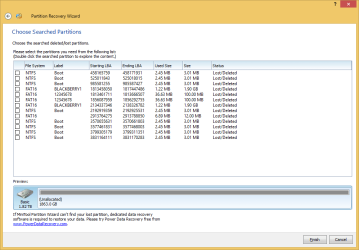
Partition Recovery Wizards Results

Hi all,

I finished running full scan and it seems I am a bit out of luck... :cry:

pw_fullscan.png
 

My Computer

Computer type
PC/Desktop
Computer Manufacturer/Model Number
Custom build
OS
Windows 10 Pro (64-bit)
CPU
Intel Core i7 - 4790K (4.0 GHz)
Motherboard
ASUS Z97 Sabertooth Mark 1
Memory
32GB Corsair Vengeance Pro 1600 MHz DDR3 RAM (Dual Channel)
Graphics Card(s)
ASUS 1GB DDR5 450GTS
Screen Resolution
2048x1152
Hard Drives
480GB OCZ Vector 150 SSD (Internal) -Primary OS Drive
160GB Segate x 2 (Internal)
2TB Seagate External USB 2.0
PSU
Corsair 850W
Case
Corsair Obsidian 900D
Cooling
Fan cooling
Keyboard
Logitech Flat Keyboard
Mouse
Razer Ouroboros Lazer Mouse
Antivirus
BitDefender Total Security 2015
Browser
All browsers
Other Info
Razer Kraken 7.1 Headset
Creative 7.1 Speaker System
Hi lonewolfs,

Unfortunetely I can't see anything intelligible in mbrsect.txt attachment in your post #42. for some reason.

I can see only this QÛ¨ Uª

Till Kaktussoft or gregrocker (who I believe is out of the country currently) return to this thread, I may try my hand in it. :)

If you have 64bit Windows, download BOOTICEx64_v1.321.rar from Booooooooting ? View topic - [ BOOTICE: A poweful boot-related utility ] - v1.3.2.1 (If 32 bit , then BOOTICEx86_v1.321.rar)

Extract it to a folder say Bootice. You will have BOOTICEx64.exe in it.

With only your 2TB problem external HDD connected ( Please safely remove all other external HDDs, pendrives, card Readers ), run it, make sure your problem external drive is selected and click on Sector Edit tab.

Bootice: (Main Screen)

22-06-2014 23-43-32.jpg

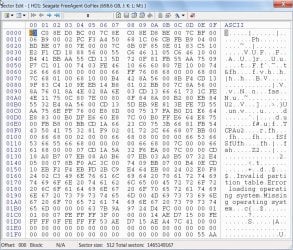
Post the sector 0 Screenshot. It is actually the first sector, which is the bootsector. Let me examine it and see whether I can make any sense out of it.

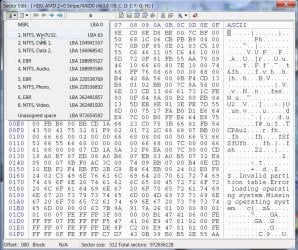
LBA 0: (First boot sector, that contains the MBR code and Partition Table)

22-06-2014 23-45-50.jpg

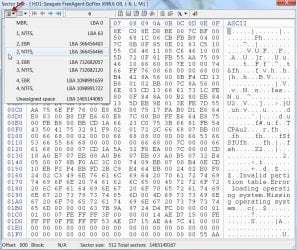
Next, click on the Partitions Icon, the very first icon in the tool bar, that is supposed to show all the partitions and post a screenshot of whatever you see.

Partition Table:

22-06-2014 23-52-10.jpg

(In this case it shows the partitions in my good external drive with four partitions.)

You may find some info on Bootice here in my post: Screenshot 1,2,3,and 4 http://www.sevenforums.com/hardware-devices/310295-lost-partitions.html#post2584426
 

My Computer

OS
Windows 7 Home Premium 32 bit
Hi,

Thanks for looking into this.

Here are the screenshots.

sector_0.png

partitions.png
 

My Computer

Computer type
PC/Desktop
Computer Manufacturer/Model Number
Custom build
OS
Windows 10 Pro (64-bit)
CPU
Intel Core i7 - 4790K (4.0 GHz)
Motherboard
ASUS Z97 Sabertooth Mark 1
Memory
32GB Corsair Vengeance Pro 1600 MHz DDR3 RAM (Dual Channel)
Graphics Card(s)
ASUS 1GB DDR5 450GTS
Screen Resolution
2048x1152
Hard Drives
480GB OCZ Vector 150 SSD (Internal) -Primary OS Drive
160GB Segate x 2 (Internal)
2TB Seagate External USB 2.0
PSU
Corsair 850W
Case
Corsair Obsidian 900D
Cooling
Fan cooling
Keyboard
Logitech Flat Keyboard
Mouse
Razer Ouroboros Lazer Mouse
Antivirus
BitDefender Total Security 2015
Browser
All browsers
Other Info
Razer Kraken 7.1 Headset
Creative 7.1 Speaker System
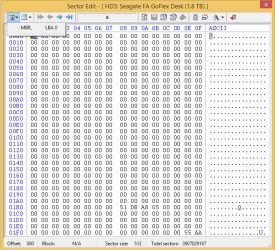
OK, the bootsector has only the Windows ID 51 DB A8 05 and disk Signature 55 AA.

No partitions are visible.

Let me roll back through the previous posts, get a hold on what all has been done and then come back.
 

My Computer

OS
Windows 7 Home Premium 32 bit
You have already used TestDisk. But you straightaway went into partition search. But now let us get into Advanced File System Utilities and get some information on the disk status.

Run TestDisk

First Screen: Select No Log ENTER

Second Screen: Select your correct drive (your faulty drive) ENTER

Third Screen: Intel ENTER

Fourth Screen: Select Advanced File System Utilities ENTER

Fifth Screen: Does it show your drive with the first Partition?

Post the screenshot of the fifth Screen.

I will be missing every now and then but generally peep in once in a while if I am present. So do not expect an immediate response but keep looking.
 

My Computer

OS
Windows 7 Home Premium 32 bit
Since we are not running a scan, you can close and run TestDisk any number of times.

Only thing make sure to select the correct faulty external drive everytime.

Wait for instructions and do not attempt to do things on your own.
 

My Computer

OS
Windows 7 Home Premium 32 bit
No partitions available

Hi,

I can't see any partitions in there. It says "No partitions available". Pasting a snap below

testdisk.png
 

My Computer

Computer type
PC/Desktop
Computer Manufacturer/Model Number
Custom build
OS
Windows 10 Pro (64-bit)
CPU
Intel Core i7 - 4790K (4.0 GHz)
Motherboard
ASUS Z97 Sabertooth Mark 1
Memory
32GB Corsair Vengeance Pro 1600 MHz DDR3 RAM (Dual Channel)
Graphics Card(s)
ASUS 1GB DDR5 450GTS
Screen Resolution
2048x1152
Hard Drives
480GB OCZ Vector 150 SSD (Internal) -Primary OS Drive
160GB Segate x 2 (Internal)
2TB Seagate External USB 2.0
PSU
Corsair 850W
Case
Corsair Obsidian 900D
Cooling
Fan cooling
Keyboard
Logitech Flat Keyboard
Mouse
Razer Ouroboros Lazer Mouse
Antivirus
BitDefender Total Security 2015
Browser
All browsers
Other Info
Razer Kraken 7.1 Headset
Creative 7.1 Speaker System
OK. That would mean something more than just diskpart clean has happened wiping the partition clean.

By that I mean the volume boot record that should exist in LBA 63.Let us see whether there is any trace of it.

( At the moment I am thinking that there is no way to recover any data. May be you have to format your drive and then we have to try data recovery from a formatted drive. Even with this there is no guarantee you will be able to recover any data. I am only sounding you to get prepared for that.We will keep it as the last option. Not now.)

Right now I am zeroing my 750GB drive to carryout a small experiment. I plan to format the full capacity and then do a disk part clean. With Bootice I shall check what changes have taken place in the relevant LBAs.. If it doesn't correlate with the LBAs on your drive, my first statement is confirmed. I may not finish the experiment before tomorrow evening. I shall post my findings then.

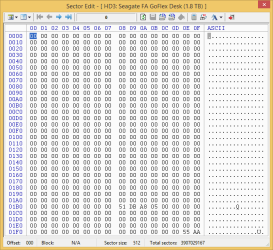
Right now run bootice, select your external drive, and then Sector Edit. Click on the the Sector Indicator Field (where it shows 0 now) to bring a Window where you will type 63 and press OK. This will show LBA 63 in the disk map. Post a screenshot of LBA 63. You may do it now and upload.
 

My Computer

OS
Windows 7 Home Premium 32 bit
There is an easy way to view that sector copy just like an actual disk. First rename "Mbrsect.txt" to "mbresect.img". This will convert the hex dump to a "dd" like disk copy. Then download freeware hex editor "HxD" from HxD - Freeware Hex Editor and Disk Editor | mh-nexus

Open "HxD" and choose Extras --> Open Disk Image. HxD interface is much similar to "BOOTICE". You can simply type the sector number 63 to jump to it.
 

My Computer

Computer type
PC/Desktop
OS
Windows 7 Ultimate x64
Yep. I already have HxD on my desktop. Have used it many times and forget.:)

I don't think the disk was GPT. Why would anyone want GPT on a 2TB drive with only a single partition?

Anyway I shall check on that too.
 

My Computer

OS
Windows 7 Home Premium 32 bit
@Jumanji

I just did a quick test on a virtual machine. Installed "Windows 7" and then did a DISKPART CLEAN operation. Guess what, entire first sectors are completely empty. At sector 2048 i can see NTFS boot sector of 100 MB "System Reserved" Partition.

I don't think "Seagate" will create partition on sector 63 which is unaligned. Probably the partition was started at sector 2048 just like any modern HDD. The sector dump uploaded by OP doesn't seems to contain sector 2048 ( it is from LBA 0 to LBA 2047). It may worth a try to inspect the contents of sector 2048 but i leave the decision to you.
 

My Computer

Computer type
PC/Desktop
OS
Windows 7 Ultimate x64
I would think what you have aforesaid is applicable in a Windows 7 system disk with System Reserved partition. "The "RELATIVE" offset of the first partition is 2048 sectors; instead of the usual 63"

In all other cases including an external HDD the first partition boot record will be bang on absolute sector 63, Sector 64 if we start counting from 1. ( damn it, this always confuses me the absolute and as we count.:))

I don't have a system reserved partition and the first active partition on my system disk is bang on 63.

24-06-2014 08-19-37.jpg

EDIT:Thanks Anshad, as you mentioned in your post#57 I opened OP's mbrsect.img in HxD and Sector 63 is all zeros. So no trace of partition boot record. ( I do things very slowly.:D )
 
Last edited:

My Computer

OS
Windows 7 Home Premium 32 bit
I would think what you have aforesaid is applicable in a Windows 7 system disk with System Reserved partition. "The "RELATIVE" offset of the first partition is 2048 sectors; instead of the usual 63"

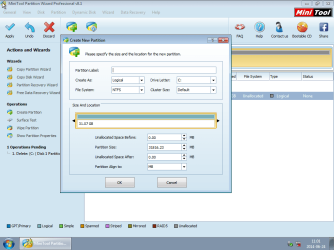
Actually it depends on the partitioning tool. All modern partitioning tools are by default creates only aligned partitions. I did another quick test to confirm. Wiped all partitions and used DISKPART from Windows install disk to create a single Primary partion. This will avoid creation of "System Reserved". The partitions seems to be started on LBA 2048. Then again cleaned that disk and used "Partition Wizard" Windows edition to create a primary partition. It also created partition starting at LBA 2048. By default "Partition Wizard" Windows edition creates first partition as "MB Aligned" or at LBA 2048.

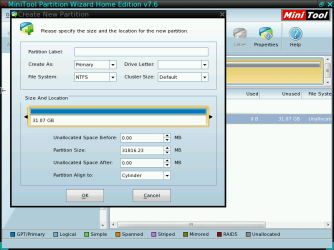
Interestingly "Partition Wizard" bootable CD seems to create first partition as "Cylinder Aligned" or at sector 63. So if i assume correctly, you used either "Partition Wizard" bootable disc or XP setup to avoid creation of "System Reserved".

Here is some snapshots which shows the difference :
 

Attachments

  • Windows Edition.png
    Windows Edition.png
    37.6 KB · Views: 2
  • Bootable CD.png
    Bootable CD.png
    22.4 KB · Views: 1

My Computer

Computer type
PC/Desktop
OS
Windows 7 Ultimate x64
Ok Jumanji your last post makes sense now. And yes my disk is an external HDD, Segate GoFlex Desktop USB version from like 2 years back, so the partition must have started from LBA63 and not from LBA2048. I've used every tool out there to scan the disk but all of them have failed to show any kidn of hope. Does this mean that I've lost too much data to rebuild the partition?

I've EaseUS Partition manager which has some partition recovery tools but as of now from what i've learnt all of the softwares are showing same results. So I doubt scanning by EaseUS would make any kind of difference.

Seems the clean command is indeed a powerful tool :D

Is there anything more we can do?
 

My Computer

Computer type
PC/Desktop
Computer Manufacturer/Model Number
Custom build
OS
Windows 10 Pro (64-bit)
CPU
Intel Core i7 - 4790K (4.0 GHz)
Motherboard
ASUS Z97 Sabertooth Mark 1
Memory
32GB Corsair Vengeance Pro 1600 MHz DDR3 RAM (Dual Channel)
Graphics Card(s)
ASUS 1GB DDR5 450GTS
Screen Resolution
2048x1152
Hard Drives
480GB OCZ Vector 150 SSD (Internal) -Primary OS Drive
160GB Segate x 2 (Internal)
2TB Seagate External USB 2.0
PSU
Corsair 850W
Case
Corsair Obsidian 900D
Cooling
Fan cooling
Keyboard
Logitech Flat Keyboard
Mouse
Razer Ouroboros Lazer Mouse
Antivirus
BitDefender Total Security 2015
Browser
All browsers
Other Info
Razer Kraken 7.1 Headset
Creative 7.1 Speaker System
Back
Top