regarding running a portable OS

My Computer My Computer

Computer type
Laptop
Computer Manufacturer/Model Number
Hewlett-Packard/G62-107SA Notebook
OS
Microsoft Windows 7 Home Premium 64-bit Service Pack 1
CPU
Intel(R) Core(TM) i3 CPU M 330 @ 2.13GHz
Motherboard
Hewlett-Packard 1425
Memory
8 GB DDR3
Graphics Card(s)
Intel(R) HD Graphics
Sound Card
Realtek High Definition Audio
Monitor(s) Displays
Builtin
Screen Resolution
1366 x 768 x 32 bits (4294967296 colors) @ 60 Hz
Hard Drives
250 GB SATA Hard Disk Drive 7200 rpm
2TB Seagate GoFlex USB 2 Drive
1TB Iomega Prestige USB 2 Drive
1.5TB Iomega Prestige USB 2 Drive (Samsung)
2TB WD MyBook Live NAS.
Mouse
Logitech Anywhere MX
Internet Speed
152 Mbs download 10 Mbs upload
Antivirus
Norton 360
Browser
Chrome
Thanks. I bookmarked the link for reference.
 

My Computer My Computer

Computer type
PC/Desktop
Computer Manufacturer/Model Number
Lenovo 1068AHU B570 (laptop)
OS
Windows 7 Home Premium SP1 64bit
CPU
Intel Core i3
Motherboard
Lenovo Emerald Lake
Memory
8GB DDR3
Graphics Card(s)
Intel HD graphics family
Sound Card
Realtek HD audio
Monitor(s) Displays
ThinkPad Display 1366x768 (15.6")
Hard Drives
WD 320GB WDC WD3200BPVT
Internet Speed
80Kbs maximum -->speed is a misnomer
Other Info
Logitech MK550 wireless mouse/keyboard combo used when at home.
I haven't forgotten about the next steps. I am encountering instructions with caveats with "don't do this if ..." warnings. I qualify on the ifs. I am still searching for solutions.
 

My Computer My Computer

Computer type
PC/Desktop
Computer Manufacturer/Model Number
Lenovo 1068AHU B570 (laptop)
OS
Windows 7 Home Premium SP1 64bit
CPU
Intel Core i3
Motherboard
Lenovo Emerald Lake
Memory
8GB DDR3
Graphics Card(s)
Intel HD graphics family
Sound Card
Realtek HD audio
Monitor(s) Displays
ThinkPad Display 1366x768 (15.6")
Hard Drives
WD 320GB WDC WD3200BPVT
Internet Speed
80Kbs maximum -->speed is a misnomer
Other Info
Logitech MK550 wireless mouse/keyboard combo used when at home.
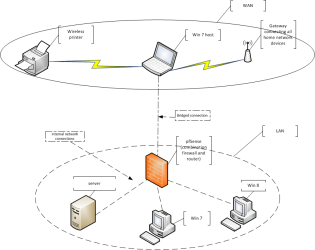
I have been advised that the "easiest" way to achieve my goal is to use Windows Internet Connection Sharing (ICS) or a gateway router inside the virtual environment. This should establish connectivity both between thw server and its clients and with the outside world (Internet). Because I have neither another Windows OS activation key not the system resources to support ICS, I have chosen a pfSense VM to create a gateway router inside the network.

Using a detailed tutorial for installing and configuring Windows Server 2008 R2 and pfSense, I have achieved Internet connectivity with pfSense. Server 2008 no longer has Internet connectivity. PfSense cannot ping the LAN or the server. The server cannot ping the WAN, LAN or the default gateway. i am attempting to resolve the connectivity issue now.

Here is what the attempted setup looks like.

virtual network topology.png
 

My Computer My Computer

Computer type
PC/Desktop
Computer Manufacturer/Model Number
Lenovo 1068AHU B570 (laptop)
OS
Windows 7 Home Premium SP1 64bit
CPU
Intel Core i3
Motherboard
Lenovo Emerald Lake
Memory
8GB DDR3
Graphics Card(s)
Intel HD graphics family
Sound Card
Realtek HD audio
Monitor(s) Displays
ThinkPad Display 1366x768 (15.6")
Hard Drives
WD 320GB WDC WD3200BPVT
Internet Speed
80Kbs maximum -->speed is a misnomer
Other Info
Logitech MK550 wireless mouse/keyboard combo used when at home.
OK ... got the connectivity issue resolved ...

The issue was with IP addressing in both pfSense and the server.

PfSense has a small enough footprint (128MB memory and 2GB virtual HDD requirements) to work with my system resources. This is a Linux free BSD which will be one more thing for me to become proficient with.

As indicated in the diagram in my previous post, the LAN is the internal network using Vbox's internal network connection. The WAN uses bridged connection to connect to the host. This is accomplished via the pfSense network cards. Two network adapters are used: one for LAN and the other for WAN. Server 2008 uses internal network connection. I intend to tinker with NAT connection as time progresses to observe differences in behavior.

My next step will be continuing with configuration and testing of Server 2008. Clients won't be introduced to the server until later.

More details are available if anyone is interested. Questions and observations are welcome.
 

My Computer My Computer

Computer type
PC/Desktop
Computer Manufacturer/Model Number
Lenovo 1068AHU B570 (laptop)
OS
Windows 7 Home Premium SP1 64bit
CPU
Intel Core i3
Motherboard
Lenovo Emerald Lake
Memory
8GB DDR3
Graphics Card(s)
Intel HD graphics family
Sound Card
Realtek HD audio
Monitor(s) Displays
ThinkPad Display 1366x768 (15.6")
Hard Drives
WD 320GB WDC WD3200BPVT
Internet Speed
80Kbs maximum -->speed is a misnomer
Other Info
Logitech MK550 wireless mouse/keyboard combo used when at home.
so, to sum up, you have a host PC, a virtual server, a bunch of virtual clients and a virtual router to keep them connected to each other and the Internet.

Sounds interesting as a weekend project, but I don't get what are you planning to do with this. :confused:

Anyway, writing what you do and how you solved the obstacles to get all this running is going to be an interesting read, and possibly useful to others. You can even turn it in a tutorial when you finished.

Btw, you can have some linux clients, and if you don't mind giving Apple 30 bucks for a licence you can have a virtual Mac as well in your little virtual network.
 

My Computer My Computer

Computer type
PC/Desktop
Computer Manufacturer/Model Number
custom built
OS
Win 7 Pro 64-bit 7601
CPU
AMD Phenom 9650 QuadCore, revision DR-B3
Motherboard
ASUS M4A78
Memory
5 GB yes I run 2x 2GB and 1x 1GB, different brand, spank me.
Graphics Card(s)
NVIDIA GeForce 9800 GT 512 Mb, unknown manufacturer.
Sound Card
Crappy Realtek Integrated Audio
Monitor(s) Displays
Fujitsu Siemens P19-3P
Screen Resolution
1280 x 1024 x 32 bits @ 60 Hz Oh yeah, 4:3 rocks!
Hard Drives
(1) MAXTOR S TM3320613AS SATA Disk Device (2) STM35004 18AS SATA Disk Device (3) TOSHIBA USB 2.5"-HDD
PSU
whatever, around 450w
Case
Scavenged from old company PC, 10+ years old
Cooling
CPU fan, GPU fan, case fan, nothing fancy
Keyboard
Microsoft, PS/2, white.
Mouse
Optical, logitec.
Internet Speed
effective max speeds: 70-ish kB/s down 30-ish kB/s up
Antivirus
Avira, free edition.
Browser
Firefox with FXChrome to make it look like Google Chrome :P
Other Info
Was discarded by previous owner due to "horrible performance".
Was running Win Xp from a IDE drive. Yeah. Was a pain.
SATA II drive and Win7 and it zips away! Yay!
bobafetthotmail,

Sounds interesting as a weekend project, but I don't get what are you planning to do with this.
I am building a functional virtual network for learning purposes. I have neither the budget nor the physical space to build a physical network. I have very little experience with virtualization and networking. Short of installation and initial configuration, I have no experience with Server 2008 (or any other server), Win 8 (one of the clients to be introduced to the network later), or pfSense. So, this represents much more than a weekend project for me. At the school I attend, this would represent 9-12 semester hours of work, spanning two semesters because of prerequisites for half of the courses.
Btw, you can have some linux clients, ...
Once my learning curve is not quite as steep, I am considering adding a Linux OS (probably Ubuntu) to the network, but that will be the limit. I'll have to juggle my system resources a little to make that work. Regarding Mac OS: So far I have $0.00 invested and would like to keep it that way.

Server 2008 has a minimum requirement of 512MB RAM. My original resource allocation for the server was 2GB RAM, which was recommended for installation and initial configuration. Introduction of pfSense required stealing of 128MB RAM from the server. Ubuntu will require stealing another 512MB RAM from the server, leaving it with 1408 MB. That doesn't give me a whole lot of wiggle room (896MB). I'd like to have that available for the host or any guest which indicates a need for more memory. If you refer to my earlier post (#31 in this thread), you will see that I am using 91% of available memory with no programs running, just the desktops of all the OSes. Yes, I know that there is virtual memory available, but I really don't want to start swapping files and slowing things down. Why do I want to run all OSes at the same time? Once I start manipulating things through the server, I want to see results in the clients in as close to real time as possible. That is not to mention file sharing. A minimum of the client requesting the shared files and the server must be running to do that.
Anyway, writing what you do and how you solved the obstacles to get all this running is going to be an interesting read, and possibly useful to others. You can even turn it in a tutorial when you finished.
I'll give explanations in my next post. It will take a little while to turn my notes and thoughts into a form suitable for posting.

Once I have completed initial server configuration and established the network, I will move all OSes to an external drive which is why I started this thread. I did not intend for the thread to be this long at the beginning. The number of views it generated indicated a good deal of interest; so I decided to be more detailed. As for a tutorial, that would be quite a large job because of the number of individual topics my project spans. I would probably need some help/collaboration.


Thanks for your interest and feedback.

 

My Computer My Computer

Computer type
PC/Desktop
Computer Manufacturer/Model Number
Lenovo 1068AHU B570 (laptop)
OS
Windows 7 Home Premium SP1 64bit
CPU
Intel Core i3
Motherboard
Lenovo Emerald Lake
Memory
8GB DDR3
Graphics Card(s)
Intel HD graphics family
Sound Card
Realtek HD audio
Monitor(s) Displays
ThinkPad Display 1366x768 (15.6")
Hard Drives
WD 320GB WDC WD3200BPVT
Internet Speed
80Kbs maximum -->speed is a misnomer
Other Info
Logitech MK550 wireless mouse/keyboard combo used when at home.
OK ... Here is the reply to bobafetthotmail's:
Anyway, writing what you do and how you solved the obstacles to get all this running is going to be an interesting read, and possibly useful to others.
DISCLAIMER
Please remember that very early in this thread I announced that I am a newbie in most of the topics incorporated in my project. I have made and will continue to make mistakes along the way. I strongly recommend that the viewers of this thread do not take any of my steps out of context. You may replicate my mistakes. Once I have arrived at a method for accomplishing a task and tested it, that does not necessarily indicate that I have arrived at the best practice. If anyone is attempting to replicate any of the steps, please do so in a safe environment like a virtual machine and have a fallback available to restore to a baseline configuration.

...with that said, here goes...

Windows Server has a nice GUI which opens a window named "Initial Configuration Tasks" on the desktop during the initial login. I had started initial configurations before starting this thread. As stated earlier in this thread, all VMs had Internet connectivity. After quite a bit of unsuccessful research for establishing communication inside and outside of the virtual environment, the kind folks over at the VirtualBox forums provided me with a couple of resources. The image I posted earlier depicting the WAN and virtual LAN logical topologies was step one. They provided me with this tutorial How to Create a Windows Server 2008 Virtual Lab Using VirtualBox .

Here the newbie in me figuratively shot me in the foot. I followed the instructions included in the tutorial to the letter. Windows Server no longer had connectivity. Thinking that I knew what to do next, I began attempting to establish connectivity through configuration of the NICs displayed in Windows Server via Network and Sharing Center. I attempted to configure the settings displayed in the tutorial in both Windows Server and pfSense to no avail. By this time, I was not quite sure how to return to a functional state. (This is why my disclaimer above recommends having a fallback.)

What did I do wrong?
I forgot that my partial configuration of Windows Server resulted in an IPv4 Address of 10.0.2.15(Preferred). The tutorial guided me to configure an IPv4 Address of 10.0.0.00/24 in pfSense. My continued efforts to test both static and automatic IP addressing in two different environments became unresolvable.

How did I resolve the problem?
I returned to the VirtualBox forum and received instructions for the proper configurations. Here I used my fallback.
One of the folders devoted to my project on the external drive contains copies of the vdi files which represent known good configurations. These baseline configurations allowed me to return to a stable, functional state.

I deleted the vdi files for both the Server and pfSense on the host machine. They are located in this path: C:\ users\username\VirtualBox VMs\folder with the name I gave each VM. VirtualBox automatically creates these folders and names them to make them identifiable for both VirtualBox and the user. Then I copied the appropriate vdi files from my base line folder on the external drive to the host.

A little jewel I ran into during the reconfiguration process is an option displayed pfSense options menu. One of the choices provided is to reset to factory settings. I had noticed, but not given much thought to this option until I needed to back up and try again because my configuration did not return confirmation that my configurations were proper. Choosing the reset to factory settings worked great. It was both faster, and it did not require a lot of navigation to the proper folders as described above.

The working configuration of pfSense looks like this when viewed in pfSense.

Code:
WAN (wan)     -> em0     -> 10.0.2.15 (DHCP)
LAN (lan)     ->em1      -> 10.0.0.10
Because of all the changes I had made in earlier attempts to establish to connectivity, I had to return to the VirtualBox Manager to straighten things out. The VirtualBox Manager is the window which opens when VBox is launched. (A little poking around in the manager can be quite instructional.) All installed VMs are displayed. Highlighting each gives a preview of settings in the right pane, and the settings button for the selected VM in the toolbar can be used to view or configure settings.

Under settings, the NICs are setup. PfSense uses two NICs, one each for LAN and WAN. (See diagram in post #44 for reference.) Adapter 1 (WAN) is set to NAT. Adapter 2 (LAN) is set to internal network. The Server NIC is currently set to NAT. I have connectivity with both pfSense and Server 2008. I cannot get server connectivity using internal network. I suspect that I have one of two situations on my hand:

  • Continuing the configuration process in Server 2008 will result in the internal network connection becoming the desired connection.
  • The tutorial uses a previous version of pfSense. The instructions may not accurately appy to the version I am using (v2.0.3).


Here are a couple more jewels I tested in pfSense.

  • reboot system
  • halt system
Both work faster and easier than using the close window (red X)>send shutdown signal in VBox. From observation, I think the state is saved.

That's it for now.


My Computer My Computer

Computer type
PC/Desktop
Computer Manufacturer/Model Number
Lenovo 1068AHU B570 (laptop)
OS
Windows 7 Home Premium SP1 64bit
CPU
Intel Core i3
Motherboard
Lenovo Emerald Lake
Memory
8GB DDR3
Graphics Card(s)
Intel HD graphics family
Sound Card
Realtek HD audio
Monitor(s) Displays
ThinkPad Display 1366x768 (15.6")
Hard Drives
WD 320GB WDC WD3200BPVT
Internet Speed
80Kbs maximum -->speed is a misnomer
Other Info
Logitech MK550 wireless mouse/keyboard combo used when at home.
I can't remember if I have suggested it before but snapshots provide a way to rapidly return a VM to a known state.
 

My Computer My Computer

Computer type
Laptop
Computer Manufacturer/Model Number
Hewlett-Packard/G62-107SA Notebook
OS
Microsoft Windows 7 Home Premium 64-bit Service Pack 1
CPU
Intel(R) Core(TM) i3 CPU M 330 @ 2.13GHz
Motherboard
Hewlett-Packard 1425
Memory
8 GB DDR3
Graphics Card(s)
Intel(R) HD Graphics
Sound Card
Realtek High Definition Audio
Monitor(s) Displays
Builtin
Screen Resolution
1366 x 768 x 32 bits (4294967296 colors) @ 60 Hz
Hard Drives
250 GB SATA Hard Disk Drive 7200 rpm
2TB Seagate GoFlex USB 2 Drive
1TB Iomega Prestige USB 2 Drive
1.5TB Iomega Prestige USB 2 Drive (Samsung)
2TB WD MyBook Live NAS.
Mouse
Logitech Anywhere MX
Internet Speed
152 Mbs download 10 Mbs upload
Antivirus
Norton 360
Browser
Chrome
Maybe I see it wrong. For my purposes, I think completion of major configurations saved as vdi files serve me best. While I am still on the host machine if I have a catastrophic failure, I still have the vdi on my external as a redundant copy of my backed up images which are saved on a different external drive.. Incremental changes are great saved as snapshots. Unless I read the manual and some websites wrong, restoring or deleting snapshot 2 of a series like 1-5 may interfere with proper operation of snapshots 3-5. Did I read it wrong?
 

My Computer My Computer

Computer type
PC/Desktop
Computer Manufacturer/Model Number
Lenovo 1068AHU B570 (laptop)
OS
Windows 7 Home Premium SP1 64bit
CPU
Intel Core i3
Motherboard
Lenovo Emerald Lake
Memory
8GB DDR3
Graphics Card(s)
Intel HD graphics family
Sound Card
Realtek HD audio
Monitor(s) Displays
ThinkPad Display 1366x768 (15.6")
Hard Drives
WD 320GB WDC WD3200BPVT
Internet Speed
80Kbs maximum -->speed is a misnomer
Other Info
Logitech MK550 wireless mouse/keyboard combo used when at home.
Snapshots are similar to incremental backups, if one is lost then the chain is broken at that point, They are not a substitute for proper backups but are very useful if you need to test something you are not sure of as any changes can be backed out in seconds. Once you are satisfied with your change you can, if you wish, delete the snapshot via the manager interface which will then merge it into the base.
 

My Computer My Computer

Computer type
Laptop
Computer Manufacturer/Model Number
Hewlett-Packard/G62-107SA Notebook
OS
Microsoft Windows 7 Home Premium 64-bit Service Pack 1
CPU
Intel(R) Core(TM) i3 CPU M 330 @ 2.13GHz
Motherboard
Hewlett-Packard 1425
Memory
8 GB DDR3
Graphics Card(s)
Intel(R) HD Graphics
Sound Card
Realtek High Definition Audio
Monitor(s) Displays
Builtin
Screen Resolution
1366 x 768 x 32 bits (4294967296 colors) @ 60 Hz
Hard Drives
250 GB SATA Hard Disk Drive 7200 rpm
2TB Seagate GoFlex USB 2 Drive
1TB Iomega Prestige USB 2 Drive
1.5TB Iomega Prestige USB 2 Drive (Samsung)
2TB WD MyBook Live NAS.
Mouse
Logitech Anywhere MX
Internet Speed
152 Mbs download 10 Mbs upload
Antivirus
Norton 360
Browser
Chrome
Thanks. The break in the chain is one part I was concerned about.

My rationale for saving vdi files at present is the possibility that I may want to test two or more options for the configuration of the server. After creating one, I can save the vdi file and return to the base line to configure the next. Each configuration can be run and tested independently of the characteristics of any other configurations.

Is this the hard way?
 

My Computer My Computer

Computer type
PC/Desktop
Computer Manufacturer/Model Number
Lenovo 1068AHU B570 (laptop)
OS
Windows 7 Home Premium SP1 64bit
CPU
Intel Core i3
Motherboard
Lenovo Emerald Lake
Memory
8GB DDR3
Graphics Card(s)
Intel HD graphics family
Sound Card
Realtek HD audio
Monitor(s) Displays
ThinkPad Display 1366x768 (15.6")
Hard Drives
WD 320GB WDC WD3200BPVT
Internet Speed
80Kbs maximum -->speed is a misnomer
Other Info
Logitech MK550 wireless mouse/keyboard combo used when at home.
It is the safe way, but you can do it with snapshots. It goes like this.

1. Take a snapshot.
2. Make your first changes.
3. Restore the snapshot and check the option to create a snapshot of the current state.
4. repeat this procedure as many times as you need.
 

My Computer My Computer

Computer type
Laptop
Computer Manufacturer/Model Number
Hewlett-Packard/G62-107SA Notebook
OS
Microsoft Windows 7 Home Premium 64-bit Service Pack 1
CPU
Intel(R) Core(TM) i3 CPU M 330 @ 2.13GHz
Motherboard
Hewlett-Packard 1425
Memory
8 GB DDR3
Graphics Card(s)
Intel(R) HD Graphics
Sound Card
Realtek High Definition Audio
Monitor(s) Displays
Builtin
Screen Resolution
1366 x 768 x 32 bits (4294967296 colors) @ 60 Hz
Hard Drives
250 GB SATA Hard Disk Drive 7200 rpm
2TB Seagate GoFlex USB 2 Drive
1TB Iomega Prestige USB 2 Drive
1.5TB Iomega Prestige USB 2 Drive (Samsung)
2TB WD MyBook Live NAS.
Mouse
Logitech Anywhere MX
Internet Speed
152 Mbs download 10 Mbs upload
Antivirus
Norton 360
Browser
Chrome
Thanks, kado.

Your instructions will be helpful. I believe that incremental changes while developing a given architecture will be best served by snapshots. Once I arrive at a stable, functional state I feel more comfortable with the redundancy of an additional saved vdi file. Maybe that will change after I become more comfortable with the virtual environment.
 

My Computer My Computer

Computer type
PC/Desktop
Computer Manufacturer/Model Number
Lenovo 1068AHU B570 (laptop)
OS
Windows 7 Home Premium SP1 64bit
CPU
Intel Core i3
Motherboard
Lenovo Emerald Lake
Memory
8GB DDR3
Graphics Card(s)
Intel HD graphics family
Sound Card
Realtek HD audio
Monitor(s) Displays
ThinkPad Display 1366x768 (15.6")
Hard Drives
WD 320GB WDC WD3200BPVT
Internet Speed
80Kbs maximum -->speed is a misnomer
Other Info
Logitech MK550 wireless mouse/keyboard combo used when at home.
I agree with that approach. You need to backup milestones.
 

My Computer My Computer

Computer type
Laptop
Computer Manufacturer/Model Number
Hewlett-Packard/G62-107SA Notebook
OS
Microsoft Windows 7 Home Premium 64-bit Service Pack 1
CPU
Intel(R) Core(TM) i3 CPU M 330 @ 2.13GHz
Motherboard
Hewlett-Packard 1425
Memory
8 GB DDR3
Graphics Card(s)
Intel(R) HD Graphics
Sound Card
Realtek High Definition Audio
Monitor(s) Displays
Builtin
Screen Resolution
1366 x 768 x 32 bits (4294967296 colors) @ 60 Hz
Hard Drives
250 GB SATA Hard Disk Drive 7200 rpm
2TB Seagate GoFlex USB 2 Drive
1TB Iomega Prestige USB 2 Drive
1.5TB Iomega Prestige USB 2 Drive (Samsung)
2TB WD MyBook Live NAS.
Mouse
Logitech Anywhere MX
Internet Speed
152 Mbs download 10 Mbs upload
Antivirus
Norton 360
Browser
Chrome
off topic:
Your signature
When all else fails. Read the directions
reminds me of something Bjarne Stroustrup (the developer of the C++ programing language) included in his glossary of terms.

RTFM - Read The Manual (The F is silent, as it should be.)
I love it when a genius has a sense of humor!
 

My Computer My Computer

Computer type
PC/Desktop
Computer Manufacturer/Model Number
Lenovo 1068AHU B570 (laptop)
OS
Windows 7 Home Premium SP1 64bit
CPU
Intel Core i3
Motherboard
Lenovo Emerald Lake
Memory
8GB DDR3
Graphics Card(s)
Intel HD graphics family
Sound Card
Realtek HD audio
Monitor(s) Displays
ThinkPad Display 1366x768 (15.6")
Hard Drives
WD 320GB WDC WD3200BPVT
Internet Speed
80Kbs maximum -->speed is a misnomer
Other Info
Logitech MK550 wireless mouse/keyboard combo used when at home.
I can't remember where it came from but it seems appropriate.
 

My Computer My Computer

Computer type
Laptop
Computer Manufacturer/Model Number
Hewlett-Packard/G62-107SA Notebook
OS
Microsoft Windows 7 Home Premium 64-bit Service Pack 1
CPU
Intel(R) Core(TM) i3 CPU M 330 @ 2.13GHz
Motherboard
Hewlett-Packard 1425
Memory
8 GB DDR3
Graphics Card(s)
Intel(R) HD Graphics
Sound Card
Realtek High Definition Audio
Monitor(s) Displays
Builtin
Screen Resolution
1366 x 768 x 32 bits (4294967296 colors) @ 60 Hz
Hard Drives
250 GB SATA Hard Disk Drive 7200 rpm
2TB Seagate GoFlex USB 2 Drive
1TB Iomega Prestige USB 2 Drive
1.5TB Iomega Prestige USB 2 Drive (Samsung)
2TB WD MyBook Live NAS.
Mouse
Logitech Anywhere MX
Internet Speed
152 Mbs download 10 Mbs upload
Antivirus
Norton 360
Browser
Chrome
That's an understatement!
 

My Computer My Computer

Computer type
PC/Desktop
Computer Manufacturer/Model Number
Lenovo 1068AHU B570 (laptop)
OS
Windows 7 Home Premium SP1 64bit
CPU
Intel Core i3
Motherboard
Lenovo Emerald Lake
Memory
8GB DDR3
Graphics Card(s)
Intel HD graphics family
Sound Card
Realtek HD audio
Monitor(s) Displays
ThinkPad Display 1366x768 (15.6")
Hard Drives
WD 320GB WDC WD3200BPVT
Internet Speed
80Kbs maximum -->speed is a misnomer
Other Info
Logitech MK550 wireless mouse/keyboard combo used when at home.
OK ... I'm putting out a call for help ... I may have bitten off ore than I can chew, but am unwilling to give up.

As mentioned earlier, I do have connectivity with each individual guest. Tying it all together is my stumbling block. The kind folks at the VBox forum have given me the foundation and politely informed me that the remainder is beyond the scope of the forum. The reason given is that the remainder of the configuration is network related, not virtualization related. After culling networking forums which show very little activity, I have explored deeper into some of them (not many available after culling) to get the flavor of the forums. Further culling to find a forum representing a knowledge base which spans all the individual topics of my project has proven to be unfruitful. It seems that most of the forums where the members have the appropriate level of experience and understanding are populated by professionals who have little interest in helping a newbie in the various topics. The forum where I have received a reply has not provided a follow up reply after I posted answers to to the questions posed.

The problem I run into when searching for documentation and tutorials is that most of it requires prior knowledge or experience. Some of it is so specialized (like pfSense) that documentation is sparse at the very best, especially when searching for basic vs. advanced information.

The current stumbling blocks are:

  • I think, but am not sure, that I have the wrong Vbox connector (virtual NIC) and can't figure out if (how) I should go about changing it. According to the user manual I set up the wrong one to serve my purposes in the initial installation of VBox (while populating it with VMs).
  • I am not sure where to start with subnetting because I don't have a good enough understanding of pfSense. The recommended addressing scheme, which has been guaranteed to work, has me confused with what to do with the host and guest sides of the VMs on an individual basis.
  • It was recommended to use two virtual NICs in pfSence, but my logic keeps pointing to one virtual NIC for host connectivity and one virtual NIC for each guest (a total of four). This may be a factor of my level of understanding.
  • I have only trivial Linux experience, and pfSense is a free BSD. This makes navigating and configuration in the shell difficult.
Is there someone out there who has enough knowledge and experience to provide some guidance? I am not giving up, but in the absence of some specific guidance it may be quite a while before I can continue posting details.

Help will be graciously appreciated.
 

My Computer My Computer

Computer type
PC/Desktop
Computer Manufacturer/Model Number
Lenovo 1068AHU B570 (laptop)
OS
Windows 7 Home Premium SP1 64bit
CPU
Intel Core i3
Motherboard
Lenovo Emerald Lake
Memory
8GB DDR3
Graphics Card(s)
Intel HD graphics family
Sound Card
Realtek HD audio
Monitor(s) Displays
ThinkPad Display 1366x768 (15.6")
Hard Drives
WD 320GB WDC WD3200BPVT
Internet Speed
80Kbs maximum -->speed is a misnomer
Other Info
Logitech MK550 wireless mouse/keyboard combo used when at home.
a brief update:

I have discovered why I have been encountering problems with finding a solution. The networking class I have completed teaches to the certification test. A full understanding was outside of the scope of the class. The best estimate I can give is that it two or three courses should have been offered to provide the proper level of understanding. After digging deeper into the topics I need a good understanding of, I have found information appropriate for bringing my level of understanding up to speed. I am working on that now.

Additionally I have managed to enlist some support from a professional in both virtualization and networking. He is unfamiliar with VBox. He uses VMWare. He is currently installing VBox and exploring the way it works before attacking the networking solutions.

For those of you who have been following this thread, don't give up on me. I'll be back with solutions and explanations.

Thanks for your patience.
 

My Computer My Computer

Computer type
PC/Desktop
Computer Manufacturer/Model Number
Lenovo 1068AHU B570 (laptop)
OS
Windows 7 Home Premium SP1 64bit
CPU
Intel Core i3
Motherboard
Lenovo Emerald Lake
Memory
8GB DDR3
Graphics Card(s)
Intel HD graphics family
Sound Card
Realtek HD audio
Monitor(s) Displays
ThinkPad Display 1366x768 (15.6")
Hard Drives
WD 320GB WDC WD3200BPVT
Internet Speed
80Kbs maximum -->speed is a misnomer
Other Info
Logitech MK550 wireless mouse/keyboard combo used when at home.
Back
Top