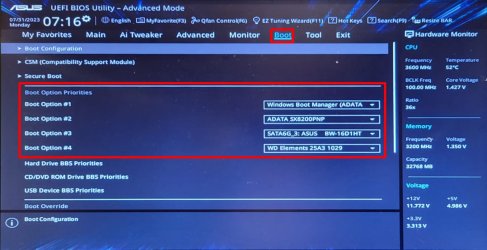
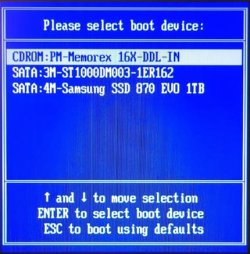
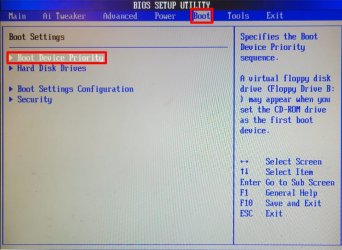
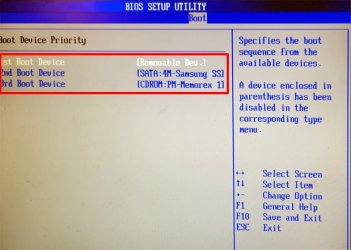
Thanks for your reply.My motherboard is an Asus Prime 250M-Plus.None of those pictures you posted look like the motherboard on my PC but I will see if your information can help me set my boot order.I shouldent be this hard to set boot order on any motherboard.
Now you know why people had such a hard time answering you question. They didn't know which ASUS motherboard you have.
The answer is in your motherboard manual. You can download that from the ASUS support site.
To enter BIOS Setup at startup:
Press <Delete> or <F2> during the Power-On Self Test (POST). If you do not press <Delete> or <F2>, POST continues with its routines.
To enter BIOS Setup after POST:
Press <Ctrl>+<Alt>+<Del> simultaneously.
Press the reset button on the system chassis.
Press the power button to turn the system off then back on. Do this option only if you failed to enter BIOS Setup using the first two options
The manual doesn't give all the details of what is in the BIOS. I don't have a motherboard like yours. I have an ASUS Prime X370-Pro that I bought in April 2017. It is not an Intel motherboard but an AMD one. However, since it is probably about the age its BIOS setup may be similar.
1. When you first boot your computer hit
F8 multiple times to get to the Boot menu. This selection is one time only.

2. When you first boot your computer hit
ESC key multiple times to get to the BIOS menu.
The boot order is shown at the lower right. I think you might be able to change it there.
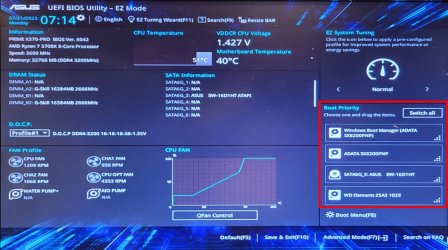
3. Below this menu is says you can hit
F8 to get to the Boot menu.

4. This is the same Boot menu shown in Step 1, i.e., changing it is one time only.
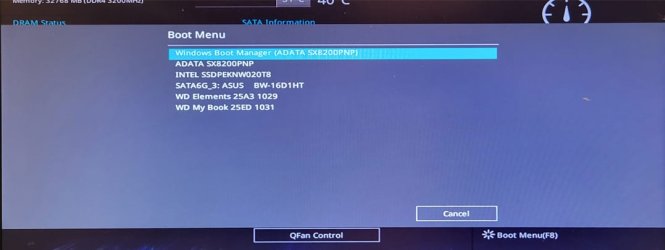
5. Hit
F7 to get to the
Advanced Menu.
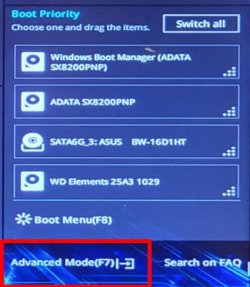
6. Select the Boot tab. You can change the boot priority. Be careful because any changes are permanent until you change it again. Note this option is only used when you first set up your computer.