Solved SSD stopped working properly

Ok I will try that later.

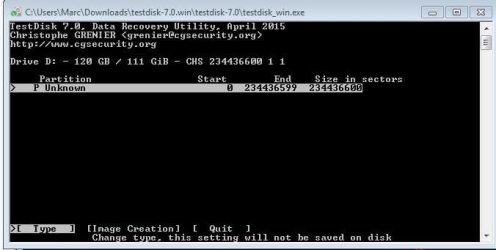
It seems some software can see it and some can't. Test Disk sees it but only lists it as a "D: Drive" rather than a "Disk" where as it shows my working HDD as both "C: Drive" and a "Disk".
 

My Computer

Computer type
PC/Desktop
OS
windows 7 ultimate sp1 64bit
Try bootice .Then we will go to TestDisk. While in bootice, after taking the screenshots, keep the mouse pointer inside the sector map window and use the mouse roller to roll through all the sectors from 2048 onwards. If it is not all zeros, your data is still there.

I didn't even want to mention TestDisk earlier because it is dangerous if you do not know how to use it. But it now seems you have already tried your hand on it. :) .

As for TestDisk you should only follow the step by step instruction given by me and never jump my instructions and experiment on your own. But that later.It is highly interactive and depending upon the screens you get one has to decide upon what command/step should be performed next and even I have to analyse the screen, think and decide upon it. It is not a set procedure. So do not hurry up. We shall do it step by step. More often than not we may have to go back and forth many times.I have noted that it is shown as Drive I. We will decide what next to do when we come to it.
 
Last edited:

My Computer

OS
Windows 7 Home Premium 32 bit
On Bootice it shows in the list of drives but when I select it I receive an error message.

Read File Failed! The System cannot find the file specified
 

My Computer

Computer type
PC/Desktop
OS
windows 7 ultimate sp1 64bit
OK then. On to TestDisk. Since I am already sleepy I am hurrying up a little :).*yawn*

Download from here TestDisk Download - CGSecurity. You should only download the Windows version ( second in the list) and not the Windows 64 bit version. Run testdisk_win.exe

First Screen No Log Enter

Second Screen: You already said that your 120GB SSD does nt appear as Disk but appears as Drive I:

In that case highlight Drive I: ( Make sure you select the correct 120GB Drive by its drive letter. [Proceed] is highlighted. Press Enter.

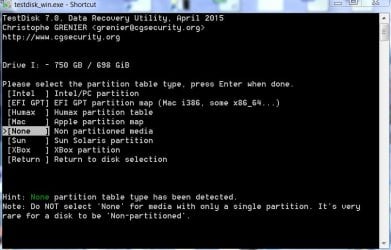
Third Screen: Highlight [None] (if not highlighted already) and Press Enter.

B01-02-2017 22-37-41.jpg

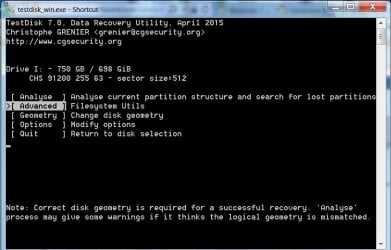
Fourth Screen: Highlight [Advanced] if not highlighted already and press Enter.

C01-02-2017 22-46-19.jpg

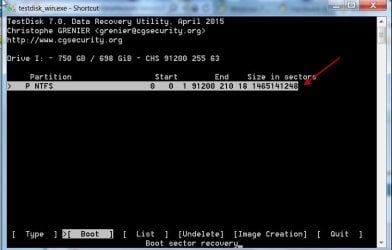
Fifth Screen: Do you see a partition highlighted?

[Boot] is highlighted ??? No, we don't want it. Move the highlight to
  • using the Right arrow key and then Press Enter.

    D01-02-2017 22-52-39.jpg

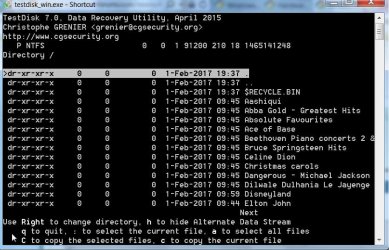
    Do you see your folders/files? If you see you have struck Gold. Mackenna's Gold. Post a screenshot.

    E01-02-2017 23-02-52.jpg

    If you hit dust during this procedure, close TestDisk and blame jumanji. He has nothing else to offer. Seek professional data recovery.

    In case you see the folders and files How to copy?

    You must plug in another external drive with adequate space. Create a folder named Recovery. That will be your destination to copy. After this rerun TestDisk till you reach the screen showing the folders. Copy to J:/Recovery ( if your external drive shows as J: in TestDisk. )

    Post #28 here My external hard drive suddenly became unllocated: on how to.

    I am hitting the sack now. Report how it went. Good luck.
 

My Computer

OS
Windows 7 Home Premium 32 bit
I can see the partition. If i change the type to NTFS then press list it says cant open filesystem. Filesystem seems damaged.

Is it worth trying to create an image of the partition and then putting the image onto another new drive to try repair/restore from there?
 

Attachments

  • Test Disk.JPG
    Test Disk.JPG
    30.4 KB · Views: 19

My Computer

Computer type
PC/Desktop
OS
windows 7 ultimate sp1 64bit
Update Jumanji, I AM GETTING SOMEWHERE!! I thought to myself that windows is getting me nowhere and isn't helping so as a last resort I will try a Linux live boot CD, specifically system rescue which includes Gparted and test disk as I am sure you know.

Started up via boot CD, loaded Test disk. It sees my SSD as a disk not a drive! Ran analysis, it finds my lost partition but notes no partition is bootable. But it sees it as an NTFS partition. I select list files......VOILA THERE ARE ALL MY FILES AND FOLDERS! I tried to write partition table as per your guide on these forums which it said was successful. Rebooted back into windows but unfortunately the problem remains. What would you recommend from here? Shall I just try to copy the files?

I will await on your response now as don't want to take the wrong steppes
 

My Computer

Computer type
PC/Desktop
OS
windows 7 ultimate sp1 64bit
You did a good work all except trying to write the partition table instead of copying the files. :)( If a Partition table could be written PW would have done it. The Partition Recovery Wizard proved beyond doubt that no partition table could be written. In fact no Partition Start point @Sector 2048 was found)

Yes, do rerun TestDisk from SystemRescue CD and if the files are listed copy them - Post #28 here My external hard drive suddenly became unllocated: on how to. ( BTW, The System Rescue CD must be having an older version of TestDisk. The older versions will show only Disks and not drives. And that proved to be a boon in your case. I am still wondering why TestDisk running in Windows did not list files even after you asked it to consider the file system as NTFS ( changed Type ) (to the point I was almost giving up in desperation.:) ) I will ask just this question: Are you sure you are using the Windows version of TestDisk and not the Windows 64 bit version which should be used only on 64 bit systems lacking WoW64 ?))

Our effort should always be to grab the data first if those are seen and then only make any effort to write anything to the disk to restore the disk as a whole.

As long as you do not give a Write command like [Rebuild BS] you are ok. You are not making any undesirable/wrong writes to the disk.

We shall try to restore your disk and do all that jugglery only after you have copied all the files and will lose nothing when such an effort goes haywire or not possible because of a bad sector - in this case a bad memory chip at a crucial point in the disk.

Keep us posted about further progress.
 
Last edited:

My Computer

OS
Windows 7 Home Premium 32 bit
Yes definitely running the Windows version of test disk and not the 64bit version. Like you say, an older version of test disk is a bonus for me in this case it seems!

I will hopefully copy the files tonight, I have received my new SSD today (Kingston 240GB) so I will copy the files over to that. My steps will be -

Connect new SSD drive. Boot up, check bios detects drive, boot into Windows - initialise and format new SSD to NTFS using Disk manager. Create a folder called Recovery on the new SSD

Boot into Linux using SystemRescueCD. Launch Test disk

(Hopefully!) Bring up the list of missing files on my damaged SSD.

Recover all files and folders to new SSD.

Report back here :D
 

My Computer

Computer type
PC/Desktop
OS
windows 7 ultimate sp1 64bit
If you are able to recover data (and I hope you do), your final step should be to get another drive or two (HDD or SSD) and make a backup or two of your data. The next time you have a drive failure, you may not be lucky enough to recover your data unless you have backups you can recover from.
 

My Computer

Computer type
PC/Desktop
Computer Manufacturer/Model Number
Custom Build
OS
Win 7 Ultimate 64 bit
CPU
Intel i7-3930K
Motherboard
ASUS P9X79 WS
Memory
Kingston HyperX Genesis 32GB Kit (8x4GB Modules) 1600MHz DDR
Graphics Card(s)
MSI R7850 Twin Frozr 2GD5/OC Radeon HD 7850 2GB 256-bit GDDR
Sound Card
Asus Xonar Essence STX
Monitor(s) Displays
3x Asus VG248QE 24", Vizio 32" TV
Screen Resolution
1920 x 1080, ?
Hard Drives
Samsung 128GB 840 Pro SSD (1),
Samsung 4TB 850 EVO SSDs (4)
Samsung 4TB 850 EVO SSDs (16) external backup drives used in 2.5" hot swap bays in the computer.
PSU
Corsair HX750w
Case
Antec Two Hundred v2 (modified)
Cooling
Cooler Master GeminII S524 120mm (fan replaced with a 140mm)
Keyboard
Logitech G510s
Mouse
Logitech M525 (two in use)
Internet Speed
=< 32Mbps down, 8Mbps up
Antivirus
AVAST!, MBAM, SAS, Spybot S&D (all but MBAM free) Glary Util
Browser
IE11
Other Info
LSI 9211-8i HBA card (8 SATA III ports), 2.5" & 3.5" Hot Swap Bays, HooToo HT-CR001 PCI-E to USB 3.0 Internal Hub + 6 Slot Card Reader, and LG Model CH12LS28 BD-ROM Optical Drive. Also, ScanSnap S1500 ADF duplexing scanner, Canon 9000F flat bed scanner, Corsair SP2500 2.1 speakers, Samsung CLP 415nw laser color printer, Cyberpower PP2200SW UPS
Yep I plan to get a spare HDD just for back up images. What software would you recommend for creating and restoring clone images of both HDD and SSD?

Thanks
 

My Computer

Computer type
PC/Desktop
OS
windows 7 ultimate sp1 64bit
Actually, although cloning is a valuable tool for replicating a drive (such as when replacing a drive with a newer or larger one), I don't recommend cloning for backups. It takes too long and, if cloning to an SSD, wastes part of the finite write life.

First, I recommend keeping system files (OS and programs) segregated from data files. An example is putting the System files on an SSD and data on an HDD. For computers that have only one drive, the OS and programs would go on one partition and the data on a separate partition.

To backup and restore System files, imaging is the most efficient. Computer imaging is like film photography. When one takes a picture with an old style film camera, the picture taken is first made into a negative. The negative is then used to make a print (the actual picture). An image is the equivalent of a photographic negative and is used to recreate the original drive or partition.

I recommend Macrium Reflect Free for imaging (it can also be used for cloning). One reason imaging is better than cloning is one can keep multiple images on the same backup drive, such as images taken at different points in time, something you can't do with cloning.

To restore an image to a drive or partition, one needs to have some kind of rescue media. The most popular media to use is either a CD or a dedicated USB flash drive. Macrium Reflect has a provision for making a rescue CD or USB flash drive. To restore a drive, just boot into the rescue disk or flash drive, select the image you want to restore from, then let the computer do its thing.

While one can use cloning or imaging for backing up data, it is far too cumbersome and will take too long and take up too much space. For backing up data, I recommend a folder/file syncing program, such as FreeFileSync. Folder/file syncing programs, when set to Mirror (not the same as RAID 1 mirroring) for making a backup, work by comparing a folder (they consider a drive to be a folder) with the same folder on the backup drive, then copying new and changed files from the source folder (or, in the case, the entire drive or partition) to the destination folder (drive) and deleting older, duplicate files as needed to create what is essentially a clone of the source folder (drive). Since only files that have changed or been added or deleted are involved in the process, updating the backup is much faster and far more efficient than actual cloning, which involves everything on the drive every time.

Using a folder/file syncing for the first time can be daunting but after you have set up the necessary profiles, it takes only a couple, three quick mouse clicks to get the ball rolling every time you update your backup (which should be frequently). If you decide to use FreeFileSync and can't figure out how to set it up (I couldn't when I first got it), let us know and one of us can walk you through it (once you understand how it works, it's actually quite easy).

 

My Computer

Computer type
PC/Desktop
Computer Manufacturer/Model Number
Custom Build
OS
Win 7 Ultimate 64 bit
CPU
Intel i7-3930K
Motherboard
ASUS P9X79 WS
Memory
Kingston HyperX Genesis 32GB Kit (8x4GB Modules) 1600MHz DDR
Graphics Card(s)
MSI R7850 Twin Frozr 2GD5/OC Radeon HD 7850 2GB 256-bit GDDR
Sound Card
Asus Xonar Essence STX
Monitor(s) Displays
3x Asus VG248QE 24", Vizio 32" TV
Screen Resolution
1920 x 1080, ?
Hard Drives
Samsung 128GB 840 Pro SSD (1),
Samsung 4TB 850 EVO SSDs (4)
Samsung 4TB 850 EVO SSDs (16) external backup drives used in 2.5" hot swap bays in the computer.
PSU
Corsair HX750w
Case
Antec Two Hundred v2 (modified)
Cooling
Cooler Master GeminII S524 120mm (fan replaced with a 140mm)
Keyboard
Logitech G510s
Mouse
Logitech M525 (two in use)
Internet Speed
=< 32Mbps down, 8Mbps up
Antivirus
AVAST!, MBAM, SAS, Spybot S&D (all but MBAM free) Glary Util
Browser
IE11
Other Info
LSI 9211-8i HBA card (8 SATA III ports), 2.5" & 3.5" Hot Swap Bays, HooToo HT-CR001 PCI-E to USB 3.0 Internal Hub + 6 Slot Card Reader, and LG Model CH12LS28 BD-ROM Optical Drive. Also, ScanSnap S1500 ADF duplexing scanner, Canon 9000F flat bed scanner, Corsair SP2500 2.1 speakers, Samsung CLP 415nw laser color printer, Cyberpower PP2200SW UPS
Quick update - I can 100% definitely see all my files and folders which is great! They are all still there. I need help figuring out how to recover them though. Because I am working in Linux rather than Windows, I can't change directory to point to the recovery folder on my new SSD. Do I need to type a command to mount the drive/partition?

Quick update - I can 100% definitely see all my files and folders which is great! They are all still there. I need help figuring out how to recover them though. Because I am working in Linux rather than Windows, I can't change directory to point to the recovery folder on my new SSD. Do I need to type a command to mount the drive/partition?

EDIT - Nevermind, I figured the command out to mount the drive. Copied the files across to the new SSD and booted back into Windows.........SUCCESS!!! Data recovered and tested working!! Thanks very much everyone who has helped especially Jumanji, everyone's input has been helpful to resolve what looks to be a severely corrupted drive!

Now for the bonus part - Trying to get my old SSD wiped clean and working again from fresh. Suggestions?

Lady Fitzgerald - Thanks for your post on cloning/imaging. My plan is to move my Windows OS to my new SSD drive and move my data and applications that I have just recovered onto the mechanical HDD so I will definitely be trying out Macrium reflect for this.
 
Last edited:

My Computer

Computer type
PC/Desktop
OS
windows 7 ultimate sp1 64bit
:thumbsup: Congrats on your successful recovery. The whole credit goes to your ability to innovate and execute. Anyone elses's role including mine is just supplementary.( I am mentioning your using TestDisk from SystemRescueCD and catching up from thereon.) Your successful recovery will no doubt be helpful for others who may find themselves in a similar situation. To complete it,you may post the Linux command you used to mount the external destination drive so that they need not go searching for it.( Me too knows nil on Linux :) )
 

My Computer

OS
Windows 7 Home Premium 32 bit
Thanks Jumanji!

Yes good point, for anyone reading this who suffers a similar problem and has to use a Linux based rescue system you need to do the following.

Boot into the graphical OS using the CD/USB
Launch gparted or similar tool.
Note the location of the drive you wish to restore to. This will be displayed in the drives list top right on Gparted. It is likely dev/sda or dev/sdb. Close gparted once noted.
Launch a filesystem browser
Browse to 'Root' and then 'media'. Open 'media' folder.
Right click and create directory 'Recovery_disk' and then close filesystem browser
open terminal command prompt. Type the following command-

mount -t ntfs-3g /dev/sdb1 (or where ever the drive you noted earlier is located) /media/Recovery_disk

Hit enter

The folder name needs to be typed exactly including uppercase and lower case letters. Assuming no error messages are returned, the drive will now be mounted in the media\Recovery_disk folder. You can check this by using the filesystem browser, browse to the folder and check its capacity matches the size of the disk you are trying to recover too.

Run testdisk as normal and when copying files from your damaged drive, choose the media\Recovery_disk folder as the destination. Copy should complete and you can now boot back into Windows and see your files.
 

My Computer

Computer type
PC/Desktop
OS
windows 7 ultimate sp1 64bit
:thumbsup: Congrats on your successful recovery. The whole credit goes to your ability to innovate and execute. Anyone elses's role including mine is just supplementary.( I am mentioning your using TestDisk from SystemRescueCD and catching up from thereon.) Your successful recovery will no doubt be helpful for others who may find themselves in a similar situation. To complete it,you may post the Linux command you used to mount the external destination drive so that they need not go searching for it.( Me too knows nil on Linux :) )

On a separate note Jumanji, do you have any ideas how I can try to recover my corrupted SSD to wipe it clean and start again? Rebuild MBR??
 

My Computer

Computer type
PC/Desktop
OS
windows 7 ultimate sp1 64bit
That was a good and elaborate procedure and writeup (your post# 34). Thanks.

And yes, as a first measure check whether sector 0 takes the MBR.( I have my doubt whether Sector 0 is good or gone bad) Use TestDisk to write the MBR code. You can try it both in Windows as well as Linux.(Please remove all external drives so that you do not do this action on those accidenatally. Also take care that you don't do that on your system drive)

03-02-2017 10-41-56.jpg

If MBR could not be written, then your disk has gone bad and is irreparable.

Other steps:

In Linux TestDisk, select your 120GB disk, [Advanced]. When [Boot] is highlighted press enter. That will take you to the screen showing the status of the Boot Sector at sector 2048 and the backup bootsector.( remember Partition Recovery Wizard did not find the boot sector at 2048. It showed the start sector as Sector 0)

If boot sector is bad and backup bootsector is OK, then highlight [Backup BS] and press enter to write the backup to sector 2048.

If both are bad, then [Rebuild BS] and press Enter. This will rebuild the missing/corrupted boot sector at 2048.

If both boot sectors are OK, then [Repair MFT] Enter.. In most cases TestDisk will fail to repair MFT. That is when the author of TestDisk himself recommends third party commercial sotware like Getdataback.

I am not giving elaborate instructions since you have by now become a master in using TestDisk.:).
 
Last edited:

My Computer

OS
Windows 7 Home Premium 32 bit
Final Update - SSD looks dead and cant be saved. I think there is a physical failure with the drive. In Linux I used test disk to check the boot section. It reported boot ok but back up boot bad. I rebuilt MBR, still no good and in Windows its still seen as a bad disk by PW. Disk manager sees everything as all good which it has all along.

Again in Linux I tried Gparted to format the drive which it appears to have done successfully. Test disks shows the partition as new clean and empty but in Windows it still recognises it as a bad disk so it looks a write off in terms of recovery the disk itself. Nothing else I can try I don't think.

At least I got the data though!
 

My Computer

Computer type
PC/Desktop
OS
windows 7 ultimate sp1 64bit
Back
Top