Startup Programs - Change

How to Change, Add, or Remove Startup Programs in Windows 7

   Information
This will show you how to either add, remove, enable, or disable a startup program in Windows 7.
   Note
You can also view the startup logs in Event Viewer (C:\Windows\system32\eventvwr.msc) under Applications and Services Logs, Microsoft, Windows, Diagnostics-Performance, and Operational. The logs will be in the middle to show you what ran at startup, how long it took, and more.
   Warning
User Account Control prevents programs that require elevated (run as administrator) permission or an administrator password from running automatically when Windows 7 starts. If a program is blocked, you'll see a message in the notification area that says some startup programs need permission to run. You can then right click on the notification area message and either select to run the blocked program by giving UAC permission, remove the blocked program from the startup program list, or ignore the notification and not run the program.


:note: For the Windows 10 tutorial please see here - Startup Items - Add, Delete, Enable, Disable in Windows 10 - Windows 10 Tutorials


METHOD ONE

Through the Program Itself


NOTE: Some programs may have a setting in them to allow it to run at startup or not. You will need to consult the program's documentations on how to do this specifically for their program if it is available for that program.
1. Open the program's settings menu.

2. To Add the Program to Startup
A) Select the program's Run at startup type option.
3. To Remove the Program from Startup
A) Unselect the program's Run at startup type option.


METHOD TWO

Through the Startup Folder


NOTE: You can add or remove shortcuts to programs or files from the Startup folder to have them run or open at the startup of Windows 7.

1. Right click on the exe file of the program you want to run at startup, or file to open at startup, and click on Create Shortcut.
NOTE: This is the shortcut that you will add to the Startup folder in either Option One or Option Two below. Skip this step if you are only removing a shortcut from the Startup folder.
A) Do either OPTION ONE "Current User" or OPTION TWO "All Users" below for what you want.


OPTION ONE

For Current Single User Only


:note:NOTE: The single (current) user Startup folder is a hidden system folder located at:
C:\Users\(User-Name)\AppData\Roaming\Microsoft\Windows\Start Menu\Programs\Startup
2. Open the Start Menu, click on All Programs, right click on the Startup folder, click on Open or Explore, and go to step 4 below. (See screenshot below)
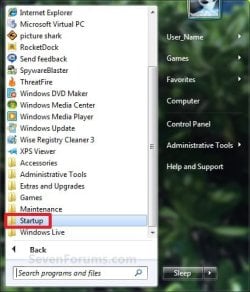
Start_Menu_Startup_Folder.jpg
OR

3. In the Start Menu search line, type shell:startup, press Enter, and go to step 4 below. (See screenshot below)
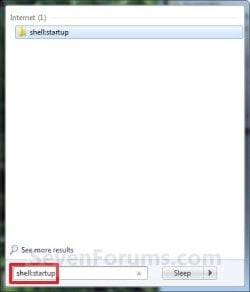
Start_Menu_shell-Startup.jpg
4. Do step 5 or 6 below for what you would like to do.

5. To Add a Startup Program or File Shortcut
A) Drag the shortcut created from step 1 to inside the Startup folder and drop it. (See screenshot below)
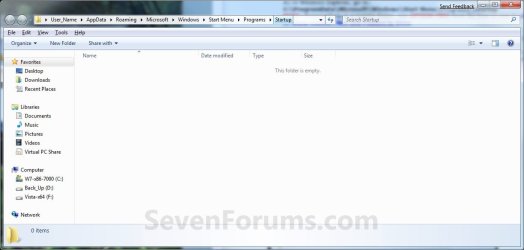
Startup_Folder.jpg
6. To Remove a Startup Program or File Shortcut
A) Right click on the shortcut in the Startup folder and click on Delete. (See screenshot above)
7. Close the Startup folder when done. (See screenshot below step 5A)


OPTION TWO

For All Users


:note:NOTE: The all users Startup folder is a hidden system folder located at:

C:\ProgramData\Microsoft\Windows\Start Menu\Programs\Startup
2. Open the Start Menu, click on All Programs, right click on the Startup folder, click on Open All Users or Explore All Users, and go to step 4 below. (See screenshot below)
Start_Menu_Startup_Folder.jpg
OR

3. In the Start Menu search line, type shell:common startup, press Enter, and go to step 4 below.

4. Do step 5 or 6 below for what you would like to do.

5. To Add a Startup Program or File Shortcut
A) Drag the shortcut created from step 1 to inside the Startup folder and drop it. (See screenshot below)
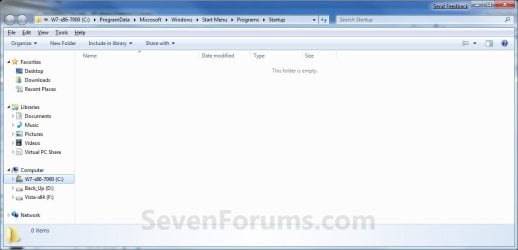
Startup_Folder_All.jpg
6. To Remove a Startup Program or File Shortcut
A) Right click on the shortcut in the Startup folder and click on Delete. (See screenshot above)
6. Close the Startup folder when done. (See screenshot below step 4A)


METHOD THREE

Through System Configuration (msconfig)


NOTE: Using the Selective Startup option in System Configuration (msconfig), you can enable or disable startup programs. You will need to be logged into an administator account, or provide the administrator password to open System Configuration.

WARNING: It would be best to also check the registry entries in METHOD FOUR below as well, since msconfig may not always show all startup programs.
1. Open the Start Menu, type msconfig in the search box, press Enter, and go to step 3 below. (See screenshot below)
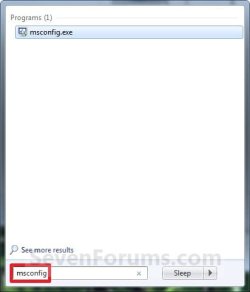
Start_Menu_msconfig.jpg
OR

2. Open the Control Panel (icons view) and click on the Administrative Tools icon, then click on System Configuration. Close the Control Panel and Administrative Tools windows.

3. If prompted, click on Continue for the UAC prompt, or type in the administrator's password.

4. Click on the Startup tab. (See screenshot below)

   Tip
If you look under the Location column for the Start Item, you will see the registry location for it that you can use to remove the startup item using METHOD FOUR below instead.
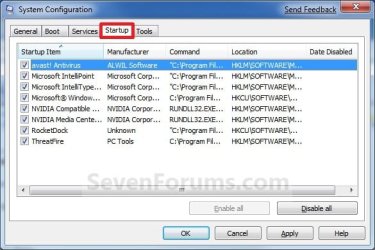
System_Configuration_Startup_Tab.jpg
5. To Disable a Startup Program
A) Select a listed startup program and uncheck it. (See screenshot above)

B) Repeat to disable anymore listed startup programs.
6. To Enable a Startup Program
A) Select a listed startup program and check it. (See screenshot below step 4)

B) Repeat to enable anymore listed startup programs.
7. To Disable All Listed Startup Programs
A) Click on the Disable all button. (See screenshot below step 4)

B) Go to step 9.
8. To Enable All Listed Startup Programs
A) Click on the Enable all button. (See screenshot below step 4)
9. Click on Apply. (See screenshot below step 4)

10. Click on the Boot tab, then check the Make all boot settings permanent box and click on OK. (See screenshot below)
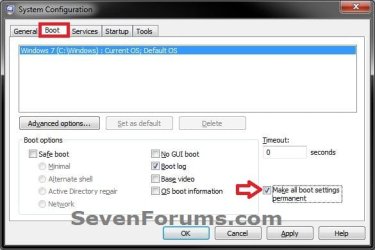
Boot-1.jpg
11. Click on Yes. (See screenshot below)
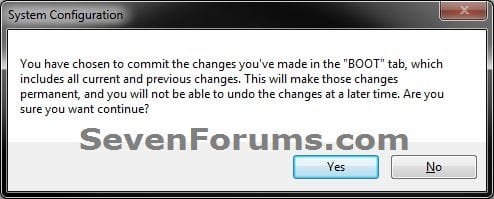
Boot-2.jpg
12. Click on the Restart button to apply. (See screenshot below)
WARNING: This will restart your computer immediately. Save and close anything that you are working on first.
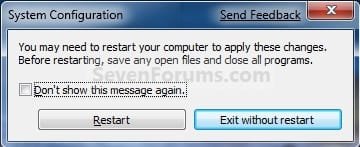
Restart.jpg


METHOD FOUR

Manually in Registry Editor


NOTE: This will allow you to remove a startup program for either the current single user or all users. If you wanted to add a startup program, then METHOD TWO above would be a safer and easier way to do so.
1. Open the Start Menu.

2. In the search line, type regedit and press Enter. (See screenshot below)
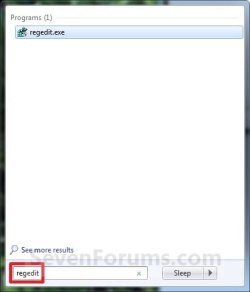
Start_Menu_regedit.jpg
3. For "Current User" Only Locations
A) In regedit, go to: (See screenshots below)

HKEY_CURRENT_USER\Software\Microsoft\Windows\CurrentVersion\Run
AND
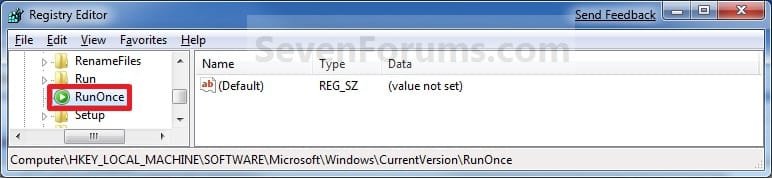
HKEY_CURRENT_USER\Software\Microsoft\Windows\CurrentVersion\RunOnce
Current_Reg_Run.jpg

Current_Reg_RunOnce.jpg
4. For "All Users" Locations
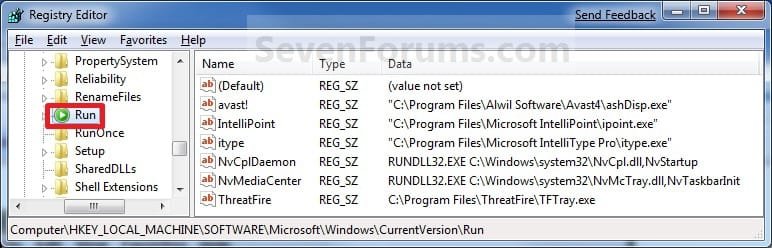
A) In regedit, go to: (See screenshots below)
For 32-bit and 64-bit Windows 7:
HKEY_LOCAL_MACHINE\SOFTWARE\Microsoft\Windows\CurrentVersion\Run
AND
HKEY_LOCAL_MACHINE\SOFTWARE\Microsoft\Windows\CurrentVersion\RunOnce
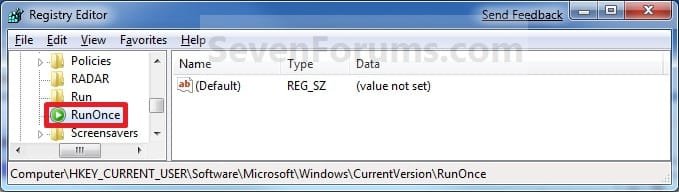
AND (If added by Group Policy)
HKEY_CURRENT_USER\Software\Microsoft\Windows\CurrentVersion\Policies\Explorer\Run
AND (If added by Group Policy)
HKEY_LOCAL_MACHINE\SOFTWARE\Microsoft\Windows\CurrentVersion\Policies\Explorer\Run
AND
For 64-bit Windows 7 only:
HKEY_LOCAL_MACHINE\SOFTWARE\Wow6432Node\Microsoft\Windows\CurrentVersion\Run
AND
HKEY_LOCAL_MACHINE\SOFTWARE\Wow6432Node\Microsoft\Windows\CurrentVersion\RunOnce
All_Users_Reg_Run.jpg

All_Users_Reg_RunOnce.jpg
5. In the right pane of Run and/or RunOnce, right click on the startup program you want to remove and click on Delete. (See screenshots above)
NOTE: RunOnce is only to run the program once for the next time that Windows 7 starts up. Run is to run the program everytime that Windows 7 starts up.

6. Click on Yes to confirm deletion.

7. When done, close regedit.


METHOD FIVE

Using CCleaner


1. If you have not already, download and install the free program CCleaner.

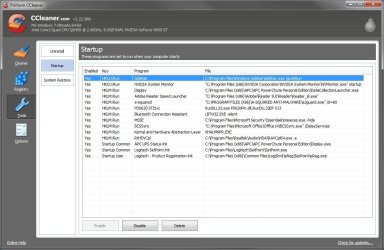
2. Open CCleaner, and click on the Tools icon (left side) and on the Startup button. (See screenshot below)
CCleaner.jpg
3. Select a startup item, then either enable, disable, or delete it from the Vista startup programs list. (See screenshot above)


METHOD SIX

Through Task Scheduler


   Note
By default, you cannot run a elevated (Run as administrator) program that requires UAC permission at startup using the normal Windows 7 startup programs above.

For a Administrator User Account:
You can have Run as administrator (elevated) programs run at startup for a administrator account by running it in a startup task in Task Scheduler.

For a Standard User Account:
You will not be able to run elevated programs at startup for a standard user account though. Only unelevated programs (ex: Notepad).


1. For how to create a startup task, see:

How to Create a Task to Run a Program at Startup and Log On in Windows 7
That's it,
Shawn


Last edited:
in the past i used Startup Control Panel
autorun looks to aggressive

is there a tool safe to use?
 

My Computer

Computer type
PC/Desktop
OS
windows 7 ultimate 64bit
Hello Drugo,

It depends on what you are wanting to do. If you are just wanting to enable, disable, or delete startup programs, then using CCleaner from OPTION FIVE is a good and easy choice to do so. :)
 

My Computer

Computer type
PC/Desktop
Computer Manufacturer/Model Number
Self built custom
OS
64-bit Windows 11 Pro for Workstations
CPU
Intel i7-8700K OC'd to 5 GHz
Motherboard
ASUS ROG Maximus XI Formula Z390
Memory
64 GB (4x16GB) G.SKILL TridentZ RGB DDR4 3600 MHz
Graphics Card(s)
ASUS ROG-STRIX-GTX1080TI-O11G-GAMING
Sound Card
Integrated
Monitor(s) Displays
2 x Samsung Odyssey G7 27"
Screen Resolution
2560x1440
Hard Drives
1TB Samsung 990 PRO M.2,
4TB Samsung 990 PRO PRO M.2,
TerraMaster F8 SSD Plus NAS
PSU
Seasonic Prime Titanium 850W
Case
Thermaltake Core P3
Cooling
Corsair Hydro H115i
Keyboard
Logitech wireless K800
Mouse
Logitech MX Master 4
Internet Speed
2 Gb/s Download and 100 Mb/s Upload
Antivirus
Malwarebyte Anti-Malware Premium
Browser
Google Chrome
Other Info
Logitech Z625 speaker system,
Logitech BRIO 4K Pro webcam,
HP Color LaserJet Pro MFP M477fdn,
APC SMART-UPS RT 1000 XL - SURT1000XLI,
Galaxy S23 Plus phone
can i throw everything in the current user in the reg edit since im the only user since there are both all users and curent user start up ?? and vice verse the admin
 

My Computer

Computer type
PC/Desktop
Computer Manufacturer/Model Number
Emachines
OS
Windows 7 64 bit Pro
CPU
2.70 gigahertz AMD Athlon II X2 235e 256 kilobyte Pri Memory
Motherboard
Board: eMachines MCP61PM-GM
Memory
5888 Megabytes Usable Installed Memory
Graphics Card(s)
GeForce 6150SE nForce 430
Hard Drives
Backup B:\\ ST350031 2CS SCSI Disk Device (500.11 GB) -- drive 0, s/n 6VV1V14G, SMART Status: Healthy

OS C:\\ ST375052 8AS SCSI Disk Device (750.15 GB) -- drive 1, s/n 5VP1YPDS, SMART Status: Healthy
Antivirus
AVG Free
Browser
Firefox
Hello PcWizKid,

Sure if you would like to. :)
 

My Computer

Computer type
PC/Desktop
Computer Manufacturer/Model Number
Self built custom
OS
64-bit Windows 11 Pro for Workstations
CPU
Intel i7-8700K OC'd to 5 GHz
Motherboard
ASUS ROG Maximus XI Formula Z390
Memory
64 GB (4x16GB) G.SKILL TridentZ RGB DDR4 3600 MHz
Graphics Card(s)
ASUS ROG-STRIX-GTX1080TI-O11G-GAMING
Sound Card
Integrated
Monitor(s) Displays
2 x Samsung Odyssey G7 27"
Screen Resolution
2560x1440
Hard Drives
1TB Samsung 990 PRO M.2,
4TB Samsung 990 PRO PRO M.2,
TerraMaster F8 SSD Plus NAS
PSU
Seasonic Prime Titanium 850W
Case
Thermaltake Core P3
Cooling
Corsair Hydro H115i
Keyboard
Logitech wireless K800
Mouse
Logitech MX Master 4
Internet Speed
2 Gb/s Download and 100 Mb/s Upload
Antivirus
Malwarebyte Anti-Malware Premium
Browser
Google Chrome
Other Info
Logitech Z625 speaker system,
Logitech BRIO 4K Pro webcam,
HP Color LaserJet Pro MFP M477fdn,
APC SMART-UPS RT 1000 XL - SURT1000XLI,
Galaxy S23 Plus phone
Nice Write up brink :)

Im sure this will help many people :)
 

My Computer

Computer type
PC/Desktop
Computer Manufacturer/Model Number
Custom Build
OS
Windows 7 Ultimate 64-bit
CPU
Intel G3420 3.2GHZ Dual Core
Motherboard
Gigabyte H87-HD3
Memory
Kingson 8GB 1600mhz
Graphics Card(s)
MSI R7970 TF 3GD5/OC BE
Monitor(s) Displays
21" LG & "19 Vertical Samsung
Hard Drives
120GB SSD - Boot
1TB WD
350GB External
2TB External (Wireless)
PSU
Corsair CX 500 modular
Case
Zalman Z11 Plus (modified)
Cooling
Corsair H55, 2x 120mm SP Corsair, 1x 140 Coolermaster
Keyboard
Corsair K50
Mouse
CSL Gaming
Internet Speed
164Mbps
Antivirus
Avast, Malwarebytes
Browser
Google Chrome, IE, Firefox
Brinks a popular man ;)
 

My Computer

Computer type
PC/Desktop
Computer Manufacturer/Model Number
Custom Build
OS
Windows 7 Ultimate 64-bit
CPU
Intel G3420 3.2GHZ Dual Core
Motherboard
Gigabyte H87-HD3
Memory
Kingson 8GB 1600mhz
Graphics Card(s)
MSI R7970 TF 3GD5/OC BE
Monitor(s) Displays
21" LG & "19 Vertical Samsung
Hard Drives
120GB SSD - Boot
1TB WD
350GB External
2TB External (Wireless)
PSU
Corsair CX 500 modular
Case
Zalman Z11 Plus (modified)
Cooling
Corsair H55, 2x 120mm SP Corsair, 1x 140 Coolermaster
Keyboard
Corsair K50
Mouse
CSL Gaming
Internet Speed
164Mbps
Antivirus
Avast, Malwarebytes
Browser
Google Chrome, IE, Firefox
Joined sevenforums cause of this well explained post........thanks alot for posting!
 

My Computer

Computer type
PC/Desktop
OS
Windows 7 Ultimate x64

My Computer

Computer type
PC/Desktop
Computer Manufacturer/Model Number
Own build (new) Desk1 / Asus ROG Win 7 / Desk2 1st build
OS
Desk1 7 Home Prem / Desk2 10 Pro / Main lap Asus ROG 10 Pro 2 laptop Toshiba 7 Pro Asus P2520 7 & 10
CPU
Desk1 i5 3750K / Laptop i7 GTX 860M / Desk2 i5 2500
Motherboard
Desk1 Asus P877-V / Desk2 Gigabyte H67 UD3H / Laptop ?
Memory
Desk1 8GB (1866) / Desk2 16GB (1333) / Laptop 8Gb DDR3
Graphics Card(s)
Desk 1& 2NVidia GTX 650 & Laptops on board Intel
Sound Card
Desk 1 & 2 -XONAR DG Realtek High Def audio Laptop
Monitor(s) Displays
Desk 1 Benq HD 2450 / Desk2 Philips 24" / Laptop 17.5"
Screen Resolution
1920x1080 D1 & D2 & Laptop 1
Hard Drives
Desk1 Samsung 120GB 830 SSD
Asus ROG 256GB 850 Pro SSD
Desk2 Samsung 840 256 SSD
Toshiba 120GB EVO
PSU
Desk 1 Corsair HX 1050/ Laptop ? / Desk 2 Corsair HX 650
Case
Desk 1 Cooler HAF XM ? Toshiba laptop / Desk2 Coolermaster
Cooling
Fans on all Desk1 -2 Desk2 - all Coolermasters 5 Laptop ?
Keyboard
Desk 1 MS Sidewinder X6 Desk 2 MS Sidewinder X 4
Mouse
Desk 1&2 - Gigabyte MS 900 gamer - laptop - Logitec wireless
Internet Speed
ADSL2+
Other Info
One other Desktop (tester) and spare Toshba laptop both with SSD's
Running Kaspersky 2016 ISS on all machines config'd identically
Logitec audio stereo systems on each machine (x3)
Canon MG5250MFC
Router/modem TP-Link running WPA2SK
Very complete, clear guidance. One suggestion: explicitly note that you _cannot_ use Start > "All Programs" > "Search programs and files" to find Startup folder.
 

My Computer

Computer type
PC/Desktop
OS
Multiple: XP, Vista32, 7(64), 7(32), 8.1(64), 10(64)

My Computer

Computer type
PC/Desktop
Computer Manufacturer/Model Number
Own build (new) Desk1 / Asus ROG Win 7 / Desk2 1st build
OS
Desk1 7 Home Prem / Desk2 10 Pro / Main lap Asus ROG 10 Pro 2 laptop Toshiba 7 Pro Asus P2520 7 & 10
CPU
Desk1 i5 3750K / Laptop i7 GTX 860M / Desk2 i5 2500
Motherboard
Desk1 Asus P877-V / Desk2 Gigabyte H67 UD3H / Laptop ?
Memory
Desk1 8GB (1866) / Desk2 16GB (1333) / Laptop 8Gb DDR3
Graphics Card(s)
Desk 1& 2NVidia GTX 650 & Laptops on board Intel
Sound Card
Desk 1 & 2 -XONAR DG Realtek High Def audio Laptop
Monitor(s) Displays
Desk 1 Benq HD 2450 / Desk2 Philips 24" / Laptop 17.5"
Screen Resolution
1920x1080 D1 & D2 & Laptop 1
Hard Drives
Desk1 Samsung 120GB 830 SSD
Asus ROG 256GB 850 Pro SSD
Desk2 Samsung 840 256 SSD
Toshiba 120GB EVO
PSU
Desk 1 Corsair HX 1050/ Laptop ? / Desk 2 Corsair HX 650
Case
Desk 1 Cooler HAF XM ? Toshiba laptop / Desk2 Coolermaster
Cooling
Fans on all Desk1 -2 Desk2 - all Coolermasters 5 Laptop ?
Keyboard
Desk 1 MS Sidewinder X6 Desk 2 MS Sidewinder X 4
Mouse
Desk 1&2 - Gigabyte MS 900 gamer - laptop - Logitec wireless
Internet Speed
ADSL2+
Other Info
One other Desktop (tester) and spare Toshba laptop both with SSD's
Running Kaspersky 2016 ISS on all machines config'd identically
Logitec audio stereo systems on each machine (x3)
Canon MG5250MFC
Router/modem TP-Link running WPA2SK
Very complete, clear guidance. One suggestion: explicitly note that you _cannot_ use Start > "All Programs" > "Search programs and files" to find Startup folder.
But you can find the Startup folder via "Search programs and files".

See Method Two, Option One or Option Two in the tutorial.

There is no need to click on "All Programs", but it does not hurt to do so.

Perhaps your post was requesting that the tutorial explicitly note that you _cannot_ find either of the Startup folders via the "Search programs and files" field if one merely enters startup as the search criteria. The search field's name even implies that it won't find folders :-)
 

My Computer

Computer type
Laptop
Computer Manufacturer/Model Number
Employer provided Dell Latitude
OS
W7 Pro SP1 64bit
CPU
i7
Memory
8GB
Graphics Card(s)
Intel HD Graphics
Hard Drives
crappy SSD
Antivirus
Employer mandated Symantec Endpoint Protection
Browser
Pale Moon 64bit, IE11 64bit & Chrome 64bit
I know this is a terribly old thread, I could not find a newer one to post a great solution.


StartupCPL_EXE.zip
Download Startup Control Panel Standalone Version - MajorGeeks

easy peasy, have used it on over 10 thousand machines.....xp, 2000, 7, 8, and 10.......add delete change, just drop-drag your exe to it, and there you go. :)


PS I just lovvvvvvvvvve freeware, while you are at it, snoop his Startup Monitor, great as well.
Mike Lin's Home Page
 

My Computer

OS
XP Pro-Hm
It's funny you mention StartupCPL. I've been using that bit of code since XP! And it works to this day STILL in Windows 7. Though, I tried it in 10 and I may have the wrong version and have yet to investigate further because it didn't work. Reason I never looked into any further is that I mostly use a now Microsoft owned product (free) called Autoruns. Autoruns takes the cake and the candles in terms of helping to control statups and whatnot. But hear this: if you disable stuff in one version of Autoruns, it may not be able to be started again in another version of Autoruns. So keep that in mind if you tend to upgrade versions. I still think the older version of Autoruns loads faster and its GUI (Graphics User Interface) is much better. So because of that I still use the older version of Autoruns if I can. If I'm helping someone on a tech forum like this forum however, and if I ask for an Autoruns saved ARN file, then I have to use the new version of Autoruns to read the saved ARN file. Not an issue because Autoruns is a standalone portable application requiring no installation. So you can use multiple versions. But bear in mind again, only use one version of Autoruns to mess around with startups in the computer because other versions may not have the disabled startups reflected in another version of Autoruns.

Another note. Autoruns is a very powerful program, and like Peter Parker's father once said, "with great power comes great responsibility." So take care of what you disable or delete in Autoruns... It could mess up your system. So a little know-how goes a long way including the use of the nearest search engine... And no, Google was never anyone's friend...


Addendum:

The one thing I don't like about Autoruns is that you can't add an entry to it like you can in StarupCPL.
 

My Computer

Computer type
PC/Desktop
OS
Windows 7 Ultimate x64
Back
Top