
System Repair Disc - Create

How to Create a Windows 7 System Repair Disc

   Information
This will show you how to create a Windows 7 system repair disc to be able to use to boot to system recovery options to help recover your Windows 7 installation if you don't have a Windows installation disc, can't find your Windows installation disc, or can't access the recovery options provided by your computer manufacturer.

A system repair disc is not able to install Windows 7.

   Note
If you are unable to boot your Windows 7 to create a Windows 7 System Repair Disc, then you could create it on another computer to use on your computer.

   Warning

  • A system repair disc is not the same as a OEM factory recovery/restore disc.
  • A system repair disc is not an installation disc. You cannot do a repair install or install Windows 7 with a system repair disc.
  • A system repair disc can only be used to repair Windows 7 through the system recovery options.
  • 32-bit System Repair Disc can only be created on a 32-bit Windows 7.
  • 64-bit System Repair Disc can only be created on a 64-bit Windows 7.
  • 32-bit System Repair Disc can only be used to repair a 32-bit Windows 7.
  • 64-bit System Repair Disc can only be used to repair a 64-bit Windows 7.

:note: For Windows 10, see the following link - System Repair Disc - Create in Windows 10 - Windows 10 Tutorials

EXAMPLE: System Recovery Options
NOTE: Using the System Repair Disc that you have created below, you can boot to the system recovery options screen below.
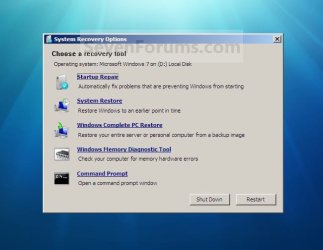
System_Recovery_Options.jpg


Here's How:
1. Open the Start Menu, then type recdisc.exe in the search box and press Enter.
A) Go to step 3.
OR

2. Open the Control Panel (icons view), and click on the Backup and Restore icon.
A) Click on the Create a System repair disc link in the left blue pane. (See screenshot below)
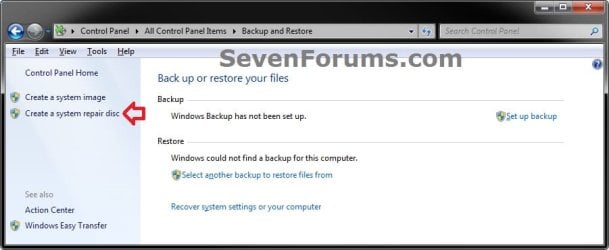
Backup_and_Restore.jpg
3. Insert a blank unformatted CD or DVD into your CD/DVD drive and click on the Create disc button. (See screenshot below)
NOTE: If you are prompted to insert a Windows installation disc, it means that the files needed to create the system repair disc cannot be found on your computer. Insert a Windows 7 installation disc.
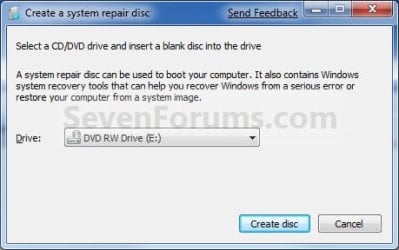
Step1.jpg
4. It will now start creating the System Repair Disc. (See screenshot below)
NOTE: If a AutoPlay window pops up, just close it.
Step2.jpg
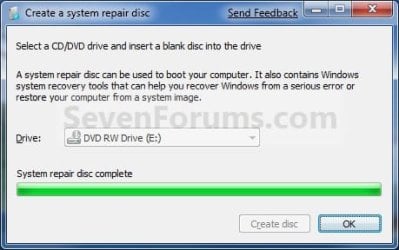
5. When it's finished, click on the Close button. (See screenshot below)
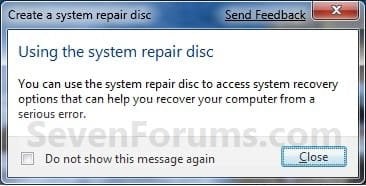
Step3.jpg
6. Click on OK. (See screenshot below)
Step4.jpg
7. Remove and label your new Windows 7 System Repair Disc from the CD/DVD drive.

   Tip
If you would like to create a bootable System Repair USB flash drive, then you could use the free program ImgBurn to create an ISO file with this Windows 7 System Repair Disc (DVD), then use the Part 1 section in the tutorial below to extract the ISO file to a USB flash drive.

Windows 7 USB/DVD Download Tool


That's it,
Shawn


Last edited:
When downloading the .iso file, does it matter which version (Home, Ultimate, Professional) I download to use? Does it have to be the same as the computer that I am repairing?
 

My Computer

OS
Windows 7 x64
It must be the same 32-bit or 64-bit version. It doesn't have to be the same edition, but it would be best if it was.
 

My Computer

Computer type
PC/Desktop
Computer Manufacturer/Model Number
Self built custom
OS
64-bit Windows 11 Pro for Workstations
CPU
Intel i7-8700K OC'd to 5 GHz
Motherboard
ASUS ROG Maximus XI Formula Z390
Memory
64 GB (4x16GB) G.SKILL TridentZ RGB DDR4 3600 MHz
Graphics Card(s)
ASUS ROG-STRIX-GTX1080TI-O11G-GAMING
Sound Card
Integrated
Monitor(s) Displays
2 x Samsung Odyssey G7 27"
Screen Resolution
2560x1440
Hard Drives
1TB Samsung 990 PRO M.2,
4TB Samsung 990 PRO PRO M.2,
TerraMaster F8 SSD Plus NAS
PSU
Seasonic Prime Titanium 850W
Case
Thermaltake Core P3
Cooling
Corsair Hydro H115i
Keyboard
Logitech wireless K800
Mouse
Logitech MX Master 4
Internet Speed
2 Gb/s Download and 100 Mb/s Upload
Antivirus
Malwarebyte Anti-Malware Premium
Browser
Google Chrome
Other Info
Logitech Z625 speaker system,
Logitech BRIO 4K Pro webcam,
HP Color LaserJet Pro MFP M477fdn,
APC SMART-UPS RT 1000 XL - SURT1000XLI,
Galaxy S23 Plus phone
Okay, thank you. I was checking through the downloads on the dell link you provided a few posts ago, but there was no option for Enterprise, so what would be the best fit from the other three?
 

My Computer

OS
Windows 7 x64

My Computer

Computer type
PC/Desktop
Computer Manufacturer/Model Number
Self built custom
OS
64-bit Windows 11 Pro for Workstations
CPU
Intel i7-8700K OC'd to 5 GHz
Motherboard
ASUS ROG Maximus XI Formula Z390
Memory
64 GB (4x16GB) G.SKILL TridentZ RGB DDR4 3600 MHz
Graphics Card(s)
ASUS ROG-STRIX-GTX1080TI-O11G-GAMING
Sound Card
Integrated
Monitor(s) Displays
2 x Samsung Odyssey G7 27"
Screen Resolution
2560x1440
Hard Drives
1TB Samsung 990 PRO M.2,
4TB Samsung 990 PRO PRO M.2,
TerraMaster F8 SSD Plus NAS
PSU
Seasonic Prime Titanium 850W
Case
Thermaltake Core P3
Cooling
Corsair Hydro H115i
Keyboard
Logitech wireless K800
Mouse
Logitech MX Master 4
Internet Speed
2 Gb/s Download and 100 Mb/s Upload
Antivirus
Malwarebyte Anti-Malware Premium
Browser
Google Chrome
Other Info
Logitech Z625 speaker system,
Logitech BRIO 4K Pro webcam,
HP Color LaserJet Pro MFP M477fdn,
APC SMART-UPS RT 1000 XL - SURT1000XLI,
Galaxy S23 Plus phone
Thanks for the tutorial.

I do some IT support. I know you can dual boot 7 for 32 and 64 bit editions, but could I create a setup on a USB stick to dual boot for Win 7 SP1 Repair 32 and 64 bit versions? What I'm thinking in fact is to have a usb stick with 5 partitions, 2 for the aforementioned, 2 for SP2 when it comes out and a fifth partition for data/storage. I guess it would also be beneficial to put the respective ISO files in each partition. Any ideas on how to go about this would be much appreciated.
 

My Computer

Computer Manufacturer/Model Number
Dell Inspiron 1564
OS
Windows 7 Home Premium 64bit
CPU
i3 2.13 GHz
Memory
4 GB
Hard Drives
460 GB
thank-you a great tutorial. I have made a repair disk but it's on a re-writable disk is that OK or should it be on a normal DVD disk or CD ?
 

My Computer

Computer Manufacturer/Model Number
HP G62 Notebook PC
OS
Microsoft Windows 7 Home Premium 64-bit SP1
CPU
AMD Phenom II N830 / AMD Phenom II N830 Triple-Core Proces
Motherboard
Hewlett-Packard 143B (Socket S1G4)
Memory
2x 2GB DIMM Samsung 1334MHz ( total 4GB system memory )
Graphics Card(s)
AMD M880G with ATI Mobility Radeon HD 4250 (HP)
Sound Card
Realtek High Definition/ ATI High Definition Audio Device
Monitor(s) Displays
39.6cm(15.6")diagonal HD LED HP BrightView Widescreen
Screen Resolution
(1366x768@60Hz)
Hard Drives
TOSHIBA MK5056GSY SATA Disk Device 450.07 GB (300.79 GB free), File System NTFS
Internet Speed
1.98MB/s<<download) 0.12MB/s <<upload) 63ms<<ping) 23/12/12
Browser
Chrome Version 25.0.1364.152 / Firefox 19.0.2
Other Info
Xbox 360 / 250GB HDD model
thank-you a great tutorial. I have made a repair disk but it's on a re-writable disk is that OK or should it be on a normal DVD disk or CD ?

A normal or re-writable DVD will be fine.
 

My Computer

Computer type
PC/Desktop
Computer Manufacturer/Model Number
Golden Mk. I.4
OS
Windows 10 Pro x64 ; Xubuntu x64
CPU
Intel i7 860 @ 2.80 GHz O/C'ed to 4.0GHz
Motherboard
Gigabyte P55A-UD3R Rev.1. Award BIOS F13
Memory
16GB Corsair Vengance DDR3 @ 661 MHz Dual Channel (9-9-9-24)
Graphics Card(s)
EVGA NVidia GTX 560 1024MB
Sound Card
Realtek Integrated
Monitor(s) Displays
Dual Samsung SyncMaster 2494HS
Screen Resolution
1920*1080 and 1920*1080
Hard Drives
1*Samsung 840 EVO 120GB SSD;
1*OCZ Vertex 2 60GB SSD;
2*Samsung F3 SpinPoint 1TB in RAID0;
1*Samsung F1 SpinPoint 1TB;
2*Western Digital 1TB External USB 3.0
1*Western Digital 500GB External USB 3.0
1*Seagate 500GB External USB 2.0
PSU
Thermaltake ToughPower QFan 750W
Case
Thermaltake Element S VK60001W2Z
Cooling
Corsair H60 Water Cooling, 2*230mm and 2*80mm case fans
Keyboard
Logitech G110
Mouse
Logitech MX518
Can I create the Syst Repair on one and use on another

Can I create this System Repair disk on my Win 7 computer and use it to repair another Win 7 computer. Both are laptops. The one that is having the problem is an HP.
 

My Computer

OS
Windows 7 Home Premium 64-bit
Hello ExcelsiorPC, and welcome to Seven Forums.

If both PC are the same 32-bit or 64-bit type, then yes you can use it on both.

Do note that a "System Repair Disc" is not the same as an "OEM Factory Recovery/Restore disc", and cannot reinstall Windows. It can only be used to boot to and use "System Recovery Options" screen.

Hope this helps, :)
Shawn
 

My Computer

Computer type
PC/Desktop
Computer Manufacturer/Model Number
Self built custom
OS
64-bit Windows 11 Pro for Workstations
CPU
Intel i7-8700K OC'd to 5 GHz
Motherboard
ASUS ROG Maximus XI Formula Z390
Memory
64 GB (4x16GB) G.SKILL TridentZ RGB DDR4 3600 MHz
Graphics Card(s)
ASUS ROG-STRIX-GTX1080TI-O11G-GAMING
Sound Card
Integrated
Monitor(s) Displays
2 x Samsung Odyssey G7 27"
Screen Resolution
2560x1440
Hard Drives
1TB Samsung 990 PRO M.2,
4TB Samsung 990 PRO PRO M.2,
TerraMaster F8 SSD Plus NAS
PSU
Seasonic Prime Titanium 850W
Case
Thermaltake Core P3
Cooling
Corsair Hydro H115i
Keyboard
Logitech wireless K800
Mouse
Logitech MX Master 4
Internet Speed
2 Gb/s Download and 100 Mb/s Upload
Antivirus
Malwarebyte Anti-Malware Premium
Browser
Google Chrome
Other Info
Logitech Z625 speaker system,
Logitech BRIO 4K Pro webcam,
HP Color LaserJet Pro MFP M477fdn,
APC SMART-UPS RT 1000 XL - SURT1000XLI,
Galaxy S23 Plus phone
Hey. I am wondering, is there any way how to make repair disc on USB ? It's been like 5 years I had used any dvd drive and I don't have access to any currently.

I had found this program ... TotalMounter - a Free Virtual CD/DVD Burner That's Easy to Use. Anybody has experience with it ? Guess I can burn repair disc to image, but I am not sure how to place it on USB afterwards so it's bootable. Thanks for help.
 

My Computer

Computer type
PC/Desktop
OS
Windows 7 Enterprise 64bit
CPU
Intel Core i5 3470
Motherboard
ASUS P8Z77-M
Memory
DDR3 Corsair XMS3 8GB
Graphics Card(s)
NVidia GeForce GTX 260 (Gainward)
Sound Card
Realtek High Definition Audio
Monitor(s) Displays
LG 22''
Screen Resolution
1680 x 1050
Hard Drives
SSD Crucial M4 128GB
Seagate 750GB (7200.10)
Seagate 320GB (7200.8)
Seagate 250GB (7200.8)
Case
Fractal Design Define R4 - Black Pearl
Cooling
Arctic Freezer 13 + Artic Accelero Extreme Plus II
Internet Speed
cabel, 30MBit
Antivirus
Avast
Browser
Comodo Dragon, Waterfox
Copy the contents of the DVD to a bootable USB

Use DISKPART to create a bootable USB
 

My Computer

Computer Manufacturer/Model Number
Custom Built
OS
Windows 7 Ultimate 32-Bit & Windows 7 Ultimate 64-Bit
CPU
Intel Core i7 CPU 950 @ 3.07GHz
Motherboard
ASUS P6T DELUXE V2
Memory
OCZ 6GB (3 x 2GB) 240-Pin DDR3 SDRAM DDR3 1600 OCZ3X1600R2
Graphics Card(s)
ATI Radeon HD 5700 Series
Sound Card
OnBoard
Hard Drives
WD6400AACS-00M3B0 (640GB SATA )
PSU
CORSAIR 850w
Case
NZXT LEXA
Cooling
Intel Stock Heatsink Fan
Keyboard
Microsoft Wireless Laser Keyboard 7000
Mouse
Microsoft Wireless Laser Mouse 7000
Hey. I am wondering, is there any way how to make repair disc on USB ? It's been like 5 years I had used any dvd drive and I don't have access to any currently.

I had found this program ... TotalMounter - a Free Virtual CD/DVD Burner That's Easy to Use. Anybody has experience with it ? Guess I can burn repair disc to image, but I am not sure how to place it on USB afterwards so it's bootable. Thanks for help.

From the tutorial:

   Tip

If you would like to create a bootable System Repair USB flash drive, then you could use the free program ImgBurn to create an ISO file with this Windows 7 System Repair Disc (DVD), then use the Part 1 section in the tutorial below to extract the ISO file to a USB flash drive.

Windows 7 USB/DVD Download Tool
 

My Computer

Computer type
Laptop
Computer Manufacturer/Model Number
Sony Vaio VPCEB47GM Laptop
OS
Win 7 Pro 64-bit
CPU
Intel i5 2.4 Ghz
Memory
8GB DDR3
Graphics Card(s)
Intel HD 3000
Sound Card
IDT High Definition
Monitor(s) Displays
15.6 WGXA Anti-Glare LED
Screen Resolution
1280x800
Hard Drives
640Gb 7200rpm
Antivirus
MSE
Browser
Opera (primary) with IE9 backup
Thanks VistaKing, I will try.

marshmimar: That's odd, I tried searching for "usb" in this tutorial and it didn't found anything. Anyway, I don't think this is the same. On the link you provided it's mentioning it needs usb stick with at least 4GB of space. First thing is, I don't have that available (only 2GB) and for second this tutorial is talking about using CD, so I would expect it can be about 650MB in size. I will try virtual drive way first and see if it works.
 

My Computer

Computer type
PC/Desktop
OS
Windows 7 Enterprise 64bit
CPU
Intel Core i5 3470
Motherboard
ASUS P8Z77-M
Memory
DDR3 Corsair XMS3 8GB
Graphics Card(s)
NVidia GeForce GTX 260 (Gainward)
Sound Card
Realtek High Definition Audio
Monitor(s) Displays
LG 22''
Screen Resolution
1680 x 1050
Hard Drives
SSD Crucial M4 128GB
Seagate 750GB (7200.10)
Seagate 320GB (7200.8)
Seagate 250GB (7200.8)
Case
Fractal Design Define R4 - Black Pearl
Cooling
Arctic Freezer 13 + Artic Accelero Extreme Plus II
Internet Speed
cabel, 30MBit
Antivirus
Avast
Browser
Comodo Dragon, Waterfox
Hello Fredy,

The USB flash drive size 4 GB was for a Windows 7 installation USB. That would also include the "System Repair Options" (WinRE) if you like.

If you only wanted a pure "System Repair USB", then it's a two part process. Create the System Repair Disc from this tutorial, and create an ISO file from it using the "ImgBurn" program. Next, use the same instructions in PART 1 of the USB tutorial with "Windows 7 USB/DVD Download Tool" program to extract the ISO to your 2 GB USB flash drive.

Hope this helps, :)
Shawn
 

My Computer

Computer type
PC/Desktop
Computer Manufacturer/Model Number
Self built custom
OS
64-bit Windows 11 Pro for Workstations
CPU
Intel i7-8700K OC'd to 5 GHz
Motherboard
ASUS ROG Maximus XI Formula Z390
Memory
64 GB (4x16GB) G.SKILL TridentZ RGB DDR4 3600 MHz
Graphics Card(s)
ASUS ROG-STRIX-GTX1080TI-O11G-GAMING
Sound Card
Integrated
Monitor(s) Displays
2 x Samsung Odyssey G7 27"
Screen Resolution
2560x1440
Hard Drives
1TB Samsung 990 PRO M.2,
4TB Samsung 990 PRO PRO M.2,
TerraMaster F8 SSD Plus NAS
PSU
Seasonic Prime Titanium 850W
Case
Thermaltake Core P3
Cooling
Corsair Hydro H115i
Keyboard
Logitech wireless K800
Mouse
Logitech MX Master 4
Internet Speed
2 Gb/s Download and 100 Mb/s Upload
Antivirus
Malwarebyte Anti-Malware Premium
Browser
Google Chrome
Other Info
Logitech Z625 speaker system,
Logitech BRIO 4K Pro webcam,
HP Color LaserJet Pro MFP M477fdn,
APC SMART-UPS RT 1000 XL - SURT1000XLI,
Galaxy S23 Plus phone
Sorry, but I am probably missing something. Does ImgBurn also offers some kind of virtual burner ? I didn't found that information on theirs site. Thing is, that "Create system repair disc" option allows to pick only drives and there is no option to create ISO or something else.
 

My Computer

Computer type
PC/Desktop
OS
Windows 7 Enterprise 64bit
CPU
Intel Core i5 3470
Motherboard
ASUS P8Z77-M
Memory
DDR3 Corsair XMS3 8GB
Graphics Card(s)
NVidia GeForce GTX 260 (Gainward)
Sound Card
Realtek High Definition Audio
Monitor(s) Displays
LG 22''
Screen Resolution
1680 x 1050
Hard Drives
SSD Crucial M4 128GB
Seagate 750GB (7200.10)
Seagate 320GB (7200.8)
Seagate 250GB (7200.8)
Case
Fractal Design Define R4 - Black Pearl
Cooling
Arctic Freezer 13 + Artic Accelero Extreme Plus II
Internet Speed
cabel, 30MBit
Antivirus
Avast
Browser
Comodo Dragon, Waterfox
You would create a "System Repair Disc" to a DVD as usual in the tutorial first, then use ImgBurn to create an ISO from the DVD.

The ISO is what you would use to create the USB with using "Windows 7 USB/DVD Download Tool".
 

My Computer

Computer type
PC/Desktop
Computer Manufacturer/Model Number
Self built custom
OS
64-bit Windows 11 Pro for Workstations
CPU
Intel i7-8700K OC'd to 5 GHz
Motherboard
ASUS ROG Maximus XI Formula Z390
Memory
64 GB (4x16GB) G.SKILL TridentZ RGB DDR4 3600 MHz
Graphics Card(s)
ASUS ROG-STRIX-GTX1080TI-O11G-GAMING
Sound Card
Integrated
Monitor(s) Displays
2 x Samsung Odyssey G7 27"
Screen Resolution
2560x1440
Hard Drives
1TB Samsung 990 PRO M.2,
4TB Samsung 990 PRO PRO M.2,
TerraMaster F8 SSD Plus NAS
PSU
Seasonic Prime Titanium 850W
Case
Thermaltake Core P3
Cooling
Corsair Hydro H115i
Keyboard
Logitech wireless K800
Mouse
Logitech MX Master 4
Internet Speed
2 Gb/s Download and 100 Mb/s Upload
Antivirus
Malwarebyte Anti-Malware Premium
Browser
Google Chrome
Other Info
Logitech Z625 speaker system,
Logitech BRIO 4K Pro webcam,
HP Color LaserJet Pro MFP M477fdn,
APC SMART-UPS RT 1000 XL - SURT1000XLI,
Galaxy S23 Plus phone
Um which part of "It's been like 5 years I had used any dvd drive and I don't have access to any currently." you didn't understand ? :)
 

My Computer

Computer type
PC/Desktop
OS
Windows 7 Enterprise 64bit
CPU
Intel Core i5 3470
Motherboard
ASUS P8Z77-M
Memory
DDR3 Corsair XMS3 8GB
Graphics Card(s)
NVidia GeForce GTX 260 (Gainward)
Sound Card
Realtek High Definition Audio
Monitor(s) Displays
LG 22''
Screen Resolution
1680 x 1050
Hard Drives
SSD Crucial M4 128GB
Seagate 750GB (7200.10)
Seagate 320GB (7200.8)
Seagate 250GB (7200.8)
Case
Fractal Design Define R4 - Black Pearl
Cooling
Arctic Freezer 13 + Artic Accelero Extreme Plus II
Internet Speed
cabel, 30MBit
Antivirus
Avast
Browser
Comodo Dragon, Waterfox
Um, you asked, I told you, and gave you a secondary option since you didn't have a DVD. ;)

You're best option would be to create a Windows 7 installation USB that can be used for the same, but it needs at least 4 GB USB flash drive.
 

My Computer

Computer type
PC/Desktop
Computer Manufacturer/Model Number
Self built custom
OS
64-bit Windows 11 Pro for Workstations
CPU
Intel i7-8700K OC'd to 5 GHz
Motherboard
ASUS ROG Maximus XI Formula Z390
Memory
64 GB (4x16GB) G.SKILL TridentZ RGB DDR4 3600 MHz
Graphics Card(s)
ASUS ROG-STRIX-GTX1080TI-O11G-GAMING
Sound Card
Integrated
Monitor(s) Displays
2 x Samsung Odyssey G7 27"
Screen Resolution
2560x1440
Hard Drives
1TB Samsung 990 PRO M.2,
4TB Samsung 990 PRO PRO M.2,
TerraMaster F8 SSD Plus NAS
PSU
Seasonic Prime Titanium 850W
Case
Thermaltake Core P3
Cooling
Corsair Hydro H115i
Keyboard
Logitech wireless K800
Mouse
Logitech MX Master 4
Internet Speed
2 Gb/s Download and 100 Mb/s Upload
Antivirus
Malwarebyte Anti-Malware Premium
Browser
Google Chrome
Other Info
Logitech Z625 speaker system,
Logitech BRIO 4K Pro webcam,
HP Color LaserJet Pro MFP M477fdn,
APC SMART-UPS RT 1000 XL - SURT1000XLI,
Galaxy S23 Plus phone
Ok so we are back at original option of virtual burner with TotalMounter and than transferring the result to USB. Hope it will work, I don't want to buy another flash stick just to have repair disc on that.
 

My Computer

Computer type
PC/Desktop
OS
Windows 7 Enterprise 64bit
CPU
Intel Core i5 3470
Motherboard
ASUS P8Z77-M
Memory
DDR3 Corsair XMS3 8GB
Graphics Card(s)
NVidia GeForce GTX 260 (Gainward)
Sound Card
Realtek High Definition Audio
Monitor(s) Displays
LG 22''
Screen Resolution
1680 x 1050
Hard Drives
SSD Crucial M4 128GB
Seagate 750GB (7200.10)
Seagate 320GB (7200.8)
Seagate 250GB (7200.8)
Case
Fractal Design Define R4 - Black Pearl
Cooling
Arctic Freezer 13 + Artic Accelero Extreme Plus II
Internet Speed
cabel, 30MBit
Antivirus
Avast
Browser
Comodo Dragon, Waterfox
FredyC, you asked you SHALL receive


Insert the memory stick into a USB port on your computer. Open Windows Explorer, right click on the drive and choose Format.

NOTE: Before formatting your memory stick, don't forget to backup your files as the process will erase all its contents.

In the Format Removable Disk window choose the NTFS format and click on Start. The other configuration options are not important, the defaults work just fine.

After you formatted the USB stick, create on it two folders named boot and sources

he Recovery and Boot folders on your computer will contain the files needed to be copied on the memory stick.

The first folder is located at 'C:\Recovery'. This folder is used by Windows 7 to load System Recovery tools.

The Boot folder is located at 'C:\Windows\Boot' and its contents is used to boot the operating system.

Both folders are hidden by default. To view them, open Windows Explorer and access Folder Options. In the View tab check 'Show hidden files, folders and drive' and uncheck 'Hide protected operating system files (Recommended)'. Press the Apply button to enable the new settings.
Next, you need to open the Recovery folder on your computer. By default it can't be accessed, even though you are logged on as Administrator. In order to open it, http://www.sevenforums.com/tutorials/1911-take-ownership-shortcut.html


How To Put System Repair Tools on the USB Flash

Now you have all the needed files to create the bootable memory stick. First open the Recovery folder. You will notice a sub-folder with an automatically generated name (series of numbers and letters) with a standard length of 32 characters. Open it.

NOTE: The folder name will be different from one PC to another.

Next you have to copy the file boot.sdi to the folder boot from the memory stick.

Then copy the Winre.wim file to the sources folder from the memory stick and rename it to boot.wim.

Now open the folder 'C:\Windows\Boot\DVD\PCAT' and copy the BCD file to the boot folder from the stick.

Go to 'C:\Windows\Boot\DVD\PCAT\en-US' and copy the bootfix.bin file to the folder boot from the USB flash.

Finally, go to C:\Windows\Boot\PCAT and copy the bootmgr file to the root of the memory stick.

:note: DON'T FORGET to test the memory stick .
 

My Computer

Computer Manufacturer/Model Number
Custom Built
OS
Windows 7 Ultimate 32-Bit & Windows 7 Ultimate 64-Bit
CPU
Intel Core i7 CPU 950 @ 3.07GHz
Motherboard
ASUS P6T DELUXE V2
Memory
OCZ 6GB (3 x 2GB) 240-Pin DDR3 SDRAM DDR3 1600 OCZ3X1600R2
Graphics Card(s)
ATI Radeon HD 5700 Series
Sound Card
OnBoard
Hard Drives
WD6400AACS-00M3B0 (640GB SATA )
PSU
CORSAIR 850w
Case
NZXT LEXA
Cooling
Intel Stock Heatsink Fan
Keyboard
Microsoft Wireless Laser Keyboard 7000
Mouse
Microsoft Wireless Laser Mouse 7000
Back
Top