Troubles moving user directory via a junction

ssickels

New member
Local time
7:28 PM
Messages
8
Hello,

Some time ago, I had used mkdir /J (creating a junction) to move my user directory from the C: drive to the D: drive. Now I need to move it to a P: drive, and am having trouble.

I used robocopy to copy all the files in D:\User\Steve to P:\User\Steve. Now I want to set up a junction that points from C:\User\Steve to P:\User\Steve (much as I had successfully done before, when I was able to get C:\User\Steve pointing to D:\User\Steve).

I've tried the following, which unfortunately doesn't work:

- Delete the user account Steve
- Create a link (using mkdir /J) from C:\User\Steve to P:\User\Steve
- Create user account Steve
- Unfortunately, it then creates a NEW profile at C:\User\Steve.Desktop, vs. linking the new "Steve" user name to the junction C:\User\Steve (which points to P:\User\Steve), which is what I want.

I've then tried deleting C:\User\Steve and (quickly!) renaming C:\User\Steve.Desktop to C:\User\Steve, but that doesn't work either.

Any suggestions?

Many thanks, Steve
 

My Computer My Computer

Computer type
PC/Desktop
Computer Manufacturer/Model Number
Dell
OS
Windows 7 Professional, Service Pack 1; 64-bit
CPU
Intel Xeon
Memory
32 GB

My Computer My Computer

Computer type
PC/Desktop
Computer Manufacturer/Model Number
Lenovo IdeaCenter 450
OS
Windows 10 Pro X64
CPU
Intel Quad Core i7-4770 @ 3.4Ghz
Memory
16.0GB PC3-12800 DDR3 SDRAM 1600 MHz
Graphics Card(s)
Intel Integrated HD Graphics
Sound Card
Realtek HD Audio
Monitor(s) Displays
HP 22" LCD
Screen Resolution
1680 x 1050
Hard Drives
250GB Samsung EVO SATA-3 SSD
2TB Seagate ST2000DM001 SATA-2
1.5TB Seagate ST3150041AS SATA
Keyboard
Dell USB
Mouse
Lenovo USB
Internet Speed
Cable via Road Runner 3MB Upload, 30MB Download
Antivirus
Windows Defender, MBAM Pro, MBAE
Browser
Seamonkey
Other Info
UEFI/GPT
PLDS DVD-RW DH16AERSH
Hi Ztruker -- Thanks for the link! That isn't one I've found through my Googling... I"m still stuck, though, and really hope someone can help get me pointed in the right direction. I'll try to provide more details on my situation. First, though, an apology for a "typo" in my original post: I tried creating a symbolic link via mklink, not mkdir. Anyway, here's the situation:

I believe I successfully copied my full User/Steve directory from the D: drive (which has filled up) to the P: drive, using robocopy. (Although, I wish I had seen and followed the instructions in the link you provided! I did do the copy while logged into another account, but the suggestions in the link you provided seem much better.)

I've tried a bunch of times to get things set up (with my user directory at P:\Users\Steve). But every time I try this (following the instructions in the link you provided, which I had seen elsewhere too), and log in as "Steve," it displays a "Setting up your desktop" message, and logs me in to a new account.

One thing that has caused me trouble is that, in order to invoke the command "mklink /J C:\Users\Steve P:\Users\Steve," I need to first delete (or rename) the existing C:\Users\Steve directory. However, within a second or so of my deleting (or renaming; I've tried both) the C:\Users\Steve directory, the system automagically creates a new C:\Users\Steve directory. So what I've tried is "staging" my pre-typed mklink command, and hitting "enter" on it a second or so after deleting the existing C:\Users\Steve directory (before the system can create one, which, if it does, prevents my mklink command from working). If my timing is right (about 1 second or so between the delete and the mklink command), it works. When it does work, when I click on C:\Users\Steve, it takes me to all the files I have at P:\Users\Steve. HOWEVER, when I then try logging in to my "Steve" account, it doesn't take me to P:\Users\Steve; instead, it sets up a NEW account, which is obviously not what I want.

I thought maybe the issue has to do with my computer being determined to recreate the C:\Users\Steve directory as soon as I try deleting it. So, I went in to Control Panel > System and Security > System > Advanced system settings, the Advanced tab, then Settings, and made sure that the Steve user account didn't exist. It didn't. I also went into the registry, and made sure that there was no file for "User\Steve" in the registry (in HKEY_LOCAL_MACHINE\SOFTWARE\Microsoft\Windows NT\CurrentVersion\ProfileList). There wasn't a Users\Steve directory in either location, so it seems weird to me that Windows was determined to recreate C:\Users\Steve whenever I delete it. (Presumably there's some entry in the registry that says, in effect "there must be a Users\Steve directory; if it gets deleted, recreate it!")

Anyway, I hope all these details are helpful to someone in figuring out what I need to do. It *seems* to me that I just need to follow the directions in, e.g., http://www.starkeith.net/coredump/2009/05/18/how-to-move-your-windows-user-profile-to-another-drive/, or in the link you provided. Which is, basically, for the account for which I want to move my files ("Steve"), 1) delete (or rename) the C:\Users\Steve directory, 2) create a symbolic link from Users\Steve to it's new location (that is, the location to which I've copied Steve's files), 3) verify that the symbolic link works, then 4) log in, and all's well. I go through all these steps, but when I get to (4), it creates a *new* profile, vs. linking to the directory that the symbolic link points to.

Because I feel that I'm following the instructions on several pages on the Internet, but it's not working, I'm really stuck. Any advice will be greatly appreciated! Thanks, Steve
 

My Computer My Computer

Computer type
PC/Desktop
Computer Manufacturer/Model Number
Dell
OS
Windows 7 Professional, Service Pack 1; 64-bit
CPU
Intel Xeon
Memory
32 GB

My Computers My Computers

System One System Two

  • Computer type
    PC/Desktop
    Computer Manufacturer/Model Number
    ALWAYS UNDER CONSTRUCTION
    OS
    Windows 11 Pro
    CPU
    Ryzen 9 5900X
    Motherboard
    Asus X570 Crosshair Viii Hero
    Memory
    32GB G Skill DDR4-3600
    Graphics Card(s)
    EVGA RTX 3080 FTW 3 Ultra
    Sound Card
    On Board/Sennheiser PC37X Headset
    Monitor(s) Displays
    3 X Asus 27"
    Screen Resolution
    2560x1440
    Hard Drives
    2 X 1 TB NVME drives
    PSU
    EVGA 850
    Case
    Phanteks Eclipse P400A
    Cooling
    EVGA 280 AIO
    Keyboard
    Logitech G510s/ Logitech G13
    Mouse
    Logitech G502
    Internet Speed
    24/1
    Antivirus
    ESET/MBAM Pro/SAS Pro
    Browser
    Chrome/ Firefox/ Edge
  • Computer type
    Laptop
    System Manufacturer/Model Number
    Dell 16 Plus
    OS
    Windows 11 Pro
    CPU
    Intel Ultra 9 288V
    Memory
    32 GB LPDDR5X 8533
    Monitor(s) Displays
    16" Mini-LED HDR600 Touch 90 Hz
    Screen Resolution
    2560X1600
    Hard Drives
    1 TB NVME
Thanks, Essenbe!

The first link has another link (specifically, “Option One”),”To Change Main User Profile Location,” which is what I want. (It was D:\Users\Steve, and I want it at P:\Users\Steve.) I don’t want to move individual folders in my profile; I really want to have my full profile on the P: drive.

In trying to solve my issue, I’ve (intentionally) deleted my “Steve” profile (after having copied all the contents of D:\Users\Steve to P:\Users\Steve via robocopy). (The reason I did this is so I could use the mklink command to create a link from C:\Users\Steve to P:\Users\Steve, which won’t work if there’s an existing C:\Users\Steve directory.)

Following that other link (noted above), there's a section (“Option One”) for moving existing accounts, and another (“Option Two”) for new accounts. I’m thinking that I should be able to create a new user, “Steve,” which would then be an “existing” account, so I should be able to follow the Option One instructions, to point this “existing” account to P:\Users\Steve.

The first issue I run into is not being able to create a new user “Steve.” Even with the Steve account deleted (via deleting it from the user management control panel, deleting it from the registry, and also making sure it’s deleted in the advanced system settings (all of this described in my post above), I can’t delete the directory C:\Users\Steve. Within a second or so of doing so, that directory is automatically recreated.

So one thing I tried is deleting C:\Users\Steve and then within less than a second creating the user Steve. (With the hope that new C:\Users\Steve directory would be the directory for the new user Steve.) I can do that. (And the directory C:\Users\Steve is created. Although that may just be because Windows always automatically recreates that directory.) But… Then when I log in to this new account, it says “Preparing Desktop…” and then it creates *another* Steve directory: C\Users\Steve.Desktop.

So, unfortunately, I’m not able to follow the instructions linked to from the first link you provided.

And regarding the second link, I’m not installing Win 7, so it doesn’t really seem to apply.

It seems that if I can somehow start “fresh” by:

  1. Deleting C:\Users\Steve (which I can’t do – like I said, Windows automatically recreates the directory – even when there’s no “Steve” account).
  2. Then create user Steve, with the corresponding C:\Users\Steve directory
  3. Then follow the instructions for moving its target location to P:\Users\Steve
I’m stuck on my step 1, though. Any more ideas or suggestions?

Thanks! Steve
 
Last edited:

My Computer My Computer

Computer type
PC/Desktop
Computer Manufacturer/Model Number
Dell
OS
Windows 7 Professional, Service Pack 1; 64-bit
CPU
Intel Xeon
Memory
32 GB
Not really. I think the problem lies in the installation of windows. Without moving it in audit mode during installation, Windows is programed to put the junctions in the C drive. I don't know technically how it works, but there is a hidden folder you can't move in the profile that other programs use for their data files. AppData, as far as I know, can't be moved unless it is moved during installation. I know someone who would most likely know, he wrote the tutorial on moving it during installation. If you like I can contact him and see if it can be done. He is a real expert on this. I just left kari a message. I'm sure he will stop by when he comes online.
 

My Computers My Computers

System One System Two

  • Computer type
    PC/Desktop
    Computer Manufacturer/Model Number
    ALWAYS UNDER CONSTRUCTION
    OS
    Windows 11 Pro
    CPU
    Ryzen 9 5900X
    Motherboard
    Asus X570 Crosshair Viii Hero
    Memory
    32GB G Skill DDR4-3600
    Graphics Card(s)
    EVGA RTX 3080 FTW 3 Ultra
    Sound Card
    On Board/Sennheiser PC37X Headset
    Monitor(s) Displays
    3 X Asus 27"
    Screen Resolution
    2560x1440
    Hard Drives
    2 X 1 TB NVME drives
    PSU
    EVGA 850
    Case
    Phanteks Eclipse P400A
    Cooling
    EVGA 280 AIO
    Keyboard
    Logitech G510s/ Logitech G13
    Mouse
    Logitech G502
    Internet Speed
    24/1
    Antivirus
    ESET/MBAM Pro/SAS Pro
    Browser
    Chrome/ Firefox/ Edge
  • Computer type
    Laptop
    System Manufacturer/Model Number
    Dell 16 Plus
    OS
    Windows 11 Pro
    CPU
    Intel Ultra 9 288V
    Memory
    32 GB LPDDR5X 8533
    Monitor(s) Displays
    16" Mini-LED HDR600 Touch 90 Hz
    Screen Resolution
    2560X1600
    Hard Drives
    1 TB NVME
Many thanks, Essenbe; appreciated!

Steve
 

My Computer My Computer

Computer type
PC/Desktop
Computer Manufacturer/Model Number
Dell
OS
Windows 7 Professional, Service Pack 1; 64-bit
CPU
Intel Xeon
Memory
32 GB
And regarding the second link, I’m not installing Win 7, so it doesn’t really seem to apply.
You can use that method also later on for an existing Windows installation. Read first post #22 in the tutorial thread, then the tutorial itself.

Reading about what you want to, this is IMO your best shot. Remove first all links and junctions, reboot and start as told in that post #22. Do not care about the post telling it applies when installing Seven on an SSD; the instructions apply to every situation when you want to relocate the main profile folder Users on an existing Windows setup.

Do not forget to backup your personal data before starting.

Kari
 

My Computer My Computer

Computer type
Laptop
Computer Manufacturer/Model Number
HP ENVY 17-1150eg
OS
Windows 10 Pro x64 EN-GB
CPU
1.6 GHz Intel Core i7-720QM Processor
Memory
6 GB
Graphics Card(s)
ATI Mobility Radeon HD 5850 Graphics
Sound Card
Beats sound system with integrated subwoofer
Monitor(s) Displays
17" laptop display, 22" LED and 32" Full HD TV through HDMI
Screen Resolution
1600*900 (1), 1920*1080 (2&3)
Hard Drives
Internal: 2 x 500 GB SATA Hard Disk Drive 7200 rpm
External: 2TB for backups, 3TB USB3 network drive for media
Cooling
As Envy runs a bit warm, I have it on a Cooler Master pad
Keyboard
Logitech diNovo Media Desktop Laser (bluetooth)
Mouse
Logitech Performance Mouse MX
Internet Speed
50/10 Mbps VDSL
Antivirus
Windows Defender 4.3.9431.0
Browser
Maxthon 3.5.2., IE11
Thanks, Kari!! I won't have access to the computer for a few days, but when I do I'll try this out and will report back.

(This is not something I ever would have figured out on my own, nor have I found anything like it via Google. Wow!)

Many thanks,
Steve
 

My Computer My Computer

Computer type
PC/Desktop
Computer Manufacturer/Model Number
Dell
OS
Windows 7 Professional, Service Pack 1; 64-bit
CPU
Intel Xeon
Memory
32 GB
Hi Kari,

I'm back in town (with my computer) and am reading through your (thoughtful!) instructions. A few questions, if you don't mind. But first, some details regarding my current configuration:

  • Of all the user directories currently at C:\Users, two of them (C:\Users\Elizabeth and C:\Users\Public) are soft links to the D: drive. (The other user directories in the C:\Users folder are C:\Users\Administrator, C:\Users\Default, and the C:\Users\Steve directory that is recreated automatically whenever I try to delete it.)
  • I definitely want to have C:\Users\Steve point to P:\Users\Steve, where all my files currenty live.
  • I don't really care where the Users\Elizabeth and Users\Public data lives: it's fine where it is on the D: drive, but I'd also be fine with it on the P: drive -- and it would probably be better being at the same P: drive location where I hope to have the files for my Steve account (at P:\Users\Steve).
  • Also, I don't really care where my ProgramData directory is. I'm fine with it on my C: drive, where it currently lives.

Now, my questions:
  • I've already moved all my Users\Steve directory data to the P: drive (where I want it). (As I mentioned earlier, though, I can't get my Steve account linked to that location.) From your writeup, it sounds like the script will move any current C:\Users data to P:\Users. So it sounds like my strategy should be the following steps: 1) rename my P:\Users\Steve directory to P:\Users\SteveBak (or whatever); 2) invoke the script (modified appropriately), which will create a link from C:\Users\Steve to a NEW directory P:\Users\Steve; 3) Copy all my files from P:\Users\SteveBak to the new P:\Users\Steve. Is that right?
  • I'm guessing that the XML script won't work properly for me as is, because I already have soft links from C:\Users\Elizabeth to D:\Users\Elizabeth and from C:\Users\Public to D:\Users\Public. Would the best thing for me to do be to somehow move those profiles back to their default C: drive locations, and THEN to invoke the script? (I believe there's enough space on my C: drive to hold that data. And if not, I could store some of it elsewhere until there's room for it where ever I end up putting the \Users\Elizabeth and the \Users\Public directories.)
  • I'm fine with keeping the ProgramData directory where it currently is, on the C: drive. I'm guessing that I can just delete the following line from the XML file, to keep it from getting moved: "<ProgramData>p:\ProgramData</ProgramData>". Is that correct?

If all this is too complicated/risky, I realize that my best bet may be just to reinstall my OS, and all my programs (perhaps using the libraries function to have my documents stored on my large P: external drive). But if I can just "fix" my current setup, that would be my preference.

Once again, many thanks!

Steve
 
Last edited:

My Computer My Computer

Computer type
PC/Desktop
Computer Manufacturer/Model Number
Dell
OS
Windows 7 Professional, Service Pack 1; 64-bit
CPU
Intel Xeon
Memory
32 GB
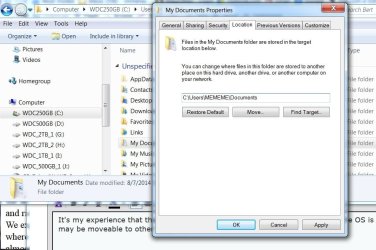
It's my experience that the x:\Users Folder has to be on the HDD or partition the OS is installed on but that the user's Folders may be moveable to other HDD or partition, for example Documents/My Documents, My Music, Pictures, etc. This image shows when right-clicking a Folder and choosing Properties, Location tab:
 

Attachments

  • MoveFolders.jpg
    MoveFolders.jpg
    79.1 KB · Views: 0

My Computer My Computer

Computer type
PC/Desktop
Computer Manufacturer/Model Number
Customs, Dell, Gateway, HP, Toshiba, Acer, ASUS
OS
Windows 7 Ultimate 64-bit, Windows 8.1 64-bit, Mac OS X 10.10, Linux Mint 17, Windows 10 Pro TP
Keyboard
Microsoft
Mouse
Microsoft
Hi Berton,

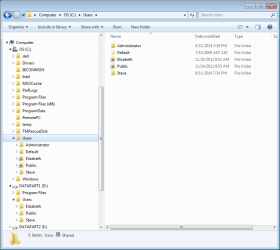
Back when I was getting my (then) new computer set up, I was able to set up my full user folders to be on the D: drive, via the mklink command. A screenshot of the current configuration is below. A few comments:

  • The C:\Users\Steve directory is what my system recreates every time I try to delete it. It's not actually linked to a current user account (the only account currently on the computer is Elizabeth's).
  • D:\Users\Elizabeth and D:\Users\Public are where the data for Elizabeth, and for the shared stuff, respectively, actually live.
  • D:\Users\Steve is where my data currently lives. I've also robocopied it to P:\Users\Steve, where I want it to be, but haven't yet deleted it from D:\Users\Steve, just to make sure I don't loose it.
  • The D: drive is currently full, and is not big enough to hold all my data, which I why I want to move it to the P: drive.

Many thanks for the response, in any case!

Steve
 

Attachments

  • Picture1.png
    Picture1.png
    37.1 KB · Views: 0
Last edited:

My Computer My Computer

Computer type
PC/Desktop
Computer Manufacturer/Model Number
Dell
OS
Windows 7 Professional, Service Pack 1; 64-bit
CPU
Intel Xeon
Memory
32 GB
Hi All,

Seems like I have a too-hard-to-solve mess (at least for me...). So I'm now in the process of reinstalling my OS. (And I *won't* be using junctions this time!)

Thanks again for all the replies and assistance.

Steve
 

My Computer My Computer

Computer type
PC/Desktop
Computer Manufacturer/Model Number
Dell
OS
Windows 7 Professional, Service Pack 1; 64-bit
CPU
Intel Xeon
Memory
32 GB
Once you get everything setup again, start doing image backups to an external hard drive. Then you can experiment to your hearts content with recovery being 20 minutes or less.
 

My Computer My Computer

Computer type
PC/Desktop
Computer Manufacturer/Model Number
Lenovo IdeaCenter 450
OS
Windows 10 Pro X64
CPU
Intel Quad Core i7-4770 @ 3.4Ghz
Memory
16.0GB PC3-12800 DDR3 SDRAM 1600 MHz
Graphics Card(s)
Intel Integrated HD Graphics
Sound Card
Realtek HD Audio
Monitor(s) Displays
HP 22" LCD
Screen Resolution
1680 x 1050
Hard Drives
250GB Samsung EVO SATA-3 SSD
2TB Seagate ST2000DM001 SATA-2
1.5TB Seagate ST3150041AS SATA
Keyboard
Dell USB
Mouse
Lenovo USB
Internet Speed
Cable via Road Runner 3MB Upload, 30MB Download
Antivirus
Windows Defender, MBAM Pro, MBAE
Browser
Seamonkey
Other Info
UEFI/GPT
PLDS DVD-RW DH16AERSH
Back
Top