How to Create a Bootable Windows 7 Installation USB Flash Drive
Information
This will show you how to create a USB flash key drive that you can boot from to install Windows 7 with.
Tip
If the USB flash drive is of sufficient capacity, say 8GB, then after copying the Windows 7 installation DVD onto it, you can create a new folder (ex: Device Drivers) in the USB key and place all of your latest driver installation files in it. This way you will have them handy to manually install the drivers after installing Windows 7 from the USB key.
Note
If you booted from the USB drive to install Windows 7, then you may need to change the hard drive back to being listed before the USB key in the boot order in BIOS after the computer restarts during installation to prevent the computer from booting right back into the USB key starting the installation process over and over.
Warning
- The USB key needs to be at least 4 GB in size.
- This will delete everything on the USB key. Be sure to save anything that you do not want to lose on it somewhere else.
- Before installing Windows 7 from the USB key, you will need to:
- Enable Legacy USB storage detect in the BIOS.
- When ready to install Windows 7 from the USB key:
- Connect the USB key.
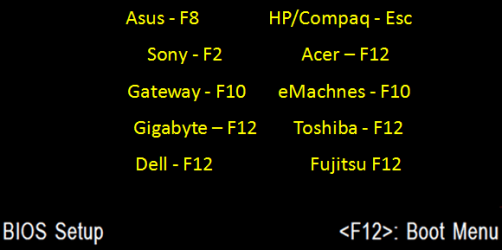
- Restart the computer, and keep tapping the F key (see screenshot below) responsible to open the Boot Menu screen for the brand and model of your motherboard or computer until it does.
- Select the USB key to boot from.
- Start installing Windows 7.
CONTENTS:
- Option One: Use "Windows 7 USB/DVD Download Tool" to Create Bootable Windows 7 Installation USB
- Option Two: Use "Rufus" to Create Bootable Windows 7 Installation USB
- Option Three: Manually Create Bootable Windows 7 Installation USB Flash Drive
OPTION ONE
Use "Windows 7 USB/DVD Download Tool" to Create Bootable Windows 7 Installation USB
Tip
If you do not have a Windows 7 ISO file, then you can either download the latest ISO version at the links below.
:ar: Microsoft Software Recovery
:ar: Microsoft: Windows 7 Direct Download Links
You could also use a free program like ImgBurn or ISODisk to create a ISO from your Windows 7 installation DVD.
:ar: Microsoft Software Recovery
:ar: Microsoft: Windows 7 Direct Download Links
You could also use a free program like ImgBurn or ISODisk to create a ISO from your Windows 7 installation DVD.
1. For how, see the Part 2 section here: Windows 7 USB/DVD Download Tool.
OPTION TWO
Use "Rufus" to Create Bootable Windows 7 Installation USB
1. Download the latest version of Rufus at the link below, and save it's .exe file to your desktop.
:ar: Rufus - Create bootable USB drives the easy way
Note
This is a standalone exe file that doesn't install anything to your PC.
For Rufus FAQs, see: https://github.com/pbatard/rufus/wiki/FAQ
For Rufus FAQs, see: https://github.com/pbatard/rufus/wiki/FAQ
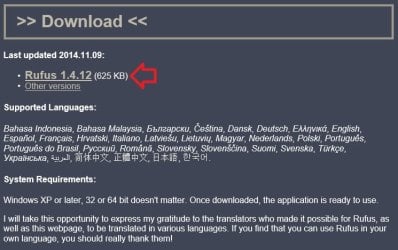
2. Connect your USB flash drive if you have not already.
3. Run the rufus_v###.exe file, and click/tap on Yes if prompted by UAC.
NOTE: ### = latest version number.
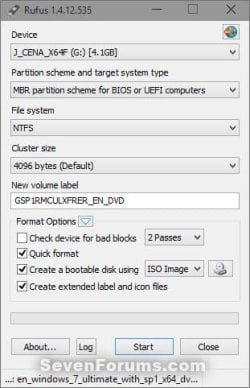
4. Set Rufus with the settings below: (see screenshot below step 5)
- [Under Device, select the USB flash drive you want to format and use.
- Under Format Options, check Create a bootable disk using, click/tap on the browse icon to navigate to and select your 64-bit Windows 7 ISO file.
- Under Partition scheme and target system type, select MBR partition scheme for BIOS or UEFI computers.
- Under File system, select NTFS.
- Under Cluster size, select the (Default) (ex: 16 kilobytes or 4096 bytes) it has listed.
- Under Format Options, check Quick format.
- Under Format Options, check Create extended label and icon files.
- Under New volume label, you can enter any name you like for the USB flash drive, or leave the default name.
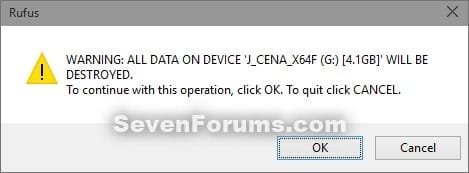
6. Click/tap on OK to confirm. (see screenshot below)
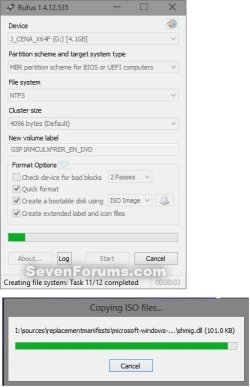
7. Rufus will now start creating the bootable UEFI USB flash drive. (see screenshot below)
8. When Rufus is "DONE", you can close Rufus. (see screenshot below)
NOTE: It could take a little while to finish.
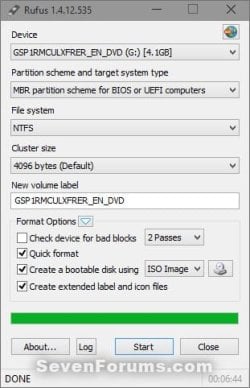
9. You are now ready to installWindows 7 with your bootable USB flash drive.
OPTION THREE
Manually Create Bootable Windows 7 Installation USB Flash Drive
Warning
Using this method:
64-bit installation + 32-bit ISO = 32-bit flash drive
32-bit installation + 32-bit ISO = 32-bit flash drive
32-bit installation + 64-bit ISO = unable to create
- You will only be able to create a 64-bit Windows 7 bootable USB flash drive if your current Windows 7 installation is also 64-bit.
- You will be able to create a 32-bit Windows 7 bootable USB flash drive if your current Windows 7 installation is 32-bit or 64-bit.
64-bit installation + 32-bit ISO = 32-bit flash drive
32-bit installation + 32-bit ISO = 32-bit flash drive
32-bit installation + 64-bit ISO = unable to create
1. Plug the USB key in.
2. If AutoPlay opens a pop-up for the USB key, then just close it.
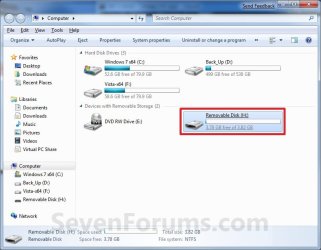
NOTE: Make note of what the drive size is for the USB key for use in step 6 below. You can also open Computer (step 19) to see what the drive size is to. For example, mine is 3920 MB. (See screenshot below)

3. Open an elevated command prompt.
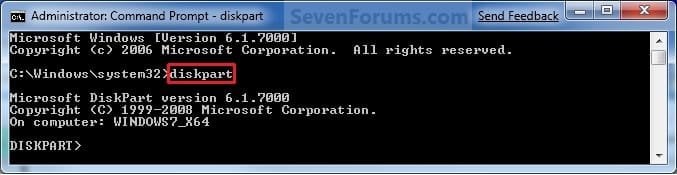
4. In the elevated command prompt, type diskpart and press Enter. (See screenshot below)
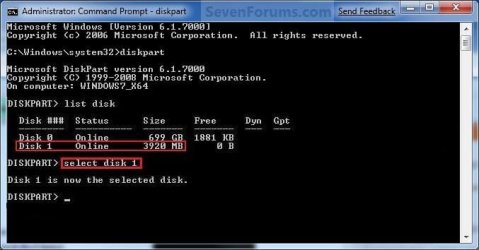
5. In the elevated command prompt, type list disk and press Enter. (See screenshot below)
NOTE: Make note of what disk # your USB key is listed as to use in step 6 below. You can also look for the drive size (step 2) of the USB key to help ID the disk number. For example, mine is listed as Disk 1 here for the 3920 MB disk.

6. In the elevated command prompt, type select disk # (your USB disk #) and press Enter. (See screenshot below)
NOTE: For example, my USB key is listed as Disk 1, so I would type select disk 1 and press Enter.
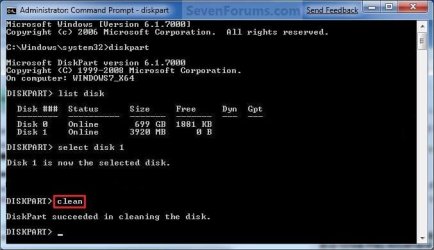
7. In the elevated command prompt, type clean and press Enter. (See screenshot below)
8. In the elevated command prompt, type create partition primary and press Enter. (See screenshot below)
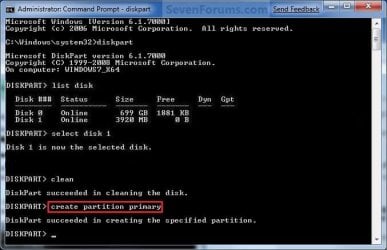
9. In the elevated command prompt, type select partition 1 and press Enter. (See screenshot below)

10. In the elevated command prompt, type active and press Enter. (See screenshot below)
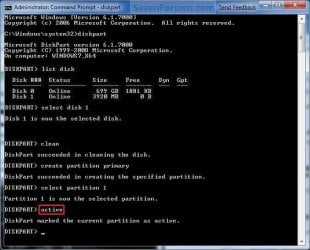
11. In the elevated command prompt, type in the command below to format the USB as NTFS or FAT32, and press Enter. (See screenshot below)
NOTE: This may take a few moments to finish formatting the USB key.
Note
You can substitute Windows 7 within quotes in the commands below with whatever name (drive label) you would like to have displayed for the USB drive instead.
See also: Choosing between NTFS, FAT, and FAT32
FAT32 volume labels
See also: Choosing between NTFS, FAT, and FAT32
FAT32 volume labels
- If you have an UEFI instead of BIOS motherboard, then you will need to use FAT32 and not NTFS.
- Volume labels can contain as many as 11 characters and can include spaces but no tabs.
- Volume labels cannot contain the following characters: ? / \ | . , ; : + = [ ] < > "
- Volume labels are stored as uppercase regardless of whether they contain lowercase letters.
- Volume labels can contain as many as 32 characters.
OR
format fs=fat32 label="Windows 7" quick
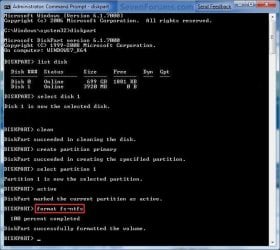
12. If AutoPlay opens a pop-up for the USB key, then just close it.
13. In the elevated command prompt, type assign and press Enter. (See screenshot below)
NOTE: This will assign a new drive letter to the USB key. Make note of the new USB drive letter to use in step 22 below. For example, mine is now H.
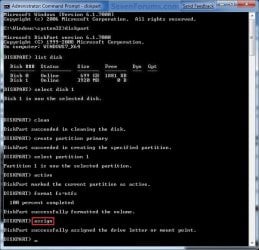
14. If AutoPlay opens a pop-up for the USB key, then just close it.
15. In the elevated command prompt, type exit and press Enter. (See screenshot below)
NOTE: This will exit you from DiskPart from step 4.
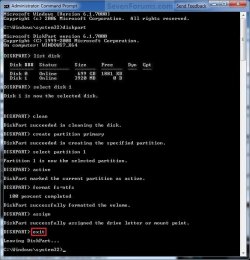
16. Close the elevated command prompt.
17. Insert your Windows 7 installation DVD into the DVD drive.
18. If AutoPlay opens a pop-up for the Windows 7 installation DVD, then just close it.
19. Open the Start Menu, right click on the Computer button, and click on Open.
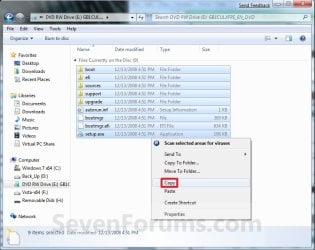
20. Right click on the DVD drive (ex: E: ) that has the Windows 7 installation DVD in it, and click on Open. (See screenshot below)

21. Highlight all of the contents, right click on the highlighted contents, and click on Copy. (See screenshot below)
NOTE: You will need to copy all of the files and folders on the Windows 7 installation DVD to the USB key.
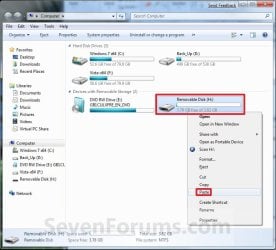
22. Go back to Computer, right click on the USB key drive (ex: H ), and click on Paste. (See screenshot below)
23. The contents of the Windows 7 installation DVD will now start copying over to the USB key. (See screenshot below)
NOTE: This may take a few moments to complete.
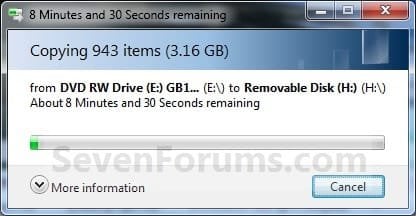
24. When finished, you can close the Computer window and unplug the USB key.
25. You now have a Windows 7 Installation USB key.

Warning
If you have UEFI instead of BIOS motherboard, then you will need to temporarily disable Secure Boot to use the USB to install Windows. After installation is complete, you can enable Secure Boot again.
That's it,
Shawn
Related Tutorials
- How to Create a Windows 7 System Repair Disc
- How to Do an Upgrade Installation with Windows 7
- How to Do a Clean Installation with Windows 7
- How to Do a Repair Install to Fix Windows 7
- How to Install Windows 7 FAST without a DVD or USB Device
- How to Setup Windows 7 to Boot from a VHD (Virtual Hard Disk)
- How to Create a Windows 7 VHD at Boot to Start with from Boot
- How to Create a Bootable ISO from an Older ISO
- How to Do a Custom Installation of Windows 7
- How to Do a Clean Install with a Upgrade Windows 7 Version
- How to Get and Use the Windows 7 USB/DVD Download Tool
- How to Make a MS-DOS Bootable Flash Drive
- How to Create a Windows 7 Universal Installation Disc
- How to Install Windows 7 from USB Pen Drive Using Grub4Dos
- How to Slipstream Windows 7 SP1 and Updates to Create a Bootable USB, Installation DVD, or ISO File
- How to Install Windows 7 Using "Unified Extensible Firmware Interface" (UEFI)
- How to Create a Bootable UEFI USB Flash Drive for Installing Windows 7 and Windows 8
Attachments
Last edited: