
How to Change the Default Location of User Folders in Windows 7 and Windows 8
Information
This will show you how to change (move) the default location of your account's C:\Users\(user-name) folders to another location of your choice instead in Windows 7 and Windows 8, and still have access to the user folder from the Start Menu (Windows 7 only) location.
Tip
If you are just wanting to save HDD space, then you might consider this below to be able to access the files from your libraries with the files actually located where you like instead. This way you will not have to worry about any potential issues that come with moving user folder locations. For example, whatever partition you move your user folders to will now be included in a system image in Windows 7 and Windows 8.
Warning
If you change the default location of your Favorites folder in Windows 8 or 8.1, your Favorites in Internet Explorer will no longer be available until you move your Favorites back to the default "C:\Users\(user-name)" location.
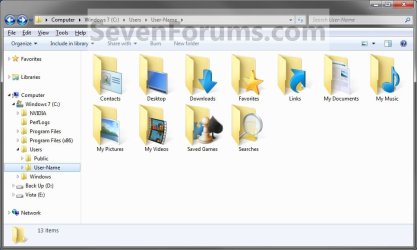
EXAMPLE: User Folders
NOTE: This is at the default C:\Users\(user-name) location.

OPTION ONE
To Change Main User Profile Folder Location
1. For how, see:
http://www.sevenforums.com/tutorials/87555-user-profile-change-default-location.html
OR
How to Relocate User Profiles to another Partition or Disk in Windows 8
OPTION TWO
To Change User Folders Location from within User Profile Folder
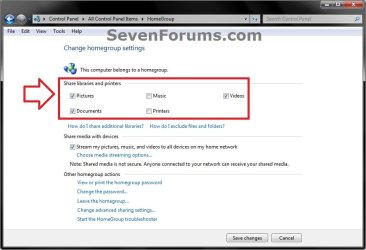
1. If you a part of a homegroup, then you will need to change the homegroup settings to no longer share the user folder (ex: My Music) that you want to move first by unchecking the folder and clicking on Save Changes. (see screenshot below)
NOTE: This is so the user folder (ex: My Music) will not be shared on the homegroup anymore.
2. In Windows Explorer, navigate to where (ex: D: drive) you want to move the default user folder (ex: My Music) location to.
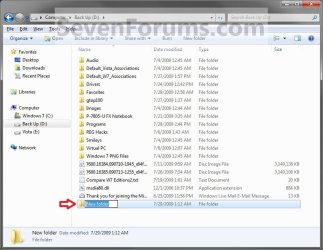
3. Create a New Folder by right clicking or press and hold on a empty space in the main window there, and click/tap on New and Folder. Name the new folder without spaces (ex: "Music" for My Music) for the user folder that you want to move there. (See screenshots below)
NOTE: The name that you type in for the new folder will be what you see as the user folder name in the Start Menu (shell:UsersFilesFolder) location when finished with all of these steps. It would be best to use the same name as the user folder to avoid confusion.
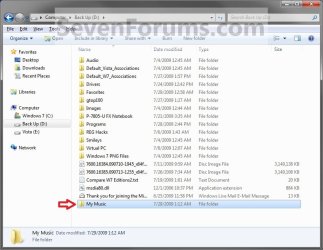
4. Close this window. (See screenshots above)
5. Press the Windows+R keys to open the Run dialog, type shell:UsersFilesFolder, and press enter.
NOTE: This will open your C:\Users\(user-name) folder.
6. Right click or press and hold on a user folder (ex: My Music, My Documents, My Pictures, etc.....) that you want to move the default location for, and click/tap on Properties. (See screenshot below)

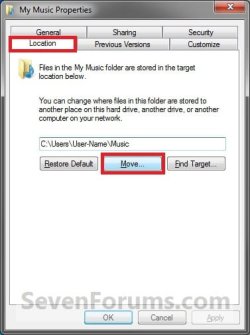
7. Click/tap on the Location tab, and Move button. (See screenshot below)
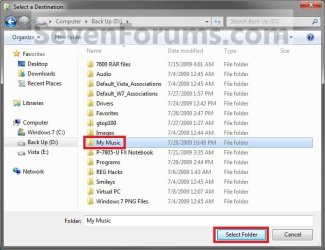
8. Navigate to the same location as in step 2 and 3 above, then select the renamed new folder (ex: Music), and click/tap on the Select Folder button. (See screenshot below)
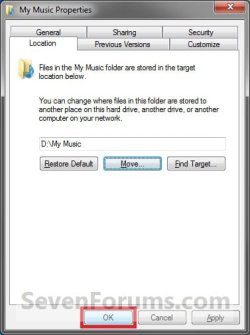
9. Click/tap on OK. (See screenshot below)
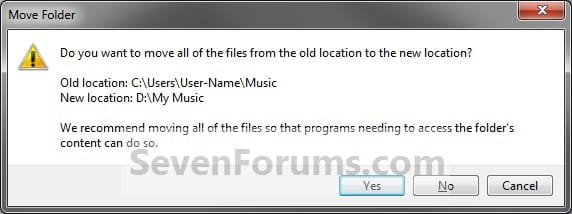
10. Click/tap on Yes. (See screenshot below)
11. After a few seconds when the location has been changed, the Properties window (screenshot under step 9) will then close.
12. Check back at the C:\Users\(user-name) location to make sure that the old user folder (ex: My Music) that you moved is no longer there. If it is, then make sure that the contents of the folder were moved to the new location, and delete it. (See screenshot below)
NOTE: If you are unable to delete the folder, then restart the computer and try again.
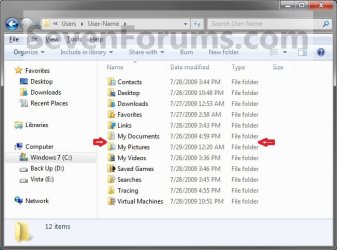
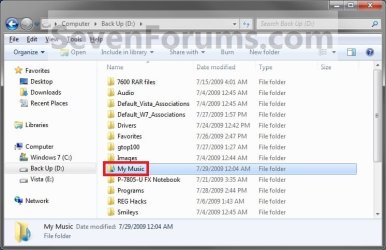
13. You will notice that the folder at the shell:UsersFilesFolder location and the new location (ex: D drive) you moved the user folder to, now has the default user folder (ex: My Music) icon. (See screenshot below)
NOTE: The Start Menu in Windows 7 now opens the user folder from the new location (ex: D: drive) that you moved the user folder to.
14. If you a part of a homegroup, then you can now change the homegroup settings back to share the user folder (ex: My Music) again if you like by checking the folder, and click/tap on Save Changes. (see screenshot below)
Tip
If you wanted to restore the default location of the user folder, then see:
How to Restore the Default Location of User Folders in Windows 7 and Windows 8
How to Restore the Default Location of User Folders in Windows 7 and Windows 8
That's it,
Shawn
Related Tutorials
- How to Customize Default User Profile in Audit Mode
- How to Restore the Default Location of User Folders in Windows 7 and Windows 8
- How to Change the Default "Screenshots" Folder Location in Windows 8
- How to Change the Windows 7 Default User Folder Icons
- How to Pin Your User Files Folder to the Windows 7 Taskbar
- How to Create Your Own Special User Folder
- How to Restore Windows 7 Default User Folder Icons
- How to Add or Remove your User Folder from the Windows 7 Navigation Pane
- How to Allow or Prevent Users to Move their User Folders to a New Location
- How to Change the Default Location of a User Profile in Windows 7 and Vista
- How to Change the Name of "My Documents" without Renaming the Folder
- User Folders - Moving User Folders by Modular Script
- How to Free Up and Recover Hard Drive Space in Windows 7
- How to Change the User Folder Name of a User Profile in Windows 7
Last edited:


