User Folders - Change Default Location

How to Change the Default Location of User Folders in Windows 7 and Windows 8

   Information
This will show you how to change (move) the default location of your account's C:\Users\(user-name) folders to another location of your choice instead in Windows 7 and Windows 8, and still have access to the user folder from the Start Menu (Windows 7 only) location.

   Tip
If you are just wanting to save HDD space, then you might consider this below to be able to access the files from your libraries with the files actually located where you like instead. This way you will not have to worry about any potential issues that come with moving user folder locations. For example, whatever partition you move your user folders to will now be included in a system image in Windows 7 and Windows 8.

  • Create a new folder at any location you want.
  • Move any files you want into the new folder.
  • Include the new folder into a library (Windows 7 or Windows 8) of your choice.
  • If you like, you can also set the new folder to be the default save to location (Windows 7 or Windows 8) for the library as well.
   Warning
If you change the default location of your Favorites folder in Windows 8 or 8.1, your Favorites in Internet Explorer will no longer be available until you move your Favorites back to the default "C:\Users\(user-name)" location.


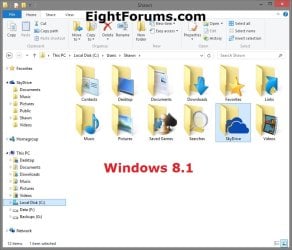
EXAMPLE: User Folders
NOTE: This is at the default C:\Users\(user-name) location.
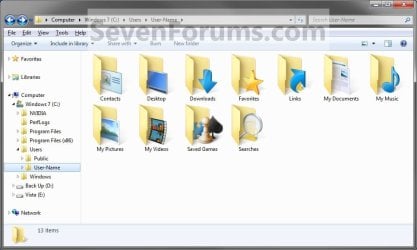
Example1.jpg

Windows_8.1.jpg


OPTION ONE

To Change Main User Profile Folder Location


1. For how, see:
http://www.sevenforums.com/tutorials/87555-user-profile-change-default-location.html

OR

How to Relocate User Profiles to another Partition or Disk in Windows 8


OPTION TWO

To Change User Folders Location from within User Profile Folder


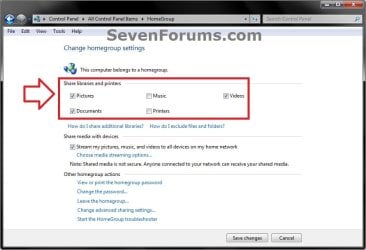
1. If you a part of a homegroup, then you will need to change the homegroup settings to no longer share the user folder (ex: My Music) that you want to move first by unchecking the folder and clicking on Save Changes. (see screenshot below)
NOTE: This is so the user folder (ex: My Music) will not be shared on the homegroup anymore.
Homegroup.jpg
2. In Windows Explorer, navigate to where (ex: D: drive) you want to move the default user folder (ex: My Music) location to.

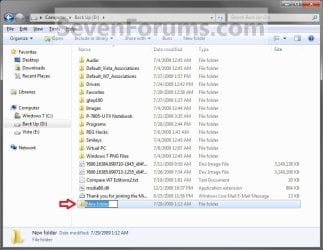
3. Create a New Folder by right clicking or press and hold on a empty space in the main window there, and click/tap on New and Folder. Name the new folder without spaces (ex: "Music" for My Music) for the user folder that you want to move there. (See screenshots below)
NOTE: The name that you type in for the new folder will be what you see as the user folder name in the Start Menu (shell:UsersFilesFolder) location when finished with all of these steps. It would be best to use the same name as the user folder to avoid confusion.
Rename1.jpg

Rename2.jpg

4. Close this window. (See screenshots above)

5. Press the Windows+R keys to open the Run dialog, type shell:UsersFilesFolder, and press enter.
NOTE: This will open your C:\Users\(user-name) folder.

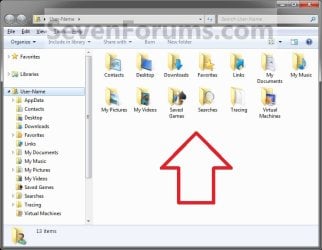
6. Right click or press and hold on a user folder (ex: My Music, My Documents, My Pictures, etc.....) that you want to move the default location for, and click/tap on Properties. (See screenshot below)
Right_Click_On_A_User_Folder.jpg
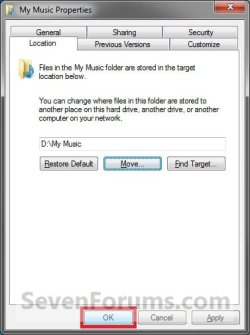
7. Click/tap on the Location tab, and Move button. (See screenshot below)
Properties1.jpg
8. Navigate to the same location as in step 2 and 3 above, then select the renamed new folder (ex: Music), and click/tap on the Select Folder button. (See screenshot below)
Properties2.jpg
9. Click/tap on OK. (See screenshot below)
Properties3.jpg
10. Click/tap on Yes. (See screenshot below)
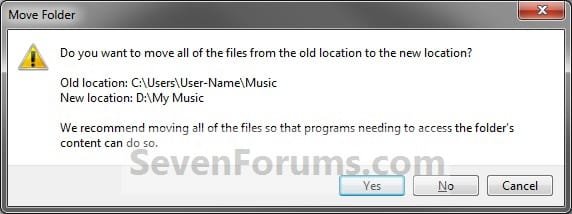
Properties4.jpg
11. After a few seconds when the location has been changed, the Properties window (screenshot under step 9) will then close.

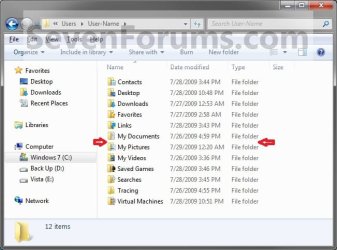
12. Check back at the C:\Users\(user-name) location to make sure that the old user folder (ex: My Music) that you moved is no longer there. If it is, then make sure that the contents of the folder were moved to the new location, and delete it. (See screenshot below)
NOTE: If you are unable to delete the folder, then restart the computer and try again.
Finished2.jpg
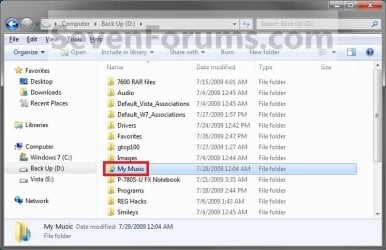
13. You will notice that the folder at the shell:UsersFilesFolder location and the new location (ex: D drive) you moved the user folder to, now has the default user folder (ex: My Music) icon. (See screenshot below)
NOTE: The Start Menu in Windows 7 now opens the user folder from the new location (ex: D: drive) that you moved the user folder to.
Finished.jpg
14. If you a part of a homegroup, then you can now change the homegroup settings back to share the user folder (ex: My Music) again if you like by checking the folder, and click/tap on Save Changes. (see screenshot below)
Homegroup.jpg
   Tip
If you wanted to restore the default location of the user folder, then see:

How to Restore the Default Location of User Folders in Windows 7 and Windows 8


That's it,
Shawn


Last edited:
  • Like
Reactions: Lee
I have parred down boot drive from over 500GB down to 200GB! So far so good! Looks like I will get a 240-256GB SSD....
 

My Computer

Computer Manufacturer/Model Number
Homebrew PC - "Alpha_Dawg"
OS
Windows 7 Ultimate 64 bit Steve Ballmer Signature Edition
CPU
Intel Core 2 Quad - Q9550 - 2.83GHz stock - OC'd to 3.6GHz
Motherboard
Gigabyte EP45-UD3P
Memory
4GB DDR2 800MHz (PC6400) OCZ Reaper
Graphics Card(s)
Nvidia GE Force 8800 GTS
Sound Card
Asus Xonar DX
Monitor(s) Displays
Samsung SyncMaster 2333HD
Screen Resolution
1920 x 1080
Hard Drives
WD Caviar Black 750GB - 7200RPM - 32MB cache
WD Caviar Green 1.5TB - 5400RPM - 64MB cache
WD Caviar Green 2.0TB - 5400RPM - 64MB cache
PSU
PC Power & Cooling Silencer 750
Case
Gigabyte 3D Aurora
Cooling
Case is Air - 5ea. 120mm fans (mix of Arctic and Xigmatec)
Keyboard
MS Natural Wireless KB
Mouse
MS Wireless Mouse
Internet Speed
50 mbps down/5 mbps up
Other Info
AVerMedia - AVerTVHD G2 Dual Tuner Card
Nice. :party:
 

My Computer

Computer type
PC/Desktop
Computer Manufacturer/Model Number
Self built custom
OS
64-bit Windows 11 Pro for Workstations
CPU
Intel i7-8700K OC'd to 5 GHz
Motherboard
ASUS ROG Maximus XI Formula Z390
Memory
64 GB (4x16GB) G.SKILL TridentZ RGB DDR4 3600 MHz
Graphics Card(s)
ASUS ROG-STRIX-GTX1080TI-O11G-GAMING
Sound Card
Integrated
Monitor(s) Displays
2 x Samsung Odyssey G7 27"
Screen Resolution
2560x1440
Hard Drives
1TB Samsung 990 PRO M.2,
4TB Samsung 990 PRO PRO M.2,
TerraMaster F8 SSD Plus NAS
PSU
Seasonic Prime Titanium 850W
Case
Thermaltake Core P3
Cooling
Corsair Hydro H115i
Keyboard
Logitech wireless K800
Mouse
Logitech MX Master 4
Internet Speed
2 Gb/s Download and 100 Mb/s Upload
Antivirus
Malwarebyte Anti-Malware Premium
Browser
Google Chrome
Other Info
Logitech Z625 speaker system,
Logitech BRIO 4K Pro webcam,
HP Color LaserJet Pro MFP M477fdn,
APC SMART-UPS RT 1000 XL - SURT1000XLI,
Galaxy S23 Plus phone
Seems like a bug

I don't get it. People seem to shrug off the behavior after changing the location of a folder...leaving behind a reference to a folder under shell:UsersFilesFolder that no longer exists. Am I missing something? This sounds like a bug to me.

For example, when I open the new location of "My Music" (D:\MediaFiles\Music), in the Windows Explorer address bar, it shows the shell:UsersFilesFolder>Music (MKANET>Music). This causes problems with navigating to one folder higher (in the folder hierarchy) when hitting backspace on the keyboard. Instead of moving to the parent folder (D:\MediaFiles), it takes me back to shell:UsersFilesFolder showing me folders that are no longer here.

Is there a way to fix this behavior? I can't imagine why someone would want to go to shell:UsersFilesFolder and see references that no longer exist. This kind of makes this a useless feature. Wouldn't I be better off not moving the My Music folder and just making a new folder? I could then point my Library directly to the new location and make all shortcuts to the new location; which would prevent issues with navigation.

Anyway, I'm hoping there's just a way to remove bogus folder references under shell:UsersFilesFolder once the folders are moved. The only time I would want there to be a reference to a folder there is when it's actually there!!

-MKANET
 

My Computer

OS
Windows 7 64bit Ultimate
Hello MKANET, and welcome to Seven Forums.

These references are not bugs, but are to junction points for backwards compatibility for apps made for older versions of Windows to still be able to run on Windows 7. The links below can help give more details about junction points and their purpose though.

Junction Points in Vista

Junction Dysfunction by Raymond Chen

Hope this helps,
Shawn
 

My Computer

Computer type
PC/Desktop
Computer Manufacturer/Model Number
Self built custom
OS
64-bit Windows 11 Pro for Workstations
CPU
Intel i7-8700K OC'd to 5 GHz
Motherboard
ASUS ROG Maximus XI Formula Z390
Memory
64 GB (4x16GB) G.SKILL TridentZ RGB DDR4 3600 MHz
Graphics Card(s)
ASUS ROG-STRIX-GTX1080TI-O11G-GAMING
Sound Card
Integrated
Monitor(s) Displays
2 x Samsung Odyssey G7 27"
Screen Resolution
2560x1440
Hard Drives
1TB Samsung 990 PRO M.2,
4TB Samsung 990 PRO PRO M.2,
TerraMaster F8 SSD Plus NAS
PSU
Seasonic Prime Titanium 850W
Case
Thermaltake Core P3
Cooling
Corsair Hydro H115i
Keyboard
Logitech wireless K800
Mouse
Logitech MX Master 4
Internet Speed
2 Gb/s Download and 100 Mb/s Upload
Antivirus
Malwarebyte Anti-Malware Premium
Browser
Google Chrome
Other Info
Logitech Z625 speaker system,
Logitech BRIO 4K Pro webcam,
HP Color LaserJet Pro MFP M477fdn,
APC SMART-UPS RT 1000 XL - SURT1000XLI,
Galaxy S23 Plus phone
Wow, that was a fast reply Brink! And, you explained exactly why this happens.

Now, my next question is... I dont have any apps that make references to the folder locations I moved; and the apps that do, are made for Vista/7 (which are all 64bit).

Do you know of a way to override the junction point for "My Music"? That's the only one that I really care about. Maybe there's a registry location that can be modified? This would be a very useful tweak for people that know for sure they dont use old applications that point to the location that was moved.

Thanks in advance!
MKANET
 

My Computer

OS
Windows 7 64bit Ultimate
MKANET,

Usually using OPTION TWO in the tutorial on the first page to move say the "My Music" folder to another location will change what the junction point references to as well. The shell:UsersFilesFolder shell command calls to open your C:\Users\(user-name) user profile folder at that location unless changed using OPTION ONE, and not your My Music folder though. Since you moved the My Music folder, it will no longer appear in your user profile folder.

Moving your My Music folder using OPTION TWO would also change where the junction point references it at unless a mistake may have been made while moving it.


For your My Music user folder, you could use the shell:My Music shell command instead to open it no matter where you have moved it to instead.
 

My Computer

Computer type
PC/Desktop
Computer Manufacturer/Model Number
Self built custom
OS
64-bit Windows 11 Pro for Workstations
CPU
Intel i7-8700K OC'd to 5 GHz
Motherboard
ASUS ROG Maximus XI Formula Z390
Memory
64 GB (4x16GB) G.SKILL TridentZ RGB DDR4 3600 MHz
Graphics Card(s)
ASUS ROG-STRIX-GTX1080TI-O11G-GAMING
Sound Card
Integrated
Monitor(s) Displays
2 x Samsung Odyssey G7 27"
Screen Resolution
2560x1440
Hard Drives
1TB Samsung 990 PRO M.2,
4TB Samsung 990 PRO PRO M.2,
TerraMaster F8 SSD Plus NAS
PSU
Seasonic Prime Titanium 850W
Case
Thermaltake Core P3
Cooling
Corsair Hydro H115i
Keyboard
Logitech wireless K800
Mouse
Logitech MX Master 4
Internet Speed
2 Gb/s Download and 100 Mb/s Upload
Antivirus
Malwarebyte Anti-Malware Premium
Browser
Google Chrome
Other Info
Logitech Z625 speaker system,
Logitech BRIO 4K Pro webcam,
HP Color LaserJet Pro MFP M477fdn,
APC SMART-UPS RT 1000 XL - SURT1000XLI,
Galaxy S23 Plus phone
Brink, does that mean you don't know of a way to override the junction point for "My Music"? I only changed the location of My Music. Nothing else.

Edit: Actually I have a much easier question... how can I make a shortcut to the new location of "My Music" (D:\MediaFile\Music) without Windows interfering? I just need a shortcut to go to "D:\MediaFiles\Music" instead of "MKANET\My Music". I dont have the shell:UsersFilesFolder
shell command specified in the shortcut, but it still takes me there.

MKANET,

Usually using OPTION TWO in the tutorial on the first page to move say the "My Music" folder to another location will change what the junction point references to as well. The shell:UsersFilesFolder shell command calls to open your C:\Users\(user-name) user profile folder at that location unless changed using OPTION ONE, and not your My Music folder though. Since you moved the My Music folder, it will no longer appear in your user profile folder.

Moving your My Music folder using OPTION TWO would also change where the junction point references it at unless a mistake may have been made while moving it.


For your My Music user folder, you could use the shell:My Music shell command instead to open it no matter where you have moved it to instead.
 

My Computer

OS
Windows 7 64bit Ultimate
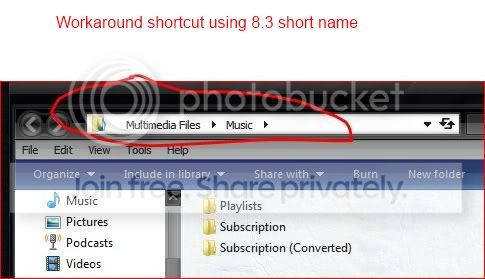
I figured out a clever way to create a shortcut to the new My Music folder. This will also work for any other folder with a junction point...

If you have a shortcut that takes you to shell:UsersFilesFolder\My Music instead of the new folder location you specified, modify the shortcut properties and change the path to have the short 8.3 DOS file name equivalent path..

So, for me, I just modified the shortcut to have the path: "D:\MULTIM~1\MYMUSI~1"

Worked like a charm! Interestingly, after I made the change, when I go back into the properties it still has the long name (as if I never changed it). However, it still retails the new location; and, doesnt let Windows take me to shell:UsersFilesFolder\My Music
 

My Computer

OS
Windows 7 64bit Ultimate
I'm happy to hear that you found a workaround that will work for you. However, you would want to use shell:My Music instead to open your Music folder.
 

My Computer

Computer type
PC/Desktop
Computer Manufacturer/Model Number
Self built custom
OS
64-bit Windows 11 Pro for Workstations
CPU
Intel i7-8700K OC'd to 5 GHz
Motherboard
ASUS ROG Maximus XI Formula Z390
Memory
64 GB (4x16GB) G.SKILL TridentZ RGB DDR4 3600 MHz
Graphics Card(s)
ASUS ROG-STRIX-GTX1080TI-O11G-GAMING
Sound Card
Integrated
Monitor(s) Displays
2 x Samsung Odyssey G7 27"
Screen Resolution
2560x1440
Hard Drives
1TB Samsung 990 PRO M.2,
4TB Samsung 990 PRO PRO M.2,
TerraMaster F8 SSD Plus NAS
PSU
Seasonic Prime Titanium 850W
Case
Thermaltake Core P3
Cooling
Corsair Hydro H115i
Keyboard
Logitech wireless K800
Mouse
Logitech MX Master 4
Internet Speed
2 Gb/s Download and 100 Mb/s Upload
Antivirus
Malwarebyte Anti-Malware Premium
Browser
Google Chrome
Other Info
Logitech Z625 speaker system,
Logitech BRIO 4K Pro webcam,
HP Color LaserJet Pro MFP M477fdn,
APC SMART-UPS RT 1000 XL - SURT1000XLI,
Galaxy S23 Plus phone
Huh? :) "shell:My Music" opens the wrong folder; at least, for what I was trying to do. It opens the folder under my profile folder instead of the new "actual" location specified by me. That's the whole point of the workaround mentioned above.
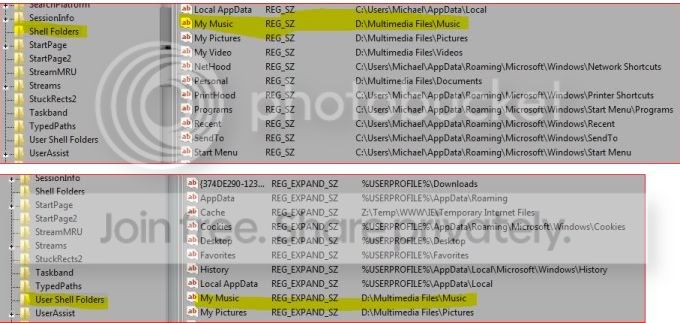
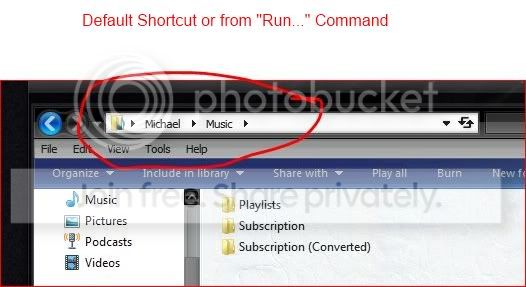
Just to be clear, the workaround above allows people to override Windows Vista/7 behavior to open the modified location set by the user (in the Windows Explorer address bar, it will show "Multimedia\Music" instead of shell:My Music; which would be... "MKANET\My Music"

This is useful for people who create shortcut icons to this location; and, need the flexibility to navigate from that location in the filesystem (once they open an Explorer window); instead of being restricted under the user profile folder.

I'm happy to hear that you found a workaround that will work for you. However, you would want to use shell:My Music instead to open your Music folder.
 

My Computer

OS
Windows 7 64bit Ultimate
Strange, I just moved my "My Music" folder to the E: drive, and shell:My Music opens it there instead of at C: .

You may have made a mistake while moving it. Double check the two registry locations below to make sure that My Music in the left pane has the correct path of where you moved it to.


HKEY_CURRENT_USER\Software\Microsoft\Windows\CurrentVersion\Explorer\Shell Folders

HKEY_CURRENT_USER\Software\Microsoft\Windows\CurrentVersion\Explorer\User Shell Folders
 

My Computer

Computer type
PC/Desktop
Computer Manufacturer/Model Number
Self built custom
OS
64-bit Windows 11 Pro for Workstations
CPU
Intel i7-8700K OC'd to 5 GHz
Motherboard
ASUS ROG Maximus XI Formula Z390
Memory
64 GB (4x16GB) G.SKILL TridentZ RGB DDR4 3600 MHz
Graphics Card(s)
ASUS ROG-STRIX-GTX1080TI-O11G-GAMING
Sound Card
Integrated
Monitor(s) Displays
2 x Samsung Odyssey G7 27"
Screen Resolution
2560x1440
Hard Drives
1TB Samsung 990 PRO M.2,
4TB Samsung 990 PRO PRO M.2,
TerraMaster F8 SSD Plus NAS
PSU
Seasonic Prime Titanium 850W
Case
Thermaltake Core P3
Cooling
Corsair Hydro H115i
Keyboard
Logitech wireless K800
Mouse
Logitech MX Master 4
Internet Speed
2 Gb/s Download and 100 Mb/s Upload
Antivirus
Malwarebyte Anti-Malware Premium
Browser
Google Chrome
Other Info
Logitech Z625 speaker system,
Logitech BRIO 4K Pro webcam,
HP Color LaserJet Pro MFP M477fdn,
APC SMART-UPS RT 1000 XL - SURT1000XLI,
Galaxy S23 Plus phone
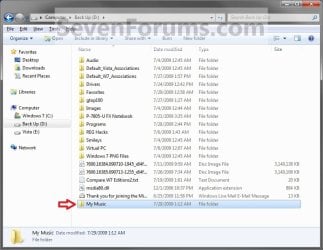
Hi Brink, I didn't do anything wrong. That's default Windows 7 behavior. At least for this type of folder path/namespace. This is reproducible on two separate Windows 7 machines:

MyMusic.jpg


Strange, I just moved my "My Music" folder to the E: drive, and shell:My Music opens it there instead of at C: .

You may have made a mistake while moving it. Double check the two registry locations below to make sure that My Music in the left pane has the correct path of where you moved it to.


HKEY_CURRENT_USER\Software\Microsoft\Windows\CurrentVersion\Explorer\Shell Folders

HKEY_CURRENT_USER\Software\Microsoft\Windows\CurrentVersion\Explorer\User Shell Folders
 

My Computer

OS
Windows 7 64bit Ultimate
I'm not sure why shell:My Music doesn't open to the new location for you since it always does for me after moving it. :confused:

shell:UsersFilesFolder\My Music also opens to the new location for me as well.
 

My Computer

Computer type
PC/Desktop
Computer Manufacturer/Model Number
Self built custom
OS
64-bit Windows 11 Pro for Workstations
CPU
Intel i7-8700K OC'd to 5 GHz
Motherboard
ASUS ROG Maximus XI Formula Z390
Memory
64 GB (4x16GB) G.SKILL TridentZ RGB DDR4 3600 MHz
Graphics Card(s)
ASUS ROG-STRIX-GTX1080TI-O11G-GAMING
Sound Card
Integrated
Monitor(s) Displays
2 x Samsung Odyssey G7 27"
Screen Resolution
2560x1440
Hard Drives
1TB Samsung 990 PRO M.2,
4TB Samsung 990 PRO PRO M.2,
TerraMaster F8 SSD Plus NAS
PSU
Seasonic Prime Titanium 850W
Case
Thermaltake Core P3
Cooling
Corsair Hydro H115i
Keyboard
Logitech wireless K800
Mouse
Logitech MX Master 4
Internet Speed
2 Gb/s Download and 100 Mb/s Upload
Antivirus
Malwarebyte Anti-Malware Premium
Browser
Google Chrome
Other Info
Logitech Z625 speaker system,
Logitech BRIO 4K Pro webcam,
HP Color LaserJet Pro MFP M477fdn,
APC SMART-UPS RT 1000 XL - SURT1000XLI,
Galaxy S23 Plus phone
I guess you have to have a long name in the path in order to reproduce it. I'm sure you can reproduce it with a similar parent folder in the new location
ie, "D:\Multimedia Files\Music"

Default.jpg


workaround.jpg


I'm not sure why shell:My Music doesn't open to the new location for you since it always does for me after moving it. :confused:

shell:UsersFilesFolder\My Music also opens to the new location for me as well.
 

My Computer

OS
Windows 7 64bit Ultimate
Nope, it still works just fine for me using the exact same name and location that you used.
 

My Computer

Computer type
PC/Desktop
Computer Manufacturer/Model Number
Self built custom
OS
64-bit Windows 11 Pro for Workstations
CPU
Intel i7-8700K OC'd to 5 GHz
Motherboard
ASUS ROG Maximus XI Formula Z390
Memory
64 GB (4x16GB) G.SKILL TridentZ RGB DDR4 3600 MHz
Graphics Card(s)
ASUS ROG-STRIX-GTX1080TI-O11G-GAMING
Sound Card
Integrated
Monitor(s) Displays
2 x Samsung Odyssey G7 27"
Screen Resolution
2560x1440
Hard Drives
1TB Samsung 990 PRO M.2,
4TB Samsung 990 PRO PRO M.2,
TerraMaster F8 SSD Plus NAS
PSU
Seasonic Prime Titanium 850W
Case
Thermaltake Core P3
Cooling
Corsair Hydro H115i
Keyboard
Logitech wireless K800
Mouse
Logitech MX Master 4
Internet Speed
2 Gb/s Download and 100 Mb/s Upload
Antivirus
Malwarebyte Anti-Malware Premium
Browser
Google Chrome
Other Info
Logitech Z625 speaker system,
Logitech BRIO 4K Pro webcam,
HP Color LaserJet Pro MFP M477fdn,
APC SMART-UPS RT 1000 XL - SURT1000XLI,
Galaxy S23 Plus phone
Relocating Favorites Folder issue

hi, i was successfully able to relocate My Documents, My Music & others but surprisingly the Favorites folder properties doesn't have a tab for "Location"; couldn't understand the reason

any solution/workaround?
 

My Computer

Computer Manufacturer/Model Number
Dell Precision M4600
OS
Win 7 64 bit

My Computer

Computer type
PC/Desktop
Computer Manufacturer/Model Number
Self built custom
OS
64-bit Windows 11 Pro for Workstations
CPU
Intel i7-8700K OC'd to 5 GHz
Motherboard
ASUS ROG Maximus XI Formula Z390
Memory
64 GB (4x16GB) G.SKILL TridentZ RGB DDR4 3600 MHz
Graphics Card(s)
ASUS ROG-STRIX-GTX1080TI-O11G-GAMING
Sound Card
Integrated
Monitor(s) Displays
2 x Samsung Odyssey G7 27"
Screen Resolution
2560x1440
Hard Drives
1TB Samsung 990 PRO M.2,
4TB Samsung 990 PRO PRO M.2,
TerraMaster F8 SSD Plus NAS
PSU
Seasonic Prime Titanium 850W
Case
Thermaltake Core P3
Cooling
Corsair Hydro H115i
Keyboard
Logitech wireless K800
Mouse
Logitech MX Master 4
Internet Speed
2 Gb/s Download and 100 Mb/s Upload
Antivirus
Malwarebyte Anti-Malware Premium
Browser
Google Chrome
Other Info
Logitech Z625 speaker system,
Logitech BRIO 4K Pro webcam,
HP Color LaserJet Pro MFP M477fdn,
APC SMART-UPS RT 1000 XL - SURT1000XLI,
Galaxy S23 Plus phone
Regarding Option 1: change user profile location vs. Option 2: change user folder location, why would one choose one method over the other?
 

My Computer

OS
Windows 7 Home Premium 64-bit
CPU
i5 2500K
Motherboard
Asus P8Z68-V PRO
Memory
Corsair Vengeance 8GB
Graphics Card(s)
Sapphire Radeon HD6850
Hard Drives
Crucial M4 SSD 64GB
Seagate Barracuda 1TB
PSU
Corsair HX750
Case
Antec 300
Cooling
Stock
Keyboard
Microsoft Ergonomic
Mouse
5 year old Logitech MX518
Hello MV,

Option One is to change the location of the user profile folder, say C:\Users\Brink.

Option Two is to change the location of a user folder inside the user profile folder, say C:\Users\Brink\My Pictures. It doesn't change the the location of the user profile folder itself.
 

My Computer

Computer type
PC/Desktop
Computer Manufacturer/Model Number
Self built custom
OS
64-bit Windows 11 Pro for Workstations
CPU
Intel i7-8700K OC'd to 5 GHz
Motherboard
ASUS ROG Maximus XI Formula Z390
Memory
64 GB (4x16GB) G.SKILL TridentZ RGB DDR4 3600 MHz
Graphics Card(s)
ASUS ROG-STRIX-GTX1080TI-O11G-GAMING
Sound Card
Integrated
Monitor(s) Displays
2 x Samsung Odyssey G7 27"
Screen Resolution
2560x1440
Hard Drives
1TB Samsung 990 PRO M.2,
4TB Samsung 990 PRO PRO M.2,
TerraMaster F8 SSD Plus NAS
PSU
Seasonic Prime Titanium 850W
Case
Thermaltake Core P3
Cooling
Corsair Hydro H115i
Keyboard
Logitech wireless K800
Mouse
Logitech MX Master 4
Internet Speed
2 Gb/s Download and 100 Mb/s Upload
Antivirus
Malwarebyte Anti-Malware Premium
Browser
Google Chrome
Other Info
Logitech Z625 speaker system,
Logitech BRIO 4K Pro webcam,
HP Color LaserJet Pro MFP M477fdn,
APC SMART-UPS RT 1000 XL - SURT1000XLI,
Galaxy S23 Plus phone
What are the benefits of using one method over the other? ...is what I meant.

*Thinking out loud here*: Option 1 does an all in one move, while with Option 2 one can pick and choose which folder(s) to move(?) Just wondering why one would choose to move everything off the system drive/partition and someone else would choose to move some folders out but keep the profile folder home.

Thanks:o

Edit in: Okay did more reading on these boards and hopefully answered my own question. Someone please correct me if I'm wrong but here is what I got: The other difference between moving just folders and moving the whole profile folder to another drive/partition is that with the latter, it is now considered a system partition and will be included in a system image. While the folders only method allows you to make a much smaller system image with the ability to backup the folders separately.:huh:
 
Last edited:

My Computer

OS
Windows 7 Home Premium 64-bit
CPU
i5 2500K
Motherboard
Asus P8Z68-V PRO
Memory
Corsair Vengeance 8GB
Graphics Card(s)
Sapphire Radeon HD6850
Hard Drives
Crucial M4 SSD 64GB
Seagate Barracuda 1TB
PSU
Corsair HX750
Case
Antec 300
Cooling
Stock
Keyboard
Microsoft Ergonomic
Mouse
5 year old Logitech MX518
Back
Top