
User Profile - Change Default Location

How to Change the Default Location of a User Profile in Vista and Windows 7


   Information
A user profile is the main C:\Users\(user-name) folder of a user account that contains all of the account's settings, shortcuts, information, and user folders (ex: My Music) with the files in them.

This will show you how to Move the default location of a user profile in Windows 7 and Vista to another location of your choice so it will be stored and used from the new location instead.

This can be handy if you are low on free space on your C: drive.

You must be logged in as an administrator to be able to do the steps in this tutorial.

   Warning
Before doing this, you should create a system image to be safe. This way you can do a system image recovery to undo any mistake you might make in the instructions below that could result in the user profile you are moving, or Windows, to no longer work.
   Note
The drive or partition that you move the user profile folder(s) to, will now be included in a system image if created since it will now be considered a system drive.
   Tip
If you are just wanting to save HDD space from the files in your user folders, then you might consider this below to be able to access the files from your libraries with the files actually located where you like instead. This way you will not have to worry about any potential issues that come with moving user folder locations.


OPTION ONE

For Already Existing User Accounts


   Warning
Some of the programs you have installed may not work properly after moving your user profile folder since they are still looking for their information in the user profile folder's original AppData folder location which of course no longer exists.

If you have this problem afterwards, then you may be able to uninstall and reinstall these programs, or use OPTION TWO in the tutorial to create a new user account and create new shortcuts for the programs to fix this.


Method One

To Change the Default Location of an Existing User Profile


1. Log on to the user account that you want to move. In Windows Explorer, navigate to it's C:\Users\(user-name) folder, right click on the user folder, click on Share with and Nobody.

2. Log off.

3. Log on to an administrator account that you are not moving it's user folder for.
NOTE: If you do not have another administrator account to use, then you will need to create a new account first and log in to it. When done with the tutorial, you can delete the new account.

4. In Windows Explorer, navigate to the C:\Users\(user-name) folder (ex: C:\Users\User account to move) that you want to move. Right click on it and click on Copy. (see screenshot below)
Step1.jpg
5. In Windows Explorer, navigate to the new location (ex: E: drive) that you want to move the C:\Users\(user-name) folder to. Right click on a empty space in the main window (middle), and click on Paste. (see screenshot below)
NOTE: This should be another internal hard drive or partition.
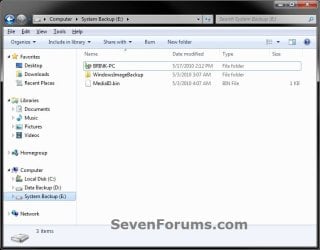
Step2.jpg
6. If prompted, click on Continue. (see screenshot below)
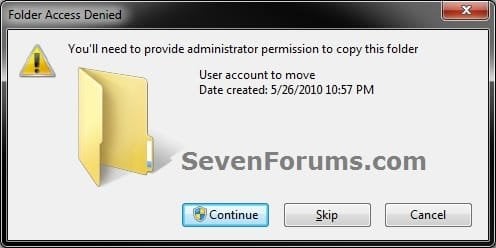
Step3-UAC.jpg
7. If prompted by UAC, then click on Yes (Windows 7) or Continue (Vista).

8. The C:\Users\(user-name) folder (step 4) is now copied over to the new location (ex: E:\User account to move). You can close Windows Explorer. (see screenshot below)
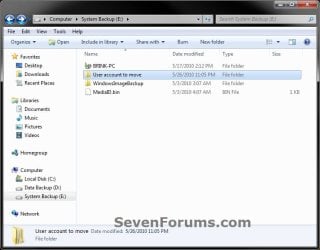
Step4.jpg
9. Open the Start Menu, then type regedit in the search box and press enter.

10. If prompted by UAC, then click on Yes (Windows 7) or Continue (Vista).

11. In regedit, navigate to the location below. (see screenshot below)

Code:
HKEY_LOCAL_MACHINE\SOFTWARE\Microsoft\Windows NT\CurrentVersion\ProfileList
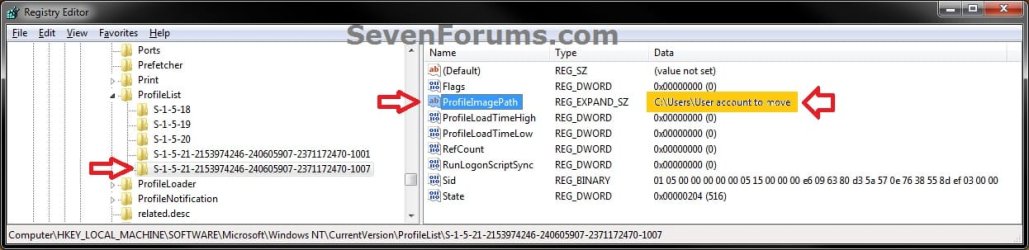
Step5.jpg
12. In the left pane under the Profilelist key, select and look at each S-1-5 key with the long number until you see the user account name and path (step 3) that you want to move in the value Data column of ProfileImagePath in the right pane. When the correct user name is found, right click on ProfileImagePath, and click on Modify. (see screenshot above)

13. Type in the full path of the location (ex: E:\User account to move) that you copied the user profile folder to in step 7, and click on OK. (see screenshot below)
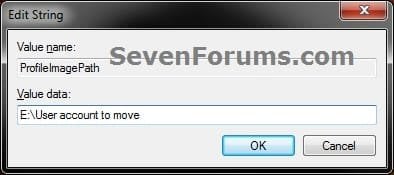
Step6.jpg
14. Regedit will now look similiar to this with the new location now. Close regedit. (see screenshot below)
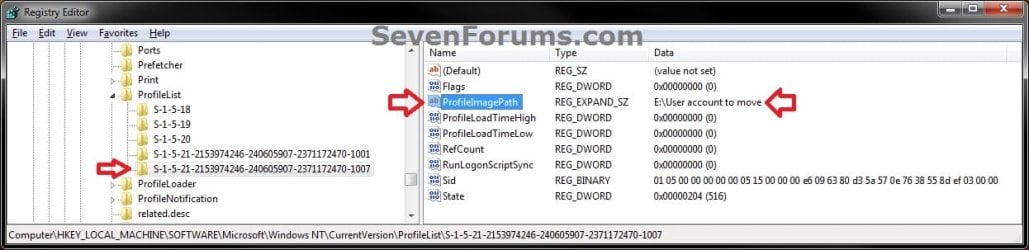
Step7.jpg
15. To Verify that the User Profile has been Moved Successfully
A) Log off or Switch User, then log in to the user account that you moved the user profile folder of.

B) Open the Start Menu and open the user profile folder from this location. (see screenshot below)
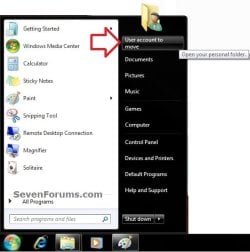
Log-in-1.jpg
C) Right click on one of the user folders (ex: Desktop), click on Properties, and click on the Location tab. (see screenshot below)
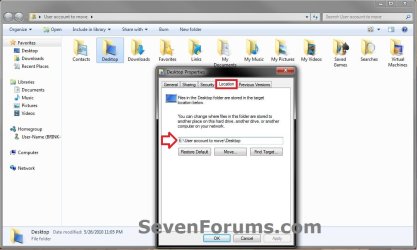
Log-in-2.jpg
D) You should see the new location (ex: E:\User account to move\Desktop) from step 8 as the now new default location. Click on OK. (see screenshot above)
16. To Delete the User Profile from the Old Location
NOTE: Once you have verified (step 15) that the moved user profile has been moved successfully, you can now safely delete the user profile folder from the old location (ex: C:\Users\User account to move) from step 4.
A) Log off of the user account that you moved if you are logged into it from step 15.

B) Log on to an administrator account that you did not move it's user folder for.

C) In Windows Explorer, navigate to the old C:\Users\(user-name) folder (ex: C:\Users\User account to move) that you had copied (step 4). Right click on it and click on Delete. (see screenshot below)
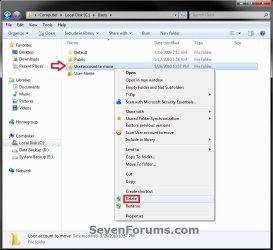
Delete-1_UAC.jpg
D) If prompted by UAC, then click on Yes (Windows 7) or Continue (Vista).

E) If prompted, click on Continue. (see screenshot below)
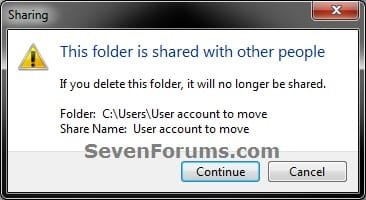
Delete-2.jpg
F) You can now empty the Recycle Bin to finish deleting the old user profile folder from the old location.
NOTE: You will need to approve emptying the Recycle Bin.
17. The existing user profile folder has now been completely moved to the new default location where Windows 7 or Vista will now run it from when logged on to it.


Method Two

To Restore the Existing User Profile's Default Location


1. Repeat OPTION ONE, but move the new default User Profile folder (ex: E:\User account to move) and registry entries back to the original C:\Users folder location (ex: C:\Users\User account to move).


OPTION TWO

For All New User Accounts Created


   Note
This will change where all newly created user accounts will have their user profile folder created at in a default location of your choice instead of the old default C:\Users location.

Thank you to Alain for pointing this out.

1. To Change the Default User Profile Location of New User Accounts
A) Open the Start Menu, then type regedit in the search box and press enter.
B) If prompted by UAC, then click on Yes (Windows 7) or Continue (Vista).

C) In regedit, navigate to the location below. (see screenshot below)

Code:
HKEY_LOCAL_MACHINE\SOFTWARE\Microsoft\Windows NT\CurrentVersion\ProfileList
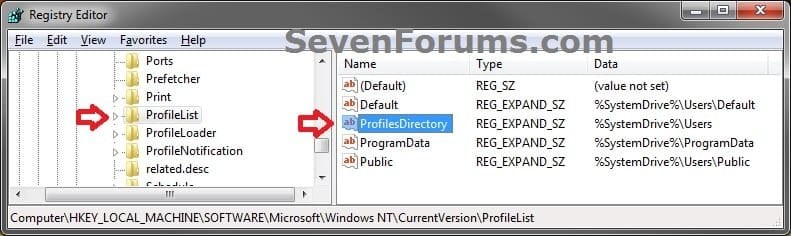
New-1.jpg
D) In the right pane of ProfileList, right click on ProfilesDirectory and click on Modify. (see screenshot above)

E) Type in the full path (ex: E:\Users) of where you want new user accounts to be created at, and click on OK. (see screenshot below)
New-2.jpg
F) The registry will now look similar to this. (see screenshot below)
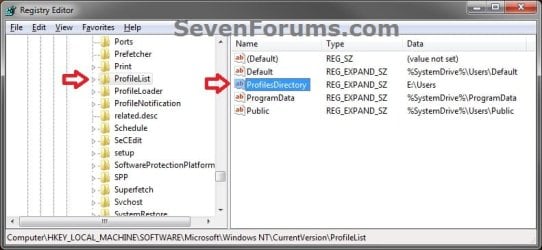
New-3.jpg
G) When you create a new user account, it's user profile folder will now be created at the location you specified in step 1E.
2. To Restore the Default User Profile Location of New User Accounts
A) Repeat step 1, but type %SystemDrive%\Users at step 1E instead.
NOTE: This step only changes the user profile folder location of any newly created user accounts back to this default location, and not any existing user accounts.

B) If you wish to change an already existing new account's user profile folder location, then you will need to do Method Two in OPTION ONE above to change it back to C:\Users.
3. Close regedit.

That's it,
Shawn


Last edited:
Danny,

That's great news. Yeah, that would be normal since the D: drive will be considered a system drive as well now with your user profile located on it.

Hi Shawn

Its actually going to be more of an issue than I first thought I think.The images are going to become massive if they include my user files too and a re-image of windows will also revert back all my user data.My user folders are backed up daily with windows backup,If I had to re-image say from an image created 2 weeks ago will the windows back up just restore the 2 weeks of missing files or will it restore everything leaving me with lots of duplicates.
I may have to look at some third party imaging software which is a shame, I like the simplicity of the windows ones.

Danny
 

My Computer

Computer Manufacturer/Model Number
acer aspire 5935g
OS
Windows 7 Home Premium x64 SP1
CPU
intel(R)core(TM)2 duo CPU T6600 @ 2.20GHz
Motherboard
intel gm45/gm47 revision 07
Memory
3 gb ddr3
Graphics Card(s)
ati radeon hd4570/512mb
Monitor(s) Displays
lop156wh2-tle1 15.3 flat
Screen Resolution
1366x768
Hard Drives
OCZ-Agility3 60gig ssd
320gig external hdd
500gig external hdd
Mouse
Optical
Internet Speed
30Mbps Down/30Mbps Up
A system image recovery will format the included drives and restore what was at the time the image was created. Afterwards, you could restore any missing files from your daily Windows backup though.
 

My Computer

Computer type
PC/Desktop
Computer Manufacturer/Model Number
Self built custom
OS
64-bit Windows 11 Pro for Workstations
CPU
Intel i7-8700K OC'd to 5 GHz
Motherboard
ASUS ROG Maximus XI Formula Z390
Memory
64 GB (4x16GB) G.SKILL TridentZ RGB DDR4 3600 MHz
Graphics Card(s)
ASUS ROG-STRIX-GTX1080TI-O11G-GAMING
Sound Card
Integrated
Monitor(s) Displays
2 x Samsung Odyssey G7 27"
Screen Resolution
2560x1440
Hard Drives
1TB Samsung 990 PRO M.2,
4TB Samsung 990 PRO PRO M.2,
TerraMaster F8 SSD Plus NAS
PSU
Seasonic Prime Titanium 850W
Case
Thermaltake Core P3
Cooling
Corsair Hydro H115i
Keyboard
Logitech wireless K800
Mouse
Logitech MX Master 4
Internet Speed
2 Gb/s Download and 100 Mb/s Upload
Antivirus
Malwarebyte Anti-Malware Premium
Browser
Google Chrome
Other Info
Logitech Z625 speaker system,
Logitech BRIO 4K Pro webcam,
HP Color LaserJet Pro MFP M477fdn,
APC SMART-UPS RT 1000 XL - SURT1000XLI,
Galaxy S23 Plus phone
Security

Need to add one more important point for case if computer is used by more then one users. Then need to change a permission for the user folder. This should be done at the end.
Select user folder -> open Propertis ->go to Security and start Edit
1) remove permission for other users
2) add permission for user
Permison should be set only for
- SYSTEM
- User
- Administrators
 

My Computer

OS
Windows 7 x64
Hi Brink, nice tutorial, and just what I'm looking for.

I've just installed W7 Ultimate on a new 120Gb SSD drive, and I plan to store my user data on my old spindle drive. So far I've only created my own home account ("C:\Users\Jock"), and I have no saved data on that.

My plan is to move that to "D:\Users\Jock" which already exists, as D: has my original Win 7 install still in place.

So, using your tutorial, can I move "C:\Users\Jock\" to "D:\Users\Jock\" and have access to all my existing files? I expect I need to select them all and take ownership of them to get my permission back etc, but I can do that.

Secondly, my "D:\Users\Public Users\" folder has around 100Gb of music and video files, which I share across two Itunes accounts. Is there really no way to move the "Public Users" account onto a secondary drive? Not a massive problem, as the shared music library does not have to sit in the "Public Users" account (it could for instance be in "D:\Shared Music\", but it would certainly be tidier to have all the user accounts in one "\Users\" folder on the spindle drive.

Once again, many thanks for the tutorial, and for all the follow-up posts, they make for great reading!

Jock in a Frock.
 

My Computer

Computer Manufacturer/Model Number
Home Built
OS
Windows 7 & XP
CPU
AMD Athlon64 6000+ @ 3.1GHz stock
Motherboard
Gigabyte GA-M770-DS3
Memory
2 x 1Gb OCZ platinum 800MHz 4-4-4-15
Graphics Card(s)
Sapphire radeon 3870HD 512Mb GDDR3
Sound Card
Creative Soundblaster Audigy Live
Monitor(s) Displays
17" Viewsonic LCD
Hard Drives
1 x Samsung Spinpoint 500Gb SATA-II 16Mb Cache 7200rpm
1 x Samsung Spinpoint 160Gb SATA-II 16Mb Cache 7200rpm
1 x Freeagent 500Gb External USB drive
PSU
OCZ Stealth Extreme 600w
Case
Antec P180 Silver
Cooling
Stock AMD Cooling
You're most welcome Jock in a Frock.

Sorry, but not so far. There are just to many issues caused by moving the Public folder. :(
 

My Computer

Computer type
PC/Desktop
Computer Manufacturer/Model Number
Self built custom
OS
64-bit Windows 11 Pro for Workstations
CPU
Intel i7-8700K OC'd to 5 GHz
Motherboard
ASUS ROG Maximus XI Formula Z390
Memory
64 GB (4x16GB) G.SKILL TridentZ RGB DDR4 3600 MHz
Graphics Card(s)
ASUS ROG-STRIX-GTX1080TI-O11G-GAMING
Sound Card
Integrated
Monitor(s) Displays
2 x Samsung Odyssey G7 27"
Screen Resolution
2560x1440
Hard Drives
1TB Samsung 990 PRO M.2,
4TB Samsung 990 PRO PRO M.2,
TerraMaster F8 SSD Plus NAS
PSU
Seasonic Prime Titanium 850W
Case
Thermaltake Core P3
Cooling
Corsair Hydro H115i
Keyboard
Logitech wireless K800
Mouse
Logitech MX Master 4
Internet Speed
2 Gb/s Download and 100 Mb/s Upload
Antivirus
Malwarebyte Anti-Malware Premium
Browser
Google Chrome
Other Info
Logitech Z625 speaker system,
Logitech BRIO 4K Pro webcam,
HP Color LaserJet Pro MFP M477fdn,
APC SMART-UPS RT 1000 XL - SURT1000XLI,
Galaxy S23 Plus phone
Okay I have now completed moving my two accounts to the spindle drive. Worked perfectly. I have also edited the path for new accounts to the spindle drive (not likely to need more accounts on this PC anyway).

I have also reconstructed my itunes library files to point to the new Users folders too, so all my music is now on the spindle drive and itunes is working great.

Here's how I updated the itunes libraries:

1. Close iTunes

2. Open "My Documents\My Music\iTunes\".

3. Move (don't copy) both iTunes Library.itl and iTunes Music Library.xml to the desktop

4. Open iTunes Music Library.xml in your favourite text editor (I use Notepad++)

5. Search & Replace for C:/Users/<username> and replace it with E:/Users/<username> - note: Forward slashes!!!!

6. Save this back to the desktop

7. Open iTunes, it will recreate iTunes Library.itl and iTunes Music Library.xml but the library will be empty.

8. File / Library / Import and load the iTunes Music Library.xml file from your desktop. - this will take a few minutes, but should reload all your music, and pull the relevant .mp3 files from your new User directory.

Note: all this is at your own risk - please take care and ensure you've a good backup in case anything goes wrong.

Brink, I can live without moving the "Public" folder, and I can just manage the shared files myself off the spindle drive.

Thanks again for your tutorial. Worked like a charm for me.

Jock in a Frock.
 

My Computer

Computer Manufacturer/Model Number
Home Built
OS
Windows 7 & XP
CPU
AMD Athlon64 6000+ @ 3.1GHz stock
Motherboard
Gigabyte GA-M770-DS3
Memory
2 x 1Gb OCZ platinum 800MHz 4-4-4-15
Graphics Card(s)
Sapphire radeon 3870HD 512Mb GDDR3
Sound Card
Creative Soundblaster Audigy Live
Monitor(s) Displays
17" Viewsonic LCD
Hard Drives
1 x Samsung Spinpoint 500Gb SATA-II 16Mb Cache 7200rpm
1 x Samsung Spinpoint 160Gb SATA-II 16Mb Cache 7200rpm
1 x Freeagent 500Gb External USB drive
PSU
OCZ Stealth Extreme 600w
Case
Antec P180 Silver
Cooling
Stock AMD Cooling
That's great news Jock in a Frock. Thank you for posting back with your results. :)
 

My Computer

Computer type
PC/Desktop
Computer Manufacturer/Model Number
Self built custom
OS
64-bit Windows 11 Pro for Workstations
CPU
Intel i7-8700K OC'd to 5 GHz
Motherboard
ASUS ROG Maximus XI Formula Z390
Memory
64 GB (4x16GB) G.SKILL TridentZ RGB DDR4 3600 MHz
Graphics Card(s)
ASUS ROG-STRIX-GTX1080TI-O11G-GAMING
Sound Card
Integrated
Monitor(s) Displays
2 x Samsung Odyssey G7 27"
Screen Resolution
2560x1440
Hard Drives
1TB Samsung 990 PRO M.2,
4TB Samsung 990 PRO PRO M.2,
TerraMaster F8 SSD Plus NAS
PSU
Seasonic Prime Titanium 850W
Case
Thermaltake Core P3
Cooling
Corsair Hydro H115i
Keyboard
Logitech wireless K800
Mouse
Logitech MX Master 4
Internet Speed
2 Gb/s Download and 100 Mb/s Upload
Antivirus
Malwarebyte Anti-Malware Premium
Browser
Google Chrome
Other Info
Logitech Z625 speaker system,
Logitech BRIO 4K Pro webcam,
HP Color LaserJet Pro MFP M477fdn,
APC SMART-UPS RT 1000 XL - SURT1000XLI,
Galaxy S23 Plus phone
Hi,

I followed the steps and it seemed to work perfectly. However a couple of days later when I tried to log in it logged me into a temporary profile. When I log into my admin profile I can see that the regedit change I made is still there (i.e. it points to D:\Users\username), for my new profile, but it is logging me into a temporary one instead (C:\Users\Temporaryprofile). I am not getting any messages saying the profile is corrupt.

Any ideas?

Dave
 

My Computer

OS
Windows 7 Ultimate

My Computer

Computer type
PC/Desktop
Computer Manufacturer/Model Number
Self built custom
OS
64-bit Windows 11 Pro for Workstations
CPU
Intel i7-8700K OC'd to 5 GHz
Motherboard
ASUS ROG Maximus XI Formula Z390
Memory
64 GB (4x16GB) G.SKILL TridentZ RGB DDR4 3600 MHz
Graphics Card(s)
ASUS ROG-STRIX-GTX1080TI-O11G-GAMING
Sound Card
Integrated
Monitor(s) Displays
2 x Samsung Odyssey G7 27"
Screen Resolution
2560x1440
Hard Drives
1TB Samsung 990 PRO M.2,
4TB Samsung 990 PRO PRO M.2,
TerraMaster F8 SSD Plus NAS
PSU
Seasonic Prime Titanium 850W
Case
Thermaltake Core P3
Cooling
Corsair Hydro H115i
Keyboard
Logitech wireless K800
Mouse
Logitech MX Master 4
Internet Speed
2 Gb/s Download and 100 Mb/s Upload
Antivirus
Malwarebyte Anti-Malware Premium
Browser
Google Chrome
Other Info
Logitech Z625 speaker system,
Logitech BRIO 4K Pro webcam,
HP Color LaserJet Pro MFP M477fdn,
APC SMART-UPS RT 1000 XL - SURT1000XLI,
Galaxy S23 Plus phone
Hi Shawn,

That didn't help. I followed the steps, but when I tried to log into my profile at the end it just went to another temp profile. It's like Windows doesn't like me storing my profile on a different drive. I try repointing it to the D:\Users\username file, but everytime it changes it to C:\Users\usernametemp.
 

My Computer

OS
Windows 7 Ultimate
David,

As a test, see if moving the user profile back to it's original location on the C: drive to see if it works properly afterwards.
 

My Computer

Computer type
PC/Desktop
Computer Manufacturer/Model Number
Self built custom
OS
64-bit Windows 11 Pro for Workstations
CPU
Intel i7-8700K OC'd to 5 GHz
Motherboard
ASUS ROG Maximus XI Formula Z390
Memory
64 GB (4x16GB) G.SKILL TridentZ RGB DDR4 3600 MHz
Graphics Card(s)
ASUS ROG-STRIX-GTX1080TI-O11G-GAMING
Sound Card
Integrated
Monitor(s) Displays
2 x Samsung Odyssey G7 27"
Screen Resolution
2560x1440
Hard Drives
1TB Samsung 990 PRO M.2,
4TB Samsung 990 PRO PRO M.2,
TerraMaster F8 SSD Plus NAS
PSU
Seasonic Prime Titanium 850W
Case
Thermaltake Core P3
Cooling
Corsair Hydro H115i
Keyboard
Logitech wireless K800
Mouse
Logitech MX Master 4
Internet Speed
2 Gb/s Download and 100 Mb/s Upload
Antivirus
Malwarebyte Anti-Malware Premium
Browser
Google Chrome
Other Info
Logitech Z625 speaker system,
Logitech BRIO 4K Pro webcam,
HP Color LaserJet Pro MFP M477fdn,
APC SMART-UPS RT 1000 XL - SURT1000XLI,
Galaxy S23 Plus phone
So copy and paste the profile from D:\Users\username to C:\Users\username then use regedit to point it from D to C (just this process in reverse?)?

There is not enough free space on C to move it back (once I moved it I moved all my music and pictures into it).

Could I create a new profile on D:\ and try to move the folders across... there is a guide linked from that tutorial for this, but it is for Vista
 
Last edited by a moderator:

My Computer

OS
Windows 7 Ultimate
You could give it a try and see, but you'll only be able to copy the folder contents over since it's a different account. Be sure to back up your files before doing so to be safe.
 

My Computer

Computer type
PC/Desktop
Computer Manufacturer/Model Number
Self built custom
OS
64-bit Windows 11 Pro for Workstations
CPU
Intel i7-8700K OC'd to 5 GHz
Motherboard
ASUS ROG Maximus XI Formula Z390
Memory
64 GB (4x16GB) G.SKILL TridentZ RGB DDR4 3600 MHz
Graphics Card(s)
ASUS ROG-STRIX-GTX1080TI-O11G-GAMING
Sound Card
Integrated
Monitor(s) Displays
2 x Samsung Odyssey G7 27"
Screen Resolution
2560x1440
Hard Drives
1TB Samsung 990 PRO M.2,
4TB Samsung 990 PRO PRO M.2,
TerraMaster F8 SSD Plus NAS
PSU
Seasonic Prime Titanium 850W
Case
Thermaltake Core P3
Cooling
Corsair Hydro H115i
Keyboard
Logitech wireless K800
Mouse
Logitech MX Master 4
Internet Speed
2 Gb/s Download and 100 Mb/s Upload
Antivirus
Malwarebyte Anti-Malware Premium
Browser
Google Chrome
Other Info
Logitech Z625 speaker system,
Logitech BRIO 4K Pro webcam,
HP Color LaserJet Pro MFP M477fdn,
APC SMART-UPS RT 1000 XL - SURT1000XLI,
Galaxy S23 Plus phone
Hello Brink, everyone,
what a great and knowledgeable site:)

I am a new Windows 7 user (update from XP) and I installed W7 on a small 64GB SSD. So space is important.
I read a lot of the tutorials on this site about the DOs and DON'ts on SSD and followed the tutorials.
I moved temp files using Leo:How do I change the location of Windows temporary files?
(I would like to keep mainly read files/programs on the SSD-if possible)
I want to move the default location of downloads, desktop, documents, favorites etc?
Is it better to move everything, USER folder (all files) or one by one? I am concern about downloads and other folders where content gets often erased.
What happens to the sub-files "Public" after moving User-(me)? Do they still get "public" downloads? (I am the only user-administrator)

Sorry for all these questions, but a few of days ago I tried to move the User files to a different location, and fiddling in the registry keys, (and I really messed up), resulted in google toolbar disappearing, Icons disappearing after restart, W7 acted like it was just installed...:o...you can understand my apprehension.
I had to re-install W-7.:cry:
So far I did not install any programs yet, until I figure out and move folder(s) that can be moved.
Thank you for help
 

My Computer

Computer type
PC/Desktop
Computer Manufacturer/Model Number
Home-built
OS
Windows 7 Ultimate x64
CPU
AMD Athlon II X3 [email protected]
Motherboard
M4A77D latest bios
Memory
3 x 2GB Crucial
Graphics Card(s)
NVidia GeForce 7600GT
Sound Card
RME 9632 PCI card
Monitor(s) Displays
23" Asus VW225D
Hard Drives
Samsung 470 Series SSD ATA 64GB
Samsung HD502HJ ATA 500GB
ST3160811AS ATA 160GB
PSU
Silent 600
Case
LIAN LI
Cooling
Scythe over sized cooler with 2 x 125mm fans
Keyboard
Compaq
Mouse
Logitech gaming mouse
Internet Speed
5 Mega
Antivirus
none
Browser
Google Chrome
Hello Soundklinik,

If you have the space on your Windows 7 C: drive, then it's really best to keep the user profile folder and user folders at their default locations and not move them to avoid any potential unknown issues.

The main issue about moving the user profile folder itself for an existing user account, is that some installed programs may not work afterwards. To avoid this, it's really best to either move the user profile folder for new user accounts and create a new administrator account afterwards to use instead. Luckily you didn't install any yet though.

If you only wanted to move a few user folders, then just moving them would be better then moving the user profile folder itself. However, if you wanted to move all of them, then it may be easier to just move the user profile folder.

The C:\Users\Public folders do not get moved with this.

Hope this helps,
Shawn
 

My Computer

Computer type
PC/Desktop
Computer Manufacturer/Model Number
Self built custom
OS
64-bit Windows 11 Pro for Workstations
CPU
Intel i7-8700K OC'd to 5 GHz
Motherboard
ASUS ROG Maximus XI Formula Z390
Memory
64 GB (4x16GB) G.SKILL TridentZ RGB DDR4 3600 MHz
Graphics Card(s)
ASUS ROG-STRIX-GTX1080TI-O11G-GAMING
Sound Card
Integrated
Monitor(s) Displays
2 x Samsung Odyssey G7 27"
Screen Resolution
2560x1440
Hard Drives
1TB Samsung 990 PRO M.2,
4TB Samsung 990 PRO PRO M.2,
TerraMaster F8 SSD Plus NAS
PSU
Seasonic Prime Titanium 850W
Case
Thermaltake Core P3
Cooling
Corsair Hydro H115i
Keyboard
Logitech wireless K800
Mouse
Logitech MX Master 4
Internet Speed
2 Gb/s Download and 100 Mb/s Upload
Antivirus
Malwarebyte Anti-Malware Premium
Browser
Google Chrome
Other Info
Logitech Z625 speaker system,
Logitech BRIO 4K Pro webcam,
HP Color LaserJet Pro MFP M477fdn,
APC SMART-UPS RT 1000 XL - SURT1000XLI,
Galaxy S23 Plus phone
Hello Shawn,
thank you for clearing out this "conflict" for me...

Mainly I want to move "Download" folder, (or POINT ALL downloads by default to a NEW location), because they contains too many "temporary files" that get erased later.

So moving only "Download" folder, I just proceed as described in tutorial and then erase the default one (on C) and leave only the new one, for example: H:\Downloads?

Thank you for help.

Have a nice weekend:),
Karl
 

My Computer

Computer type
PC/Desktop
Computer Manufacturer/Model Number
Home-built
OS
Windows 7 Ultimate x64
CPU
AMD Athlon II X3 [email protected]
Motherboard
M4A77D latest bios
Memory
3 x 2GB Crucial
Graphics Card(s)
NVidia GeForce 7600GT
Sound Card
RME 9632 PCI card
Monitor(s) Displays
23" Asus VW225D
Hard Drives
Samsung 470 Series SSD ATA 64GB
Samsung HD502HJ ATA 500GB
ST3160811AS ATA 160GB
PSU
Silent 600
Case
LIAN LI
Cooling
Scythe over sized cooler with 2 x 125mm fans
Keyboard
Compaq
Mouse
Logitech gaming mouse
Internet Speed
5 Mega
Antivirus
none
Browser
Google Chrome

My Computer

Computer type
PC/Desktop
Computer Manufacturer/Model Number
Self built custom
OS
64-bit Windows 11 Pro for Workstations
CPU
Intel i7-8700K OC'd to 5 GHz
Motherboard
ASUS ROG Maximus XI Formula Z390
Memory
64 GB (4x16GB) G.SKILL TridentZ RGB DDR4 3600 MHz
Graphics Card(s)
ASUS ROG-STRIX-GTX1080TI-O11G-GAMING
Sound Card
Integrated
Monitor(s) Displays
2 x Samsung Odyssey G7 27"
Screen Resolution
2560x1440
Hard Drives
1TB Samsung 990 PRO M.2,
4TB Samsung 990 PRO PRO M.2,
TerraMaster F8 SSD Plus NAS
PSU
Seasonic Prime Titanium 850W
Case
Thermaltake Core P3
Cooling
Corsair Hydro H115i
Keyboard
Logitech wireless K800
Mouse
Logitech MX Master 4
Internet Speed
2 Gb/s Download and 100 Mb/s Upload
Antivirus
Malwarebyte Anti-Malware Premium
Browser
Google Chrome
Other Info
Logitech Z625 speaker system,
Logitech BRIO 4K Pro webcam,
HP Color LaserJet Pro MFP M477fdn,
APC SMART-UPS RT 1000 XL - SURT1000XLI,
Galaxy S23 Plus phone
Thanks Shawn,

OK, just did the move "downloads", and is just like in your tutorial.

For IE, I am using Chrome, because of previous problems with window IEs on XP...(in Chrome I did that already.)

Karl
Additional question: Is it safe to move "My Documents" folder? (There are sub folders in that I would like to move with it, meaning to move the whole undisturbed lot)
Thanx again
 
Last edited:

My Computer

Computer type
PC/Desktop
Computer Manufacturer/Model Number
Home-built
OS
Windows 7 Ultimate x64
CPU
AMD Athlon II X3 [email protected]
Motherboard
M4A77D latest bios
Memory
3 x 2GB Crucial
Graphics Card(s)
NVidia GeForce 7600GT
Sound Card
RME 9632 PCI card
Monitor(s) Displays
23" Asus VW225D
Hard Drives
Samsung 470 Series SSD ATA 64GB
Samsung HD502HJ ATA 500GB
ST3160811AS ATA 160GB
PSU
Silent 600
Case
LIAN LI
Cooling
Scythe over sized cooler with 2 x 125mm fans
Keyboard
Compaq
Mouse
Logitech gaming mouse
Internet Speed
5 Mega
Antivirus
none
Browser
Google Chrome
That's great news Karel.

When you move the "My Documents" folder, it will move it's contents with it as well if all steps are followed in the tutorial. :)
 
Last edited:

My Computer

Computer type
PC/Desktop
Computer Manufacturer/Model Number
Self built custom
OS
64-bit Windows 11 Pro for Workstations
CPU
Intel i7-8700K OC'd to 5 GHz
Motherboard
ASUS ROG Maximus XI Formula Z390
Memory
64 GB (4x16GB) G.SKILL TridentZ RGB DDR4 3600 MHz
Graphics Card(s)
ASUS ROG-STRIX-GTX1080TI-O11G-GAMING
Sound Card
Integrated
Monitor(s) Displays
2 x Samsung Odyssey G7 27"
Screen Resolution
2560x1440
Hard Drives
1TB Samsung 990 PRO M.2,
4TB Samsung 990 PRO PRO M.2,
TerraMaster F8 SSD Plus NAS
PSU
Seasonic Prime Titanium 850W
Case
Thermaltake Core P3
Cooling
Corsair Hydro H115i
Keyboard
Logitech wireless K800
Mouse
Logitech MX Master 4
Internet Speed
2 Gb/s Download and 100 Mb/s Upload
Antivirus
Malwarebyte Anti-Malware Premium
Browser
Google Chrome
Other Info
Logitech Z625 speaker system,
Logitech BRIO 4K Pro webcam,
HP Color LaserJet Pro MFP M477fdn,
APC SMART-UPS RT 1000 XL - SURT1000XLI,
Galaxy S23 Plus phone
Hello Shawn,

thank you so much, so far so good...your help is very much appreciated.

Best, Karel
 

My Computer

Computer type
PC/Desktop
Computer Manufacturer/Model Number
Home-built
OS
Windows 7 Ultimate x64
CPU
AMD Athlon II X3 [email protected]
Motherboard
M4A77D latest bios
Memory
3 x 2GB Crucial
Graphics Card(s)
NVidia GeForce 7600GT
Sound Card
RME 9632 PCI card
Monitor(s) Displays
23" Asus VW225D
Hard Drives
Samsung 470 Series SSD ATA 64GB
Samsung HD502HJ ATA 500GB
ST3160811AS ATA 160GB
PSU
Silent 600
Case
LIAN LI
Cooling
Scythe over sized cooler with 2 x 125mm fans
Keyboard
Compaq
Mouse
Logitech gaming mouse
Internet Speed
5 Mega
Antivirus
none
Browser
Google Chrome
Back
Top