User Profile - Change Default Location

How to Change the Default Location of a User Profile in Vista and Windows 7


   Information
A user profile is the main C:\Users\(user-name) folder of a user account that contains all of the account's settings, shortcuts, information, and user folders (ex: My Music) with the files in them.

This will show you how to Move the default location of a user profile in Windows 7 and Vista to another location of your choice so it will be stored and used from the new location instead.

This can be handy if you are low on free space on your C: drive.

You must be logged in as an administrator to be able to do the steps in this tutorial.

   Warning
Before doing this, you should create a system image to be safe. This way you can do a system image recovery to undo any mistake you might make in the instructions below that could result in the user profile you are moving, or Windows, to no longer work.
   Note
The drive or partition that you move the user profile folder(s) to, will now be included in a system image if created since it will now be considered a system drive.
   Tip
If you are just wanting to save HDD space from the files in your user folders, then you might consider this below to be able to access the files from your libraries with the files actually located where you like instead. This way you will not have to worry about any potential issues that come with moving user folder locations.


OPTION ONE

For Already Existing User Accounts


   Warning
Some of the programs you have installed may not work properly after moving your user profile folder since they are still looking for their information in the user profile folder's original AppData folder location which of course no longer exists.

If you have this problem afterwards, then you may be able to uninstall and reinstall these programs, or use OPTION TWO in the tutorial to create a new user account and create new shortcuts for the programs to fix this.


Method One

To Change the Default Location of an Existing User Profile


1. Log on to the user account that you want to move. In Windows Explorer, navigate to it's C:\Users\(user-name) folder, right click on the user folder, click on Share with and Nobody.

2. Log off.

3. Log on to an administrator account that you are not moving it's user folder for.
NOTE: If you do not have another administrator account to use, then you will need to create a new account first and log in to it. When done with the tutorial, you can delete the new account.

4. In Windows Explorer, navigate to the C:\Users\(user-name) folder (ex: C:\Users\User account to move) that you want to move. Right click on it and click on Copy. (see screenshot below)
Step1.jpg
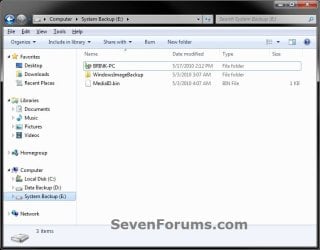
5. In Windows Explorer, navigate to the new location (ex: E: drive) that you want to move the C:\Users\(user-name) folder to. Right click on a empty space in the main window (middle), and click on Paste. (see screenshot below)
NOTE: This should be another internal hard drive or partition.
Step2.jpg
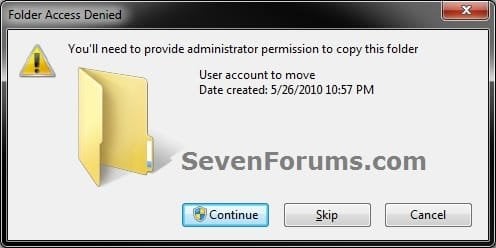
6. If prompted, click on Continue. (see screenshot below)
Step3-UAC.jpg
7. If prompted by UAC, then click on Yes (Windows 7) or Continue (Vista).

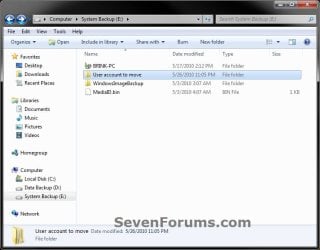
8. The C:\Users\(user-name) folder (step 4) is now copied over to the new location (ex: E:\User account to move). You can close Windows Explorer. (see screenshot below)
Step4.jpg
9. Open the Start Menu, then type regedit in the search box and press enter.

10. If prompted by UAC, then click on Yes (Windows 7) or Continue (Vista).

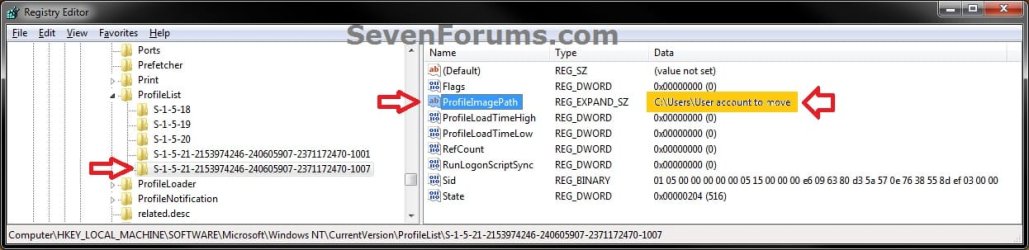
11. In regedit, navigate to the location below. (see screenshot below)

Code:
HKEY_LOCAL_MACHINE\SOFTWARE\Microsoft\Windows NT\CurrentVersion\ProfileList
Step5.jpg
12. In the left pane under the Profilelist key, select and look at each S-1-5 key with the long number until you see the user account name and path (step 3) that you want to move in the value Data column of ProfileImagePath in the right pane. When the correct user name is found, right click on ProfileImagePath, and click on Modify. (see screenshot above)

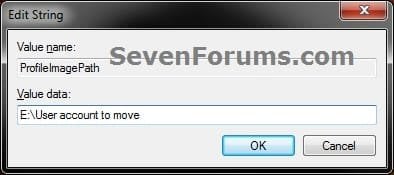
13. Type in the full path of the location (ex: E:\User account to move) that you copied the user profile folder to in step 7, and click on OK. (see screenshot below)
Step6.jpg
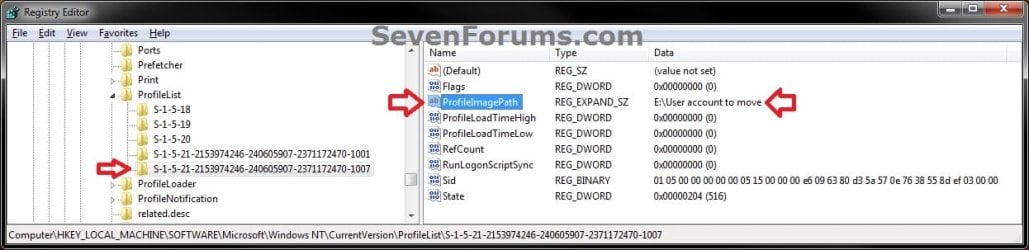
14. Regedit will now look similiar to this with the new location now. Close regedit. (see screenshot below)
Step7.jpg
15. To Verify that the User Profile has been Moved Successfully
A) Log off or Switch User, then log in to the user account that you moved the user profile folder of.

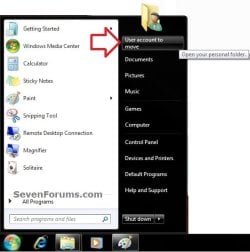
B) Open the Start Menu and open the user profile folder from this location. (see screenshot below)
Log-in-1.jpg
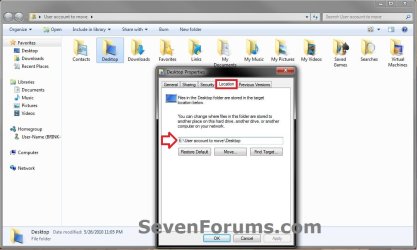
C) Right click on one of the user folders (ex: Desktop), click on Properties, and click on the Location tab. (see screenshot below)
Log-in-2.jpg
D) You should see the new location (ex: E:\User account to move\Desktop) from step 8 as the now new default location. Click on OK. (see screenshot above)
16. To Delete the User Profile from the Old Location
NOTE: Once you have verified (step 15) that the moved user profile has been moved successfully, you can now safely delete the user profile folder from the old location (ex: C:\Users\User account to move) from step 4.
A) Log off of the user account that you moved if you are logged into it from step 15.

B) Log on to an administrator account that you did not move it's user folder for.

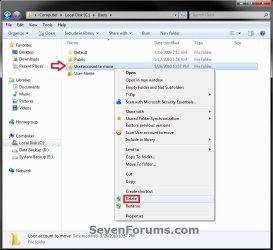
C) In Windows Explorer, navigate to the old C:\Users\(user-name) folder (ex: C:\Users\User account to move) that you had copied (step 4). Right click on it and click on Delete. (see screenshot below)
Delete-1_UAC.jpg
D) If prompted by UAC, then click on Yes (Windows 7) or Continue (Vista).

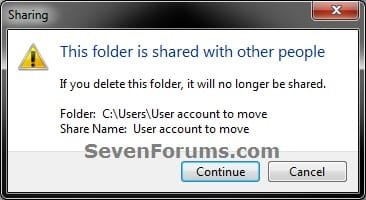
E) If prompted, click on Continue. (see screenshot below)
Delete-2.jpg
F) You can now empty the Recycle Bin to finish deleting the old user profile folder from the old location.
NOTE: You will need to approve emptying the Recycle Bin.
17. The existing user profile folder has now been completely moved to the new default location where Windows 7 or Vista will now run it from when logged on to it.


Method Two

To Restore the Existing User Profile's Default Location


1. Repeat OPTION ONE, but move the new default User Profile folder (ex: E:\User account to move) and registry entries back to the original C:\Users folder location (ex: C:\Users\User account to move).


OPTION TWO

For All New User Accounts Created


   Note
This will change where all newly created user accounts will have their user profile folder created at in a default location of your choice instead of the old default C:\Users location.

Thank you to Alain for pointing this out.

1. To Change the Default User Profile Location of New User Accounts
A) Open the Start Menu, then type regedit in the search box and press enter.
B) If prompted by UAC, then click on Yes (Windows 7) or Continue (Vista).

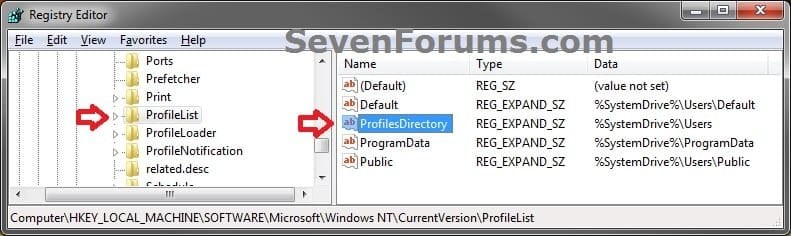
C) In regedit, navigate to the location below. (see screenshot below)

Code:
HKEY_LOCAL_MACHINE\SOFTWARE\Microsoft\Windows NT\CurrentVersion\ProfileList
New-1.jpg
D) In the right pane of ProfileList, right click on ProfilesDirectory and click on Modify. (see screenshot above)

E) Type in the full path (ex: E:\Users) of where you want new user accounts to be created at, and click on OK. (see screenshot below)
New-2.jpg
F) The registry will now look similar to this. (see screenshot below)
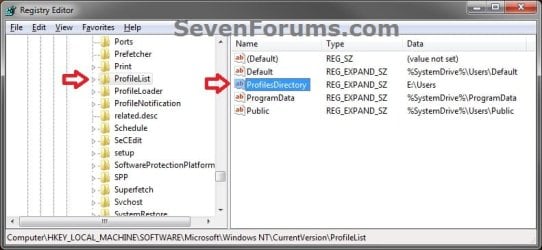
New-3.jpg
G) When you create a new user account, it's user profile folder will now be created at the location you specified in step 1E.
2. To Restore the Default User Profile Location of New User Accounts
A) Repeat step 1, but type %SystemDrive%\Users at step 1E instead.
NOTE: This step only changes the user profile folder location of any newly created user accounts back to this default location, and not any existing user accounts.

B) If you wish to change an already existing new account's user profile folder location, then you will need to do Method Two in OPTION ONE above to change it back to C:\Users.
3. Close regedit.

That's it,
Shawn


Last edited:

My Computer

Computer Manufacturer/Model Number
Toshiba Satellite® L755D-S5348 15.6" widescreen Laptop
OS
Windows 7 Home Premium x64
CPU
AMD Dual-Core A4-3300M Accelerated Processor
Motherboard
AMD Torpedo
Memory
DDR3 6144 MBytes
Graphics Card(s)
AMD Radeon™ HD 6480G
Monitor(s) Displays
15.6" Widescreen, 1366x768 (HD), 16:9 aspect ratio
Hard Drives
Hitachi HTS547550A9E384 500 GB
Hey Brink, take a look at these links. Maybe you can add them here as option 3 or create a whole new tutorial. These links show how to move the user profiles with Junction Points, maybe that is a better way for some users. Just a thought. -WS

Move the Users Directory in Windows 7
http://www.starkeith.net/coredump/2009/05/18/how-to-move-your-windows-user-profile-to-another-drive/
Move the User Folder To A Separate Drive/Partition (The Right Way) - Idealistically Caspan
Windows 7 – How To Move The Entire Users Folder To A Different Drive – UPDATED! - Idealistically Caspan
 

My Computer

Computer type
PC/Desktop
Computer Manufacturer/Model Number
Dell OP7010
OS
Windows 7 Enterprise (x64); Windows Server 2008 R2 (x64)
Memory
16GB
Monitor(s) Displays
4 Dell 24" LCD
Screen Resolution
1280x1024
Keyboard
Dell
Mouse
Dell Optical
Internet Speed
40meg
So, I guess I should have looked at more search results and found this thread before I tried to relocate my Users folder from my SSD to HDD.

I used the 'guide' located on Lifehacker - How to Move the Windows Users Folder. Unfortunately, I didn't see this comment from John Garcia:

Apparently whilst the first drive letter in the mklink command refers to the current name of the drive you want your link to be, the 2nd drive letter refers to the name on reboot of the drive you want your symlink to point to. Since I wanted it to point to my D: drive, I re-did the command as:
"mklink /J D:\Users D:\Users"

So, now I'm stuck where I can't logon to Windows. When I get home from work today, my idea is to use my Windows DVD to get to repair and then Command Line, then use robocopy to move everything back to the OS drive. Hopefully then I can load into Windows and follow the instructions listed here.

Does that sound like the right process to fix the "User profile service failed at logon" error?

Thanks,
Eric
 

My Computer

OS
Windows 7 Ultimate 64 bit
This tutorial is far from perfect! You copy when logged on as another user. That other user that makes the files will be the owner of all files. Also permissions to files are lost. They will be default permissions so inhereted from parent. So most likely read and execute for standard users. and full control for administrators. Also junction points are not copied.
 

My Computer

Computer type
Laptop
Computer Manufacturer/Model Number
ACER ASPIRE 5742G
OS
Microsoft Windows 7 Home Premium 64-bits 7601 Multiprocessor Free Service Pack 1
CPU
Intel(R) Core(TM) i3 CPU M 370 @ 2.40GHz
Motherboard
Acer Aspire 5742G
Memory
4,00 GB
Graphics Card(s)
ATI Mobility Radeon HD 5400 Series
Sound Card
(1) AMD High Definition Audio Device (2) Realtek High Defi
Screen Resolution
1366 x 768 x 32 bits (4294967296 colors) @ 60 Hz
Hard Drives
WDC WD5000BEVT-22ZAT0
Well, I went ahead as per this tutorial and haven't had any issues as of yet. Is there another tutorial somewhere else that has a way to resolve the issues you've listed Kaktussoft?
 

My Computer

OS
Windows 7 Ultimate 64 bit

My Computer

Computer type
Laptop
Computer Manufacturer/Model Number
ACER ASPIRE 5742G
OS
Microsoft Windows 7 Home Premium 64-bits 7601 Multiprocessor Free Service Pack 1
CPU
Intel(R) Core(TM) i3 CPU M 370 @ 2.40GHz
Motherboard
Acer Aspire 5742G
Memory
4,00 GB
Graphics Card(s)
ATI Mobility Radeon HD 5400 Series
Sound Card
(1) AMD High Definition Audio Device (2) Realtek High Defi
Screen Resolution
1366 x 768 x 32 bits (4294967296 colors) @ 60 Hz
Hard Drives
WDC WD5000BEVT-22ZAT0
I want to move the USERS and profiles folders back to C drive.

So I should just:
create a new temp admin profile
log in
change USERS drive back to C:\USERS in registry, and change each profile path back to C:\USERS\* in registry
copy each profile folder back to the C:\USERS folder

Now, is that basically it, And should I use a program like fast copy with the "ACL" checkbox ticked, to copy the profile folders back to C with all the permissions, or will simply copying with windows be enough?

Thanks.
 

My Computer

OS
7 Ult x64 sp1
CPU
intel i
Motherboard
z68
Memory
ddr3 2GB+
Graphics Card(s)
nvidia pcie
Monitor(s) Displays
lcd
Hard Drives
sata2
PSU
600W
Cooling
fans
Hello nevesswodniw,

Yep, you would just need to use Method Two in OPTION ONE to move them back to the C:\Users folder. No need to use anything else. When you change the registry entries back to the C:\Users location, it takes care of any links. :)
 

My Computer

Computer type
PC/Desktop
Computer Manufacturer/Model Number
Self built custom
OS
64-bit Windows 11 Pro for Workstations
CPU
Intel i7-8700K OC'd to 5 GHz
Motherboard
ASUS ROG Maximus XI Formula Z390
Memory
64 GB (4x16GB) G.SKILL TridentZ RGB DDR4 3600 MHz
Graphics Card(s)
ASUS ROG-STRIX-GTX1080TI-O11G-GAMING
Sound Card
Integrated
Monitor(s) Displays
2 x Samsung Odyssey G7 27"
Screen Resolution
2560x1440
Hard Drives
1TB Samsung 990 PRO M.2,
4TB Samsung 990 PRO PRO M.2,
TerraMaster F8 SSD Plus NAS
PSU
Seasonic Prime Titanium 850W
Case
Thermaltake Core P3
Cooling
Corsair Hydro H115i
Keyboard
Logitech wireless K800
Mouse
Logitech MX Master 4
Internet Speed
2 Gb/s Download and 100 Mb/s Upload
Antivirus
Malwarebyte Anti-Malware Premium
Browser
Google Chrome
Other Info
Logitech Z625 speaker system,
Logitech BRIO 4K Pro webcam,
HP Color LaserJet Pro MFP M477fdn,
APC SMART-UPS RT 1000 XL - SURT1000XLI,
Galaxy S23 Plus phone
Thanks Brink.

The reason I ask about the copying of the users folders back to c:\users, is the post 4 posts above yours:

This tutorial is far from perfect! You copy when logged on as another user. That other user that makes the files will be the owner of all files. Also permissions to files are lost. They will be default permissions so inhereted from parent. So most likely read and execute for standard users. and full control for administrators. Also junction points are not copied.


Maybe I didnt understand correctly, but I assume that what happens if I copy the profile folders using a "temp" admin account with windows copy.

Thats why asked about using the program Fast Copy, it has an option to copy ACL.

So is this definitely not necessary?

thanks again.
 

My Computer

OS
7 Ult x64 sp1
CPU
intel i
Motherboard
z68
Memory
ddr3 2GB+
Graphics Card(s)
nvidia pcie
Monitor(s) Displays
lcd
Hard Drives
sata2
PSU
600W
Cooling
fans
Nope, it's not needed.
 

My Computer

Computer type
PC/Desktop
Computer Manufacturer/Model Number
Self built custom
OS
64-bit Windows 11 Pro for Workstations
CPU
Intel i7-8700K OC'd to 5 GHz
Motherboard
ASUS ROG Maximus XI Formula Z390
Memory
64 GB (4x16GB) G.SKILL TridentZ RGB DDR4 3600 MHz
Graphics Card(s)
ASUS ROG-STRIX-GTX1080TI-O11G-GAMING
Sound Card
Integrated
Monitor(s) Displays
2 x Samsung Odyssey G7 27"
Screen Resolution
2560x1440
Hard Drives
1TB Samsung 990 PRO M.2,
4TB Samsung 990 PRO PRO M.2,
TerraMaster F8 SSD Plus NAS
PSU
Seasonic Prime Titanium 850W
Case
Thermaltake Core P3
Cooling
Corsair Hydro H115i
Keyboard
Logitech wireless K800
Mouse
Logitech MX Master 4
Internet Speed
2 Gb/s Download and 100 Mb/s Upload
Antivirus
Malwarebyte Anti-Malware Premium
Browser
Google Chrome
Other Info
Logitech Z625 speaker system,
Logitech BRIO 4K Pro webcam,
HP Color LaserJet Pro MFP M477fdn,
APC SMART-UPS RT 1000 XL - SURT1000XLI,
Galaxy S23 Plus phone
Thanks, better get started then :)
 

My Computer

OS
7 Ult x64 sp1
CPU
intel i
Motherboard
z68
Memory
ddr3 2GB+
Graphics Card(s)
nvidia pcie
Monitor(s) Displays
lcd
Hard Drives
sata2
PSU
600W
Cooling
fans
Hey Brink, take a look at these links. Maybe you can add them here as option 3 or create a whole new tutorial. These links show how to move the user profiles with Junction Points, maybe that is a better way for some users. Just a thought. -WS

Move the Users Directory in Windows 7
http://www.starkeith.net/coredump/2009/05/18/how-to-move-your-windows-user-profile-to-another-drive/
Move the User Folder To A Separate Drive/Partition (The Right Way) - Idealistically Caspan
Windows 7 – How To Move The Entire Users Folder To A Different Drive – UPDATED! - Idealistically Caspan
Thanks for the links. Worked with some tweaking.
 

My Computer

Computer Manufacturer/Model Number
Lenovo E420 Laptop
OS
Windows 7 Home Premium 64bit
CPU
Intel Core i5-2410M 2.30GHZ
Motherboard
Lenovo 1141A24
Memory
2x Corsair CMSO4GX3M1A1333C9 DDR3 PC3-10600 4GB
Graphics Card(s)
Internal - Intel HDAC
Sound Card
Internal - Conexant 20671 SmartAudio HD
Monitor(s) Displays
Generic PnP - LTN140AT20401
Screen Resolution
1366 x 768 @ 60 Hz
Hard Drives
Toshiba MK5061GSY - 500GB
I have just installed a SSD on my PC and reinstalled the OS.

I want to ask rather than moving the whole user folder can I move just some subfolders to an internal HDD. The folders I want to move are "desktop", "documents", and "downloads".

If it is possible do I follow the same instructions but just locate the subfolders and move them?
 

My Computer

Computer Manufacturer/Model Number
dell xps 8300
OS
Windows 7 Home Premium x64
CPU
i5-2310
Motherboard
Intel H67 Revision B3 Dell Inc. 0Y2MRG A00
Memory
6 GB
Graphics Card(s)
AMD Radeon HD 7850
Hard Drives
Samsung 840 series 120 GB
I have just installed a SSD on my PC and reinstalled the OS.

I want to ask rather than moving the whole user folder can I move just some subfolders to an internal HDD. The folders I want to move are "desktop", "documents", and "downloads".

If it is possible do I follow the same instructions but just locate the subfolders and move them?
goto C:\users\"yourname"

There you find a folder called desktop. Right click ->properties-> click location tab. fill in the new location. Click move. click ok

http://www.sevenforums.com/tutorials/18629-user-folders-change-default-location.html

Do the same for "downloads" and "my documents"
-------
even faster cut/paste "my documents"" and so on to new location.
 
Last edited by a moderator:

My Computer

Computer type
Laptop
Computer Manufacturer/Model Number
ACER ASPIRE 5742G
OS
Microsoft Windows 7 Home Premium 64-bits 7601 Multiprocessor Free Service Pack 1
CPU
Intel(R) Core(TM) i3 CPU M 370 @ 2.40GHz
Motherboard
Acer Aspire 5742G
Memory
4,00 GB
Graphics Card(s)
ATI Mobility Radeon HD 5400 Series
Sound Card
(1) AMD High Definition Audio Device (2) Realtek High Defi
Screen Resolution
1366 x 768 x 32 bits (4294967296 colors) @ 60 Hz
Hard Drives
WDC WD5000BEVT-22ZAT0
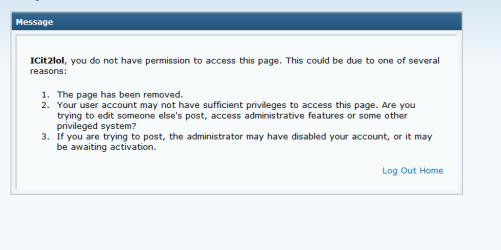
I have two machines with 120 SSD's getting a bit full so want to shift but easily access stuff like Music and documents and I am trying to get my head around this and where it says create a new account I get this.
 

Attachments

  • MESSAGE.PNG
    MESSAGE.PNG
    7.7 KB · Views: 249

My Computer

Computer type
PC/Desktop
Computer Manufacturer/Model Number
Own build (new) Desk1 / Asus ROG Win 7 / Desk2 1st build
OS
Desk1 7 Home Prem / Desk2 10 Pro / Main lap Asus ROG 10 Pro 2 laptop Toshiba 7 Pro Asus P2520 7 & 10
CPU
Desk1 i5 3750K / Laptop i7 GTX 860M / Desk2 i5 2500
Motherboard
Desk1 Asus P877-V / Desk2 Gigabyte H67 UD3H / Laptop ?
Memory
Desk1 8GB (1866) / Desk2 16GB (1333) / Laptop 8Gb DDR3
Graphics Card(s)
Desk 1& 2NVidia GTX 650 & Laptops on board Intel
Sound Card
Desk 1 & 2 -XONAR DG Realtek High Def audio Laptop
Monitor(s) Displays
Desk 1 Benq HD 2450 / Desk2 Philips 24" / Laptop 17.5"
Screen Resolution
1920x1080 D1 & D2 & Laptop 1
Hard Drives
Desk1 Samsung 120GB 830 SSD
Asus ROG 256GB 850 Pro SSD
Desk2 Samsung 840 256 SSD
Toshiba 120GB EVO
PSU
Desk 1 Corsair HX 1050/ Laptop ? / Desk 2 Corsair HX 650
Case
Desk 1 Cooler HAF XM ? Toshiba laptop / Desk2 Coolermaster
Cooling
Fans on all Desk1 -2 Desk2 - all Coolermasters 5 Laptop ?
Keyboard
Desk 1 MS Sidewinder X6 Desk 2 MS Sidewinder X 4
Mouse
Desk 1&2 - Gigabyte MS 900 gamer - laptop - Logitec wireless
Internet Speed
ADSL2+
Other Info
One other Desktop (tester) and spare Toshba laptop both with SSD's
Running Kaspersky 2016 ISS on all machines config'd identically
Logitec audio stereo systems on each machine (x3)
Canon MG5250MFC
Router/modem TP-Link running WPA2SK

My Computer

Computer type
PC/Desktop
Computer Manufacturer/Model Number
Self built custom
OS
64-bit Windows 11 Pro for Workstations
CPU
Intel i7-8700K OC'd to 5 GHz
Motherboard
ASUS ROG Maximus XI Formula Z390
Memory
64 GB (4x16GB) G.SKILL TridentZ RGB DDR4 3600 MHz
Graphics Card(s)
ASUS ROG-STRIX-GTX1080TI-O11G-GAMING
Sound Card
Integrated
Monitor(s) Displays
2 x Samsung Odyssey G7 27"
Screen Resolution
2560x1440
Hard Drives
1TB Samsung 990 PRO M.2,
4TB Samsung 990 PRO PRO M.2,
TerraMaster F8 SSD Plus NAS
PSU
Seasonic Prime Titanium 850W
Case
Thermaltake Core P3
Cooling
Corsair Hydro H115i
Keyboard
Logitech wireless K800
Mouse
Logitech MX Master 4
Internet Speed
2 Gb/s Download and 100 Mb/s Upload
Antivirus
Malwarebyte Anti-Malware Premium
Browser
Google Chrome
Other Info
Logitech Z625 speaker system,
Logitech BRIO 4K Pro webcam,
HP Color LaserJet Pro MFP M477fdn,
APC SMART-UPS RT 1000 XL - SURT1000XLI,
Galaxy S23 Plus phone

My Computer

Computer type
PC/Desktop
Computer Manufacturer/Model Number
Own build (new) Desk1 / Asus ROG Win 7 / Desk2 1st build
OS
Desk1 7 Home Prem / Desk2 10 Pro / Main lap Asus ROG 10 Pro 2 laptop Toshiba 7 Pro Asus P2520 7 & 10
CPU
Desk1 i5 3750K / Laptop i7 GTX 860M / Desk2 i5 2500
Motherboard
Desk1 Asus P877-V / Desk2 Gigabyte H67 UD3H / Laptop ?
Memory
Desk1 8GB (1866) / Desk2 16GB (1333) / Laptop 8Gb DDR3
Graphics Card(s)
Desk 1& 2NVidia GTX 650 & Laptops on board Intel
Sound Card
Desk 1 & 2 -XONAR DG Realtek High Def audio Laptop
Monitor(s) Displays
Desk 1 Benq HD 2450 / Desk2 Philips 24" / Laptop 17.5"
Screen Resolution
1920x1080 D1 & D2 & Laptop 1
Hard Drives
Desk1 Samsung 120GB 830 SSD
Asus ROG 256GB 850 Pro SSD
Desk2 Samsung 840 256 SSD
Toshiba 120GB EVO
PSU
Desk 1 Corsair HX 1050/ Laptop ? / Desk 2 Corsair HX 650
Case
Desk 1 Cooler HAF XM ? Toshiba laptop / Desk2 Coolermaster
Cooling
Fans on all Desk1 -2 Desk2 - all Coolermasters 5 Laptop ?
Keyboard
Desk 1 MS Sidewinder X6 Desk 2 MS Sidewinder X 4
Mouse
Desk 1&2 - Gigabyte MS 900 gamer - laptop - Logitec wireless
Internet Speed
ADSL2+
Other Info
One other Desktop (tester) and spare Toshba laptop both with SSD's
Running Kaspersky 2016 ISS on all machines config'd identically
Logitec audio stereo systems on each machine (x3)
Canon MG5250MFC
Router/modem TP-Link running WPA2SK
I followed this tutorial to move my profile and had a few snafus that I was able to work out but I have one I'm not sure how to go about fixing. When I go to the start menu and do a search I get no results whatsoever just a blank pane. Search still works fine under the temporary account I made. Any idea how I can fix it? I'd hate to have to move it back.
 

My Computer

Computer type
PC/Desktop
OS
Windows 7 Professional 64-bit

My Computer

Computer type
PC/Desktop
Computer Manufacturer/Model Number
Self built custom
OS
64-bit Windows 11 Pro for Workstations
CPU
Intel i7-8700K OC'd to 5 GHz
Motherboard
ASUS ROG Maximus XI Formula Z390
Memory
64 GB (4x16GB) G.SKILL TridentZ RGB DDR4 3600 MHz
Graphics Card(s)
ASUS ROG-STRIX-GTX1080TI-O11G-GAMING
Sound Card
Integrated
Monitor(s) Displays
2 x Samsung Odyssey G7 27"
Screen Resolution
2560x1440
Hard Drives
1TB Samsung 990 PRO M.2,
4TB Samsung 990 PRO PRO M.2,
TerraMaster F8 SSD Plus NAS
PSU
Seasonic Prime Titanium 850W
Case
Thermaltake Core P3
Cooling
Corsair Hydro H115i
Keyboard
Logitech wireless K800
Mouse
Logitech MX Master 4
Internet Speed
2 Gb/s Download and 100 Mb/s Upload
Antivirus
Malwarebyte Anti-Malware Premium
Browser
Google Chrome
Other Info
Logitech Z625 speaker system,
Logitech BRIO 4K Pro webcam,
HP Color LaserJet Pro MFP M477fdn,
APC SMART-UPS RT 1000 XL - SURT1000XLI,
Galaxy S23 Plus phone
I just upgraded my system after it died and decided to get an SSD. When I set it up and installed Windows I turned off indexing as I'd seen recommended everywhere so there is nothing listed in indexing. Search worked before I moved my profile and programs I installed showed up in search fine with indexing off. This just cropped up once I moved it. Stuff like this isn't my strong suit. :)
 

My Computer

Computer type
PC/Desktop
OS
Windows 7 Professional 64-bit
Back
Top