User Profile Folder - Change User Account Folder Name

How to Change the User Folder Name of a User Profile in Windows 7


   Information
Normally, you could change your account name in User Accounts from the Control Panel (icons view), but that still would not change your accoun's user profile folder name in C:\Users.

This will show you how to change your account name and change the user profile folder name of any user account, including the built-in Administrator account (if enabled), in Windows 7 without losing anything in that user account. This will affect the user account's name for the C:\Users\(user-name) folder, Start Menu, Log on screen, Welcome screen, security permissions, etc......

You must be logged in as an administrator, and is a different account than the account you are changing the name of to be able to do this tutorial.

   Warning
Since editing a user profile and the registry can mess up Windows 7 if a mistake is made, it is highly advisable to create a restore point before doing this tutorial. This way if you make a mistake, you will be able to simply do a system restore to select and go back to this restore point to undo the mistake.


Here's How:

1. Log on to the user account (ex: Old Name) that you want to change the name of.

2. Save the current theme (ex: Old Name) for this user account. (see screenshot below)
NOTE: This is so that you will be able to change the theme back to this current theme in step 21 below later if you like.
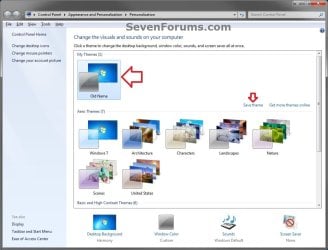
Save_Theme.jpg
3. If you have any files or folders in your C:\Users\(user-name) profile folder that are set to be shared, then you will need to temporarily set them to not be shared for now. After you finish renaming the user profile folder name, you could set them to be shared again in step 23 below.

4. Log off the user account that you want to change the name of. (see screenshot below)
NOTE: If you do not have another administrator account to use, then create a new administrator account first, then log off. When finished with the tutorial, you can delete this newly created account.
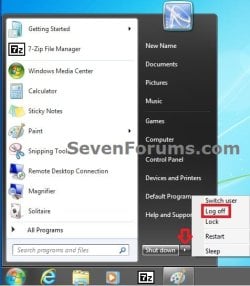
Log_Off.jpg
5. Log on to an administrator account that is not the user account that you want to change the name of.

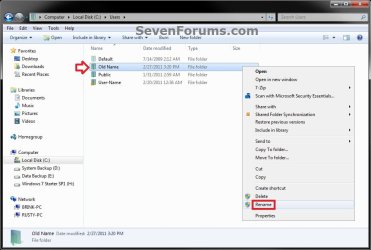
6. Open Windows Explorer, navigate to C:\Users, open the Users folder, right click on the user profile folder (ex: Old Name) that you want to change the name of, and click on Rename. (see screenshot below)
Step1.jpg
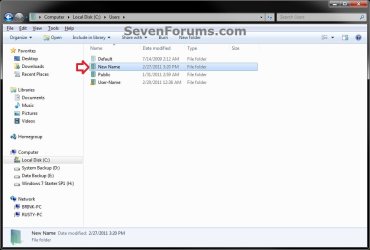
7. Type in the name (ex: New Name) that you want this user account's folder to have now and press Enter. Close the Windows Explorer window. (see screenshot below)
NOTE: If you are not able to rename the user folder for some reason (ex: in use), then boot into Safe Mode and try again.
Step2.jpg
8. If prompted, click on Continue and Yes (UAC) to approve renaming the user folder.

9. Open the Start Menu, and type regedit in the search box and press Enter.

10. If prompted by UAC, then click on Yes.

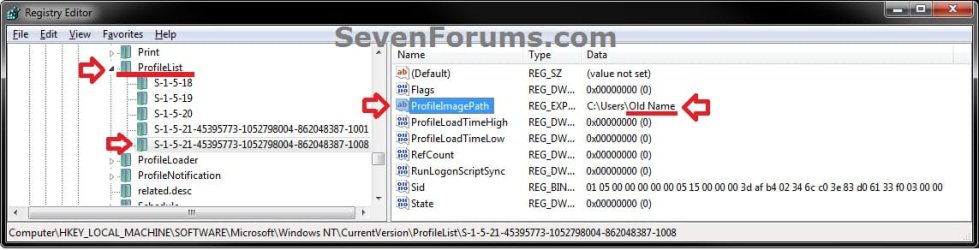
11. In regedit, navigate to the location below. (see screenshot below)

Code:
HKEY_LOCAL_MACHINE\SOFTWARE\Microsoft\Windows NT\CurrentVersion\ProfileList
Step3.jpg
12. In the left pane of regedit, expand Profilelist, and select each long number S-1-5-.... key one by one until your see the user account name (ex: Old Name) that you want to change the name of included in the Data column of ProfileImagePath in the right pane. (see screenshot above)

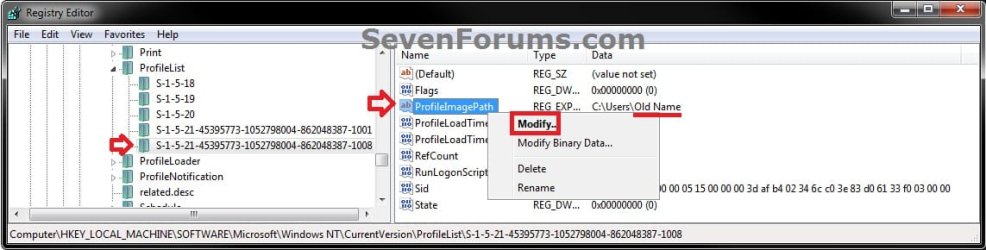
13. In the right pane of the long number S-1-5-.... key for the user account (ex: Old Name) that you want to change the name of, right click on ProfileImagePath, and click on Modify. (see screenshot below.
Step6.jpg
14. Change only the name (ex: Old Name) in the full path to the name (ex: New Name) that you want for the user account, and click on OK. (see screenshot below)
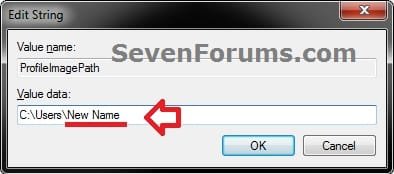
Step5.jpg
15. Close regedit.

16. Press the Windows + R keys to open the Run dialog, type netplwiz, and click on OK. (see screenshot below)
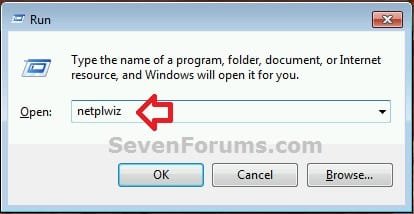
netplwiz-1.jpg
17. Check the Users must enter a user name and password to use this computer box, select the user account's old name (ex: Old Name), and click on the Properties button. (see screenshot below)
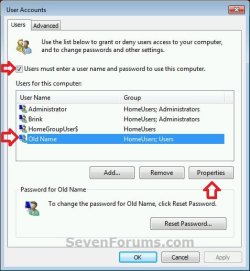
netplwiz-2.jpg
18. Change both the User name and Full name to the same new name (ex: New Name) from step 7 above, and click on OK. (see screenshot below)
netplwiz-3.jpg
19. Click on OK, and Restart the computer to apply. (see screenshot below step 17)

20. Log on to the now completely renamed user account (ex: New Name) from step 1 above.

21. When you log on to the renamed user account (ex: New Name) for the first time, you will notice that the desktop background wallpaper is now solid black. This is normal. Change the theme from the black Unsaved Theme to the theme (ex: Old Name) that you saved in step 2 above to restore the saved theme. (see screenshot below)
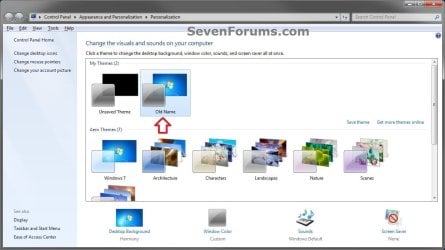
Theme-2.jpg
22. If you had to create a new administrator account at step 4 above to do this tutorial with, then you can now delete this newly created account if you like. This is not the New Name account.

23. If you had to set files to not be shared in step 3 above, then you can set them to be shared again if you like.

24. If you had Windows set to automatically log on to a user account at startup, then you can set that while logged on to an administrator account again if you like.


That's it,
Shawn


Last edited:
  • Like
Reactions: Arc
No.

You can simply just create a new user account to have that user name everywhere. I was just suggesting to wait before deleting the others mostly for you to make sure you have everything you wanted to copy over from them before deleting. Goodness knows, that there's always something we miss.
 

My Computer My Computer

Computer type
PC/Desktop
Computer Manufacturer/Model Number
Self built custom
OS
64-bit Windows 11 Pro for Workstations
CPU
Intel i7-8700K OC'd to 5 GHz
Motherboard
ASUS ROG Maximus XI Formula Z390
Memory
64 GB (4x16GB) G.SKILL TridentZ RGB DDR4 3600 MHz
Graphics Card(s)
ASUS ROG-STRIX-GTX1080TI-O11G-GAMING
Sound Card
Integrated
Monitor(s) Displays
2 x Samsung Odyssey G7 27"
Screen Resolution
2560x1440
Hard Drives
1TB Samsung 990 PRO M.2,
4TB Samsung 990 PRO PRO M.2,
TerraMaster F8 SSD Plus NAS
PSU
Seasonic Prime Titanium 850W
Case
Thermaltake Core P3
Cooling
Corsair Hydro H115i
Keyboard
Logitech wireless K800
Mouse
Logitech MX Master 4
Internet Speed
2 Gb/s Download and 100 Mb/s Upload
Antivirus
Malwarebyte Anti-Malware Premium
Browser
Google Chrome
Other Info
Logitech Z625 speaker system,
Logitech BRIO 4K Pro webcam,
HP Color LaserJet Pro MFP M477fdn,
APC SMART-UPS RT 1000 XL - SURT1000XLI,
Galaxy S23 Plus phone
Tried your method, Brink, but I had to Edit the Registry about 100x!

I was having problems connecting a new computer to my network - it worked perfectly from the new computer, but none of the others could connect to it!

Searching Google I got the idea that maybe it was due to the fact that I had ascribed a different username to Admin on the new computer!

So I thought I'd revert to the old Admin username, which Windows 7 happily did for me, but kept the old username as a kind of alias. in all folder related issues.
The upshot of it all was that it did not solve my network connection problems!

So then I happened across your tutorial and followed it to the letter, but still no network joy.
Consequently I did a registry search for my old Admin username, and found hundreds of entries that had not been changed!!
I laboriously renamed all the relevant entries (I couldn't just do a search and replace on a copy of the registry because I had given my new computer the same name, although thinking about it now, perhaps I should have renamed the Computer first!).

Anyway, doing all this renaming in regedit solved all the problems attendant with your method (eg Task Manager Username, bad path messages, etc.) but it did not fix my Network Issue!

It was then that I got the idea to check Administrative Events for errors and happened across EventID 30013 (The DHCP Allocator has disabled itself on IP address 192.168.2.8, since the IP address is outside the 192.168.137.0/255.255.255.0 scope from which addresses are being allocated to DHCP clients. Etc., etc.)

It recommends to change either the scope or the IP address, but no-one seems to know how to do change the scope, which was my only option!

I searched Google for ages, and, although EventID 30013 was a very common complaint, nobody had the solution!

Then I had a stroke of lucky ingenuity!
My new computer has a wireless connection, (nothing new in that because I have another one which functions perfectly on a WIRELESS CONNECTION) but it worried me that the Local Area Connection was disabled - network cable unplugged (after all it was a Local Area Connection Problem).

So I right-clicked on my Wireless Network Connection, and soon realised that if I selected the 2 Connections with a box (hold down left mouse-button and select both Network Connections) then I could bridge them!

At first it complained of an error, then thought better of it, and realised the Bridge.
Eureka!
No more Network Connection Problems, no more EventID 30013!

If anyone else wants to Bridge their Network Connections I should point out that the Network Connection Control Panel is not directly accessible, even from the expanded Control Panel, but if you go to the Control Panel> Network and Sharing Center and select the 3rd item down on the left Sidebar (Change Adapter Settings) you will arrive at the Network Connections Control Panel.

Otherwise go to Start and type ncpa.cpl in the search box and it will appear at the top!
:)
 

My Computer My Computer

OS
Windows 7 Home Premium x64
C:\Users\TEMP

Hello, I followed the instructions to the letter, but instead of getting the expected outcome I have now got my Old Account linked to a folder called "TEMP," instead of the folder called "Harry"(Originally called "John"), which still exists and contains all my files, should I just copy the folders across to the TEMP folder and try again?
 

My Computer My Computer

Computer type
PC/Desktop
Computer Manufacturer/Model Number
custom build
OS
Windows 7 Home Premium 64 bit
CPU
Intel Core i5 3570k
Motherboard
ASUSTek P8H61-M LE/USB3
Memory
8Gb(2x Corsair 4Gb 1600mhz Vengeance) DDR3 CMZ8GX3M2A1600C9
Graphics Card(s)
NVIDIA GeForce GTX970
Sound Card
Onboard 7.1 Audio (Realtek)
Hard Drives
1Tb ST1000DM003-9YN162 ATA Device
PSU
XFX PRO850W
Cooling
Corsair H60 Water Cooler
Antivirus
Microsoft Security Essentials
Browser
Google Chrome
Hello Harry, and welcome to Seven Forums.

Sounds like a mistake may have been made. Double check the path in the registry at step 11 to make sure it has the correct name and path of your user profile folder. :)
 

My Computer My Computer

Computer type
PC/Desktop
Computer Manufacturer/Model Number
Self built custom
OS
64-bit Windows 11 Pro for Workstations
CPU
Intel i7-8700K OC'd to 5 GHz
Motherboard
ASUS ROG Maximus XI Formula Z390
Memory
64 GB (4x16GB) G.SKILL TridentZ RGB DDR4 3600 MHz
Graphics Card(s)
ASUS ROG-STRIX-GTX1080TI-O11G-GAMING
Sound Card
Integrated
Monitor(s) Displays
2 x Samsung Odyssey G7 27"
Screen Resolution
2560x1440
Hard Drives
1TB Samsung 990 PRO M.2,
4TB Samsung 990 PRO PRO M.2,
TerraMaster F8 SSD Plus NAS
PSU
Seasonic Prime Titanium 850W
Case
Thermaltake Core P3
Cooling
Corsair Hydro H115i
Keyboard
Logitech wireless K800
Mouse
Logitech MX Master 4
Internet Speed
2 Gb/s Download and 100 Mb/s Upload
Antivirus
Malwarebyte Anti-Malware Premium
Browser
Google Chrome
Other Info
Logitech Z625 speaker system,
Logitech BRIO 4K Pro webcam,
HP Color LaserJet Pro MFP M477fdn,
APC SMART-UPS RT 1000 XL - SURT1000XLI,
Galaxy S23 Plus phone
Did this but now can't open Outlook 2010

Your tutorial on how to change the user account folder name was great and it worked.
But now I can't open up Outlook 2010 to set it up. I get the message "Cannot open your default
email folders. The path specified for the file C:\Users\(Old Name)\AppData\Local\Microsoft\Outlook\(old last name).ost is not valid.

Some history. I purchased this Sony Vaio used - craigslist. But the original owners name was still on the user account and I didn't want that. so that's changed so now it's C:\Users\Teresa\etc.

I even uninstalled and reinstalled Microsoft Office 2010 thinking that would fix this problem. But I get the same message. How do I change the path so that Outlook will open and I can set up my email accounts?

Help! Thanks to anyone who can!
 

My Computer My Computer

Computer Manufacturer/Model Number
Sony Vaio VPCEE3WFX
OS
Windows 7 64 bit SP1
Hello Teresa, and welcome to Seven Forums.

For you situation I would recommend to create a new administrator account to use instead.

As you already found out, changing the name of the user profile folder of an existing account doesn't always work out well with some installed programs.

You might see if going into your "Account Settings" -> "Data Files" in Outlook to change the path of the .ost file to be this below for each email account may work instead.

C:\Users\(New Name)\AppData\Local\Microsoft\Outlook\EmailAccountName.ost

Hope this helps, :)
Shawn
 

My Computer My Computer

Computer type
PC/Desktop
Computer Manufacturer/Model Number
Self built custom
OS
64-bit Windows 11 Pro for Workstations
CPU
Intel i7-8700K OC'd to 5 GHz
Motherboard
ASUS ROG Maximus XI Formula Z390
Memory
64 GB (4x16GB) G.SKILL TridentZ RGB DDR4 3600 MHz
Graphics Card(s)
ASUS ROG-STRIX-GTX1080TI-O11G-GAMING
Sound Card
Integrated
Monitor(s) Displays
2 x Samsung Odyssey G7 27"
Screen Resolution
2560x1440
Hard Drives
1TB Samsung 990 PRO M.2,
4TB Samsung 990 PRO PRO M.2,
TerraMaster F8 SSD Plus NAS
PSU
Seasonic Prime Titanium 850W
Case
Thermaltake Core P3
Cooling
Corsair Hydro H115i
Keyboard
Logitech wireless K800
Mouse
Logitech MX Master 4
Internet Speed
2 Gb/s Download and 100 Mb/s Upload
Antivirus
Malwarebyte Anti-Malware Premium
Browser
Google Chrome
Other Info
Logitech Z625 speaker system,
Logitech BRIO 4K Pro webcam,
HP Color LaserJet Pro MFP M477fdn,
APC SMART-UPS RT 1000 XL - SURT1000XLI,
Galaxy S23 Plus phone
Hey Brink...

Thanks for your reply. I actually figured it out by reading some of the posts below..
And searching other threads and other websites.

I found a back way to get into Outlook to set up my email accounts (I think it was through
Parental Controls? - I don't remember since my head was spinning by then). And once I set up
a new default email then I could delete the old one and then Outlook opened.

I have discovered that the previous owner's name is still the User Profile in a lot of the registries
for other programs. So far haven't had any problems... do you think I need to go in and edit all the
registries or only if problems occur?

Sure appreciate this forum... you all have helped this non-techy get a little moreso! :-)
 

My Computer My Computer

Computer Manufacturer/Model Number
Sony Vaio VPCEE3WFX
OS
Windows 7 64 bit SP1
You're welcome. I'm happy to hear that you got it sorted.

I wouldn't recommend editing the registry unless you had an issue. Even then, I would recommend to create a restore point before doing so.
 

My Computer My Computer

Computer type
PC/Desktop
Computer Manufacturer/Model Number
Self built custom
OS
64-bit Windows 11 Pro for Workstations
CPU
Intel i7-8700K OC'd to 5 GHz
Motherboard
ASUS ROG Maximus XI Formula Z390
Memory
64 GB (4x16GB) G.SKILL TridentZ RGB DDR4 3600 MHz
Graphics Card(s)
ASUS ROG-STRIX-GTX1080TI-O11G-GAMING
Sound Card
Integrated
Monitor(s) Displays
2 x Samsung Odyssey G7 27"
Screen Resolution
2560x1440
Hard Drives
1TB Samsung 990 PRO M.2,
4TB Samsung 990 PRO PRO M.2,
TerraMaster F8 SSD Plus NAS
PSU
Seasonic Prime Titanium 850W
Case
Thermaltake Core P3
Cooling
Corsair Hydro H115i
Keyboard
Logitech wireless K800
Mouse
Logitech MX Master 4
Internet Speed
2 Gb/s Download and 100 Mb/s Upload
Antivirus
Malwarebyte Anti-Malware Premium
Browser
Google Chrome
Other Info
Logitech Z625 speaker system,
Logitech BRIO 4K Pro webcam,
HP Color LaserJet Pro MFP M477fdn,
APC SMART-UPS RT 1000 XL - SURT1000XLI,
Galaxy S23 Plus phone
Nice tutorial. There is actually a way to remove the old name of a user account without creating a new account and deleting the old one.

Method 1:
Note: This method is available for all editions of Windows XP/Vista/7/8.

1. Follow steps 1-15 in the tutorial.
2. Run Control Userpasswords2 (All Windows versions) or Netplwiz (Windows Vista and later only).
3. Select the user name you want to change, then click/tap "Properties".
4. Change the name inside the "User name" field to be any name you want. Be sure to change the name inside the "Full name" field to be the same, or blank out the "Full name" field.
Note: When changing name through User Accounts, only the "Full name" field here will be changed, not the "User name" field.

5. Click/tap on OK to close out the user properties, then click/tap on OK again to close out the Advanced User Accounts.
6. Continue through steps 23-27 in the tutorial.
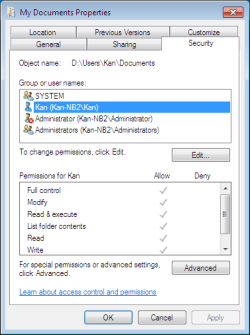
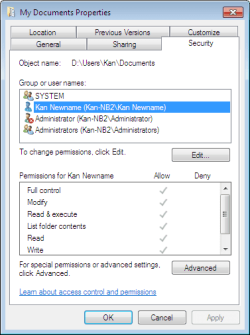
7. Open security properties for any file/folder that the changed user name has permission (either allow or deny) to see that the old name (Example: New Name (COMPUTERNAME\User Name)) has been changed to the new name (Example: New Name (COMPUTERNAME\New Name))
Note: If the name hasn't changed yet, then log of and log on, or restart the computer to apply.

Method 2:
Note: This method is available for Business/Professional/Pro/Ultimate/Enterprise editions of Windows XP/Vista/7/8 only.

1. Follow steps 1-15 in the tutorial.
2. Run Lusrmgr.msc
3. Click/tap "Users" on the left, click/tap the user name that you want to change, press F2, and change the name to be any name you want.
Note: This is the same as changing the name in "User name" field on Method 1 above.

4. Double-click/tap the changed user name, then change the name in "Full name" field to be the same, or blank out the "Full name" field, then click/tap on OK.
Note: From Step 3, if the "Full Name" column is already blank, then you can skip this step and go to Step 5 below.

5. Close the Local User and Groups.
6. Continue through steps 23-27 in the tutorial.
7. Open security properties for any file/folder that the changed user name has permission (either allow or deny) to see that the old name (Example: New Name (COMPUTERNAME\User Name)) has been changed to the new name (Example: New Name (COMPUTERNAME\New Name))
Note: If the name hasn't changed yet, then log of and log on, or restart the computer to apply.

Screenshots (Click on one of the thumbnails below):
 

Attachments

  • User-Name-1.PNG
    User-Name-1.PNG
    11.1 KB · Views: 884
  • User-Name-2.PNG
    User-Name-2.PNG
    11.4 KB · Views: 841
Last edited:

My Computer My Computer

OS
Windows 7
Hello Melvin,

Thank you, but that'll be a bit impractical to change the security properties of every file/folder (thousands or more) that the changed user name has permission of.
 

My Computer My Computer

Computer type
PC/Desktop
Computer Manufacturer/Model Number
Self built custom
OS
64-bit Windows 11 Pro for Workstations
CPU
Intel i7-8700K OC'd to 5 GHz
Motherboard
ASUS ROG Maximus XI Formula Z390
Memory
64 GB (4x16GB) G.SKILL TridentZ RGB DDR4 3600 MHz
Graphics Card(s)
ASUS ROG-STRIX-GTX1080TI-O11G-GAMING
Sound Card
Integrated
Monitor(s) Displays
2 x Samsung Odyssey G7 27"
Screen Resolution
2560x1440
Hard Drives
1TB Samsung 990 PRO M.2,
4TB Samsung 990 PRO PRO M.2,
TerraMaster F8 SSD Plus NAS
PSU
Seasonic Prime Titanium 850W
Case
Thermaltake Core P3
Cooling
Corsair Hydro H115i
Keyboard
Logitech wireless K800
Mouse
Logitech MX Master 4
Internet Speed
2 Gb/s Download and 100 Mb/s Upload
Antivirus
Malwarebyte Anti-Malware Premium
Browser
Google Chrome
Other Info
Logitech Z625 speaker system,
Logitech BRIO 4K Pro webcam,
HP Color LaserJet Pro MFP M477fdn,
APC SMART-UPS RT 1000 XL - SURT1000XLI,
Galaxy S23 Plus phone
Hello Melvin,

Thank you, but that'll be a bit impractical to change the security properties of every file/folder (thousands or more) that the changed user name has permission of.
You're welcome. It actually works without changing the security properties (Just log off and log on or restart if the name hasn't changed yet).
 
Last edited:

My Computer My Computer

OS
Windows 7
Hi,
I'm trying to catch up with this tutorial. What is the difference between, changing user account folder name, and,
Changing the Default Location of a User Profile?

I worked through the latter tutorial for changing the default profile location, changing it from C:\Users\Username to d:Username. But now I am getting an error when I try to open Outlook.
"The path specified for the file C:\Users\Username\Documents\Outlook Files\Outlook.pst is not valid"

First, I see your suggestion above is to reinstall Outlook. Would that mean uninstalling, then reinstalling and loading all the updates? Or will doing a repair installation work?
Another solution it seems to me would be to change the Default User Profile Location of New User Accounts which was at the bottom of the tutorial for changing just the one profile. (It seemed to me there was less editing of the registry so less chance of error.)

Having done this now, I created a test user account and it came up on the C:\Users location. I don't know if it would be easier to make the change for all new accounts to be created in D: then create a new account and move the Outlook files into it. Or to re-install Outlook and keep D: just for the one user account.

Another problem I'm having is downloaded programs do not install. I go to download small programs I've used in the past, and when I try to open them I come to the window about picking what program to open the file.
 
Last edited by a moderator:

My Computer My Computer

Computer Manufacturer/Model Number
Gateway GT5662
OS
Windows 7 Ultimate 32 bit
CPU
Phenom 9500
Motherboard
ECS MCP61PM-GM AM2 mATX
Memory
3 GB
Monitor(s) Displays
Two 21 inch
Hello Gudzilla,

I would highly recommend to create a new administrator account for yourself to use instead of trying to rename or move a user profile folder that could cause issues as you are now experiencing.
 

My Computer My Computer

Computer type
PC/Desktop
Computer Manufacturer/Model Number
Self built custom
OS
64-bit Windows 11 Pro for Workstations
CPU
Intel i7-8700K OC'd to 5 GHz
Motherboard
ASUS ROG Maximus XI Formula Z390
Memory
64 GB (4x16GB) G.SKILL TridentZ RGB DDR4 3600 MHz
Graphics Card(s)
ASUS ROG-STRIX-GTX1080TI-O11G-GAMING
Sound Card
Integrated
Monitor(s) Displays
2 x Samsung Odyssey G7 27"
Screen Resolution
2560x1440
Hard Drives
1TB Samsung 990 PRO M.2,
4TB Samsung 990 PRO PRO M.2,
TerraMaster F8 SSD Plus NAS
PSU
Seasonic Prime Titanium 850W
Case
Thermaltake Core P3
Cooling
Corsair Hydro H115i
Keyboard
Logitech wireless K800
Mouse
Logitech MX Master 4
Internet Speed
2 Gb/s Download and 100 Mb/s Upload
Antivirus
Malwarebyte Anti-Malware Premium
Browser
Google Chrome
Other Info
Logitech Z625 speaker system,
Logitech BRIO 4K Pro webcam,
HP Color LaserJet Pro MFP M477fdn,
APC SMART-UPS RT 1000 XL - SURT1000XLI,
Galaxy S23 Plus phone
Thanks
The new admin account seems to be working great and the best solution
 

My Computer My Computer

Computer Manufacturer/Model Number
Gateway GT5662
OS
Windows 7 Ultimate 32 bit
CPU
Phenom 9500
Motherboard
ECS MCP61PM-GM AM2 mATX
Memory
3 GB
Monitor(s) Displays
Two 21 inch
You're most welcome. :)
 

My Computer My Computer

Computer type
PC/Desktop
Computer Manufacturer/Model Number
Self built custom
OS
64-bit Windows 11 Pro for Workstations
CPU
Intel i7-8700K OC'd to 5 GHz
Motherboard
ASUS ROG Maximus XI Formula Z390
Memory
64 GB (4x16GB) G.SKILL TridentZ RGB DDR4 3600 MHz
Graphics Card(s)
ASUS ROG-STRIX-GTX1080TI-O11G-GAMING
Sound Card
Integrated
Monitor(s) Displays
2 x Samsung Odyssey G7 27"
Screen Resolution
2560x1440
Hard Drives
1TB Samsung 990 PRO M.2,
4TB Samsung 990 PRO PRO M.2,
TerraMaster F8 SSD Plus NAS
PSU
Seasonic Prime Titanium 850W
Case
Thermaltake Core P3
Cooling
Corsair Hydro H115i
Keyboard
Logitech wireless K800
Mouse
Logitech MX Master 4
Internet Speed
2 Gb/s Download and 100 Mb/s Upload
Antivirus
Malwarebyte Anti-Malware Premium
Browser
Google Chrome
Other Info
Logitech Z625 speaker system,
Logitech BRIO 4K Pro webcam,
HP Color LaserJet Pro MFP M477fdn,
APC SMART-UPS RT 1000 XL - SURT1000XLI,
Galaxy S23 Plus phone
Hi Brink,

To my dismay a day into installing a new Windows 7 installation from the CD I've realized the name I used during that installation is misspelled.
I understand that named used at install is the Normal Administrator account created during installation.
Let's say I typed endeavo instead of endeavor, of which I noticed it when going to the folder C:\Users\endeavo ...and it was missing the r

To fix it I see it's one of these two tutorials linked below to do it, I think it's the second but I'd like to clarify which one to use.

Built-in Administrator Account - Change Name - How to Rename the Built-in Elevated "Administrator" Account in Windows 7

or

User Profile Folder - Change User Account Folder Name - How to Change the User Folder Name of a User Profile in Windows 7

Logging out and back on just shows endeavo, I've never enabled the built-in elevated "Administrator" account yet.

Importantly in the end I still want that built-in to be spelled "Administrator", I just want to change endeavo to endeavor, but Definately don't want any leftover registry or file references to endeavo after it's deleted, or any second users, or anything, it needs to be virgin - I'm fussy enough that I will just do another fresh install if I have to since I can't re-image my way out of this one since it from ''minute one'' of the install.
 

My Computer My Computer

Computer type
PC/Desktop
Computer Manufacturer/Model Number
..all towers built from scratch
OS
Vista/Win7/8/10/11 (x86/x64)
CPU
i7
Hello Endeavor,

In that case, it would be best to create a new administrator account with the correct spelling, log on to it, then delete the misspelled account and it's folder. :)
 

My Computer My Computer

Computer type
PC/Desktop
Computer Manufacturer/Model Number
Self built custom
OS
64-bit Windows 11 Pro for Workstations
CPU
Intel i7-8700K OC'd to 5 GHz
Motherboard
ASUS ROG Maximus XI Formula Z390
Memory
64 GB (4x16GB) G.SKILL TridentZ RGB DDR4 3600 MHz
Graphics Card(s)
ASUS ROG-STRIX-GTX1080TI-O11G-GAMING
Sound Card
Integrated
Monitor(s) Displays
2 x Samsung Odyssey G7 27"
Screen Resolution
2560x1440
Hard Drives
1TB Samsung 990 PRO M.2,
4TB Samsung 990 PRO PRO M.2,
TerraMaster F8 SSD Plus NAS
PSU
Seasonic Prime Titanium 850W
Case
Thermaltake Core P3
Cooling
Corsair Hydro H115i
Keyboard
Logitech wireless K800
Mouse
Logitech MX Master 4
Internet Speed
2 Gb/s Download and 100 Mb/s Upload
Antivirus
Malwarebyte Anti-Malware Premium
Browser
Google Chrome
Other Info
Logitech Z625 speaker system,
Logitech BRIO 4K Pro webcam,
HP Color LaserJet Pro MFP M477fdn,
APC SMART-UPS RT 1000 XL - SURT1000XLI,
Galaxy S23 Plus phone
Okay using the second link I posted above, it only took 10 minutes, and it worked just fine.
I did steps 1 thru 21, skipped 22, and did 23 thru 26.

After the whole process, having tracked all the registry/file changes that were made in the interim to make sure there was nothing extra left over or any evidence of the change - but there wasn't, it was like it was there from the very beginning.

The only little thing was that Aero Peek didn't work afterwards, but I isolated that down to the 'Desktop Windows Manager' Service got disabled from the process after rebooting which 'greyed out' the 'Use Aero Peek to preview the desktop' checkbox on the 'Taskbar and Start Menu Properties' Taskbar tab... ...but just starting that service back up and in automatic, brought Aero Peek back on.

Also noticed all the shortcut icons were all neutered, I re-ran the Vista Shortcut Manager I had installed and it set things straight again.

Besides that everything went very smoothly really and I ended up with exactly what I wanted.

Thanks for having the Tutorial to bounce off of. These things come in handy sometimes since it's hard to remember everything if you don't use it every day.

I did notice a few links not working anymore in some places but I'll send you a pm on that.

Thank You

Edit:
After a few days I noticed a few glitches, for instance the program HDTune & Speckie spell checker recreated the old/deleted profile folder to put some of it's files there. I could see the pointers in the registry that did it other than the ones the tutorial had me delete. It was not a big deal to fix them, but I can see the more programs installed the more chances of this sort of thing happening but there's not much you can do about it till it shows up. All in all though it was a success.
 
Last edited:

My Computer My Computer

Computer type
PC/Desktop
Computer Manufacturer/Model Number
..all towers built from scratch
OS
Vista/Win7/8/10/11 (x86/x64)
CPU
i7
I'm happy to hear it went pretty well.

Thank you for the PM. The links have been updated and fixed. :)
 

My Computer My Computer

Computer type
PC/Desktop
Computer Manufacturer/Model Number
Self built custom
OS
64-bit Windows 11 Pro for Workstations
CPU
Intel i7-8700K OC'd to 5 GHz
Motherboard
ASUS ROG Maximus XI Formula Z390
Memory
64 GB (4x16GB) G.SKILL TridentZ RGB DDR4 3600 MHz
Graphics Card(s)
ASUS ROG-STRIX-GTX1080TI-O11G-GAMING
Sound Card
Integrated
Monitor(s) Displays
2 x Samsung Odyssey G7 27"
Screen Resolution
2560x1440
Hard Drives
1TB Samsung 990 PRO M.2,
4TB Samsung 990 PRO PRO M.2,
TerraMaster F8 SSD Plus NAS
PSU
Seasonic Prime Titanium 850W
Case
Thermaltake Core P3
Cooling
Corsair Hydro H115i
Keyboard
Logitech wireless K800
Mouse
Logitech MX Master 4
Internet Speed
2 Gb/s Download and 100 Mb/s Upload
Antivirus
Malwarebyte Anti-Malware Premium
Browser
Google Chrome
Other Info
Logitech Z625 speaker system,
Logitech BRIO 4K Pro webcam,
HP Color LaserJet Pro MFP M477fdn,
APC SMART-UPS RT 1000 XL - SURT1000XLI,
Galaxy S23 Plus phone
HELP!!!!!!!!!! PLEASE HELP ME!!!!!!!!!!

I DIDN'T DO STEP 8 - 27 (TILL THE END) cause my internet didn't work on the safety mode and I couldn't see this website page....

I restarted my computer, pressed F8 and clicked SAFETY MODE and thats it.
Then I went to C:\Users then right-clicked the old name folder thingy and clicked RENAMED, I've renamed it to the name I want BUT after shutting down and logging on in to the account I've just renamed, it says that it is in a TEMPORARY PROFILE!

What do I do?????? I thought I've lost everything when I didn't read it was just a temporary profile :'(
but HOW DO I TURN IT BACK TO HOW IT WAS? >.< Help!
 

My Computer My Computer

Computer type
Laptop
Computer Manufacturer/Model Number
Sony Vaio
OS
Windows 7
Back
Top