
Solved What backup & relocation strategy for User profiles and Program Data

adri123

New member
Member
Local time
4:26 PM
Messages
73
What backup & relocation strategy for User profiles and Program Data

Hello,

In a configuration with a single HDD with 2 partitions (one for OS+Progs and one for data), how do we properly back up the OS and progs given the fact that the ProgramData and Users folders have been relocated to the Data partition ?

In order for the OS and programs to work properly once I put the OS image back, do these two folders also need to be backed up ? ProgramData would be easy to copy paste.
But a user's folder is a mix of program related data (AppData, Start Menu, Application Data shortcut, some of which are hidden and some of which are hidden and are also system files) and one's personal files (music etc). The fact that these two kind of data exist in one's user folder, makes it difficult for me to see what do i need to backup (if anything at all) in order to be able to easily make a simple OS+progs restore. (without my data)

Given the fact that:
  • I don't want to also make an image of the whole data partition, since I don't want to include in it my data such as music etc. (I use a syncronization tool for that, copying the files to an external drive).
  • I don't want to use Windows backup tool. I'm ok with Paragon free (or another if needed).
  • I just want to be sure that after I put back my OS+progs image, my OS and ALL of the programs will work without broken links paths errors etc.
  • I'm not interrested in getting back program specific settings and preferences, bookmarks etc, since the important ones are included in my sync.
  • I want to be sure that my start up menu, for example, will not contain shortcuts to the newly added programs, that are not in the image restored.
  • I'm not a big fan of Libraries

Here are three options, which one is easy for restore AND without paths errors, etc.?

Option 1: three partitions ?
  1. OS and Progs
  2. ProgramData + Users. With Users containing AppData, system folders, etc. but somehow linking to an actual data partition
  3. data
so I would image 1 and 2. Would that work without problems?


Option 2: two partitions ?
  1. OS and Progs
  2. ProgramData + Users + Data
so I would image 1, and "manually" back up ProgramData folder plus the user\AppData folder ? (anything else needed?) and copy them back afterwards? (deleting the present content first)

I read issues with windows, for security reasons, changing the ownership of folders etc..
So, my guess is that it's maybe not a good idea to mix imaging (of 1) with manual copying of system folders?


Option 3: two simple partitions ?
  1. OS and Progs + Users folders + ProgramData folder
  2. DATA (in this case, actual music files wouldn't be in the first partition, yet the My Music folder would)
so I would image only 1.


Any thoughts are welcome.

Adrien
 
Last edited:

My Computer My Computer

Computer type
Laptop
Computer Manufacturer/Model Number
Asus N55SF
OS
Windows 7 Home Premium 64 bit
CPU
Intel Core i5 2410M @ 2.30GHz Sandy Bridge 32nm Technology
Motherboard
ASUSTeK Computer Inc. N55SF
Memory
8,00 GB Dual-Channel DDR3 @ 1333 MHz (PC3-10600)
Graphics Card(s)
NVIDIA GeForce GT 555M, Intel HD Graphics 3000
Sound Card
Realtek High Definition Audio
Screen Resolution
1600x900@60Hz
Hard Drives
699GB Seagate ST9750423AS (SATA) 5400rpm
Other Info
Optical drive: Slimtype DVD A DS8A5SH
If anything, I would make 3 partitions and image the two pertaining to the OS. But why split the OS partition in the first place. That makes little sense - or am I missing something.

For Imaging I highly recommend free Macrium. In 5 years of research I have not found a better imaging program.

http://www.sevenforums.com/tutorials/73828-imaging-free-macrium.html?ltr=I
 

My Computer My Computer

Computer Manufacturer/Model Number
HP, Dell, Gateway, Toshiba - 4 laptops and 2 desktops
OS
Vista, Windows7, Mint Mate, Zorin, Windows 8
CPU
from 1.6GHz Duo to i7
Monitor(s) Displays
2x HP w2207
Hard Drives
5x HDD, 7x SSD, 12x Externals
Keyboard
with trackball - no mices
Mouse
Trackball mice
Internet Speed
DSL 6000
If anything, I would make 3 partitions and image the two pertaining to the OS. But why split the OS partition in the first place. That makes little sense - or am I missing something.

For Imaging I highly recommend free Macrium. In 5 years of research I have not found a better imaging program.

http://www.sevenforums.com/tutorials/73828-imaging-free-macrium.html?ltr=I

Thank you whs for your super quick reply. I know..I had the same question actually..but all of this started by reading stuff about separating OS and data.

Since some OS/progs folders are in the User folder...what to do ? Or am I missing something?
 

My Computer My Computer

Computer type
Laptop
Computer Manufacturer/Model Number
Asus N55SF
OS
Windows 7 Home Premium 64 bit
CPU
Intel Core i5 2410M @ 2.30GHz Sandy Bridge 32nm Technology
Motherboard
ASUSTeK Computer Inc. N55SF
Memory
8,00 GB Dual-Channel DDR3 @ 1333 MHz (PC3-10600)
Graphics Card(s)
NVIDIA GeForce GT 555M, Intel HD Graphics 3000
Sound Card
Realtek High Definition Audio
Screen Resolution
1600x900@60Hz
Hard Drives
699GB Seagate ST9750423AS (SATA) 5400rpm
Other Info
Optical drive: Slimtype DVD A DS8A5SH
I see, but that is simple.

1. Create a seperate data partition

2. Make 4 folders in that partition (Docs-2, Music-2, Videos-2, Pictures-2). In lieu of the -2 you can use anything. I use my initials. It is just to distinguish them from the folder names in C.

3. Move the data from the corresponding folders in the C partition to those new folders.

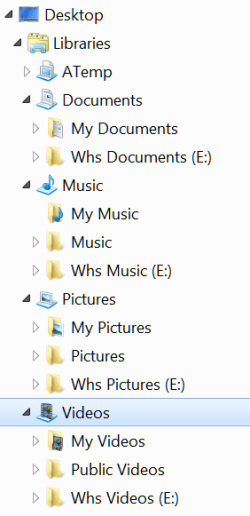
4. Right click on each of these new folders and include them into the corresponding library. Now you get something like this. I use my initials in the front for distinction.

2013-11-17_1455.png

5. From now on everything pertaining to the system and to programs will go into the original folders in C (mainly into Documents). All you user data should go into the new folders.
 

My Computer My Computer

Computer Manufacturer/Model Number
HP, Dell, Gateway, Toshiba - 4 laptops and 2 desktops
OS
Vista, Windows7, Mint Mate, Zorin, Windows 8
CPU
from 1.6GHz Duo to i7
Monitor(s) Displays
2x HP w2207
Hard Drives
5x HDD, 7x SSD, 12x Externals
Keyboard
with trackball - no mices
Mouse
Trackball mice
Internet Speed
DSL 6000
Hello,

In a configuration with a single HDD with 2 partitions (one for OS+Progs and one for data), how do we properly back up the OS and progs given the fact that the ProgramData and Users folders have been relocated to the Data partition ?

In order for the OS and programs to work properly once I put the OS image back, do these two folders also need to be backed up ? ProgramData would be easy to copy paste.
But a user's folder is a mix of program related data (AppData, Start Menu, Application Data shortcut, some of which are hidden and some of which are hidden and are also system files) and one's personal files (music etc). The fact that these two kind of data exist in one's user folder, makes it difficult for me to see what do i need to backup (if anything at all) in order to be able to easily make a simple OS+progs restore. (without my data)


Given the fact that:
  • I don't want to also make an image of the whole data partition, since I don't want to include in it my data such as music etc. (I use a syncronization tool for that, copying the files to an external drive).
  • I don't want to use Windows backup tool. I'm ok with Paragon free (or another if needed).
  • I just want to be sure that after I put back my OS+progs image, my OS and ALL of the programs will work without broken links paths errors etc.
  • I'm not interrested in getting back program specific settings and preferences, bookmarks etc, since the important ones are included in my sync.
  • I want to be sure that my start up menu, for example, will not contain shortcuts to the newly added programs, that are not in the image restored.
  • I'm not a big fan of Libraries
Here are three options, which one is easy for restore AND without paths errors, etc.?


Option 1: three partitions ?
  1. OS and Progs
  2. ProgramData + Users. With Users containing AppData, system folders, etc. but somehow linking to an actual data partition
  3. data
so I would image 1 and 2. Would that work without problems?


Option 2: two partitions ?
  1. OS and Progs
  2. ProgramData + Users + Data
so I would image 1, and "manually" back up ProgramData folder plus the user\AppData folder ? (anything else needed?) and copy them back afterwards? (deleting the present content first)

I read issues with windows, for security reasons, changing the ownership of folders etc..
So, my guess is that it's maybe not a good idea to mix imaging (of 1) with manual copying of system folders?


Option 3: two simple partitions ?
  1. OS and Progs + Users folders + ProgramData folder
  2. DATA (in this case, actual music files wouldn't be in the first partition, yet the My Music folder would)
so I would image only 1.


Any thoughts are welcome.

Adrien

Option three is pretty much what I use. On my desktop machine, the OS, programs, user folders, etc. are on the C: SSD and only the data folders—Documents, Music, and Pictures—are on the E: HDD (Videos rate its own drives). When I backup the machine, I image the entire SSD and save the image on the data drive. I clone the data drive to anther HDD to back it up (which also backs up the image of the SSD).

I pretty much do the same with my notebook but it has only one drive so I have four partitions on it: boot, C:, data, and factory recovery. To back up the OS, etc. I image all except the data partition. To back up the data, I image the data partition. I also cloned the entire drive to another one to keep as a spare in my notebook case so I can just pop it into the machine if the drive in the notebook should completely die on me while on the road.
 

My Computer My Computer

Computer type
PC/Desktop
Computer Manufacturer/Model Number
Custom Build
OS
Win 7 Ultimate 64 bit
CPU
Intel i7-3930K
Motherboard
ASUS P9X79 WS
Memory
Kingston HyperX Genesis 32GB Kit (8x4GB Modules) 1600MHz DDR
Graphics Card(s)
MSI R7850 Twin Frozr 2GD5/OC Radeon HD 7850 2GB 256-bit GDDR
Sound Card
Asus Xonar Essence STX
Monitor(s) Displays
3x Asus VG248QE 24", Vizio 32" TV
Screen Resolution
1920 x 1080, ?
Hard Drives
Samsung 128GB 840 Pro SSD (1),
Samsung 4TB 850 EVO SSDs (4)
Samsung 4TB 850 EVO SSDs (16) external backup drives used in 2.5" hot swap bays in the computer.
PSU
Corsair HX750w
Case
Antec Two Hundred v2 (modified)
Cooling
Cooler Master GeminII S524 120mm (fan replaced with a 140mm)
Keyboard
Logitech G510s
Mouse
Logitech M525 (two in use)
Internet Speed
=< 32Mbps down, 8Mbps up
Antivirus
AVAST!, MBAM, SAS, Spybot S&D (all but MBAM free) Glary Util
Browser
IE11
Other Info
LSI 9211-8i HBA card (8 SATA III ports), 2.5" & 3.5" Hot Swap Bays, HooToo HT-CR001 PCI-E to USB 3.0 Internal Hub + 6 Slot Card Reader, and LG Model CH12LS28 BD-ROM Optical Drive. Also, ScanSnap S1500 ADF duplexing scanner, Canon 9000F flat bed scanner, Corsair SP2500 2.1 speakers, Samsung CLP 415nw laser color printer, Cyberpower PP2200SW UPS
Thank you both,

both of you suggest keeping users folders in the OS partition and putting only data on a separate partition.

But why then all these stories about relocating them?
Some people talk about performance, regarding HDD, SSD etc.. I mean, are these really overkill details or is there any good reason according to you to relocate Progam Data and Users folder out of the OS partition ?
 

My Computer My Computer

Computer type
Laptop
Computer Manufacturer/Model Number
Asus N55SF
OS
Windows 7 Home Premium 64 bit
CPU
Intel Core i5 2410M @ 2.30GHz Sandy Bridge 32nm Technology
Motherboard
ASUSTeK Computer Inc. N55SF
Memory
8,00 GB Dual-Channel DDR3 @ 1333 MHz (PC3-10600)
Graphics Card(s)
NVIDIA GeForce GT 555M, Intel HD Graphics 3000
Sound Card
Realtek High Definition Audio
Screen Resolution
1600x900@60Hz
Hard Drives
699GB Seagate ST9750423AS (SATA) 5400rpm
Other Info
Optical drive: Slimtype DVD A DS8A5SH
Thank you both,

both of you suggest keeping users folders in the OS partition and putting only data on a separate partition.

But why then all these stories about relocating them?
Some people talk about performance, regarding HDD, SSD etc.. I mean, are these really overkill details or is there any good reason according to you to relocate Progam Data and Users folder out of the OS partition ?

Moving the User folders to another drive is often suggested when using an SSD to reduce the number of writes to it that can reduce the life of the SSD and to allow installing the OS and Programs to a smaller SSD than would be otherwise possible to keep costs down. In actuality, moving the entire user folder is overkill when all that really needs to be moved are just the data folders.

Another advantage of having the data folders on a separate drive or partition is for making and restoring backups. Since the OS and programs are what are most likely to go haywire on a machine, it's highly desirable to have to restore only that instead of the entire machine. By keeping the OS on it's own drive or partition and the data elsewhere, imaging just the OS and programs is much faster and restoration is also much faster than if one had to image and restore the entire drive. It's important to also backup your data but you are far less likely to have to restore it.
 

My Computer My Computer

Computer type
PC/Desktop
Computer Manufacturer/Model Number
Custom Build
OS
Win 7 Ultimate 64 bit
CPU
Intel i7-3930K
Motherboard
ASUS P9X79 WS
Memory
Kingston HyperX Genesis 32GB Kit (8x4GB Modules) 1600MHz DDR
Graphics Card(s)
MSI R7850 Twin Frozr 2GD5/OC Radeon HD 7850 2GB 256-bit GDDR
Sound Card
Asus Xonar Essence STX
Monitor(s) Displays
3x Asus VG248QE 24", Vizio 32" TV
Screen Resolution
1920 x 1080, ?
Hard Drives
Samsung 128GB 840 Pro SSD (1),
Samsung 4TB 850 EVO SSDs (4)
Samsung 4TB 850 EVO SSDs (16) external backup drives used in 2.5" hot swap bays in the computer.
PSU
Corsair HX750w
Case
Antec Two Hundred v2 (modified)
Cooling
Cooler Master GeminII S524 120mm (fan replaced with a 140mm)
Keyboard
Logitech G510s
Mouse
Logitech M525 (two in use)
Internet Speed
=< 32Mbps down, 8Mbps up
Antivirus
AVAST!, MBAM, SAS, Spybot S&D (all but MBAM free) Glary Util
Browser
IE11
Other Info
LSI 9211-8i HBA card (8 SATA III ports), 2.5" & 3.5" Hot Swap Bays, HooToo HT-CR001 PCI-E to USB 3.0 Internal Hub + 6 Slot Card Reader, and LG Model CH12LS28 BD-ROM Optical Drive. Also, ScanSnap S1500 ADF duplexing scanner, Canon 9000F flat bed scanner, Corsair SP2500 2.1 speakers, Samsung CLP 415nw laser color printer, Cyberpower PP2200SW UPS
There is no good reason to split up the OS files - especially in terms of performance. And on a SSD you have zero impact because the access time to any SSD location is the same.

For SSDs, users usually put their user data on the HDDs because SSDs are small. I run most of my systems with 60GB SSDs and there is not enough space for all my own files.

PS. I would not worry about the number of writes to an SSD as LF suggests. Any SSD will outlive your system and the HDDs.
 

My Computer My Computer

Computer Manufacturer/Model Number
HP, Dell, Gateway, Toshiba - 4 laptops and 2 desktops
OS
Vista, Windows7, Mint Mate, Zorin, Windows 8
CPU
from 1.6GHz Duo to i7
Monitor(s) Displays
2x HP w2207
Hard Drives
5x HDD, 7x SSD, 12x Externals
Keyboard
with trackball - no mices
Mouse
Trackball mice
Internet Speed
DSL 6000
I see, but that is simple.

1. Create a seperate data partition

2. Make 4 folders in that partition (Docs-2, Music-2, Videos-2, Pictures-2). In lieu of the -2 you can use anything. I use my initials. It is just to distinguish them from the folder names in C.

3. Move the data from the corresponding folders in the C partition to those new folders.

4. Right click on each of these new folders and include them into the corresponding library. Now you get something like this. I use my initials in the front for distinction.

View attachment 293992

5. From now on everything pertaining to the system and to programs will go into the original folders in C (mainly into Documents). All you user data should go into the new folders.


Where is the information stored, that is saying that this and that folder are included in that library. I mean where is the "link" between folders and libraries stored?
Say this scenario:
1. you image your OS partition
2. one week later, for some reason, you rename your Music-2 folder (on the data partition). Or delete it.
3. you need to get back the OS image cause you have an OS problem.

Will the OS image contain library links to an unexisting folder?
 

My Computer My Computer

Computer type
Laptop
Computer Manufacturer/Model Number
Asus N55SF
OS
Windows 7 Home Premium 64 bit
CPU
Intel Core i5 2410M @ 2.30GHz Sandy Bridge 32nm Technology
Motherboard
ASUSTeK Computer Inc. N55SF
Memory
8,00 GB Dual-Channel DDR3 @ 1333 MHz (PC3-10600)
Graphics Card(s)
NVIDIA GeForce GT 555M, Intel HD Graphics 3000
Sound Card
Realtek High Definition Audio
Screen Resolution
1600x900@60Hz
Hard Drives
699GB Seagate ST9750423AS (SATA) 5400rpm
Other Info
Optical drive: Slimtype DVD A DS8A5SH
There is no good reason to split up the OS files - especially in terms of performance. And on a SSD you have zero impact because the access time to any SSD location is the same.

For SSDs, users usually put their user data on the HDDs because SSDs are small. I run most of my systems with 60GB SSDs and there is not enough space for all my own files.

PS. I would not worry about the number of writes to an SSD as LF suggests. Any SSD will outlive your system and the HDDs.

Actually that is pretty much what I said. The concern for the number of writes on an SSD is the reason why it has been suggested to move the entire user folder to another drive. I didn't suggest it; I said that all needs to be moved is just the data folders. You are absolutely correct that the number of writes is not the concern many people thought it would be. However, wearing out cells from excessive writes isn't the only reason why SSDs can fail. I saw an article somewhere recently that said SSDs are lasting around the same amount of time as HDDs (when both are under ideal conditions) but that excessive writes aren't the problem; controllers failing, etc. were to blame.

Anywho, it appears the OP's only concern is to break up a single HDD into partitions to simplify making backup images and we have pretty much covered that topic.
 

My Computer My Computer

Computer type
PC/Desktop
Computer Manufacturer/Model Number
Custom Build
OS
Win 7 Ultimate 64 bit
CPU
Intel i7-3930K
Motherboard
ASUS P9X79 WS
Memory
Kingston HyperX Genesis 32GB Kit (8x4GB Modules) 1600MHz DDR
Graphics Card(s)
MSI R7850 Twin Frozr 2GD5/OC Radeon HD 7850 2GB 256-bit GDDR
Sound Card
Asus Xonar Essence STX
Monitor(s) Displays
3x Asus VG248QE 24", Vizio 32" TV
Screen Resolution
1920 x 1080, ?
Hard Drives
Samsung 128GB 840 Pro SSD (1),
Samsung 4TB 850 EVO SSDs (4)
Samsung 4TB 850 EVO SSDs (16) external backup drives used in 2.5" hot swap bays in the computer.
PSU
Corsair HX750w
Case
Antec Two Hundred v2 (modified)
Cooling
Cooler Master GeminII S524 120mm (fan replaced with a 140mm)
Keyboard
Logitech G510s
Mouse
Logitech M525 (two in use)
Internet Speed
=< 32Mbps down, 8Mbps up
Antivirus
AVAST!, MBAM, SAS, Spybot S&D (all but MBAM free) Glary Util
Browser
IE11
Other Info
LSI 9211-8i HBA card (8 SATA III ports), 2.5" & 3.5" Hot Swap Bays, HooToo HT-CR001 PCI-E to USB 3.0 Internal Hub + 6 Slot Card Reader, and LG Model CH12LS28 BD-ROM Optical Drive. Also, ScanSnap S1500 ADF duplexing scanner, Canon 9000F flat bed scanner, Corsair SP2500 2.1 speakers, Samsung CLP 415nw laser color printer, Cyberpower PP2200SW UPS
I see, but that is simple.

1. Create a seperate data partition

2. Make 4 folders in that partition (Docs-2, Music-2, Videos-2, Pictures-2). In lieu of the -2 you can use anything. I use my initials. It is just to distinguish them from the folder names in C.

3. Move the data from the corresponding folders in the C partition to those new folders.

4. Right click on each of these new folders and include them into the corresponding library. Now you get something like this. I use my initials in the front for distinction.

View attachment 293992

5. From now on everything pertaining to the system and to programs will go into the original folders in C (mainly into Documents). All you user data should go into the new folders.


Where is the information stored, that is saying that this and that folder are included in that library. I mean where is the "link" between folders and libraries stored?
Say this scenario:
1. you image your OS partition
2. one week later, for some reason, you rename your Music-2 folder (on the data partition). Or delete it.
3. you need to get back the OS image cause you have an OS problem.

Will the OS image contain library links to an unexisting folder?

I've never run into a problem with the scenario you postulated. The OS reads the partition's directory.
 

My Computer My Computer

Computer type
PC/Desktop
Computer Manufacturer/Model Number
Custom Build
OS
Win 7 Ultimate 64 bit
CPU
Intel i7-3930K
Motherboard
ASUS P9X79 WS
Memory
Kingston HyperX Genesis 32GB Kit (8x4GB Modules) 1600MHz DDR
Graphics Card(s)
MSI R7850 Twin Frozr 2GD5/OC Radeon HD 7850 2GB 256-bit GDDR
Sound Card
Asus Xonar Essence STX
Monitor(s) Displays
3x Asus VG248QE 24", Vizio 32" TV
Screen Resolution
1920 x 1080, ?
Hard Drives
Samsung 128GB 840 Pro SSD (1),
Samsung 4TB 850 EVO SSDs (4)
Samsung 4TB 850 EVO SSDs (16) external backup drives used in 2.5" hot swap bays in the computer.
PSU
Corsair HX750w
Case
Antec Two Hundred v2 (modified)
Cooling
Cooler Master GeminII S524 120mm (fan replaced with a 140mm)
Keyboard
Logitech G510s
Mouse
Logitech M525 (two in use)
Internet Speed
=< 32Mbps down, 8Mbps up
Antivirus
AVAST!, MBAM, SAS, Spybot S&D (all but MBAM free) Glary Util
Browser
IE11
Other Info
LSI 9211-8i HBA card (8 SATA III ports), 2.5" & 3.5" Hot Swap Bays, HooToo HT-CR001 PCI-E to USB 3.0 Internal Hub + 6 Slot Card Reader, and LG Model CH12LS28 BD-ROM Optical Drive. Also, ScanSnap S1500 ADF duplexing scanner, Canon 9000F flat bed scanner, Corsair SP2500 2.1 speakers, Samsung CLP 415nw laser color printer, Cyberpower PP2200SW UPS
I've never run into a problem with the scenario you postulated. The OS reads the partition's directory.
Which partition's directory? The OS's?

My question is wether the information that says that the Music-2 folder is included in the Music library is stored on the side of the folder(data partition) or on the side of the library (OS).

I guess the OS.
 

My Computer My Computer

Computer type
Laptop
Computer Manufacturer/Model Number
Asus N55SF
OS
Windows 7 Home Premium 64 bit
CPU
Intel Core i5 2410M @ 2.30GHz Sandy Bridge 32nm Technology
Motherboard
ASUSTeK Computer Inc. N55SF
Memory
8,00 GB Dual-Channel DDR3 @ 1333 MHz (PC3-10600)
Graphics Card(s)
NVIDIA GeForce GT 555M, Intel HD Graphics 3000
Sound Card
Realtek High Definition Audio
Screen Resolution
1600x900@60Hz
Hard Drives
699GB Seagate ST9750423AS (SATA) 5400rpm
Other Info
Optical drive: Slimtype DVD A DS8A5SH
Where is the information stored, that is saying that this and that folder are included in that library. I mean where is the "link" between folders and libraries stored?
Say this scenario:
1. you image your OS partition
2. one week later, for some reason, you rename your Music-2 folder (on the data partition). Or delete it.
3. you need to get back the OS image cause you have an OS problem.

Will the OS image contain library links to an unexisting folder?
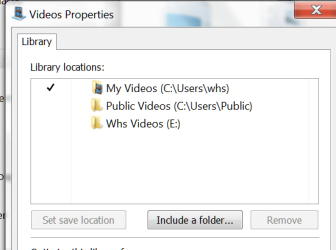
If you right click on any library (in the left pane of Explorer) and go to Properties, you will see the links to the folders that are included in that library. Example:

2013-11-17_1650.png

If you rename your folder on the other disk, I guess it might not find it after restoring an image- not sure though. But why would you want to rename those folders anyhow.
 

My Computer My Computer

Computer Manufacturer/Model Number
HP, Dell, Gateway, Toshiba - 4 laptops and 2 desktops
OS
Vista, Windows7, Mint Mate, Zorin, Windows 8
CPU
from 1.6GHz Duo to i7
Monitor(s) Displays
2x HP w2207
Hard Drives
5x HDD, 7x SSD, 12x Externals
Keyboard
with trackball - no mices
Mouse
Trackball mice
Internet Speed
DSL 6000
I doubt it would be a big problem, leastwise not one that couldn't be easily fixed. Whenever I make a change like that on my computer, I make an image before and after so if I do wonk things up, I can easily restore my way back. When all you need to image are the OS files and Programs, it doesn't take long to make an image (I spend more time than that on a trip to the loo).
 

My Computer My Computer

Computer type
PC/Desktop
Computer Manufacturer/Model Number
Custom Build
OS
Win 7 Ultimate 64 bit
CPU
Intel i7-3930K
Motherboard
ASUS P9X79 WS
Memory
Kingston HyperX Genesis 32GB Kit (8x4GB Modules) 1600MHz DDR
Graphics Card(s)
MSI R7850 Twin Frozr 2GD5/OC Radeon HD 7850 2GB 256-bit GDDR
Sound Card
Asus Xonar Essence STX
Monitor(s) Displays
3x Asus VG248QE 24", Vizio 32" TV
Screen Resolution
1920 x 1080, ?
Hard Drives
Samsung 128GB 840 Pro SSD (1),
Samsung 4TB 850 EVO SSDs (4)
Samsung 4TB 850 EVO SSDs (16) external backup drives used in 2.5" hot swap bays in the computer.
PSU
Corsair HX750w
Case
Antec Two Hundred v2 (modified)
Cooling
Cooler Master GeminII S524 120mm (fan replaced with a 140mm)
Keyboard
Logitech G510s
Mouse
Logitech M525 (two in use)
Internet Speed
=< 32Mbps down, 8Mbps up
Antivirus
AVAST!, MBAM, SAS, Spybot S&D (all but MBAM free) Glary Util
Browser
IE11
Other Info
LSI 9211-8i HBA card (8 SATA III ports), 2.5" & 3.5" Hot Swap Bays, HooToo HT-CR001 PCI-E to USB 3.0 Internal Hub + 6 Slot Card Reader, and LG Model CH12LS28 BD-ROM Optical Drive. Also, ScanSnap S1500 ADF duplexing scanner, Canon 9000F flat bed scanner, Corsair SP2500 2.1 speakers, Samsung CLP 415nw laser color printer, Cyberpower PP2200SW UPS
When all you need to image are the OS files and Programs, it doesn't take long to make an image
Exactly, plus you can 'hide' the imaging and go on doing other things. That does not impact the image because the imaging program freezes the system status when it starts and takes the image from there.
 

My Computer My Computer

Computer Manufacturer/Model Number
HP, Dell, Gateway, Toshiba - 4 laptops and 2 desktops
OS
Vista, Windows7, Mint Mate, Zorin, Windows 8
CPU
from 1.6GHz Duo to i7
Monitor(s) Displays
2x HP w2207
Hard Drives
5x HDD, 7x SSD, 12x Externals
Keyboard
with trackball - no mices
Mouse
Trackball mice
Internet Speed
DSL 6000
Thank you both again :)

So you don't burn DVDs for every OS image you make right?


If I store the image on an external hard disk, will Macrium FREE be able to restore it ?


And a third question: I don't seem to have a boot partition. Is that possible? I have :
- factory recovery 25GB
- C (os) 100 GB NTFS
- D (data) 500 GB NTFS
- unallocated space 73GB - in case i'd like to install another OS
 

My Computer My Computer

Computer type
Laptop
Computer Manufacturer/Model Number
Asus N55SF
OS
Windows 7 Home Premium 64 bit
CPU
Intel Core i5 2410M @ 2.30GHz Sandy Bridge 32nm Technology
Motherboard
ASUSTeK Computer Inc. N55SF
Memory
8,00 GB Dual-Channel DDR3 @ 1333 MHz (PC3-10600)
Graphics Card(s)
NVIDIA GeForce GT 555M, Intel HD Graphics 3000
Sound Card
Realtek High Definition Audio
Screen Resolution
1600x900@60Hz
Hard Drives
699GB Seagate ST9750423AS (SATA) 5400rpm
Other Info
Optical drive: Slimtype DVD A DS8A5SH
Hello,

In a configuration with a single HDD with 2 partitions (one for OS+Progs and one for data), how do we properly back up the OS and progs given the fact that the ProgramData and Users folders have been relocated to the Data partition ?
If you have used sysprep to relocate your system folders Users and ProgramData (as described in this tutorial), you need to include those in your image, too.

They are both system folders. If you leave them on C:, they would automatically be included in system image anyway. If they are relocated you need to be sure they are included.

I've used the sysprep method for years now on every Windows computer I have. As it is a one time procedure taking a minute to do and does not involve any manual folder location changes in folder properties or changes in library settings, one by one, but is instead done by changing the value of one Windows internal environment variable, it easily beats every other relocation method and makes changing settings manually obscure.

Both Windows' own Backup & Restore and third party tools like Macrium have no issues in creating images when these two system folders are moved from their original place.

Kari
 

My Computer My Computer

Computer type
Laptop
Computer Manufacturer/Model Number
HP ENVY 17-1150eg
OS
Windows 10 Pro x64 EN-GB
CPU
1.6 GHz Intel Core i7-720QM Processor
Memory
6 GB
Graphics Card(s)
ATI Mobility Radeon HD 5850 Graphics
Sound Card
Beats sound system with integrated subwoofer
Monitor(s) Displays
17" laptop display, 22" LED and 32" Full HD TV through HDMI
Screen Resolution
1600*900 (1), 1920*1080 (2&3)
Hard Drives
Internal: 2 x 500 GB SATA Hard Disk Drive 7200 rpm
External: 2TB for backups, 3TB USB3 network drive for media
Cooling
As Envy runs a bit warm, I have it on a Cooler Master pad
Keyboard
Logitech diNovo Media Desktop Laser (bluetooth)
Mouse
Logitech Performance Mouse MX
Internet Speed
50/10 Mbps VDSL
Antivirus
Windows Defender 4.3.9431.0
Browser
Maxthon 3.5.2., IE11
Thank you both again :)

So you don't burn DVDs for every OS image you make right?...

:what: Ohmigosh no! That would take too long and too many disks!

...If I store the image on an external hard disk, will Macrium FREE be able to restore it ?...

Absolutely. I do it all the time. If you don't already have one, you will need a rescue CD or USB stick.

...And a third question: I don't seem to have a boot partition. Is that possible? I have :
- factory recovery 25GB
- C (os) 100 GB NTFS
- D (data) 500 GB NTFS
- unallocated space 73GB - in case i'd like to install another OS

"Curiouser and curiouser," said Jeannie (apologies to Lewis Carroll). It's possible but a bit unusual with those figures. Where did you get those figures? My Computer or Disk Management? Can you show us a screen shot?
 

My Computer My Computer

Computer type
PC/Desktop
Computer Manufacturer/Model Number
Custom Build
OS
Win 7 Ultimate 64 bit
CPU
Intel i7-3930K
Motherboard
ASUS P9X79 WS
Memory
Kingston HyperX Genesis 32GB Kit (8x4GB Modules) 1600MHz DDR
Graphics Card(s)
MSI R7850 Twin Frozr 2GD5/OC Radeon HD 7850 2GB 256-bit GDDR
Sound Card
Asus Xonar Essence STX
Monitor(s) Displays
3x Asus VG248QE 24", Vizio 32" TV
Screen Resolution
1920 x 1080, ?
Hard Drives
Samsung 128GB 840 Pro SSD (1),
Samsung 4TB 850 EVO SSDs (4)
Samsung 4TB 850 EVO SSDs (16) external backup drives used in 2.5" hot swap bays in the computer.
PSU
Corsair HX750w
Case
Antec Two Hundred v2 (modified)
Cooling
Cooler Master GeminII S524 120mm (fan replaced with a 140mm)
Keyboard
Logitech G510s
Mouse
Logitech M525 (two in use)
Internet Speed
=< 32Mbps down, 8Mbps up
Antivirus
AVAST!, MBAM, SAS, Spybot S&D (all but MBAM free) Glary Util
Browser
IE11
Other Info
LSI 9211-8i HBA card (8 SATA III ports), 2.5" & 3.5" Hot Swap Bays, HooToo HT-CR001 PCI-E to USB 3.0 Internal Hub + 6 Slot Card Reader, and LG Model CH12LS28 BD-ROM Optical Drive. Also, ScanSnap S1500 ADF duplexing scanner, Canon 9000F flat bed scanner, Corsair SP2500 2.1 speakers, Samsung CLP 415nw laser color printer, Cyberpower PP2200SW UPS
Hello,

In a configuration with a single HDD with 2 partitions (one for OS+Progs and one for data), how do we properly back up the OS and progs given the fact that the ProgramData and Users folders have been relocated to the Data partition ?
If you have used sysprep to relocate your system folders Users and ProgramData (as described in this tutorial), you need to include those in your image, too.

They are both system folders. If you leave them on C:, they would automatically be included in system image anyway. If they are relocated you need to be sure they are included.

I've used the sysprep method for years now on every Windows computer I have. As it is a one time procedure taking a minute to do and does not involve any manual folder location changes in folder properties or changes in library settings, one by one, but is instead done by changing the value of one Windows internal environment variable, it easily beats every other relocation method and makes changing settings manually obscure.

Both Windows' own Backup & Restore and third party tools like Macrium have no issues in creating images when these two system folders are moved from their original place.

Kari

Hi and thank you fo your reply,

I don't understand though, say I use the method in the tutorial and do relocate these two folders. Will the backup program create only one image? containing the whole OS partition + these two folders?

Second question: Given the fact that these two folders are on another partition, how will they be put to the right place again since that partition would have evolved over time? Will the present-time files in these two folders be overwitten? (that would be ok actually).
 

My Computer My Computer

Computer type
Laptop
Computer Manufacturer/Model Number
Asus N55SF
OS
Windows 7 Home Premium 64 bit
CPU
Intel Core i5 2410M @ 2.30GHz Sandy Bridge 32nm Technology
Motherboard
ASUSTeK Computer Inc. N55SF
Memory
8,00 GB Dual-Channel DDR3 @ 1333 MHz (PC3-10600)
Graphics Card(s)
NVIDIA GeForce GT 555M, Intel HD Graphics 3000
Sound Card
Realtek High Definition Audio
Screen Resolution
1600x900@60Hz
Hard Drives
699GB Seagate ST9750423AS (SATA) 5400rpm
Other Info
Optical drive: Slimtype DVD A DS8A5SH
Hello,

In a configuration with a single HDD with 2 partitions (one for OS+Progs and one for data), how do we properly back up the OS and progs given the fact that the ProgramData and Users folders have been relocated to the Data partition ?
If you have used sysprep to relocate your system folders Users and ProgramData (as described in this tutorial), you need to include those in your image, too.

They are both system folders. If you leave them on C:, they would automatically be included in system image anyway. If they are relocated you need to be sure they are included.

I've used the sysprep method for years now on every Windows computer I have. As it is a one time procedure taking a minute to do and does not involve any manual folder location changes in folder properties or changes in library settings, one by one, but is instead done by changing the value of one Windows internal environment variable, it easily beats every other relocation method and makes changing settings manually obscure.

Both Windows' own Backup & Restore and third party tools like Macrium have no issues in creating images when these two system folders are moved from their original place.

Kari

All I did when I set up my computers was to drag the data folders to the new location on the other drive. Easy peasy and it works just fine for me.
 

My Computer My Computer

Computer type
PC/Desktop
Computer Manufacturer/Model Number
Custom Build
OS
Win 7 Ultimate 64 bit
CPU
Intel i7-3930K
Motherboard
ASUS P9X79 WS
Memory
Kingston HyperX Genesis 32GB Kit (8x4GB Modules) 1600MHz DDR
Graphics Card(s)
MSI R7850 Twin Frozr 2GD5/OC Radeon HD 7850 2GB 256-bit GDDR
Sound Card
Asus Xonar Essence STX
Monitor(s) Displays
3x Asus VG248QE 24", Vizio 32" TV
Screen Resolution
1920 x 1080, ?
Hard Drives
Samsung 128GB 840 Pro SSD (1),
Samsung 4TB 850 EVO SSDs (4)
Samsung 4TB 850 EVO SSDs (16) external backup drives used in 2.5" hot swap bays in the computer.
PSU
Corsair HX750w
Case
Antec Two Hundred v2 (modified)
Cooling
Cooler Master GeminII S524 120mm (fan replaced with a 140mm)
Keyboard
Logitech G510s
Mouse
Logitech M525 (two in use)
Internet Speed
=< 32Mbps down, 8Mbps up
Antivirus
AVAST!, MBAM, SAS, Spybot S&D (all but MBAM free) Glary Util
Browser
IE11
Other Info
LSI 9211-8i HBA card (8 SATA III ports), 2.5" & 3.5" Hot Swap Bays, HooToo HT-CR001 PCI-E to USB 3.0 Internal Hub + 6 Slot Card Reader, and LG Model CH12LS28 BD-ROM Optical Drive. Also, ScanSnap S1500 ADF duplexing scanner, Canon 9000F flat bed scanner, Corsair SP2500 2.1 speakers, Samsung CLP 415nw laser color printer, Cyberpower PP2200SW UPS
Back
Top