
WIM File - Extract and Modify

How to Extract and Modify WIM Files

Sometimes when some of the dll files gets deleted somehow or certain Windows features crashes due to corrupt file then we had use system Restore or have to perform clean installation to get those files back. But while we use System Restore or we perform clean installation some or all our installed gets deleted. install.wim file in your windows 7 or windows vista DVD contains a windows image. IF we could Extract it then we could use those files it to replace the corrupted file in our Windows.
Or you can also modify the .wim file to add or delete a program or file.
This tutorial is all about how to mount or modify install.wim or any .wim file.

   Warning
Things you need:
1)ImageX.exe from the Windows Automated Installation Kit (WAIK)
2)install.wim file from you windows installation DVD.
3)More than 5GB of hdd space.


Copy the install.wim file to you local hard disk(let say i copied it to f:\).
let say you have kept imagex.exe in c:\ drive. And you are going to mount the .wim file in d:\mount.

   Note
You cannot mount .wim file directly to any drive


To mount .wim file in d:\mount at first we have to make a folder in d:\ named mount.

There are two process of mounting:
1)with read only permission(you can`t modify .wim file).
2)with read write permission(you can modify .wim file).
1) Mounting With read only permission:
Open command and go to c:\
then type: imagex /mount f:\install.wim 2 d:\mount
And install.wim will be mounted to d:\mount.
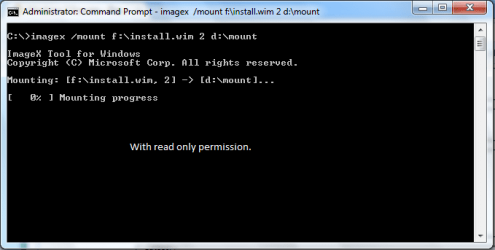
image1.png
2) Mounting with read\write permission:
Open command and go to c:\
then type

imagex /mountrw f:\install.wim 2 d:\mount
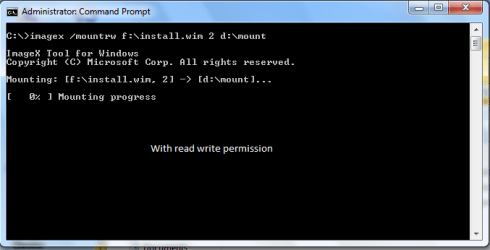
image2.png
   Note
where d:\mount is the location of the mount directory, f:\install.wim is the name and the location of the .wim file to mount, and 2 is the reference number of the specific volume in the .wim file.

Modifying an Image
After you mount an image, the directory structure becomes available from a file-management tool, such as Windows Explorer. From the file-management tool, you can review your file and folder structure and add, edit, or delete files and folders.

To view files and folders
On yourcomputer, start Windows Explorer, and then open the mounted directory. For example,

d:\mount
Review the file and folder structure, including content.
To Add Files or Folders
If you must add an application or a device, verify that you included all of the required files. Although you can add application files and folders, you cannot install applications.
To edit files or folders
On your computer, start Windows Explorer, and then open the mounted directory. For example,

d:\mount
Edit the files and the folders. Move the files and the folders within your image, or open the files and view their contents.

To delete files or folders
On your computer, start Windows Explorer, and then open the mounted directory. For example,

C:\mount
To delete a file or a folder, press SHIFT+DELETE.

   Note
You cannot delete an entire .wim file. However, you can delete all of the files contained within the image. The DELETE key alone will not delete any files or folders you have to use SHIFT+DELETE.

To Unmount an Image
On your computer, at a command prompt, open the ImageX directory(as on my computer i have kept it in c:\).

Then type: imagex /unmount /commit d:\mount

   Note
where d:\mount is the location of the mount directory. If you do not specify the parameters to unmount, this option lists all of the mounted images but does not perform the unmount action.

If you use the /unmount option without the /commit option, your changes will be discarded. To save your changes, you must mount the image by using the /mountrw option and the /commit option when unmounting the image.

Feel free to comment. And if i have done any mistake in the tutorial feel free to speak about it. Thanks for reading.
 

Attachments

Last edited by a moderator:
Good tutorial but i would use dism with windows 7 since it is included and imagex is not.
 

My Computer

OS
Win 7
Ya we can use that also but command lines are slightly different.
 

My Computer

Computer Manufacturer/Model Number
Custom made
OS
Window 7 build 7600, Xp pro(VM)
CPU
Amd Athlon 2000 xp+
Motherboard
Asus x series
Memory
kingstone(1gb+256MB)
Graphics Card(s)
Nvdia 6200(256 mb+255mb(shared))
Sound Card
soundmax
Monitor(s) Displays
Lg Flatron w1943
Screen Resolution
1360x768
Hard Drives
segate 80GB
Case
i-ball
Keyboard
i-ball
Mouse
i-ball
Internet Speed
256kbps up and 256 kbps down
Ya we can use that also but command lines are slightly different.
Yes but it does not require a download and is on the DVD so you can use it if you can't boot into windows. but if you are going to download imagex why not go for GImageX at least then you have a gui.
 

My Computer

OS
Win 7
You could also use 7-Zip to open the extracted wim and browse through the directories and pull any files you need that way.
 

My Computer

Computer Manufacturer/Model Number
Home Brew
OS
Windows 7 Ultimate Vista Ultimate x64
CPU
Core 2 Duo E8500 3.16Ghz @ 3.8Ghz
Motherboard
eVGA 750i FTW
Memory
2x2Gigs Patriot PC2-6400 LL
Graphics Card(s)
Inno3D GeForce GTX260 216 SP
Monitor(s) Displays
ASUS VW222U 22" 2ms Response time
Screen Resolution
1680x1050
Hard Drives
SATA 150GB
SATA II 250GB
USB IDE 750GB Ext.
PSU
HYTEC 600W & Thermaltake 650W Toughpower Power Exp
Case
Thermaltake Armor LCS (Liquid Cooling System)
Cooling
Liquid Cooling System
Keyboard
Logitech G15 Gaming Keyboard
Mouse
Logitech G9 Gaming Mouse
Excellent tutorial :D

Another app that can extract & save WIM files is 'Universal Extractor' & it's free :p
 

My Computer

Computer Manufacturer/Model Number
Compaq Desktop
OS
Windows 7 Ultimate x64
CPU
AMD Sempron Dual Core
Memory
3GB
Graphics Card(s)
NVIDIA GeForce 6150SE nForce 430
Screen Resolution
1024x768
Hard Drives
150GB Sata
Hello
I have a problem in Mount by wim .
Only and only
I copy the file Install.win drive f
I created an empty folder into drive d And called mount
I copy Imagex.exe in the drive c
--------------------------------------------------------
Run CMD
imagex /mountrw f:\install.wim 2 d:\mount

But Error
the volume of the specified mount path does not support reparse points.please mount to a volume that supports reparse points.
---------------------------------------------------------
?How do I solve this problem​


My Computer

OS
Seven
Just try to mount it in another drive..
What file system does your d: drive use??
 

My Computer

Computer Manufacturer/Model Number
Custom made
OS
Window 7 build 7600, Xp pro(VM)
CPU
Amd Athlon 2000 xp+
Motherboard
Asus x series
Memory
kingstone(1gb+256MB)
Graphics Card(s)
Nvdia 6200(256 mb+255mb(shared))
Sound Card
soundmax
Monitor(s) Displays
Lg Flatron w1943
Screen Resolution
1360x768
Hard Drives
segate 80GB
Case
i-ball
Keyboard
i-ball
Mouse
i-ball
Internet Speed
256kbps up and 256 kbps down
After the Mount , Some of the files do not change
For Example After the Mount Install.wim in C:\TEST ... I want to Modify "Windows\Web\Wallpaper\Windows\img0.jpg"
But faced with the following message I get logged :
Can not Rename img0.jpg Access is Denied
 

My Computer

OS
Seven
After the Mount , Some of the files do not change
For Example After the Mount Install.wim in C:\TEST ... I want to Modify "Windows\Web\Wallpaper\Windows\img0.jpg"
But faced with the following message I get logged :
Can not Rename img0.jpg Access is Denied
Did you read the tutorial ?

Both of the "Step 2" might help...

OTOH, might not...
 

My Computer

Computer Manufacturer/Model Number
Gateway GT5056
OS
XP_Pro, W7_7201, W7RC.vhd, SciLinux5.3, Fedora12, Fedora9_2x, OpenSolaris_09-06
CPU
AMD 64x2
Motherboard
Yes
Memory
1 gig
Graphics Card(s)
Dunno
Sound Card
Realtek something
Monitor(s) Displays
Samsung SyncMaster 940MW w/TV
Screen Resolution
1280x1024
Hard Drives
250 GB WD, USB Seagate Freedesk 1.5 T
Internet Speed
Cable modem
Other Info
1 + 1 = 10b,
7 + 7 = 16o,
a + b = 15h.
read and write imageX not solve my problem
Access is Denied for windows problem !!!
 

My Computer

OS
Seven
read and write imageX not solve my problem
Access is Denied for windows problem !!!
I have noticed that sometimes my files get marked as "Read Only" and I get denied. I have only had to change the "Read Only" to make changes to the file.
 

My Computer

OS
...
You could also use 7-Zip to open the extracted wim and browse through the directories and pull any files you need that way.
then how to make .wim file again after doing all thing.
 

My Computer

OS
Windows Xp
After completing all the steps unmount the image. read the last part of the tutorial.
 

My Computer

Computer Manufacturer/Model Number
Custom made
OS
Window 7 build 7600, Xp pro(VM)
CPU
Amd Athlon 2000 xp+
Motherboard
Asus x series
Memory
kingstone(1gb+256MB)
Graphics Card(s)
Nvdia 6200(256 mb+255mb(shared))
Sound Card
soundmax
Monitor(s) Displays
Lg Flatron w1943
Screen Resolution
1360x768
Hard Drives
segate 80GB
Case
i-ball
Keyboard
i-ball
Mouse
i-ball
Internet Speed
256kbps up and 256 kbps down
After completing all the steps unmount the image. read the last part of the tutorial.

i m talking if we did mount with 7zip then how to unmount into .wim after changing all things.i tried with AIK with using of unmount but did not got success in it
 

My Computer

OS
Windows Xp
Which version of Aik are you using?

Do you wanna make an iso with it??
 

My Computer

Computer Manufacturer/Model Number
Custom made
OS
Window 7 build 7600, Xp pro(VM)
CPU
Amd Athlon 2000 xp+
Motherboard
Asus x series
Memory
kingstone(1gb+256MB)
Graphics Card(s)
Nvdia 6200(256 mb+255mb(shared))
Sound Card
soundmax
Monitor(s) Displays
Lg Flatron w1943
Screen Resolution
1360x768
Hard Drives
segate 80GB
Case
i-ball
Keyboard
i-ball
Mouse
i-ball
Internet Speed
256kbps up and 256 kbps down
i m facing same problem access denied one even i m running cmd with RUN AS Admin Permission It is Saying Access Denied
 

My Computer

OS
Windows Xp
Just an FYI, ImageX.exe is still an included and used tool in the WAIK 2.0 (7/R2 version) and is intended to be used in WinPE 3.0 for deployment scenarios.

ImageX - can still be used to mount, and commit changes to a WIM file.

DISM - is the "preferred" method because of the ability to remove package files, drivers, language packs, etc on an offline or online wim image. Can mount and unmount WIMs.

PEimg.exe - deprecated in WAIK 2.0 (previously used to load drivers to an offline WIM image)

drvload.exe - deprecated in WAIK 2.0 (previously used to load drivers to an online instance of WinPE 2.0 "on-the-fly")

You cant APPLY or CAPTURE a WIM with DISM.exe, so ImageX is still required and useful.
 

My Computer

OS
Windows Vista Business / Windows 7 Ultimate
Back
Top