Windows 7 dual boot using BIOS vs software vs switch ?

Yes


Guids are the identifiers between curly brackets. They appear to have been blanked out in your screenshot.

I blanked them out because I have no idea what information they contain.

What do all those numbers refer to?
 

My Computer

Computer type
PC/Desktop
Computer Manufacturer/Model Number
HP
OS
Windows 7 Ultimate x64
CPU
AMD Athlon x4
Motherboard
HP / Foxconn
Memory
8.00 GB
Graphics Card(s)
GTX 750Ti SC
Monitor(s) Displays
ACER
Hard Drives
1TB Seagate
PSU
380W
Cooling
Stock
Internet Speed
3 Mbps
Yes


Guids are the identifiers between curly brackets. They appear to have been blanked out in your screenshot.

I temporarily connected both drives & went into BIOS to verify the boot order was HDD before SSD.

Booted up to the default HDD & here's a screen shot of the Disk Management screen.
 

Attachments

  • Disk Management_1.jpg
    Disk Management_1.jpg
    124 KB · Views: 4

My Computer

Computer type
PC/Desktop
Computer Manufacturer/Model Number
HP
OS
Windows 7 Ultimate x64
CPU
AMD Athlon x4
Motherboard
HP / Foxconn
Memory
8.00 GB
Graphics Card(s)
GTX 750Ti SC
Monitor(s) Displays
ACER
Hard Drives
1TB Seagate
PSU
380W
Cooling
Stock
Internet Speed
3 Mbps
In that case, the commands should be

bcdboot C:\windows /s E: ( adds boot entry for OS on C: to bcd store of E: )

bcdboot F:\windows ( adds boot entry for OS on F: to current live bcd store)
 

My Computers

System One System Two

  • Computer type
    PC/Desktop
    OS
    7 X64
    CPU
    i5 8400
    Motherboard
    gigabyte b365m ds3h
    Memory
    2x8gb 3200mhz
    Hard Drives
    various
    PSU
    pure power 11 400w cm
    Case
    Coolermaster
    Cooling
    cryorig m9i
  • Computer type
    PC/Desktop
    OS
    7x64
    CPU
    g5400
    Motherboard
    ga b365m ds3h
    Memory
    8gb ddr4 2400
    PSU
    xfx pro 450w
In that case, the commands should be

bcdboot C:\windows /s E: ( adds boot entry for OS on C: to bcd store of E: )

bcdboot F:\windows ( adds boot entry for OS on F: to current live bcd store)


OK, but I was pressing the ESC key on startup in order to bring up the boot menu. How come that did not work & why did that mess up the SSD?
 

My Computer

Computer type
PC/Desktop
Computer Manufacturer/Model Number
HP
OS
Windows 7 Ultimate x64
CPU
AMD Athlon x4
Motherboard
HP / Foxconn
Memory
8.00 GB
Graphics Card(s)
GTX 750Ti SC
Monitor(s) Displays
ACER
Hard Drives
1TB Seagate
PSU
380W
Cooling
Stock
Internet Speed
3 Mbps
We are not mind readers. You probably didn't do it right.
 

My Computers

System One System Two

  • Computer type
    PC/Desktop
    OS
    7 X64
    CPU
    i5 8400
    Motherboard
    gigabyte b365m ds3h
    Memory
    2x8gb 3200mhz
    Hard Drives
    various
    PSU
    pure power 11 400w cm
    Case
    Coolermaster
    Cooling
    cryorig m9i
  • Computer type
    PC/Desktop
    OS
    7x64
    CPU
    g5400
    Motherboard
    ga b365m ds3h
    Memory
    8gb ddr4 2400
    PSU
    xfx pro 450w
We are not mind readers. You probably didn't do it right.


Using the method described in message #4 it looks like a boot menu will automatically appear at startup. I prefer not to do that since I can just see another family member not knowing what to do & selecting the wrong drive.

I chose to try the method described in message #6 where a key press is required in order to bring up a boot menu. That would/should protect the SSD & the program(s) on it. In my case pressing the ESC key brings up the boot menu. From reading about this method it is my understanding that the only thing that needs to be done is to put the boot drives in order in the BIOS, placing the default boot drive (HDD) ahead of the other boot drive (SSD). And that’s what I did.

Pressing ESC at start up did bring up a boot menu.
HDD drive at the top
DVD drive in the middle
SSD drive at the bottom

That appeared OK, however selecting the SSD still caused the HDD to boot, and the SSD became corrupted & had to be repaired.

When using the method described in message #6 and setting the boot drive priorities, what other steps are required? What did I miss?
 

My Computer

Computer type
PC/Desktop
Computer Manufacturer/Model Number
HP
OS
Windows 7 Ultimate x64
CPU
AMD Athlon x4
Motherboard
HP / Foxconn
Memory
8.00 GB
Graphics Card(s)
GTX 750Ti SC
Monitor(s) Displays
ACER
Hard Drives
1TB Seagate
PSU
380W
Cooling
Stock
Internet Speed
3 Mbps
You probably have the SSD boot loader on the HDD. Did you detached the HDD when installing Win 7 on the SSD?
 

My Computers

System One System Two

  • Computer type
    PC/Desktop
    Computer Manufacturer/Model Number
    custom build
    OS
    Windows 7 HP 64
    CPU
    i5 6600K - 800MHz to 4200MHz
    Motherboard
    GA-Z170-HD3P
    Memory
    4+4G GSkill DDR4 3000
    Graphics Card(s)
    IG - Intel 530
    Monitor(s) Displays
    Samsung 226BW
    Screen Resolution
    1680x1050
    Hard Drives
    (1) -1 SM951 – 128GB M.2 AHCI PCIe SSD drive for Windows 7 and Lubuntu
    (2) -1 WD SATA 3 - 1T for Data
    (3) -1 WD SATA 3 - 1T for backup
    PSU
    Thermaltake 450W TR2 gold
    Keyboard
    Old and good Chicony mechanical keyboard
    Mouse
    Logitech mX performance - 9 buttons (had to disable some)
    Internet Speed
    500Mb/s
    Browser
    Firefox 64
    Other Info
    TinyWall firewall
  • Computer type
    Laptop
    System Manufacturer/Model Number
    Asus Q550LF
    OS
    Windows 7 Pro
    CPU
    i7-4500U 800MHz to 3.0GHz
    Motherboard
    Asus Q550LF
    Memory
    (4+4)G DDR3 1600
    Graphics Card(s)
    IG intel 4400 + NVIDIA GeForce GT 745M
    Sound Card
    Realtek
    Monitor(s) Displays
    LG Display LP156WF4-SPH1
    Screen Resolution
    1920 x 1080
    Hard Drives
    BX500 120G SSD for Windows and programs +
    1T HDD for data
    Internet Speed
    500 Mb/s
    Browser
    Firefox
    Other Info
    TinyWall firewall
You probably have the SSD boot loader on the HDD. Did you detached the HDD when installing Win 7 on the SSD?


Yes the HDD was detached when Win7 was installed on the SSD. Each drive boots up correctly by itself.

Referring to message #14 -
When trying a 2nd time with both drives attached I got a black screen with a message to repair (recommended) or restart normally. I did not repair at that time.

Later when I connected only the SSD a message came up that Windows failed to start...,required device is inaccessible. That’s when I inserted the Windows disc & chose repair.

Question - would that repair option return the SSD boot partition to its fresh Windows 7 install condition? Or would it have also made some changes that I would not be aware of?
 

My Computer

Computer type
PC/Desktop
Computer Manufacturer/Model Number
HP
OS
Windows 7 Ultimate x64
CPU
AMD Athlon x4
Motherboard
HP / Foxconn
Memory
8.00 GB
Graphics Card(s)
GTX 750Ti SC
Monitor(s) Displays
ACER
Hard Drives
1TB Seagate
PSU
380W
Cooling
Stock
Internet Speed
3 Mbps
I have done exactly what you want to do for few years now on 2 of my laptop, since every other method sucks big time one way or another and there are 2 issues you need to resolve: Install Win 7 on 1 partition only (no EFI partition etc, I think it's called legacy boot or something similar). You need to do install Win7 with 1 disk present (take out the other disk for a moment). Once you install both Windows, put both disks back. You choose either permanent boot order in BIOS, or hit escape and get boot order for this boot only. No stupid menus, no delay in boot-up time unless disk order change, no 2 pages of some ridiculous instructions to follow to the letter, no extra programs to buy, install and later break with no way to boot your system (had that happen to me). I set 2 of my laptops like that, but it was few years ago and I don't remember exactly, but I think it was pretty straight forward, except for making sure all is on 1 partition only. I have another laptop setup as dual boot win7/Win10 and Win 10 have all those stupid little partitions for EFI etc, but Win7 is all in one partition only and here all I do is choose between legacy and UEFI boot to get either one. I think your problem is, you somehow installed 2 EFI partitions and that won't work. If you want some details, I try to dig some more info. Good luck and trust me this is the best simplest way to do it and it works perfect.

 

My Computer

OS
win7hp64
I have done exactly what you want to do for few years now on 2 of my laptop, since every other method sucks big time one way or another and there are 2 issues you need to resolve: Install Win 7 on 1 partition only (no EFI partition etc, I think it's called legacy boot or something similar). You need to do install Win7 with 1 disk present (take out the other disk for a moment). Once you install both Windows, put both disks back. You choose either permanent boot order in BIOS, or hit escape and get boot order for this boot only. No stupid menus, no delay in boot-up time unless disk order change, no 2 pages of some ridiculous instructions to follow to the letter, no extra programs to buy, install and later break with no way to boot your system (had that happen to me). I set 2 of my laptops like that, but it was few years ago and I don't remember exactly, but I think it was pretty straight forward, except for making sure all is on 1 partition only. I have another laptop setup as dual boot win7/Win10 and Win 10 have all those stupid little partitions for EFI etc, but Win7 is all in one partition only and here all I do is choose between legacy and UEFI boot to get either one. I think your problem is, you somehow installed 2 EFI partitions and that won't work. If you want some details, I try to dig some more info. Good luck and trust me this is the best simplest way to do it and it works perfect.

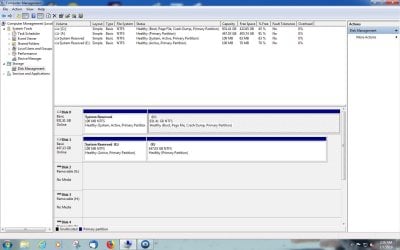
Each drive has two partitions, one of them being the 100MB NTFS System Reserved partition. The other partition in the C: partition. Windows 7 was installed on each drive when it was the only drive connected. There is no EFI or UEFI on the drives.

I connect both drives & set the boot order in BIOS making the HHD priority. My Disk Management is shown in message #22. And then I did exactly what you said, “hit escape and get boot order for this boot only”. However when I chose the SSD it still booted to the HHD which had the permanent boot priority.

Every tutorial I’ve seen says it’s best to have each OS on its own drive. But then they instruct to connect the second drive & then to install the OS on it. They never say what to do if the OS is already on both drives.

You mention having only one partition on a drive. Does that mean I should delete the System Reserved partition?

What happens when I return the PC back to using just a single drive? IOW how do I get the System Reserved partition back?
 

My Computer

Computer type
PC/Desktop
Computer Manufacturer/Model Number
HP
OS
Windows 7 Ultimate x64
CPU
AMD Athlon x4
Motherboard
HP / Foxconn
Memory
8.00 GB
Graphics Card(s)
GTX 750Ti SC
Monitor(s) Displays
ACER
Hard Drives
1TB Seagate
PSU
380W
Cooling
Stock
Internet Speed
3 Mbps
Tell me how to insert image (I have no online photo site) I'll post screen shot of my computer disk setup.
Here is youtube to how install Win7 on 1 partition :
Install Windows 7 onto a single partition - YouTube
You install 1 disk at a time (other removed from system). Choose boot order in BIOS. If one disk fails, no matter which, you can boot from the other and recover data from broken one.

At some point in past I had my old desktop set up to boot Win XP, Win7 and Linux.
I think the trick is to not to have that separate system partition and each disk has to have MBR.
 

My Computer

OS
win7hp64
Capture.PNG


I forgot I have pop up blocker on, so I couldn't figure out, why it wasn't working.
Anyhow 250GB SSD has one Win7 install and E: partition another Win7 install. Works like a charm, HDD partition I use for testing and recovery if required, SSD partition is my main working partition.
 

My Computer

OS
win7hp64
I already have Windows 7 installed on both drives.

Everything I've read says do not delete the System Reserved partition. Apparently deleting may cause problems.

If I did find a way to get rid of the System Reserved partition, how do I restore it when I go back to using just a single drive?
 

My Computer

Computer type
PC/Desktop
Computer Manufacturer/Model Number
HP
OS
Windows 7 Ultimate x64
CPU
AMD Athlon x4
Motherboard
HP / Foxconn
Memory
8.00 GB
Graphics Card(s)
GTX 750Ti SC
Monitor(s) Displays
ACER
Hard Drives
1TB Seagate
PSU
380W
Cooling
Stock
Internet Speed
3 Mbps
Back
Top