Windows 7 Problem

billubakra

New member
Local time
12:20 PM
Messages
7
Hi Guys

My friend has a Dell Inspiron laptop.Its configuration is i3 processor,2gb ram,320gb hdd and no video card.He only use it to access the internet.The softwares installed are like chrome,media player,MS-Office,KAV etc.Windows 7 Ultimate is installed in it,of the little what he remembers.It was working fine but since the past week it became very very slow.Few minutes ago when we opened chrome,it took like 5-10 minutes in the processing and still it didnt open,then we opened the task manager but it showed not responding.Anyways we turned off the laptop from the power button and when we restarted it using start windows normally,a black screen came.We waited for few minutes then selected start windows in cmd mode.It was loading the system 32 files but it stopped at some driver file and then we again restarted it this time it itself started in startup repairs.It took another 5-10 minutes and then it said if we wanted to restore it to some earlier point we clicked ok,but again its been like 40 minutes but the process hasnt completed.We are thinking to cancel it now.When we restart the laptop below the dell inspiron starting screen there are options of setup and boot and both of them works just fine

How to rectify it?Formatting is not an option since there are some important files on the desktop.He never set a restore point so do you think we should wait here?

Thanx
 

My Computer

OS
Windows 7 Ultimate x64
Hell billubakra and welcome to Seven Forums.

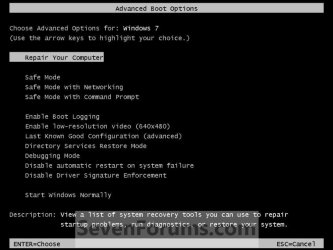
None of the following suggestions will result in formatting the hard drive. They are all designed to preserve user data. Are you able to access Safe Mode from the Advanced Boot Options menu?

http://www.sevenforums.com/tutorials/666-advanced-boot-options.html

If yes, you could see if any system files have become damaged or corrupt by running a system file checker scan from an elevated command prompt (option two.) If problems are found, run the scan 3 times and reboot the computer after each scan.

http://www.sevenforums.com/tutorials/1538-sfc-scannow-command-system-file-checker.html

You can also try a startup repair. It's suggested to run the repair 3 times and reboot the computer after each one.

http://www.sevenforums.com/tutorials/681-startup-repair.html

You could also see if there are any application conflicts by running a clean startup (AKA clean boot.)

http://www.sevenforums.com/tutorial...ation-conflicts-performing-clean-startup.html

One of the Forum experts also prepared these troubleshooting tutorials that have some additional suggestions.

http://www.sevenforums.com/tutorials/219533-troubleshooting-windows-7-failure-boot.html

http://www.sevenforums.com/tutorials/220165-troubleshooting-steps-windows-7-a.html

If nothing helps you might consider a repair install. A repair install will attempt to fix your currently installed Windows 7 while preserving your user accounts, data, programs, system drivers, etc. A repair install takes about an hour and if successful you'll have to reinstall Windows Updates. That could take another hour or more.

http://www.sevenforums.com/tutorials/3413-repair-install.html
 

My Computer

Computer type
Laptop
Computer Manufacturer/Model Number
Sony Vaio VPCEB47GM Laptop
OS
Win 7 Pro 64-bit
CPU
Intel i5 2.4 Ghz
Memory
8GB DDR3
Graphics Card(s)
Intel HD 3000
Sound Card
IDT High Definition
Monitor(s) Displays
15.6 WGXA Anti-Glare LED
Screen Resolution
1280x800
Hard Drives
640Gb 7200rpm
Antivirus
MSE
Browser
Opera (primary) with IE9 backup
Hell billubakra and welcome to Seven Forums.

None of the following suggestions will result in formatting the hard drive. They are all designed to preserve user data. Are you able to access Safe Mode from the Advanced Boot Options menu?

http://www.sevenforums.com/tutorials/666-advanced-boot-options.html

If yes, you could see if any system files have become damaged or corrupt by running a system file checker scan from an elevated command prompt (option two.) If problems are found, run the scan 3 times and reboot the computer after each scan.

http://www.sevenforums.com/tutorials/1538-sfc-scannow-command-system-file-checker.html

You can also try a startup repair. It's suggested to run the repair 3 times and reboot the computer after each one.

http://www.sevenforums.com/tutorials/681-startup-repair.html

You could also see if there are any application conflicts by running a clean startup (AKA clean boot.)

http://www.sevenforums.com/tutorial...ation-conflicts-performing-clean-startup.html

One of the Forum experts also prepared these troubleshooting tutorials that have some additional suggestions.

http://www.sevenforums.com/tutorials/219533-troubleshooting-windows-7-failure-boot.html

http://www.sevenforums.com/tutorials/220165-troubleshooting-steps-windows-7-a.html

If nothing helps you might consider a repair install. A repair install will attempt to fix your currently installed Windows 7 while preserving your user accounts, data, programs, system drivers, etc. A repair install takes about an hour and if successful you'll have to reinstall Windows Updates. That could take another hour or more.

http://www.sevenforums.com/tutorials/3413-repair-install.html


Thanx for replying.When we select boot option a boot menu opens up,which has these options

+Hard Drive
CD/DVD/CD-RW Devices
Removable Devices
Network
Diagnostics

<Enter Setup>

If we run Diagnostics,it completes 100% and then says

Error Code 0146
Msg:Error Code 2000-0146
Msg:Hard Drive 0-self test log contains previous error(s) the given error ciode and message can be used by technical support to diagnose the problem
Do you want to continue testing?

Then we select No

How to start it in safe mode?

If we let it start without choosing setup or boot options it says either to select repair or to start it normally,but none of that works
 

My Computer

OS
Windows 7 Ultimate x64
When we select boot option a boot menu opens up, which has these options
+Hard Drive
CD/DVD/CD-RW Devices
Removable Devices
Network
Diagnostics
<Enter Setup>
How are you getting to this boot option menu? I'm not familiar with it.

For the Advanced Boot Option menu:
With the computer off, press the power button. As soon as you turn the power on immediately start clicking the F8 key (top of keyboard) and keep clicking it until you see the Advanced Boot Options menu. Use your up/down arrows to highlight Safe Mode and click Enter.

advbootoptns.JPG

Are you not able to access this menu?
 

My Computer

Computer type
Laptop
Computer Manufacturer/Model Number
Sony Vaio VPCEB47GM Laptop
OS
Win 7 Pro 64-bit
CPU
Intel i5 2.4 Ghz
Memory
8GB DDR3
Graphics Card(s)
Intel HD 3000
Sound Card
IDT High Definition
Monitor(s) Displays
15.6 WGXA Anti-Glare LED
Screen Resolution
1280x800
Hard Drives
640Gb 7200rpm
Antivirus
MSE
Browser
Opera (primary) with IE9 backup
Hell billubakra and welcome to Seven Forums.

None of the following suggestions will result in formatting the hard drive. They are all designed to preserve user data. Are you able to access Safe Mode from the Advanced Boot Options menu?

http://www.sevenforums.com/tutorials/666-advanced-boot-options.html

If yes, you could see if any system files have become damaged or corrupt by running a system file checker scan from an elevated command prompt (option two.) If problems are found, run the scan 3 times and reboot the computer after each scan.

http://www.sevenforums.com/tutorials/1538-sfc-scannow-command-system-file-checker.html

You can also try a startup repair. It's suggested to run the repair 3 times and reboot the computer after each one.

http://www.sevenforums.com/tutorials/681-startup-repair.html

You could also see if there are any application conflicts by running a clean startup (AKA clean boot.)

http://www.sevenforums.com/tutorial...ation-conflicts-performing-clean-startup.html

One of the Forum experts also prepared these troubleshooting tutorials that have some additional suggestions.

http://www.sevenforums.com/tutorials/219533-troubleshooting-windows-7-failure-boot.html

http://www.sevenforums.com/tutorials/220165-troubleshooting-steps-windows-7-a.html

If nothing helps you might consider a repair install. A repair install will attempt to fix your currently installed Windows 7 while preserving your user accounts, data, programs, system drivers, etc. A repair install takes about an hour and if successful you'll have to reinstall Windows Updates. That could take another hour or more.

http://www.sevenforums.com/tutorials/3413-repair-install.html

When we select boot option a boot menu opens up, which has these options
+Hard Drive
CD/DVD/CD-RW Devices
Removable Devices
Network
Diagnostics
<Enter Setup>
How are you getting to this boot option menu? I'm not familiar with it.

For the Advanced Boot Option menu:
With the computer off, press the power button. As soon as you turn the power on immediately start clicking the F8 key (top of keyboard) and keep clicking it until you see the Advanced Boot Options menu. Use your up/down arrows to highlight Safe Mode and click Enter.

View attachment 248711

Are you not able to access this menu?


Thanx for replying.I got to that menu after i pressed F12 as it said boot menu on the starting screen.Anyways i pressed F8 as you mentioned,now it shows the screen which has these options

Windows7/Vista/Server (Pointer)
Windows7/Vista/Server
Windows7/Vista/Server (Debug - Default mode)
Windows7/Vista/Server (Debug - Legacy mode)
Windows7/Vista/Server (No SLIC - Pointer)
Windows7/Vista/Server (No SLIC)
Windows NT/2000/XP
Loader Help

Use up/down keys to highlight an entry.Press ENTER or 'b' to boot.Press 'c' for a command-line.

Also what about the error message that showed up after the diagnostic process?Anything to worry about?
 

My Computer

OS
Windows 7 Ultimate x64
That's still not the Advanced Boot Options menu you should be seeing (post # 4 screenshot.) Try once more please. As soon as you power on the computer immediately start clicking the F8 key (about one click every second) and keep clicking until the Advanced Boot Options menu appears. If you still can't access the Advanced Boot Options menu then there is something seriously wrong with the computer. It may require the use of a rescue disk so you can backup your important data and then reformat the hard drive.

I know you don't want to do that so it's really important to know for sure that the Advanced Boot Options menu cannot be accessed.
 

My Computer

Computer type
Laptop
Computer Manufacturer/Model Number
Sony Vaio VPCEB47GM Laptop
OS
Win 7 Pro 64-bit
CPU
Intel i5 2.4 Ghz
Memory
8GB DDR3
Graphics Card(s)
Intel HD 3000
Sound Card
IDT High Definition
Monitor(s) Displays
15.6 WGXA Anti-Glare LED
Screen Resolution
1280x800
Hard Drives
640Gb 7200rpm
Antivirus
MSE
Browser
Opera (primary) with IE9 backup
That's still not the Advanced Boot Options menu you should be seeing (post # 4 screenshot.) Try once more please. As soon as you power on the computer immediately start clicking the F8 key (about one click every second) and keep clicking until the Advanced Boot Options menu appears. If you still can't access the Advanced Boot Options menu then there is something seriously wrong with the computer. It may require the use of a rescue disk so you can backup your important data and then reformat the hard drive.

I know you don't want to do that so it's really important to know for sure that the Advanced Boot Options menu cannot be accessed.

Thanx for replying.No i still cant access advanced boot option :(
 

My Computer

OS
Windows 7 Ultimate x64
I think I would try a repair install. The link is in post # 2. It appears that there is more damage to the hard drive than the usual repair options would be able to fix. The repair install should save your data while fixing the operating system.

If the repair install doesn't work, then you might have to follow the instructions in post # 7 of this thread. This person couldn't start his computer and needed to backup his important files. He used a Linux progam called Peppermint3.

http://www.sevenforums.com/general-discussion/271396-windows-7-registry-problem.html
 

My Computer

Computer type
Laptop
Computer Manufacturer/Model Number
Sony Vaio VPCEB47GM Laptop
OS
Win 7 Pro 64-bit
CPU
Intel i5 2.4 Ghz
Memory
8GB DDR3
Graphics Card(s)
Intel HD 3000
Sound Card
IDT High Definition
Monitor(s) Displays
15.6 WGXA Anti-Glare LED
Screen Resolution
1280x800
Hard Drives
640Gb 7200rpm
Antivirus
MSE
Browser
Opera (primary) with IE9 backup
One guy suggested pushing the d key several times.

It wont take you to the screen that marsmimar wants immediately it will give you other options scroll down to the bottom option it should say something to the effect of "advanced menu"

It might not say that exactly but i am pretty sure it has ADVANCED somewhere in there THAN it should Redirect you to the screen that marsmimar wants.

Sorry i am not more specific but i haven't done this often.

This should work for inspiron laptops from dell. Just a new option to try :)

Edit: For me i did it trying to get me to hardware diagnostics screen but i somehow ended up at advanced boot option screen.
 

My Computer

Computer type
PC/Desktop
Computer Manufacturer/Model Number
self build
OS
7 home premium 64 bit
CPU
AMD Phenom II X6 1055T
Motherboard
Asus M4A785TD-M EVO
Memory
DDR3 1333 6144 MBytes each modual 2048 mb
Graphics Card(s)
Power Color ATI R9 270x bluescreen edition
Sound Card
s/pdif part of my motherboard
Monitor(s) Displays
It is a 42" lcd tv :D
Screen Resolution
1920 X 1080
Hard Drives
Samsung 120gb SSD (EVO 840)
Hitachi 500gb 3gb\s sata hard drive, slow boring but gets the job done
PSU
Orion 585w psu Model# HP585D (updated to EVGA 600W)
Case
A shoebox
Cooling
Box fan....
Keyboard
I telepathically convay what I want said.
Mouse
Cat
Internet Speed
Loading...
Antivirus
A facial mask
Browser
Firefail, Internet Exploder
Other Info
I love my gaming rig, FreeCell and Solitaire never looked so good.
I think I would try a repair install. The link is in post # 2. It appears that there is more damage to the hard drive than the usual repair options would be able to fix. The repair install should save your data while fixing the operating system.

If the repair install doesn't work, then you might have to follow the instructions in post # 7 of this thread. This person couldn't start his computer and needed to backup his important files. He used a Linux progam called Peppermint3.

http://www.sevenforums.com/general-discussion/271396-windows-7-registry-problem.html

Thanx for replying.How is that the HDD got damaged?So it was the damaged HDD that caused the laptop to be slow?Is the installation from scratch easy?I am thinking to download Windows 7 Ultimate x86 and then install it.Can you please tell me the proper steps and how to burn the .iso to a DVD?If we install it from scratch then can the HDD be saved?

One guy suggested pushing the d key several times.

It wont take you to the screen that marsmimar wants immediately it will give you other options scroll down to the bottom option it should say something to the effect of "advanced menu"

It might not say that exactly but i am pretty sure it has ADVANCED somewhere in there THAN it should Redirect you to the screen that marsmimar wants.

Sorry i am not more specific but i haven't done this often.

This should work for inspiron laptops from dell. Just a new option to try :)

Edit: For me i did it trying to get me to hardware diagnostics screen but i somehow ended up at advanced boot option screen.

Thanx for replying.I am only getting the options i posted in my previous posts.Yes i tried it SEVERAL times but it didnt open :( I will try it one more time though
 

My Computer

OS
Windows 7 Ultimate x64
Thanx for replying.How is that the HDD got damaged?So it was the damaged HDD that caused the laptop to be slow?Is the installation from scratch easy?I am thinking to download Windows 7 Ultimate x86 and then install it.Can you please tell me the proper steps and how to burn the .iso to a DVD?If we install it from scratch then can the HDD be saved?

I showed you the other thread for information only about the Peppermint3 emergency boot disk. Let's just concentrate on a repair install. If it works you won't have to worry about anything else. :)

You will need a Windows 7 Ultimate x86 installation disk because that is what is installed on the computer. You will also need the official 25-digit Product Key to reactivate the Windows 7 during the repair install. The Product Key is on a label usually on the bottom of the laptop or under the battery in the battery compartment.

You can get the official Windows 7 Ultimate ISO file in Step 4 of the repair install tutorial.

http://www.sevenforums.com/tutorials/3413-repair-install.html

Download the ISO file to your desktop. It's about 3GB so the download will take a while. When the download is finished, right-click the ISO file and select Burn To Disk. You will need a blank DVD. Windows 7 should be able to do the burn. If it doesn't, you can use the free ImgBurn.

The Official ImgBurn Website

The laptop BIOS needs to be set up so it boots from the CD/DVD optical drive as the first choice. When you click the power button, immediately start clicking the F2 key and keep clicking until the setup screen appears. You'll need to use the left/right and up/down arrow keys to select the BIOS tab and select the CD/DVD drive as first boot choice. Save the selection and close the setup screen. Insert the Ultimate installation DVD into the CD/DVD tray and turn off the computer.

The next time you start the computer it will boot from the Ultimate DVD. Please note: you will probably see a prompt to "press any key to boot from CD/DVD." You must press a key or the computer will boot from the hard drive. You do not want that to happen. Once your computer boots from the DVD, follow the steps in the repair install tutorial. It might be a good idea to print them out so you can follow along.
 
Last edited:

My Computer

Computer type
Laptop
Computer Manufacturer/Model Number
Sony Vaio VPCEB47GM Laptop
OS
Win 7 Pro 64-bit
CPU
Intel i5 2.4 Ghz
Memory
8GB DDR3
Graphics Card(s)
Intel HD 3000
Sound Card
IDT High Definition
Monitor(s) Displays
15.6 WGXA Anti-Glare LED
Screen Resolution
1280x800
Hard Drives
640Gb 7200rpm
Antivirus
MSE
Browser
Opera (primary) with IE9 backup

My Computer

Computer type
PC/Desktop
Computer Manufacturer/Model Number
Home Built Desktop By DataTech
OS
Windows 7 Ultimate X64 SP1
CPU
Intel i5-2550K, Differing ~4.4-4.8GHz No built in GPU
Motherboard
ASUS P8Z68-V PRO/GEN3
Memory
16GB G.Skill Sniper 1866MHz @ 2133MHz 2x8GB
Graphics Card(s)
ASUS GTX650TIB-DC2OC-2GD5, (650TI Boost)
Sound Card
Onboard Realtek 5-1
Monitor(s) Displays
Samsung P2570HD
Screen Resolution
1920x1080
Hard Drives
Samsung 840 Pro 256GB SSD for OS, 500GB Seagate Constellation (Enterprise drive) for Data
PSU
Corsair HX650W
Case
Inwin Dragon Rider
Cooling
Hyper 212 EVO w/two Noctua fans, push-pull, @1300 RPM
Keyboard
E-Z Eyes, bright yellow keys with large characters
Mouse
steelseries SENSEI Laser Pro Gaming
Internet Speed
48-51Mbs Mbs down, 11 Mbs up Xfinity Cable
Antivirus
Norton Internet Security 2013
Browser
IE 10, Opera, Pale Moon if needed
Other Info
4 case fans, LG BluRay-RE, ASUS DVD-RW, Mr. Fusion power supply, 1.21 gigawatts.
Did you not say that when you ran Dell diagnostics it said your HD had an 0146 error?

This means the HD is about to fail, as you can easily find out by googling it. You should back up your data immediately and replace HD.

If you're under warranty contact Dell tech support for replacement. Otherwise you can google your model for HD replacement, and for a video how to do this.
 
I showed you the other thread for information only about the Peppermint3 emergency boot disk. Let's just concentrate on a repair install. If it works you won't have to worry about anything else. :)

You will need a Windows 7 Ultimate x86 installation disk because that is what is installed on the computer. You will also need the official 25-digit Product Key to reactivate the Windows 7 during the repair install. The Product Key is on a label usually on the bottom of the laptop or under the battery in the battery compartment.

You can get the official Windows 7 Ultimate ISO file in Step 4 of the repair install tutorial.

http://www.sevenforums.com/tutorials/3413-repair-install.html

Download the ISO file to your desktop. It's about 3GB so the download will take a while. When the download is finished, right-click the ISO file and select Burn To Disk. You will need a blank DVD. Windows 7 should be able to do the burn. If it doesn't, you can use the free ImgBurn.

The Official ImgBurn Website

The laptop BIOS needs to be set up so it boots from the CD/DVD optical drive as the first choice. When you click the power button, immediately start clicking the F2 key and keep clicking until the setup screen appears. You'll need to use the left/right and up/down arrow keys to select the BIOS tab and select the CD/DVD drive as first boot choice. Save the selection and close the setup screen. Insert the Ultimate installation DVD into the CD/DVD tray and turn off the computer.

The next time you start the computer it will boot from the Ultimate DVD. Please note: you will probably see a prompt to "press any key to boot from CD/DVD." You must press a key or the computer will boot from the hard drive. You do not want that to happen. Once your computer boots from the DVD, follow the steps in the repair install tutorial. It might be a good idea to print them out so you can follow along.

Thanx for replying.Actually he had Windows 7 Home Basic preinstalled,he got Windows 7 Ultimate installed from their service centre last year.Will surely try to select the repair 1st and see what happens.How is that the HDD is down?I mean he didnt install any malicious software and the laptop never fell or anything.Is it true that Dell provides the CD/DVD of the OS along with the laptop,the same version which is installed in the laptop?


I was googling and found this

Remove and reinstall the Hard Drive for the error codes:

  • 1000-0141
  • 2000-0141
  • 1000-0142
  • 2000-0142
  • 1000-0143
  • 2000-0143
  • 1000-0144
  • 2000-0144
  • 1000-0145
  • 2000-0145
  • 1000-0146
  • 2000-0146
  • 2000-0151
Run the Drive Self Test (DST) from the Utility Partition also
known as the 32 bit diagnostics to determine if the previous error has been corrected.


If the DST from the Utility Partition does not indicate a failure of the drive,consider the error to have been corrected and the drive does not need to be replaced.

  • 1000-0146
  • 2000-0146
So that means the HDD still has a chance?


Thanx for replying.Will try it for sure

Did you not say that when you ran Dell diagnostics it said your HD had an 0146 error?

This means the HD is about to fail, as you can easily find out by googling it. You should back up your data immediately and replace HD.

If you're under warranty contact Dell tech support for replacement. Otherwise you can google your model for HD replacement, and for a video how to do this.


Thanx for replying.How is that the HDD is down?I mean he didnt install any malicious software and the laptop never fell or anything.
 

My Computer

OS
Windows 7 Ultimate x64
The HD fails for many reasons. Dell Diagnostics said its failing so you can either run the diagnostics again to reconfirm but its not really debatable.
 
The HD fails for many reasons. Dell Diagnostics said its failing so you can either run the diagnostics again to reconfirm but its not really debatable.

I am only asking for a few of them.Sorry if that's a silly question
 

My Computer

OS
Windows 7 Ultimate x64
You can change the cable and test it again to see if that might be the problem, but I believe the diagnostics has a way to rule that out during testing.

Mostly with a HD is is parts wear or defective. Unlike the new SSD's which are actual chips, the HD has old-school moving parts that are subject to all the laws of physics.

If your HD is less than a year old, it still has its replacement warranty from the PC or drive manufacturer. Contact their tech support to replace it. They will likely walk you through more tests.

Otherwise asking google can help you replace it for your model, both shopping-wise and help videos showing how it's done on your model or similar.
 

My Computer

Computer type
Laptop
Computer Manufacturer/Model Number
Sony Vaio VPCEB47GM Laptop
OS
Win 7 Pro 64-bit
CPU
Intel i5 2.4 Ghz
Memory
8GB DDR3
Graphics Card(s)
Intel HD 3000
Sound Card
IDT High Definition
Monitor(s) Displays
15.6 WGXA Anti-Glare LED
Screen Resolution
1280x800
Hard Drives
640Gb 7200rpm
Antivirus
MSE
Browser
Opera (primary) with IE9 backup
Back
Top