Windows 7 slow performance with ide HD

maomao1988

New member
Local time
11:24 PM
Messages
1
Hi

I got a IDE HD in my PC which is a storage drive, when ever i copy or move files from that IDE HD it take a long time as like 10GB of data for 3 hours and it eats up my processing power too.

Does anyone has a same issused as me mind giving me some tips? Thank in advance

Specs:
Motherboard: Asus P5QL Pro
RAM: 2GB
Graphic Card: ATi Readon 5770
 

My Computer

OS
Windows XP
Are your other drives SATA?

Have you run scandisk, etc?
 

My Computer

Computer Manufacturer/Model Number
Homebrew PC - "Alpha_Dawg"
OS
Windows 7 Ultimate 64 bit Steve Ballmer Signature Edition
CPU
Intel Core 2 Quad - Q9550 - 2.83GHz stock - OC'd to 3.6GHz
Motherboard
Gigabyte EP45-UD3P
Memory
4GB DDR2 800MHz (PC6400) OCZ Reaper
Graphics Card(s)
Nvidia GE Force 8800 GTS
Sound Card
Asus Xonar DX
Monitor(s) Displays
Samsung SyncMaster 2333HD
Screen Resolution
1920 x 1080
Hard Drives
WD Caviar Black 750GB - 7200RPM - 32MB cache
WD Caviar Green 1.5TB - 5400RPM - 64MB cache
WD Caviar Green 2.0TB - 5400RPM - 64MB cache
PSU
PC Power & Cooling Silencer 750
Case
Gigabyte 3D Aurora
Cooling
Case is Air - 5ea. 120mm fans (mix of Arctic and Xigmatec)
Keyboard
MS Natural Wireless KB
Mouse
MS Wireless Mouse
Internet Speed
50 mbps down/5 mbps up
Other Info
AVerMedia - AVerTVHD G2 Dual Tuner Card
Hi

I got a IDE HD in my PC which is a storage drive, when ever i copy or move files from that IDE HD it take a long time as like 10GB of data for 3 hours and it eats up my processing power too.

Does anyone have the same issue as me mind giving me some tips? Thank in advance
.
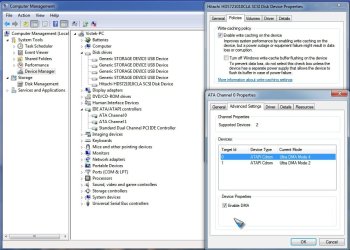
Try opening the device manager (right click "computer" and select "manage", then "device manager" in the left pane). Open the IDE ATA Controller category, double click each entry and make sure DMA is enabled. Also open the "Disk Drives" section, double click the hard drive and make sure "write caching" is enabled (on the Policy tab). See the screenshot. Hope this helps. :geek:
 

Attachments

  • Device Manager1.jpg
    Device Manager1.jpg
    101.5 KB · Views: 250

My Computer

Computer type
PC/Desktop
OS
Windows 7 x64
CPU
Intel Core2 Extreme Q6850 3.00GHz
Motherboard
EVGA 132-CK-NF79
Memory
8 GB
Graphics Card(s)
Radeon R7 260X
Sound Card
Xonar DS
Hard Drives
Hitachi Deskstar 1 tb
Try opening the device manager (right click "computer" and select "manage", then "device manager" in the left pane). Open the IDE ATA Controller category, double click each entry and make sure DMA is enabled. Also open the "Disk Drives" section, double click the hard drive and make sure "write caching" is enabled (on the Policy tab). See the screenshot. Hope this helps. :geek:

Excellent advice...

I just wanted to add there might be a cabling issue with the IDE drive. Depending on the drive's age you may find that you need a new "double wired" IDE cable to get DMA to enable reliably. The older 40 wire cables won't work above DMA 2.
 

My Computer

Computer Manufacturer/Model Number
Homebrew
OS
XP Pro SP3 X86 / Win7 Pro X86
CPU
Amd 64 x2 4200 (2.4ghz)
Motherboard
Asus M2N-MX SE Plus
Memory
Kingston DDR2 800 2gb
Graphics Card(s)
Nvidia GF-8400
Sound Card
Realtek on Motherboard
Monitor(s) Displays
Acer x-193bw
Screen Resolution
1440 x 900
Hard Drives
Western Digital 500g
PSU
350watt In-Win
Case
In-Win
Cooling
Air
Keyboard
yes
Mouse
yes
Internet Speed
5mpbs
Other Info
Also ASRock ION 330 as HTPC (on XP).
Acer Aspire as GP netbook (on XP).
Also open the "Disk Drives" section, double click the hard drive and make sure "write caching" is enabled (on the Policy tab).

I have a question about "write caching" with USB storage drives. Mine are set for quick removal even though they are connected all the time. I've always kept them that way due to my lack of knowledge on the warning for the write caching option "but you must use the Safely Remove Hardware notification icon to disconnect the device safely". My question, is turning off the laptop with the disks usb cable still plugged in, considered as disconnecting the device as it pertains to the warning? My guess is that it's not but have never researched it and have always went with the default of quick removal since the drives have always performed well enough to suit me. On the other hand, if I can enable the write caching, then why not do so.
 

My Computer

Computer Manufacturer/Model Number
Averatec 6130HS-20
OS
Windows 7 Professional 32-bit (6.1, Build 7600)
CPU
Intel(R) Pentium(R) 4 3.00 GHz HT
Memory
2.0 GB
Graphics Card(s)
ATI Mobility Radeon 9600 64MB
Sound Card
Realtek AC'97 Audio
Screen Resolution
1280 x 800
Hard Drives
Seagate 96023A 60GB 7200RPM -
Seagate FreeAgentDesktop 250GB
Cooling
20 Inch Box Fan
Mouse
Targus PAWM10 Wireless Optical Laptop Mouse
Also open the "Disk Drives" section, double click the hard drive and make sure "write caching" is enabled (on the Policy tab).

I have a question about "write caching" with USB storage drives. Mine are set for quick removal even though they are connected all the time. I've always kept them that way due to my lack of knowledge on the warning for the write caching option "but you must use the Safely Remove Hardware notification icon to disconnect the device safely". My question, is turning off the laptop with the disks usb cable still plugged in, considered as disconnecting the device as it pertains to the warning? My guess is that it's not but have never researched it and have always went with the default of quick removal since the drives have always performed well enough to suit me. On the other hand, if I can enable the write caching, then why not do so.

No. The risk is that you will copy a file onto the thumb drive then pull it out before windows purges the write cache to it... an interval of about 5 seconds.

There should be a little icon near your clock for safely removing hardware... if you click it and select your device you can force windows to flush it's cache for that device so it can be removed without risk of data loss. (It's kinda like the eject function on a CD burner)

With write caching off (quick removal) the risk is eliminated because windows writes all data immediately.
 

My Computer

Computer Manufacturer/Model Number
Homebrew
OS
XP Pro SP3 X86 / Win7 Pro X86
CPU
Amd 64 x2 4200 (2.4ghz)
Motherboard
Asus M2N-MX SE Plus
Memory
Kingston DDR2 800 2gb
Graphics Card(s)
Nvidia GF-8400
Sound Card
Realtek on Motherboard
Monitor(s) Displays
Acer x-193bw
Screen Resolution
1440 x 900
Hard Drives
Western Digital 500g
PSU
350watt In-Win
Case
In-Win
Cooling
Air
Keyboard
yes
Mouse
yes
Internet Speed
5mpbs
Other Info
Also ASRock ION 330 as HTPC (on XP).
Acer Aspire as GP netbook (on XP).
Also open the "Disk Drives" section, double click the hard drive and make sure "write caching" is enabled (on the Policy tab).

I have a question about "write caching" with USB storage drives. Mine are set for quick removal even though they are connected all the time. I've always kept them that way due to my lack of knowledge on the warning for the write caching option "but you must use the Safely Remove Hardware notification icon to disconnect the device safely". My question, is turning off the laptop with the disks usb cable still plugged in, considered as disconnecting the device as it pertains to the warning? My guess is that it's not but have never researched it and have always went with the default of quick removal since the drives have always performed well enough to suit me. On the other hand, if I can enable the write caching, then why not do so.

No. The risk is that you will copy a file onto the thumb drive then pull it out before windows purges the write cache to it... an interval of about 5 seconds.

There should be a little icon near your clock for safely removing hardware... if you click it and select your device you can force windows to flush it's cache for that device so it can be removed without risk of data loss. (It's kinda like the eject function on a CD burner)

With write caching off (quick removal) the risk is eliminated because windows writes all data immediately.

So, shutting down the laptop, usb drive still connected, write caching enabled, windows would purge the cache prior to shutdown? I guess what I'm asking is, would I have to safely remove hardware prior to shutting down the laptop? Can I leave them continously connected as they are now with write caching enabled?
 

My Computer

Computer Manufacturer/Model Number
Averatec 6130HS-20
OS
Windows 7 Professional 32-bit (6.1, Build 7600)
CPU
Intel(R) Pentium(R) 4 3.00 GHz HT
Memory
2.0 GB
Graphics Card(s)
ATI Mobility Radeon 9600 64MB
Sound Card
Realtek AC'97 Audio
Screen Resolution
1280 x 800
Hard Drives
Seagate 96023A 60GB 7200RPM -
Seagate FreeAgentDesktop 250GB
Cooling
20 Inch Box Fan
Mouse
Targus PAWM10 Wireless Optical Laptop Mouse
So, shutting down the laptop, usb drive still connected, write caching enabled, windows would purge the cache prior to shutdown? I guess what I'm asking is, would I have to safely remove hardware prior to shutting down the laptop? Can I leave them continously connected as they are now with write caching enabled?

Yes you can leave them connected. No need to "safely remove" before shutting down.
 

My Computer

Computer Manufacturer/Model Number
tw33k
OS
Windows 7 Ultimate (x64) SP1
CPU
Intel 3770k 4.6GHz
Motherboard
ASUS Maximus V Formula
Memory
8GB (2x 4GB) Crucial Ballistix
Graphics Card(s)
Sapphire 7950 (1060/1600)
Sound Card
On Board Realtek HD Audio
Monitor(s) Displays
27" Acer B273HU (via HDMI)
Screen Resolution
2048 x 1152
Hard Drives
Crucial M4 128GB
2TB WD Black
1TB Samsung F3 SATA
1TB WD Elite External
2TB WD USB 3.0
PSU
Corsair AX750 Gold
Case
Corsair Obsidian 800DW
Cooling
Corsair H100 (2x AP-121/2x UK-3000 push/pull)
Keyboard
Microsoft Wireless 5000
Mouse
Microsoft Wireless 5000
Internet Speed
5mb/s
Other Info
Logitech z-2300 2.1 speakers
Lamptron FC-5 v2
So, shutting down the laptop, usb drive still connected, write caching enabled, windows would purge the cache prior to shutdown? I guess what I'm asking is, would I have to safely remove hardware prior to shutting down the laptop? Can I leave them continously connected as they are now with write caching enabled?

Yes you can leave them connected. No need to "safely remove" before shutting down.
Thanks, is there any noticeable performance increase by enabling the write caching?
 

My Computer

Computer Manufacturer/Model Number
Averatec 6130HS-20
OS
Windows 7 Professional 32-bit (6.1, Build 7600)
CPU
Intel(R) Pentium(R) 4 3.00 GHz HT
Memory
2.0 GB
Graphics Card(s)
ATI Mobility Radeon 9600 64MB
Sound Card
Realtek AC'97 Audio
Screen Resolution
1280 x 800
Hard Drives
Seagate 96023A 60GB 7200RPM -
Seagate FreeAgentDesktop 250GB
Cooling
20 Inch Box Fan
Mouse
Targus PAWM10 Wireless Optical Laptop Mouse
Back
Top