
Windows 7 Universal Installation Disc - Create

How to Create a Windows 7 Universal Installation Disc

Introduction

For Windows users who installed or upgraded Windows Vista, there is one big difference that will be immediately noticed when installing or upgrading to Windows 7: The Windows 7 installation wizard no longer prompts, or asks, for the user to select which edition of the operating system to install. Instead, each Windows 7 DVD disc will automatically install the specific edition which it’s limited to. So a Windows 7 Home Premium disc will only install Windows 7 HP, a Pro disc will only install Pro, etc.

Although Microsoft does not provide any such universal Windows 7 installation media, the function is indeed feasible. (see Screenshot below) A disc such as this can be especially helpful to PC technicians, IT staff, and the like who need to reinstall Win7 frequently. Remember you will still need a valid license key specific to the version you are installing. In addition, Microsoft has eliminated the differences between the retail and OEM install discs with Windows 7, so this disc can be used to reinstall Win7 on PC’s where the owner has lost, or is unable to find, the OEM restore discs. In order to create such a disc; just delete and remove the ei.cfg from any Windows 7 ISO to convert that image into a universal disc for all editions of Windows 7.
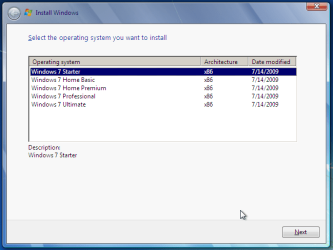
Win7 Universal Install Disc SS.PNG


STAGE 1 UNIVERSAL DVD - ALL 32 OR 64 BIT ON 1 DVD

For any user who has the Windows 7 install DVD or ISO and wishes to make a universal installer disc now there is an easier way to modify the ISO. Normally this was accomplished by manually unpacking and extracting the contents of the ISO image (or copying files from DVD to HDD), deleting the ei.cfg and then repacking the installation files back into an ISO to burn. Users can now eliminate these tedious procedures by making use of the “ei.cfg Removal Utility”.

The ei.cfg Removal Utility is a simple tool that will disable the ei.cfg from any Windows 7 ISO disc image, thereby converting the image into a “universal disc” that will prompt the user to select their preferred edition during setup. The ei.cfg Removal Utility works directly to patch the ISO image, by toggling the deletion bit in the UDF file table to instruct the operating system to ignore and remove ei.cfg, or treat it as if it does not exist. Best of all, the ei.cfg Removal Utility can reverse the patching to restore the ISO disc image to its original state when the tool is been used to apply on a disc image that previously been patched by the utility.

The ei.cfg Removal Utility is a standalone portable app, and requires no installation. In fact, the program does not have much of a user interface at all. Simply selecting the target Windows 7 ISO, and the disc image (ISO) will be patched right away. So make sure a backup copy of your ISO is created beforehand.

Download the ei.cfg Removal Utility here:eicfg_removal_utility.zip


STAGE 2 UNIVERSAL DVD - ALL 32 AND ALL 64 BIT ON 1 DVD

I was amazed at how easy it is to merge Win7 x86 and Win7 x64 editions (DVDs) in a single DVD or 4GB USB. The process is pretty simple, you need a copy of both any 32 bit and any 64 bit Windows 7 install DVD or ISO. Either copy the DVD's contents to a folder on a HDD, or extract the ISO's contents to a folder. Run 4 commands from the prompt, then create and burn your new Universal install DVD/USB.


Requirements:

  1. WAIK (Windows Automation Installation Kit) Download WAIK
  2. Windows Win7 x86 and Windows Win7 x64 DVDs.
  3. An application that can extract the files from an ISO (if using a downloaded ISO). I use WinRAR, but many apps can do this extraction.
  4. An application that allows you to build a new iso or create a bootable DVD/USB. I use UltraISO for this.
  5. Single Layer DVD, compatible DVD Burner and, of course DVD burning software… or a 4GB USB flash drive.
We will merge the four Windows 7 x64 editions into the Win7 x86 DVD contents, because Win7 x64 DVD has 64-bit content that can’t run some of the Win32 installation components.


Getting Started


1. Install WAIK in your Windows (doesn’t matter you are running Win7 or Windows XP)

2. Make two folders, in my examples I use Win7_64 and Win7_32. Now copy both Windows 7 x64 and x86 DVDs contents into their respective folders. Or extract your downloaded ISO’s into their respective folder.

   Note
If copying files over from a DVD to the above folders, you actually only need the Sources\install.wim file from the Windows 7 x64 DVD.


3. Run WAIK command prompt (Run as Administrator if UAC enabled):
Start à All Programs àWindows AIK àWindows AIK and PE Command Prompt

4. Each and every Win7 edition has an index no. in the install.wim (WIM file), you can check using the following command:
Code:
Imagex/info G:\Win7_32\Sources\install.wim
   Note
Where G:\Win7_32 represents the location of your 32 bit DVD files
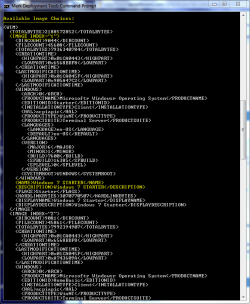

Win7 Universal Install Disc cmd 1.PNG

The results will look something like above.
This shows that INDEX=1 denotes Windows 7 Starter and so on… (you may have to scroll down to observe these entries)

5. We will use the Imagex /export command to move our x64 WIM entries into the x86 wim file.
   Note
The syntax for this command is:
   Note

imagex /export src_file src_number src_name dest_file dest_name


Now execute the following commands with appropriate INDEX no. to export a copy of the specified image to the Windows 7 32bit (x86) WIM file.

For Win7 Home Basic x64:
Code:
Imagex/export G:\Win7_64\Sources\install.wim 1 G:\Win7_32\Sources\install.wim "Windows 7 Home Basic (x64)"
For Win7 Home Premium x64:
Code:
Imagex/export G:\Win7_64\Sources\install.wim 2 G:\Win7_32\Sources\install.wim "Windows 7 Home Premium (x64)"
For Win7 Professional x64:
Code:
Imagex/export G:\Win7_64\Sources\install.wim 3 G:\Win7_32\Sources\install.wim "Windows 7 Professional (x64)"
For Win7 Ultimate x64:
Code:
Imagex /export G:\Win7_64\Sources\install.wim 4 G:\Win7_32\Sources\install.wim "Windows 7 Ultimate (x64)"
6. After execution of above commands Win7_32's WIM file will be the universal WIM file that contains all version of Win7. You can export only desired versions into the image. For example you could make a Win7 DVD, which includes Win7 Ultimate x86 and x64 version only.

7. Now to make bootable DVD image...


Last edited by a moderator:
Glad we could help mate.
 

My Computer

Computer Manufacturer/Model Number
* BFK Customs *
OS
W 7 64-bit Ultimate
CPU
Intel Q9550 Yorkfield
Motherboard
ASUS P5Q Pro
Memory
8GB Dominator 8500C5D
Graphics Card(s)
ATI : XFX 5870
Sound Card
Realtek HD Audio 7-1
Monitor(s) Displays
1x 47" LCD HDMI & 3x 26" LCD HDMI
Screen Resolution
1920x1080P & 1920x1200
Hard Drives
1x 80GB Intel X25-M G2 SSD : 1x 500GB & 1x 640GB WD Caviar Black(s)
PSU
Corsair 620HX
Case
Cooler Master RC-690
Cooling
Tuniq Tower 120, 2x 140mm and 3x 120mm case fans
Keyboard
Microsoft 500
Mouse
Razer Diamondback 3G
Internet Speed
14 Mb/s
Other Info
1x Koutech 3Gb/s SATA HDD Hot Swap Rack
BFK

what is the command IMAGEX command for extracting enterprise 32 and 64 bit?
 

My Computer

Computer Manufacturer/Model Number
aspire 5920
OS
Windows 8 Professional x64
CPU
core 2 duo T5550
Memory
4 GB
Graphics Card(s)
GMA X3100
Hard Drives
160 GB + 320 GB
Internet Speed
2 mbps
BFK

what is the command IMAGEX command for extracting enterprise 32 and 64 bit?


If you mean to extract the ISO to a file, I just used PowerISO to do that.
 

My Computer

Computer Manufacturer/Model Number
* BFK Customs *
OS
W 7 64-bit Ultimate
CPU
Intel Q9550 Yorkfield
Motherboard
ASUS P5Q Pro
Memory
8GB Dominator 8500C5D
Graphics Card(s)
ATI : XFX 5870
Sound Card
Realtek HD Audio 7-1
Monitor(s) Displays
1x 47" LCD HDMI & 3x 26" LCD HDMI
Screen Resolution
1920x1080P & 1920x1200
Hard Drives
1x 80GB Intel X25-M G2 SSD : 1x 500GB & 1x 640GB WD Caviar Black(s)
PSU
Corsair 620HX
Case
Cooler Master RC-690
Cooling
Tuniq Tower 120, 2x 140mm and 3x 120mm case fans
Keyboard
Microsoft 500
Mouse
Razer Diamondback 3G
Internet Speed
14 Mb/s
Other Info
1x Koutech 3Gb/s SATA HDD Hot Swap Rack
There you go:


IMAGEX /export <path_to>\ENTERPRISE64.WIM 1 <path_to>\INSTALL.wim “WINDOWS 7 Enterprise x64"

IMAGEX /export <path_to>\ENTERPRISE86.WIM 1 <path_to>\INSTALL.wim “WINDOWS 7 Enterprise x86"
 

My Computers

System One System Two

  • Computer type
    PC/Desktop
    OS
    7 X64
    CPU
    i5 8400
    Motherboard
    gigabyte b365m ds3h
    Memory
    2x8gb 3200mhz
    Hard Drives
    various
    PSU
    pure power 11 400w cm
    Case
    Coolermaster
    Cooling
    cryorig m9i
  • Computer type
    PC/Desktop
    OS
    7x64
    CPU
    g5400
    Motherboard
    ga b365m ds3h
    Memory
    8gb ddr4 2400
    PSU
    xfx pro 450w
There you go:


IMAGEX /export <path_to>\ENTERPRISE64.WIM 1 <path_to>\INSTALL.wim “WINDOWS 7 Enterprise x64"

IMAGEX /export <path_to>\ENTERPRISE86.WIM 1 <path_to>\INSTALL.wim “WINDOWS 7 Enterprise x86"
Thanks..
 

My Computer

Computer Manufacturer/Model Number
aspire 5920
OS
Windows 8 Professional x64
CPU
core 2 duo T5550
Memory
4 GB
Graphics Card(s)
GMA X3100
Hard Drives
160 GB + 320 GB
Internet Speed
2 mbps
Probably a silly question, but is anyone surprised by the size of the all-in-one disk that includes Enterprise versus the one that doesn't? It's barely larger at all. This really begs the question: just what is being gleaned from those Enterprise DVDs in this process? Whatever's different about them, it's not much.
 

My Computer

OS
Win7 Ultimate x64 SP1
Thanks guys, I can confirm as well that I created the universal disc with enterprise as well and it works fine. Thanks Tepid.

Mine was only about 80MB bigger including enterprise. My ISO is just over 4.0GB now.
 

My Computer

Computer Manufacturer/Model Number
Self-Built in July 2009
OS
Windows 7 Ultimate x64
CPU
Intel Q9550 2.83Ghz OC'd to 3.40Ghz
Motherboard
Gigabyte GA-EP45-UD3R rev. 1.1, F12 BIOS
Memory
8GB G.Skill PI DDR2-800, 4-4-4-12 timings
Graphics Card(s)
EVGA 1280MB Nvidia GeForce GTX570
Sound Card
Realtek ALC899A 8 channel onboard audio
Monitor(s) Displays
23" Acer x233H
Screen Resolution
1920x1080
Hard Drives
Intel X25-M 80GB Gen 2 SSD
Western Digital 1TB Caviar Black, 32MB cache. WD1001FALS
PSU
Corsair 620HX modular
Case
Antec P182
Cooling
stock
Keyboard
ABS M1 Mechanical
Mouse
Logitech G9 Laser Mouse
Internet Speed
15/2 cable modem
Other Info
Windows and Linux enthusiast. Logitech G35 Headset.
pparks1, why isn't it 3.88GB like the screenshot several posts back?
 

My Computer

OS
Win7 Ultimate x64 SP1
pparks1, why isn't it 3.88GB like the screenshot several posts back?

It is, sorry doing 2 things at once. it's 3.88gb, and comes out to 4,075,968KB.
 

My Computer

Computer Manufacturer/Model Number
Self-Built in July 2009
OS
Windows 7 Ultimate x64
CPU
Intel Q9550 2.83Ghz OC'd to 3.40Ghz
Motherboard
Gigabyte GA-EP45-UD3R rev. 1.1, F12 BIOS
Memory
8GB G.Skill PI DDR2-800, 4-4-4-12 timings
Graphics Card(s)
EVGA 1280MB Nvidia GeForce GTX570
Sound Card
Realtek ALC899A 8 channel onboard audio
Monitor(s) Displays
23" Acer x233H
Screen Resolution
1920x1080
Hard Drives
Intel X25-M 80GB Gen 2 SSD
Western Digital 1TB Caviar Black, 32MB cache. WD1001FALS
PSU
Corsair 620HX modular
Case
Antec P182
Cooling
stock
Keyboard
ABS M1 Mechanical
Mouse
Logitech G9 Laser Mouse
Internet Speed
15/2 cable modem
Other Info
Windows and Linux enthusiast. Logitech G35 Headset.
Thanks. One further question, since I did this only once a long time ago: what are most people using to create the ISO at the end of the procedure? I'm pretty sure that I opened an existing image in PowerISO, deleted the contents, dragged the new files in, and then did a SaveAs. UltraISO would do that as well. The MS tool oscdimg.exe is a more complicated way.
 

My Computer

OS
Win7 Ultimate x64 SP1
Thanks. One further question, since I did this only once a long time ago: what are most people using to create the ISO at the end of the procedure? I'm pretty sure that I opened an existing image in PowerISO, deleted the contents, dragged the new files in, and then did a SaveAs. UltraISO would do that as well. The MS tool oscdimg.exe is a more complicated way.


Hello rseiler.


I used ImgBurn.

ImgBurn Free ISO Burning Software

How to create ...
 

My Computer

Computer Manufacturer/Model Number
* BFK Customs *
OS
W 7 64-bit Ultimate
CPU
Intel Q9550 Yorkfield
Motherboard
ASUS P5Q Pro
Memory
8GB Dominator 8500C5D
Graphics Card(s)
ATI : XFX 5870
Sound Card
Realtek HD Audio 7-1
Monitor(s) Displays
1x 47" LCD HDMI & 3x 26" LCD HDMI
Screen Resolution
1920x1080P & 1920x1200
Hard Drives
1x 80GB Intel X25-M G2 SSD : 1x 500GB & 1x 640GB WD Caviar Black(s)
PSU
Corsair 620HX
Case
Cooler Master RC-690
Cooling
Tuniq Tower 120, 2x 140mm and 3x 120mm case fans
Keyboard
Microsoft 500
Mouse
Razer Diamondback 3G
Internet Speed
14 Mb/s
Other Info
1x Koutech 3Gb/s SATA HDD Hot Swap Rack

My Computers

System One System Two

  • Computer type
    PC/Desktop
    OS
    7 X64
    CPU
    i5 8400
    Motherboard
    gigabyte b365m ds3h
    Memory
    2x8gb 3200mhz
    Hard Drives
    various
    PSU
    pure power 11 400w cm
    Case
    Coolermaster
    Cooling
    cryorig m9i
  • Computer type
    PC/Desktop
    OS
    7x64
    CPU
    g5400
    Motherboard
    ga b365m ds3h
    Memory
    8gb ddr4 2400
    PSU
    xfx pro 450w
Thanks everyone. That BootISOMaker script is using oscdimg.exe. For anyone wanting to understand it, here's the usage:
Oscdimg Command-Line Options

oscdimg [options] [Path to source] [Target file]

The script uses these switches:
-b: Specifies the location of the El Torito boot sector file.
-n: Enables long file names.
-m: Ignores the maximum size limit of an image.
-o: Optimizes storage by encoding duplicate files only once using a MD5 hashing algorithm to compare files.

If you want to specify a volume label, it's -l.

Note: When I've seen this command used before for this purpose, it had the "-u2" switch instead of -n (u2: Produces an image that has only the UDF file system on it). Based on looking at original MS images in PowerISO, and comparing them to the way oscdimg-created images look with either -n or -u2, I have to say that -u2 is more correct than -n. There's no doubt that original MS images are UDF.
 
Last edited:

My Computer

OS
Win7 Ultimate x64 SP1
Yes, I know :confused:

It saves some typing, that's all.

Or you could use imgburn - requires a few more clicks.
 

My Computers

System One System Two

  • Computer type
    PC/Desktop
    OS
    7 X64
    CPU
    i5 8400
    Motherboard
    gigabyte b365m ds3h
    Memory
    2x8gb 3200mhz
    Hard Drives
    various
    PSU
    pure power 11 400w cm
    Case
    Coolermaster
    Cooling
    cryorig m9i
  • Computer type
    PC/Desktop
    OS
    7x64
    CPU
    g5400
    Motherboard
    ga b365m ds3h
    Memory
    8gb ddr4 2400
    PSU
    xfx pro 450w
pparks1, why isn't it 3.88GB like the screenshot several posts back?

It is, sorry doing 2 things at once. it's 3.88gb, and comes out to 4,075,968KB.
DRAT .. I think my OCZ Rally2 Turbo USB drive is 3.82 GB :mad: .. I was really wanting a all-in-one USB flash installer
 

My Computer

Computer Manufacturer/Model Number
Asus V2-M3M8200 Barebones
OS
Windows 7 Professional x64
CPU
AMD Phenom II X4 925
Motherboard
V2-M3M8200 (basically a M3N78-VM)
Memory
4x1024mb Kingston HyperX DDR2-1066 KHX8500D2/1G
Graphics Card(s)
Asus GTS 450 OC
Sound Card
Creative Sound Blaster X-Fi Titanium PCIe
Monitor(s) Displays
Asus 24" LCD VH242H
Screen Resolution
1920x1080
Hard Drives
WDC WD5000AAKS
WDC WD5002ABYS
Seagate ST325062 USB-to-IDE
Fujitsu 160GB Pocket USB HDD
PSU
Antec Earthwatts EA-430D
Case
Asus V2-M3M8200
Cooling
120mm side fan & 80mm front & 92mm rear fan
Keyboard
Dell USB mini Multimedia
Mouse
Logitech MX518
Internet Speed
Comcast Xfinity
Other Info
Logitech Webcam Pro 9000
Accurian 40-1462 Speakers
little dot MKII Headphone Amp
DRAT .. I think my OCZ Rally2 Turbo USB drive is 3.82 GB :mad: .. I was really wanting a all-in-one USB flash installer
What if you leave out the one that no one will ever use: Starter? I'm guessing that a way to do that is to use x64 as a base and add the x86's wim's to it (rather than the other way around), making sure to to skip adding Starter.

I have no idea if this is possible. Has anyone tried it? It might have the added advantage of listing the x64's first, something I've wanted to do anyway.

Side question: Is there any way to make the list in the order that you want? For example, I'd prefer Enterprise x64 at the top of the list.

One additional, slimmer, possibility to save space is to use -oc (Optimizes storage by encoding duplicate files only once using a binary comparison of each file. This option is slower than -o) instead of -o in oscdimg.
 
Last edited:

My Computer

OS
Win7 Ultimate x64 SP1
Nice idea - but it won't work if you export 32bit images bit into 64bit .

Unfortunately, leaving out one image ( e.g. starter ) makes virtually no difference to the size of the iso.

You might try removing the languages you don't need - that would make a difference.
 

My Computers

System One System Two

  • Computer type
    PC/Desktop
    OS
    7 X64
    CPU
    i5 8400
    Motherboard
    gigabyte b365m ds3h
    Memory
    2x8gb 3200mhz
    Hard Drives
    various
    PSU
    pure power 11 400w cm
    Case
    Coolermaster
    Cooling
    cryorig m9i
  • Computer type
    PC/Desktop
    OS
    7x64
    CPU
    g5400
    Motherboard
    ga b365m ds3h
    Memory
    8gb ddr4 2400
    PSU
    xfx pro 450w
That it wouldn't make a difference aside, why do you say that when exporting 32bit into 64bit you couldn't leave out Starter? It should be the other way around that you couldn't leave it out, since 32bit already has it. Or are you saying that a universal disk can't be based on x64? If so, I'm very curious as to why.

I realized only today that you don't need to export to an existing wim at all: you can export to a new file. That's the most versatile, since then you don't need to use every single x86 or x64 (whichever is your base image) if you don't want. Though then it wouldn't be universal, of course.
 

My Computer

OS
Win7 Ultimate x64 SP1
I usually export from the 64 bit wim into the 32 bit wim. That saves creating a new wim .

The tutorial on this site suggests making a new wim - unnecessary step, unless you are not making a universal wim .

You certainly can leave out starter, but:

leaving out one image ... makes virtually no difference to the size of the iso

That's because the images share files anyway - there is only copy of each file in the install.wim

You can install 64 bit using 32 bit setup components in 32 bit sources folder.

You can't do it the other way round.
 
Last edited:

My Computers

System One System Two

  • Computer type
    PC/Desktop
    OS
    7 X64
    CPU
    i5 8400
    Motherboard
    gigabyte b365m ds3h
    Memory
    2x8gb 3200mhz
    Hard Drives
    various
    PSU
    pure power 11 400w cm
    Case
    Coolermaster
    Cooling
    cryorig m9i
  • Computer type
    PC/Desktop
    OS
    7x64
    CPU
    g5400
    Motherboard
    ga b365m ds3h
    Memory
    8gb ddr4 2400
    PSU
    xfx pro 450w
I usually export from the 64 bit wim into the 32 bit wim. That saves creating a new wim .

The tutorial on this site suggests making a new wim - unnecessary step, unless you are not making a universal wim .
One other reason is if you want fine control over the order in which they appear in Setup.

The tutorial on the first page of this thread, at least, does outline doing it in the way that you suggest.

You can install 64 bit using 32 bit setup components in 32 bit sources folder.
You can't do it the other way round.
That's hugely important and subtle, since I (incorrectly) assumed that either way would work.

Update: I found further information that this isn't true when booting from the DVD to do a clean install. In that case, you can use x86 or x64 as your base image. The base image becomes important when you're attempting an upgrade install. In that case, you'll only be able to upgrade whichever architecture matches your base image (x86 or x64).
 
Last edited:

My Computer

OS
Win7 Ultimate x64 SP1
Back
Top