Windows Explorer Auto Arrange - Disable

How to Disable Auto Arrange in Windows 7 Explorer to have Free Sorting


   Information
In Windows 7, auto arrange is enabled by default so that all file and folder names in Windows Explorer are sorted alphabetically no matter what folder view you used.

This is basically like having how you can arrange icons how you like on your desktop in every folder in Windows Explorer now.

This will show you how to disable Auto Arrange in Windows 7 to be able to sort your files and folders in any random order and position you like in each opened folder in Windows Explorer and in the Pin to Start Menu area at the top of the Start Menu without it having to be sorted alphabetically by name. Windows 7 will also remember these random folder sortings (order and position), and open as how they were when the folder window was last closed.

   Note
When You Disable Auto Arrange:
  • While using Extra Large Icons, Large Icons, Medium Icons, Small Icons, and Extended Tiles folder views, you can arrange files/folders in any random order and position.
  • While using Details folder view, you can only arrange files/folders in any order and not in any random position.
  • While using Extra Large Icons, Large Icons, Medium Icons, Small Icons, and Extended Tiles folder views, you can click on View (Menu bar) and check Auto arrange to have the black indicator line back inbetween files/folders when arranging files/folders in any order. This turns off the ability to arrange files/folders by random positions though.
  • While using Extra Large Icons, Large Icons, Medium Icons, Small Icons, and Extended Tiles folder views, you can click on View (Menu bar) and uncheck Auto arrange to be able to arrange files/folders in any order and random positions.
  • The Auto arrange and Align to grid options can be turned on and off at will in the View (Menu bar and right click context menu) when available (not grayed out) while using Extra Large Icons, Large Icons, Medium Icons, Small Icons, or Extended Tiles folder views.
  • If you have items arranged by random positions and switch from a Extra Large Icons, Large Icons, Medium Icons, Small Icons, and Extended Tiles folder view to a List, Details, Extended Tiles, or Content folder view, the random positions will be reset but still placed in a order of arrangement instead.
  • If you unzip a file in a folder, move a folder, or rename a folder, it will refresh and auto arrange the files in that specific folder only after each time you do this. Auto arrange is still disabled for that folder, but you will need to arrange the files back to whatever non-auto arranged order you like again after unzipping a file in a folder, move a folder, or rename a folder.
   Warning
DO NOT USE this tutorial in any other OS than Windows 7.
  • While this tutorial will allow you to disable auto arrange in the main Libraries folder itself, it will not disable auto arrange in any of the other library folders (ex: Documents, Music, Pictures, Videos).
  • Free sorting is not available if you use "Group by" folder views instead of only "Sort by" folder views.
  • Free sorting is not available in the List and Content folder views.
  • When you disable Auto Arrange, you will have Extend Tiles folder view instead of Tiles available in all folders except the Computer windows.

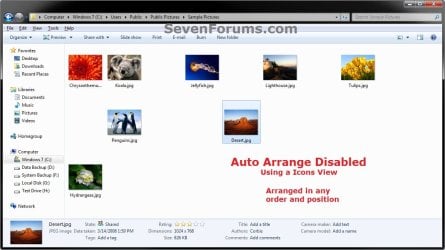
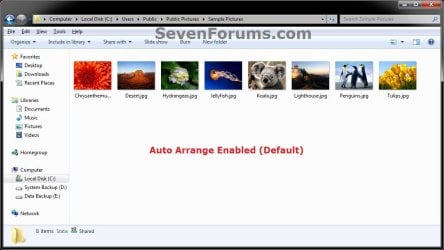
EXAMPLE: Auto Arrange Enabled and Disabled
NOTE: Notice in the screenshot with Auto Arrange disabled, the files can be dragged around the Windows Explorer window to sort how you like without having to be in alphabetical order.
Default.jpg

Disabled-1.jpg

Disabled-2.jpg


OPTION ONE

To Disable Auto Arrange in Windows 7 Windows Explorer


   Warning
It is also recommended to create a restore point before doing this option in case you would like to undo any unwanted unknown side affects that OPTION TWO may not undo. This way, you could also do a system restore with this restore point to undo this option completely.


1. Click on the Download button below to download the BAT file below.
Disable_Windows_7_Explorer_Auto_Arrange.bat

Download


2. Save the .bat file to your desktop.

3. Close everything that you have running first, then run the downloaded .bat file.

4. If prompted, click on Run.
NOTE: If you like, you can stop getting the Run prompt by unblocking the downloaded .bat file.

5. You will now notice your screen flicker and a command prompt open as the explorer process is restarted.

6. Let the command prompt count down to finish on it's own without pressing a key.

7. When it's finished, you will see the Computer window open.

8. Auto arrange in Windows Explorer is now disabled.


OPTION TWO

To Enable Auto Arrange in Windows 7 Windows Explorer


NOTE: This is the default setting.
1. Click on the Download button below to download the BAT file below.
Enable_Windows_7_Explorer_Auto_Arrange.bat

Download


2. Save the .bat file to your desktop.

3. Close all opened explorer windows first, then run the downloaded .bat file.

4. If prompted, click on Run.
NOTE: If you like, you can stop getting the Run prompt by unblocking the downloaded .bat file.

5. You will now notice your screen flicker and a command prompt open as the explorer process is restarted.

6. When it's finished, you will see the Computer window open.

7. Auto arrange in Windows Explorer is now enabled again.
That's it,
Shawn


Attachments

Last edited:

My Computer My Computer

Computer type
PC/Desktop
Computer Manufacturer/Model Number
Self built custom
OS
64-bit Windows 11 Pro for Workstations
CPU
Intel i7-8700K OC'd to 5 GHz
Motherboard
ASUS ROG Maximus XI Formula Z390
Memory
64 GB (4x16GB) G.SKILL TridentZ RGB DDR4 3600 MHz
Graphics Card(s)
ASUS ROG-STRIX-GTX1080TI-O11G-GAMING
Sound Card
Integrated
Monitor(s) Displays
2 x Samsung Odyssey G7 27"
Screen Resolution
2560x1440
Hard Drives
1TB Samsung 990 PRO M.2,
4TB Samsung 990 PRO PRO M.2,
TerraMaster F8 SSD Plus NAS
PSU
Seasonic Prime Titanium 850W
Case
Thermaltake Core P3
Cooling
Corsair Hydro H115i
Keyboard
Logitech wireless K800
Mouse
Logitech MX Master 4
Internet Speed
2 Gb/s Download and 100 Mb/s Upload
Antivirus
Malwarebyte Anti-Malware Premium
Browser
Google Chrome
Other Info
Logitech Z625 speaker system,
Logitech BRIO 4K Pro webcam,
HP Color LaserJet Pro MFP M477fdn,
APC SMART-UPS RT 1000 XL - SURT1000XLI,
Galaxy S23 Plus phone
i've run the remove auto arrange batch, when the command prompt runs my libraries folder opens and when the computer folder opens i have to open the rest of explorer (as in the taskbar) with either the task manager or the program in the windows folder. and it doesn't seem to have any effect. no auto arrange option in right click or view. help please?
 

My Computer My Computer

Computer type
PC/Desktop
OS
windows 7 pro 64 bit

My Computer My Computer

Computer type
PC/Desktop
Computer Manufacturer/Model Number
Self built custom
OS
64-bit Windows 11 Pro for Workstations
CPU
Intel i7-8700K OC'd to 5 GHz
Motherboard
ASUS ROG Maximus XI Formula Z390
Memory
64 GB (4x16GB) G.SKILL TridentZ RGB DDR4 3600 MHz
Graphics Card(s)
ASUS ROG-STRIX-GTX1080TI-O11G-GAMING
Sound Card
Integrated
Monitor(s) Displays
2 x Samsung Odyssey G7 27"
Screen Resolution
2560x1440
Hard Drives
1TB Samsung 990 PRO M.2,
4TB Samsung 990 PRO PRO M.2,
TerraMaster F8 SSD Plus NAS
PSU
Seasonic Prime Titanium 850W
Case
Thermaltake Core P3
Cooling
Corsair Hydro H115i
Keyboard
Logitech wireless K800
Mouse
Logitech MX Master 4
Internet Speed
2 Gb/s Download and 100 Mb/s Upload
Antivirus
Malwarebyte Anti-Malware Premium
Browser
Google Chrome
Other Info
Logitech Z625 speaker system,
Logitech BRIO 4K Pro webcam,
HP Color LaserJet Pro MFP M477fdn,
APC SMART-UPS RT 1000 XL - SURT1000XLI,
Galaxy S23 Plus phone
Your system must have developed a nervous breakdown as I have never ever asked for advice on the above subject.This sort of thing has also occurred before.
 

My Computer My Computer

Computer type
Laptop
Computer Manufacturer/Model Number
Toshiba Satellite Pro C870-1E2
OS
Windows 7 Professional 64 Bit
yeah, after running it i leave it till it brings up my computer. i remember the prompt saying that certain registry tags weren't found (or something along that line)
i tried it on my 32bit laptop and had the same result.
 

My Computer My Computer

Computer type
PC/Desktop
OS
windows 7 pro 64 bit
It's normal for it not to find some of the registry keys. They are just included to make sure they get deleted if they were there.

Do you have anything running that could be interfering with restarting explorer?

Are you able to arrange icons how you like in Windows Explorer like in the example screenshots?

Just to make sure, this doesn't affect inside a library.
 

My Computer My Computer

Computer type
PC/Desktop
Computer Manufacturer/Model Number
Self built custom
OS
64-bit Windows 11 Pro for Workstations
CPU
Intel i7-8700K OC'd to 5 GHz
Motherboard
ASUS ROG Maximus XI Formula Z390
Memory
64 GB (4x16GB) G.SKILL TridentZ RGB DDR4 3600 MHz
Graphics Card(s)
ASUS ROG-STRIX-GTX1080TI-O11G-GAMING
Sound Card
Integrated
Monitor(s) Displays
2 x Samsung Odyssey G7 27"
Screen Resolution
2560x1440
Hard Drives
1TB Samsung 990 PRO M.2,
4TB Samsung 990 PRO PRO M.2,
TerraMaster F8 SSD Plus NAS
PSU
Seasonic Prime Titanium 850W
Case
Thermaltake Core P3
Cooling
Corsair Hydro H115i
Keyboard
Logitech wireless K800
Mouse
Logitech MX Master 4
Internet Speed
2 Gb/s Download and 100 Mb/s Upload
Antivirus
Malwarebyte Anti-Malware Premium
Browser
Google Chrome
Other Info
Logitech Z625 speaker system,
Logitech BRIO 4K Pro webcam,
HP Color LaserJet Pro MFP M477fdn,
APC SMART-UPS RT 1000 XL - SURT1000XLI,
Galaxy S23 Plus phone
i've logged on today and it's working. must have just been doing something wrong.
or maybe it had something to do with the update i just had.
 

My Computer My Computer

Computer type
PC/Desktop
OS
windows 7 pro 64 bit
Great news Matti. :party:
 

My Computer My Computer

Computer type
PC/Desktop
Computer Manufacturer/Model Number
Self built custom
OS
64-bit Windows 11 Pro for Workstations
CPU
Intel i7-8700K OC'd to 5 GHz
Motherboard
ASUS ROG Maximus XI Formula Z390
Memory
64 GB (4x16GB) G.SKILL TridentZ RGB DDR4 3600 MHz
Graphics Card(s)
ASUS ROG-STRIX-GTX1080TI-O11G-GAMING
Sound Card
Integrated
Monitor(s) Displays
2 x Samsung Odyssey G7 27"
Screen Resolution
2560x1440
Hard Drives
1TB Samsung 990 PRO M.2,
4TB Samsung 990 PRO PRO M.2,
TerraMaster F8 SSD Plus NAS
PSU
Seasonic Prime Titanium 850W
Case
Thermaltake Core P3
Cooling
Corsair Hydro H115i
Keyboard
Logitech wireless K800
Mouse
Logitech MX Master 4
Internet Speed
2 Gb/s Download and 100 Mb/s Upload
Antivirus
Malwarebyte Anti-Malware Premium
Browser
Google Chrome
Other Info
Logitech Z625 speaker system,
Logitech BRIO 4K Pro webcam,
HP Color LaserJet Pro MFP M477fdn,
APC SMART-UPS RT 1000 XL - SURT1000XLI,
Galaxy S23 Plus phone
This 'Fix' for Explorer to disable auto-arrange didn't work for me .. :(
What I want when downloading or copying a file; XP saves the file at the bottom of the ../Downloads folder (folder in 'Details' view). However, it saves in alphabetical order, and makes finding the file a huge problem when I have the 'Download' folder already open. This is the same in Win8 and Win10.
This 'feature' in XP has been permanently disabled in future OS's by Microsoft it seems.
Really, really sad ... :cry:
Rich
(still using XP Pro for productivity .. and pleasure!)
 

My Computer My Computer

Computer type
Laptop
Computer Manufacturer/Model Number
HP 14-055SA (i5-4200U)
OS
Windows 7 Home Premium
CPU
Intel i5-4200U
Motherboard
HP
Memory
8GB
Graphics Card(s)
Intel HD-4400
Hard Drives
HD0 - Windows 8.1 Pro
HD1 (DVD Tray) - Windows 7 Home Premium
HD1 (DVD Tray) - Windows 10
HD1 (DVD Tray) - Ubuntu 14.04
Antivirus
Avast!
Browser
Firefox
Hello Andy, and welcome to Seven Forums.

That can't be changed by this. Instead, it allows you arrange them anywhere you like afterwards.

I like to save to my desktop to make it easier to spot, then move the file to where I like afterwards.
 

My Computer My Computer

Computer type
PC/Desktop
Computer Manufacturer/Model Number
Self built custom
OS
64-bit Windows 11 Pro for Workstations
CPU
Intel i7-8700K OC'd to 5 GHz
Motherboard
ASUS ROG Maximus XI Formula Z390
Memory
64 GB (4x16GB) G.SKILL TridentZ RGB DDR4 3600 MHz
Graphics Card(s)
ASUS ROG-STRIX-GTX1080TI-O11G-GAMING
Sound Card
Integrated
Monitor(s) Displays
2 x Samsung Odyssey G7 27"
Screen Resolution
2560x1440
Hard Drives
1TB Samsung 990 PRO M.2,
4TB Samsung 990 PRO PRO M.2,
TerraMaster F8 SSD Plus NAS
PSU
Seasonic Prime Titanium 850W
Case
Thermaltake Core P3
Cooling
Corsair Hydro H115i
Keyboard
Logitech wireless K800
Mouse
Logitech MX Master 4
Internet Speed
2 Gb/s Download and 100 Mb/s Upload
Antivirus
Malwarebyte Anti-Malware Premium
Browser
Google Chrome
Other Info
Logitech Z625 speaker system,
Logitech BRIO 4K Pro webcam,
HP Color LaserJet Pro MFP M477fdn,
APC SMART-UPS RT 1000 XL - SURT1000XLI,
Galaxy S23 Plus phone
Hey brink, using this changed tiles to extended tile just like listed in warnings but is there a way to get back tile enable tile did not do the trick. is there any way to get back tile even if it removes auto arrange
 

My Computer My Computer

Computer type
Laptop
Computer Manufacturer/Model Number
HP
OS
Windows 7 Ultimate x64
Hello Mope, and welcome to Seven Forums.

Using OPTION TWO to restore the default settings should restore it as well after a restart. :)
 

My Computer My Computer

Computer type
PC/Desktop
Computer Manufacturer/Model Number
Self built custom
OS
64-bit Windows 11 Pro for Workstations
CPU
Intel i7-8700K OC'd to 5 GHz
Motherboard
ASUS ROG Maximus XI Formula Z390
Memory
64 GB (4x16GB) G.SKILL TridentZ RGB DDR4 3600 MHz
Graphics Card(s)
ASUS ROG-STRIX-GTX1080TI-O11G-GAMING
Sound Card
Integrated
Monitor(s) Displays
2 x Samsung Odyssey G7 27"
Screen Resolution
2560x1440
Hard Drives
1TB Samsung 990 PRO M.2,
4TB Samsung 990 PRO PRO M.2,
TerraMaster F8 SSD Plus NAS
PSU
Seasonic Prime Titanium 850W
Case
Thermaltake Core P3
Cooling
Corsair Hydro H115i
Keyboard
Logitech wireless K800
Mouse
Logitech MX Master 4
Internet Speed
2 Gb/s Download and 100 Mb/s Upload
Antivirus
Malwarebyte Anti-Malware Premium
Browser
Google Chrome
Other Info
Logitech Z625 speaker system,
Logitech BRIO 4K Pro webcam,
HP Color LaserJet Pro MFP M477fdn,
APC SMART-UPS RT 1000 XL - SURT1000XLI,
Galaxy S23 Plus phone
Thnx for the quick reply the second option didnot restore it even after restart but it is fixed for me now by system restore ... the thing i did not liked was that files didnot show full name in medium or large icons (e.g mopeada..) and it showed complete when highlighted but now its back to normal
 

My Computer My Computer

Computer type
Laptop
Computer Manufacturer/Model Number
HP
OS
Windows 7 Ultimate x64
Please forgive me if this is a repeat, but there are 50 pages. I used the disable bat file, but auto arrange still happens (i use details view in my folders). Also the appearance of my desktop icons has changed. They had changed to medium size after the update, but even after reverting to small, they still don't look as sharp.
 

My Computer My Computer

Computer type
PC/Desktop
Computer Manufacturer/Model Number
Custom
OS
Windows 7 Professional 64bit
CPU
Quad Core Q6600
Motherboard
Asus P5N32-E SLI
Memory
6gb
Graphics Card(s)
Radeon HD 5450
Hard Drives
250GB SSD
ITB FHD
Antivirus
Avira Free
Browser
Firefox default
Hello Autolycus,

For now, please double check the blue note box and red warning box at the top of the tutorial to see if any of it may apply to why you still have auto arrange enabled. :)
 

My Computer My Computer

Computer type
PC/Desktop
Computer Manufacturer/Model Number
Self built custom
OS
64-bit Windows 11 Pro for Workstations
CPU
Intel i7-8700K OC'd to 5 GHz
Motherboard
ASUS ROG Maximus XI Formula Z390
Memory
64 GB (4x16GB) G.SKILL TridentZ RGB DDR4 3600 MHz
Graphics Card(s)
ASUS ROG-STRIX-GTX1080TI-O11G-GAMING
Sound Card
Integrated
Monitor(s) Displays
2 x Samsung Odyssey G7 27"
Screen Resolution
2560x1440
Hard Drives
1TB Samsung 990 PRO M.2,
4TB Samsung 990 PRO PRO M.2,
TerraMaster F8 SSD Plus NAS
PSU
Seasonic Prime Titanium 850W
Case
Thermaltake Core P3
Cooling
Corsair Hydro H115i
Keyboard
Logitech wireless K800
Mouse
Logitech MX Master 4
Internet Speed
2 Gb/s Download and 100 Mb/s Upload
Antivirus
Malwarebyte Anti-Malware Premium
Browser
Google Chrome
Other Info
Logitech Z625 speaker system,
Logitech BRIO 4K Pro webcam,
HP Color LaserJet Pro MFP M477fdn,
APC SMART-UPS RT 1000 XL - SURT1000XLI,
Galaxy S23 Plus phone
Thanks for the reply.

I do struggle with the whole concept of 'libraries' so i'm not completely sure if this mod is suitable. Perhaps i could explain what problems I want to solve. For example, if i download a zip file into a folder (anywhere on any drive) that has some files in it. If i 'unzip here' the files are immediately arranged with all the others in the folder and i can't tell which ones are new. Another problem is renaming a file which then shoots off and i have to find it again. I guess what i really want is XP without the 'improvements' or 'workarounds' but i dare say i'm not alone in that. But do the examples i have given fall outside the parameters in the blue and red boxes? It's possible they do but i'm not bright enough to see how.
 

My Computer My Computer

Computer type
PC/Desktop
Computer Manufacturer/Model Number
Custom
OS
Windows 7 Professional 64bit
CPU
Quad Core Q6600
Motherboard
Asus P5N32-E SLI
Memory
6gb
Graphics Card(s)
Radeon HD 5450
Hard Drives
250GB SSD
ITB FHD
Antivirus
Avira Free
Browser
Firefox default
Autolycus,

I'm afraid that those actions will always auto arrange. :(
 

My Computer My Computer

Computer type
PC/Desktop
Computer Manufacturer/Model Number
Self built custom
OS
64-bit Windows 11 Pro for Workstations
CPU
Intel i7-8700K OC'd to 5 GHz
Motherboard
ASUS ROG Maximus XI Formula Z390
Memory
64 GB (4x16GB) G.SKILL TridentZ RGB DDR4 3600 MHz
Graphics Card(s)
ASUS ROG-STRIX-GTX1080TI-O11G-GAMING
Sound Card
Integrated
Monitor(s) Displays
2 x Samsung Odyssey G7 27"
Screen Resolution
2560x1440
Hard Drives
1TB Samsung 990 PRO M.2,
4TB Samsung 990 PRO PRO M.2,
TerraMaster F8 SSD Plus NAS
PSU
Seasonic Prime Titanium 850W
Case
Thermaltake Core P3
Cooling
Corsair Hydro H115i
Keyboard
Logitech wireless K800
Mouse
Logitech MX Master 4
Internet Speed
2 Gb/s Download and 100 Mb/s Upload
Antivirus
Malwarebyte Anti-Malware Premium
Browser
Google Chrome
Other Info
Logitech Z625 speaker system,
Logitech BRIO 4K Pro webcam,
HP Color LaserJet Pro MFP M477fdn,
APC SMART-UPS RT 1000 XL - SURT1000XLI,
Galaxy S23 Plus phone
Bummer - never have so many babies been thrown out with so little bathwater :-) Still this is one of very few strike-outs thanks to the work of people like yourself. Would you recommend running the enable routine or doesn't it matter? I'm not sure what benefits I have gained.
 

My Computer My Computer

Computer type
PC/Desktop
Computer Manufacturer/Model Number
Custom
OS
Windows 7 Professional 64bit
CPU
Quad Core Q6600
Motherboard
Asus P5N32-E SLI
Memory
6gb
Graphics Card(s)
Radeon HD 5450
Hard Drives
250GB SSD
ITB FHD
Antivirus
Avira Free
Browser
Firefox default
It depends on what you would like to do. If you like being able to arrange files in any order and position in Windows Explorer, then it would be better to leave it disabled. Otherwise, you can enable and go back to the default settings. :)
 

My Computer My Computer

Computer type
PC/Desktop
Computer Manufacturer/Model Number
Self built custom
OS
64-bit Windows 11 Pro for Workstations
CPU
Intel i7-8700K OC'd to 5 GHz
Motherboard
ASUS ROG Maximus XI Formula Z390
Memory
64 GB (4x16GB) G.SKILL TridentZ RGB DDR4 3600 MHz
Graphics Card(s)
ASUS ROG-STRIX-GTX1080TI-O11G-GAMING
Sound Card
Integrated
Monitor(s) Displays
2 x Samsung Odyssey G7 27"
Screen Resolution
2560x1440
Hard Drives
1TB Samsung 990 PRO M.2,
4TB Samsung 990 PRO PRO M.2,
TerraMaster F8 SSD Plus NAS
PSU
Seasonic Prime Titanium 850W
Case
Thermaltake Core P3
Cooling
Corsair Hydro H115i
Keyboard
Logitech wireless K800
Mouse
Logitech MX Master 4
Internet Speed
2 Gb/s Download and 100 Mb/s Upload
Antivirus
Malwarebyte Anti-Malware Premium
Browser
Google Chrome
Other Info
Logitech Z625 speaker system,
Logitech BRIO 4K Pro webcam,
HP Color LaserJet Pro MFP M477fdn,
APC SMART-UPS RT 1000 XL - SURT1000XLI,
Galaxy S23 Plus phone
Brink,
First off, I love it when people take the time to try and fix what Microsoft broke when designing Win 7.
I'm a big XP fan , can't stand Win 7, but trying to find ways to actually be able to use it. I installed your Auto Arrange Disable fix and I can now move photo icons around just like I did with XP.
However, Windows Photo Viewer will not play the slideshow in the order of the icons.
I saw years back in this thread that someone had the same issue, but never got it working. I figured I would check to see if you ever came up with a fix yet.

I don't have any options selected in Sort By or Group By, but yet the slideshow always plays the photos in alphabetical order.
I don't use libraries and in fact have them disabled. All my photos are on a separate HDD and already in the order that I would like to view them in.

Any suggestions would be helpful,.........Thanks
 

My Computer My Computer

Computer type
PC/Desktop
Computer Manufacturer/Model Number
Custom build
OS
XP 32 Bit & Win 7 64 Bit
CPU
FX 8350 AMD 8 - Core
Motherboard
Gigabyte 990FXA-UD5
Memory
Mushkin Silverline 8GB x2 16GB
Graphics Card(s)
MSI Twin Frozr Geforce GTX 660
Hard Drives
SSD Samsung SSD 840 EVO
HDD Seagate Barracuda ST3000DM001 3TB
Antivirus
Bitdefender Internet Security
Browser
Firefox
Back
Top