Windows Explorer Auto Arrange - Disable

How to Disable Auto Arrange in Windows 7 Explorer to have Free Sorting


   Information
In Windows 7, auto arrange is enabled by default so that all file and folder names in Windows Explorer are sorted alphabetically no matter what folder view you used.

This is basically like having how you can arrange icons how you like on your desktop in every folder in Windows Explorer now.

This will show you how to disable Auto Arrange in Windows 7 to be able to sort your files and folders in any random order and position you like in each opened folder in Windows Explorer and in the Pin to Start Menu area at the top of the Start Menu without it having to be sorted alphabetically by name. Windows 7 will also remember these random folder sortings (order and position), and open as how they were when the folder window was last closed.

   Note
When You Disable Auto Arrange:
  • While using Extra Large Icons, Large Icons, Medium Icons, Small Icons, and Extended Tiles folder views, you can arrange files/folders in any random order and position.
  • While using Details folder view, you can only arrange files/folders in any order and not in any random position.
  • While using Extra Large Icons, Large Icons, Medium Icons, Small Icons, and Extended Tiles folder views, you can click on View (Menu bar) and check Auto arrange to have the black indicator line back inbetween files/folders when arranging files/folders in any order. This turns off the ability to arrange files/folders by random positions though.
  • While using Extra Large Icons, Large Icons, Medium Icons, Small Icons, and Extended Tiles folder views, you can click on View (Menu bar) and uncheck Auto arrange to be able to arrange files/folders in any order and random positions.
  • The Auto arrange and Align to grid options can be turned on and off at will in the View (Menu bar and right click context menu) when available (not grayed out) while using Extra Large Icons, Large Icons, Medium Icons, Small Icons, or Extended Tiles folder views.
  • If you have items arranged by random positions and switch from a Extra Large Icons, Large Icons, Medium Icons, Small Icons, and Extended Tiles folder view to a List, Details, Extended Tiles, or Content folder view, the random positions will be reset but still placed in a order of arrangement instead.
  • If you unzip a file in a folder, move a folder, or rename a folder, it will refresh and auto arrange the files in that specific folder only after each time you do this. Auto arrange is still disabled for that folder, but you will need to arrange the files back to whatever non-auto arranged order you like again after unzipping a file in a folder, move a folder, or rename a folder.
   Warning
DO NOT USE this tutorial in any other OS than Windows 7.
  • While this tutorial will allow you to disable auto arrange in the main Libraries folder itself, it will not disable auto arrange in any of the other library folders (ex: Documents, Music, Pictures, Videos).
  • Free sorting is not available if you use "Group by" folder views instead of only "Sort by" folder views.
  • Free sorting is not available in the List and Content folder views.
  • When you disable Auto Arrange, you will have Extend Tiles folder view instead of Tiles available in all folders except the Computer windows.

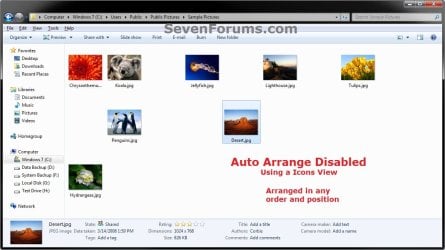
EXAMPLE: Auto Arrange Enabled and Disabled
NOTE: Notice in the screenshot with Auto Arrange disabled, the files can be dragged around the Windows Explorer window to sort how you like without having to be in alphabetical order.
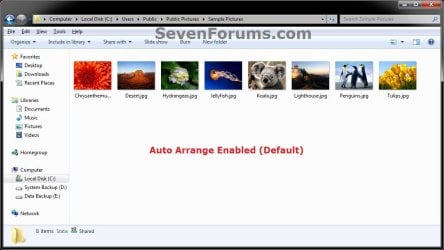
Default.jpg

Disabled-1.jpg

Disabled-2.jpg


OPTION ONE

To Disable Auto Arrange in Windows 7 Windows Explorer


   Warning
It is also recommended to create a restore point before doing this option in case you would like to undo any unwanted unknown side affects that OPTION TWO may not undo. This way, you could also do a system restore with this restore point to undo this option completely.


1. Click on the Download button below to download the BAT file below.
Disable_Windows_7_Explorer_Auto_Arrange.bat

Download


2. Save the .bat file to your desktop.

3. Close everything that you have running first, then run the downloaded .bat file.

4. If prompted, click on Run.
NOTE: If you like, you can stop getting the Run prompt by unblocking the downloaded .bat file.

5. You will now notice your screen flicker and a command prompt open as the explorer process is restarted.

6. Let the command prompt count down to finish on it's own without pressing a key.

7. When it's finished, you will see the Computer window open.

8. Auto arrange in Windows Explorer is now disabled.


OPTION TWO

To Enable Auto Arrange in Windows 7 Windows Explorer


NOTE: This is the default setting.
1. Click on the Download button below to download the BAT file below.
Enable_Windows_7_Explorer_Auto_Arrange.bat

Download


2. Save the .bat file to your desktop.

3. Close all opened explorer windows first, then run the downloaded .bat file.

4. If prompted, click on Run.
NOTE: If you like, you can stop getting the Run prompt by unblocking the downloaded .bat file.

5. You will now notice your screen flicker and a command prompt open as the explorer process is restarted.

6. When it's finished, you will see the Computer window open.

7. Auto arrange in Windows Explorer is now enabled again.
That's it,
Shawn


Attachments

Last edited:
Hmmm, this is the extent of the Enable file from that I downloaded from that link:

@echo off

:: Created by: Shawn Brink
:: http://www.sevenforums.com
:: Tutorial: http://www.sevenforums.com/tutorials/92758-windows-explorer-auto-arrange-disable.html


:: To reset all folders to default folder views
Reg Delete "HKCU\Software\Microsoft\Windows\Shell\BagMRU" /F
Reg Delete "HKCU\Software\Microsoft\Windows\Shell\Bags" /F

Reg Delete "HKCU\Software\Microsoft\Windows\ShellNoRoam\Bags" /F
Reg Delete "HKCU\Software\Microsoft\Windows\ShellNoRoam\BagMRU" /F

Reg Delete "HKCU\Software\Classes\Local Settings\Software\Microsoft\Windows\Shell\BagMRU" /F
Reg Delete "HKCU\Software\Classes\Local Settings\Software\Microsoft\Windows\Shell\Bags" /F

Reg Delete "HKCU\Software\Classes\Wow6432Node\Local Settings\Software\Microsoft\Windows\Shell\Bags" /F
Reg Delete "HKCU\Software\Classes\Wow6432Node\Local Settings\Software\Microsoft\Windows\Shell\BagMRU" /F


:: To kill and restart explorer
taskkill /f /im explorer.exe
start explorer.exe


Seems to be missing some "add reg" entries. The Disable file has them but not the Enable file.
 

My Computer My Computer

Computer type
PC/Desktop
OS
Windows 7 Home 64-bit
Yep, that's normal to reset folder views back to default to enable auto arrange.

The disable .reg file does the same to reset folder views, but has more included to disable auto arrange instead.
 

My Computer My Computer

Computer type
PC/Desktop
Computer Manufacturer/Model Number
Self built custom
OS
64-bit Windows 11 Pro for Workstations
CPU
Intel i7-8700K OC'd to 5 GHz
Motherboard
ASUS ROG Maximus XI Formula Z390
Memory
64 GB (4x16GB) G.SKILL TridentZ RGB DDR4 3600 MHz
Graphics Card(s)
ASUS ROG-STRIX-GTX1080TI-O11G-GAMING
Sound Card
Integrated
Monitor(s) Displays
2 x Samsung Odyssey G7 27"
Screen Resolution
2560x1440
Hard Drives
1TB Samsung 990 PRO M.2,
4TB Samsung 990 PRO PRO M.2,
TerraMaster F8 SSD Plus NAS
PSU
Seasonic Prime Titanium 850W
Case
Thermaltake Core P3
Cooling
Corsair Hydro H115i
Keyboard
Logitech wireless K800
Mouse
Logitech MX Master 4
Internet Speed
2 Gb/s Download and 100 Mb/s Upload
Antivirus
Malwarebyte Anti-Malware Premium
Browser
Google Chrome
Other Info
Logitech Z625 speaker system,
Logitech BRIO 4K Pro webcam,
HP Color LaserJet Pro MFP M477fdn,
APC SMART-UPS RT 1000 XL - SURT1000XLI,
Galaxy S23 Plus phone
Hi everyone

Back when I got this laptop I installed Classic Shell, ran Disable_Windows_7_Explorer_Auto_Arrange.bat (thanks!), and everything was good.

This evening I restarted my computer...and now Windows Explorer auto arranges each folder as soon as I open it.

That is, auto arrange is off and I can put thumbnails where I like in folder A, but then if I go to folder B then back to A in the same instance of Windows Explorer everything's been auto-arranged in A again.

I restored my computer to the System Restore point from this morning (when things worked fine), and it's still auto arranging each folder as soon as I open it.

How can I fix this?
 

My Computer My Computer

Computer type
Laptop
Computer Manufacturer/Model Number
Lenovo
OS
Windows 7 Pro 64 bit
Hello lateadopter, and welcome to Seven Forums. :)

Have you already ran the .bat file again to disable auto arrange to see if that may get it working properly for you?

In addition, double check the blue note box at the top of the tutorial to see if any of it may apply to why auto arrange may not be fully disabled.
 
Last edited:

My Computer My Computer

Computer type
PC/Desktop
Computer Manufacturer/Model Number
Self built custom
OS
64-bit Windows 11 Pro for Workstations
CPU
Intel i7-8700K OC'd to 5 GHz
Motherboard
ASUS ROG Maximus XI Formula Z390
Memory
64 GB (4x16GB) G.SKILL TridentZ RGB DDR4 3600 MHz
Graphics Card(s)
ASUS ROG-STRIX-GTX1080TI-O11G-GAMING
Sound Card
Integrated
Monitor(s) Displays
2 x Samsung Odyssey G7 27"
Screen Resolution
2560x1440
Hard Drives
1TB Samsung 990 PRO M.2,
4TB Samsung 990 PRO PRO M.2,
TerraMaster F8 SSD Plus NAS
PSU
Seasonic Prime Titanium 850W
Case
Thermaltake Core P3
Cooling
Corsair Hydro H115i
Keyboard
Logitech wireless K800
Mouse
Logitech MX Master 4
Internet Speed
2 Gb/s Download and 100 Mb/s Upload
Antivirus
Malwarebyte Anti-Malware Premium
Browser
Google Chrome
Other Info
Logitech Z625 speaker system,
Logitech BRIO 4K Pro webcam,
HP Color LaserJet Pro MFP M477fdn,
APC SMART-UPS RT 1000 XL - SURT1000XLI,
Galaxy S23 Plus phone
Hello lateadopter, and welcome to Seven Forums. :)

Have you already ran the .bat file again to disable auto arrange to see if that may get it working properly for you?

In addition, double check the blue note box at the top of the tutorial to see if any of it may apply to why auto arrange may not be fully disabled.

First, thanks for replying so quickly!

What does "merging" a .bat file mean?

I know that merging two .pdf files means making a file with all the pages from both original .pdfs (whether by adding one's pages to the other's or all their pages into a 3rd .pdf file), but what should I add the text in this. bat file to?

Or, if "merging" a .bat file means executing/running/etc. it again then yes I did.

I'll still try it again, and double check the blue note box at the top of the tutorial!
 
Last edited by a moderator:

My Computer My Computer

Computer type
Laptop
Computer Manufacturer/Model Number
Lenovo
OS
Windows 7 Pro 64 bit
Yes, sorry. I meant run the .bat file again.
 

My Computer My Computer

Computer type
PC/Desktop
Computer Manufacturer/Model Number
Self built custom
OS
64-bit Windows 11 Pro for Workstations
CPU
Intel i7-8700K OC'd to 5 GHz
Motherboard
ASUS ROG Maximus XI Formula Z390
Memory
64 GB (4x16GB) G.SKILL TridentZ RGB DDR4 3600 MHz
Graphics Card(s)
ASUS ROG-STRIX-GTX1080TI-O11G-GAMING
Sound Card
Integrated
Monitor(s) Displays
2 x Samsung Odyssey G7 27"
Screen Resolution
2560x1440
Hard Drives
1TB Samsung 990 PRO M.2,
4TB Samsung 990 PRO PRO M.2,
TerraMaster F8 SSD Plus NAS
PSU
Seasonic Prime Titanium 850W
Case
Thermaltake Core P3
Cooling
Corsair Hydro H115i
Keyboard
Logitech wireless K800
Mouse
Logitech MX Master 4
Internet Speed
2 Gb/s Download and 100 Mb/s Upload
Antivirus
Malwarebyte Anti-Malware Premium
Browser
Google Chrome
Other Info
Logitech Z625 speaker system,
Logitech BRIO 4K Pro webcam,
HP Color LaserJet Pro MFP M477fdn,
APC SMART-UPS RT 1000 XL - SURT1000XLI,
Galaxy S23 Plus phone
Yes, sorry. I meant run the .bat file again.

I just did that, checked again, and it had no effect. I'm not sure if restarting the computer would help, because it was only after yesterday's restart that this began happening at all...
 

My Computer My Computer

Computer type
Laptop
Computer Manufacturer/Model Number
Lenovo
OS
Windows 7 Pro 64 bit
Anything stand out from the note box?
 

My Computer My Computer

Computer type
PC/Desktop
Computer Manufacturer/Model Number
Self built custom
OS
64-bit Windows 11 Pro for Workstations
CPU
Intel i7-8700K OC'd to 5 GHz
Motherboard
ASUS ROG Maximus XI Formula Z390
Memory
64 GB (4x16GB) G.SKILL TridentZ RGB DDR4 3600 MHz
Graphics Card(s)
ASUS ROG-STRIX-GTX1080TI-O11G-GAMING
Sound Card
Integrated
Monitor(s) Displays
2 x Samsung Odyssey G7 27"
Screen Resolution
2560x1440
Hard Drives
1TB Samsung 990 PRO M.2,
4TB Samsung 990 PRO PRO M.2,
TerraMaster F8 SSD Plus NAS
PSU
Seasonic Prime Titanium 850W
Case
Thermaltake Core P3
Cooling
Corsair Hydro H115i
Keyboard
Logitech wireless K800
Mouse
Logitech MX Master 4
Internet Speed
2 Gb/s Download and 100 Mb/s Upload
Antivirus
Malwarebyte Anti-Malware Premium
Browser
Google Chrome
Other Info
Logitech Z625 speaker system,
Logitech BRIO 4K Pro webcam,
HP Color LaserJet Pro MFP M477fdn,
APC SMART-UPS RT 1000 XL - SURT1000XLI,
Galaxy S23 Plus phone
Hold on a second, there's another change I hadn't seen earlier: the bar with sort headers that shows up in the Details view is now showing up in the Large Icons view too...

edited to add: Whoa,I went into Classic Shell, went to the File Pane options, unchecked "Show sort headers in all views," and now everything's back to how it was last week! Problem solved!

Thanks! :)
 
Last edited:

My Computer My Computer

Computer type
Laptop
Computer Manufacturer/Model Number
Lenovo
OS
Windows 7 Pro 64 bit
Great news. Thank you for posting back with your findings and solution. :party:
 

My Computer My Computer

Computer type
PC/Desktop
Computer Manufacturer/Model Number
Self built custom
OS
64-bit Windows 11 Pro for Workstations
CPU
Intel i7-8700K OC'd to 5 GHz
Motherboard
ASUS ROG Maximus XI Formula Z390
Memory
64 GB (4x16GB) G.SKILL TridentZ RGB DDR4 3600 MHz
Graphics Card(s)
ASUS ROG-STRIX-GTX1080TI-O11G-GAMING
Sound Card
Integrated
Monitor(s) Displays
2 x Samsung Odyssey G7 27"
Screen Resolution
2560x1440
Hard Drives
1TB Samsung 990 PRO M.2,
4TB Samsung 990 PRO PRO M.2,
TerraMaster F8 SSD Plus NAS
PSU
Seasonic Prime Titanium 850W
Case
Thermaltake Core P3
Cooling
Corsair Hydro H115i
Keyboard
Logitech wireless K800
Mouse
Logitech MX Master 4
Internet Speed
2 Gb/s Download and 100 Mb/s Upload
Antivirus
Malwarebyte Anti-Malware Premium
Browser
Google Chrome
Other Info
Logitech Z625 speaker system,
Logitech BRIO 4K Pro webcam,
HP Color LaserJet Pro MFP M477fdn,
APC SMART-UPS RT 1000 XL - SURT1000XLI,
Galaxy S23 Plus phone
Great news. Thank you for posting back with your findings and solution. :party:

Thanks!

Meanwhile, everything was working fine today...

...except when I try to open a particular directory (one I use a lot) in Windows Explorer after putting any 1 of 4 newly edited .pdfs into it.

If I keep these files in any other directory, Windows Explorer can display any directory just fine.

If I do put any of these in that directory, then Windows Explorer is (Not Responding).

I honestly don't know if this has anything to do with the previous issue. I've already restarted the laptop after it started, and it's still happening just like before I restarted.
 

My Computer My Computer

Computer type
Laptop
Computer Manufacturer/Model Number
Lenovo
OS
Windows 7 Pro 64 bit
Odd. Does manually restarting the explorer process help?
 

My Computer My Computer

Computer type
PC/Desktop
Computer Manufacturer/Model Number
Self built custom
OS
64-bit Windows 11 Pro for Workstations
CPU
Intel i7-8700K OC'd to 5 GHz
Motherboard
ASUS ROG Maximus XI Formula Z390
Memory
64 GB (4x16GB) G.SKILL TridentZ RGB DDR4 3600 MHz
Graphics Card(s)
ASUS ROG-STRIX-GTX1080TI-O11G-GAMING
Sound Card
Integrated
Monitor(s) Displays
2 x Samsung Odyssey G7 27"
Screen Resolution
2560x1440
Hard Drives
1TB Samsung 990 PRO M.2,
4TB Samsung 990 PRO PRO M.2,
TerraMaster F8 SSD Plus NAS
PSU
Seasonic Prime Titanium 850W
Case
Thermaltake Core P3
Cooling
Corsair Hydro H115i
Keyboard
Logitech wireless K800
Mouse
Logitech MX Master 4
Internet Speed
2 Gb/s Download and 100 Mb/s Upload
Antivirus
Malwarebyte Anti-Malware Premium
Browser
Google Chrome
Other Info
Logitech Z625 speaker system,
Logitech BRIO 4K Pro webcam,
HP Color LaserJet Pro MFP M477fdn,
APC SMART-UPS RT 1000 XL - SURT1000XLI,
Galaxy S23 Plus phone
Odd. Does manually restarting the explorer process help?

Like using Windows task Manager to close the process and then to find and run explorer.exe? Unfortunately, no.

Wait, I just tried it after setting this problem directory to List view instead of Large Icons view, and the problem isn't happening anymore.

Maybe it's something to do with these files and Windows Explorer previewing .pdf files? Does this sound like I need to uninstall and reinstall Acrobat?

edited:

It's not happening in the Extended Tiles or Content views either, which does show little thumbnails of all the .pdfs including these 4 new ones...

OK, worked my way up from Small Icons to Medium Icons to Large Icons and now the problem's all gone. Something to remember for next time this pops up...

Anyway, thanks again!
 

My Computer My Computer

Computer type
Laptop
Computer Manufacturer/Model Number
Lenovo
OS
Windows 7 Pro 64 bit
Great news. I hope it stays sorted for you.
 

My Computer My Computer

Computer type
PC/Desktop
Computer Manufacturer/Model Number
Self built custom
OS
64-bit Windows 11 Pro for Workstations
CPU
Intel i7-8700K OC'd to 5 GHz
Motherboard
ASUS ROG Maximus XI Formula Z390
Memory
64 GB (4x16GB) G.SKILL TridentZ RGB DDR4 3600 MHz
Graphics Card(s)
ASUS ROG-STRIX-GTX1080TI-O11G-GAMING
Sound Card
Integrated
Monitor(s) Displays
2 x Samsung Odyssey G7 27"
Screen Resolution
2560x1440
Hard Drives
1TB Samsung 990 PRO M.2,
4TB Samsung 990 PRO PRO M.2,
TerraMaster F8 SSD Plus NAS
PSU
Seasonic Prime Titanium 850W
Case
Thermaltake Core P3
Cooling
Corsair Hydro H115i
Keyboard
Logitech wireless K800
Mouse
Logitech MX Master 4
Internet Speed
2 Gb/s Download and 100 Mb/s Upload
Antivirus
Malwarebyte Anti-Malware Premium
Browser
Google Chrome
Other Info
Logitech Z625 speaker system,
Logitech BRIO 4K Pro webcam,
HP Color LaserJet Pro MFP M477fdn,
APC SMART-UPS RT 1000 XL - SURT1000XLI,
Galaxy S23 Plus phone
Has anyone got this working on Windows 10 fall creators update ??
 

My Computer My Computer

Computer type
PC/Desktop
OS
windows 10 pro 64bit

My Computer My Computer

Computer type
PC/Desktop
Computer Manufacturer/Model Number
Self built custom
OS
64-bit Windows 11 Pro for Workstations
CPU
Intel i7-8700K OC'd to 5 GHz
Motherboard
ASUS ROG Maximus XI Formula Z390
Memory
64 GB (4x16GB) G.SKILL TridentZ RGB DDR4 3600 MHz
Graphics Card(s)
ASUS ROG-STRIX-GTX1080TI-O11G-GAMING
Sound Card
Integrated
Monitor(s) Displays
2 x Samsung Odyssey G7 27"
Screen Resolution
2560x1440
Hard Drives
1TB Samsung 990 PRO M.2,
4TB Samsung 990 PRO PRO M.2,
TerraMaster F8 SSD Plus NAS
PSU
Seasonic Prime Titanium 850W
Case
Thermaltake Core P3
Cooling
Corsair Hydro H115i
Keyboard
Logitech wireless K800
Mouse
Logitech MX Master 4
Internet Speed
2 Gb/s Download and 100 Mb/s Upload
Antivirus
Malwarebyte Anti-Malware Premium
Browser
Google Chrome
Other Info
Logitech Z625 speaker system,
Logitech BRIO 4K Pro webcam,
HP Color LaserJet Pro MFP M477fdn,
APC SMART-UPS RT 1000 XL - SURT1000XLI,
Galaxy S23 Plus phone
I cannot get auto-arrange disabled in the user folder, it's not working in that one!
(Rest, it's not a library... :P) It's the folder that just says your username in the location bar, even after you get focus to edit the location bar. In reality, the folder address corresponds to "C:\Users\[Username]\."
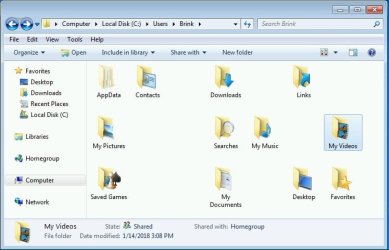
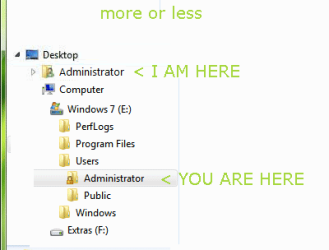
Auto-arrange can be disabled and is working in a duplicate location of that user folder, that is reached from going to Computer. It displays "Computer > Local Disk (C:) > Users > [Username]" in the location bar and when the location bar gets focus to be edited it changes to "C:\Users\[Username]\." On that duplicate location of the user folder, auto-arrange can be disabled and sorting works.

I want to sort my main folders, obviously. So it's sad that it's not working in the mother folder of all files and folders. If impossible, I will have to create a dummy sub-folder just to get the effect working. (C:\Users\[Username]\[Username]). I need to know if I have to go forward with that, as any changes to this highest of all directories folder will reset the customization of all my files and folders inside. So you can understand why it needs to be done first before anything else. I don't want to use the Computer variant as it screws up navigation in the breadcrumbs and side panel, not to mention that I don't like to see the address of that variant, where sorting is working.

I tried applying the bat file again and restarting many times. The OS installation is fresh. This problem is my welcome gift. I searched a lot to try to avoid posting this and having to register. Even using the Search Thread option only for registered users, but finding nothing.

I had another major problem, that other people posted in the first pages (years ago) and for which no solution was given. It's that it necessary to disable auto-arrange for every single folder every single freaking time. This was fortunately solved for me by going to Organize (menu bar) > Folder and search options > See (tab) > Apply to folders (button). No more disabling auto-arrange every time, even if it's a new folder or a renamed one.

Thank you.
 

My Computer My Computer

Computer type
Laptop
OS
Windows 7 Professional x64
Hello As9999, and welcome to Seven Forums. :)

I just tested this on the latest Windows 7 to check, and it still works for me including for the "C:\Users\<user name>" folder.

You will need to be using one of the "icons" view to be able to arrange items in this folder to any position.

W7.jpg
 

My Computer My Computer

Computer type
PC/Desktop
Computer Manufacturer/Model Number
Self built custom
OS
64-bit Windows 11 Pro for Workstations
CPU
Intel i7-8700K OC'd to 5 GHz
Motherboard
ASUS ROG Maximus XI Formula Z390
Memory
64 GB (4x16GB) G.SKILL TridentZ RGB DDR4 3600 MHz
Graphics Card(s)
ASUS ROG-STRIX-GTX1080TI-O11G-GAMING
Sound Card
Integrated
Monitor(s) Displays
2 x Samsung Odyssey G7 27"
Screen Resolution
2560x1440
Hard Drives
1TB Samsung 990 PRO M.2,
4TB Samsung 990 PRO PRO M.2,
TerraMaster F8 SSD Plus NAS
PSU
Seasonic Prime Titanium 850W
Case
Thermaltake Core P3
Cooling
Corsair Hydro H115i
Keyboard
Logitech wireless K800
Mouse
Logitech MX Master 4
Internet Speed
2 Gb/s Download and 100 Mb/s Upload
Antivirus
Malwarebyte Anti-Malware Premium
Browser
Google Chrome
Other Info
Logitech Z625 speaker system,
Logitech BRIO 4K Pro webcam,
HP Color LaserJet Pro MFP M477fdn,
APC SMART-UPS RT 1000 XL - SURT1000XLI,
Galaxy S23 Plus phone
I just tested this on the latest Windows 7 to check, and it still works for me including for the "C:\Users\<user name>" folder.

You will need to be using one of the "icons" view to be able to arrange items in this folder to any position.

View attachment 402845
As I said, I know that it works in that location that you are showing in the screenshot. But that's not the location that I usually use. From where you are, on the location bar, try clicking the arrow just before (to the left of) Computer. Now click your username above Computer in the dropdown menu that should appear. That's where I'm usually at and where it doesn't work. Another way to get there is by showing everything in the side panel and going to your user folder without being the one located under Computer.

It's unnecessary for me to see that whole Computer > Local Disk > Users long path in the location bar. So I prefer to use the shorter path and easier to reach.
 

Attachments

  • expl.png
    expl.png
    8 KB · Views: 316

My Computer My Computer

Computer type
Laptop
OS
Windows 7 Professional x64
Back
Top