XP Mode, sharing files on guest machine

BSeanD

New member
Member
VIP
Local time
3:01 PM
Messages
136
Hi guys,

Has anyone be successful in sharing the files on the XP mode virtual machine with the host computer?
There is a folder I need to access from the host machine on the guest machine but I am just not able to access the virtual machine.

Any ideas how I go about doing this?

Regards,

Sean
 

My Computer

OS
Windows 7
Easy and straight forward procedure. Like this:
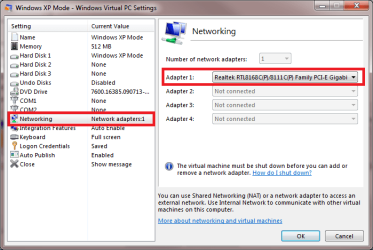
  • First, set XP Mode to use the NIC of your host machine to ensure they belong to same subnet. To do this, open XP Mode settings, choose Networking from the left pane, and choose your host's network controller from drop down list. Click OK to save settings:
    .
    Seven_XP_guest_host_networking_1.PNG
    .
  • Open Control Panel > Folder Options in XP Mode, check that Simple File Sharing is enabled:
    .
    Seven_XP_guest_host_networking_3.PNG
    .
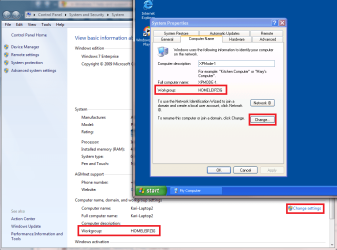
  • Check that both host and XP Mode guest belong to same workgroup. In XP Mode, right click My Computer in Start menu or on desktop, choose Properties, choose Computer Name tab. In Seven, right click Computer in Start menu or on desktop, choose Properties:
    .
    Seven_XP_guest_host_networking_6.PNG
    .
  • Change the workgroup name on one or both machines if necessary. To do this, in XP Mode click Change button, in Seven click Change Settings link
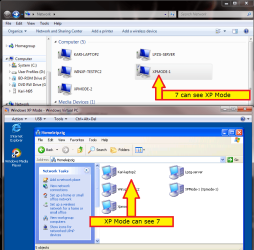
  • After reboot, both machines should see each other:
    .
    Seven_XP_guest_host_networking_2.PNG
    .
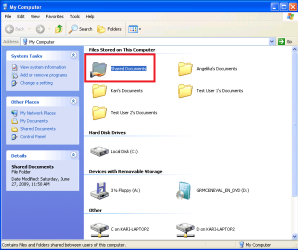
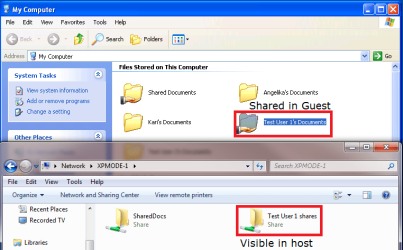
  • To share XP Mode's documents with host and other computers in the network, drag any folder you want to share to Shared Documents folder (this does not move the folder it self, it just creates a shortcut). You can also save files directly to this Shared Documents folder:
    .
    Seven_XP_guest_host_networking_7.PNG
    .
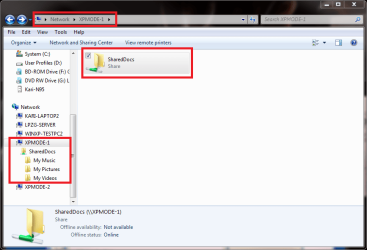
  • Now you should be able to see XP Mode's shared folders on your Seven host machine:
    .
    Seven_XP_guest_host_networking_4.PNG
That's it.

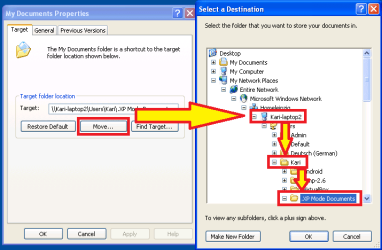
By the way, here's a practical tip: I have chosen to change XP Mode's My Documents location to a network location, to my user folder on the host machine. This way all my XP Mode documents are saved on host machine instead of XP Mode and are available directly from host, even when XP Mode is not running:

Seven_XP_guest_host_networking_8.PNG

Happy networking!

Kari
 
Last edited:

My Computer

Computer type
Laptop
Computer Manufacturer/Model Number
HP ENVY 17-1150eg
OS
Windows 10 Pro x64 EN-GB
CPU
1.6 GHz Intel Core i7-720QM Processor
Memory
6 GB
Graphics Card(s)
ATI Mobility Radeon HD 5850 Graphics
Sound Card
Beats sound system with integrated subwoofer
Monitor(s) Displays
17" laptop display, 22" LED and 32" Full HD TV through HDMI
Screen Resolution
1600*900 (1), 1920*1080 (2&3)
Hard Drives
Internal: 2 x 500 GB SATA Hard Disk Drive 7200 rpm
External: 2TB for backups, 3TB USB3 network drive for media
Cooling
As Envy runs a bit warm, I have it on a Cooler Master pad
Keyboard
Logitech diNovo Media Desktop Laser (bluetooth)
Mouse
Logitech Performance Mouse MX
Internet Speed
50/10 Mbps VDSL
Antivirus
Windows Defender 4.3.9431.0
Browser
Maxthon 3.5.2., IE11
Thank you so much Kari. When I get the machine turned on in the morning, it's in another state, I'll give your suggestions a go.
 

My Computer

OS
Windows 7
You are welcome. Any problems, come back to tell.

Kari
 

My Computer

Computer type
Laptop
Computer Manufacturer/Model Number
HP ENVY 17-1150eg
OS
Windows 10 Pro x64 EN-GB
CPU
1.6 GHz Intel Core i7-720QM Processor
Memory
6 GB
Graphics Card(s)
ATI Mobility Radeon HD 5850 Graphics
Sound Card
Beats sound system with integrated subwoofer
Monitor(s) Displays
17" laptop display, 22" LED and 32" Full HD TV through HDMI
Screen Resolution
1600*900 (1), 1920*1080 (2&3)
Hard Drives
Internal: 2 x 500 GB SATA Hard Disk Drive 7200 rpm
External: 2TB for backups, 3TB USB3 network drive for media
Cooling
As Envy runs a bit warm, I have it on a Cooler Master pad
Keyboard
Logitech diNovo Media Desktop Laser (bluetooth)
Mouse
Logitech Performance Mouse MX
Internet Speed
50/10 Mbps VDSL
Antivirus
Windows Defender 4.3.9431.0
Browser
Maxthon 3.5.2., IE11
Hi Kari,

Have almost got it working. I've had to make a couple of changes which I shall list in case others require this information.


  1. If you are on a domain you need to change the Virutual machine to the domain of the host Win7 machine. (Same procedure as for a Workgroup)
  2. I had to manually mount the shared drive as it did not come up when I rebooted both machine.
To share XP Mode's documents with host and other computers in the network, drag any folder you want to share to Shared Documents folder (this does not move the folder it self, it just creates a shortcut).
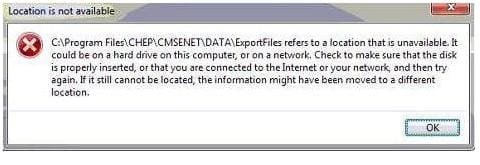
I'm running into problems here. Dragging and dropping the required folder into the Shared Documents folder actually moves the folder rather than creating a shortcut. If I create a shortcut and move that into the Shared Document folder I get the following error from the host machine.

error.JPG

Any ideas?

Regards,

Sean
 

My Computer

OS
Windows 7
First, thanks for that domain info. Forgot to mention that, but as you mentioned the principle is the same; both host and guest must belong to same workgroup or domain.

OK, sharing. It should work, I've had no problems to share folders by dragging and dropping them to Shared Documents. If the issue remains, you could try direct sharing.

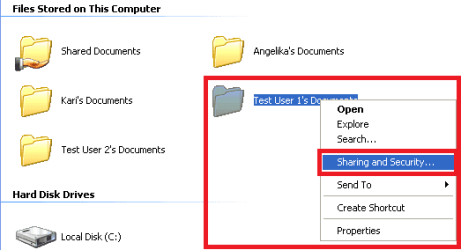
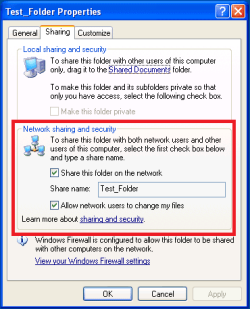
Right click the folder you want to share, choose Sharing and Security:

Seven_XP_guest_host_networking_9.PNG

Check (enable) both options shown here, name the share:

Seven_XP_guest_host_networking_10.PNG

The result should be this:

Seven_XP_guest_host_networking_11.PNG

Kari
 

My Computer

Computer type
Laptop
Computer Manufacturer/Model Number
HP ENVY 17-1150eg
OS
Windows 10 Pro x64 EN-GB
CPU
1.6 GHz Intel Core i7-720QM Processor
Memory
6 GB
Graphics Card(s)
ATI Mobility Radeon HD 5850 Graphics
Sound Card
Beats sound system with integrated subwoofer
Monitor(s) Displays
17" laptop display, 22" LED and 32" Full HD TV through HDMI
Screen Resolution
1600*900 (1), 1920*1080 (2&3)
Hard Drives
Internal: 2 x 500 GB SATA Hard Disk Drive 7200 rpm
External: 2TB for backups, 3TB USB3 network drive for media
Cooling
As Envy runs a bit warm, I have it on a Cooler Master pad
Keyboard
Logitech diNovo Media Desktop Laser (bluetooth)
Mouse
Logitech Performance Mouse MX
Internet Speed
50/10 Mbps VDSL
Antivirus
Windows Defender 4.3.9431.0
Browser
Maxthon 3.5.2., IE11
Ok I've done the above and it's starting to come together.
I have now made a shortcut in the Shared Documents folder of the program I need. I am able to see this folder on the drive I have mounted, in this case V: drive. Within that folder there are two sub-folders I need to have the user access, ImportFiles, ExportFiles, they need to put a .csv file in there which is used by the program.
At present I cannot put a file into these folders from the host machine, which I need to do, as I get and error stating I do not have permission to do so.
 

My Computer

OS
Windows 7
I'll ask some network geeks to come here and see what could be done.
 

My Computer

Computer type
Laptop
Computer Manufacturer/Model Number
HP ENVY 17-1150eg
OS
Windows 10 Pro x64 EN-GB
CPU
1.6 GHz Intel Core i7-720QM Processor
Memory
6 GB
Graphics Card(s)
ATI Mobility Radeon HD 5850 Graphics
Sound Card
Beats sound system with integrated subwoofer
Monitor(s) Displays
17" laptop display, 22" LED and 32" Full HD TV through HDMI
Screen Resolution
1600*900 (1), 1920*1080 (2&3)
Hard Drives
Internal: 2 x 500 GB SATA Hard Disk Drive 7200 rpm
External: 2TB for backups, 3TB USB3 network drive for media
Cooling
As Envy runs a bit warm, I have it on a Cooler Master pad
Keyboard
Logitech diNovo Media Desktop Laser (bluetooth)
Mouse
Logitech Performance Mouse MX
Internet Speed
50/10 Mbps VDSL
Antivirus
Windows Defender 4.3.9431.0
Browser
Maxthon 3.5.2., IE11
You might have to force permissions onto the shared folder if the standard procedure is not working... I forget how to do that in XP though. Is it the 7 machine that is having problems editing content or the XP?
 

My Computer

Computer Manufacturer/Model Number
Pugh Technologies
OS
W7 Professional x64
CPU
AMD Athlon II X3 445 Rana 3.10 GHz
Motherboard
MSI 870A-G54
Memory
PNY XLR DDR3 1600 4x2GB
Graphics Card(s)
NVIDIA GeForce GTS 450 (fermi) 1GB GDDR5
Sound Card
Realtek ALC892 onboard
Monitor(s) Displays
ASUS VE205t, Viewsonic VX2035WM
Screen Resolution
1600x900, 1600x1050
Hard Drives
977GB Hitachi Hitachi HDS721010CLA332
244GB Western Digital WDC WD2500AAJS-65B4A0
488GB Western Digital WDC WD5000AAJS-00A8B0
488GB Western Digital WDC WD5000AAKS-00UU3A0
PSU
Antec EarthWatts EA650 650W
Case
ThermalTake Armor A90 Mid Tower
Cooling
3x 120mm in, 1x 120mm & 200mm out, self built hydro-cooler
Keyboard
Logitec 55
Mouse
Razer Deathadder
Internet Speed
20 Mbps D/L, 9 Mbps U/L
OK that would be great, I'll try a couple more things too.
 

My Computer

OS
Windows 7
You might have to force permissions onto the shared folder if the standard procedure is not working... I forget how to do that in XP though. Is it the 7 machine that is having problems editing content or the XP?
Hi,
The 7 machine is not able to write to the XP because permissions are not correct.
 

My Computer

OS
Windows 7
Ok. Here is a way to take ownership of the file in windows 7, then you can add your permissions regarding your user account to the folder :D

I think that it is a problem because windows 7 is viewing it as a hard drive inserted from another machine still, and you do not have permissions to use it.

http://www.sevenforums.com/tutorials/1911-take-ownership-shortcut.html
 

My Computer

Computer Manufacturer/Model Number
Pugh Technologies
OS
W7 Professional x64
CPU
AMD Athlon II X3 445 Rana 3.10 GHz
Motherboard
MSI 870A-G54
Memory
PNY XLR DDR3 1600 4x2GB
Graphics Card(s)
NVIDIA GeForce GTS 450 (fermi) 1GB GDDR5
Sound Card
Realtek ALC892 onboard
Monitor(s) Displays
ASUS VE205t, Viewsonic VX2035WM
Screen Resolution
1600x900, 1600x1050
Hard Drives
977GB Hitachi Hitachi HDS721010CLA332
244GB Western Digital WDC WD2500AAJS-65B4A0
488GB Western Digital WDC WD5000AAJS-00A8B0
488GB Western Digital WDC WD5000AAKS-00UU3A0
PSU
Antec EarthWatts EA650 650W
Case
ThermalTake Armor A90 Mid Tower
Cooling
3x 120mm in, 1x 120mm & 200mm out, self built hydro-cooler
Keyboard
Logitec 55
Mouse
Razer Deathadder
Internet Speed
20 Mbps D/L, 9 Mbps U/L
Hi LiquidSnak I'll give this a go. :-)
 

My Computer

OS
Windows 7
Just wondering could I use this to change ownership of the entire C:?
 

My Computer

OS
Windows 7
Yes, you can.
 

My Computer

Computer Manufacturer/Model Number
Pugh Technologies
OS
W7 Professional x64
CPU
AMD Athlon II X3 445 Rana 3.10 GHz
Motherboard
MSI 870A-G54
Memory
PNY XLR DDR3 1600 4x2GB
Graphics Card(s)
NVIDIA GeForce GTS 450 (fermi) 1GB GDDR5
Sound Card
Realtek ALC892 onboard
Monitor(s) Displays
ASUS VE205t, Viewsonic VX2035WM
Screen Resolution
1600x900, 1600x1050
Hard Drives
977GB Hitachi Hitachi HDS721010CLA332
244GB Western Digital WDC WD2500AAJS-65B4A0
488GB Western Digital WDC WD5000AAJS-00A8B0
488GB Western Digital WDC WD5000AAKS-00UU3A0
PSU
Antec EarthWatts EA650 650W
Case
ThermalTake Armor A90 Mid Tower
Cooling
3x 120mm in, 1x 120mm & 200mm out, self built hydro-cooler
Keyboard
Logitec 55
Mouse
Razer Deathadder
Internet Speed
20 Mbps D/L, 9 Mbps U/L
Ok I've finally been able to get back to the remote machine but am still having trouble with the permissions. I have installed the "Take Ownership" reg edit but this has not helped. Perhaps I haven't explained myself properly.

On the XP Mode machine the folder where the user needs to drop a CSV file into is located at;
C:\Program Files\CHEP\CMSENET\DATA\ExportFiles or \ImportFiles

What I need is to have both these folders appear on the desktop of the host machine as shortcuts so the user can drop the CSV file into it.
At present I have the folders on the desktop and I can open them up but I am not able to paste the CSV file into either of folder as it comes up with "You need Permission to perform this action".

What am I doing wrong? :o
 

My Computer

OS
Windows 7
I'm doing some tests as we speak. I'll post back later today.
 

My Computer

Computer type
Laptop
Computer Manufacturer/Model Number
HP ENVY 17-1150eg
OS
Windows 10 Pro x64 EN-GB
CPU
1.6 GHz Intel Core i7-720QM Processor
Memory
6 GB
Graphics Card(s)
ATI Mobility Radeon HD 5850 Graphics
Sound Card
Beats sound system with integrated subwoofer
Monitor(s) Displays
17" laptop display, 22" LED and 32" Full HD TV through HDMI
Screen Resolution
1600*900 (1), 1920*1080 (2&3)
Hard Drives
Internal: 2 x 500 GB SATA Hard Disk Drive 7200 rpm
External: 2TB for backups, 3TB USB3 network drive for media
Cooling
As Envy runs a bit warm, I have it on a Cooler Master pad
Keyboard
Logitech diNovo Media Desktop Laser (bluetooth)
Mouse
Logitech Performance Mouse MX
Internet Speed
50/10 Mbps VDSL
Antivirus
Windows Defender 4.3.9431.0
Browser
Maxthon 3.5.2., IE11
OK, tested in both workgroup and domain environment. I had no problems whatsoever.

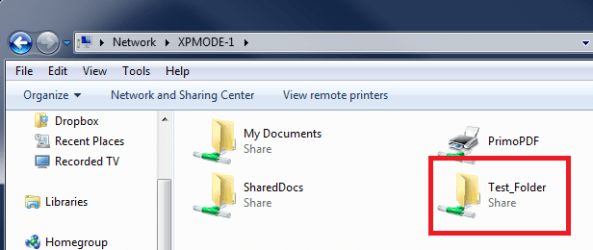
I created a folder called Test_Folder in XP Mode C:\Program Files\Test_Folder. I shared the folder:

Share_XPMode_host_1.png

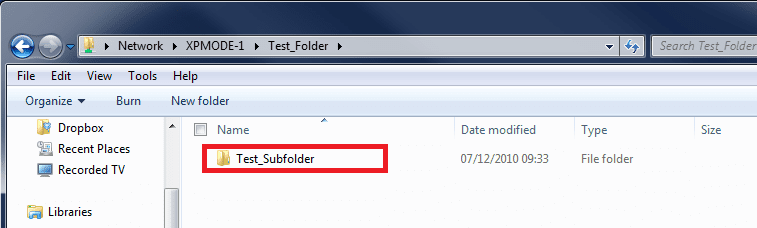
I then created subfolder C:\Program Files\Test_Folder\Test_Subfolder. Seven host can see the shared folder and its folder structure:

Share_XPMode_host_2.png

Share_XPMode_host_3.png

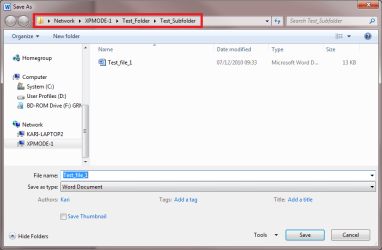
Opened Word on host, wrote a short test document, saved it on a network shared folder \\XPMODE-1\Test_Folder\Test_Subfolder. Save As dialog in Word has no problems to see this shared folder:

Share_XPMode_host_4.png

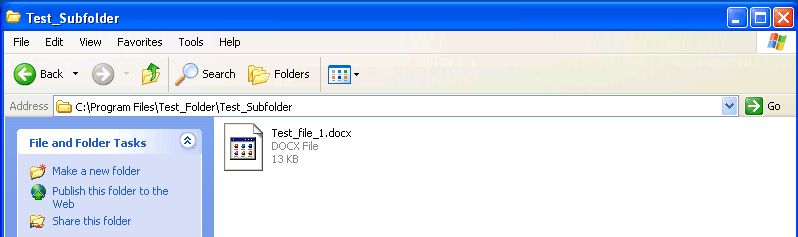
The document is saved on XP Mode, accessible and editable directly from host:

Share_XPMode_host_5.png

Kari


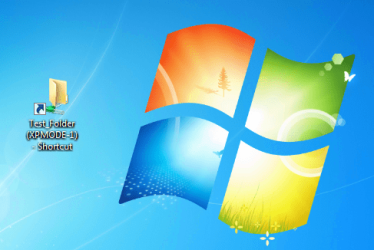
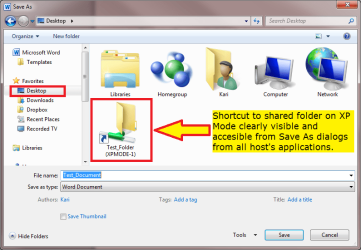
EDIT: Forgot the most important thing. I created a shortcut to this shared folder \\XPMode-1\Program Files\Test_Folder on host's desktop. It is directly accesible:

Share_XPMode_host_6.png

Share_XPMode_host_7.png

Notice that I did this and got it working only by sharing the needed folder in XPMode C:\Program Files. There was no need to take ownership of anything.
 
Last edited:

My Computer

Computer type
Laptop
Computer Manufacturer/Model Number
HP ENVY 17-1150eg
OS
Windows 10 Pro x64 EN-GB
CPU
1.6 GHz Intel Core i7-720QM Processor
Memory
6 GB
Graphics Card(s)
ATI Mobility Radeon HD 5850 Graphics
Sound Card
Beats sound system with integrated subwoofer
Monitor(s) Displays
17" laptop display, 22" LED and 32" Full HD TV through HDMI
Screen Resolution
1600*900 (1), 1920*1080 (2&3)
Hard Drives
Internal: 2 x 500 GB SATA Hard Disk Drive 7200 rpm
External: 2TB for backups, 3TB USB3 network drive for media
Cooling
As Envy runs a bit warm, I have it on a Cooler Master pad
Keyboard
Logitech diNovo Media Desktop Laser (bluetooth)
Mouse
Logitech Performance Mouse MX
Internet Speed
50/10 Mbps VDSL
Antivirus
Windows Defender 4.3.9431.0
Browser
Maxthon 3.5.2., IE11
Hi Kari,

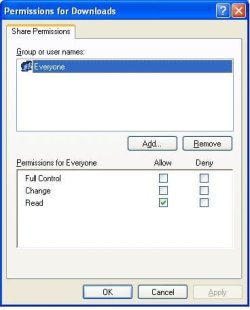
I followed your steps but got a different screens when trying to share.....but, the process you described made sense. As you can see in the image there is a permissions button, one in that dialogue box I clicked Full Control for the user Everyone and it is now working perfectly!!

Thank you so much for your assistance!

Sean
 

Attachments

  • permissions.JPG
    permissions.JPG
    33.7 KB · Views: 10
  • permissions2.JPG
    permissions2.JPG
    19.5 KB · Views: 12

My Computer

OS
Windows 7
Good to know you got it working!
 

My Computer

Computer type
Laptop
Computer Manufacturer/Model Number
HP ENVY 17-1150eg
OS
Windows 10 Pro x64 EN-GB
CPU
1.6 GHz Intel Core i7-720QM Processor
Memory
6 GB
Graphics Card(s)
ATI Mobility Radeon HD 5850 Graphics
Sound Card
Beats sound system with integrated subwoofer
Monitor(s) Displays
17" laptop display, 22" LED and 32" Full HD TV through HDMI
Screen Resolution
1600*900 (1), 1920*1080 (2&3)
Hard Drives
Internal: 2 x 500 GB SATA Hard Disk Drive 7200 rpm
External: 2TB for backups, 3TB USB3 network drive for media
Cooling
As Envy runs a bit warm, I have it on a Cooler Master pad
Keyboard
Logitech diNovo Media Desktop Laser (bluetooth)
Mouse
Logitech Performance Mouse MX
Internet Speed
50/10 Mbps VDSL
Antivirus
Windows Defender 4.3.9431.0
Browser
Maxthon 3.5.2., IE11
Back
Top