XP Mode, sharing files on guest machine

Excellent news, I am glad to hear it's working now :)
 

My Computer My Computer

Computer Manufacturer/Model Number
Pugh Technologies
OS
W7 Professional x64
CPU
AMD Athlon II X3 445 Rana 3.10 GHz
Motherboard
MSI 870A-G54
Memory
PNY XLR DDR3 1600 4x2GB
Graphics Card(s)
NVIDIA GeForce GTS 450 (fermi) 1GB GDDR5
Sound Card
Realtek ALC892 onboard
Monitor(s) Displays
ASUS VE205t, Viewsonic VX2035WM
Screen Resolution
1600x900, 1600x1050
Hard Drives
977GB Hitachi Hitachi HDS721010CLA332
244GB Western Digital WDC WD2500AAJS-65B4A0
488GB Western Digital WDC WD5000AAJS-00A8B0
488GB Western Digital WDC WD5000AAKS-00UU3A0
PSU
Antec EarthWatts EA650 650W
Case
ThermalTake Armor A90 Mid Tower
Cooling
3x 120mm in, 1x 120mm & 200mm out, self built hydro-cooler
Keyboard
Logitec 55
Mouse
Razer Deathadder
Internet Speed
20 Mbps D/L, 9 Mbps U/L
Thanks! :D
 

My Computer My Computer

OS
Windows 7
Win7 sharing with XPMode which now won't boot up.

This is my first post on this forum and hope Kari or someone can help me.

Still having troubles after mostly following the steps Kari listed. Kari wrote:

Easy and straight forward procedure. Like this:First, set XP Mode to use the NIC of your host machine to ensure they belong to same subnet. To do this, open XP Mode settings, choose Networking from the left pane, and choose your host's network controller from drop down list. Click OK to save settings:
.

I cannot find the XPMode Setting page to confirm the above. Would someone please tell me how to get to this page ?

Secondly I followed the other steps re simple file sharing and same computer name and workgroup and now I cannot even get XPMode to start up.

Since I made the above changes, when starting XPMode I get a User and Password box and then a box saying "Logon Message ! You are attempting to connect back to your own computer. The requested operation is not allowed."

I have found the whole XPMode exercise so far to be infuriating and will be very pleased when I have found a way through all this. My particular problem is my lost Address Book and Emails from Outlook Express, which I used on my XP hard drive.

As I have removable hard drives, I can place my old XP C drive in as a slave to the new Win 7 C drive. This way I can see most of the files, but can't get to Address Book as I do not have OE running to export it. I want to transfer all over to Outlook 2010. I am using Win7 Pro 64bit system. It does not help that I cannot run XP and Win7 together, even though I had been able to switch between the two, as they do no see each others files. Is the 64bit system a problem here ? Should I have bought a 32bit version instead as it appears to be much better supported ?

Any advice most welcome please.
 

My Computer My Computer

OS
Windows 7 Professional 64bit
Hi Murray, welcome to the Seven Forums.

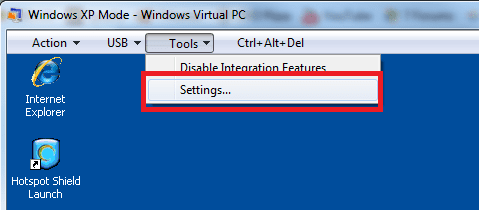
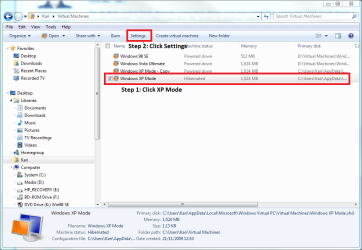
Here's how to open XP Mode settings.

When XP Mode is running, open Tools menu, select Settings:

XPM_settings2.png

When XP Mode is not running, go to C:\Your_Username\Virtual Machines folder. Select Windows XP Mode, click Settings:

XPM_settings.png

If you have problems to run XP Mode, please tell exactly what you do to launch it, and the exact error message you get.

Kari
 

My Computer My Computer

Computer type
Laptop
Computer Manufacturer/Model Number
HP ENVY 17-1150eg
OS
Windows 10 Pro x64 EN-GB
CPU
1.6 GHz Intel Core i7-720QM Processor
Memory
6 GB
Graphics Card(s)
ATI Mobility Radeon HD 5850 Graphics
Sound Card
Beats sound system with integrated subwoofer
Monitor(s) Displays
17" laptop display, 22" LED and 32" Full HD TV through HDMI
Screen Resolution
1600*900 (1), 1920*1080 (2&3)
Hard Drives
Internal: 2 x 500 GB SATA Hard Disk Drive 7200 rpm
External: 2TB for backups, 3TB USB3 network drive for media
Cooling
As Envy runs a bit warm, I have it on a Cooler Master pad
Keyboard
Logitech diNovo Media Desktop Laser (bluetooth)
Mouse
Logitech Performance Mouse MX
Internet Speed
50/10 Mbps VDSL
Antivirus
Windows Defender 4.3.9431.0
Browser
Maxthon 3.5.2., IE11
Thanks Kari,
I will need to take this one step at a time I think.
Firstly I do not have the toolbar you display on my XP screen.

I had change the name of my Win7 computer to enable XPMode to startup.
Across the top in XPMode I have in a small central dark blue toolbar showing:
a Thumbtack symbol, Action, USB, Ctrl+Alt+Del, Minimize/Maximize/Close

I do not have a tools button.
What do I have to do to see the same toolbar as you have please ?
 

My Computer My Computer

OS
Windows 7 Professional 64bit
Very strange, that toolbar is always there by default, in every virtual machine you install.

I recommend you uninstall XP Mode, reboot and reinstall.

Kari
 

My Computer My Computer

Computer type
Laptop
Computer Manufacturer/Model Number
HP ENVY 17-1150eg
OS
Windows 10 Pro x64 EN-GB
CPU
1.6 GHz Intel Core i7-720QM Processor
Memory
6 GB
Graphics Card(s)
ATI Mobility Radeon HD 5850 Graphics
Sound Card
Beats sound system with integrated subwoofer
Monitor(s) Displays
17" laptop display, 22" LED and 32" Full HD TV through HDMI
Screen Resolution
1600*900 (1), 1920*1080 (2&3)
Hard Drives
Internal: 2 x 500 GB SATA Hard Disk Drive 7200 rpm
External: 2TB for backups, 3TB USB3 network drive for media
Cooling
As Envy runs a bit warm, I have it on a Cooler Master pad
Keyboard
Logitech diNovo Media Desktop Laser (bluetooth)
Mouse
Logitech Performance Mouse MX
Internet Speed
50/10 Mbps VDSL
Antivirus
Windows Defender 4.3.9431.0
Browser
Maxthon 3.5.2., IE11
Kari,
Somewhere in my windows surfing about XPMode before I installed it, the advice I believe was given not to uninstall it as it would cause problems.
Is there possibly a box I have not ticked to display the proper toolbar up top ? Thanks.
 

My Computer My Computer

OS
Windows 7 Professional 64bit
Sorry for the long delay in answering your last post. I was on a webinar and could not leave it. I need to be sure XPMode can be successfully (and easily) uninstalled and reinstalled as I am trying to avoid formatting and setting up my C drive yet again. Already had to do it twice and it is a lengthy process.

I used to use Norton Ghost to take a reloadable image of my entire drive, but that seems more difficult with XP and now Win7 to backup that way. And if you have to start again with a different motherboard like I had to which caused this mess, then the image does not always go back on, as I found with Windows Backup.
 

My Computer My Computer

OS
Windows 7 Professional 64bit
Uninstalling XP Mode and Virtual PC is completely safe, you can easily reinstall them without messing up with your HD's.

Follow steps told in this post to uninstall both XP Mode and Virtual PC. Reboot the computer, go then here and download and install them again (don't use the ones you might have already downloaded).

Notice that if your computer supports hardware virtualization, you only need downloads 1 and 2 from Virtual PC page. Download 3 is for machines without hw-virtualization.

Kari
 

My Computer My Computer

Computer type
Laptop
Computer Manufacturer/Model Number
HP ENVY 17-1150eg
OS
Windows 10 Pro x64 EN-GB
CPU
1.6 GHz Intel Core i7-720QM Processor
Memory
6 GB
Graphics Card(s)
ATI Mobility Radeon HD 5850 Graphics
Sound Card
Beats sound system with integrated subwoofer
Monitor(s) Displays
17" laptop display, 22" LED and 32" Full HD TV through HDMI
Screen Resolution
1600*900 (1), 1920*1080 (2&3)
Hard Drives
Internal: 2 x 500 GB SATA Hard Disk Drive 7200 rpm
External: 2TB for backups, 3TB USB3 network drive for media
Cooling
As Envy runs a bit warm, I have it on a Cooler Master pad
Keyboard
Logitech diNovo Media Desktop Laser (bluetooth)
Mouse
Logitech Performance Mouse MX
Internet Speed
50/10 Mbps VDSL
Antivirus
Windows Defender 4.3.9431.0
Browser
Maxthon 3.5.2., IE11
Hi again Kari,

I have deleted XP Mode from my computer and think I have deleted all the associated files. Except for a couple of programs I tried to implement for two printers on XP Mode, which were unsuccessful. I think I have deleted all those files, but did so after I removed XP Mode. They were not uninstalled.

I now have downloaded XP Mode again from where you sent me, but the instructions from microsoft are useless. They simply say to 1. download XP Mode 2. Download Virtual PC 3. Update XP Mode

In what order do I Install them please ? Logic tells me to install Virtual PC first, so XP Mode will have a place to go. But that is not the way I did it last time. I thought that I was supposed to install XP Mode first, because that was the specific order in which I was supposed to download them.

Which is correct please? (I do not want to do it wrong again as it take so much time.)
 

My Computer My Computer

OS
Windows 7 Professional 64bit
Yes, Microsoft should rewrite that page, it's confusing.

Download 1 & 2, install 2 (Virtual PC) first, then install 1 (XP Mode). If your computer supports haedware virtualization, you do not need to download 3, it's only to be installed when computer does not support hw-virtualization.

If you do not know if your computer supports hw-virtualization, you can download and run this tool: Download details: Microsoft® Hardware-Assisted Virtualization Detection Tool

It tells you if hw-virtualization is supported:

HW_tool.png
 

My Computer My Computer

Computer type
Laptop
Computer Manufacturer/Model Number
HP ENVY 17-1150eg
OS
Windows 10 Pro x64 EN-GB
CPU
1.6 GHz Intel Core i7-720QM Processor
Memory
6 GB
Graphics Card(s)
ATI Mobility Radeon HD 5850 Graphics
Sound Card
Beats sound system with integrated subwoofer
Monitor(s) Displays
17" laptop display, 22" LED and 32" Full HD TV through HDMI
Screen Resolution
1600*900 (1), 1920*1080 (2&3)
Hard Drives
Internal: 2 x 500 GB SATA Hard Disk Drive 7200 rpm
External: 2TB for backups, 3TB USB3 network drive for media
Cooling
As Envy runs a bit warm, I have it on a Cooler Master pad
Keyboard
Logitech diNovo Media Desktop Laser (bluetooth)
Mouse
Logitech Performance Mouse MX
Internet Speed
50/10 Mbps VDSL
Antivirus
Windows Defender 4.3.9431.0
Browser
Maxthon 3.5.2., IE11
Sorry Kari, I somehow missed your last post and searched the internet for to the answer to my last question and following that advice installing them around the other way around.

I now have followed through with deleting XP Mode and Virtual machine and have reinstalled XP Mode first and then Virtual Machine.

I then followed the steps you listed Kari on page 1 of this thread and have restarted XP Mode. BUT I still have the same problem. Trying to logon to XP Mode I get the Logon Message box:
"Logon Message ! You are attempting to connect back to your own computer. The requested operation is not allowed." :(
When I select the OK button from this it takes me back to the XP Mode logon box.
and so the circle goes. It happens when I give both machines the same name.

Do you have any clues with this ? or is it maybe because I installed XP Mode first as other sites state is the way to do it ?
I am totally lost with this. Many thanks for your help Kari.
 

My Computer My Computer

OS
Windows 7 Professional 64bit
I'm a bit confused. Do you mean you renamed your XP Mode virtual machine, giving it the same name than your host computer has?
 

My Computer My Computer

Computer type
Laptop
Computer Manufacturer/Model Number
HP ENVY 17-1150eg
OS
Windows 10 Pro x64 EN-GB
CPU
1.6 GHz Intel Core i7-720QM Processor
Memory
6 GB
Graphics Card(s)
ATI Mobility Radeon HD 5850 Graphics
Sound Card
Beats sound system with integrated subwoofer
Monitor(s) Displays
17" laptop display, 22" LED and 32" Full HD TV through HDMI
Screen Resolution
1600*900 (1), 1920*1080 (2&3)
Hard Drives
Internal: 2 x 500 GB SATA Hard Disk Drive 7200 rpm
External: 2TB for backups, 3TB USB3 network drive for media
Cooling
As Envy runs a bit warm, I have it on a Cooler Master pad
Keyboard
Logitech diNovo Media Desktop Laser (bluetooth)
Mouse
Logitech Performance Mouse MX
Internet Speed
50/10 Mbps VDSL
Antivirus
Windows Defender 4.3.9431.0
Browser
Maxthon 3.5.2., IE11
Yes Kari,
Isn't that what I was supposed to do?
Change both to same "workgroup" and both to the same computer name.
 

My Computer My Computer

OS
Windows 7 Professional 64bit
PS The good thing is at least I have a XP Mode screen now looking like yours with the toolbar at the top. So something is going right :D
 

My Computer My Computer

OS
Windows 7 Professional 64bit
NO NO NO NO!

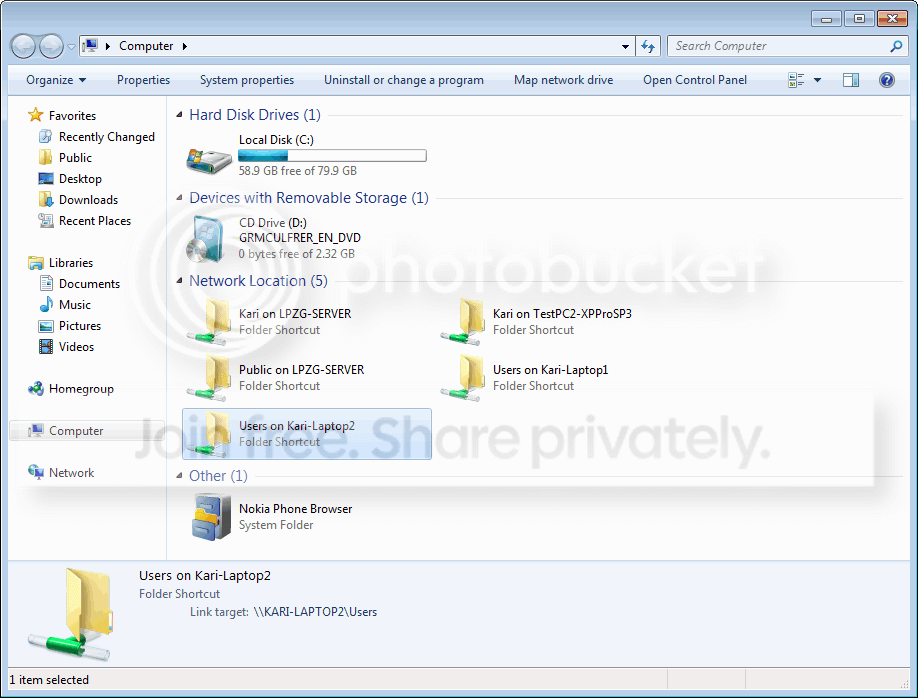
All computers in your network should belong to same workgroup, yes. And, of course, all computers in a network should have an individual name. For instance, here's a screenshot showing parts of my home network. Notice the names of the shared folders under the title Network locations, they are shown in Windows as FOLDERNAME on COMPUTERNAME:

Upgrade_to_Seven_54.png


As you can see, I have for instance two shared network locations named Users. How do you think another computer in network would know which shared Users folder I want to use, if they were not identified also with a computer name (in this example Kari-Laptop1 and Kari-Laptop2)?

Xp Mode is as any other computer in your network. A network sees no difference if the computer is real, physical one or a virtual machine. IT HAS TO HAVE ITS OWN, INDIVIDUAL NAME!

So, I'm afraid it's one more uninstall - reinstall project for you.

Kari
 

My Computer My Computer

Computer type
Laptop
Computer Manufacturer/Model Number
HP ENVY 17-1150eg
OS
Windows 10 Pro x64 EN-GB
CPU
1.6 GHz Intel Core i7-720QM Processor
Memory
6 GB
Graphics Card(s)
ATI Mobility Radeon HD 5850 Graphics
Sound Card
Beats sound system with integrated subwoofer
Monitor(s) Displays
17" laptop display, 22" LED and 32" Full HD TV through HDMI
Screen Resolution
1600*900 (1), 1920*1080 (2&3)
Hard Drives
Internal: 2 x 500 GB SATA Hard Disk Drive 7200 rpm
External: 2TB for backups, 3TB USB3 network drive for media
Cooling
As Envy runs a bit warm, I have it on a Cooler Master pad
Keyboard
Logitech diNovo Media Desktop Laser (bluetooth)
Mouse
Logitech Performance Mouse MX
Internet Speed
50/10 Mbps VDSL
Antivirus
Windows Defender 4.3.9431.0
Browser
Maxthon 3.5.2., IE11
Thankyou so much for that clear explanation Kari.

I think I have fixed it though by first changing the name of my PC, restarting it and then, as I now had access to XP Mode, changing it's name to ****-XP. I was then able to restart the XP Mode, close it down and then change the computer name of my PC back to it's original name ****-PC. I then restarted the PC and XP Mode shows on screen as it should. Everything at first look appears OK.

Convoluted way of going about it, but at least I did not have to delete and reinstall everything.
Do you see any problems in doing it this way ?
 

My Computer My Computer

OS
Windows 7 Professional 64bit
No. In fact, I guess your way is faster than reinstalling XP Mode, and at the end, the result is the same.

Hopefully you get it now working, networking with your host.

Kari
 

My Computer My Computer

Computer type
Laptop
Computer Manufacturer/Model Number
HP ENVY 17-1150eg
OS
Windows 10 Pro x64 EN-GB
CPU
1.6 GHz Intel Core i7-720QM Processor
Memory
6 GB
Graphics Card(s)
ATI Mobility Radeon HD 5850 Graphics
Sound Card
Beats sound system with integrated subwoofer
Monitor(s) Displays
17" laptop display, 22" LED and 32" Full HD TV through HDMI
Screen Resolution
1600*900 (1), 1920*1080 (2&3)
Hard Drives
Internal: 2 x 500 GB SATA Hard Disk Drive 7200 rpm
External: 2TB for backups, 3TB USB3 network drive for media
Cooling
As Envy runs a bit warm, I have it on a Cooler Master pad
Keyboard
Logitech diNovo Media Desktop Laser (bluetooth)
Mouse
Logitech Performance Mouse MX
Internet Speed
50/10 Mbps VDSL
Antivirus
Windows Defender 4.3.9431.0
Browser
Maxthon 3.5.2., IE11
No such luck Kari. They still do not see each other today.
I had to stop at 2am this morning and get some sleep, before I could check out the results properly.

XP Mode now boots up faster and I have the desktop with the whitish toolbar at the top, as shown on your screen images. How do you do that anyway ? I mean get an image of your screen and then post here ? Cool.

Back to the problem at hand. The computers do not show each other in their respective Network Connections.
I have checked out Local Area Status which tells me XP Mode has "Limited or no connectivity".
Clicking the repair button, after a long while it told me it could not repair the problem because it could not complete Renewing your IP Address.

I use a Billion BiPAC 7401 VGP (VoIP) router of which I am the Administrator. I have my PC with XP Mode connected by cable, my own wireless Mac (on which I am typing this message to give me freedom to work this problem on my PC) and another two wireless PC's from my family at the moment. (They also have mobiles)

My PC Network screen shows " ****-PC ===== Network ===== Internet "
It could not create a Network Map. "Responses from other devices on the network are delayed or there is an incompatible router on the network." I suspect my network is not set up properly.

I really want to be able to separate or quarantine my computers from my family's ones as I have no control over what sites they visit or what viruses they may bring back home with them. A lot of Warcraft, other games, Movies, Clips, Utube, Facebook etc going on there.
Is there a way to have my computers and my mobile in a network of there own, while still giving access to the other ones I allow on my router ? Thanks Kari.
 

My Computer My Computer

OS
Windows 7 Professional 64bit
I'll ask some network gurus to come and see this issue.

Kari
 

My Computer My Computer

Computer type
Laptop
Computer Manufacturer/Model Number
HP ENVY 17-1150eg
OS
Windows 10 Pro x64 EN-GB
CPU
1.6 GHz Intel Core i7-720QM Processor
Memory
6 GB
Graphics Card(s)
ATI Mobility Radeon HD 5850 Graphics
Sound Card
Beats sound system with integrated subwoofer
Monitor(s) Displays
17" laptop display, 22" LED and 32" Full HD TV through HDMI
Screen Resolution
1600*900 (1), 1920*1080 (2&3)
Hard Drives
Internal: 2 x 500 GB SATA Hard Disk Drive 7200 rpm
External: 2TB for backups, 3TB USB3 network drive for media
Cooling
As Envy runs a bit warm, I have it on a Cooler Master pad
Keyboard
Logitech diNovo Media Desktop Laser (bluetooth)
Mouse
Logitech Performance Mouse MX
Internet Speed
50/10 Mbps VDSL
Antivirus
Windows Defender 4.3.9431.0
Browser
Maxthon 3.5.2., IE11
Back
Top